Instant Connection for Pixel Streaming
— New Feature Automated Setup

Top SketchUp Alternatives for 3D Modeling in 2026
Architecture
-
Top SketchUp Alternatives for 3D Modeling in 2026
Architecture
Top SketchUp Alternatives for 3D Modeling in 2026
Architecture
-
Table of Contents
Most people don’t know this: SketchUp may be one of the most popular 3D modeling tools for architects, designers, and hobbyists, but it’s not the tool they end up using long term. Why? Because once you hit its limits, you hit them hard.
I’ve seen this play out over and over. SketchUp feels amazing at first. You open it, draw a few lines, pull them into shapes, and suddenly you’re “doing 3D.” No steep learning curve. No heavy setup. It’s friendly in a way most 3D software just isn’t. And for quick concepts or early-stage ideas, that simplicity is honestly its superpower.
But then the projects grow. You need cleaner geometry. Better rendering. More control. Maybe collaboration. Maybe precision that actually holds up when files get handed off to someone else. That’s when the cracks start to show. SketchUp doesn’t fail loudly. It just… stops keeping up. And that moment, when the tool that once felt effortless starts feeling restrictive, is usually when people begin looking elsewhere.
If that sounds familiar, you’re not alone.
Why People Look Beyond SketchUp
Most people don’t leave SketchUp because they hate it. They leave because they outgrow it.
SketchUp is fantastic at getting ideas out of your head fast. Push, pull, done. For massing studies, rough interiors, or explaining an idea to a client who doesn’t speak “technical,” it still shines. I still open it for quick tests. That hasn’t changed.
What does change is the moment you ask it to do more than it was built for.
Rendering is usually the first pain point. Yes, there are plugins. V-Ray, Enscape, a dozen others. They work. But they also add cost, complexity, and friction. You start stacking extensions just to reach a baseline that other tools offer out of the box. Updates break things. Licenses pile up. Suddenly your “simple” workflow isn’t simple anymore.
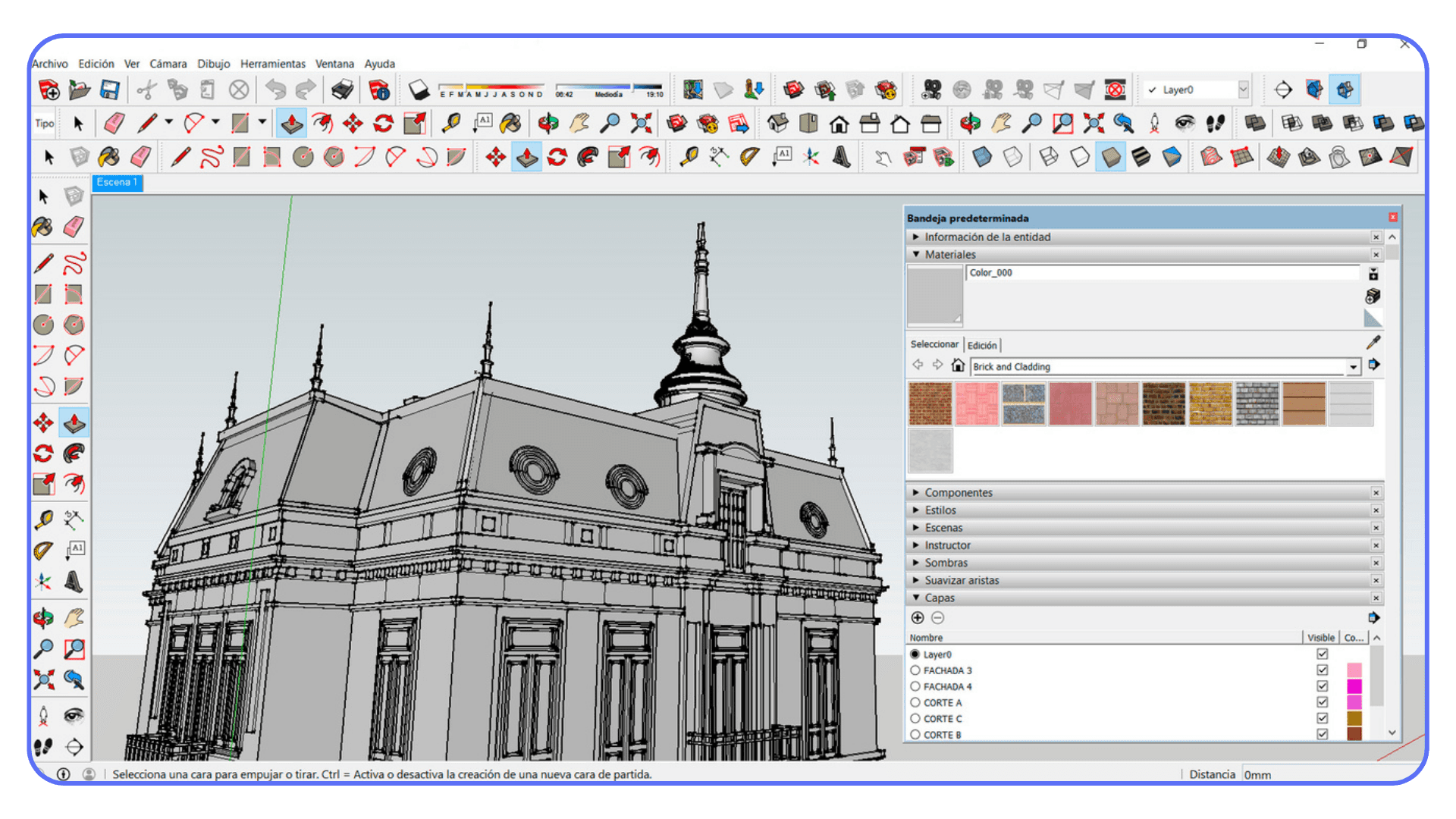
Precision is another quiet frustration. SketchUp lets you be loose, which feels great early on. But when accuracy actually matters, like fabrication, detailed construction, or coordination with engineers, that looseness turns into cleanup work. Lots of it. I’ve watched people spend hours fixing geometry they didn’t even realize was broken.
Then there’s scale. Small files are fine. Bigger scenes? Heavier models? Multiple collaborators? That’s when performance dips and patience wears thin. SketchUp wasn’t really designed for large, complex, long-lived projects. It can be pushed there, sure. But it fights back.
And here’s the part people don’t always say out loud: once you start working alongside others who use different tools, SketchUp can feel like the odd one out. Importing, exporting, fixing meshes, explaining why something didn’t come through correctly. It adds friction to collaboration, even when everyone’s trying to be helpful.
So the shift usually isn’t dramatic. It’s gradual. A plugin here. A workaround there. A second tool “just for this one project.” Until one day SketchUp isn’t the main tool anymore. It’s the quick sketch tool. And the search for a real alternative begins.
If you’re already at that stage, the good news is this: you have options. Some obvious. Some surprising. Some that might fit you better than SketchUp ever did.
If you’re starting to care more about precision and technical accuracy, you might find yourself comparing SketchUp to tools built for that kind of work, like AutoCAD.
The Big Names Everyone Should Know
These are the tools that come up again and again once SketchUp starts to feel limiting. Not because they’re trendy, but because they solve very specific problems SketchUp struggles with.
Blender: Free, Powerful, and Way More Practical Than People Think
Blender scares people off way too easily. Mostly because of its reputation. Open source. Used in movies. Endless buttons. It sounds like overkill.
In practice, Blender is often the first real “upgrade” SketchUp users stick with.
It handles complex geometry without flinching. Subdivision modeling, sculpting, UVs, textures, lighting. All native. No plugin stack required just to get decent visuals. If rendering has ever felt like a fragile house of cards in your SketchUp workflow, Blender feels refreshingly solid.
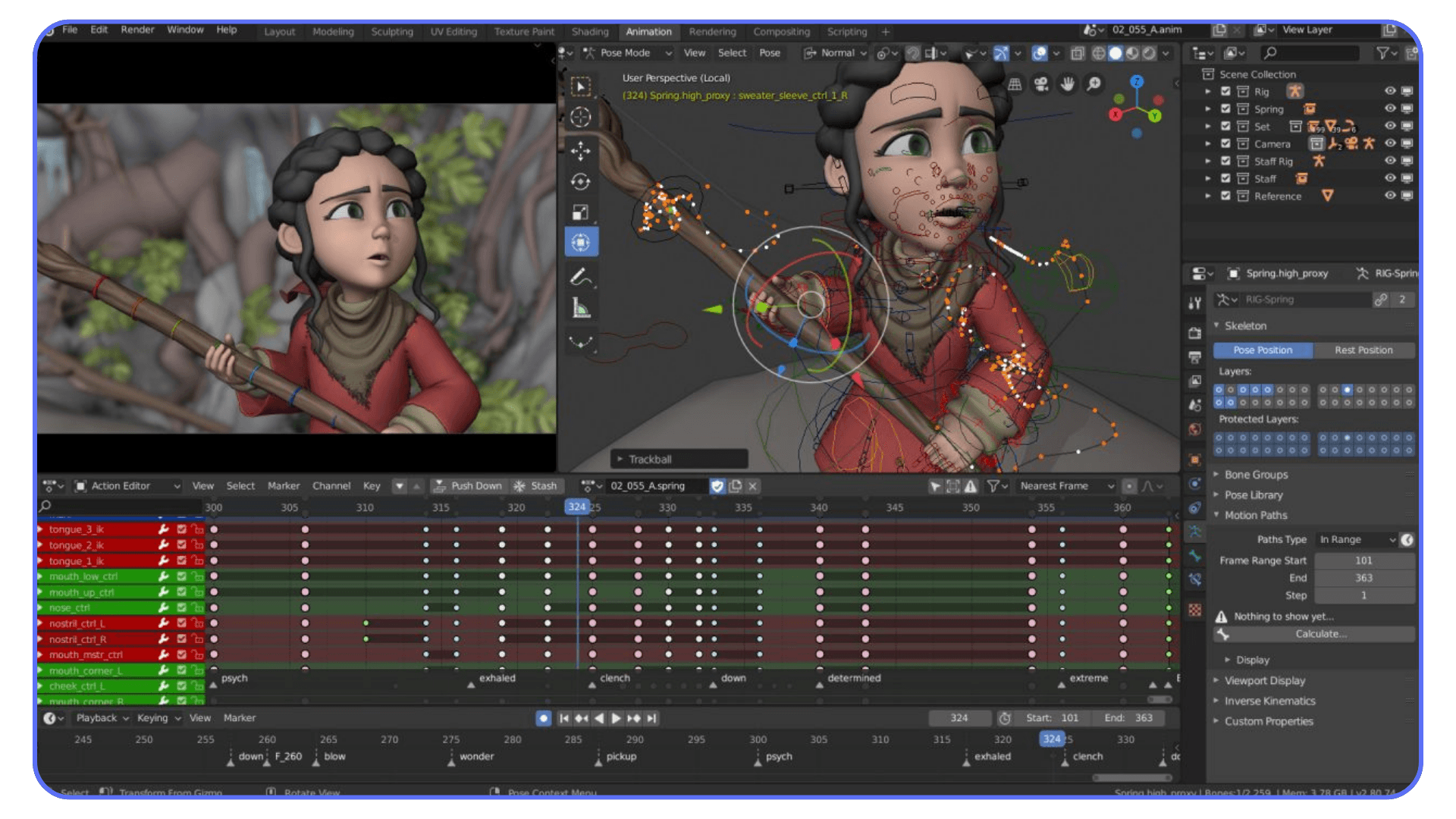
The learning curve is real, though. Blender doesn’t hold your hand, and it doesn’t pretend to be simple. But once you understand the core concepts, you stop fighting limitations and start making decisions. That shift matters.
Where Blender shines most is visualization. Architectural renders, concept art, product visuals, even animations. If your end goal is imagery rather than construction documents, Blender punches far above its price. Which is zero.
Where it falls short is BIM-style intelligence. Walls don’t know they’re walls. Dimensions aren’t driving the model. Blender is creative-first, not documentation-first. For many SketchUp users, that’s actually a feature.
Rhino 3D: When You Want Precision Without Giving Up Freedom
Rhino is often described as a “thinking person’s SketchUp.” That sounds pretentious, but there’s some truth to it.
Rhino doesn’t rely on push-pull shortcuts. It’s built around curves, surfaces, and mathematically precise geometry. If you’ve ever tried to model anything smooth, organic, or technically accurate in SketchUp, you already know why Rhino exists.
What surprises many people is how flexible it is. Architects use it for early design. Industrial designers use it for production-ready models. Jewelry designers use it down to fractions of a millimeter. It adapts to how you think, rather than forcing a single workflow.
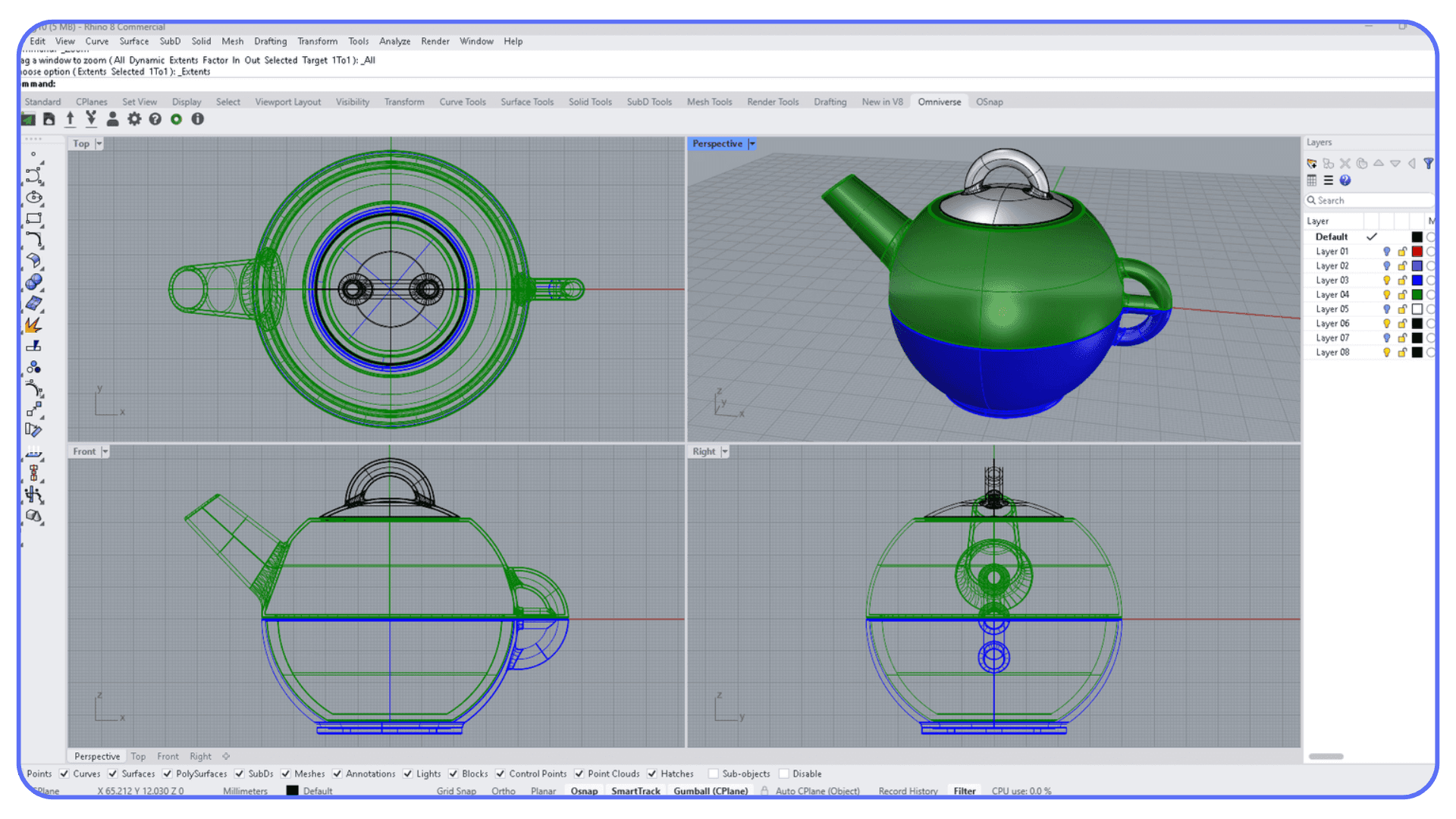
Grasshopper takes this even further. Parametric modeling, rule-based systems, generative design. You stop modeling objects and start defining relationships. That’s a big mental shift, but once it clicks, it’s hard to go back.
Rhino isn’t flashy out of the box. It won’t auto-generate drawings or manage building data. But it produces clean geometry that plays nicely with other tools. And the one-time license still feels refreshing in a subscription-heavy world.
If SketchUp feels too loose and BIM feels too rigid, Rhino often lands right in the middle.
If you’re curious how Rhino actually compares to SketchUp in real-world workflows, seeing them side by side makes the differences much clearer.
Autodesk Revit: Built for Buildings That Actually Get Constructed
Revit isn’t really a SketchUp alternative in spirit. It’s an answer to a different question.
SketchUp asks, “How fast can you model this idea?”
Revit asks, “How will this building be built, documented, and coordinated?”
Everything in Revit has intent. Walls, floors, roofs, windows. They know what they are. Change a dimension once, and it updates everywhere. Plans, sections, schedules. That’s the promise of BIM, and Revit leans into it fully.
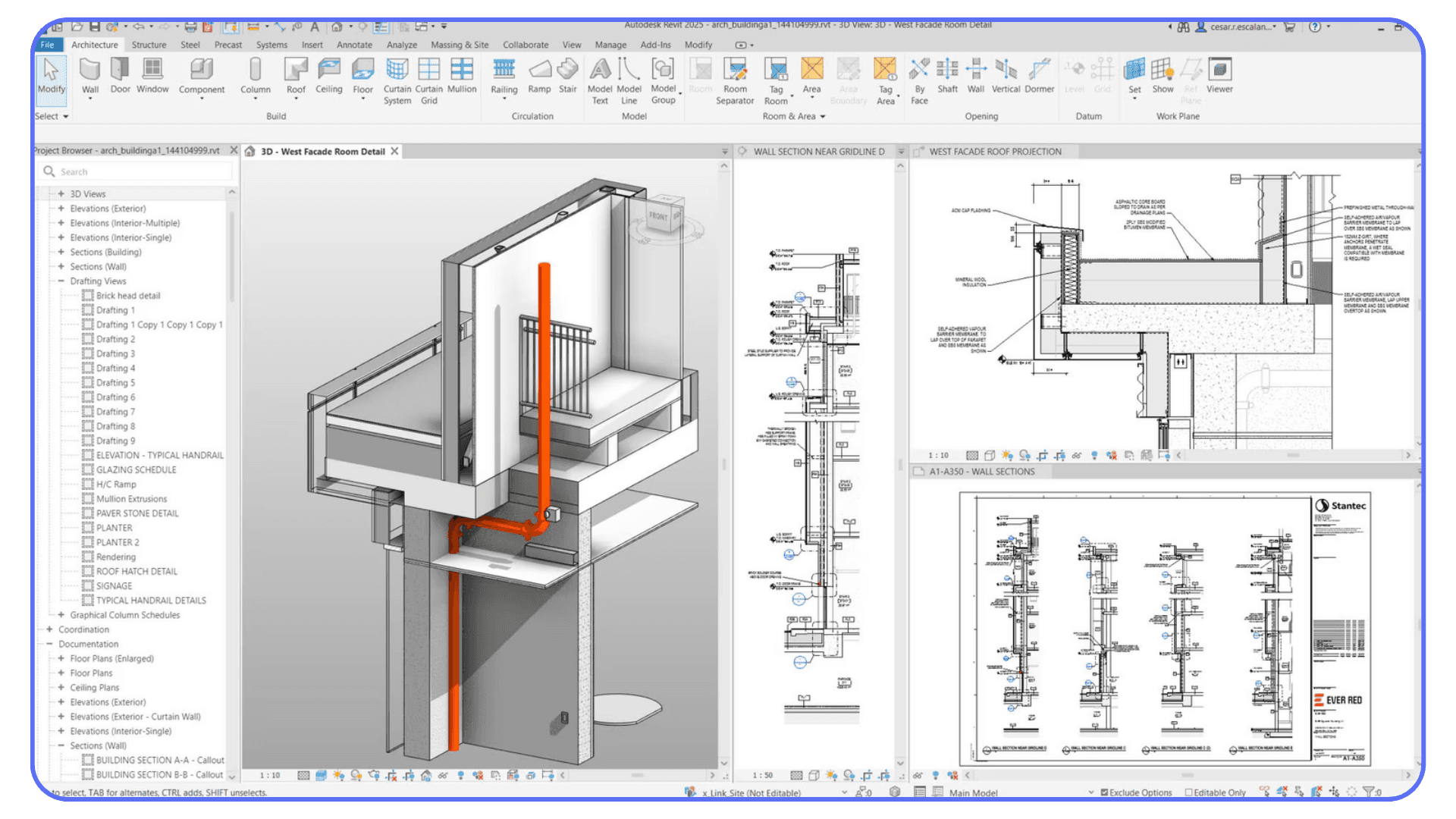
For teams, this is huge. Coordination. Clash detection. Shared models. Version control. Things SketchUp was never designed to handle.
The downside is obvious. Revit is demanding. The interface is opinionated. The learning curve is steep. You don’t casually sketch in Revit. You commit to it.
If you’re doing freelance visualization or concept work, Revit will feel heavy and slow. If you’re working on real projects with consultants, contractors, and deadlines, SketchUp will start feeling irresponsible.
Revit makes sense when drawings matter more than screenshots.
Archicad: A More Fluid Take on BIM
Archicad lives in the same BIM category as Revit, but the experience is noticeably different.
Many designers find Archicad more fluid. More visual. Less rigid. It still treats buildings as intelligent systems, but the modeling side feels closer to traditional design thinking. Fewer roadblocks. Fewer “you can’t do that” moments.
Performance is another reason people switch. On the same hardware, Archicad often feels lighter, especially with large models. That matters when projects grow and deadlines don’t move.
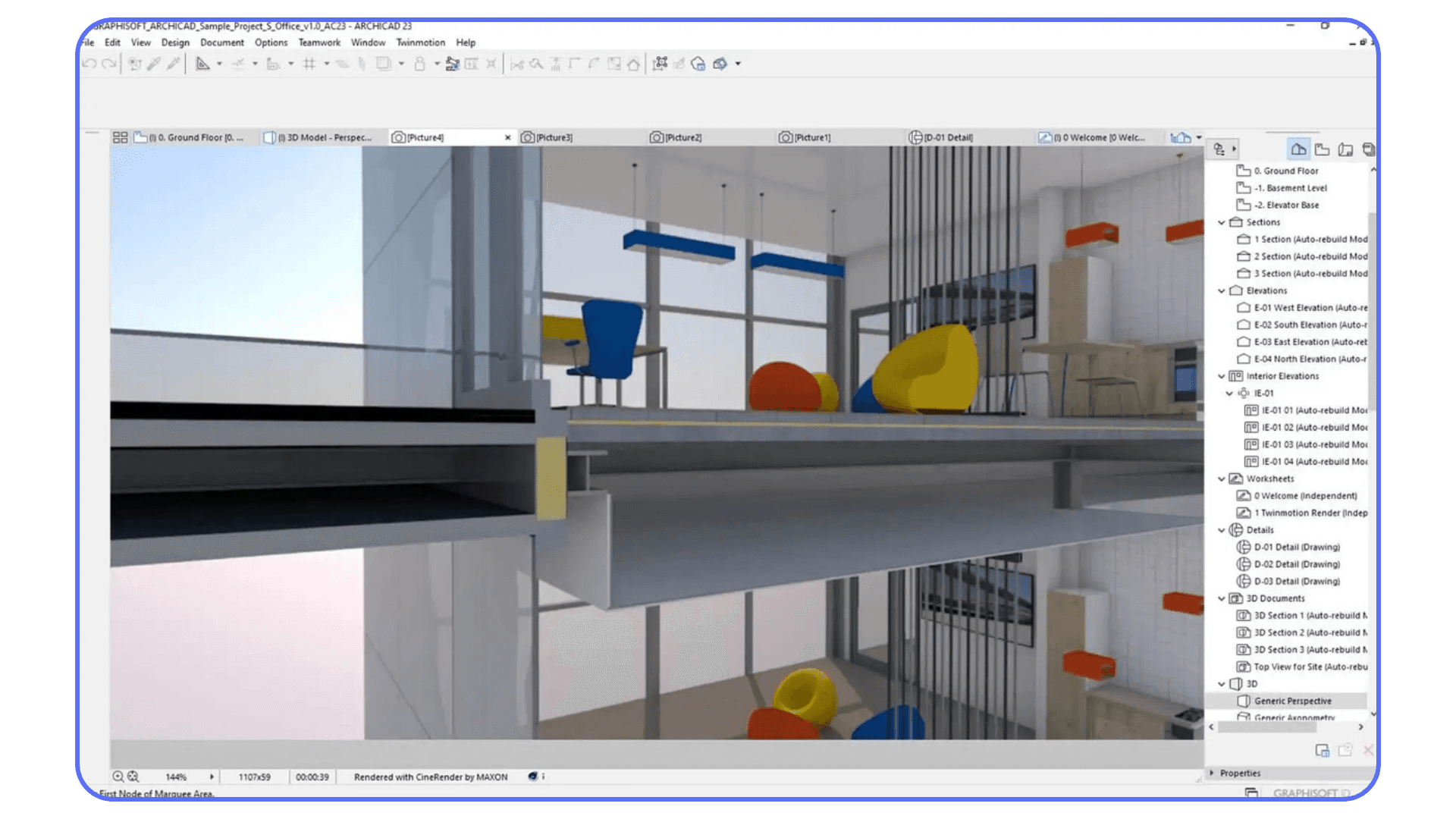
Archicad also plays well with other tools. Rhino integration is strong. Visualization workflows are easier to set up. It’s often chosen by firms that value design exploration alongside documentation, not just after it.
Like Revit, Archicad demands commitment. You don’t dabble in BIM software. You build habits around it. But for teams that want structure without feeling boxed in, Archicad earns its reputation.
If you’re relying on more and more extensions just to get acceptable results, that growing plugin stack can become its own problem.
The Middle Ground Most People Ignore
Not everyone wants to jump from SketchUp straight into Blender chaos or full-blown BIM discipline. There’s a wide middle space that gets overlooked. Tools that add structure and power without demanding you rebuild your entire way of thinking.
For a lot of SketchUp users, this is where the real upgrades live.
Fusion 360: Parametric Thinking Without Going Full Engineer
Fusion 360 is usually described as “engineering software,” which scares off designers who think it’s all spreadsheets and tolerances. That’s only half true.
Yes, Fusion is parametric. Dimensions drive geometry. Change a number and the model updates. That alone already puts it miles ahead of SketchUp for anything that needs to be accurate and repeatable. Furniture, fixtures, custom parts, assemblies. Stuff that actually needs to fit together.
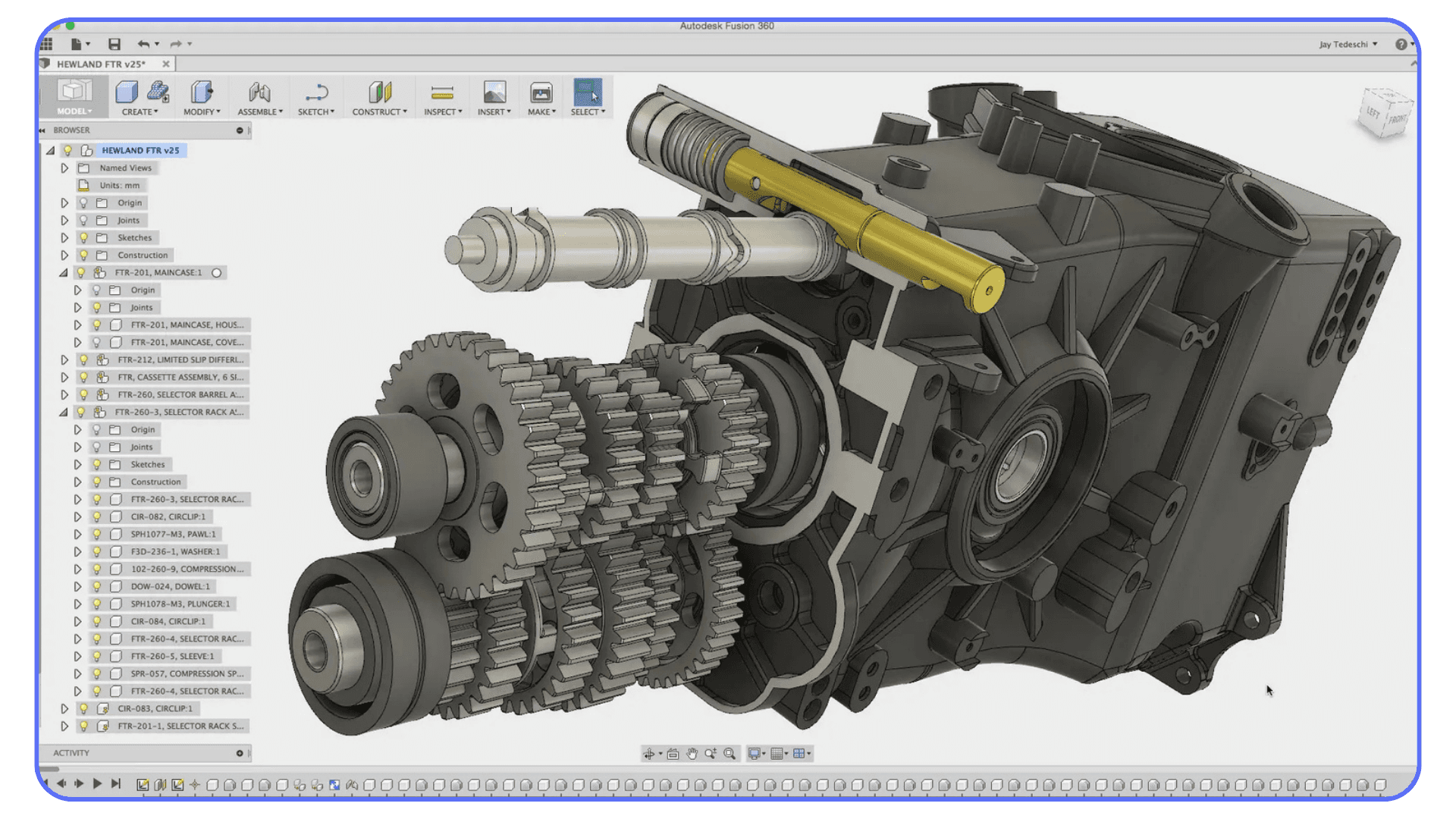
What surprised me is how visual it still feels once you get past the basics. Sketches become solids. Solids become assemblies. You can test movement, simulate stress, and generate manufacturing files without exporting to five different tools.
Where Fusion shines is clarity. Your model has a logic. You can go back in time, see how something was built, and adjust it without destroying everything downstream. That’s something SketchUp users don’t realize they’re missing until they experience it.
The downside is mindset. Fusion forces you to think before you model. If you like improvising geometry on the fly, it can feel restrictive. But if you’ve ever had to rebuild the same SketchUp model three times because requirements changed, Fusion starts to make a lot of sense.
Shapr3D: Shockingly Good for Fast, Serious Modeling
Shapr3D feels like it shouldn’t work as well as it does. Modeling on a tablet sounds like a gimmick. Until you try it.
With an iPad and an Apple Pencil, Shapr3D becomes a very different kind of tool. Sketching feels natural. Pulling geometry feels direct. There’s almost no friction between idea and form. For early-stage design, it’s fast in a way SketchUp used to be before it got weighed down.
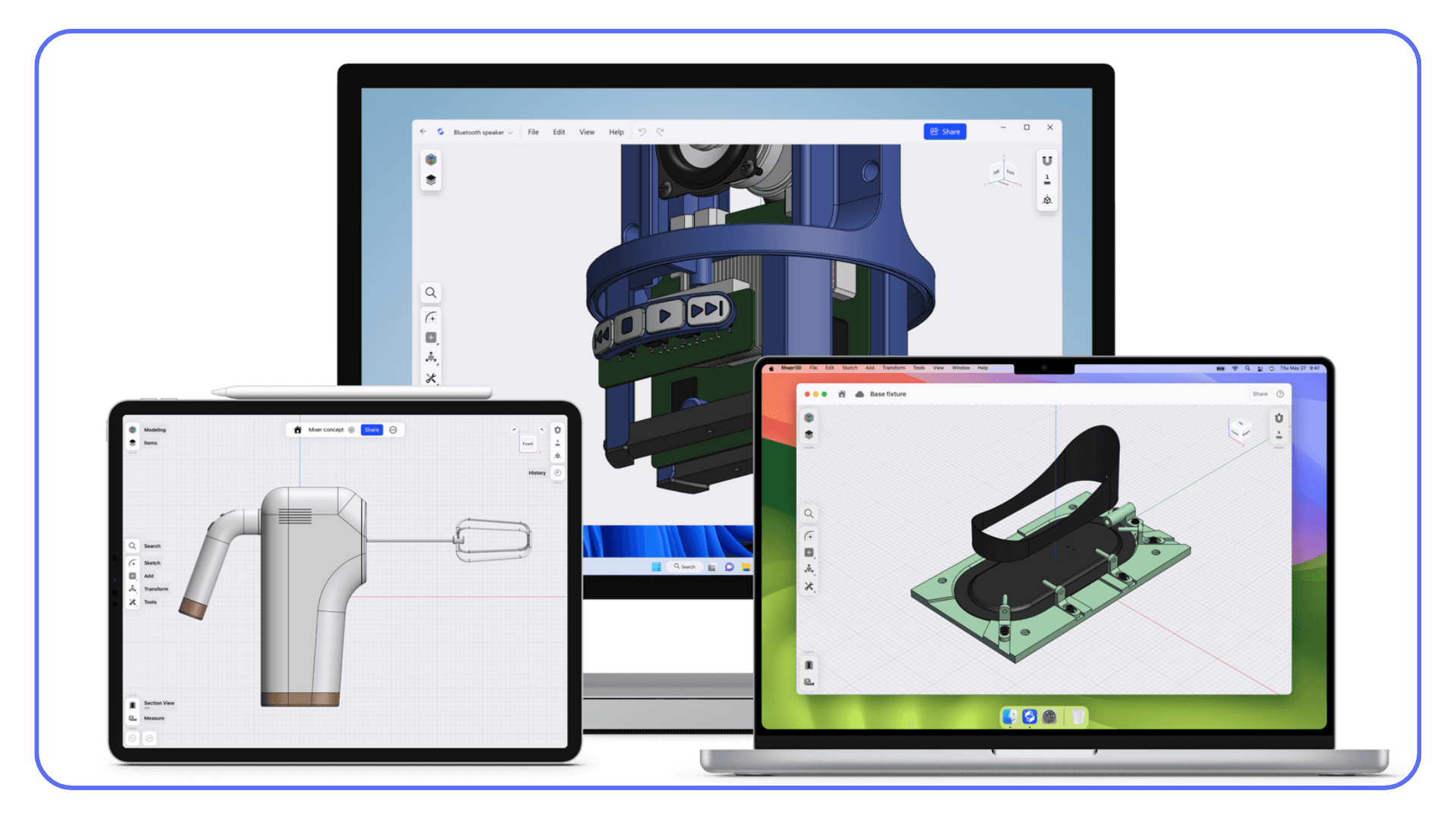
Under the hood, it’s still parametric. Constraints. Dimensions. Clean solids. This isn’t a toy. Models export cleanly to CAD and rendering software, which is why more professionals are quietly using it than you’d expect.
It’s not meant for massive scenes or architectural documentation. And yes, the subscription can sting. But as a sketch-to-solid tool that respects precision, Shapr3D fills a gap SketchUp never quite addressed.
If you do a lot of concept modeling and hate sitting at a desk, this one’s worth serious consideration.
If you’re spending a lot of time trying to speed up rendering in SketchUp, it’s often a sign that the workflow itself is starting to strain.
Wings 3D: Old School, Simple, and Surprisingly Capable
Wings 3D doesn’t get much attention anymore, which is a shame.
It’s a subdivision modeler. No parametrics. No BIM. No fancy rendering pipeline. Just clean, focused polygon modeling. If you’ve ever wished SketchUp had better mesh tools without turning into Blender overnight, Wings sits in that niche.
The interface is straightforward. Right-click menus. Logical toolsets. You can learn the basics quickly and get real work done without memorizing a keyboard map.
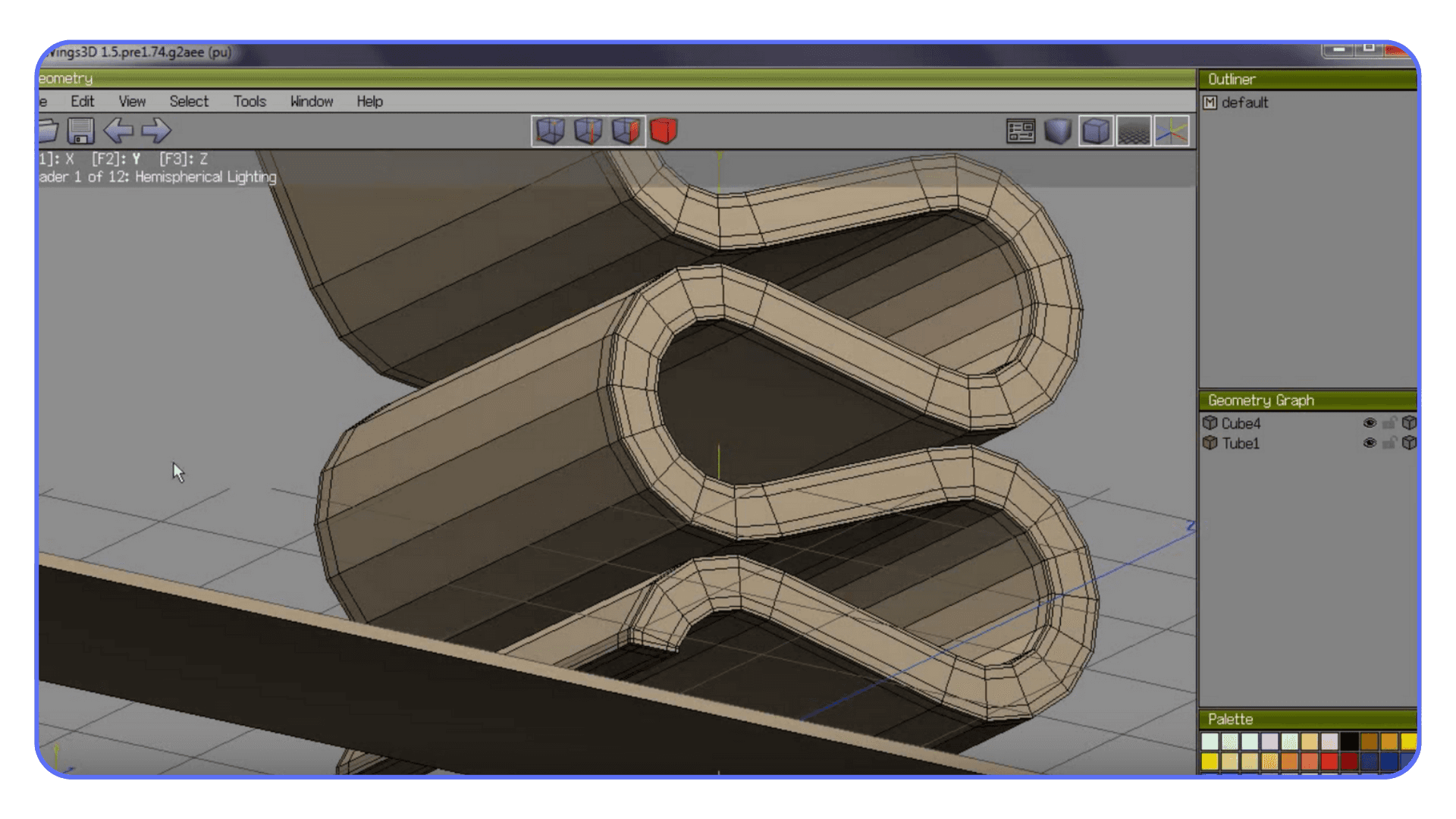
That said, Wings hasn’t kept pace with modern workflows. No native rendering. Limited export options compared to newer tools. It works best as a modeling stage, not a full pipeline.
Still, for free software, it’s shockingly usable. Especially for users who want more control than SketchUp but less complexity than Blender.
SolveSpace: Minimalist CAD for People Who Care About Logic
SolveSpace is the opposite of flashy. And that’s the point.
It’s a lightweight, open-source parametric CAD tool built around constraints and relationships. Lines know why they exist. Dimensions actually matter. Change one value and everything adjusts cleanly.
If SketchUp ever felt too loose and Fusion felt too heavy, SolveSpace sits quietly in between. It’s ideal for mechanical parts, precise layouts, and geometry that needs to behave predictably.
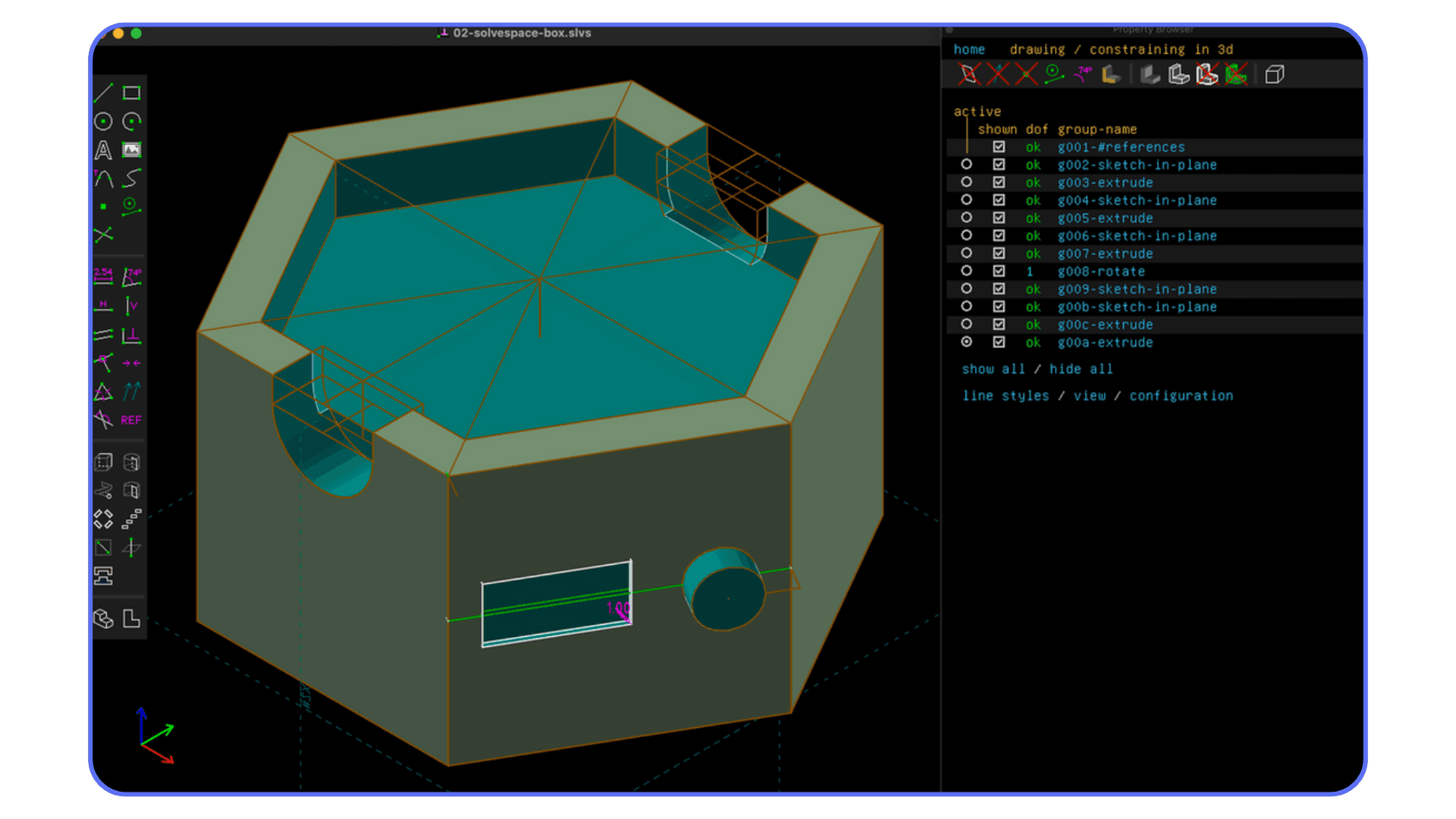
The interface is barebones. No polish. No hand-holding. But that simplicity makes it fast. It runs on almost anything and doesn’t demand much from your hardware.
SolveSpace isn’t for visualization or presentation. It’s for thinking clearly and building things that make sense. If your frustration with SketchUp is about accuracy rather than visuals, this one is easy to overlook and easy to appreciate.
At this point, a pattern usually emerges. Some tools trade speed for control. Others trade simplicity for intelligence. The “best” alternative depends less on features and more on what started bothering you about SketchUp in the first place.
Beginner-Friendly and Web-Based Options
Not every SketchUp user is trying to become a power user. Sometimes you just want to model something quickly, share it, and move on with your day. No installs. No heavy system requirements. No week-long learning curve.
These tools lean into that mindset. Different goals. Different tradeoffs.
Tinkercad: Training Wheels, in the Best Way Possible
Tinkercad is often dismissed as “for kids.” That’s lazy thinking.
Yes, it’s used in classrooms. Yes, the interface is extremely simple. But that simplicity is exactly why it works. You’re not fighting menus or modes. You’re thinking in shapes, alignment, scale, and spatial logic. The fundamentals that actually matter.
For SketchUp users who feel overwhelmed by heavier tools, Tinkercad can be a reset. It’s browser-based, runs on anything, and loads in seconds. No plugins. No crashes. No performance anxiety.
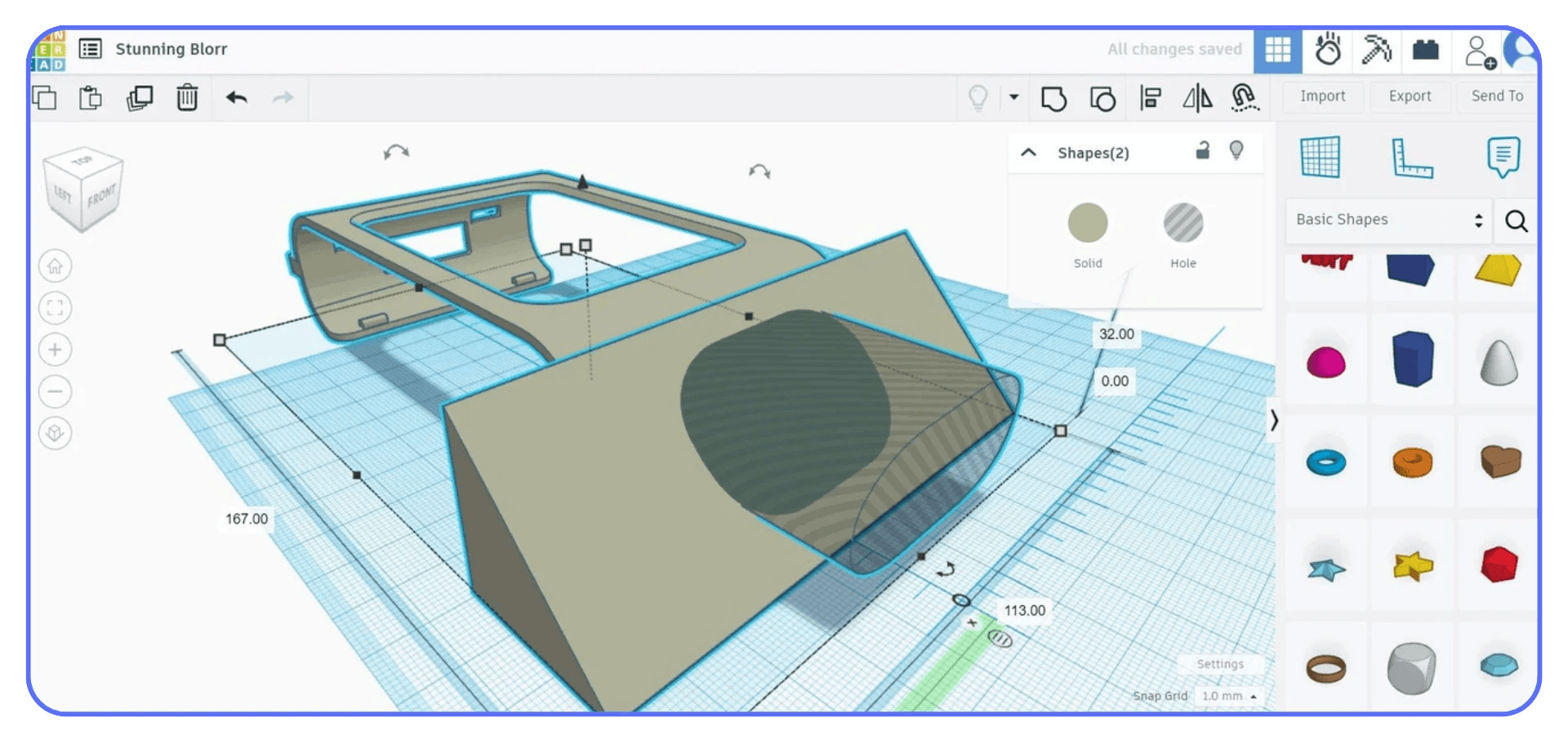
Where it shines is fast ideation and basic modeling. 3D printing. Simple enclosures. Educational projects. Early conceptual forms. You won’t build complex architecture here, and you won’t get photorealistic renders. But you will move quickly and understand what you’re doing.
I’ve seen experienced designers use Tinkercad to explain ideas to clients or students because it strips away noise. That alone earns it more respect than it usually gets.
If you’re thinking about upgrading your hardware just to keep SketchUp running smoothly, it’s worth considering how long that solution will actually last.
Plan7Architect: SketchUp-Like, But More Opinionated
Plan7Architect flies under the radar, which is interesting given who it’s clearly built for.
It targets users who like SketchUp’s simplicity but want more structure baked in. Think home design, interiors, walkthroughs, and presentation-ready outputs without stitching together five different tools.
The modeling approach feels familiar. You’re placing walls, doors, windows. Not just drawing lines and hoping they behave later. Rendering and visualization tools are part of the package, not an afterthought. That alone removes a lot of friction for solo users.
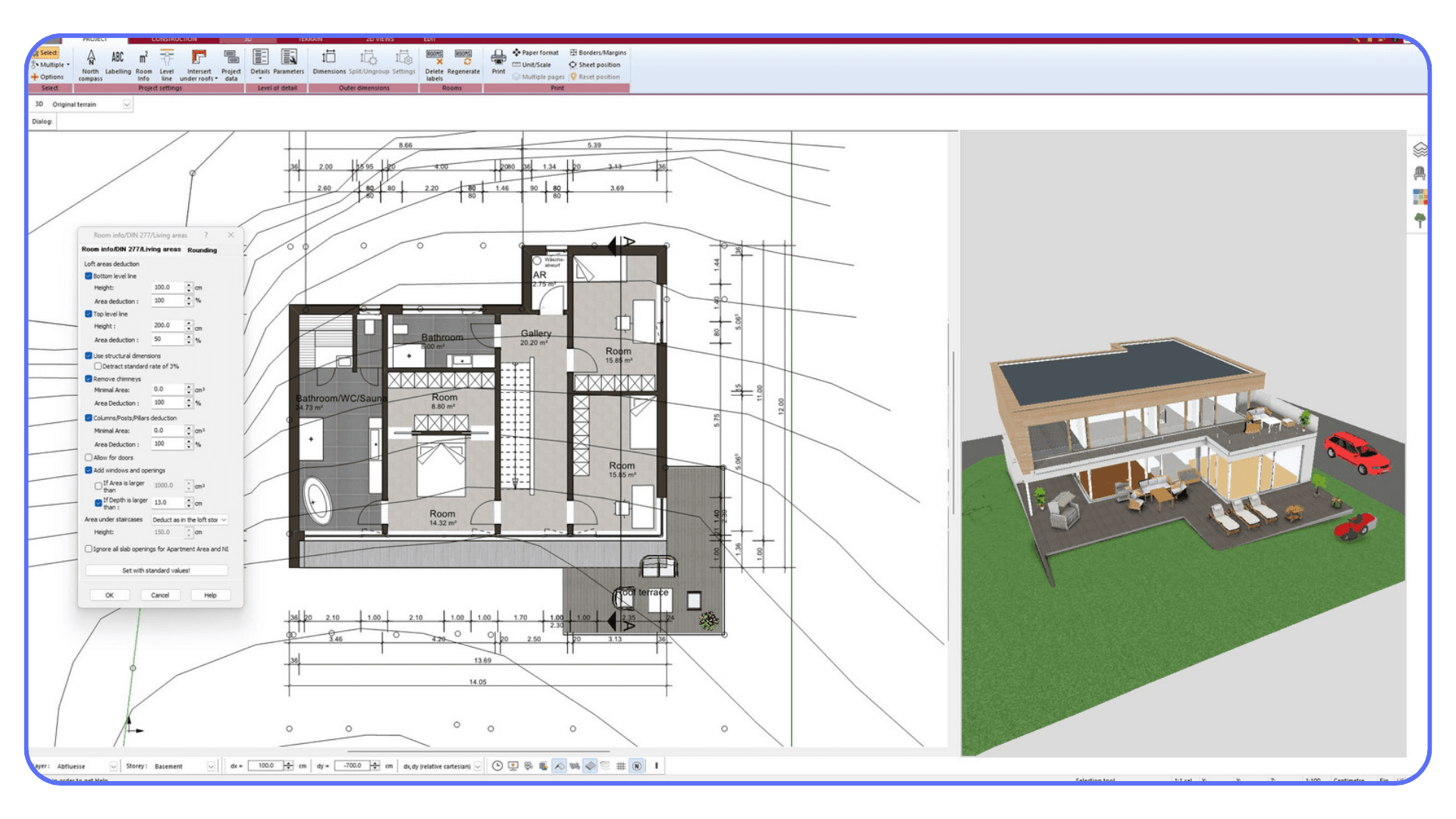
It’s not as flexible as Blender. Not as precise as Rhino. And it’s definitely not BIM. But it knows what it wants to be. A focused design tool for people who care about results more than technical purity.
If SketchUp feels too loose and full BIM feels overwhelming, Plan7Architect sits comfortably in between. Especially for residential designers or anyone focused on presentation rather than fabrication.
By now, one thing should be clear. There isn’t a single “best” alternative to SketchUp. There’s only a better fit for where you are now.
Some people need freedom. Others need structure. Some need speed. Others need certainty.
The real mistake isn’t choosing the wrong tool. It’s choosing one without being honest about what’s actually slowing you down.
How to Choose the Right SketchUp Alternative
This is the part where most people trip up.
They don’t choose the wrong tool because it’s bad. They choose it because they picked based on reputation instead of friction. “Industry standard.” “Most powerful.” “Everyone’s using it.” None of those matter if the tool doesn’t solve the thing that’s currently annoying you.
So start there. What’s actually broken in your workflow?
If rendering is the pain, you don’t need BIM. You need better shading, lighting, materials, and cameras. That points you toward Blender or a Rhino-to-renderer workflow.
If accuracy is the issue, SketchUp’s freeform nature is the problem. Parametric tools like Fusion 360 or SolveSpace will feel restrictive at first, but they save you from rebuilding models every time something changes.
If collaboration and documentation are what’s hurting, no amount of plugins will fix that. That’s where Revit or Archicad make sense. They’re heavy because the problem is heavy.
Another thing people underestimate is learning cost. Not the price tag. The mental tax. Switching tools isn’t just about watching tutorials. It’s about unlearning habits. Push-pull shortcuts. Loose snapping. “I’ll fix it later” geometry. Some software forgives that. Others don’t.

Ask yourself how much discipline you’re willing to adopt. Rhino rewards precision without forcing process. BIM tools demand process whether you like it or not.
Hardware matters too. Some tools assume you have a powerful machine. Others barely care. If your laptop already struggles with large SketchUp scenes, jumping into heavier software can make things worse, not better.
One practical approach I’ve seen work is this: don’t replace SketchUp immediately. Add a second tool. Use it on a small project. Feel the friction. Notice what improves and what gets slower. That tells you more than any feature list ever will.
Choosing the right alternative isn’t about ambition. It’s about honesty.
The Most Common Mistakes People Make When Switching from SketchUp
Leaving SketchUp isn’t just a software change. It’s a workflow shift, a mindset shift, and sometimes a reality check. Most frustration during this phase doesn’t come from the new tool itself, but from expectations that don’t line up with how these tools actually work.
I’ve seen very capable designers bounce off great software simply because of how they approached the transition. These are the patterns that come up again and again.
1. Chasing Power Instead of Fixing the Bottleneck
This is where many switches go wrong right from the start.
SketchUp starts feeling limiting, so the reaction is to jump to the most powerful tool available. Revit. Blender. Something “serious.” The problem is that power only helps if it targets the specific thing slowing you down.
If your issue was rendering quality, full BIM won’t help. If accuracy was the problem, cinematic animation tools won’t fix it. You end up trading one frustration for another and wondering why the upgrade feels worse than before.
2. Assuming Every Tool Should Feel Like SketchUp
SketchUp trains you to be loose. Push, pull, eyeball it, fix it later. That mindset doesn’t translate well to parametric or BIM-based tools.
People get stuck looking for SketchUp-style shortcuts instead of learning how the new software thinks. When the tool resists them, they blame the interface. In reality, the friction comes from trying to use old habits in a system built on different rules.
Once you stop forcing the comparison, progress speeds up.
3. Dragging Old Projects Into a New Workflow
Importing old SketchUp models feels like a logical shortcut. It rarely is.
Geometry breaks. Materials vanish. Cleanup takes longer than rebuilding. Worse, you’re learning a new tool while trying to fix decisions made in a completely different one.
The cleanest transition is often the hardest emotionally. Finish old projects where they are. Start new ones cleanly. The learning curve flattens faster when you do.
4. Underestimating the Role of Hardware
Performance shapes perception more than most people realize.
A tool that’s fast on the right hardware feels intuitive. The same tool on an underpowered machine feels hostile. Lag destroys flow. Long load times kill experimentation. People abandon good software because it feels slow, not because it actually is.
Before writing a tool off, make sure it’s running in conditions that give it a fair chance.
5. Quitting During the Uncomfortable Middle
Every serious modeling tool has an awkward phase. You’re slower. You second-guess everything. Simple tasks take too long.
That phase isn’t failure. It’s calibration. Muscle memory hasn’t formed yet, and confidence lags behind understanding. The people who make the switch successfully are usually the ones who expected this period and didn’t panic when it showed up.
Push through it, and the reasons you left SketchUp in the first place finally start to make sense.
Once You’ve Chosen the Tool and Things Still Feel Slow
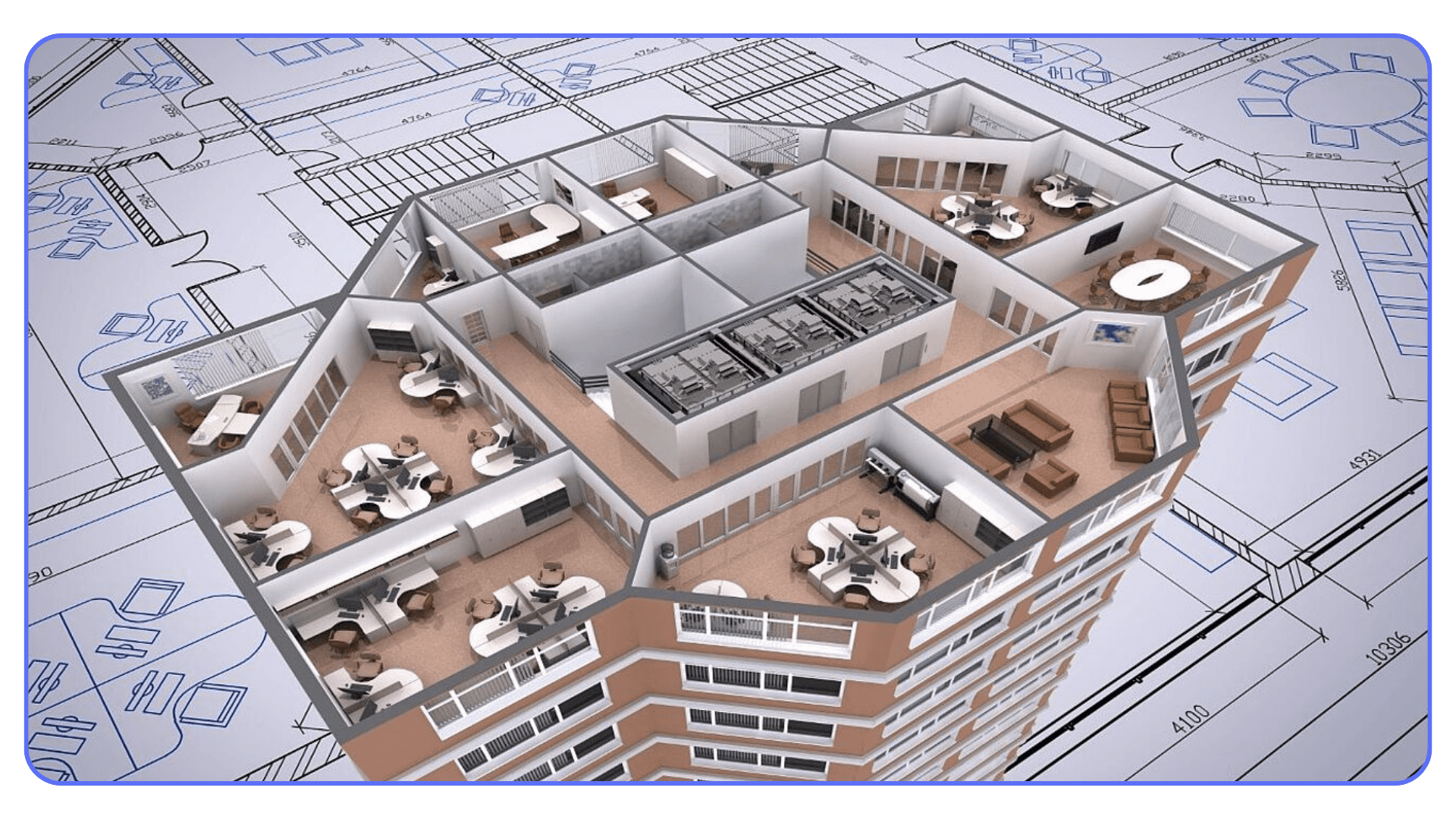
You move on from SketchUp, invest time in learning a more capable tool, and finally feel like the software itself isn’t holding you back anymore. The modeling is cleaner. The features you were missing are there. But something still feels off. Files take longer to open than you expect. Viewports hesitate when models get dense. Renders turn into waiting sessions. You start simplifying scenes or lowering quality just to keep things moving, which feels like a step backward.
At that point, the bottleneck usually isn’t the software. It’s where and how that software is running.
More advanced 3D tools assume powerful GPUs and plenty of memory
Performance drops quickly as models, textures, and scene complexity grow
Local machines struggle to keep up over time, even relatively new ones
Collaboration becomes harder when everyone’s hardware performs differently
This is where Vagon Cloud Computer fits naturally into the workflow.
Instead of forcing heavy 3D applications to run on your local machine, Vagon runs them on high-performance cloud computers designed for demanding work. You access the entire environment through streaming, so Blender, Rhino, Revit, or any other tool you’ve switched to runs smoothly regardless of the device you’re using.
The experience feels consistent, stable, and predictable, which is something many former SketchUp users don’t realize they’ve been missing.
What really changes is the mental load. You stop thinking about system limits, fan noise, crashes, or whether a file will open properly today. You can move between machines or locations without reconfiguring setups or worrying about performance gaps.
For teams, this also removes a common source of friction, since everyone is effectively working on similar hardware. For many people, this is the step that finally makes the transition away from SketchUp feel complete. Not a new modeling tool, but a better way to actually use the one they already chose.
Final Thoughts
Outgrowing SketchUp isn’t a failure. It’s usually a sign that your work has become more demanding. Better visuals, cleaner geometry, tighter collaboration, fewer compromises. At some point, the tool that once felt effortless starts to feel like it’s slowing you down, and that’s when looking elsewhere actually makes sense.
The good news is that there’s no single “right” replacement. Blender, Rhino, Fusion, BIM tools, each one solves a different problem. The mistake isn’t choosing the wrong software. It’s choosing without being honest about what’s causing friction in your workflow.
What many people realize a bit later is that software choice is only part of the equation. How that software runs, and how reliably it runs, matters just as much. That’s where options like Vagon come into play. Not as something you have to think about every day, but as a way to remove hardware limits from the process once your tools get more demanding.
If you’ve reached the point where SketchUp no longer fits, you’re probably past the stage of chasing the next shiny app. The more useful question now is simple. What’s still slowing you down, and what would change if it wasn’t?
That’s usually where the next real improvement comes from.
FAQs
1. Is SketchUp still worth using in 2026?
Yes, for certain things. SketchUp is still great for fast concept modeling, early massing studies, and simple layouts. If your work stays lightweight and you value speed over precision, it can still earn its place. Problems usually start when projects grow in size, detail, or collaboration needs. That’s when people begin feeling boxed in.
2. What’s the easiest SketchUp alternative to learn?
If you care about visuals, Blender often surprises people once they get past the first learning hump. If you care about precision but want to stay flexible, Rhino is usually easier to transition into than full BIM software. Tools like Shapr3D can also feel very intuitive, especially if you like sketching ideas quickly before refining them elsewhere.
3. Do I need BIM software like Revit or Archicad to replace SketchUp?
Not necessarily. BIM tools solve a very specific problem: documentation, coordination, and construction-ready output. If your work is focused on visualization, design exploration, or concept development, BIM may feel heavy and slow. Many people pair tools instead, using Rhino or Blender for design and BIM only when drawings and coordination are required.
4. Can I run these heavier tools on a regular laptop?
Sometimes, but it depends on the project size and your patience level. Small models might be fine. Larger scenes, detailed renders, or complex BIM files often push laptops hard. This is where cloud-based setups become attractive, since they remove local hardware from the equation entirely.
5. How does a cloud computer actually help with 3D modeling?
A cloud computer runs the software on powerful remote hardware and streams the workspace to your device. That means demanding tools like Blender, Rhino, or Revit can run smoothly even on modest machines. Platforms like Vagon are often used this way, not to replace modeling software, but to make sure it performs consistently without constant hardware upgrades.
6. Should I completely abandon SketchUp when switching tools?
Usually, no. Many people keep SketchUp as a quick sketch or ideation tool while doing serious work elsewhere. The transition doesn’t have to be all-or-nothing. Adding a second tool and gradually shifting projects is often smoother than forcing a clean break.
7. What’s the biggest mistake people make when choosing an alternative?
Choosing based on reputation instead of friction. “Industry standard” doesn’t mean much if it doesn’t fix what’s slowing you down. The best alternative is the one that removes the pain you’re actually feeling, whether that’s rendering quality, accuracy, collaboration, or performance.
Most people don’t know this: SketchUp may be one of the most popular 3D modeling tools for architects, designers, and hobbyists, but it’s not the tool they end up using long term. Why? Because once you hit its limits, you hit them hard.
I’ve seen this play out over and over. SketchUp feels amazing at first. You open it, draw a few lines, pull them into shapes, and suddenly you’re “doing 3D.” No steep learning curve. No heavy setup. It’s friendly in a way most 3D software just isn’t. And for quick concepts or early-stage ideas, that simplicity is honestly its superpower.
But then the projects grow. You need cleaner geometry. Better rendering. More control. Maybe collaboration. Maybe precision that actually holds up when files get handed off to someone else. That’s when the cracks start to show. SketchUp doesn’t fail loudly. It just… stops keeping up. And that moment, when the tool that once felt effortless starts feeling restrictive, is usually when people begin looking elsewhere.
If that sounds familiar, you’re not alone.
Why People Look Beyond SketchUp
Most people don’t leave SketchUp because they hate it. They leave because they outgrow it.
SketchUp is fantastic at getting ideas out of your head fast. Push, pull, done. For massing studies, rough interiors, or explaining an idea to a client who doesn’t speak “technical,” it still shines. I still open it for quick tests. That hasn’t changed.
What does change is the moment you ask it to do more than it was built for.
Rendering is usually the first pain point. Yes, there are plugins. V-Ray, Enscape, a dozen others. They work. But they also add cost, complexity, and friction. You start stacking extensions just to reach a baseline that other tools offer out of the box. Updates break things. Licenses pile up. Suddenly your “simple” workflow isn’t simple anymore.
Precision is another quiet frustration. SketchUp lets you be loose, which feels great early on. But when accuracy actually matters, like fabrication, detailed construction, or coordination with engineers, that looseness turns into cleanup work. Lots of it. I’ve watched people spend hours fixing geometry they didn’t even realize was broken.
Then there’s scale. Small files are fine. Bigger scenes? Heavier models? Multiple collaborators? That’s when performance dips and patience wears thin. SketchUp wasn’t really designed for large, complex, long-lived projects. It can be pushed there, sure. But it fights back.
And here’s the part people don’t always say out loud: once you start working alongside others who use different tools, SketchUp can feel like the odd one out. Importing, exporting, fixing meshes, explaining why something didn’t come through correctly. It adds friction to collaboration, even when everyone’s trying to be helpful.
So the shift usually isn’t dramatic. It’s gradual. A plugin here. A workaround there. A second tool “just for this one project.” Until one day SketchUp isn’t the main tool anymore. It’s the quick sketch tool. And the search for a real alternative begins.
If you’re already at that stage, the good news is this: you have options. Some obvious. Some surprising. Some that might fit you better than SketchUp ever did.
If you’re starting to care more about precision and technical accuracy, you might find yourself comparing SketchUp to tools built for that kind of work, like AutoCAD.
The Big Names Everyone Should Know
These are the tools that come up again and again once SketchUp starts to feel limiting. Not because they’re trendy, but because they solve very specific problems SketchUp struggles with.
Blender: Free, Powerful, and Way More Practical Than People Think
Blender scares people off way too easily. Mostly because of its reputation. Open source. Used in movies. Endless buttons. It sounds like overkill.
In practice, Blender is often the first real “upgrade” SketchUp users stick with.
It handles complex geometry without flinching. Subdivision modeling, sculpting, UVs, textures, lighting. All native. No plugin stack required just to get decent visuals. If rendering has ever felt like a fragile house of cards in your SketchUp workflow, Blender feels refreshingly solid.
The learning curve is real, though. Blender doesn’t hold your hand, and it doesn’t pretend to be simple. But once you understand the core concepts, you stop fighting limitations and start making decisions. That shift matters.
Where Blender shines most is visualization. Architectural renders, concept art, product visuals, even animations. If your end goal is imagery rather than construction documents, Blender punches far above its price. Which is zero.
Where it falls short is BIM-style intelligence. Walls don’t know they’re walls. Dimensions aren’t driving the model. Blender is creative-first, not documentation-first. For many SketchUp users, that’s actually a feature.
Rhino 3D: When You Want Precision Without Giving Up Freedom
Rhino is often described as a “thinking person’s SketchUp.” That sounds pretentious, but there’s some truth to it.
Rhino doesn’t rely on push-pull shortcuts. It’s built around curves, surfaces, and mathematically precise geometry. If you’ve ever tried to model anything smooth, organic, or technically accurate in SketchUp, you already know why Rhino exists.
What surprises many people is how flexible it is. Architects use it for early design. Industrial designers use it for production-ready models. Jewelry designers use it down to fractions of a millimeter. It adapts to how you think, rather than forcing a single workflow.
Grasshopper takes this even further. Parametric modeling, rule-based systems, generative design. You stop modeling objects and start defining relationships. That’s a big mental shift, but once it clicks, it’s hard to go back.
Rhino isn’t flashy out of the box. It won’t auto-generate drawings or manage building data. But it produces clean geometry that plays nicely with other tools. And the one-time license still feels refreshing in a subscription-heavy world.
If SketchUp feels too loose and BIM feels too rigid, Rhino often lands right in the middle.
If you’re curious how Rhino actually compares to SketchUp in real-world workflows, seeing them side by side makes the differences much clearer.
Autodesk Revit: Built for Buildings That Actually Get Constructed
Revit isn’t really a SketchUp alternative in spirit. It’s an answer to a different question.
SketchUp asks, “How fast can you model this idea?”
Revit asks, “How will this building be built, documented, and coordinated?”
Everything in Revit has intent. Walls, floors, roofs, windows. They know what they are. Change a dimension once, and it updates everywhere. Plans, sections, schedules. That’s the promise of BIM, and Revit leans into it fully.
For teams, this is huge. Coordination. Clash detection. Shared models. Version control. Things SketchUp was never designed to handle.
The downside is obvious. Revit is demanding. The interface is opinionated. The learning curve is steep. You don’t casually sketch in Revit. You commit to it.
If you’re doing freelance visualization or concept work, Revit will feel heavy and slow. If you’re working on real projects with consultants, contractors, and deadlines, SketchUp will start feeling irresponsible.
Revit makes sense when drawings matter more than screenshots.
Archicad: A More Fluid Take on BIM
Archicad lives in the same BIM category as Revit, but the experience is noticeably different.
Many designers find Archicad more fluid. More visual. Less rigid. It still treats buildings as intelligent systems, but the modeling side feels closer to traditional design thinking. Fewer roadblocks. Fewer “you can’t do that” moments.
Performance is another reason people switch. On the same hardware, Archicad often feels lighter, especially with large models. That matters when projects grow and deadlines don’t move.
Archicad also plays well with other tools. Rhino integration is strong. Visualization workflows are easier to set up. It’s often chosen by firms that value design exploration alongside documentation, not just after it.
Like Revit, Archicad demands commitment. You don’t dabble in BIM software. You build habits around it. But for teams that want structure without feeling boxed in, Archicad earns its reputation.
If you’re relying on more and more extensions just to get acceptable results, that growing plugin stack can become its own problem.
The Middle Ground Most People Ignore
Not everyone wants to jump from SketchUp straight into Blender chaos or full-blown BIM discipline. There’s a wide middle space that gets overlooked. Tools that add structure and power without demanding you rebuild your entire way of thinking.
For a lot of SketchUp users, this is where the real upgrades live.
Fusion 360: Parametric Thinking Without Going Full Engineer
Fusion 360 is usually described as “engineering software,” which scares off designers who think it’s all spreadsheets and tolerances. That’s only half true.
Yes, Fusion is parametric. Dimensions drive geometry. Change a number and the model updates. That alone already puts it miles ahead of SketchUp for anything that needs to be accurate and repeatable. Furniture, fixtures, custom parts, assemblies. Stuff that actually needs to fit together.
What surprised me is how visual it still feels once you get past the basics. Sketches become solids. Solids become assemblies. You can test movement, simulate stress, and generate manufacturing files without exporting to five different tools.
Where Fusion shines is clarity. Your model has a logic. You can go back in time, see how something was built, and adjust it without destroying everything downstream. That’s something SketchUp users don’t realize they’re missing until they experience it.
The downside is mindset. Fusion forces you to think before you model. If you like improvising geometry on the fly, it can feel restrictive. But if you’ve ever had to rebuild the same SketchUp model three times because requirements changed, Fusion starts to make a lot of sense.
Shapr3D: Shockingly Good for Fast, Serious Modeling
Shapr3D feels like it shouldn’t work as well as it does. Modeling on a tablet sounds like a gimmick. Until you try it.
With an iPad and an Apple Pencil, Shapr3D becomes a very different kind of tool. Sketching feels natural. Pulling geometry feels direct. There’s almost no friction between idea and form. For early-stage design, it’s fast in a way SketchUp used to be before it got weighed down.
Under the hood, it’s still parametric. Constraints. Dimensions. Clean solids. This isn’t a toy. Models export cleanly to CAD and rendering software, which is why more professionals are quietly using it than you’d expect.
It’s not meant for massive scenes or architectural documentation. And yes, the subscription can sting. But as a sketch-to-solid tool that respects precision, Shapr3D fills a gap SketchUp never quite addressed.
If you do a lot of concept modeling and hate sitting at a desk, this one’s worth serious consideration.
If you’re spending a lot of time trying to speed up rendering in SketchUp, it’s often a sign that the workflow itself is starting to strain.
Wings 3D: Old School, Simple, and Surprisingly Capable
Wings 3D doesn’t get much attention anymore, which is a shame.
It’s a subdivision modeler. No parametrics. No BIM. No fancy rendering pipeline. Just clean, focused polygon modeling. If you’ve ever wished SketchUp had better mesh tools without turning into Blender overnight, Wings sits in that niche.
The interface is straightforward. Right-click menus. Logical toolsets. You can learn the basics quickly and get real work done without memorizing a keyboard map.
That said, Wings hasn’t kept pace with modern workflows. No native rendering. Limited export options compared to newer tools. It works best as a modeling stage, not a full pipeline.
Still, for free software, it’s shockingly usable. Especially for users who want more control than SketchUp but less complexity than Blender.
SolveSpace: Minimalist CAD for People Who Care About Logic
SolveSpace is the opposite of flashy. And that’s the point.
It’s a lightweight, open-source parametric CAD tool built around constraints and relationships. Lines know why they exist. Dimensions actually matter. Change one value and everything adjusts cleanly.
If SketchUp ever felt too loose and Fusion felt too heavy, SolveSpace sits quietly in between. It’s ideal for mechanical parts, precise layouts, and geometry that needs to behave predictably.
The interface is barebones. No polish. No hand-holding. But that simplicity makes it fast. It runs on almost anything and doesn’t demand much from your hardware.
SolveSpace isn’t for visualization or presentation. It’s for thinking clearly and building things that make sense. If your frustration with SketchUp is about accuracy rather than visuals, this one is easy to overlook and easy to appreciate.
At this point, a pattern usually emerges. Some tools trade speed for control. Others trade simplicity for intelligence. The “best” alternative depends less on features and more on what started bothering you about SketchUp in the first place.
Beginner-Friendly and Web-Based Options
Not every SketchUp user is trying to become a power user. Sometimes you just want to model something quickly, share it, and move on with your day. No installs. No heavy system requirements. No week-long learning curve.
These tools lean into that mindset. Different goals. Different tradeoffs.
Tinkercad: Training Wheels, in the Best Way Possible
Tinkercad is often dismissed as “for kids.” That’s lazy thinking.
Yes, it’s used in classrooms. Yes, the interface is extremely simple. But that simplicity is exactly why it works. You’re not fighting menus or modes. You’re thinking in shapes, alignment, scale, and spatial logic. The fundamentals that actually matter.
For SketchUp users who feel overwhelmed by heavier tools, Tinkercad can be a reset. It’s browser-based, runs on anything, and loads in seconds. No plugins. No crashes. No performance anxiety.
Where it shines is fast ideation and basic modeling. 3D printing. Simple enclosures. Educational projects. Early conceptual forms. You won’t build complex architecture here, and you won’t get photorealistic renders. But you will move quickly and understand what you’re doing.
I’ve seen experienced designers use Tinkercad to explain ideas to clients or students because it strips away noise. That alone earns it more respect than it usually gets.
If you’re thinking about upgrading your hardware just to keep SketchUp running smoothly, it’s worth considering how long that solution will actually last.
Plan7Architect: SketchUp-Like, But More Opinionated
Plan7Architect flies under the radar, which is interesting given who it’s clearly built for.
It targets users who like SketchUp’s simplicity but want more structure baked in. Think home design, interiors, walkthroughs, and presentation-ready outputs without stitching together five different tools.
The modeling approach feels familiar. You’re placing walls, doors, windows. Not just drawing lines and hoping they behave later. Rendering and visualization tools are part of the package, not an afterthought. That alone removes a lot of friction for solo users.
It’s not as flexible as Blender. Not as precise as Rhino. And it’s definitely not BIM. But it knows what it wants to be. A focused design tool for people who care about results more than technical purity.
If SketchUp feels too loose and full BIM feels overwhelming, Plan7Architect sits comfortably in between. Especially for residential designers or anyone focused on presentation rather than fabrication.
By now, one thing should be clear. There isn’t a single “best” alternative to SketchUp. There’s only a better fit for where you are now.
Some people need freedom. Others need structure. Some need speed. Others need certainty.
The real mistake isn’t choosing the wrong tool. It’s choosing one without being honest about what’s actually slowing you down.
How to Choose the Right SketchUp Alternative
This is the part where most people trip up.
They don’t choose the wrong tool because it’s bad. They choose it because they picked based on reputation instead of friction. “Industry standard.” “Most powerful.” “Everyone’s using it.” None of those matter if the tool doesn’t solve the thing that’s currently annoying you.
So start there. What’s actually broken in your workflow?
If rendering is the pain, you don’t need BIM. You need better shading, lighting, materials, and cameras. That points you toward Blender or a Rhino-to-renderer workflow.
If accuracy is the issue, SketchUp’s freeform nature is the problem. Parametric tools like Fusion 360 or SolveSpace will feel restrictive at first, but they save you from rebuilding models every time something changes.
If collaboration and documentation are what’s hurting, no amount of plugins will fix that. That’s where Revit or Archicad make sense. They’re heavy because the problem is heavy.
Another thing people underestimate is learning cost. Not the price tag. The mental tax. Switching tools isn’t just about watching tutorials. It’s about unlearning habits. Push-pull shortcuts. Loose snapping. “I’ll fix it later” geometry. Some software forgives that. Others don’t.
Ask yourself how much discipline you’re willing to adopt. Rhino rewards precision without forcing process. BIM tools demand process whether you like it or not.
Hardware matters too. Some tools assume you have a powerful machine. Others barely care. If your laptop already struggles with large SketchUp scenes, jumping into heavier software can make things worse, not better.
One practical approach I’ve seen work is this: don’t replace SketchUp immediately. Add a second tool. Use it on a small project. Feel the friction. Notice what improves and what gets slower. That tells you more than any feature list ever will.
Choosing the right alternative isn’t about ambition. It’s about honesty.
The Most Common Mistakes People Make When Switching from SketchUp
Leaving SketchUp isn’t just a software change. It’s a workflow shift, a mindset shift, and sometimes a reality check. Most frustration during this phase doesn’t come from the new tool itself, but from expectations that don’t line up with how these tools actually work.
I’ve seen very capable designers bounce off great software simply because of how they approached the transition. These are the patterns that come up again and again.
1. Chasing Power Instead of Fixing the Bottleneck
This is where many switches go wrong right from the start.
SketchUp starts feeling limiting, so the reaction is to jump to the most powerful tool available. Revit. Blender. Something “serious.” The problem is that power only helps if it targets the specific thing slowing you down.
If your issue was rendering quality, full BIM won’t help. If accuracy was the problem, cinematic animation tools won’t fix it. You end up trading one frustration for another and wondering why the upgrade feels worse than before.
2. Assuming Every Tool Should Feel Like SketchUp
SketchUp trains you to be loose. Push, pull, eyeball it, fix it later. That mindset doesn’t translate well to parametric or BIM-based tools.
People get stuck looking for SketchUp-style shortcuts instead of learning how the new software thinks. When the tool resists them, they blame the interface. In reality, the friction comes from trying to use old habits in a system built on different rules.
Once you stop forcing the comparison, progress speeds up.
3. Dragging Old Projects Into a New Workflow
Importing old SketchUp models feels like a logical shortcut. It rarely is.
Geometry breaks. Materials vanish. Cleanup takes longer than rebuilding. Worse, you’re learning a new tool while trying to fix decisions made in a completely different one.
The cleanest transition is often the hardest emotionally. Finish old projects where they are. Start new ones cleanly. The learning curve flattens faster when you do.
4. Underestimating the Role of Hardware
Performance shapes perception more than most people realize.
A tool that’s fast on the right hardware feels intuitive. The same tool on an underpowered machine feels hostile. Lag destroys flow. Long load times kill experimentation. People abandon good software because it feels slow, not because it actually is.
Before writing a tool off, make sure it’s running in conditions that give it a fair chance.
5. Quitting During the Uncomfortable Middle
Every serious modeling tool has an awkward phase. You’re slower. You second-guess everything. Simple tasks take too long.
That phase isn’t failure. It’s calibration. Muscle memory hasn’t formed yet, and confidence lags behind understanding. The people who make the switch successfully are usually the ones who expected this period and didn’t panic when it showed up.
Push through it, and the reasons you left SketchUp in the first place finally start to make sense.
Once You’ve Chosen the Tool and Things Still Feel Slow
You move on from SketchUp, invest time in learning a more capable tool, and finally feel like the software itself isn’t holding you back anymore. The modeling is cleaner. The features you were missing are there. But something still feels off. Files take longer to open than you expect. Viewports hesitate when models get dense. Renders turn into waiting sessions. You start simplifying scenes or lowering quality just to keep things moving, which feels like a step backward.
At that point, the bottleneck usually isn’t the software. It’s where and how that software is running.
More advanced 3D tools assume powerful GPUs and plenty of memory
Performance drops quickly as models, textures, and scene complexity grow
Local machines struggle to keep up over time, even relatively new ones
Collaboration becomes harder when everyone’s hardware performs differently
This is where Vagon Cloud Computer fits naturally into the workflow.
Instead of forcing heavy 3D applications to run on your local machine, Vagon runs them on high-performance cloud computers designed for demanding work. You access the entire environment through streaming, so Blender, Rhino, Revit, or any other tool you’ve switched to runs smoothly regardless of the device you’re using.
The experience feels consistent, stable, and predictable, which is something many former SketchUp users don’t realize they’ve been missing.
What really changes is the mental load. You stop thinking about system limits, fan noise, crashes, or whether a file will open properly today. You can move between machines or locations without reconfiguring setups or worrying about performance gaps.
For teams, this also removes a common source of friction, since everyone is effectively working on similar hardware. For many people, this is the step that finally makes the transition away from SketchUp feel complete. Not a new modeling tool, but a better way to actually use the one they already chose.
Final Thoughts
Outgrowing SketchUp isn’t a failure. It’s usually a sign that your work has become more demanding. Better visuals, cleaner geometry, tighter collaboration, fewer compromises. At some point, the tool that once felt effortless starts to feel like it’s slowing you down, and that’s when looking elsewhere actually makes sense.
The good news is that there’s no single “right” replacement. Blender, Rhino, Fusion, BIM tools, each one solves a different problem. The mistake isn’t choosing the wrong software. It’s choosing without being honest about what’s causing friction in your workflow.
What many people realize a bit later is that software choice is only part of the equation. How that software runs, and how reliably it runs, matters just as much. That’s where options like Vagon come into play. Not as something you have to think about every day, but as a way to remove hardware limits from the process once your tools get more demanding.
If you’ve reached the point where SketchUp no longer fits, you’re probably past the stage of chasing the next shiny app. The more useful question now is simple. What’s still slowing you down, and what would change if it wasn’t?
That’s usually where the next real improvement comes from.
FAQs
1. Is SketchUp still worth using in 2026?
Yes, for certain things. SketchUp is still great for fast concept modeling, early massing studies, and simple layouts. If your work stays lightweight and you value speed over precision, it can still earn its place. Problems usually start when projects grow in size, detail, or collaboration needs. That’s when people begin feeling boxed in.
2. What’s the easiest SketchUp alternative to learn?
If you care about visuals, Blender often surprises people once they get past the first learning hump. If you care about precision but want to stay flexible, Rhino is usually easier to transition into than full BIM software. Tools like Shapr3D can also feel very intuitive, especially if you like sketching ideas quickly before refining them elsewhere.
3. Do I need BIM software like Revit or Archicad to replace SketchUp?
Not necessarily. BIM tools solve a very specific problem: documentation, coordination, and construction-ready output. If your work is focused on visualization, design exploration, or concept development, BIM may feel heavy and slow. Many people pair tools instead, using Rhino or Blender for design and BIM only when drawings and coordination are required.
4. Can I run these heavier tools on a regular laptop?
Sometimes, but it depends on the project size and your patience level. Small models might be fine. Larger scenes, detailed renders, or complex BIM files often push laptops hard. This is where cloud-based setups become attractive, since they remove local hardware from the equation entirely.
5. How does a cloud computer actually help with 3D modeling?
A cloud computer runs the software on powerful remote hardware and streams the workspace to your device. That means demanding tools like Blender, Rhino, or Revit can run smoothly even on modest machines. Platforms like Vagon are often used this way, not to replace modeling software, but to make sure it performs consistently without constant hardware upgrades.
6. Should I completely abandon SketchUp when switching tools?
Usually, no. Many people keep SketchUp as a quick sketch or ideation tool while doing serious work elsewhere. The transition doesn’t have to be all-or-nothing. Adding a second tool and gradually shifting projects is often smoother than forcing a clean break.
7. What’s the biggest mistake people make when choosing an alternative?
Choosing based on reputation instead of friction. “Industry standard” doesn’t mean much if it doesn’t fix what’s slowing you down. The best alternative is the one that removes the pain you’re actually feeling, whether that’s rendering quality, accuracy, collaboration, or performance.
Get Beyond Your Computer Performance
Run applications on your cloud computer with the latest generation hardware. No more crashes or lags.

Trial includes 1 hour usage + 7 days of storage.
Summarize with AI

Ready to focus on your creativity?
Vagon gives you the ability to create & render projects, collaborate, and stream applications with the power of the best hardware.

Vagon Blog
Run heavy applications on any device with
your personal computer on the cloud.
San Francisco, California
Solutions
Vagon Teams
Vagon Streams
Use Cases
Resources
Vagon Blog
How to Use KiCad With Claude: MCP & Computer Use Guide Meta
How to Use FreeCAD With Codex: MCP & Computer Use
How to Use FreeCAD With Claude: MCP & Computer Use
How to Use 3ds Max With Codex: MCP & Computer Use
How to Use Houdini With Claude: MCP & Computer Use
How to Use Cinema 4D With Claude: MCP & Computer Use
How to Use 3ds Max With Claude: MCP & Computer Use
How to Use DaVinci Resolve With Claude: MCP & Computer Use
How to Use Godot With Claude: MCP & Computer Use
Vagon Blog
Run heavy applications on any device with
your personal computer on the cloud.
San Francisco, California
Solutions
Vagon Teams
Vagon Streams
Use Cases
Resources
Vagon Blog
How to Use KiCad With Claude: MCP & Computer Use Guide Meta
How to Use FreeCAD With Codex: MCP & Computer Use
How to Use FreeCAD With Claude: MCP & Computer Use
How to Use 3ds Max With Codex: MCP & Computer Use
How to Use Houdini With Claude: MCP & Computer Use
How to Use Cinema 4D With Claude: MCP & Computer Use
How to Use 3ds Max With Claude: MCP & Computer Use
How to Use DaVinci Resolve With Claude: MCP & Computer Use
How to Use Godot With Claude: MCP & Computer Use
Vagon Blog
Run heavy applications on any device with
your personal computer on the cloud.
San Francisco, California
Solutions
Vagon Teams
Vagon Streams
Use Cases
Resources
Vagon Blog