Instant Connection for Pixel Streaming
— New Feature Automated Setup
How to Allocate More RAM to After Effects
VideoProduction
How to Allocate More RAM to After Effects
VideoProduction
How to Allocate More RAM to After Effects
VideoProduction
Table of Contents
The preview crawls.
The render fails at 92%.
Your machine still has plenty of RAM, yet After Effects acts like it’s running on fumes.
This is the part that messes with your head. You’re not on a weak system. Activity Monitor says memory is available. Nothing else is chewing through resources. And still, After Effects refuses to play nice.
I’ve hit this wall more times than I care to count. One project in particular stands out. A pretty normal 1080p comp. Shape layers, expressions, a few deep precomps. Early previews were fine. Then everything slowed down. Lowering resolution helped for a minute. Purging cache helped once. After that, nothing.
The frustrating truth is this. After Effects hitting a wall usually isn’t about how much RAM you have. It’s about how that RAM is being used, what AE is reserving for itself, and what it’s leaving on the table.
If this sounds familiar, good. You’re not doing anything wrong. You’re just running into one of After Effects’ least obvious limits.
Let’s look at what’s actually going on.
What After Effects Actually Does With RAM
Here’s the part that confused me early on. After Effects doesn’t use RAM the way most people expect it to. It’s not sitting there waiting to soak up every free gigabyte on your system. It’s picky. Sometimes stubborn.
After Effects uses RAM mainly for previews. Every frame you watch play back smoothly has to live somewhere, and that somewhere is memory. When you hit spacebar and the green bar starts filling up, AE is storing those frames so it can play them back without recalculating everything each time.
That’s why RAM upgrades often feel great at first. More memory means longer previews. Fewer dropped frames. Less waiting. Until it doesn’t.

Final renders are a different story. They lean harder on your CPU and, increasingly, your GPU. RAM still matters, but it’s not the star of the show. So if your renders are slow or failing late, throwing more memory at the problem can feel like a placebo.
Disk cache adds another layer of confusion. After Effects will spill frames to disk when RAM runs out. If your cache is on a fast NVMe drive, this can be surprisingly helpful. If it’s on a slow drive or nearly full, performance tanks. I’ve seen machines with tons of RAM crawl simply because the disk cache was choking.
Then there’s multiframe rendering. On paper, it sounds perfect. Use all your CPU cores at once. In practice, it can chew through RAM fast. Each core wants its own chunk of memory, and suddenly that comfortable 32GB doesn’t feel so generous anymore. I’ve had comps where turning multiframe rendering off actually made things more stable.
This is the big takeaway. After Effects doesn’t just want more RAM. It wants accessible RAM, reserved in a way that fits what you’re doing at that moment. Previews, background processes, cache, rendering. All competing.
Once you understand that, the memory settings start to make a lot more sense.
RAM isn’t the only factor in rendering performance, and learning how to use GPU on Adobe After Effects can often deliver bigger gains than memory upgrades alone.
How to Allocate More RAM to After Effects (Step by Step)
This is the setting most people hear about, tweak once, and forget. That’s a mistake. It has more impact than it gets credit for.
In After Effects, open Preferences > Memory & Performance.
On Windows, you’ll find it under the Edit menu.
On macOS, it lives under the After Effects menu.
The key setting is RAM Reserved for Other Applications.
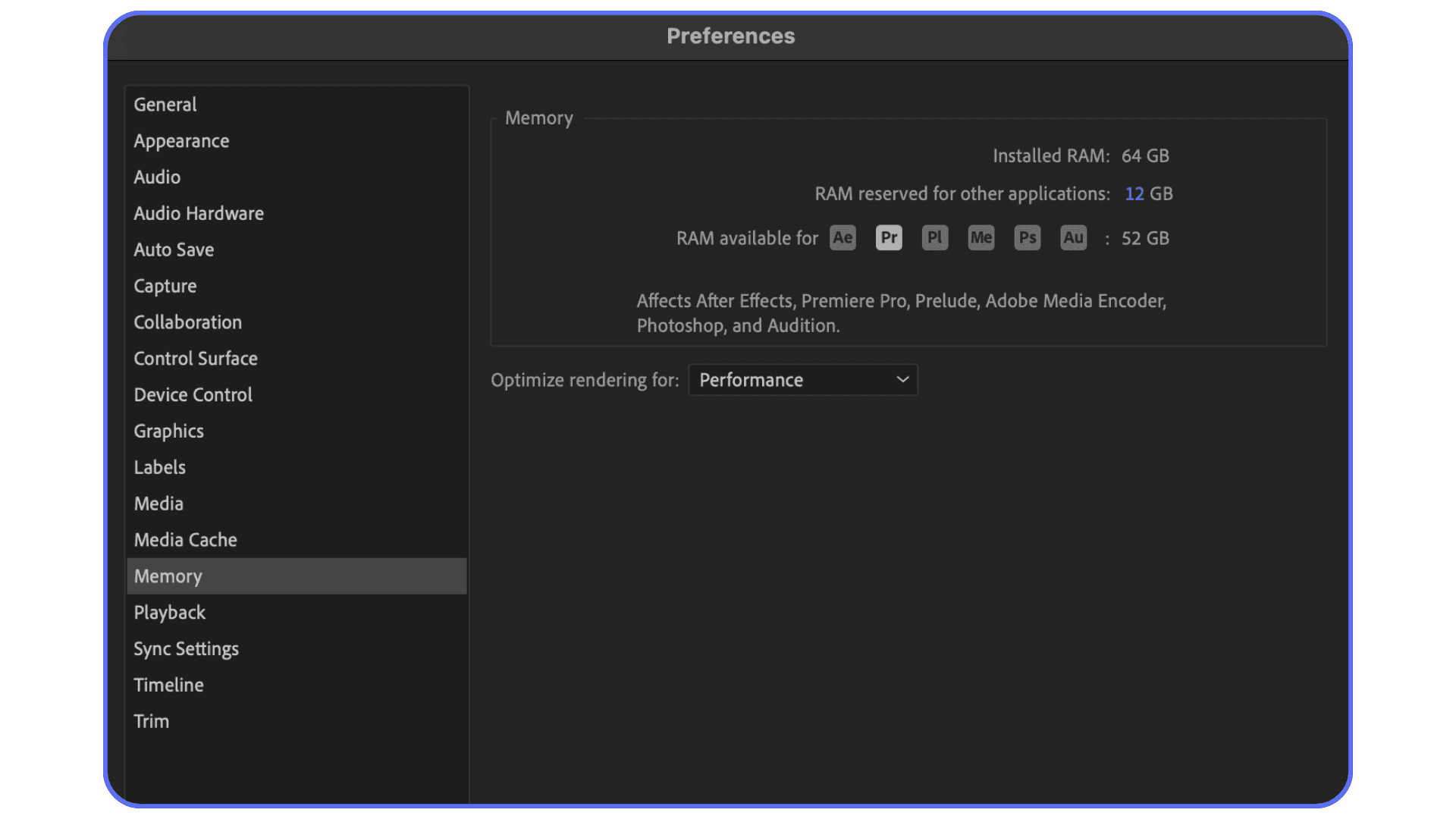
After Effects doesn’t ask how much RAM it can use. It asks how much it can’t. Lower this number, and AE gets more memory to work with. Raise it, and you’re protecting the rest of your system.
Here’s a realistic starting point, based on actual machines I’ve worked on:
32GB total RAM: Reserve 6–8GB for other applications
64GB total RAM: Reserve 8–10GB for other applications
128GB or more: You have flexibility, but don’t go to the absolute minimum unless you like system instability
After adjusting the value, restart After Effects. This isn’t optional. The change doesn’t fully kick in until you do.
One thing I’d strongly avoid.
Don’t set the reserved RAM as low as possible just because it allows you to. I’ve tested this more than once. Yes, After Effects grabs more memory. But the OS starts gasping, background apps lag, and weird behavior creeps in. Crashes. Stutters. Random slowdowns.
This setting works best when you treat it as a balance, not a contest. Give After Effects priority, sure. Just don’t starve the operating system in the process.
If previews feel smoother but the system still behaves normally, you’re in the right range.
Some performance frustrations also come down to tool choice, and this comparison of After Effects vs DaVinci Resolve highlights where each one excels or struggles.
Settings That Matter Almost as Much as RAM
This is where things get interesting. Even with RAM allocated properly, After Effects can still feel slow if a few other settings are quietly working against you.
First up, cache. Both RAM and disk.
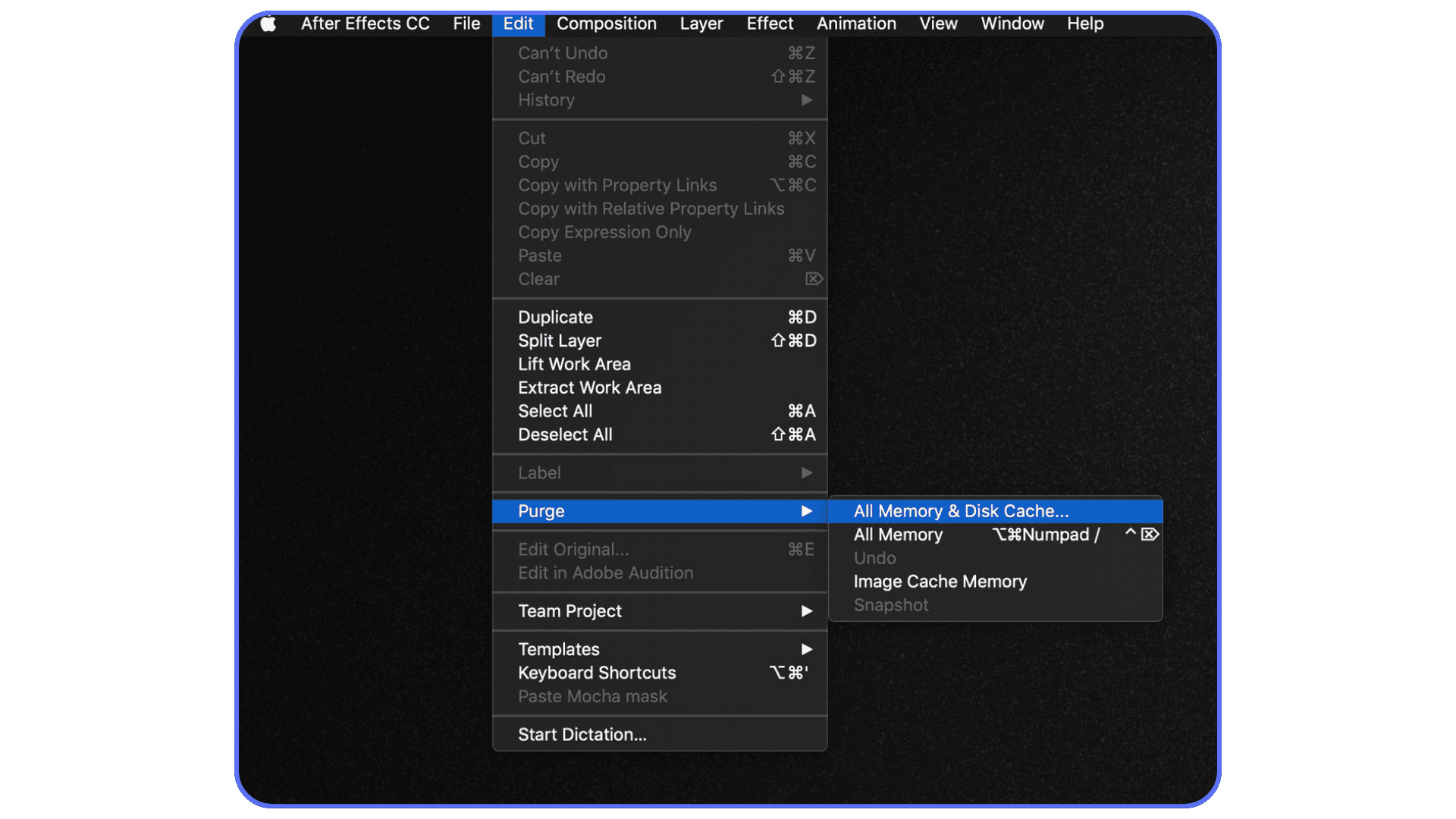
After Effects is aggressive about caching frames. That’s usually helpful. Until previews start behaving strangely or memory usage feels stuck. When that happens, I’ll often purge cache before touching anything else. Edit > Purge > All Memory & Disk Cache. It’s not magic, but it can clear out stale frames AE keeps clinging to.
Disk cache is one of the most overlooked performance killers:
If it lives on a slow drive, previews will suffer no matter how much RAM you have
A nearly full disk makes the problem worse
Moving cache to a fast SSD or NVMe drive can noticeably improve responsiveness
Preview resolution is another quiet culprit. A lot of people drop to half or quarter resolution and stop there. That helps, sure. But work area discipline helps more. Preview only what you need. Shorter ranges mean fewer frames in memory, which means faster fills and fewer stalls.
Multiframe rendering is where things get tricky.
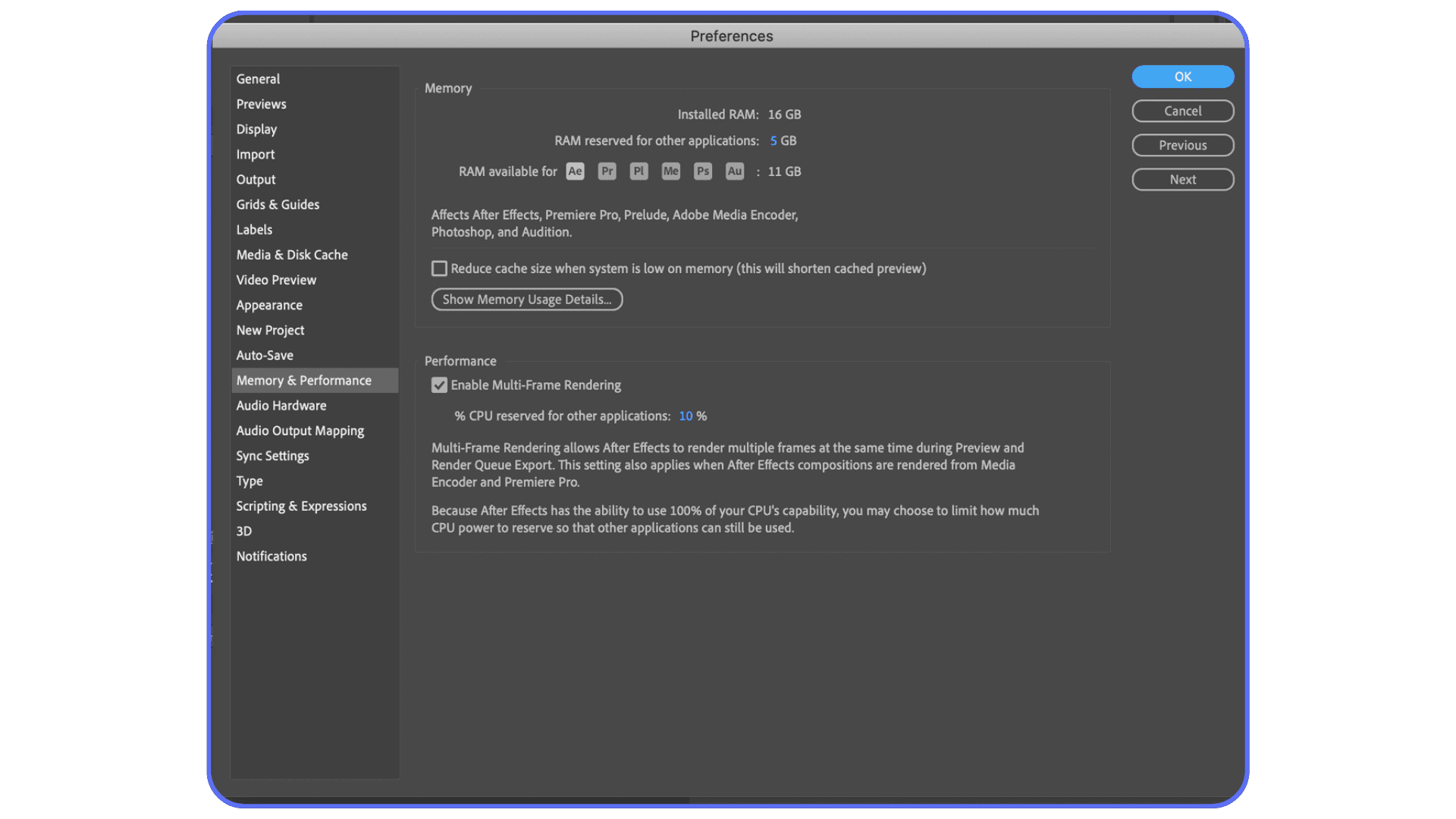
On paper, it’s great. More CPU cores, faster renders. In practice, it can chew through RAM fast. Each core wants its own chunk of memory, and on a 32GB system that can push things over the edge quickly. I’ve had projects where turning multiframe rendering off made previews more stable and stopped random render failures.
Background apps matter too. Browsers are the usual suspects. One Chrome window with a few heavy tabs can quietly eat several gigabytes of RAM. Same goes for screen recorders, chat apps, and anything syncing in the background. You don’t need to shut everything down. Just be intentional.
The bigger point here is this. RAM allocation doesn’t live in isolation. It works best when the rest of the setup isn’t fighting it. Cache behavior, preview habits, rendering settings, background apps. They all stack. Get a few of them right, and After Effects suddenly feels far more cooperative.
If you keep hitting performance limits no matter how optimized your setup is, it may be worth looking at some alternatives to Adobe After Effects for specific types of projects.
Common RAM Myths and Costly Mistakes
This is the stuff I wish someone had told me earlier. It would’ve saved time, money, and a lot of unnecessary frustration.
Myth 1: Giving After Effects All Your RAM Makes It Faster
It sounds logical. It’s also a great way to make your system unstable.
When the operating system runs out of breathing room, everything slows down. Background services lag. Random bugs appear. After Effects doesn’t benefit from a frozen system.
Myth 2: More RAM Fixes Every Performance Problem
It doesn’t.
I’ve seen people upgrade from 32GB to 64GB and feel zero difference. Not because RAM doesn’t matter, but because the real bottleneck was somewhere else. A slow CPU. An overloaded GPU. After Effects still relies heavily on single-core performance in many situations. Memory can’t compensate for that.
Myth 3: Storage Speed Isn’t a Big Deal
This one gets ignored constantly.
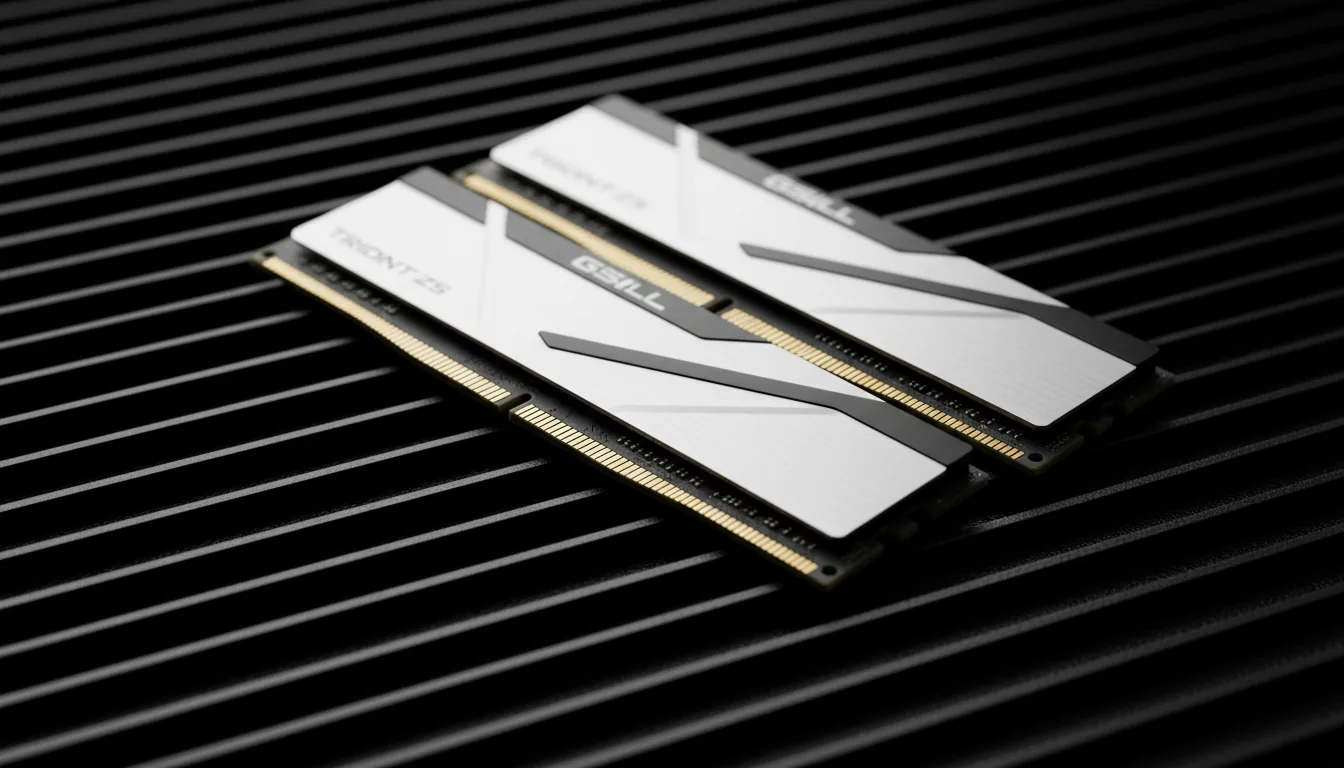
If your disk cache is on a slow or nearly full drive, no amount of RAM will save you. I’ve watched previews crawl on high-end machines simply because the cache drive was the weakest link in the chain.
Myth 4: Hardware Upgrades Should Come First
There’s a tendency to upgrade blindly. Buying more RAM before understanding why a project is slow.
Sometimes the fix is smaller. Tighter work areas. Fewer open apps. Smarter preview settings. I’ve seen those changes outperform hardware upgrades more than once.
Myth 5: Memory Errors Mean You’re Doing Something Wrong
This one messes with people more than it should.
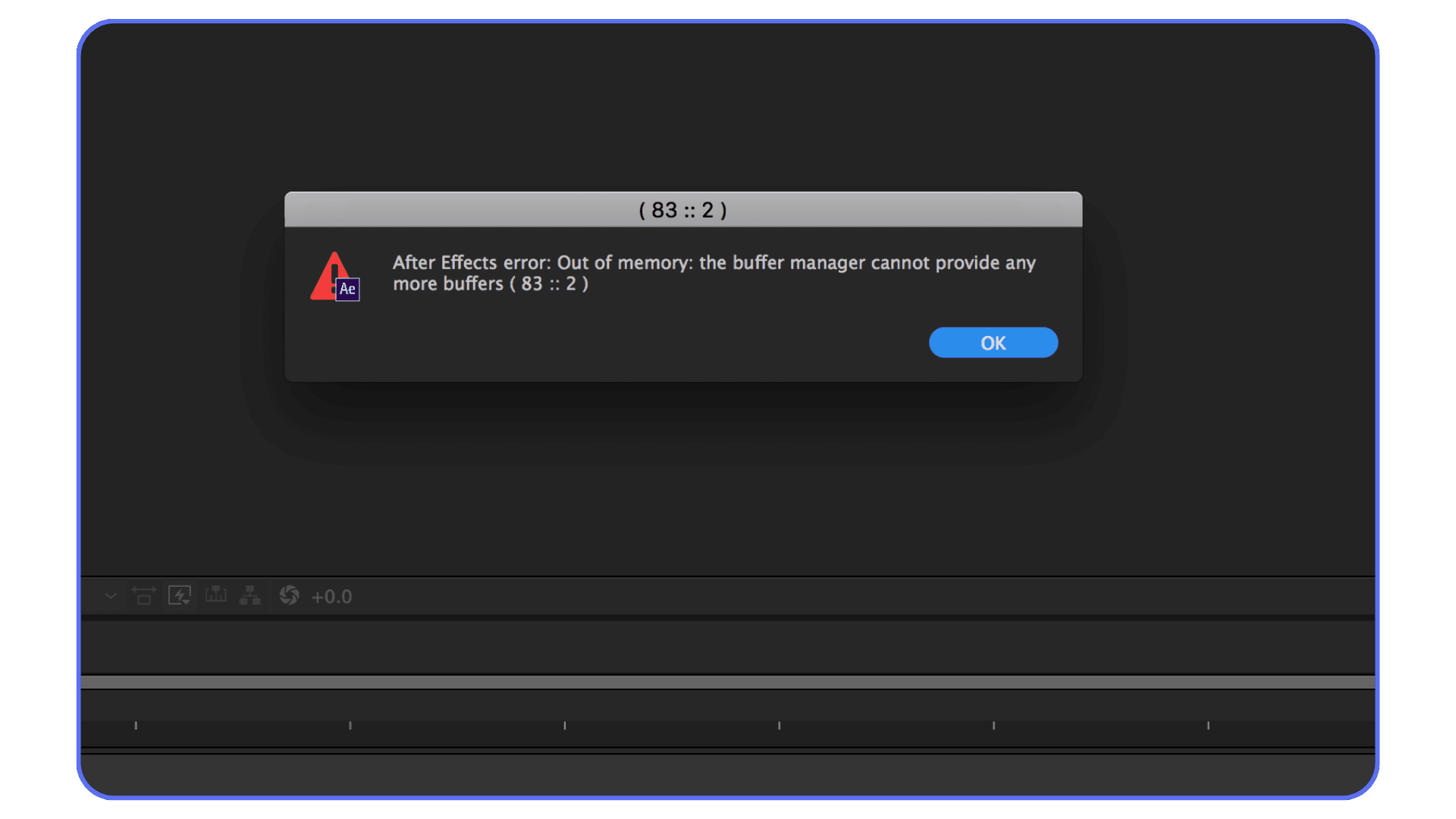
After Effects has limits. Some are architectural. Some come from older design decisions that don’t always play nicely with modern workflows. You can do everything right and still hit a wall.
More RAM helps. No question. But when it’s treated as a cure-all, it often turns into an expensive disappointment.
Running heavy After Effects projects isn’t limited to desktops anymore, and there are even practical ways to run Adobe After Effects on an iPad using remote workflows.
When Local Hardware Stops Making Sense
There’s a point where tweaking settings turns into diminishing returns. You’ve allocated RAM properly. Cache is clean. Previews are optimized. And After Effects still struggles.
That’s usually the moment when the problem isn’t configuration anymore. It’s scale.
I started noticing this shift when projects stopped being “just motion.” More 4K timelines. More 3D layers. Heavier plugins. Then AI tools entered the mix. Roto, upscaling, background removal, generative fills. Each one adds another layer of memory and compute pressure that stacks fast.
Short-term projects make this worse. You might only need a monster machine for a week. Or even a day. Buying or upgrading hardware for that kind of burst doesn’t always make sense. Especially if your regular workload is lighter.
Laptops hit this wall quickly. Even expensive ones. Thermal limits, capped RAM, shared GPU memory. You can optimize all you want, but physics eventually wins.
Remote work adds another wrinkle. If you’re collaborating with a team or moving between machines, keeping everything synced and performant becomes its own headache. One slow system in the chain can bottleneck the whole process.
This is usually when people start asking a different question. Not “how do I squeeze more out of this machine?” but “do I actually need this work to happen on this machine at all?”
That question opens up options. And one of those options is running After Effects somewhere else entirely.
If you’re trying to figure out whether upgrading your current machine is even worth it, this guide on finding the best laptops and prebuilt PCs for Adobe After Effects breaks down what actually matters for performance.
Using Vagon Cloud Computer Without Changing How You Work
This is where cloud machines stopped feeling abstract to me and started feeling practical.
The biggest mental block is assuming you’ll have to relearn everything. New workflow. New shortcuts. Some weird browser-based interface that feels nothing like your actual setup. That’s not how it works here.
With Vagon Cloud Computer, you’re essentially running After Effects on a high-spec machine in the cloud. More RAM than most people would ever install locally. Strong CPUs. Serious GPUs. You log in, open After Effects, and keep working the same way you always have.
What changes is the ceiling.
Memory-heavy comps stop hitting the wall as early. Long previews don’t feel as fragile. Multiframe rendering has room to breathe instead of fighting for scraps. If you’ve ever watched RAM usage spike and thought “well, that’s it,” this feels different.
I think where this really shines is burst usage. You don’t need a cloud machine every day. But when a project demands it, complex 4K timelines, AI-driven effects, tight deadlines, you can spin up a machine that’s built for that load instead of forcing your local hardware to pretend it is.
It’s also surprisingly useful if you’re working from a lighter laptop. Instead of compromising your comps or babysitting previews, the heavy lifting happens remotely. Your local machine just streams the result.
The important part is this. Vagon isn’t a replacement for knowing how After Effects works. It doesn’t fix messy comps or inefficient workflows. But when you’ve done the right things and still hit a hardware ceiling, it gives you another option that doesn’t involve buying a new machine or rebuilding your setup from scratch.
And sometimes, that’s exactly what you need.
A lot of preview slowdowns come from inefficient navigation, and knowing the right Adobe After Effects keyboard shortcuts can save both time and memory during daily work.
Final Thoughts
Allocating more RAM to After Effects is absolutely worth doing. It’s one of the few settings that can immediately make previews longer and playback smoother. When it’s set wrong, you feel it fast. When it’s set right, things calm down.
But RAM isn’t a magic switch. After Effects still has limits. Some of them come from how it was designed years ago. Some come from how modern projects have grown heavier and more complex. You can tune everything perfectly and still run into walls.
That’s not a failure on your part. It’s just the reality of the tool.
I think the real skill isn’t knowing one perfect setting. It’s knowing when to tweak, when to optimize, and when to stop fighting your machine. Sometimes that means simplifying a comp. Sometimes it means closing a few apps. And sometimes it means admitting that the workload has outgrown the hardware you’re sitting on.
Understanding how After Effects uses RAM gives you control. Options. Less guesswork. Whether you squeeze more life out of your local system or offload heavy work to something like a cloud machine, the point is the same. You’re making informed choices instead of reacting to random slowdowns.
And honestly, that alone makes working in After Effects a lot less stressful.
FAQs
1. Does allocating more RAM make After Effects render faster?
Sometimes, but not always. More RAM mainly helps with previews and overall stability, not raw render speed. Final renders depend much more on CPU and GPU performance. If renders feel slow but previews are smooth, RAM usually isn’t the issue.
2. How much RAM should I leave for other applications?
Enough for the operating system to stay responsive. On a 32GB machine, reserving around 6 to 8GB is usually safe. On a 64GB system, 8 to 10GB works well in most cases. Going lower than that often causes freezes or strange behavior that’s worse than slower previews.
3. Should I give After Effects all the RAM I can?
No. It’s tempting, but it rarely ends well. When the OS doesn’t have enough memory, background processes slow down, instability creeps in, and After Effects can actually perform worse.
4. Why does After Effects still complain about memory when RAM is available?
Because it doesn’t only care about total system RAM. After Effects factors in reserved memory, cached frames, active CPU cores, disk cache limits, and what else is running. Multiframe rendering and background apps can drain available memory faster than expected.
5. Does clearing cache really help?
Yes, in specific situations. Purging memory and disk cache can fix cases where After Effects is holding onto old or corrupted frames. If you feel the need to purge constantly, though, it usually points to a deeper issue like disk cache placement or overly long preview ranges.
6. Is multiframe rendering always better?
Not always. On systems with limited RAM, it can cause instability. Each CPU core requires its own memory chunk, and when RAM runs out, performance drops quickly. It’s worth testing per project instead of assuming it should always stay on.
7. How much RAM is enough for After Effects?
For lighter work, 32GB can get by. For professional motion graphics, 64GB feels like a practical baseline. Heavy 4K, 3D, or AI-assisted workflows can push beyond that, even on well-optimized systems.
The preview crawls.
The render fails at 92%.
Your machine still has plenty of RAM, yet After Effects acts like it’s running on fumes.
This is the part that messes with your head. You’re not on a weak system. Activity Monitor says memory is available. Nothing else is chewing through resources. And still, After Effects refuses to play nice.
I’ve hit this wall more times than I care to count. One project in particular stands out. A pretty normal 1080p comp. Shape layers, expressions, a few deep precomps. Early previews were fine. Then everything slowed down. Lowering resolution helped for a minute. Purging cache helped once. After that, nothing.
The frustrating truth is this. After Effects hitting a wall usually isn’t about how much RAM you have. It’s about how that RAM is being used, what AE is reserving for itself, and what it’s leaving on the table.
If this sounds familiar, good. You’re not doing anything wrong. You’re just running into one of After Effects’ least obvious limits.
Let’s look at what’s actually going on.
What After Effects Actually Does With RAM
Here’s the part that confused me early on. After Effects doesn’t use RAM the way most people expect it to. It’s not sitting there waiting to soak up every free gigabyte on your system. It’s picky. Sometimes stubborn.
After Effects uses RAM mainly for previews. Every frame you watch play back smoothly has to live somewhere, and that somewhere is memory. When you hit spacebar and the green bar starts filling up, AE is storing those frames so it can play them back without recalculating everything each time.
That’s why RAM upgrades often feel great at first. More memory means longer previews. Fewer dropped frames. Less waiting. Until it doesn’t.
Final renders are a different story. They lean harder on your CPU and, increasingly, your GPU. RAM still matters, but it’s not the star of the show. So if your renders are slow or failing late, throwing more memory at the problem can feel like a placebo.
Disk cache adds another layer of confusion. After Effects will spill frames to disk when RAM runs out. If your cache is on a fast NVMe drive, this can be surprisingly helpful. If it’s on a slow drive or nearly full, performance tanks. I’ve seen machines with tons of RAM crawl simply because the disk cache was choking.
Then there’s multiframe rendering. On paper, it sounds perfect. Use all your CPU cores at once. In practice, it can chew through RAM fast. Each core wants its own chunk of memory, and suddenly that comfortable 32GB doesn’t feel so generous anymore. I’ve had comps where turning multiframe rendering off actually made things more stable.
This is the big takeaway. After Effects doesn’t just want more RAM. It wants accessible RAM, reserved in a way that fits what you’re doing at that moment. Previews, background processes, cache, rendering. All competing.
Once you understand that, the memory settings start to make a lot more sense.
RAM isn’t the only factor in rendering performance, and learning how to use GPU on Adobe After Effects can often deliver bigger gains than memory upgrades alone.
How to Allocate More RAM to After Effects (Step by Step)
This is the setting most people hear about, tweak once, and forget. That’s a mistake. It has more impact than it gets credit for.
In After Effects, open Preferences > Memory & Performance.
On Windows, you’ll find it under the Edit menu.
On macOS, it lives under the After Effects menu.
The key setting is RAM Reserved for Other Applications.
After Effects doesn’t ask how much RAM it can use. It asks how much it can’t. Lower this number, and AE gets more memory to work with. Raise it, and you’re protecting the rest of your system.
Here’s a realistic starting point, based on actual machines I’ve worked on:
32GB total RAM: Reserve 6–8GB for other applications
64GB total RAM: Reserve 8–10GB for other applications
128GB or more: You have flexibility, but don’t go to the absolute minimum unless you like system instability
After adjusting the value, restart After Effects. This isn’t optional. The change doesn’t fully kick in until you do.
One thing I’d strongly avoid.
Don’t set the reserved RAM as low as possible just because it allows you to. I’ve tested this more than once. Yes, After Effects grabs more memory. But the OS starts gasping, background apps lag, and weird behavior creeps in. Crashes. Stutters. Random slowdowns.
This setting works best when you treat it as a balance, not a contest. Give After Effects priority, sure. Just don’t starve the operating system in the process.
If previews feel smoother but the system still behaves normally, you’re in the right range.
Some performance frustrations also come down to tool choice, and this comparison of After Effects vs DaVinci Resolve highlights where each one excels or struggles.
Settings That Matter Almost as Much as RAM
This is where things get interesting. Even with RAM allocated properly, After Effects can still feel slow if a few other settings are quietly working against you.
First up, cache. Both RAM and disk.
After Effects is aggressive about caching frames. That’s usually helpful. Until previews start behaving strangely or memory usage feels stuck. When that happens, I’ll often purge cache before touching anything else. Edit > Purge > All Memory & Disk Cache. It’s not magic, but it can clear out stale frames AE keeps clinging to.
Disk cache is one of the most overlooked performance killers:
If it lives on a slow drive, previews will suffer no matter how much RAM you have
A nearly full disk makes the problem worse
Moving cache to a fast SSD or NVMe drive can noticeably improve responsiveness
Preview resolution is another quiet culprit. A lot of people drop to half or quarter resolution and stop there. That helps, sure. But work area discipline helps more. Preview only what you need. Shorter ranges mean fewer frames in memory, which means faster fills and fewer stalls.
Multiframe rendering is where things get tricky.
On paper, it’s great. More CPU cores, faster renders. In practice, it can chew through RAM fast. Each core wants its own chunk of memory, and on a 32GB system that can push things over the edge quickly. I’ve had projects where turning multiframe rendering off made previews more stable and stopped random render failures.
Background apps matter too. Browsers are the usual suspects. One Chrome window with a few heavy tabs can quietly eat several gigabytes of RAM. Same goes for screen recorders, chat apps, and anything syncing in the background. You don’t need to shut everything down. Just be intentional.
The bigger point here is this. RAM allocation doesn’t live in isolation. It works best when the rest of the setup isn’t fighting it. Cache behavior, preview habits, rendering settings, background apps. They all stack. Get a few of them right, and After Effects suddenly feels far more cooperative.
If you keep hitting performance limits no matter how optimized your setup is, it may be worth looking at some alternatives to Adobe After Effects for specific types of projects.
Common RAM Myths and Costly Mistakes
This is the stuff I wish someone had told me earlier. It would’ve saved time, money, and a lot of unnecessary frustration.
Myth 1: Giving After Effects All Your RAM Makes It Faster
It sounds logical. It’s also a great way to make your system unstable.
When the operating system runs out of breathing room, everything slows down. Background services lag. Random bugs appear. After Effects doesn’t benefit from a frozen system.
Myth 2: More RAM Fixes Every Performance Problem
It doesn’t.
I’ve seen people upgrade from 32GB to 64GB and feel zero difference. Not because RAM doesn’t matter, but because the real bottleneck was somewhere else. A slow CPU. An overloaded GPU. After Effects still relies heavily on single-core performance in many situations. Memory can’t compensate for that.
Myth 3: Storage Speed Isn’t a Big Deal
This one gets ignored constantly.
If your disk cache is on a slow or nearly full drive, no amount of RAM will save you. I’ve watched previews crawl on high-end machines simply because the cache drive was the weakest link in the chain.
Myth 4: Hardware Upgrades Should Come First
There’s a tendency to upgrade blindly. Buying more RAM before understanding why a project is slow.
Sometimes the fix is smaller. Tighter work areas. Fewer open apps. Smarter preview settings. I’ve seen those changes outperform hardware upgrades more than once.
Myth 5: Memory Errors Mean You’re Doing Something Wrong
This one messes with people more than it should.
After Effects has limits. Some are architectural. Some come from older design decisions that don’t always play nicely with modern workflows. You can do everything right and still hit a wall.
More RAM helps. No question. But when it’s treated as a cure-all, it often turns into an expensive disappointment.
Running heavy After Effects projects isn’t limited to desktops anymore, and there are even practical ways to run Adobe After Effects on an iPad using remote workflows.
When Local Hardware Stops Making Sense
There’s a point where tweaking settings turns into diminishing returns. You’ve allocated RAM properly. Cache is clean. Previews are optimized. And After Effects still struggles.
That’s usually the moment when the problem isn’t configuration anymore. It’s scale.
I started noticing this shift when projects stopped being “just motion.” More 4K timelines. More 3D layers. Heavier plugins. Then AI tools entered the mix. Roto, upscaling, background removal, generative fills. Each one adds another layer of memory and compute pressure that stacks fast.
Short-term projects make this worse. You might only need a monster machine for a week. Or even a day. Buying or upgrading hardware for that kind of burst doesn’t always make sense. Especially if your regular workload is lighter.
Laptops hit this wall quickly. Even expensive ones. Thermal limits, capped RAM, shared GPU memory. You can optimize all you want, but physics eventually wins.
Remote work adds another wrinkle. If you’re collaborating with a team or moving between machines, keeping everything synced and performant becomes its own headache. One slow system in the chain can bottleneck the whole process.
This is usually when people start asking a different question. Not “how do I squeeze more out of this machine?” but “do I actually need this work to happen on this machine at all?”
That question opens up options. And one of those options is running After Effects somewhere else entirely.
If you’re trying to figure out whether upgrading your current machine is even worth it, this guide on finding the best laptops and prebuilt PCs for Adobe After Effects breaks down what actually matters for performance.
Using Vagon Cloud Computer Without Changing How You Work
This is where cloud machines stopped feeling abstract to me and started feeling practical.
The biggest mental block is assuming you’ll have to relearn everything. New workflow. New shortcuts. Some weird browser-based interface that feels nothing like your actual setup. That’s not how it works here.
With Vagon Cloud Computer, you’re essentially running After Effects on a high-spec machine in the cloud. More RAM than most people would ever install locally. Strong CPUs. Serious GPUs. You log in, open After Effects, and keep working the same way you always have.
What changes is the ceiling.
Memory-heavy comps stop hitting the wall as early. Long previews don’t feel as fragile. Multiframe rendering has room to breathe instead of fighting for scraps. If you’ve ever watched RAM usage spike and thought “well, that’s it,” this feels different.
I think where this really shines is burst usage. You don’t need a cloud machine every day. But when a project demands it, complex 4K timelines, AI-driven effects, tight deadlines, you can spin up a machine that’s built for that load instead of forcing your local hardware to pretend it is.
It’s also surprisingly useful if you’re working from a lighter laptop. Instead of compromising your comps or babysitting previews, the heavy lifting happens remotely. Your local machine just streams the result.
The important part is this. Vagon isn’t a replacement for knowing how After Effects works. It doesn’t fix messy comps or inefficient workflows. But when you’ve done the right things and still hit a hardware ceiling, it gives you another option that doesn’t involve buying a new machine or rebuilding your setup from scratch.
And sometimes, that’s exactly what you need.
A lot of preview slowdowns come from inefficient navigation, and knowing the right Adobe After Effects keyboard shortcuts can save both time and memory during daily work.
Final Thoughts
Allocating more RAM to After Effects is absolutely worth doing. It’s one of the few settings that can immediately make previews longer and playback smoother. When it’s set wrong, you feel it fast. When it’s set right, things calm down.
But RAM isn’t a magic switch. After Effects still has limits. Some of them come from how it was designed years ago. Some come from how modern projects have grown heavier and more complex. You can tune everything perfectly and still run into walls.
That’s not a failure on your part. It’s just the reality of the tool.
I think the real skill isn’t knowing one perfect setting. It’s knowing when to tweak, when to optimize, and when to stop fighting your machine. Sometimes that means simplifying a comp. Sometimes it means closing a few apps. And sometimes it means admitting that the workload has outgrown the hardware you’re sitting on.
Understanding how After Effects uses RAM gives you control. Options. Less guesswork. Whether you squeeze more life out of your local system or offload heavy work to something like a cloud machine, the point is the same. You’re making informed choices instead of reacting to random slowdowns.
And honestly, that alone makes working in After Effects a lot less stressful.
FAQs
1. Does allocating more RAM make After Effects render faster?
Sometimes, but not always. More RAM mainly helps with previews and overall stability, not raw render speed. Final renders depend much more on CPU and GPU performance. If renders feel slow but previews are smooth, RAM usually isn’t the issue.
2. How much RAM should I leave for other applications?
Enough for the operating system to stay responsive. On a 32GB machine, reserving around 6 to 8GB is usually safe. On a 64GB system, 8 to 10GB works well in most cases. Going lower than that often causes freezes or strange behavior that’s worse than slower previews.
3. Should I give After Effects all the RAM I can?
No. It’s tempting, but it rarely ends well. When the OS doesn’t have enough memory, background processes slow down, instability creeps in, and After Effects can actually perform worse.
4. Why does After Effects still complain about memory when RAM is available?
Because it doesn’t only care about total system RAM. After Effects factors in reserved memory, cached frames, active CPU cores, disk cache limits, and what else is running. Multiframe rendering and background apps can drain available memory faster than expected.
5. Does clearing cache really help?
Yes, in specific situations. Purging memory and disk cache can fix cases where After Effects is holding onto old or corrupted frames. If you feel the need to purge constantly, though, it usually points to a deeper issue like disk cache placement or overly long preview ranges.
6. Is multiframe rendering always better?
Not always. On systems with limited RAM, it can cause instability. Each CPU core requires its own memory chunk, and when RAM runs out, performance drops quickly. It’s worth testing per project instead of assuming it should always stay on.
7. How much RAM is enough for After Effects?
For lighter work, 32GB can get by. For professional motion graphics, 64GB feels like a practical baseline. Heavy 4K, 3D, or AI-assisted workflows can push beyond that, even on well-optimized systems.
Get Beyond Your Computer Performance
Run applications on your cloud computer with the latest generation hardware. No more crashes or lags.

Trial includes 1 hour usage + 7 days of storage.
Summarize with AI

Ready to focus on your creativity?
Vagon gives you the ability to create & render projects, collaborate, and stream applications with the power of the best hardware.

Run heavy applications on any device with
your personal computer on the cloud.
San Francisco, California
Solutions
Vagon Teams
Vagon Streams
Use Cases
© 2026 Vagon. All rights reserved.
Run heavy applications on any device with
your personal computer on the cloud.
San Francisco, California
Solutions
Vagon Teams
Vagon Streams
Use Cases
© 2026 Vagon. All rights reserved.
Run heavy applications on any device with
your personal computer on the cloud.
San Francisco, California
Solutions
Vagon Teams
Vagon Streams
Use Cases
© 2026 Vagon. All rights reserved.