Instant Connection for Pixel Streaming
— New Feature Automated Setup

Premiere Pro Timeline Freezing? Fix AI Lag, Playback Stutter & Slow Editing
VideoProduction
-
Premiere Pro Timeline Freezing? Fix AI Lag, Playback Stutter & Slow Editing
VideoProduction
Premiere Pro Timeline Freezing? Fix AI Lag, Playback Stutter & Slow Editing
VideoProduction
-
Table of Contents
You open Premiere, drop your clips on the timeline, hit play… and everything feels fine.
Then you turn on Speech to Text. Or you try Object Masking for a quick cutout. Maybe you experiment with one of the newer AI-powered tools Adobe keeps adding.
And suddenly?
Your timeline starts choking.
Scrubbing isn’t smooth anymore. Playback drops frames like it’s struggling to keep up. Even basic cuts feel weirdly heavy, like there’s a delay between what you do and what Premiere actually responds with.
It’s frustrating because nothing else changed. Same project. Same footage. Same machine.
So what happened?
Here’s the part most people get wrong.
This isn’t just “your computer is slow.” I mean, sometimes it is. But more often, what you’re seeing is a mix of AI features quietly doing extra work in the background, combined with how Premiere handles compressed footage and real-time playback.
In other words, it’s not one problem. It’s a stack of small things that all hit at once.
And once you see that, the lag starts making a lot more sense.
What’s Actually Causing the Lag
I’ll say this upfront because it saves people a lot of time.
AI features aren’t the villain here. They just expose problems that were already hiding in your workflow.
I’ve seen this over and over. Someone turns on captions or tries Object Mask, the timeline slows down, and the immediate reaction is “this feature is broken.” But when you dig a little deeper, the project was already sitting on a shaky foundation.
Here’s what’s really happening under the hood.
First, AI tools aren’t passive. They don’t just sit there waiting for you to press play. The moment you enable something like Speech to Text or Media Intelligence, Premiere starts analyzing your media. That means transcription, scene detection, object tracking, audio processing. All of that runs in the background while you’re trying to edit in real time.
So now your system isn’t just playing video. It’s playing video and doing analysis at the same time.
That’s where things start to stack.

Then there’s the codec issue. A lot of people are editing directly with H.264 or H.265 footage straight from their camera. Totally normal. Also one of the biggest reasons timelines feel sluggish.
Those formats are heavily compressed. Great for storage, not great for editing. Your CPU has to work harder just to decode each frame, even before any AI feature gets involved.
So when you combine compressed footage with background AI processing, you’re basically asking your system to juggle multiple heavy tasks at once.
And then comes hardware.
If your GPU isn’t doing much, or your CPU is already close to its limits, Premiere has nowhere to offload that extra work. Everything bottlenecks. Playback suffers first. Scrubbing feels delayed. Effects take longer to respond.
This is why two people can use the same AI feature and have completely different experiences.
One editor turns on Enhance Speech and barely notices a slowdown.
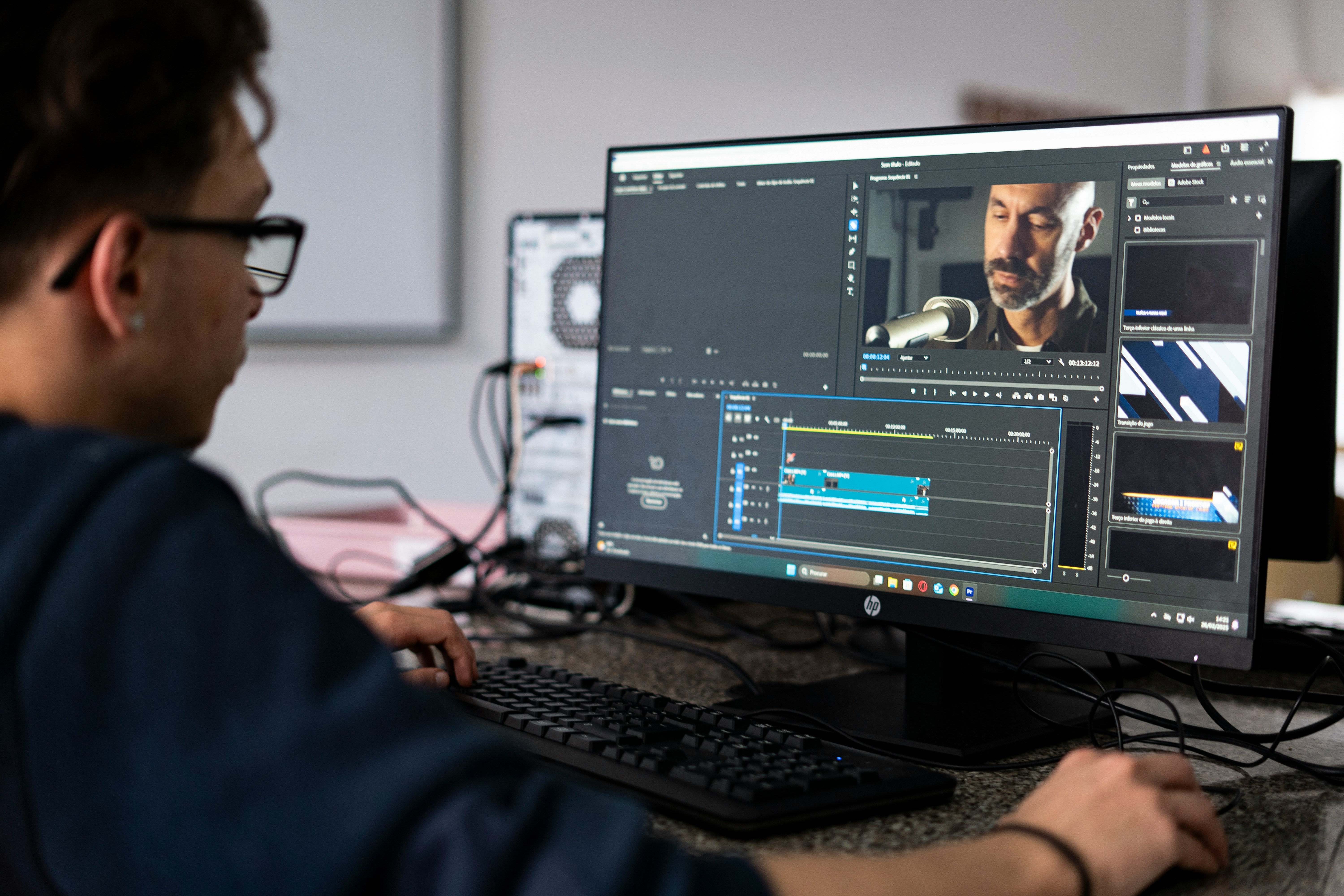
Another tries the same thing and their timeline turns into a slideshow.
Same feature. Different system, different footage, different result.
That’s the pattern.
So before you start turning off every AI tool in frustration, it’s worth asking a better question:
Where is the actual pressure coming from?
Because once you understand that, fixing the lag becomes a lot more predictable.
The AI Features That Hit Performance the Hardest
Not all AI tools in Premiere behave the same way.
Some are pretty lightweight. You barely notice them. Others… you turn them on and instantly feel it. Timeline slows, fans spin up, everything gets a little less responsive.
In my experience, these are the ones that tend to cause the most trouble.
Speech to Text (and auto captions)
This one catches people off guard because it feels simple. You click a button and get a transcript. But behind the scenes, Premiere is analyzing your entire audio track.
On a short clip, no big deal. On a 45-minute interview? That’s real processing time. And if you keep tweaking things or re-running transcription, it adds up quickly.
Also worth mentioning. If you leave transcription-related panels open or keep working while it’s processing, you’re basically editing while Premiere is still thinking.
Media Intelligence (AI search and analysis)
This is one of those features that sounds amazing. Search your footage by what’s inside it. Super useful.
But it works by analyzing your clips in the background. Faces, objects, audio cues. That analysis doesn’t just happen once and disappear. It can continue as you import new media or open projects.
If your system is already tight on resources, this kind of constant background activity can quietly drag performance down without you realizing why.
Scene Edit Detection
Great tool when you’re working with a flattened video and need to recover cuts.
But it literally scans through the clip frame by frame looking for changes. On longer videos, especially high-resolution ones, that’s not cheap.
Most people run it once and move on. The problem starts when you treat it like something you can casually re-run over and over.
Object Masking
This is where GPU really starts to matter.
Tracking a subject, isolating it, keeping that mask accurate across frames… that’s heavy work. If your GPU is strong, it feels almost magical. If not, you’ll feel every step.
Playback lag, delayed updates, masks taking forever to refine. All of that is pretty normal on weaker systems.
Enhance Speech
Probably one of the most impressive tools Adobe has added recently.
Also one of the easiest ways to slow things down if your hardware isn’t ready for it.
It processes audio in a way that’s noticeably more demanding than basic effects. And if you start stacking it with other tasks while editing, you’ll feel it.
Generative Extend
This one is a bit different since it’s not something you’re running constantly while editing.
But it still introduces processing overhead and can interrupt your flow if you’re using it frequently while cutting. It’s better treated like a finishing tool, not something you keep toggling mid-edit.
Here’s the pattern across all of these.
None of them are “bad.” Most of them are genuinely useful. Some are game-changing.
But they all have one thing in common. They ask your system to do more than just play video.
And Premiere isn’t always great at hiding that extra workload.
So if your timeline starts lagging right after you enable one of these, it’s not random. It’s a signal.
Your system just got busier.
If you’ve ever tried editing on a tablet and felt like it just wasn’t practical, it might be worth revisiting. This guide shows how people are using Premiere Pro on iPad setups more effectively.
Fix the Lag Without Changing Your Hardware
Alright. This is where things actually start improving.
Before you even think about upgrading your machine or blaming Premiere entirely, there’s a lot you can fix just by adjusting how things are set up. Some of these take 10 seconds. Others take a bit more effort. All of them matter.
Let’s go in order, from quickest wins to the stuff that actually changes how Premiere behaves.
First, the obvious stuff. Yeah, I know.
Restart Premiere. Restart your computer.
It sounds boring, but Premiere has a habit of getting sluggish after long sessions, especially if you’ve been testing AI features, importing media, or switching between projects. Memory gets messy. Background tasks pile up.
A clean restart fixes more than people like to admit.

Also make sure you’re on a recent version of Premiere. Not necessarily the newest beta, but a stable recent build. Adobe quietly fixes performance issues all the time.
Same goes for GPU drivers. If they’re outdated, you’re leaving performance on the table.
Now, check something most people ignore.
Go to Help → System Compatibility Report.
If Premiere is warning you about something, take it seriously. Unsupported GPU features, driver mismatches, decoding issues… these things directly affect playback and AI performance.
It’s not just a “nice to know” panel. It’s basically Premiere telling you what’s wrong.
Next, reduce the silent background work.
This is a big one.
If you’ve got auto transcription, media intelligence, or anything that analyzes footage running in the background, you’re editing while Premiere is doing extra jobs behind the scenes.
Try this:
Only transcribe the sequences you actually need
Avoid analyzing every clip on import
Close panels you’re not actively using
You don’t need everything “smart” all the time. That’s the mindset shift.
Now let’s talk about the thing people resist the most.
Proxies.
I get it. They feel like extra setup. Another step. Slightly annoying.
But honestly, they’re still the single most reliable way to fix timeline lag.
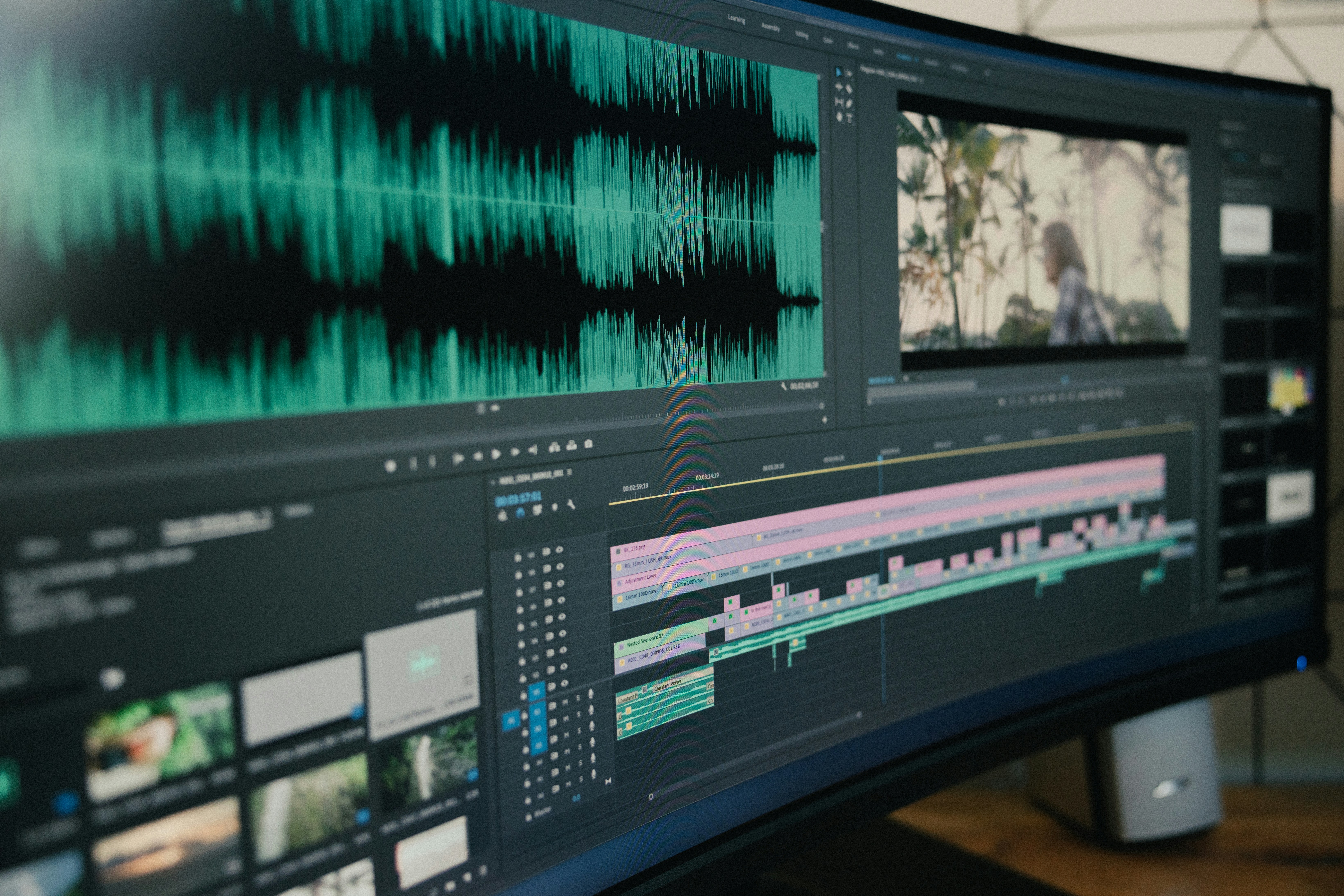
If you’re working with 4K footage, H.265 files, or long recordings, proxies turn heavy media into something your system can actually handle in real time.
Once they’re set up, editing feels lighter immediately. Scrubbing becomes smooth again. Playback stabilizes.
Nothing fancy. Just works.
After that, make sure Premiere is actually using your hardware properly.
Check your renderer:
Mercury Playback Engine GPU Acceleration should be enabled
If it’s set to software only, you’re basically handicapping performance.
Also enable hardware-accelerated decoding if your system supports it. This helps a lot with H.264 and H.265 footage, which is where many people struggle.
Another quick win.
Lower your playback resolution.
Half. Quarter. Even lower if needed.
This doesn’t affect your final export. It just makes editing smoother. And honestly, you don’t need full-resolution playback while cutting most of the time.

Then there’s media cache.
Over time, Premiere builds up a lot of cached files. Some useful, some just… leftovers.
Go in and clear old media cache.
You don’t have to do this daily, but if you haven’t touched it in weeks or months, it can absolutely slow things down.
One more thing that’s easy to overlook.
Where are your files stored?
If your footage, cache, and project files are all sitting on a slow drive, especially an older HDD, performance will suffer no matter what else you do.
Moving your cache and active projects to an SSD makes a noticeable difference.
If I had to summarize this section in one sentence, it would be this:
Most timeline lag isn’t a mystery. It’s just too many heavy tasks running at once on footage that’s already hard to process.
Once you reduce the load, Premiere starts behaving again.
If you’re editing on a lightweight device and constantly hitting limits, you might be surprised what’s possible with a cloud setup. Here’s how you can actually run Premiere Pro on a Chromebook.
The Workflow Shift Most People Ignore
This is the part that usually clicks for people.
You can tweak settings all day. You can optimize your system, clear cache, enable GPU acceleration. All good moves. But if your workflow stays the same, the lag comes back.
Because the real issue isn’t just performance. It’s when you’re asking Premiere to do heavy work.
I’ve noticed a pattern. A lot of editors treat AI features like real-time tools. Something you turn on and just keep running while you edit.
That’s where things fall apart.
Premiere is fast when it’s doing one thing well. It struggles when you ask it to do five heavy things at once.
So instead of stacking everything, break it into stages.
For example.
Run Speech to Text first. Let it finish. Get your transcript ready. Then move on to editing. Don’t transcribe in the middle of a busy timeline session while also scrubbing and cutting.
Same with Scene Edit Detection. Use it once, get your cuts, and move forward. Don’t keep going back and reprocessing the same clip every time you change your mind.
Object Masking is another big one. It’s tempting to experiment with it early, but that’s usually the worst time. Your timeline is already messy, you’re jumping around constantly, and now Premiere is trying to track subjects frame by frame on top of everything else.
Do it later. Once your sequence is more stable.
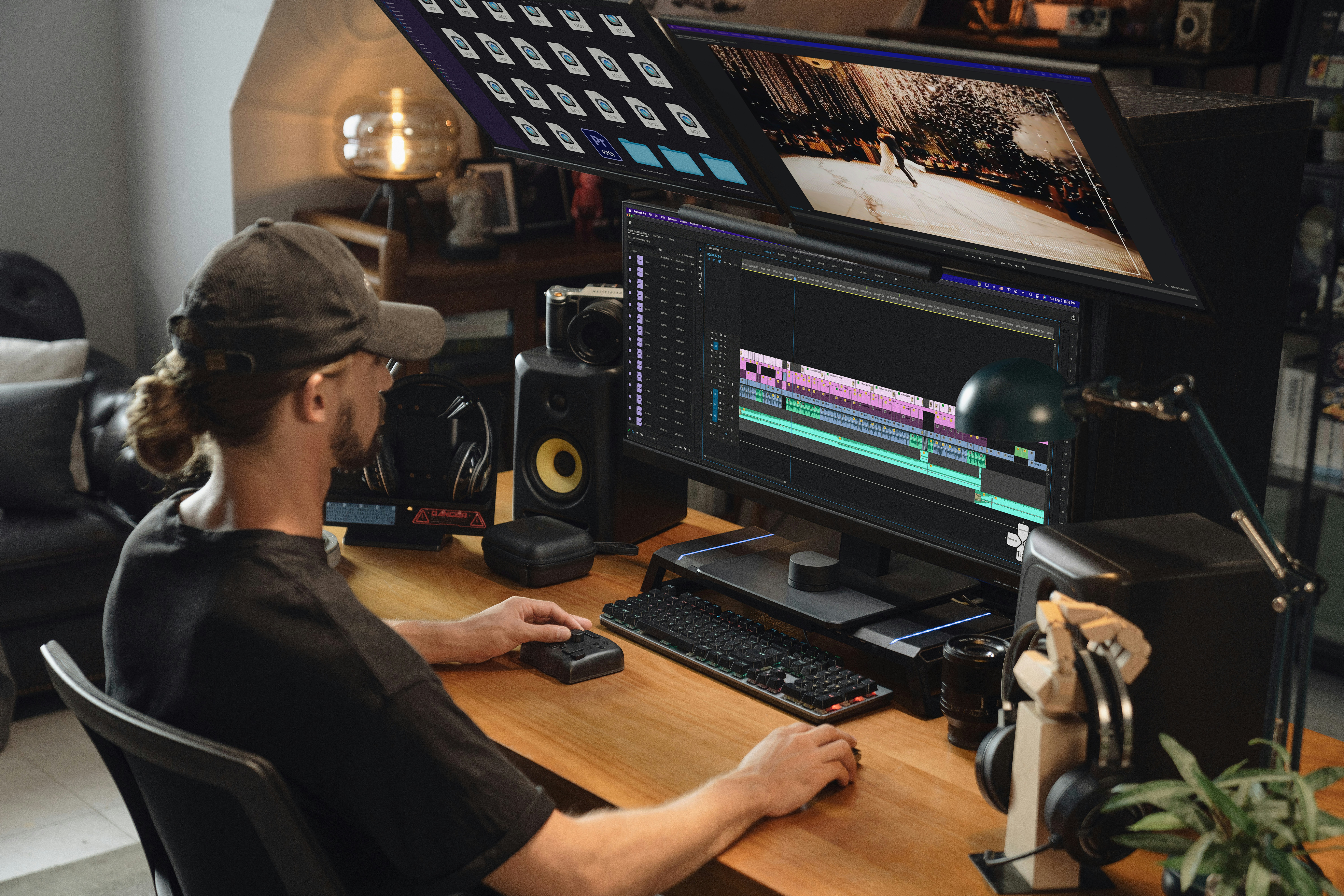
And Enhance Speech? Definitely not something I’d run while I’m still figuring out my rough cut. It makes way more sense after you’ve locked your selections.
This is the shift.
Treat AI features like processing steps, not background helpers.
You run them, let them finish, and then continue editing.
It sounds simple, but it changes how Premiere feels almost immediately.
Because instead of constantly competing for resources, your system gets to focus on one heavy task at a time.
And suddenly, the timeline stops fighting you.
If you’re not sure whether your system is the real bottleneck, you might want to look into what actually matters for performance, especially GPU power. This guide breaks it down clearly.
When Optimization Stops Working
At some point, you hit a wall.
You’ve done everything right. Cleared cache, enabled GPU acceleration, created proxies, turned off background analysis, cleaned up your workflow. And yet… the timeline still struggles.
Playback isn’t terrible, but it’s not smooth either. Scrubbing feels slightly delayed. Certain effects or AI tools still cause slowdowns no matter how careful you are.
That’s usually the moment where it’s no longer a settings problem.
It’s a hardware ceiling.
I don’t mean that in a dramatic way. It just means your system has limits, and modern Premiere workflows, especially with AI features, are pushing against them more than they used to.
A few common signs you’re there:
Your CPU usage spikes close to max during playback
GPU acceleration is enabled, but doesn’t seem to help much
H.265 footage still struggles even with proxies
AI features like Object Masking or Enhance Speech feel consistently slow, not just occasionally
At that point, you can keep trimming things down. Lower resolution, avoid certain tools, simplify your timeline. That works, but it also means you’re constantly working around your machine instead of just editing.
And honestly, that gets frustrating fast.
This is where the conversation shifts.
Instead of asking “how do I optimize this more?”, it becomes:
Do I upgrade my hardware, or do I move the workload somewhere else?
Upgrading is the obvious path. More CPU cores, better GPU, faster storage. Adobe’s own recommendations lean that way for a reason.
But it’s not always practical. Workstations are expensive. And not everyone wants to commit to a full upgrade just to handle a few heavier projects or AI-heavy workflows.
That’s where alternatives start to make more sense.
Not as a replacement for good workflow habits. But as a way to remove the ceiling entirely.
If you’re starting to feel like your entire setup might be holding you back, not just one setting, it’s worth checking this complete PC build and buying guide for Premiere Pro.
A Smarter Way to Handle Heavy Premiere Projects
At this point, the conversation usually stops being about Premiere settings.
It becomes about your machine.
You’ve optimized everything. You’ve cleaned up your workflow. And still, certain projects or AI features push your system too far. That’s not a failure on your end. It just means you’ve hit your hardware limit.
So what now?
You either upgrade your computer… or you stop relying on it for the heavy lifting.
This is exactly where Vagon Cloud Computer comes in.
Instead of running Premiere Pro on your local machine, you run it on a high-performance cloud computer and access it remotely. Your laptop or desktop becomes just the screen. The actual processing happens on a much stronger system.
And the difference is noticeable, especially with AI-heavy workflows.
Things like Object Masking, Enhance Speech, or working with long H.265 timelines stop feeling like risky decisions. You’re no longer thinking “can my machine handle this?” every time you try something new.
You just use the tools.
What makes Vagon interesting is the flexibility. You’re not locked into one setup. You can scale performance depending on what you’re working on.
Editing a simple 1080p project? Your local machine might be enough.
Working on a 4K timeline with transcription, masking, and effects stacked together? Spin up a stronger cloud machine and keep going without changing your workflow.
It’s also a practical option if upgrading hardware isn’t something you want to deal with right now. High-end workstations are expensive, and not everyone needs that level of power all the time.
With Vagon, you’re essentially accessing that level of performance only when you need it.
Of course, it’s not for every situation.
If you already have a powerful desktop with a strong GPU, you might not gain much. And you’ll still need a stable internet connection for a smooth experience.
But if your current setup is holding you back, especially when using Premiere’s newer AI features, this approach removes that ceiling completely.
No more avoiding tools. No more working around limitations.
You just edit the way Premiere was meant to feel.
If your lag is sometimes paired with crashes or random freezes, that’s usually a separate issue. In that case, this guide can help you figure out what’s going on.
Final Thoughts
It’s easy to blame AI features because the timing feels obvious.
You turn one on, your timeline lags. Case closed, right?
Not really.
What’s actually happening is simpler. These tools are just exposing how much your system can handle at once. They add real processing on top of everything else you’re already doing. Playback, decoding, effects, background tasks. It all stacks.
And once it stacks, you feel it.
The good news is, most of this is predictable.
If you reduce background analysis, use proxies, and stop running every heavy feature at the same time, Premiere gets a lot smoother. Not perfect, but noticeably better.
And when that’s still not enough, that’s your signal. Not to give up on the tools, but to change where the work happens.
Because the goal isn’t to avoid AI features.
They’re genuinely useful. Some of them save hours.
The goal is to use them without your timeline falling apart every time you click something new.
Once you get that balance right, Premiere stops feeling like it’s fighting you… and starts feeling fast again.
FAQs
1. Why does Premiere Pro lag more after enabling AI features?
Because those features don’t just “turn on.” They start analyzing your media. Transcription, object tracking, scene detection, audio processing… all of that runs in the background. If your system is already working hard to play back compressed footage, adding that extra workload can push it over the limit.
2. Which AI features tend to slow things down the most?
There’s no single answer, but Object Masking, Speech to Text, and Enhance Speech are usually the ones people feel first. Not because they’re bad, but because they’re doing real processing. The slowdown becomes more noticeable when you combine them instead of using them one at a time.
3. Do proxies really help with timeline freezing?
Yes, and they’re still one of the most reliable fixes. Especially with 4K or H.265 footage, proxies reduce how much work your system has to do just to play video. The result is smoother playback and more responsive editing, even before you touch any other settings.
4. What if Premiere is still lagging after all optimizations?
That’s usually a sign you’ve hit your hardware limits. At that point, you can keep lowering settings, or you can move to stronger hardware. That might mean upgrading your machine or using something like Vagon Cloud Computer to run Premiere on a more powerful system when your current setup isn’t enough.
5. Do I need to stop using AI features completely?
Not at all. The key is how you use them. Treat them as steps instead of background tools. Run them when needed, let them finish, and then continue editing. That simple shift makes a bigger difference than most people expect.
You open Premiere, drop your clips on the timeline, hit play… and everything feels fine.
Then you turn on Speech to Text. Or you try Object Masking for a quick cutout. Maybe you experiment with one of the newer AI-powered tools Adobe keeps adding.
And suddenly?
Your timeline starts choking.
Scrubbing isn’t smooth anymore. Playback drops frames like it’s struggling to keep up. Even basic cuts feel weirdly heavy, like there’s a delay between what you do and what Premiere actually responds with.
It’s frustrating because nothing else changed. Same project. Same footage. Same machine.
So what happened?
Here’s the part most people get wrong.
This isn’t just “your computer is slow.” I mean, sometimes it is. But more often, what you’re seeing is a mix of AI features quietly doing extra work in the background, combined with how Premiere handles compressed footage and real-time playback.
In other words, it’s not one problem. It’s a stack of small things that all hit at once.
And once you see that, the lag starts making a lot more sense.
What’s Actually Causing the Lag
I’ll say this upfront because it saves people a lot of time.
AI features aren’t the villain here. They just expose problems that were already hiding in your workflow.
I’ve seen this over and over. Someone turns on captions or tries Object Mask, the timeline slows down, and the immediate reaction is “this feature is broken.” But when you dig a little deeper, the project was already sitting on a shaky foundation.
Here’s what’s really happening under the hood.
First, AI tools aren’t passive. They don’t just sit there waiting for you to press play. The moment you enable something like Speech to Text or Media Intelligence, Premiere starts analyzing your media. That means transcription, scene detection, object tracking, audio processing. All of that runs in the background while you’re trying to edit in real time.
So now your system isn’t just playing video. It’s playing video and doing analysis at the same time.
That’s where things start to stack.
Then there’s the codec issue. A lot of people are editing directly with H.264 or H.265 footage straight from their camera. Totally normal. Also one of the biggest reasons timelines feel sluggish.
Those formats are heavily compressed. Great for storage, not great for editing. Your CPU has to work harder just to decode each frame, even before any AI feature gets involved.
So when you combine compressed footage with background AI processing, you’re basically asking your system to juggle multiple heavy tasks at once.
And then comes hardware.
If your GPU isn’t doing much, or your CPU is already close to its limits, Premiere has nowhere to offload that extra work. Everything bottlenecks. Playback suffers first. Scrubbing feels delayed. Effects take longer to respond.
This is why two people can use the same AI feature and have completely different experiences.
One editor turns on Enhance Speech and barely notices a slowdown.
Another tries the same thing and their timeline turns into a slideshow.
Same feature. Different system, different footage, different result.
That’s the pattern.
So before you start turning off every AI tool in frustration, it’s worth asking a better question:
Where is the actual pressure coming from?
Because once you understand that, fixing the lag becomes a lot more predictable.
The AI Features That Hit Performance the Hardest
Not all AI tools in Premiere behave the same way.
Some are pretty lightweight. You barely notice them. Others… you turn them on and instantly feel it. Timeline slows, fans spin up, everything gets a little less responsive.
In my experience, these are the ones that tend to cause the most trouble.
Speech to Text (and auto captions)
This one catches people off guard because it feels simple. You click a button and get a transcript. But behind the scenes, Premiere is analyzing your entire audio track.
On a short clip, no big deal. On a 45-minute interview? That’s real processing time. And if you keep tweaking things or re-running transcription, it adds up quickly.
Also worth mentioning. If you leave transcription-related panels open or keep working while it’s processing, you’re basically editing while Premiere is still thinking.
Media Intelligence (AI search and analysis)
This is one of those features that sounds amazing. Search your footage by what’s inside it. Super useful.
But it works by analyzing your clips in the background. Faces, objects, audio cues. That analysis doesn’t just happen once and disappear. It can continue as you import new media or open projects.
If your system is already tight on resources, this kind of constant background activity can quietly drag performance down without you realizing why.
Scene Edit Detection
Great tool when you’re working with a flattened video and need to recover cuts.
But it literally scans through the clip frame by frame looking for changes. On longer videos, especially high-resolution ones, that’s not cheap.
Most people run it once and move on. The problem starts when you treat it like something you can casually re-run over and over.
Object Masking
This is where GPU really starts to matter.
Tracking a subject, isolating it, keeping that mask accurate across frames… that’s heavy work. If your GPU is strong, it feels almost magical. If not, you’ll feel every step.
Playback lag, delayed updates, masks taking forever to refine. All of that is pretty normal on weaker systems.
Enhance Speech
Probably one of the most impressive tools Adobe has added recently.
Also one of the easiest ways to slow things down if your hardware isn’t ready for it.
It processes audio in a way that’s noticeably more demanding than basic effects. And if you start stacking it with other tasks while editing, you’ll feel it.
Generative Extend
This one is a bit different since it’s not something you’re running constantly while editing.
But it still introduces processing overhead and can interrupt your flow if you’re using it frequently while cutting. It’s better treated like a finishing tool, not something you keep toggling mid-edit.
Here’s the pattern across all of these.
None of them are “bad.” Most of them are genuinely useful. Some are game-changing.
But they all have one thing in common. They ask your system to do more than just play video.
And Premiere isn’t always great at hiding that extra workload.
So if your timeline starts lagging right after you enable one of these, it’s not random. It’s a signal.
Your system just got busier.
If you’ve ever tried editing on a tablet and felt like it just wasn’t practical, it might be worth revisiting. This guide shows how people are using Premiere Pro on iPad setups more effectively.
Fix the Lag Without Changing Your Hardware
Alright. This is where things actually start improving.
Before you even think about upgrading your machine or blaming Premiere entirely, there’s a lot you can fix just by adjusting how things are set up. Some of these take 10 seconds. Others take a bit more effort. All of them matter.
Let’s go in order, from quickest wins to the stuff that actually changes how Premiere behaves.
First, the obvious stuff. Yeah, I know.
Restart Premiere. Restart your computer.
It sounds boring, but Premiere has a habit of getting sluggish after long sessions, especially if you’ve been testing AI features, importing media, or switching between projects. Memory gets messy. Background tasks pile up.
A clean restart fixes more than people like to admit.
Also make sure you’re on a recent version of Premiere. Not necessarily the newest beta, but a stable recent build. Adobe quietly fixes performance issues all the time.
Same goes for GPU drivers. If they’re outdated, you’re leaving performance on the table.
Now, check something most people ignore.
Go to Help → System Compatibility Report.
If Premiere is warning you about something, take it seriously. Unsupported GPU features, driver mismatches, decoding issues… these things directly affect playback and AI performance.
It’s not just a “nice to know” panel. It’s basically Premiere telling you what’s wrong.
Next, reduce the silent background work.
This is a big one.
If you’ve got auto transcription, media intelligence, or anything that analyzes footage running in the background, you’re editing while Premiere is doing extra jobs behind the scenes.
Try this:
Only transcribe the sequences you actually need
Avoid analyzing every clip on import
Close panels you’re not actively using
You don’t need everything “smart” all the time. That’s the mindset shift.
Now let’s talk about the thing people resist the most.
Proxies.
I get it. They feel like extra setup. Another step. Slightly annoying.
But honestly, they’re still the single most reliable way to fix timeline lag.
If you’re working with 4K footage, H.265 files, or long recordings, proxies turn heavy media into something your system can actually handle in real time.
Once they’re set up, editing feels lighter immediately. Scrubbing becomes smooth again. Playback stabilizes.
Nothing fancy. Just works.
After that, make sure Premiere is actually using your hardware properly.
Check your renderer:
Mercury Playback Engine GPU Acceleration should be enabled
If it’s set to software only, you’re basically handicapping performance.
Also enable hardware-accelerated decoding if your system supports it. This helps a lot with H.264 and H.265 footage, which is where many people struggle.
Another quick win.
Lower your playback resolution.
Half. Quarter. Even lower if needed.
This doesn’t affect your final export. It just makes editing smoother. And honestly, you don’t need full-resolution playback while cutting most of the time.
Then there’s media cache.
Over time, Premiere builds up a lot of cached files. Some useful, some just… leftovers.
Go in and clear old media cache.
You don’t have to do this daily, but if you haven’t touched it in weeks or months, it can absolutely slow things down.
One more thing that’s easy to overlook.
Where are your files stored?
If your footage, cache, and project files are all sitting on a slow drive, especially an older HDD, performance will suffer no matter what else you do.
Moving your cache and active projects to an SSD makes a noticeable difference.
If I had to summarize this section in one sentence, it would be this:
Most timeline lag isn’t a mystery. It’s just too many heavy tasks running at once on footage that’s already hard to process.
Once you reduce the load, Premiere starts behaving again.
If you’re editing on a lightweight device and constantly hitting limits, you might be surprised what’s possible with a cloud setup. Here’s how you can actually run Premiere Pro on a Chromebook.
The Workflow Shift Most People Ignore
This is the part that usually clicks for people.
You can tweak settings all day. You can optimize your system, clear cache, enable GPU acceleration. All good moves. But if your workflow stays the same, the lag comes back.
Because the real issue isn’t just performance. It’s when you’re asking Premiere to do heavy work.
I’ve noticed a pattern. A lot of editors treat AI features like real-time tools. Something you turn on and just keep running while you edit.
That’s where things fall apart.
Premiere is fast when it’s doing one thing well. It struggles when you ask it to do five heavy things at once.
So instead of stacking everything, break it into stages.
For example.
Run Speech to Text first. Let it finish. Get your transcript ready. Then move on to editing. Don’t transcribe in the middle of a busy timeline session while also scrubbing and cutting.
Same with Scene Edit Detection. Use it once, get your cuts, and move forward. Don’t keep going back and reprocessing the same clip every time you change your mind.
Object Masking is another big one. It’s tempting to experiment with it early, but that’s usually the worst time. Your timeline is already messy, you’re jumping around constantly, and now Premiere is trying to track subjects frame by frame on top of everything else.
Do it later. Once your sequence is more stable.
And Enhance Speech? Definitely not something I’d run while I’m still figuring out my rough cut. It makes way more sense after you’ve locked your selections.
This is the shift.
Treat AI features like processing steps, not background helpers.
You run them, let them finish, and then continue editing.
It sounds simple, but it changes how Premiere feels almost immediately.
Because instead of constantly competing for resources, your system gets to focus on one heavy task at a time.
And suddenly, the timeline stops fighting you.
If you’re not sure whether your system is the real bottleneck, you might want to look into what actually matters for performance, especially GPU power. This guide breaks it down clearly.
When Optimization Stops Working
At some point, you hit a wall.
You’ve done everything right. Cleared cache, enabled GPU acceleration, created proxies, turned off background analysis, cleaned up your workflow. And yet… the timeline still struggles.
Playback isn’t terrible, but it’s not smooth either. Scrubbing feels slightly delayed. Certain effects or AI tools still cause slowdowns no matter how careful you are.
That’s usually the moment where it’s no longer a settings problem.
It’s a hardware ceiling.
I don’t mean that in a dramatic way. It just means your system has limits, and modern Premiere workflows, especially with AI features, are pushing against them more than they used to.
A few common signs you’re there:
Your CPU usage spikes close to max during playback
GPU acceleration is enabled, but doesn’t seem to help much
H.265 footage still struggles even with proxies
AI features like Object Masking or Enhance Speech feel consistently slow, not just occasionally
At that point, you can keep trimming things down. Lower resolution, avoid certain tools, simplify your timeline. That works, but it also means you’re constantly working around your machine instead of just editing.
And honestly, that gets frustrating fast.
This is where the conversation shifts.
Instead of asking “how do I optimize this more?”, it becomes:
Do I upgrade my hardware, or do I move the workload somewhere else?
Upgrading is the obvious path. More CPU cores, better GPU, faster storage. Adobe’s own recommendations lean that way for a reason.
But it’s not always practical. Workstations are expensive. And not everyone wants to commit to a full upgrade just to handle a few heavier projects or AI-heavy workflows.
That’s where alternatives start to make more sense.
Not as a replacement for good workflow habits. But as a way to remove the ceiling entirely.
If you’re starting to feel like your entire setup might be holding you back, not just one setting, it’s worth checking this complete PC build and buying guide for Premiere Pro.
A Smarter Way to Handle Heavy Premiere Projects
At this point, the conversation usually stops being about Premiere settings.
It becomes about your machine.
You’ve optimized everything. You’ve cleaned up your workflow. And still, certain projects or AI features push your system too far. That’s not a failure on your end. It just means you’ve hit your hardware limit.
So what now?
You either upgrade your computer… or you stop relying on it for the heavy lifting.
This is exactly where Vagon Cloud Computer comes in.
Instead of running Premiere Pro on your local machine, you run it on a high-performance cloud computer and access it remotely. Your laptop or desktop becomes just the screen. The actual processing happens on a much stronger system.
And the difference is noticeable, especially with AI-heavy workflows.
Things like Object Masking, Enhance Speech, or working with long H.265 timelines stop feeling like risky decisions. You’re no longer thinking “can my machine handle this?” every time you try something new.
You just use the tools.
What makes Vagon interesting is the flexibility. You’re not locked into one setup. You can scale performance depending on what you’re working on.
Editing a simple 1080p project? Your local machine might be enough.
Working on a 4K timeline with transcription, masking, and effects stacked together? Spin up a stronger cloud machine and keep going without changing your workflow.
It’s also a practical option if upgrading hardware isn’t something you want to deal with right now. High-end workstations are expensive, and not everyone needs that level of power all the time.
With Vagon, you’re essentially accessing that level of performance only when you need it.
Of course, it’s not for every situation.
If you already have a powerful desktop with a strong GPU, you might not gain much. And you’ll still need a stable internet connection for a smooth experience.
But if your current setup is holding you back, especially when using Premiere’s newer AI features, this approach removes that ceiling completely.
No more avoiding tools. No more working around limitations.
You just edit the way Premiere was meant to feel.
If your lag is sometimes paired with crashes or random freezes, that’s usually a separate issue. In that case, this guide can help you figure out what’s going on.
Final Thoughts
It’s easy to blame AI features because the timing feels obvious.
You turn one on, your timeline lags. Case closed, right?
Not really.
What’s actually happening is simpler. These tools are just exposing how much your system can handle at once. They add real processing on top of everything else you’re already doing. Playback, decoding, effects, background tasks. It all stacks.
And once it stacks, you feel it.
The good news is, most of this is predictable.
If you reduce background analysis, use proxies, and stop running every heavy feature at the same time, Premiere gets a lot smoother. Not perfect, but noticeably better.
And when that’s still not enough, that’s your signal. Not to give up on the tools, but to change where the work happens.
Because the goal isn’t to avoid AI features.
They’re genuinely useful. Some of them save hours.
The goal is to use them without your timeline falling apart every time you click something new.
Once you get that balance right, Premiere stops feeling like it’s fighting you… and starts feeling fast again.
FAQs
1. Why does Premiere Pro lag more after enabling AI features?
Because those features don’t just “turn on.” They start analyzing your media. Transcription, object tracking, scene detection, audio processing… all of that runs in the background. If your system is already working hard to play back compressed footage, adding that extra workload can push it over the limit.
2. Which AI features tend to slow things down the most?
There’s no single answer, but Object Masking, Speech to Text, and Enhance Speech are usually the ones people feel first. Not because they’re bad, but because they’re doing real processing. The slowdown becomes more noticeable when you combine them instead of using them one at a time.
3. Do proxies really help with timeline freezing?
Yes, and they’re still one of the most reliable fixes. Especially with 4K or H.265 footage, proxies reduce how much work your system has to do just to play video. The result is smoother playback and more responsive editing, even before you touch any other settings.
4. What if Premiere is still lagging after all optimizations?
That’s usually a sign you’ve hit your hardware limits. At that point, you can keep lowering settings, or you can move to stronger hardware. That might mean upgrading your machine or using something like Vagon Cloud Computer to run Premiere on a more powerful system when your current setup isn’t enough.
5. Do I need to stop using AI features completely?
Not at all. The key is how you use them. Treat them as steps instead of background tools. Run them when needed, let them finish, and then continue editing. That simple shift makes a bigger difference than most people expect.
Get Beyond Your Computer Performance
Run applications on your cloud computer with the latest generation hardware. No more crashes or lags.

Trial includes 1 hour usage + 7 days of storage.
Summarize with AI

Ready to focus on your creativity?
Vagon gives you the ability to create & render projects, collaborate, and stream applications with the power of the best hardware.

Vagon Blog
Run heavy applications on any device with
your personal computer on the cloud.
San Francisco, California
Solutions
Vagon Teams
Vagon Streams
Use Cases
Resources
Vagon Blog
How to Use KiCad With Claude: MCP & Computer Use Guide Meta
How to Use FreeCAD With Codex: MCP & Computer Use
How to Use FreeCAD With Claude: MCP & Computer Use
How to Use 3ds Max With Codex: MCP & Computer Use
How to Use Houdini With Claude: MCP & Computer Use
How to Use Cinema 4D With Claude: MCP & Computer Use
How to Use 3ds Max With Claude: MCP & Computer Use
How to Use DaVinci Resolve With Claude: MCP & Computer Use
How to Use Godot With Claude: MCP & Computer Use
Vagon Blog
Run heavy applications on any device with
your personal computer on the cloud.
San Francisco, California
Solutions
Vagon Teams
Vagon Streams
Use Cases
Resources
Vagon Blog
How to Use KiCad With Claude: MCP & Computer Use Guide Meta
How to Use FreeCAD With Codex: MCP & Computer Use
How to Use FreeCAD With Claude: MCP & Computer Use
How to Use 3ds Max With Codex: MCP & Computer Use
How to Use Houdini With Claude: MCP & Computer Use
How to Use Cinema 4D With Claude: MCP & Computer Use
How to Use 3ds Max With Claude: MCP & Computer Use
How to Use DaVinci Resolve With Claude: MCP & Computer Use
How to Use Godot With Claude: MCP & Computer Use
Vagon Blog
Run heavy applications on any device with
your personal computer on the cloud.
San Francisco, California
Solutions
Vagon Teams
Vagon Streams
Use Cases
Resources
Vagon Blog