Instant Connection for Pixel Streaming
— New Feature Automated Setup

VM & VDI for Chromebook: How to Run Windows Apps with Virtual Desktops
ComputerPerformance
-
VM & VDI for Chromebook: How to Run Windows Apps with Virtual Desktops
ComputerPerformance
VM & VDI for Chromebook: How to Run Windows Apps with Virtual Desktops
ComputerPerformance
-
Table of Contents
I’ve lost count of how many times I’ve heard this sentence start with genuine enthusiasm and end in frustration.
“I love my Chromebook, but…”
It usually happens at an inconvenient moment. A deadline. A client request. A class assignment that suddenly requires software Chrome OS doesn’t support. You search anyway, just in case. Maybe there’s a workaround. Maybe someone made a web version. Thirty minutes later, you’re still staring at the same limitation.
That’s the moment Chromebooks fall short. Not because they’re slow or broken, but because they were never meant to be everything. They’re built to be simple, cloud-first machines. And for a long time, that’s enough. Until it isn’t.
When that gap appears, most users don’t plan for it. They react. Borrow another computer. Remote into a machine at home. Or give up on the task entirely. The problem shows up fast, and it usually shows up when you least want to deal with it.
Why Chromebooks Have Limits
Chromebooks are very good at what they’re designed to do. That’s part of the problem.
Chrome OS is optimized for speed, security, and simplicity. It boots fast. It rarely crashes. Updates happen quietly in the background. For everyday tasks, it feels effortless. You don’t manage the system. You just use it.
But that focus comes with hard boundaries.
You can’t natively run Windows or macOS applications. Linux support helps in some cases, but it’s still constrained by the device and rarely suitable for heavy workloads. GPU-intensive apps, specialized drivers, and legacy enterprise software are mostly out of reach.
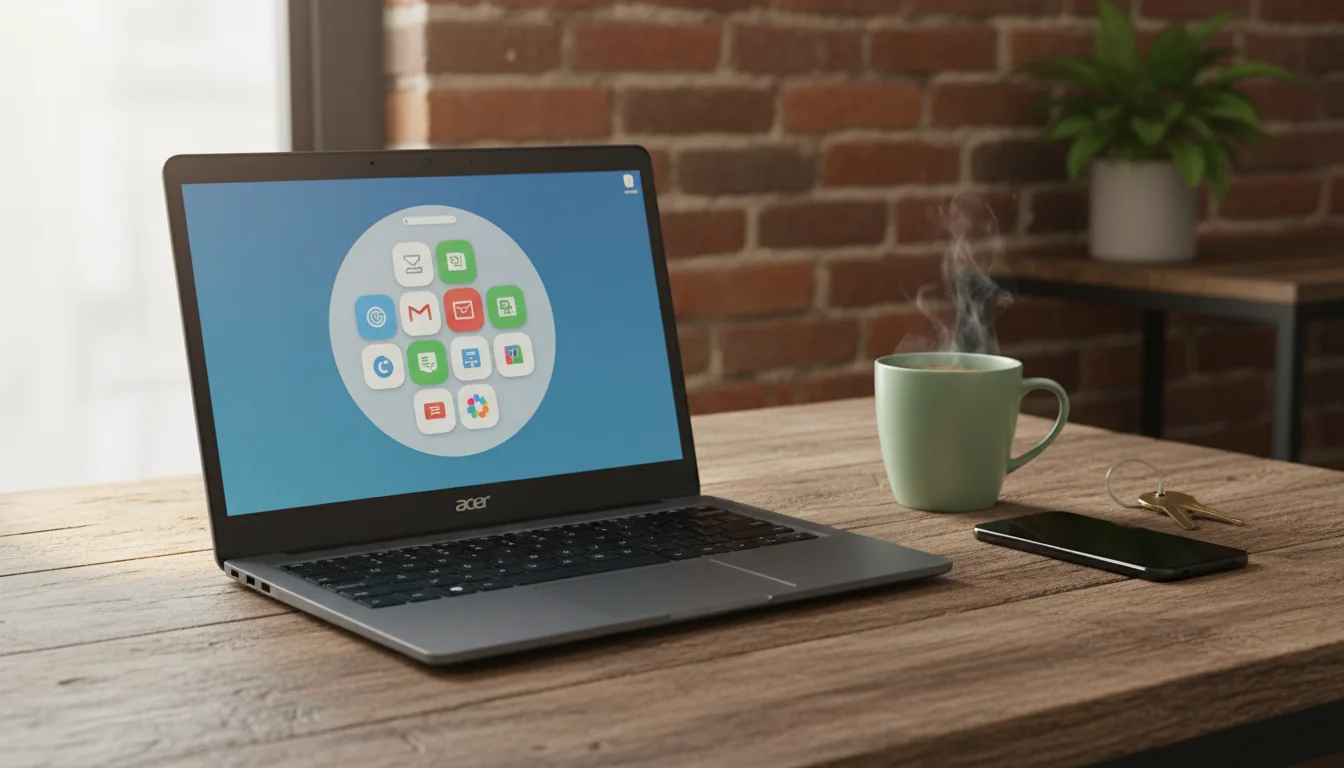
When users hit these limits, they usually take the same paths. They switch devices mid-workflow. They remote into a desktop that lives somewhere else, hoping the connection holds. Or they redesign their work around what the Chromebook allows instead of what the work actually requires.
None of these feel like real solutions. They’re compromises. And over time, those compromises stack up. More friction. More time wasted. More mental overhead just to get basic work done.
The frustrating part is that the Chromebook itself isn’t the issue. It’s capable. It’s reliable. It’s just locked into a role that doesn’t cover everything modern users are expected to do.
VM & VDI Explained for Chromebook Users
Once people start looking for alternatives, they usually run straight into acronyms. VM. VDI. Cloud desktops. Remote machines. It sounds more complicated than it needs to be.
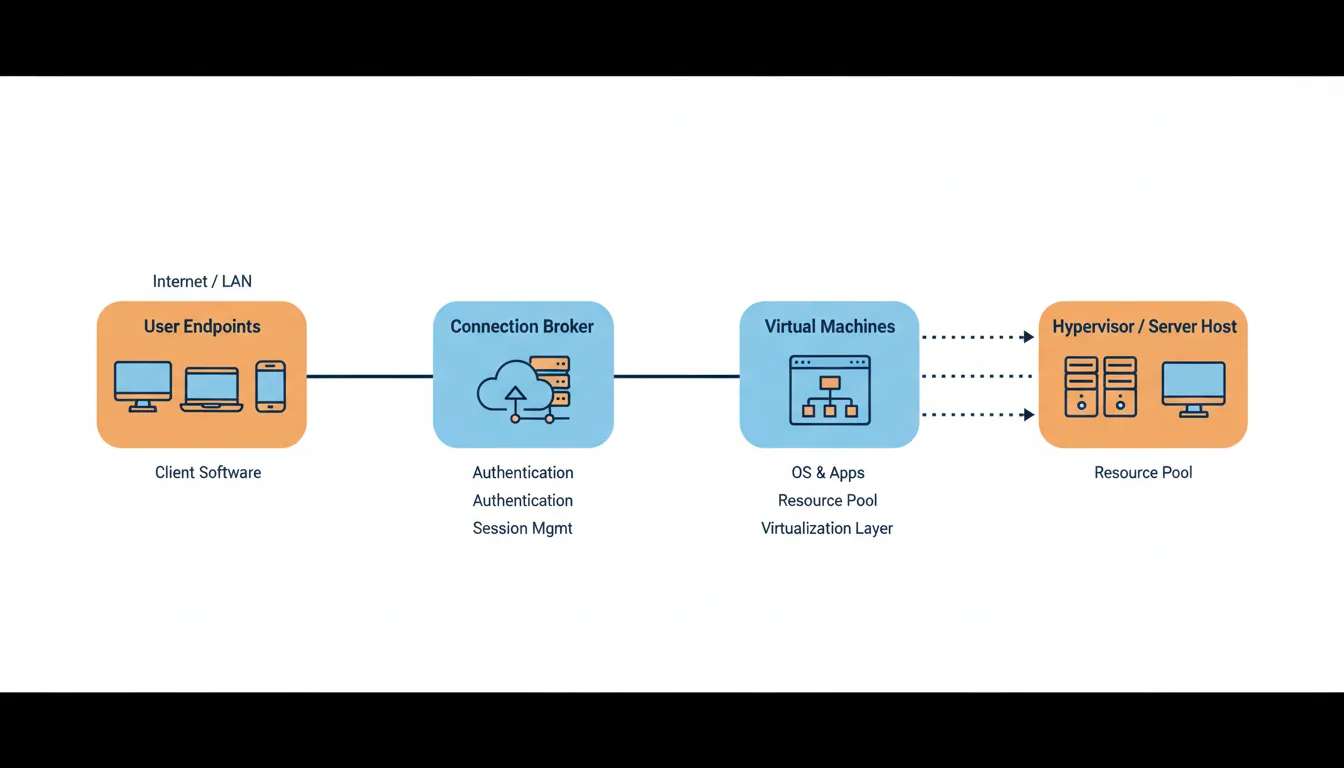
A virtual machine is simply a computer that runs somewhere else. It has its own operating system, its own apps, and its own storage. You connect to it over the internet and use it like a normal desktop. The work happens remotely. Your Chromebook just shows the screen and sends input.
VDI, short for Virtual Desktop Infrastructure, is about scale and management. Instead of one person using one virtual machine, VDI systems manage many desktops from a central place. Updates, security, and access are controlled centrally. Users log in and get a ready-to-use desktop.
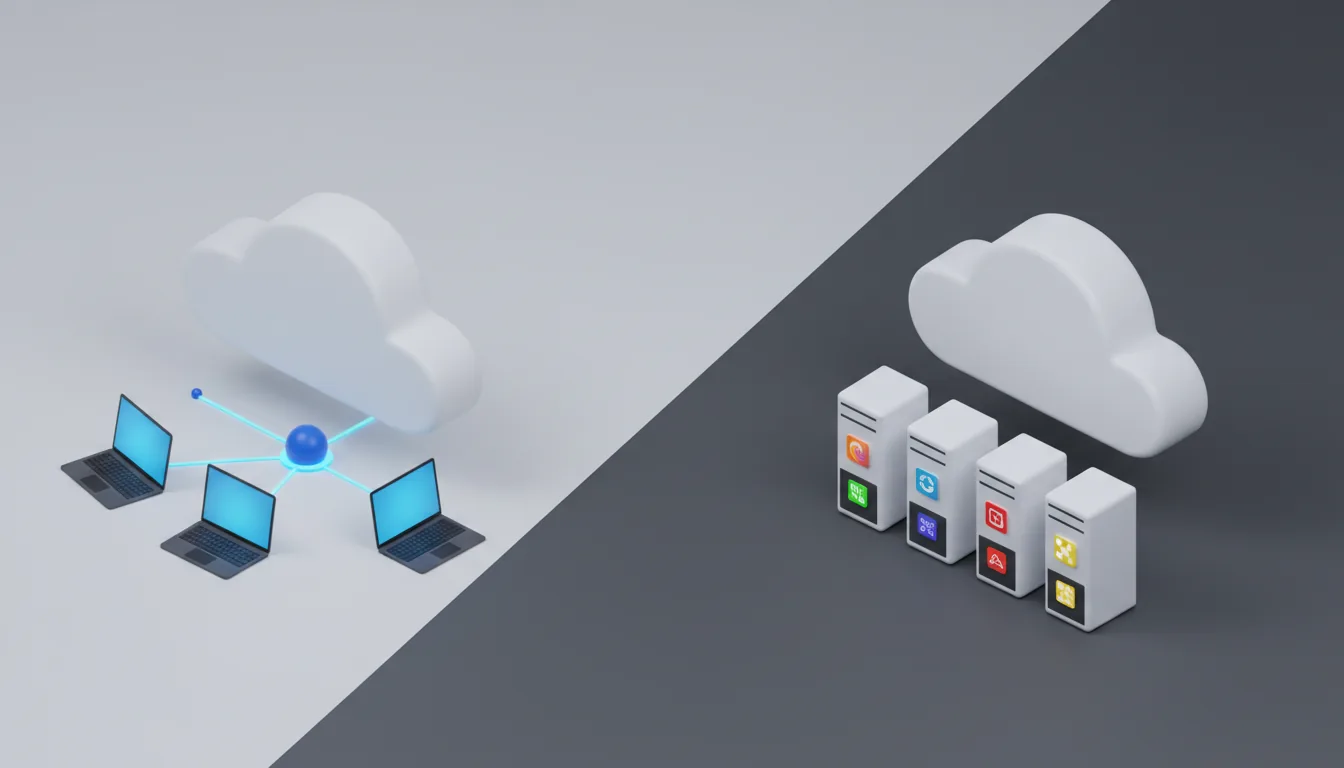
Here’s the key thing for Chromebook users. In daily use, VM and VDI feel almost identical. You open a browser or app, sign in, and a full desktop appears. The differences matter more to IT teams than to end users.
What most Chromebook users actually want isn’t a specific architecture. They want a desktop that works. One that runs the apps they need, performs well, and doesn’t turn into a setup project.
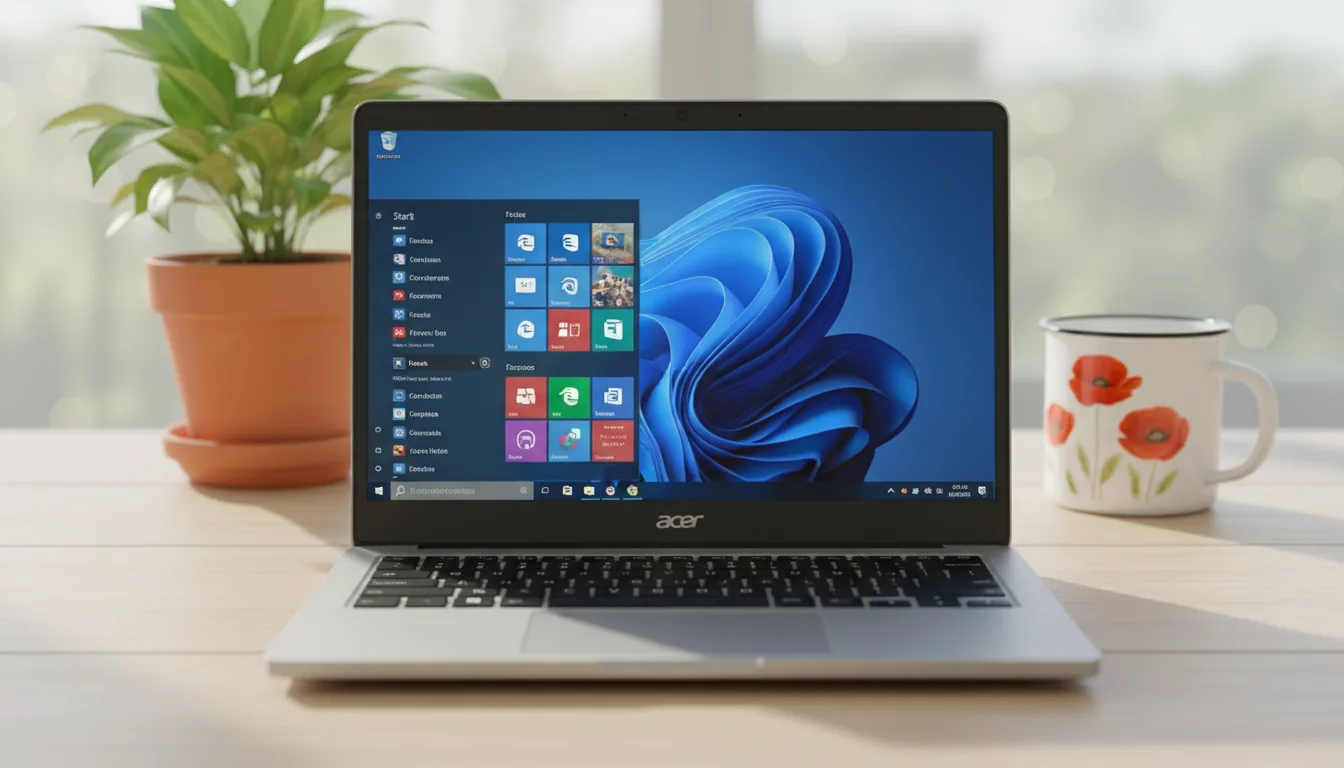
For many users, the real blocker is software compatibility. If you’ve ever tried to open an .exe file on Chrome OS, you already know why people start looking for workarounds. We’ve covered the practical options in detail in our guide on how to run Windows applications on Chromebooks.
Why Virtual Desktops Work Well on Chromebooks
Once you accept that Chromebooks aren’t meant to do everything locally, virtual desktops stop feeling like a workaround and start feeling logical.
Chromebooks are excellent at being thin clients. They handle browsers well, stay stable over long sessions, and don’t get bogged down by background processes. That’s exactly what you want when the real work is happening somewhere else.
With a virtual desktop, the Chromebook steps out of the way.
Processing happens on remote servers. Memory limits stop mattering. GPU-heavy tasks run on hardware designed for that kind of load. Your Chromebook becomes the access point, not the bottleneck.
This setup solves several pain points at once:
You can run Windows or Linux apps that Chrome OS will never support
Performance depends on the cloud machine, not your device
Your desktop follows you across devices
Files and data stay centralized instead of scattered
There are trade-offs, and it’s better to be honest about them. You need a reliable internet connection. Some ultra latency-sensitive tasks can feel off. And if all your work already lives comfortably in the browser, this might be unnecessary.
But for Chromebook users who’ve hit real limits, virtual desktops don’t complicate things. They simplify them.
Where Chromebook VM & VDI Setups Go Wrong
This is where a lot of Chromebook users get discouraged. Not because virtual desktops are a bad idea, but because their first experience with them feels heavier than the problem they were trying to solve.
Let’s break down the most common failure points.
#1. Too Much Setup, Too Little Payoff
Many VM and VDI solutions were built with enterprise IT teams in mind. That shows. You’re expected to understand things like desktop images, access policies, networking rules, and session types before you even get to work.
For a Chromebook user, that’s a mismatch. Chrome OS is simple by design. When a virtual desktop requires hours of configuration just to open an app, the friction feels wrong immediately. What should feel like an extension of the Chromebook instead feels like a separate project.
People don’t abandon virtual desktops because they’re powerful. They abandon them because they’re exhausting.
#2. Weak Performance Where It Actually Matters
Another common issue is performance that looks fine on paper but falls apart in real use.
Some cloud desktops run on minimal hardware. Others don’t offer GPU acceleration at all. For basic tasks, that might be acceptable. For anything visual, technical, or compute-heavy, it’s not.
Laggy interfaces. Slow renders. Choppy scrolling. These problems break trust fast. Once a user feels like the virtual desktop is slower than their local device, the whole idea starts to feel pointless.
Chromebook users aren’t expecting miracles. But they do expect the cloud machine to be clearly more capable than the device in their hands.
#3. User Experience That Fights the Chromebook Mentality
Chromebook users are used to immediacy. Open the lid. Sign in. Start working.
Many VM and VDI setups ignore that expectation. Multiple authentication steps. Special clients that don’t behave well on Chrome OS. Sessions that drop or reset unexpectedly. Each small annoyance adds up.
When accessing your desktop feels fragile or inconsistent, you stop trusting it for real work. And once that happens, it’s hard to go back.
#4. Tools Built for IT, Not for Individuals
Traditional VDI platforms excel at control and standardization. They’re great for large organizations with dedicated support teams. They’re far less friendly to individuals, freelancers, students, or small teams.
These users don’t want to manage infrastructure. They want a working computer. Something they can log into and rely on without thinking about how it’s built.
That gap is important. Because it explains why many Chromebook users know they need more power, yet still haven’t found a virtual desktop solution that actually fits how they work.
And it’s exactly the gap newer cloud computer approaches are trying to close.
Some users even try installing Windows directly on their Chromebook, which can work in very specific cases, but often comes with serious trade-offs. If you’re curious what that path actually looks like, here’s a full breakdown of how to install Windows on a Chromebook.
Real-World Chromebook Use Cases
When virtual desktops are done right, the difference is immediate. You stop thinking about workarounds and start thinking about work again. I’ve seen this play out across very different types of Chromebook users.
#1. Students and Education
Many schools rely on Chromebooks for cost and manageability, but their software requirements haven’t caught up. Engineering tools, design software, and exam platforms are often still Windows-based.
Virtual desktops bridge that gap cleanly. Students log in from their Chromebook and get the same environment they’d have in a physical lab. No installs. No special hardware. No excuses about incompatible devices. It levels the field in a way traditional setups can’t.

#2. Remote Workers and Distributed Teams
For remote workers, consistency matters more than raw power. A virtual desktop gives them a controlled, familiar workspace no matter where they log in from.
Companies can issue Chromebooks without worrying about data living on personal devices. Workers get access to full desktop tools without carrying multiple machines. When someone changes roles or leaves, access is revoked instantly. Clean, simple, and predictable.
Vector design tools are another common pain point. If you rely on Affinity Designer, running it through a cloud desktop removes the usual Chromebook limitations. Here’s how Affinity Designer runs on a Chromebook with the right setup.
#3. Developers and Technical Users
Developers are often the first to push hardware limits. Compilers, containers, build pipelines, and test environments don’t play nicely with lightweight devices.
With a virtual desktop, the development environment lives in the cloud. The Chromebook becomes the terminal and editor, not the execution engine. This setup works especially well for people who move between locations or devices but need the same tools every time.
3D modeling is another category that benefits immediately from this approach. Tools like SketchUp, which struggle or don’t run at all on Chrome OS, work reliably when accessed through the cloud. Here’s what SketchUp on a Chromebook actually looks like in practice.
#4. Creatives and Power Users
This is where skepticism usually shows up. And honestly, it’s fair.
But when virtual desktops include proper GPU support, creatives can run demanding applications that would normally be impossible on Chrome OS. Editing, rendering, and even AI-assisted workflows happen remotely. The Chromebook streams the result.
It’s not the right answer for every creative workflow. But for many, it turns a Chromebook from a secondary device into a primary one.
Creative work is where Chromebooks usually hit a wall first. Tools like Blender simply aren’t designed for Chrome OS, but they work surprisingly well through a cloud computer. We’ve shown exactly how this works in our guide on using Blender on a Chromebook.
Video editing is another area where cloud desktops change what’s possible. Even advanced tools like DaVinci Resolve can run smoothly when the hardware lives in the cloud. Here’s how DaVinci Resolve works on a Chromebook.
What a Good Virtual Desktop Feels Like
This part is important, because once you’ve seen a good setup, it’s hard to tolerate a bad one.
A virtual desktop doesn’t need to feel futuristic. It needs to feel normal. Boring, even. In the best way.
#1. It Should Start in Seconds, Not Minutes
From a Chromebook, access should be immediate. Open a browser. Sign in. Desktop appears.
No installers. No plugins that half work on Chrome OS. No instructions that start with “first, contact your IT administrator.” If getting into your desktop takes more effort than opening a Google Doc, something’s off.
Chromebook users are used to speed. A virtual desktop has to respect that expectation.
#2. Performance Should Be Obviously Better Than Local
This sounds obvious, but it’s where many services fail.
If you’re using a virtual desktop to escape Chromebook limitations, the remote machine has to feel meaningfully stronger. Apps should launch quickly. Interfaces should stay responsive. Heavy tasks should complete faster than they ever could locally.
That usually means access to serious CPUs and, when needed, GPUs. Especially now, with AI-powered tools and creative software becoming more demanding by the month.
If the performance gap isn’t clear, the value disappears.
#3. The Experience Should Be Consistent
A good virtual desktop behaves the same way every time you log in.
Your files are where you left them. Your apps are ready. Settings don’t reset unexpectedly. Sessions don’t drop without warning. This consistency is what turns a virtual desktop from a novelty into something you trust for real work.
Chromebook users tend to move between locations and networks. The virtual desktop has to handle that reality gracefully.
#4. You Shouldn’t Have to Think About the Infrastructure
This might be the most important point.
A good virtual desktop hides its complexity. You don’t worry about servers, regions, drivers, or configurations. You don’t tune performance knobs or manage images. You just use a computer.
When the system fades into the background, you know it’s working.
And once you know what this experience feels like, it becomes the standard you judge everything else against.
Performance expectations matter most with heavy creative software. Applications like After Effects need real GPU power to feel usable. With a cloud computer, Adobe After Effects on a Chromebook stops being a theoretical idea and becomes practical.
How Vagon Cloud Computer Extends Chromebooks
This is where the theory turns into something you can actually use.
A lot of virtual desktop solutions promise flexibility or power, but they still expect you to think like an IT admin. That’s fine for large organizations. It’s not great if you’re a Chromebook user who just wants a real computer when you need one.
Vagon Cloud Computer takes a different approach. It doesn’t sell you infrastructure. It gives you a full cloud computer that’s ready to go.
From a Chromebook, the experience is simple. Open your browser. Log in. Your cloud desktop is there. No installations on Chrome OS. No configuration screens. No setup rabbit holes. It feels less like accessing a remote machine and more like turning on a powerful second computer that happens to live in the cloud.
Performance is where Vagon really stands out. These aren’t lightweight virtual desktops meant for basic office tasks. Vagon Cloud Computer runs on high-performance machines, including options with dedicated GPUs. That’s what makes it viable for creative work, development, and AI-powered tools that would normally be impossible on a Chromebook.
If you’ve ever tried to push a Chromebook beyond its comfort zone, the difference is obvious. Apps launch faster. Complex projects stay responsive. Heavy workloads don’t turn into patience tests. The Chromebook stops being the limiting factor.
Vagon also fits naturally into how people actually work today. Your cloud computer is accessible from anywhere, but it stays consistent. Same desktop. Same apps. Same files. Whether you’re switching devices, working remotely, or jumping between locations, nothing breaks your flow.
For Chromebook users who’ve already experimented with virtual machines or VDI and walked away frustrated, Vagon removes the usual friction. No enterprise gatekeeping. No steep learning curve. Just a powerful cloud computer you can use when your Chromebook alone isn’t enough.
At that point, the question stops being whether a Chromebook can handle your work. It becomes whether you still need another physical machine at all.
For designers who depend on Adobe tools, compatibility is often the deciding factor. Running Adobe Illustrator on a Chromebook through a cloud computer removes the need for device switching entirely.
Step by Step: Using Vagon Cloud Computer on a Chromebook
If you’ve never used a cloud computer before, this part matters. Not the idea of it. The experience of it.
Because when Vagon works, it doesn’t feel like VM, VDI, or anything technical. It feels like you just unlocked a much stronger computer through your browser.
Here’s how that plays out, step by step.
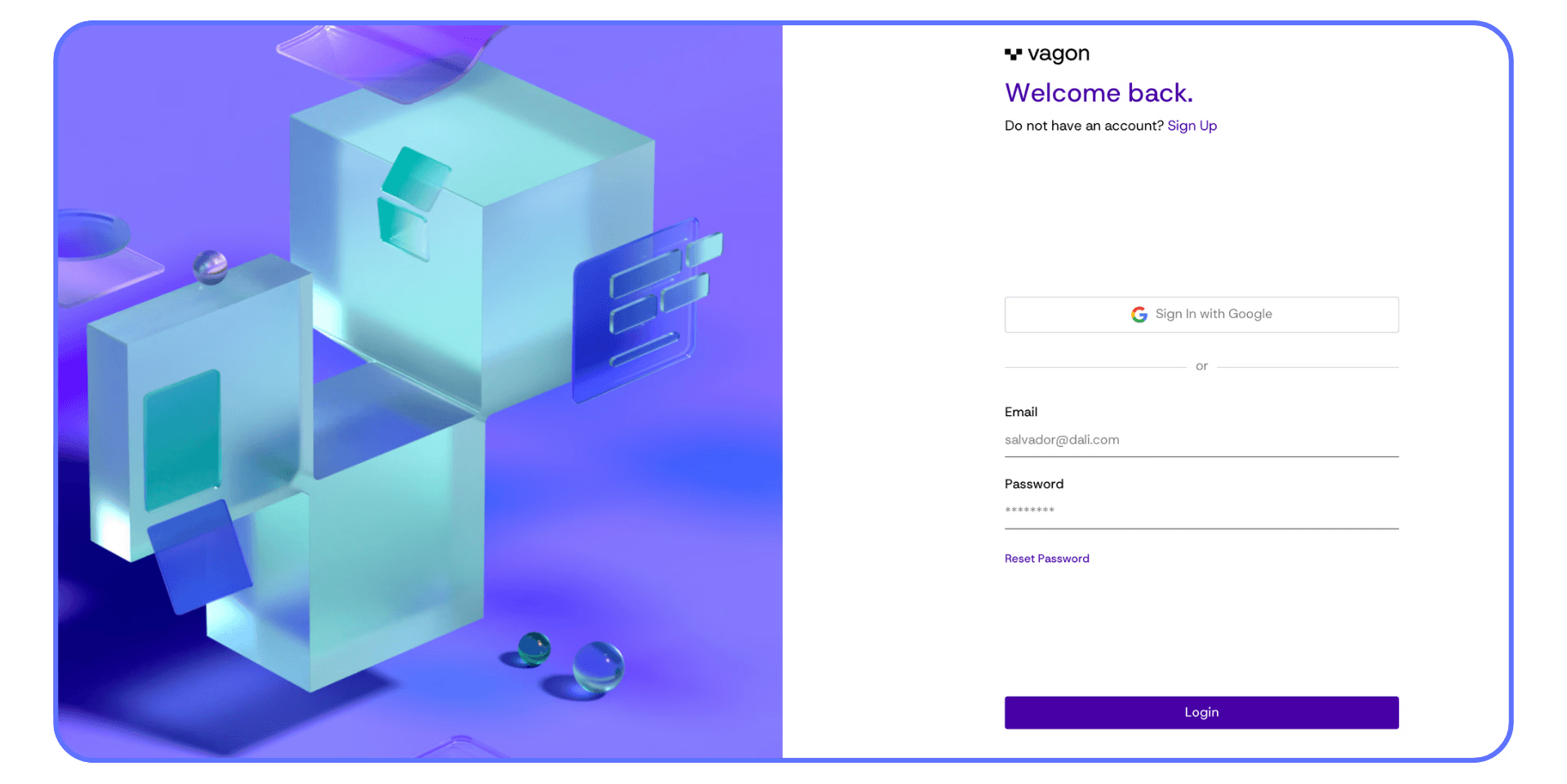
Step 1: Sign In and Get a Cloud Computer in Minutes
You start exactly where you’d expect. Sign in to Vagon from your Chromebook using the browser. No extensions. No system changes. No downloads for Chrome OS.
Once you’re in, you’re not dropped into a complex dashboard. You’re asked a simple question.
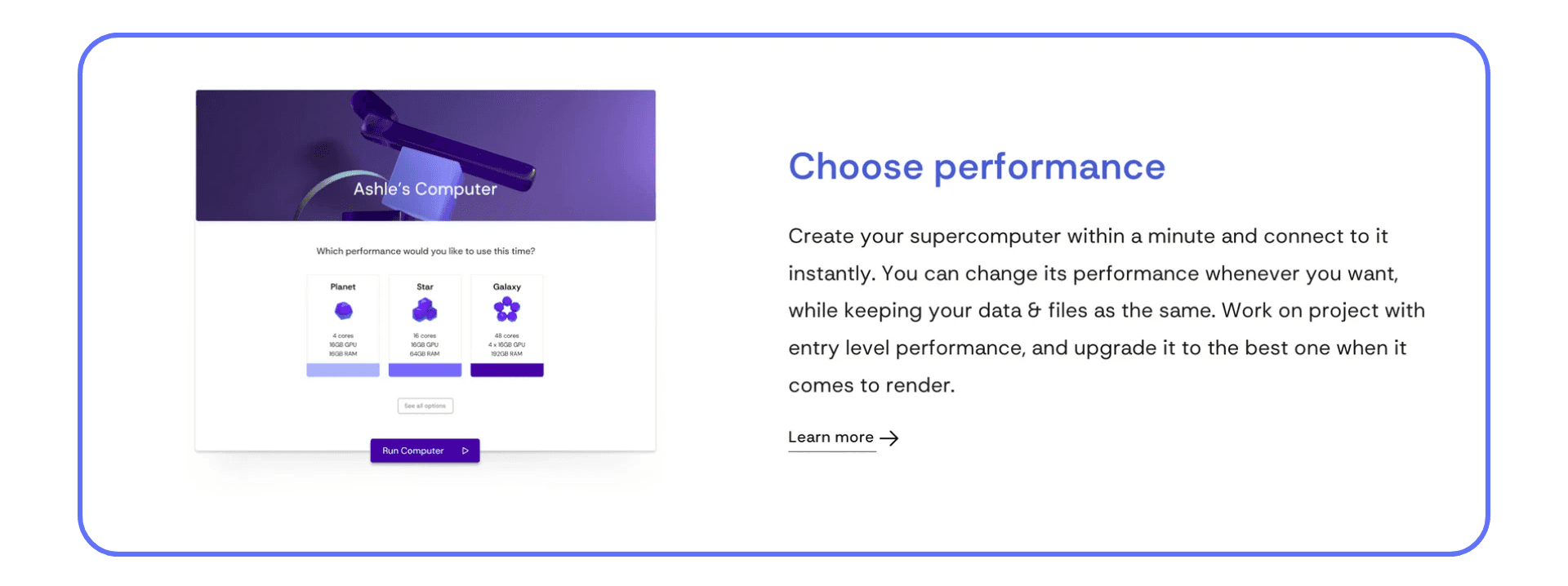
What kind of performance do you want to use right now?
That framing is intentional. You’re not configuring machines. You’re choosing how powerful your computer should be for the task at hand.
Step 2: Choose Performance, Not a Permanent Setup
One of the biggest mental shifts with Vagon is that performance isn’t locked in.
You can start with an entry-level setup for everyday work and switch to a much stronger configuration when you need to render, export, train, or process something heavy. Your files stay exactly where they are. Your environment doesn’t reset.
You’re not creating multiple machines. You’re using one computer that can change its muscle when needed.
That’s a big deal for Chromebook users, because it means you’re not guessing upfront. You can adapt as your work changes.
Step 3: Connect Instantly From Your Chromebook
Once you hit run, the connection feels immediate.
Your Chromebook screen becomes a window into a full desktop environment. Windows-based, responsive, and ready for real software. Keyboard shortcuts work. Mouse input feels natural. You forget very quickly that nothing is running locally.
This is usually the moment people pause and think,
“Wait, this is still my Chromebook?”
Yes. It is. And that’s the point.
Step 4: Install Apps Automatically (or Manually if You Want)
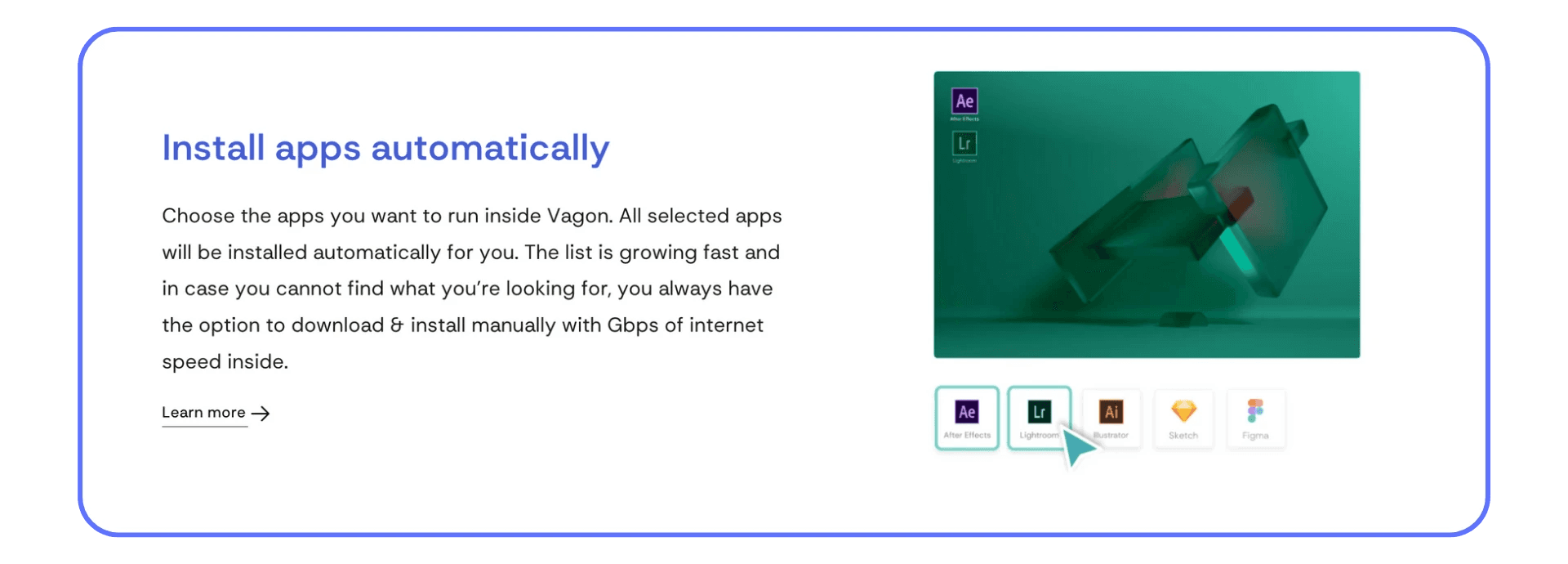
Inside Vagon, you don’t have to treat app setup like a chore.
You can choose from a growing list of popular applications and have them installed automatically for you. Creative tools. Design software. Professional apps. They’re ready without hunting installers or managing downloads.
If you prefer manual control, that’s fine too. The cloud computer has fast internal internet, so installing large applications feels noticeably quicker than doing it on a local machine.
Either way, setup doesn’t become a barrier.
Step 5: Work With Files Even When the Computer Is Off
This is one of those features that sounds small until you use it.
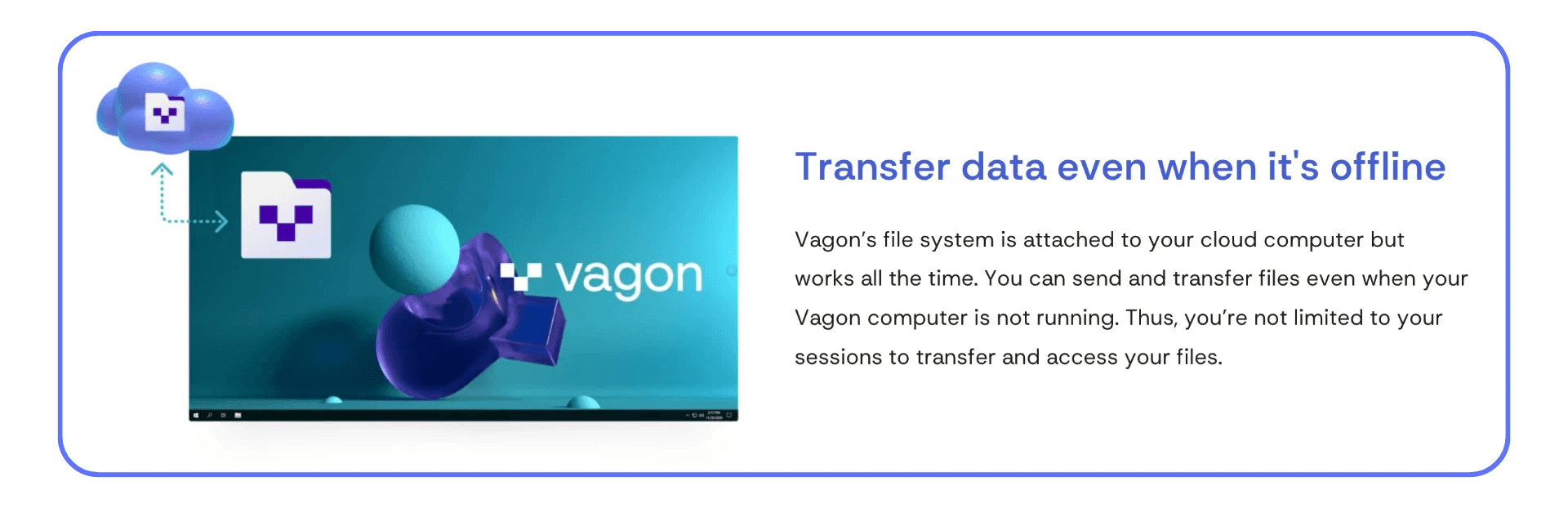
Vagon’s file system stays accessible even when your cloud computer isn’t running. You can upload, download, and manage files without starting a session.
That means:
You can prep files before a work session
You can move results after you’re done
You’re not forced to “log in just to grab something”
For Chromebook users used to cloud storage, this fits naturally. The computer doesn’t need to be on for your files to exist.
Step 6: Move Between Devices Without Breaking Your Flow
Your cloud computer isn’t tied to one screen.
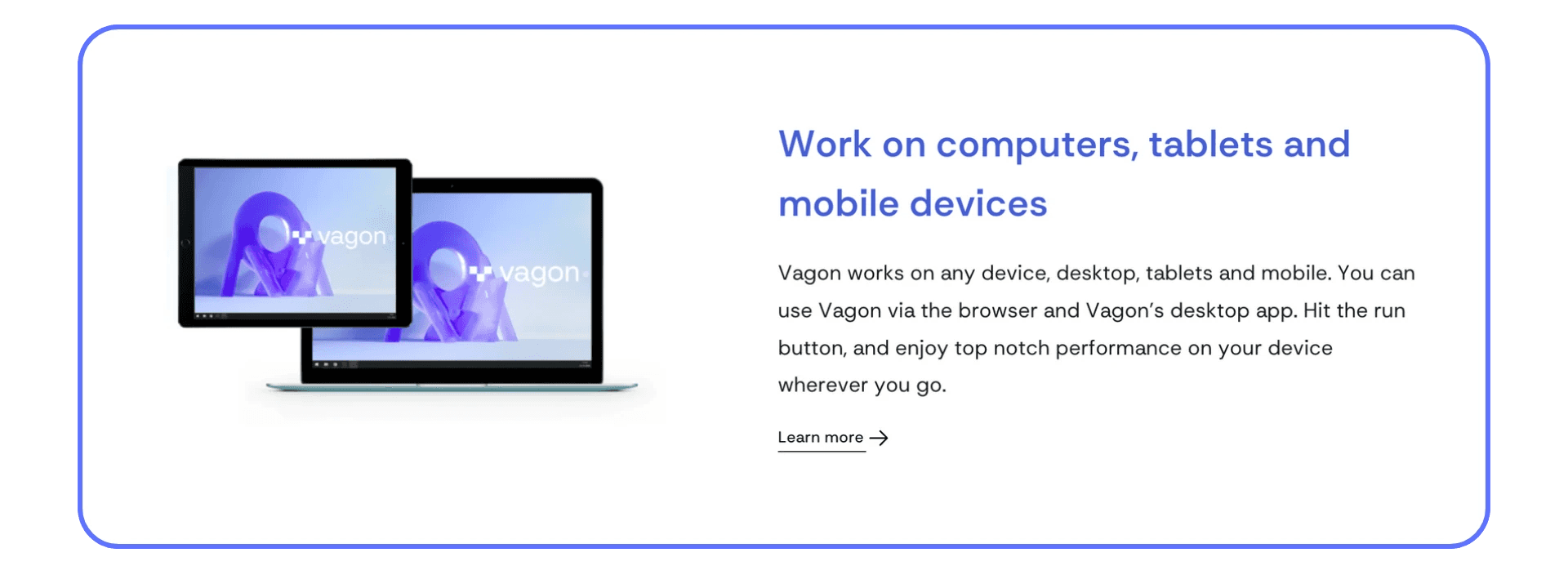
You can start working on your Chromebook, continue on another laptop, or even open the same environment on a tablet or mobile device if needed. Everything stays consistent. Same desktop. Same apps. Same files.
This is where the Chromebook really shines. It becomes the lightest, simplest way to access your most powerful workspace.
Step 7: Let the Cloud Handle the Heavy Internet Work
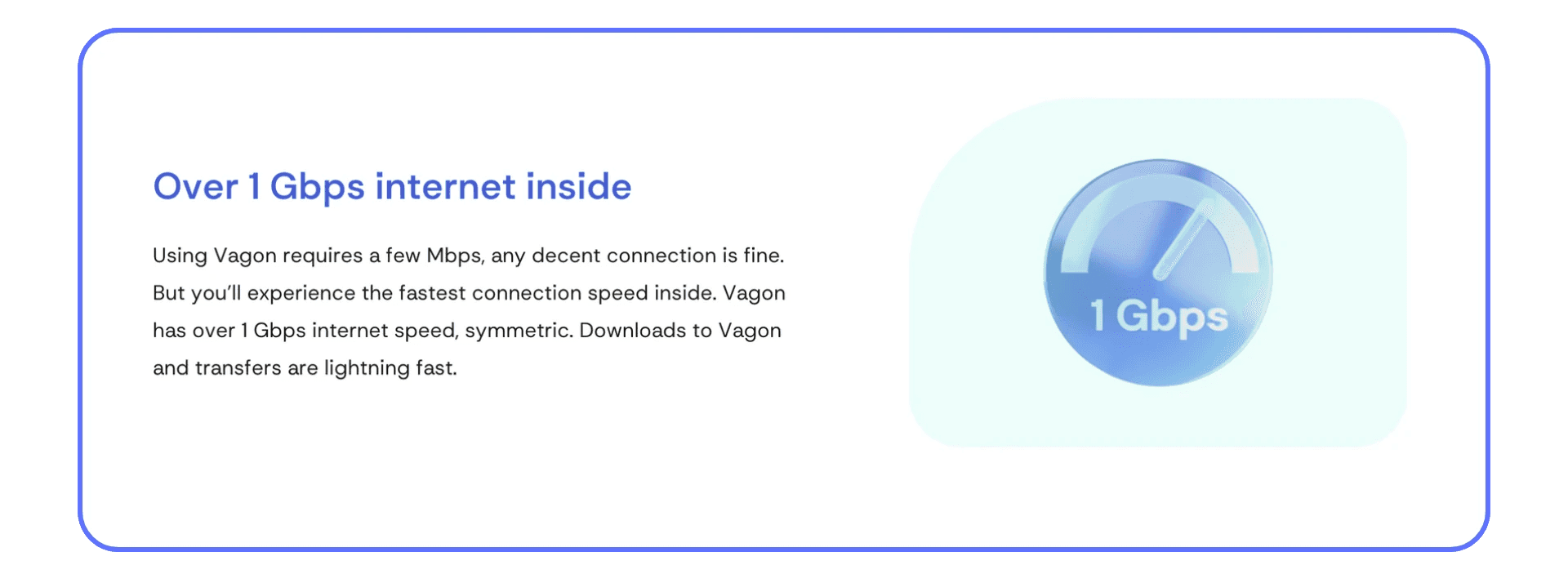
Your local connection only needs to be decent. Inside the cloud computer, the internet is fast.
That means:
Large downloads finish quickly
App installs don’t drag on
File transfers feel immediate
Instead of waiting on your local network to do the heavy lifting, the cloud handles it for you. The Chromebook just streams the result.
Step 8: Use It for More Than Just “Work”
While most people come to Vagon for professional reasons, the same setup works for other demanding use cases too.
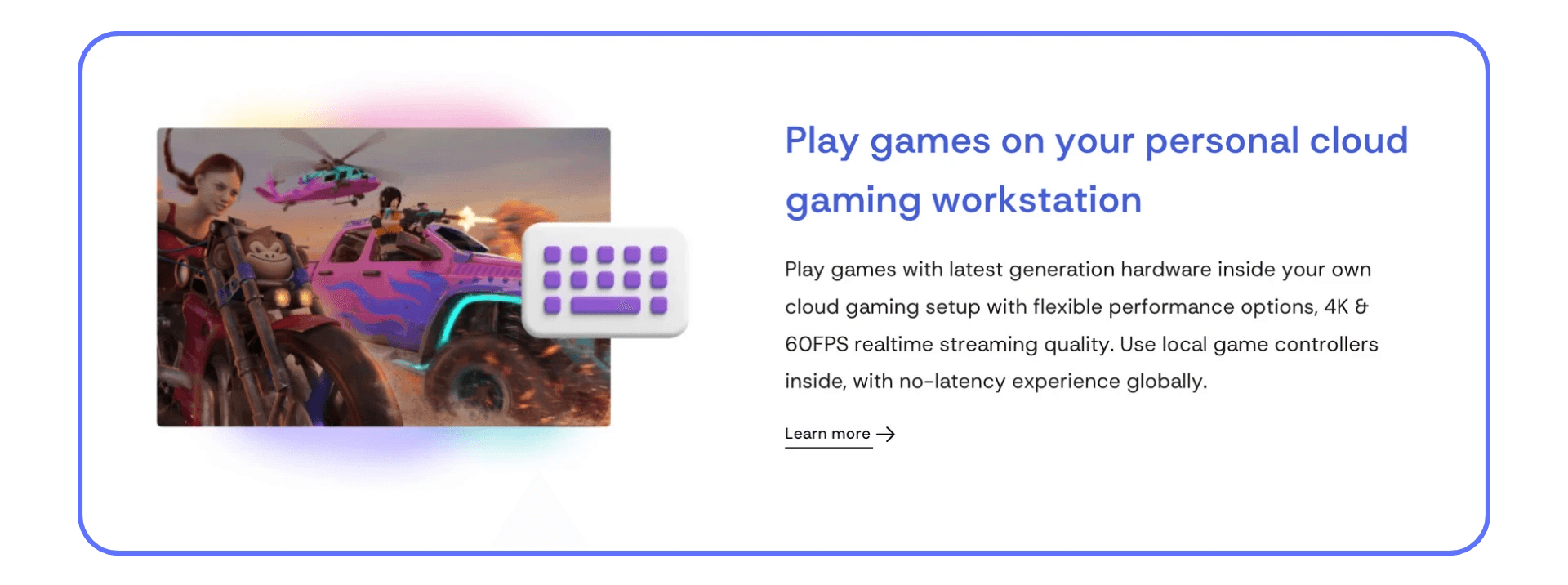
Gaming, for example, becomes possible on a Chromebook when the hardware lives in the cloud. Controllers work. Performance stays stable. Visual quality doesn’t depend on your local device.
It’s not the main reason everyone signs up, but it’s a good illustration of what changes when hardware limits disappear.
Step 9: Shut It Down When You’re Done
When you finish working, you stop the computer.
That’s it.
Your files remain. Your setup stays intact. You’re not leaving anything running in the background, and you’re not locked into keeping a machine alive when you don’t need it.
This reinforces the core idea behind Vagon.
Power when you need it. Silence when you don’t.
What Usually Clicks After a Few Sessions
At first, people focus on what they can finally run.
After a few days, something else happens.
They stop thinking about Chrome OS limitations altogether.
The Chromebook becomes what it’s best at. Fast. Quiet. Reliable. And Vagon becomes the place where real work happens when it needs more power.
Not a workaround.
Not a backup plan.
Just a better way to work.

Final Thoughts
Chromebooks don’t fail people. Expectations do.
They’re fantastic at what they’re meant to be: fast, simple, reliable gateways to the web. The frustration starts when real work demands more than the browser can give. That’s the moment many users assume they’ve outgrown the device entirely.
Virtual desktops change that assumption.
They let Chromebooks stay lightweight while giving you access to serious computing power when you need it. No device juggling. No panic buying another laptop. Just the right tool at the right time.
If you’ve ever hit that “I love my Chromebook, but…” moment, the best thing you can do isn’t to debate specs or read comparisons. It’s to try a cloud computer for the kind of work you actually do. Open the apps you’ve been missing. Push it a bit. See how it feels.
Once you experience what a Chromebook paired with a powerful cloud desktop can really handle, it’s hard to look at the device the same way again.
FAQs
1. Can a Chromebook really run Windows or macOS apps?
Not directly. Chrome OS can’t natively install Windows or macOS applications. What does work is accessing those apps through a virtual desktop or cloud computer, where the operating system and apps run remotely and stream to your Chromebook.
2. Do I need a powerful Chromebook for a virtual desktop?
No. That’s kind of the point. The processing, memory, and graphics all happen on the remote machine. Your Chromebook just needs to handle a browser and a stable internet connection. Even lower-end models work surprisingly well.
3. How fast does my internet need to be?
You don’t need extreme speeds, but stability matters more than raw bandwidth. A solid broadband connection with low latency makes a bigger difference than having the fastest plan available. Poor Wi-Fi will hurt the experience more than an older Chromebook ever will.
4. Is using a virtual desktop secure?
Generally, yes. In many cases, it’s more secure than working locally. Files and apps live on the remote machine, not on your Chromebook. If the device is lost or stolen, your data isn’t sitting on it. Access can be revoked instantly.
5. What’s the difference between a cloud computer and traditional VDI?
Traditional VDI is usually built for enterprises and managed by IT teams. A cloud computer, like Vagon Cloud Computer, is designed to be self-serve. You get a full desktop without needing to configure infrastructure, manage images, or understand backend systems.
6. Will there be lag when using creative or AI tools?
Some latency is unavoidable with any remote setup, but with the right hardware and connection, it’s very usable. GPU-backed cloud computers handle creative software and AI-powered tools far better than basic virtual desktops. For most workflows, the trade-off is worth it.
7. Can I use a virtual desktop offline?
No. Virtual desktops and cloud computers require an internet connection. If offline work is critical for you, this setup may not be the best fit.
8. Is this only for businesses, or can individuals use it too?
Individuals can absolutely use it. Freelancers, students, developers, and creatives often benefit the most. The key difference is choosing a solution that’s designed for individuals, not one that assumes an IT department is setting everything up for you.
8. Does this replace owning another laptop or desktop?
For many people, yes. Especially if your main limitation is software compatibility or performance. A Chromebook paired with a powerful cloud computer can cover a surprising range of use cases that would normally require a second physical machine.
I’ve lost count of how many times I’ve heard this sentence start with genuine enthusiasm and end in frustration.
“I love my Chromebook, but…”
It usually happens at an inconvenient moment. A deadline. A client request. A class assignment that suddenly requires software Chrome OS doesn’t support. You search anyway, just in case. Maybe there’s a workaround. Maybe someone made a web version. Thirty minutes later, you’re still staring at the same limitation.
That’s the moment Chromebooks fall short. Not because they’re slow or broken, but because they were never meant to be everything. They’re built to be simple, cloud-first machines. And for a long time, that’s enough. Until it isn’t.
When that gap appears, most users don’t plan for it. They react. Borrow another computer. Remote into a machine at home. Or give up on the task entirely. The problem shows up fast, and it usually shows up when you least want to deal with it.
Why Chromebooks Have Limits
Chromebooks are very good at what they’re designed to do. That’s part of the problem.
Chrome OS is optimized for speed, security, and simplicity. It boots fast. It rarely crashes. Updates happen quietly in the background. For everyday tasks, it feels effortless. You don’t manage the system. You just use it.
But that focus comes with hard boundaries.
You can’t natively run Windows or macOS applications. Linux support helps in some cases, but it’s still constrained by the device and rarely suitable for heavy workloads. GPU-intensive apps, specialized drivers, and legacy enterprise software are mostly out of reach.
When users hit these limits, they usually take the same paths. They switch devices mid-workflow. They remote into a desktop that lives somewhere else, hoping the connection holds. Or they redesign their work around what the Chromebook allows instead of what the work actually requires.
None of these feel like real solutions. They’re compromises. And over time, those compromises stack up. More friction. More time wasted. More mental overhead just to get basic work done.
The frustrating part is that the Chromebook itself isn’t the issue. It’s capable. It’s reliable. It’s just locked into a role that doesn’t cover everything modern users are expected to do.
VM & VDI Explained for Chromebook Users
Once people start looking for alternatives, they usually run straight into acronyms. VM. VDI. Cloud desktops. Remote machines. It sounds more complicated than it needs to be.
A virtual machine is simply a computer that runs somewhere else. It has its own operating system, its own apps, and its own storage. You connect to it over the internet and use it like a normal desktop. The work happens remotely. Your Chromebook just shows the screen and sends input.
VDI, short for Virtual Desktop Infrastructure, is about scale and management. Instead of one person using one virtual machine, VDI systems manage many desktops from a central place. Updates, security, and access are controlled centrally. Users log in and get a ready-to-use desktop.
Here’s the key thing for Chromebook users. In daily use, VM and VDI feel almost identical. You open a browser or app, sign in, and a full desktop appears. The differences matter more to IT teams than to end users.
What most Chromebook users actually want isn’t a specific architecture. They want a desktop that works. One that runs the apps they need, performs well, and doesn’t turn into a setup project.
For many users, the real blocker is software compatibility. If you’ve ever tried to open an .exe file on Chrome OS, you already know why people start looking for workarounds. We’ve covered the practical options in detail in our guide on how to run Windows applications on Chromebooks.
Why Virtual Desktops Work Well on Chromebooks
Once you accept that Chromebooks aren’t meant to do everything locally, virtual desktops stop feeling like a workaround and start feeling logical.
Chromebooks are excellent at being thin clients. They handle browsers well, stay stable over long sessions, and don’t get bogged down by background processes. That’s exactly what you want when the real work is happening somewhere else.
With a virtual desktop, the Chromebook steps out of the way.
Processing happens on remote servers. Memory limits stop mattering. GPU-heavy tasks run on hardware designed for that kind of load. Your Chromebook becomes the access point, not the bottleneck.
This setup solves several pain points at once:
You can run Windows or Linux apps that Chrome OS will never support
Performance depends on the cloud machine, not your device
Your desktop follows you across devices
Files and data stay centralized instead of scattered
There are trade-offs, and it’s better to be honest about them. You need a reliable internet connection. Some ultra latency-sensitive tasks can feel off. And if all your work already lives comfortably in the browser, this might be unnecessary.
But for Chromebook users who’ve hit real limits, virtual desktops don’t complicate things. They simplify them.
Where Chromebook VM & VDI Setups Go Wrong
This is where a lot of Chromebook users get discouraged. Not because virtual desktops are a bad idea, but because their first experience with them feels heavier than the problem they were trying to solve.
Let’s break down the most common failure points.
#1. Too Much Setup, Too Little Payoff
Many VM and VDI solutions were built with enterprise IT teams in mind. That shows. You’re expected to understand things like desktop images, access policies, networking rules, and session types before you even get to work.
For a Chromebook user, that’s a mismatch. Chrome OS is simple by design. When a virtual desktop requires hours of configuration just to open an app, the friction feels wrong immediately. What should feel like an extension of the Chromebook instead feels like a separate project.
People don’t abandon virtual desktops because they’re powerful. They abandon them because they’re exhausting.
#2. Weak Performance Where It Actually Matters
Another common issue is performance that looks fine on paper but falls apart in real use.
Some cloud desktops run on minimal hardware. Others don’t offer GPU acceleration at all. For basic tasks, that might be acceptable. For anything visual, technical, or compute-heavy, it’s not.
Laggy interfaces. Slow renders. Choppy scrolling. These problems break trust fast. Once a user feels like the virtual desktop is slower than their local device, the whole idea starts to feel pointless.
Chromebook users aren’t expecting miracles. But they do expect the cloud machine to be clearly more capable than the device in their hands.
#3. User Experience That Fights the Chromebook Mentality
Chromebook users are used to immediacy. Open the lid. Sign in. Start working.
Many VM and VDI setups ignore that expectation. Multiple authentication steps. Special clients that don’t behave well on Chrome OS. Sessions that drop or reset unexpectedly. Each small annoyance adds up.
When accessing your desktop feels fragile or inconsistent, you stop trusting it for real work. And once that happens, it’s hard to go back.
#4. Tools Built for IT, Not for Individuals
Traditional VDI platforms excel at control and standardization. They’re great for large organizations with dedicated support teams. They’re far less friendly to individuals, freelancers, students, or small teams.
These users don’t want to manage infrastructure. They want a working computer. Something they can log into and rely on without thinking about how it’s built.
That gap is important. Because it explains why many Chromebook users know they need more power, yet still haven’t found a virtual desktop solution that actually fits how they work.
And it’s exactly the gap newer cloud computer approaches are trying to close.
Some users even try installing Windows directly on their Chromebook, which can work in very specific cases, but often comes with serious trade-offs. If you’re curious what that path actually looks like, here’s a full breakdown of how to install Windows on a Chromebook.
Real-World Chromebook Use Cases
When virtual desktops are done right, the difference is immediate. You stop thinking about workarounds and start thinking about work again. I’ve seen this play out across very different types of Chromebook users.
#1. Students and Education
Many schools rely on Chromebooks for cost and manageability, but their software requirements haven’t caught up. Engineering tools, design software, and exam platforms are often still Windows-based.
Virtual desktops bridge that gap cleanly. Students log in from their Chromebook and get the same environment they’d have in a physical lab. No installs. No special hardware. No excuses about incompatible devices. It levels the field in a way traditional setups can’t.
#2. Remote Workers and Distributed Teams
For remote workers, consistency matters more than raw power. A virtual desktop gives them a controlled, familiar workspace no matter where they log in from.
Companies can issue Chromebooks without worrying about data living on personal devices. Workers get access to full desktop tools without carrying multiple machines. When someone changes roles or leaves, access is revoked instantly. Clean, simple, and predictable.
Vector design tools are another common pain point. If you rely on Affinity Designer, running it through a cloud desktop removes the usual Chromebook limitations. Here’s how Affinity Designer runs on a Chromebook with the right setup.
#3. Developers and Technical Users
Developers are often the first to push hardware limits. Compilers, containers, build pipelines, and test environments don’t play nicely with lightweight devices.
With a virtual desktop, the development environment lives in the cloud. The Chromebook becomes the terminal and editor, not the execution engine. This setup works especially well for people who move between locations or devices but need the same tools every time.
3D modeling is another category that benefits immediately from this approach. Tools like SketchUp, which struggle or don’t run at all on Chrome OS, work reliably when accessed through the cloud. Here’s what SketchUp on a Chromebook actually looks like in practice.
#4. Creatives and Power Users
This is where skepticism usually shows up. And honestly, it’s fair.
But when virtual desktops include proper GPU support, creatives can run demanding applications that would normally be impossible on Chrome OS. Editing, rendering, and even AI-assisted workflows happen remotely. The Chromebook streams the result.
It’s not the right answer for every creative workflow. But for many, it turns a Chromebook from a secondary device into a primary one.
Creative work is where Chromebooks usually hit a wall first. Tools like Blender simply aren’t designed for Chrome OS, but they work surprisingly well through a cloud computer. We’ve shown exactly how this works in our guide on using Blender on a Chromebook.
Video editing is another area where cloud desktops change what’s possible. Even advanced tools like DaVinci Resolve can run smoothly when the hardware lives in the cloud. Here’s how DaVinci Resolve works on a Chromebook.
What a Good Virtual Desktop Feels Like
This part is important, because once you’ve seen a good setup, it’s hard to tolerate a bad one.
A virtual desktop doesn’t need to feel futuristic. It needs to feel normal. Boring, even. In the best way.
#1. It Should Start in Seconds, Not Minutes
From a Chromebook, access should be immediate. Open a browser. Sign in. Desktop appears.
No installers. No plugins that half work on Chrome OS. No instructions that start with “first, contact your IT administrator.” If getting into your desktop takes more effort than opening a Google Doc, something’s off.
Chromebook users are used to speed. A virtual desktop has to respect that expectation.
#2. Performance Should Be Obviously Better Than Local
This sounds obvious, but it’s where many services fail.
If you’re using a virtual desktop to escape Chromebook limitations, the remote machine has to feel meaningfully stronger. Apps should launch quickly. Interfaces should stay responsive. Heavy tasks should complete faster than they ever could locally.
That usually means access to serious CPUs and, when needed, GPUs. Especially now, with AI-powered tools and creative software becoming more demanding by the month.
If the performance gap isn’t clear, the value disappears.
#3. The Experience Should Be Consistent
A good virtual desktop behaves the same way every time you log in.
Your files are where you left them. Your apps are ready. Settings don’t reset unexpectedly. Sessions don’t drop without warning. This consistency is what turns a virtual desktop from a novelty into something you trust for real work.
Chromebook users tend to move between locations and networks. The virtual desktop has to handle that reality gracefully.
#4. You Shouldn’t Have to Think About the Infrastructure
This might be the most important point.
A good virtual desktop hides its complexity. You don’t worry about servers, regions, drivers, or configurations. You don’t tune performance knobs or manage images. You just use a computer.
When the system fades into the background, you know it’s working.
And once you know what this experience feels like, it becomes the standard you judge everything else against.
Performance expectations matter most with heavy creative software. Applications like After Effects need real GPU power to feel usable. With a cloud computer, Adobe After Effects on a Chromebook stops being a theoretical idea and becomes practical.
How Vagon Cloud Computer Extends Chromebooks
This is where the theory turns into something you can actually use.
A lot of virtual desktop solutions promise flexibility or power, but they still expect you to think like an IT admin. That’s fine for large organizations. It’s not great if you’re a Chromebook user who just wants a real computer when you need one.
Vagon Cloud Computer takes a different approach. It doesn’t sell you infrastructure. It gives you a full cloud computer that’s ready to go.
From a Chromebook, the experience is simple. Open your browser. Log in. Your cloud desktop is there. No installations on Chrome OS. No configuration screens. No setup rabbit holes. It feels less like accessing a remote machine and more like turning on a powerful second computer that happens to live in the cloud.
Performance is where Vagon really stands out. These aren’t lightweight virtual desktops meant for basic office tasks. Vagon Cloud Computer runs on high-performance machines, including options with dedicated GPUs. That’s what makes it viable for creative work, development, and AI-powered tools that would normally be impossible on a Chromebook.
If you’ve ever tried to push a Chromebook beyond its comfort zone, the difference is obvious. Apps launch faster. Complex projects stay responsive. Heavy workloads don’t turn into patience tests. The Chromebook stops being the limiting factor.
Vagon also fits naturally into how people actually work today. Your cloud computer is accessible from anywhere, but it stays consistent. Same desktop. Same apps. Same files. Whether you’re switching devices, working remotely, or jumping between locations, nothing breaks your flow.
For Chromebook users who’ve already experimented with virtual machines or VDI and walked away frustrated, Vagon removes the usual friction. No enterprise gatekeeping. No steep learning curve. Just a powerful cloud computer you can use when your Chromebook alone isn’t enough.
At that point, the question stops being whether a Chromebook can handle your work. It becomes whether you still need another physical machine at all.
For designers who depend on Adobe tools, compatibility is often the deciding factor. Running Adobe Illustrator on a Chromebook through a cloud computer removes the need for device switching entirely.
Step by Step: Using Vagon Cloud Computer on a Chromebook
If you’ve never used a cloud computer before, this part matters. Not the idea of it. The experience of it.
Because when Vagon works, it doesn’t feel like VM, VDI, or anything technical. It feels like you just unlocked a much stronger computer through your browser.
Here’s how that plays out, step by step.
Step 1: Sign In and Get a Cloud Computer in Minutes
You start exactly where you’d expect. Sign in to Vagon from your Chromebook using the browser. No extensions. No system changes. No downloads for Chrome OS.
Once you’re in, you’re not dropped into a complex dashboard. You’re asked a simple question.
What kind of performance do you want to use right now?
That framing is intentional. You’re not configuring machines. You’re choosing how powerful your computer should be for the task at hand.
Step 2: Choose Performance, Not a Permanent Setup
One of the biggest mental shifts with Vagon is that performance isn’t locked in.
You can start with an entry-level setup for everyday work and switch to a much stronger configuration when you need to render, export, train, or process something heavy. Your files stay exactly where they are. Your environment doesn’t reset.
You’re not creating multiple machines. You’re using one computer that can change its muscle when needed.
That’s a big deal for Chromebook users, because it means you’re not guessing upfront. You can adapt as your work changes.
Step 3: Connect Instantly From Your Chromebook
Once you hit run, the connection feels immediate.
Your Chromebook screen becomes a window into a full desktop environment. Windows-based, responsive, and ready for real software. Keyboard shortcuts work. Mouse input feels natural. You forget very quickly that nothing is running locally.
This is usually the moment people pause and think,
“Wait, this is still my Chromebook?”
Yes. It is. And that’s the point.
Step 4: Install Apps Automatically (or Manually if You Want)
Inside Vagon, you don’t have to treat app setup like a chore.
You can choose from a growing list of popular applications and have them installed automatically for you. Creative tools. Design software. Professional apps. They’re ready without hunting installers or managing downloads.
If you prefer manual control, that’s fine too. The cloud computer has fast internal internet, so installing large applications feels noticeably quicker than doing it on a local machine.
Either way, setup doesn’t become a barrier.
Step 5: Work With Files Even When the Computer Is Off
This is one of those features that sounds small until you use it.
Vagon’s file system stays accessible even when your cloud computer isn’t running. You can upload, download, and manage files without starting a session.
That means:
You can prep files before a work session
You can move results after you’re done
You’re not forced to “log in just to grab something”
For Chromebook users used to cloud storage, this fits naturally. The computer doesn’t need to be on for your files to exist.
Step 6: Move Between Devices Without Breaking Your Flow
Your cloud computer isn’t tied to one screen.
You can start working on your Chromebook, continue on another laptop, or even open the same environment on a tablet or mobile device if needed. Everything stays consistent. Same desktop. Same apps. Same files.
This is where the Chromebook really shines. It becomes the lightest, simplest way to access your most powerful workspace.
Step 7: Let the Cloud Handle the Heavy Internet Work
Your local connection only needs to be decent. Inside the cloud computer, the internet is fast.
That means:
Large downloads finish quickly
App installs don’t drag on
File transfers feel immediate
Instead of waiting on your local network to do the heavy lifting, the cloud handles it for you. The Chromebook just streams the result.
Step 8: Use It for More Than Just “Work”
While most people come to Vagon for professional reasons, the same setup works for other demanding use cases too.
Gaming, for example, becomes possible on a Chromebook when the hardware lives in the cloud. Controllers work. Performance stays stable. Visual quality doesn’t depend on your local device.
It’s not the main reason everyone signs up, but it’s a good illustration of what changes when hardware limits disappear.
Step 9: Shut It Down When You’re Done
When you finish working, you stop the computer.
That’s it.
Your files remain. Your setup stays intact. You’re not leaving anything running in the background, and you’re not locked into keeping a machine alive when you don’t need it.
This reinforces the core idea behind Vagon.
Power when you need it. Silence when you don’t.
What Usually Clicks After a Few Sessions
At first, people focus on what they can finally run.
After a few days, something else happens.
They stop thinking about Chrome OS limitations altogether.
The Chromebook becomes what it’s best at. Fast. Quiet. Reliable. And Vagon becomes the place where real work happens when it needs more power.
Not a workaround.
Not a backup plan.
Just a better way to work.
Final Thoughts
Chromebooks don’t fail people. Expectations do.
They’re fantastic at what they’re meant to be: fast, simple, reliable gateways to the web. The frustration starts when real work demands more than the browser can give. That’s the moment many users assume they’ve outgrown the device entirely.
Virtual desktops change that assumption.
They let Chromebooks stay lightweight while giving you access to serious computing power when you need it. No device juggling. No panic buying another laptop. Just the right tool at the right time.
If you’ve ever hit that “I love my Chromebook, but…” moment, the best thing you can do isn’t to debate specs or read comparisons. It’s to try a cloud computer for the kind of work you actually do. Open the apps you’ve been missing. Push it a bit. See how it feels.
Once you experience what a Chromebook paired with a powerful cloud desktop can really handle, it’s hard to look at the device the same way again.
FAQs
1. Can a Chromebook really run Windows or macOS apps?
Not directly. Chrome OS can’t natively install Windows or macOS applications. What does work is accessing those apps through a virtual desktop or cloud computer, where the operating system and apps run remotely and stream to your Chromebook.
2. Do I need a powerful Chromebook for a virtual desktop?
No. That’s kind of the point. The processing, memory, and graphics all happen on the remote machine. Your Chromebook just needs to handle a browser and a stable internet connection. Even lower-end models work surprisingly well.
3. How fast does my internet need to be?
You don’t need extreme speeds, but stability matters more than raw bandwidth. A solid broadband connection with low latency makes a bigger difference than having the fastest plan available. Poor Wi-Fi will hurt the experience more than an older Chromebook ever will.
4. Is using a virtual desktop secure?
Generally, yes. In many cases, it’s more secure than working locally. Files and apps live on the remote machine, not on your Chromebook. If the device is lost or stolen, your data isn’t sitting on it. Access can be revoked instantly.
5. What’s the difference between a cloud computer and traditional VDI?
Traditional VDI is usually built for enterprises and managed by IT teams. A cloud computer, like Vagon Cloud Computer, is designed to be self-serve. You get a full desktop without needing to configure infrastructure, manage images, or understand backend systems.
6. Will there be lag when using creative or AI tools?
Some latency is unavoidable with any remote setup, but with the right hardware and connection, it’s very usable. GPU-backed cloud computers handle creative software and AI-powered tools far better than basic virtual desktops. For most workflows, the trade-off is worth it.
7. Can I use a virtual desktop offline?
No. Virtual desktops and cloud computers require an internet connection. If offline work is critical for you, this setup may not be the best fit.
8. Is this only for businesses, or can individuals use it too?
Individuals can absolutely use it. Freelancers, students, developers, and creatives often benefit the most. The key difference is choosing a solution that’s designed for individuals, not one that assumes an IT department is setting everything up for you.
8. Does this replace owning another laptop or desktop?
For many people, yes. Especially if your main limitation is software compatibility or performance. A Chromebook paired with a powerful cloud computer can cover a surprising range of use cases that would normally require a second physical machine.
Get Beyond Your Computer Performance
Run applications on your cloud computer with the latest generation hardware. No more crashes or lags.

Trial includes 1 hour usage + 7 days of storage.
Summarize with AI

Ready to focus on your creativity?
Vagon gives you the ability to create & render projects, collaborate, and stream applications with the power of the best hardware.

Vagon Blog
Run heavy applications on any device with
your personal computer on the cloud.
San Francisco, California
Solutions
Vagon Teams
Vagon Streams
Use Cases
Resources
Vagon Blog
How to Use SketchUp With Claude: MCP and Computer Use
How to Use ComfyUI With Codex: MCP and Computer Use
How to Use Godot With Codex: MCP & Computer Use Guide
How to Use Houdini With Codex: MCP, Computer Use & RBD
How to Use Cinema 4D With Codex: MCP & Computer Use
How to Use Higgsfield With Codex: MCP & Computer Use
How to Use DaVinci Resolve With Codex: MCP & Computer Use
How to Use ComfyUI With Claude: MCP & Computer Use Guide
How to Use Rhino With Codex: MCP & Computer Use Guide
Vagon Blog
Run heavy applications on any device with
your personal computer on the cloud.
San Francisco, California
Solutions
Vagon Teams
Vagon Streams
Use Cases
Resources
Vagon Blog
How to Use SketchUp With Claude: MCP and Computer Use
How to Use ComfyUI With Codex: MCP and Computer Use
How to Use Godot With Codex: MCP & Computer Use Guide
How to Use Houdini With Codex: MCP, Computer Use & RBD
How to Use Cinema 4D With Codex: MCP & Computer Use
How to Use Higgsfield With Codex: MCP & Computer Use
How to Use DaVinci Resolve With Codex: MCP & Computer Use
How to Use ComfyUI With Claude: MCP & Computer Use Guide
How to Use Rhino With Codex: MCP & Computer Use Guide
Vagon Blog
Run heavy applications on any device with
your personal computer on the cloud.
San Francisco, California
Solutions
Vagon Teams
Vagon Streams
Use Cases
Resources
Vagon Blog