Instant Connection for Pixel Streaming
— New Feature Automated Setup

Why Is Photoshop Generative Fill Freezing Your PC? How to Speed It Up
DigitalArt
-
Why Is Photoshop Generative Fill Freezing Your PC? How to Speed It Up
DigitalArt
Why Is Photoshop Generative Fill Freezing Your PC? How to Speed It Up
DigitalArt
-
Table of Contents
You click Generative Fill on a layered PSD. The fans kick up, the cursor starts lagging, and Photoshop suddenly feels like it’s dragging your whole PC down with it.
That usually isn’t random. Generative Fill is one of those features that quickly exposes whether your computer can simply run Photoshop, or actually run modern Photoshop smoothly.
A lot of users assume the problem is the GPU. Sometimes it is. But not always. In practice, Generative Fill can stress several parts of your system at once: GPU, RAM, scratch disk, storage speed, file complexity, and even background apps.
That’s why one project works fine and another turns into a freeze-fest.
In this guide, we’ll break down what’s really slowing things down, which fixes are actually worth trying, what hardware upgrades help the most, and when it makes more sense to stop pushing local hardware and use a cloud machine instead.
Generative Fill isn’t just another Photoshop tool. It changes the workload
Part of the confusion here is that Generative Fill doesn’t behave like a normal edit.
If you’re brushing, masking, cloning, or doing color work, Photoshop is mostly dealing with tasks long-time users already understand. Heavy tasks, sure, but familiar ones. Generative Fill is different. You’re not just editing pixels. You’re asking Photoshop to process a selection, prepare the layer data, send that request through Adobe’s AI pipeline, bring back variations, and then rebuild the result inside a live document that may already be packed with masks, smart objects, adjustment layers, and history states.
That’s a lot for one click.
And this is where people get tripped up. They hear “AI feature” and assume the hard part happens somewhere else, so their own PC shouldn’t matter much. I don’t buy that. Yes, part of the generation happens in the cloud. But your machine still has to do plenty of local work before and after that result comes back. It still has to handle the open document, redraw the canvas, manage memory, update previews, cache changes, and keep the rest of Photoshop stable while all of that is going on.
So even if the actual image generation isn’t happening entirely on your computer, the stress absolutely is.
That’s why a machine can feel totally fine during regular retouching, then suddenly fall apart the moment Generative Fill enters the workflow. It’s not because Photoshop forgot how to behave. It’s because this feature pushes several pressure points at once, and weaker systems usually have at least one weak link hiding in plain sight.
Sometimes that weak link is the GPU. Sometimes it’s RAM. Sometimes it’s a nearly full scratch disk, or an oversized PSD with way too many layers. Sometimes it’s all of them teaming up to ruin your afternoon.
And that’s the real story here. Generative Fill doesn’t just ask for power. It asks for balance. If one part of your setup is lagging behind, the whole experience can start to feel unstable fast.
Next, we should get into the part that actually helps: the usual reasons Generative Fill freezes a PC, and how to tell which one is hitting your setup.
If you are dealing with constant lag, it also helps to check the common crash reasons for Photoshop.
The five usual suspects behind the freeze
When Generative Fill starts choking your system, the cause is usually not mysterious. Annoying, yes. Mysterious, not really.
Most of the time, the problem comes down to one of five things.
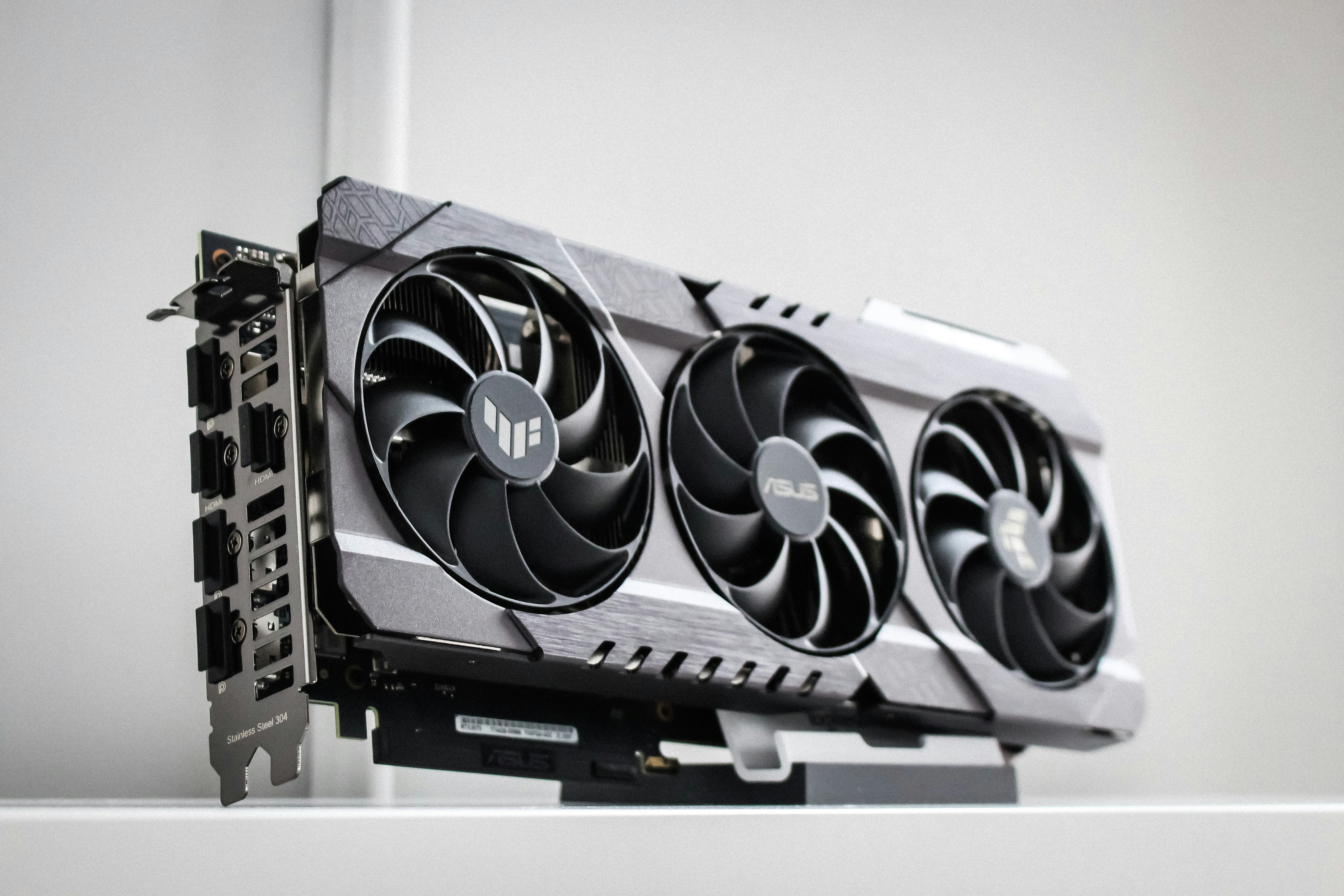
1. Your GPU is supported on paper, but shaky in real life
This is the first place most people look, and fair enough. Photoshop leans heavily on GPU acceleration, and Adobe has said GPU issues are one of the common reasons Generative Fill can freeze or crash. But the important detail is this: a supported GPU is not the same thing as a happy GPU.
Plenty of systems technically meet the minimum requirement and still struggle once the workload gets heavier. That’s especially common on older laptops, integrated graphics setups, or machines with outdated drivers. Photoshop opens, regular edits work, everything seems fine, and then Generative Fill hits a part of the graphics pipeline your system handles badly.
I’ve seen this a lot with machines that are “almost good enough.” Those are the most frustrating ones, because they don’t fail consistently. They fail just enough to waste your time.
2. You’re running out of RAM faster than you think
This one gets underestimated constantly.
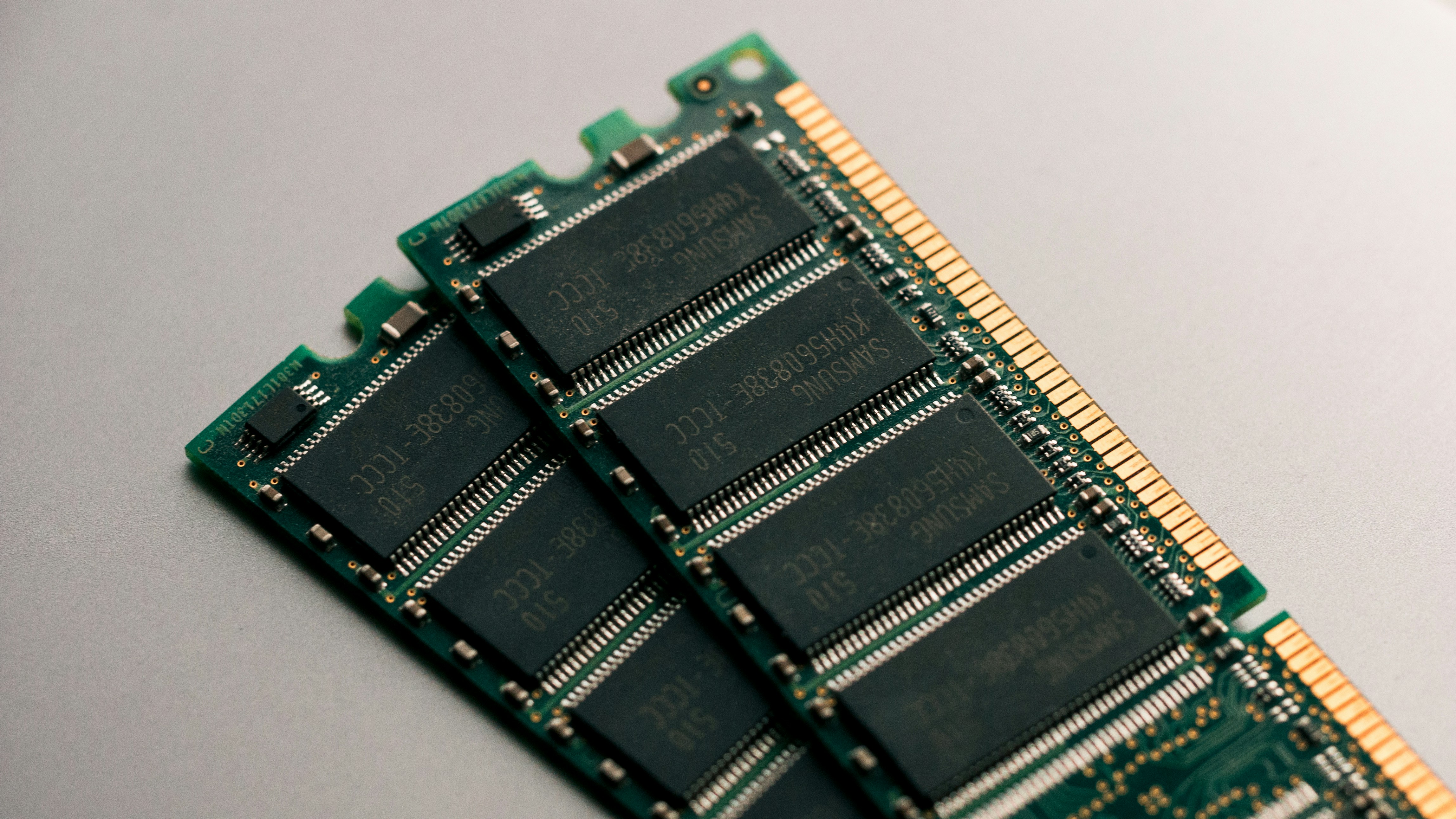
Photoshop is already memory-hungry before AI features enter the picture. Add a large PSD, multiple layers, masks, smart objects, history states, and a few other apps open in the background, and RAM starts disappearing fast. When that happens, Photoshop has to lean harder on scratch disk storage. That’s where things get ugly.
The app may not crash right away. Instead, it becomes sluggish, sticky, and weird. Commands take longer to register. Zooming and panning feel delayed. Generative Fill hangs longer than it should. The whole system starts feeling heavier than the task seems to justify.
That’s often a RAM problem wearing a different costume.
3. Your scratch disk is full, slow, or badly placed
A lot of users don’t think about scratch disk performance until Photoshop starts acting possessed.
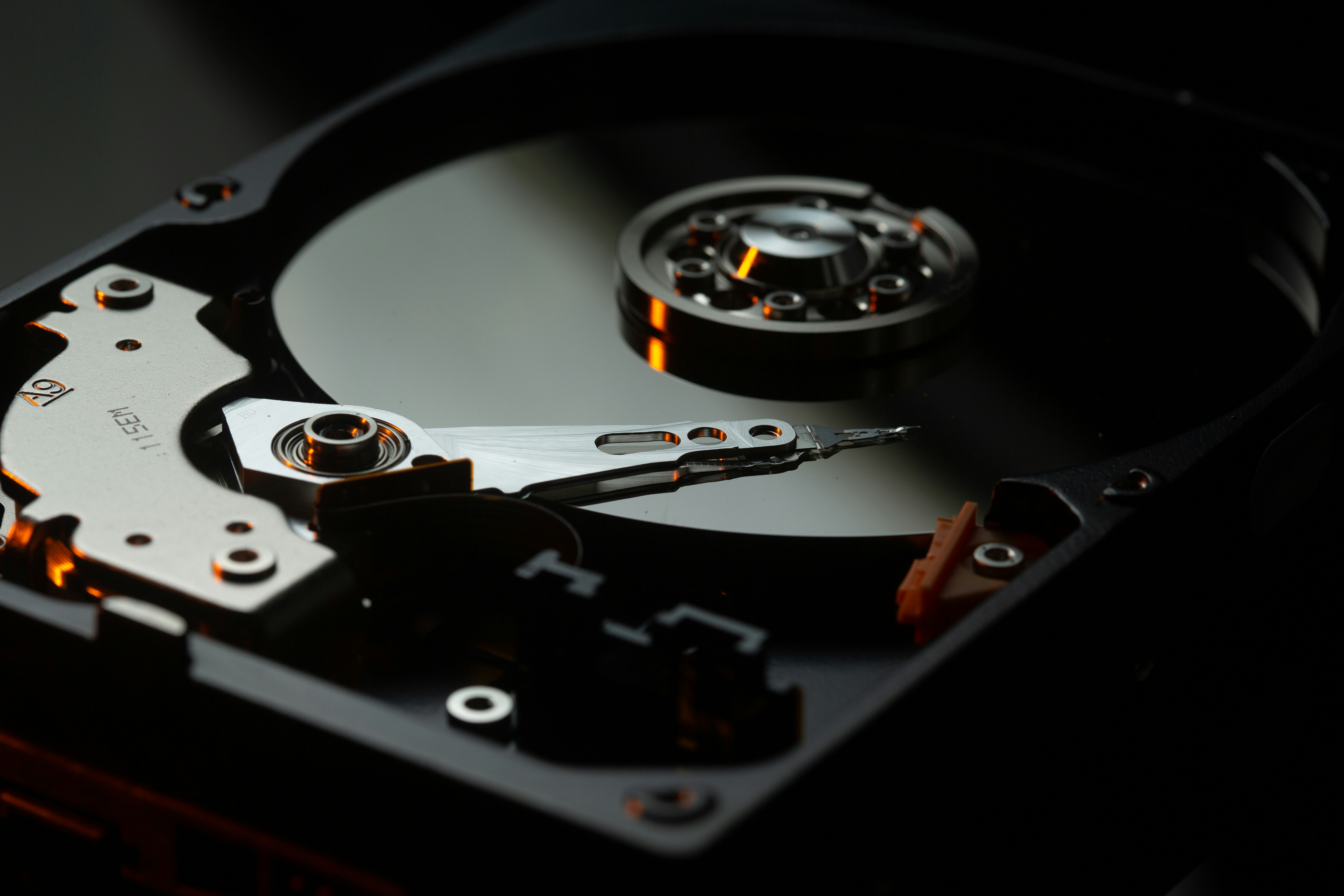
When Photoshop runs short on available memory, it uses disk space as temporary working space. That fallback is normal. The problem is that it becomes painfully slow if the drive is nearly full, if the drive is old, or if your scratch disk is sitting on the same overloaded system drive that everything else is fighting over.
This is one of those bottlenecks that feels unfair because the PC might look decent on paper. Good processor. Enough RAM, maybe. Not a terrible GPU. But if temporary file handling is happening on a cramped or slow drive, Generative Fill can turn into a stutter machine.
And yes, SSD speed matters here more than many people realize.
4. The document is heavier than it looks
Sometimes the problem is not your PC in general. It’s that one file.
A PSD can look simple on screen and still be brutal underneath. Huge dimensions, 16-bit color, layered composites, smart filters, linked assets, duplicate groups, oversized masks, dozens of hidden layers you forgot were there, all of that adds weight. Then Generative Fill comes in and asks Photoshop to build on top of an already bloated document structure.
That’s why one project might run fine while another one sends your fans into orbit.
If a file has been passed around, revised ten times, and patched together from older assets, it may be carrying way more overhead than you think. Designers do this all the time. Me included. No judgment. But it catches up with performance fast.

5. It’s not purely a hardware issue. Network and service hiccups can still matter
This part gets oversimplified in both directions.
Some people blame every delay on Adobe’s servers. Others act like internet conditions don’t matter at all. The truth is less dramatic. Generative Fill depends on online services, so network interruptions, account issues, or temporary service-side problems can absolutely create delays, failed generations, or weird behavior.
But here’s the distinction that matters: a slow request is not the same thing as your whole PC freezing.
If Photoshop becomes unresponsive, your cursor lags, and the machine feels like it’s choking, that usually points back to local system strain, not just the internet. A bad connection can make the feature feel unreliable. It usually does not explain why your fans are screaming and your document is crawling.
That’s why guessing is a bad strategy here. The symptom matters. A failed generation and a frozen workstation are not the same problem, even if they show up at the same moment.

Why this feels so inconsistent
This is the part that makes people crazy.
You try Generative Fill on one image, and it works. Then you try it on another file, maybe a larger selection, maybe a messier PSD, and Photoshop suddenly acts like it’s one click away from collapsing. That inconsistency makes the issue feel random, but usually it’s just a threshold problem. Your system is fine until the workload crosses a certain line.
That line is different on every machine.
For one user, it’s VRAM. For another, it’s limited RAM plus a crowded scratch disk. For someone else, it’s an unstable driver that only starts misbehaving under heavier GPU acceleration. Same feature. Different weak point.
And that’s why generic advice like “just upgrade your graphics card” misses the point so often. Sometimes that helps. Sometimes it solves almost nothing.
Next, we should get practical and figure out how to tell which bottleneck is actually hitting your setup.
How to tell what’s actually bottlenecking Photoshop
Before you start changing settings, buying RAM, or blaming Adobe for everything, it helps to figure out what is actually getting hammered when Generative Fill runs.
Because the fix depends on the bottleneck. And the bottleneck is not always obvious.
Start with the symptom, not the guess
This is where a lot of people go wrong. They jump straight to “my GPU is too weak” because Generative Fill sounds graphics-heavy. Sometimes that’s true. But if you don’t check what your system is doing during the slowdown, you’re basically troubleshooting by vibes.
A better approach is to watch what happens right when the lag starts.
If Photoshop freezes for a second, then recovers, that points to one kind of problem. If the whole system slows down, mouse movement lags, and other apps start hanging too, that points to something else. If the generation fails but the rest of the machine feels normal, that’s a different category again.
Same feature. Different failure modes.
Check Photoshop’s own performance clues first
Inside Photoshop, go to Preferences > Performance.
This section tells you more than most users realize. You can see how much RAM Photoshop is allowed to use, whether the GPU is enabled, and which disks are assigned as scratch disks. If something is badly configured, this is usually where it shows up first.
One thing that matters here is the Efficiency readout. If it drops below 100%, Photoshop has started relying on the scratch disk instead of staying fully in RAM. That does not always mean disaster, but it’s a strong sign that memory pressure is part of the slowdown.
And if memory pressure is already happening before you even get into a heavy Generative Fill task, that’s a clue your setup is running closer to the edge than you think.

Watch Task Manager while you run Generative Fill
This is the easiest reality check.
Open Task Manager on Windows or Activity Monitor on Mac, keep it visible, then run the same Generative Fill action that usually causes trouble. You’re looking for spikes, not perfection.
A few patterns matter:
RAM shoots close to full and stays there
That usually means your system is running out of working memory and pushing more load onto disk.Disk usage spikes hard while Photoshop starts dragging
That points to scratch disk pressure or slow storage.GPU usage jumps and Photoshop becomes unstable immediately
That can point to GPU acceleration trouble, driver issues, or a graphics card that is technically supported but struggling under load.CPU usage climbs, but the rest of the system stays mostly responsive
That may just mean the task is heavy, not necessarily broken.
The point is not to obsess over every percentage. The point is to catch the pattern that matches the slowdown.
Pay attention to what kind of file causes the issue
This is a simple test, but it tells you a lot.
Try Generative Fill on:
a smaller image
a flatter document
a file with fewer layers
a smaller selection area
If those run fine, but your main project freezes, your problem is probably not Photoshop in general. It’s the weight and structure of that specific document.
That’s useful information, because it changes the solution. You may not need a system-wide fix. You may need a cleaner workflow, lighter files, or a better way to handle large composites.
Rule out file-mode and layer problems
Sometimes the issue looks like a performance problem when it’s actually a setup issue inside the document.
Generative Fill tends to behave best when the file is in RGB mode, in 8-bit, with a valid selection and a workable raster layer. If you’re trying it on an unsupported file state, or on a locked or awkward layer structure, Photoshop can behave unpredictably.
That’s not the glamorous answer, but it matters. Not every failed or stalled Generative Fill attempt means your PC is underpowered.
A quick way to read the symptoms
Here’s the practical version:
If the whole PC slows down, think RAM, scratch disk, storage, or thermals.
If Photoshop alone gets unstable the moment GPU-heavy work starts, think GPU acceleration or driver issues.
If one document is awful but others are fine, think file complexity.
If the generation fails but your system feels normal, think network, service-side hiccups, or document compatibility.
That little distinction saves a lot of wasted time.
Don’t diagnose based on one bad click
This part matters more than people think.
Run the same test twice. Try it on a different file. Restart Photoshop and repeat. One weird freeze is annoying, but not enough to diagnose confidently. What you want is a repeatable pattern.
Once you have that, the next step gets a lot easier.
Because then you’re not throwing random fixes at the wall. You’re fixing the actual weak point.
If you are starting to suspect the graphics side of your setup, take a look at the best GPU for Photoshop.
The fastest fixes you can try in 10 minutes
Before you start pricing out a new GPU or convincing yourself your whole machine is obsolete, try the simple stuff first. I know, boring advice. Still works surprisingly often.
The trick is to test the fixes that target the most common choke points without turning this into a three-hour troubleshooting session.
Restart Photoshop, then restart the machine if needed
Yes, really.
Photoshop can get weird after long sessions, especially if you’ve been jumping between large files, plugins, browser tabs, and AI tools. Memory gets messy. Temporary files pile up. Things that were stable an hour ago stop behaving normally.
If Generative Fill suddenly starts freezing on a file that worked earlier, a clean restart is worth doing before anything else. Not glamorous, but neither is wasting an afternoon on a problem that a reboot would have cleared.
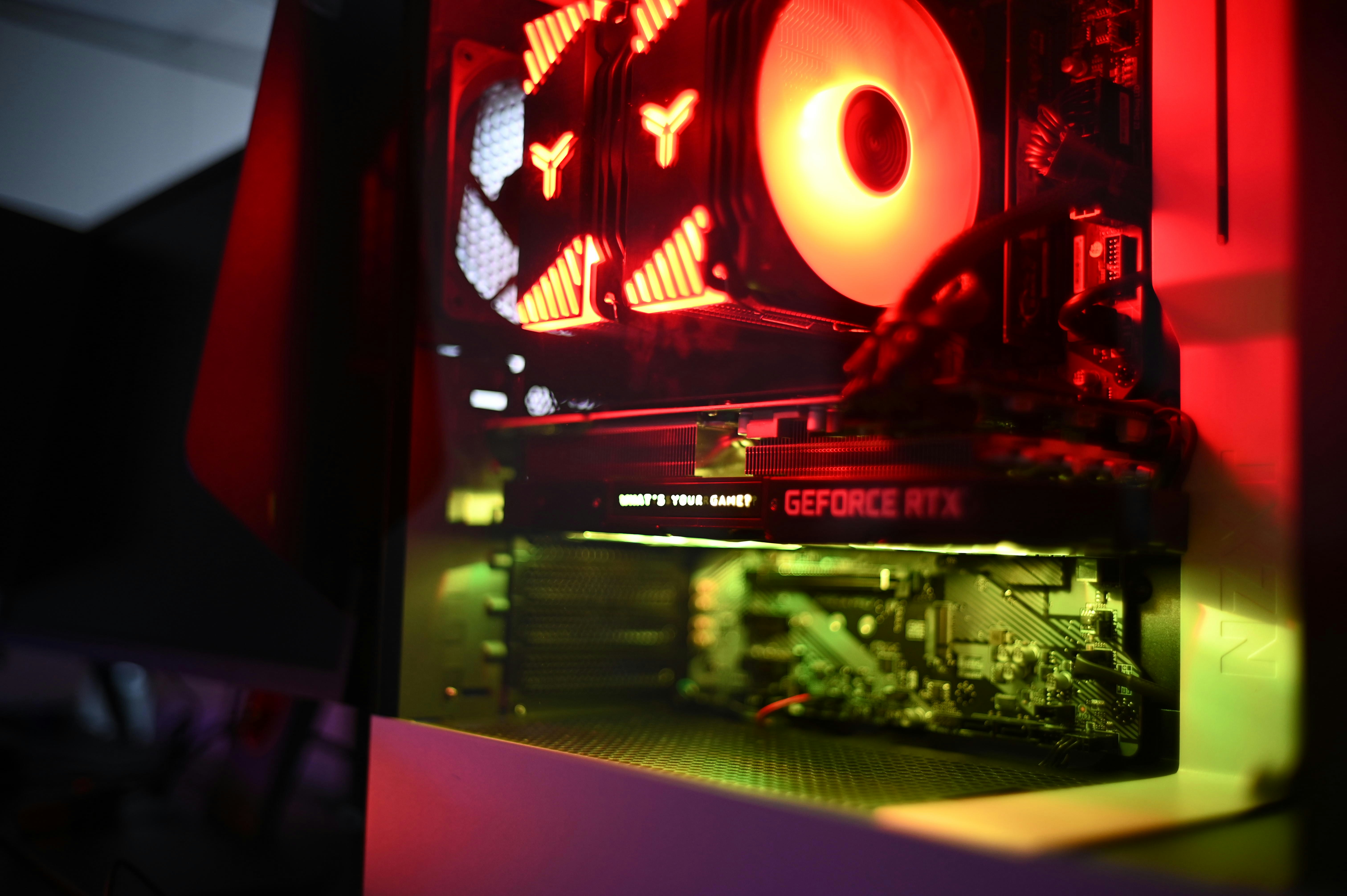
Update Photoshop first, not last
A lot of users leave this step until they’re already frustrated. Backwards.
Adobe fixes performance bugs, GPU compatibility problems, and feature-specific weirdness in regular updates. If Generative Fill is acting unstable, make sure you’re not testing on an older version with a known issue. Same goes for Camera Raw, if your workflow touches it often.
This is especially important if the freezing started recently. If the timing lines up with a Photoshop update, that can point to a version-specific bug. If it started before that, the issue is more likely your setup.
Update your GPU driver from the actual GPU vendor
This one matters more than people expect.
If you’re on NVIDIA, AMD, or Intel graphics, get the latest stable driver directly from them, not just whatever Windows decided to install in the background. Photoshop’s GPU issues are often less about raw hardware weakness and more about driver instability or compatibility problems.
And if the newest driver made things worse, which does happen, rolling back to a stable earlier version can sometimes help. That’s the annoying truth about creative app troubleshooting. Newer is not always better. Usually, yes. Always, no.
Toggle GPU acceleration and test both ways
Inside Photoshop, go to Preferences > Performance and check whether Use Graphics Processor is enabled.
If it’s on, turn it off and test Generative Fill again. If it’s off, turn it on and test again.
You’re not necessarily looking for a permanent answer here. You’re trying to learn something. If Photoshop becomes dramatically more stable with GPU acceleration disabled, that strongly suggests the graphics side of your setup is part of the problem. If performance gets worse but more stable, that also tells you something useful.
It’s not unusual for this setting to expose a driver issue fast.
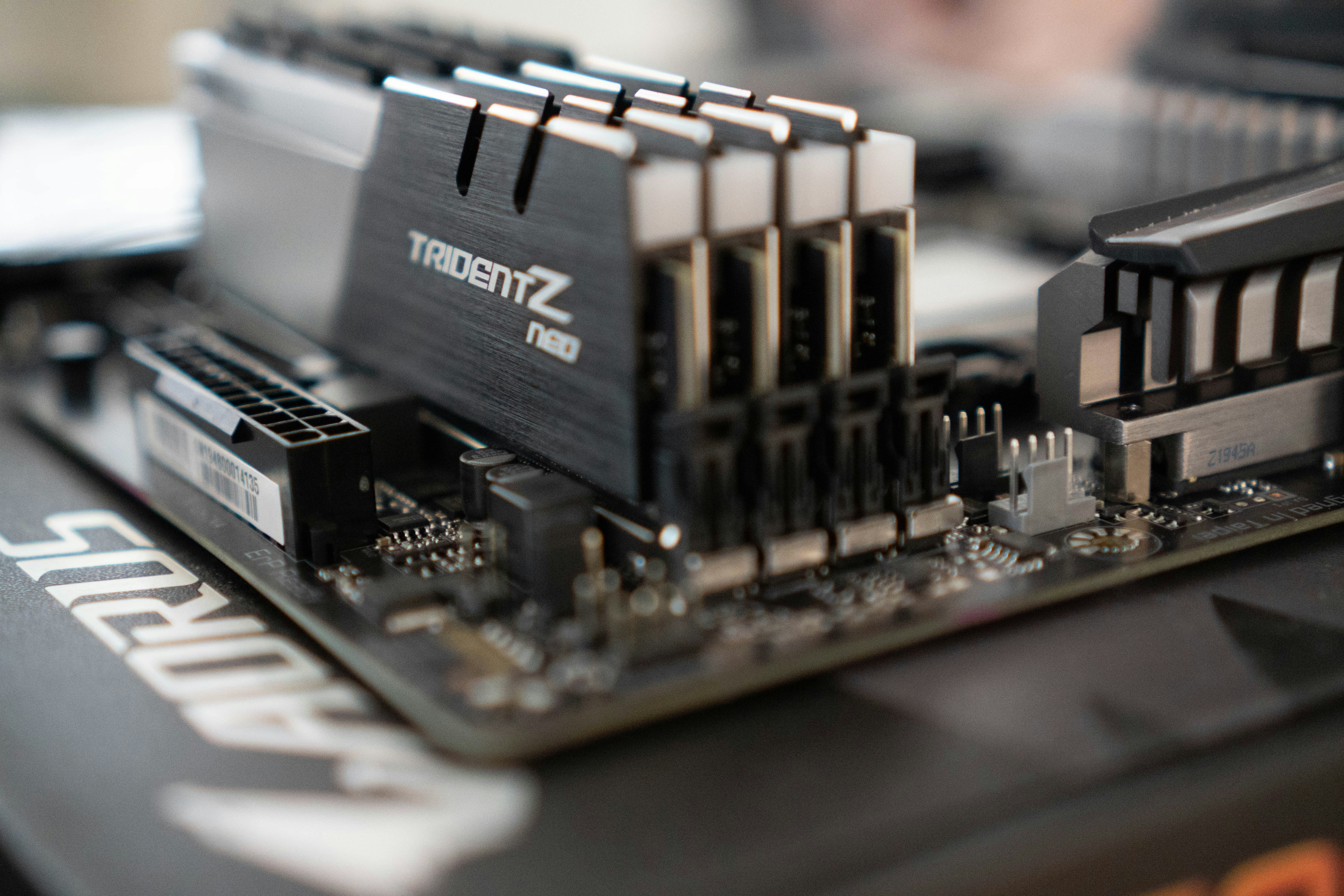
Close the apps quietly eating your RAM
This one gets brushed off way too often because each app seems harmless on its own.
A browser with 25 tabs. Discord. Spotify. Slack. Lightroom in the background. A few cloud sync tools. Maybe a video export you forgot was still running. None of these sound catastrophic until Photoshop is trying to handle a large file and Generative Fill at the same time.
Then suddenly your “16 GB is plenty” machine feels a lot less comfortable.
Close everything non-essential and test again. Not because this is the final fix, but because it helps answer a more important question: is the problem your Photoshop workflow, or is your system simply too crowded?
Free up scratch disk space immediately
If your main drive is nearly full, Photoshop performance can go downhill fast.
You do not need to deep-clean your entire PC right now. Just make enough room to give Photoshop breathing space. Delete old downloads, move large media files off the drive, clear trash, and make sure the scratch disk is pointing to the fastest drive with decent free space.
This is one of the least exciting fixes on the list. It is also one of the most effective when storage is the bottleneck.
Test a lighter version of the same document
Duplicate the file and make the test version less demanding.
Flatten obvious groups if you can. Remove hidden junk layers. Reduce the number of open documents. Try a smaller selection. Then run Generative Fill again.
If the lighter file behaves much better, that tells you the issue is not just your machine in general. It’s the combination of your machine and that document’s complexity. That’s a useful distinction, because it means workflow cleanup may help more than brute-force hardware upgrades.
If you are not sure Photoshop is using your graphics card properly, this guide on how to use GPU on Adobe Photoshop is worth a read.
Try a smaller selection first
This sounds almost too simple, but it matters.
Large Generative Fill selections mean more image area to process, more compositing, more preview handling, and more room for the document to swell during the operation. If your system is already close to its limit, a huge selection can be the thing that pushes it over.
So test with a tighter area first. Not as a permanent workaround, necessarily. As a quick stress test. If smaller fills work fine but larger ones freeze the machine, you’ve learned something important about where the threshold is.
Don’t blame the internet for local slowdowns
If Generative Fill fails to return a result, sure, check the network. But if your fans ramp up, the cursor starts hanging, and Photoshop drags the whole machine down, restarting your router probably won’t fix the real issue.
That’s why I’d treat network troubleshooting as secondary unless the symptoms clearly point there. People lose time chasing connection problems when the real bottleneck is sitting inside the PC.

What you should expect after these quick fixes
Here’s the honest version.
These steps may completely fix the issue if the cause is driver instability, overloaded memory, bad scratch-disk conditions, or session-level Photoshop weirdness. They may also only improve things a little. That still matters.
Because even a partial improvement tells you where the pressure is coming from.
If nothing changes after these tests, that usually means you’re dealing with a deeper limitation: file complexity, hardware headroom, or a system that’s simply too close to the edge for this kind of workload. And that’s where smarter tuning, or a stronger machine, starts to matter a lot more.
The Photoshop settings that actually matter
This is the part where people start hunting for secret tweaks. Most of them are a waste of time.
Photoshop does have settings that can make Generative Fill feel smoother or less fragile. But there’s a difference between meaningful tuning and random checkbox folklore. You do not need twenty micro-optimizations. You need the few settings that affect memory, storage, and canvas handling in a real way.
Start with memory allocation, but don’t get greedy
Go to Preferences > Performance and look at the memory section first.
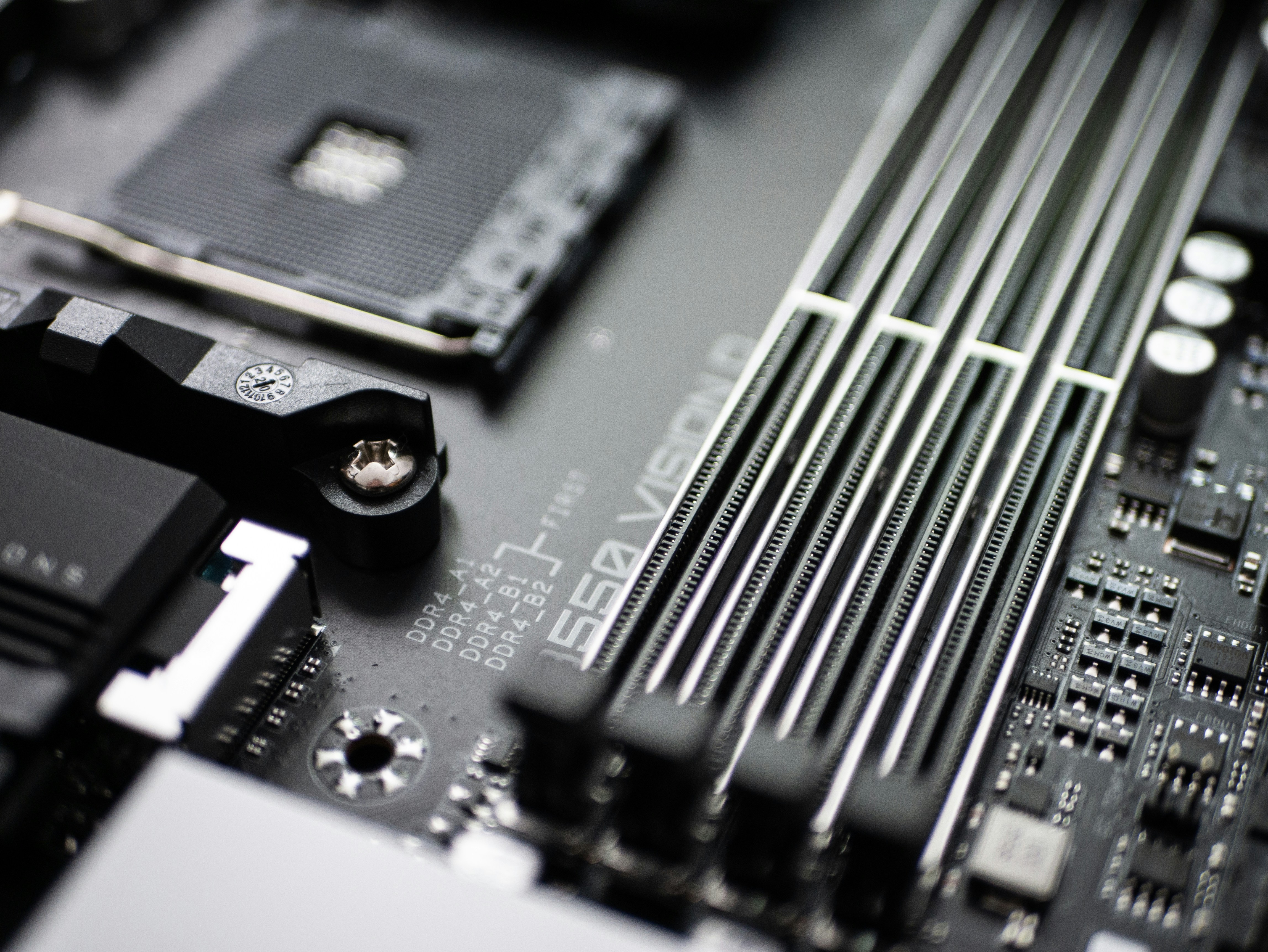
Photoshop lets you decide how much of your available RAM it can use. A lot of users see that slider and immediately think, “Easy, I’ll just give Photoshop as much as possible.” That sounds smart. It often isn’t.
Adobe’s own guidance says Photoshop uses around 70% of available RAM by default, and they specifically warn against pushing allocation above 85% because it can hurt overall system stability. That makes sense. If you hand too much memory to Photoshop, you may leave too little for the operating system, background services, browser tabs, fonts, drivers, and everything else that keeps the machine functional.
So the goal is not “max it out.” The goal is balance.
If your system has enough RAM, giving Photoshop a bit more headroom can help with large documents and AI-heavy work. But do it in small steps, then test. If performance improves, great. If the whole machine starts feeling cramped, you’ve gone too far.
In my experience, people overestimate how much this setting can save an underpowered setup. It helps. It does not perform miracles.
Watch the Efficiency number like it actually matters
Most casual users never look at Photoshop’s Efficiency indicator. They should.
When that readout drops below 100%, Photoshop is no longer doing everything in RAM. It has started using the scratch disk as overflow working space. That’s the moment performance usually starts to feel worse, especially on heavy files.
This is useful because it gives you a direct clue about what kind of slowdown you’re dealing with. If Generative Fill feels rough and Efficiency keeps dipping, memory pressure is likely part of the story. If Efficiency stays fine but Photoshop still gets unstable, the problem may be elsewhere, like GPU acceleration or file-specific weirdness.
Not glamorous. Very useful.
If you are weighing up an upgrade, this breakdown of the best PC and laptop for Photoshop can help.
Scratch disk setup matters more than people expect
If I had to pick one Photoshop performance topic that gets ignored too often, it would be scratch disk setup.
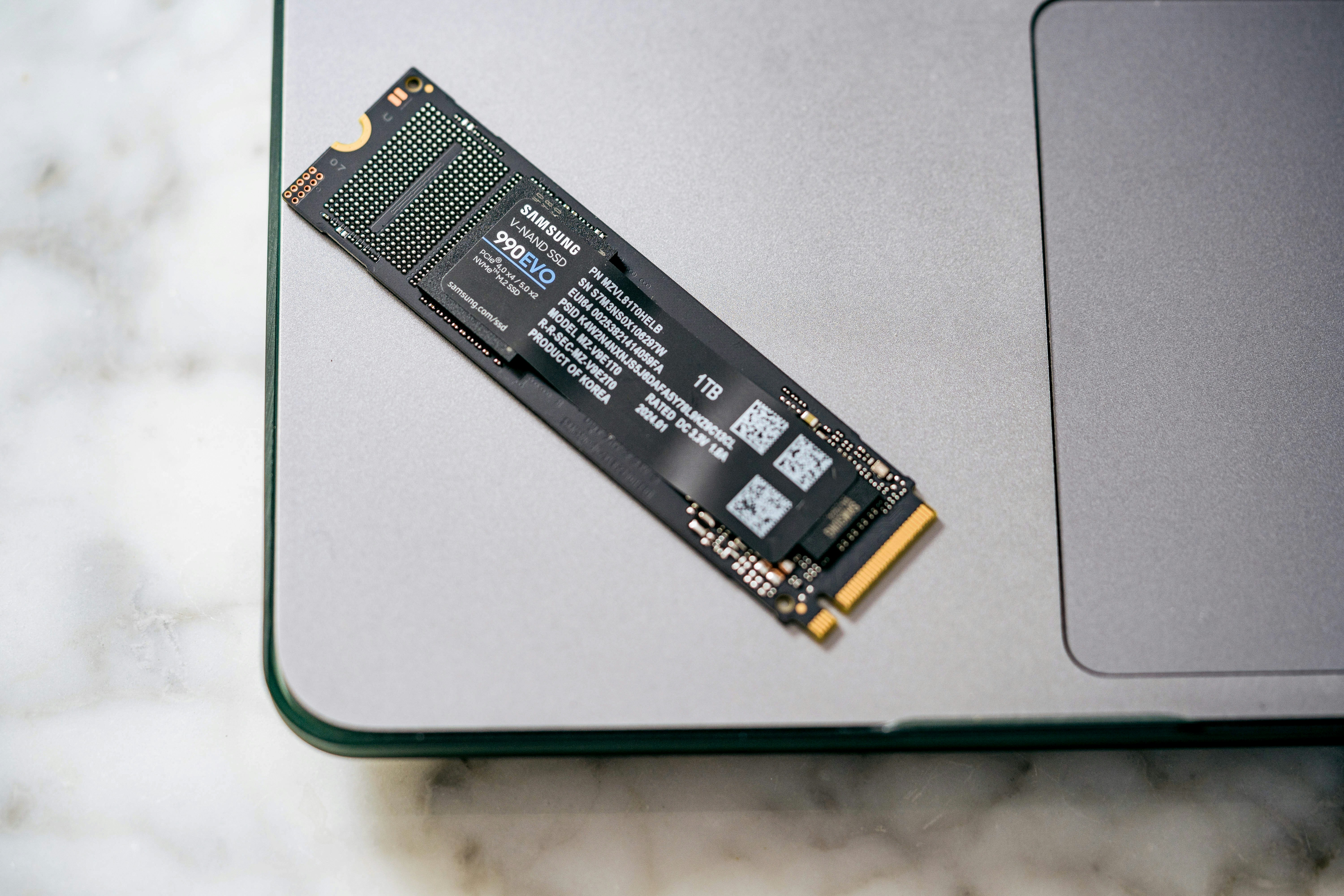
Photoshop uses scratch disk storage as temporary working space when RAM fills up. That means your drive is not just storing files. It is actively helping Photoshop stay functional under pressure. If that drive is slow, nearly full, or shared with a bunch of other demanding tasks, performance can fall apart quickly.
A few practical rules help here:
Use a fast SSD if possible
Avoid assigning scratch to a nearly full system drive
Make sure the chosen drive has real free space, not just a few leftover gigabytes
If you have multiple drives, put scratch on the fastest one with enough breathing room
This is one of those areas where users sometimes expect a glamorous fix and get a boring one instead. No, reorganizing your scratch disk is not exciting. It is also very often more useful than tinkering with random advanced settings.
Cache levels can help, but only in the right kind of file
Photoshop’s cache settings are easy to ignore because they sound technical and a bit abstract. But they do affect how smoothly Photoshop redraws and processes larger images.
Adobe’s guidance is pretty clear here: files around 50 megapixels and up usually benefit from higher cache levels. In plain English, that means Photoshop can handle screen redraws and repeated image access more efficiently when dealing with big documents.
So if your workflow includes large composites, high-resolution photography, oversized marketing assets, or giant layered canvases, increasing cache levels can make the app feel less clunky.
This is not a cure for hardware shortages. It will not magically fix a weak laptop. But it can reduce friction in the kind of files that tend to trigger Generative Fill slowdowns in the first place.
History states are nice until they aren’t
Everybody likes a safety net. Nobody likes losing performance.
Photoshop stores history states so you can step backward through edits, which is great right up until the document gets large and memory starts disappearing faster than expected. More history states mean more data Photoshop has to keep around. That extra overhead adds up.
If you’re working on a huge file and Generative Fill is already pushing the system hard, reducing history states can help lower the load a bit. Not dramatically, but enough to matter in borderline cases.
I would not call this the first fix to try. But once you’re optimizing a heavy workflow, it belongs on the list.
Fewer open documents can make a bigger difference than another tweak
This one is almost too obvious, which is probably why people skip it.
Photoshop does not care that the other six open documents are “just sitting there.” They still consume memory, previews, history, and general working overhead. If you’re running Generative Fill on a demanding project, keep only what you actually need open.
Same logic applies to background panels, linked assets, and other creative apps running beside Photoshop. The less clutter your system has to juggle, the more headroom it can give to the task you actually care about.
The setting mistake people make most often
The most common mistake is changing too many things at once.
You tweak memory, scratch disk, cache, GPU settings, history states, maybe even reinstall something, and then when performance changes, you have no idea what actually helped. That’s how people end up with unstable setups and no clear explanation.
Change one or two settings. Test the same file. Watch the same symptoms. Then decide.
That process is slower than randomly flipping switches, but it works a lot better.
If you are working across devices, here is a practical guide on how to use Photoshop on iPad.
What these settings can and cannot do
Photoshop tuning can absolutely improve a shaky workflow. It can reduce stalling, make redraws smoother, give large files more breathing room, and help Generative Fill feel less punishing on borderline hardware.
What it cannot do is turn a fundamentally underpowered machine into a workstation.
That’s the line people need to be honest about. Settings help most when your system is close to adequate and just poorly configured. If your hardware is already well below the workload, tuning only delays the bigger decision.
And that bigger decision is where people usually start asking whether they should upgrade parts, replace the machine, or stop forcing the issue locally at all.
Got it. We’ll skip the hardware-upgrade section.
Here’s the next part.
When the problem isn’t your PC at all
Not every Generative Fill slowdown means your hardware is failing you. Sometimes the issue is Photoshop itself. Or Adobe’s services. Or a weird file. Or a version-specific bug that just showed up at the worst possible time.
This matters, because a lot of users start blaming their machine too quickly. Then they waste time tuning settings or pricing upgrades for a problem that was never really local to begin with.
Adobe-side hiccups do happen
Generative Fill depends on Adobe’s online services, so it is not immune to service interruptions, account issues, or temporary backend instability.
When that happens, the symptoms usually feel different from a true local hardware choke. You might see requests hanging, generations failing, variations not loading properly, or the feature refusing to complete a task that normally works. That can be frustrating, but it is not the same as your whole PC turning sluggish and noisy.
That distinction matters.
If Photoshop is waiting forever but the rest of your computer feels normal, the bottleneck may not be your GPU, RAM, or storage at all. It may just be a bad day on the service side.

Some Photoshop versions are simply less stable than others
This is the annoying reality of creative software. Not every release behaves equally well.
A new update might improve one thing and quietly break another. A bug can hit a specific GPU family, a certain plugin setup, or a small group of users working with particular file types. If Generative Fill started freezing right after an update, that timing is a clue.
I would not automatically assume your PC got worse overnight. Software changes all the time. Sometimes the app moved, not the hardware.
That’s why it’s worth checking Adobe’s known issues pages and user reports before deciding your computer needs surgery.
A single broken file can mimic a system-wide problem
This one catches people off guard.
A corrupted PSD, a badly bloated layered file, or a project that has been duplicated and modified too many times can start behaving in ways that look like a machine problem. Generative Fill may stall, previews may lag, and Photoshop may feel unstable, but only inside that one document.
Then you open another file and everything is suddenly fine.
That usually means the issue is not your PC in general. It is that file. Maybe the layer structure is messy. Maybe there is embedded junk you forgot about. Maybe the document has just become one of those cursed project files every designer eventually meets.
Not technical. Just cursed.
Plugins and background add-ons can interfere
If you use third-party plugins, sync tools, custom panels, or workflow utilities, do not rule them out too quickly.
Photoshop does not always fail cleanly when something else is interfering with it. Sometimes you just get lag, freezing, or strange instability that seems tied to Generative Fill even though the real issue is broader than that.
This is why a clean test matters. Open Photoshop with the simplest possible setup, no extra distractions, then test the same action again. If the problem disappears, the machine may not have been the issue after all.
If you are trying to keep Photoshop usable on lightweight hardware, here is how to run Adobe Photoshop on Chromebook.
File mode and layer setup can cause false alarms
Generative Fill is not completely flexible in every file condition. If the document is in the wrong mode, the layer setup is awkward, or the selection is not valid, the feature can misbehave or fail in ways that feel like performance trouble.
That’s especially frustrating because users often read the symptom as “my computer can’t handle this,” when the actual problem is closer to “this document is not in a state Generative Fill likes.”
Those are very different problems. One needs more power. The other needs a cleaner setup.
Reinstalling Photoshop is not magic, but it’s not useless either
I’m skeptical of reinstall advice when people use it as a first response to everything. Most of the time, it is lazy troubleshooting.
Still, if you’ve ruled out drivers, storage pressure, file-specific issues, and weird add-ons, a reinstall can clear out damaged preferences or installation problems that cause random instability. It is not the first thing I’d try. It is closer to the “okay, this has gotten weird enough” stage.
Fair warning, though. If your hardware is truly under strain, reinstalling will not save you. It only helps when the problem is actually software-side.
The simplest way to tell
Here’s the easiest rule of thumb.
If your whole PC slows down, starts heating up, and feels strained, the problem is probably local.
If Generative Fill fails or hangs but the rest of your machine feels normal, the issue may be software-side, service-side, or file-specific.
That distinction is not perfect, but it is a lot more useful than guessing.
And it helps answer the next question more honestly: if the problem really is local hardware, when does it make sense to stop forcing the issue and just run Photoshop somewhere stronger?
Why Vagon Cloud Computer makes sense for Photoshop users hitting a wall
If Generative Fill keeps freezing your PC, there comes a point where more troubleshooting stops being productive. You clear disk space, tweak Photoshop settings, close background apps, update drivers, test smaller selections, and maybe things improve a little. But the bigger pattern stays the same. The moment the file gets heavier or the AI task gets more demanding, your machine falls behind again.
That is where Vagon Cloud Computer becomes a practical option.
Instead of relying on your local computer to carry the full Photoshop workload, Vagon lets you run Photoshop on a stronger cloud machine and access it remotely from the device you already have. So if your laptop is the weak link, it does not have to stay the weak link.
That is the real appeal here.
For Photoshop users, especially the ones working with layered PSDs, high-resolution assets, and AI-heavy workflows, Vagon can take pressure off the exact parts of the setup that usually cause trouble: limited RAM, weak graphics performance, slow storage, and overall lack of headroom. Rather than trying to force a thin laptop to behave like a workstation, you are working from hardware that is actually built for heavier creative tasks.
I think that matters most in a few situations.
If you are using an older laptop and Generative Fill is clearly exposing its limits, Vagon is often more realistic than endlessly tuning settings. If you work across multiple devices, it is also a cleaner setup, because your main Photoshop environment is not tied to one physical machine. And if you only need extra performance for certain projects, using Vagon can make more sense than buying expensive hardware just to solve a problem that shows up in bursts.
This is also why Vagon fits naturally into this conversation. The goal is not to say every Photoshop issue should send you straight to cloud computing. That would be lazy advice. The goal is to be honest about what happens after the obvious fixes.
If the problem is a bad file, a weird layer setup, or a temporary Adobe-side issue, Vagon is not the answer. But if the problem is that your computer simply does not have enough power for the way you use Photoshop now, then Vagon Cloud Computer is one of the most straightforward ways to get past that limit without replacing your whole setup.
That is the position I would take in the article. Not “here is a magic fix.” More like: you tried the sensible things, you know local hardware is the bottleneck, and now you want a smoother way to keep working.
For that kind of user, Vagon is not a side note. It is the practical next step.
Final Thoughts
Generative Fill freezing your PC is usually not about one single issue. It tends to expose the weak point in your setup, whether that is GPU performance, RAM, scratch disk, or file complexity.
The good news is that a lot of fixes are simple: cleaner files, updated drivers, better scratch-disk conditions, and smarter Photoshop settings can make a real difference.
But if you have already tried the sensible fixes and Photoshop still struggles, the problem may just be your machine’s limit. That is where Vagon Cloud Computer makes sense. Instead of forcing older hardware to keep up, you can run Photoshop on stronger remote hardware and keep your workflow moving.
If your current setup works after a few adjustments, great. If not, it may be time to stop fighting the hardware and use a setup that actually fits the job.
FAQs
1. Why does Generative Fill freeze my PC?
Usually because it pushes several things at once: GPU, RAM, scratch disk, and file complexity. It is often not just one bottleneck.
2. Is it always a GPU problem?
No. GPU issues are common, but RAM limits, slow scratch disks, and heavy PSD files can cause the same kind of slowdown.
3. Does scratch disk affect Generative Fill speed?
Yes. When Photoshop drops below 100% Efficiency, it is using the scratch disk, which usually means slower performance.
4. What should I try first?
Update Photoshop and your GPU driver, free up scratch disk space, close background apps, and test GPU acceleration on and off. Those fix a surprising number of cases.
5. Can one PSD file be the problem?
Absolutely. A large layered file with smart objects, masks, and long edit history can perform much worse than a simpler file on the same machine.
6. When does Vagon Cloud Computer make sense?
When your local machine is clearly the bottleneck. If Generative Fill keeps overwhelming your laptop or desktop, Vagon can give you access to stronger remote hardware without replacing your whole setup.
You click Generative Fill on a layered PSD. The fans kick up, the cursor starts lagging, and Photoshop suddenly feels like it’s dragging your whole PC down with it.
That usually isn’t random. Generative Fill is one of those features that quickly exposes whether your computer can simply run Photoshop, or actually run modern Photoshop smoothly.
A lot of users assume the problem is the GPU. Sometimes it is. But not always. In practice, Generative Fill can stress several parts of your system at once: GPU, RAM, scratch disk, storage speed, file complexity, and even background apps.
That’s why one project works fine and another turns into a freeze-fest.
In this guide, we’ll break down what’s really slowing things down, which fixes are actually worth trying, what hardware upgrades help the most, and when it makes more sense to stop pushing local hardware and use a cloud machine instead.
Generative Fill isn’t just another Photoshop tool. It changes the workload
Part of the confusion here is that Generative Fill doesn’t behave like a normal edit.
If you’re brushing, masking, cloning, or doing color work, Photoshop is mostly dealing with tasks long-time users already understand. Heavy tasks, sure, but familiar ones. Generative Fill is different. You’re not just editing pixels. You’re asking Photoshop to process a selection, prepare the layer data, send that request through Adobe’s AI pipeline, bring back variations, and then rebuild the result inside a live document that may already be packed with masks, smart objects, adjustment layers, and history states.
That’s a lot for one click.
And this is where people get tripped up. They hear “AI feature” and assume the hard part happens somewhere else, so their own PC shouldn’t matter much. I don’t buy that. Yes, part of the generation happens in the cloud. But your machine still has to do plenty of local work before and after that result comes back. It still has to handle the open document, redraw the canvas, manage memory, update previews, cache changes, and keep the rest of Photoshop stable while all of that is going on.
So even if the actual image generation isn’t happening entirely on your computer, the stress absolutely is.
That’s why a machine can feel totally fine during regular retouching, then suddenly fall apart the moment Generative Fill enters the workflow. It’s not because Photoshop forgot how to behave. It’s because this feature pushes several pressure points at once, and weaker systems usually have at least one weak link hiding in plain sight.
Sometimes that weak link is the GPU. Sometimes it’s RAM. Sometimes it’s a nearly full scratch disk, or an oversized PSD with way too many layers. Sometimes it’s all of them teaming up to ruin your afternoon.
And that’s the real story here. Generative Fill doesn’t just ask for power. It asks for balance. If one part of your setup is lagging behind, the whole experience can start to feel unstable fast.
Next, we should get into the part that actually helps: the usual reasons Generative Fill freezes a PC, and how to tell which one is hitting your setup.
If you are dealing with constant lag, it also helps to check the common crash reasons for Photoshop.
The five usual suspects behind the freeze
When Generative Fill starts choking your system, the cause is usually not mysterious. Annoying, yes. Mysterious, not really.
Most of the time, the problem comes down to one of five things.
1. Your GPU is supported on paper, but shaky in real life
This is the first place most people look, and fair enough. Photoshop leans heavily on GPU acceleration, and Adobe has said GPU issues are one of the common reasons Generative Fill can freeze or crash. But the important detail is this: a supported GPU is not the same thing as a happy GPU.
Plenty of systems technically meet the minimum requirement and still struggle once the workload gets heavier. That’s especially common on older laptops, integrated graphics setups, or machines with outdated drivers. Photoshop opens, regular edits work, everything seems fine, and then Generative Fill hits a part of the graphics pipeline your system handles badly.
I’ve seen this a lot with machines that are “almost good enough.” Those are the most frustrating ones, because they don’t fail consistently. They fail just enough to waste your time.
2. You’re running out of RAM faster than you think
This one gets underestimated constantly.
Photoshop is already memory-hungry before AI features enter the picture. Add a large PSD, multiple layers, masks, smart objects, history states, and a few other apps open in the background, and RAM starts disappearing fast. When that happens, Photoshop has to lean harder on scratch disk storage. That’s where things get ugly.
The app may not crash right away. Instead, it becomes sluggish, sticky, and weird. Commands take longer to register. Zooming and panning feel delayed. Generative Fill hangs longer than it should. The whole system starts feeling heavier than the task seems to justify.
That’s often a RAM problem wearing a different costume.
3. Your scratch disk is full, slow, or badly placed
A lot of users don’t think about scratch disk performance until Photoshop starts acting possessed.
When Photoshop runs short on available memory, it uses disk space as temporary working space. That fallback is normal. The problem is that it becomes painfully slow if the drive is nearly full, if the drive is old, or if your scratch disk is sitting on the same overloaded system drive that everything else is fighting over.
This is one of those bottlenecks that feels unfair because the PC might look decent on paper. Good processor. Enough RAM, maybe. Not a terrible GPU. But if temporary file handling is happening on a cramped or slow drive, Generative Fill can turn into a stutter machine.
And yes, SSD speed matters here more than many people realize.
4. The document is heavier than it looks
Sometimes the problem is not your PC in general. It’s that one file.
A PSD can look simple on screen and still be brutal underneath. Huge dimensions, 16-bit color, layered composites, smart filters, linked assets, duplicate groups, oversized masks, dozens of hidden layers you forgot were there, all of that adds weight. Then Generative Fill comes in and asks Photoshop to build on top of an already bloated document structure.
That’s why one project might run fine while another one sends your fans into orbit.
If a file has been passed around, revised ten times, and patched together from older assets, it may be carrying way more overhead than you think. Designers do this all the time. Me included. No judgment. But it catches up with performance fast.
5. It’s not purely a hardware issue. Network and service hiccups can still matter
This part gets oversimplified in both directions.
Some people blame every delay on Adobe’s servers. Others act like internet conditions don’t matter at all. The truth is less dramatic. Generative Fill depends on online services, so network interruptions, account issues, or temporary service-side problems can absolutely create delays, failed generations, or weird behavior.
But here’s the distinction that matters: a slow request is not the same thing as your whole PC freezing.
If Photoshop becomes unresponsive, your cursor lags, and the machine feels like it’s choking, that usually points back to local system strain, not just the internet. A bad connection can make the feature feel unreliable. It usually does not explain why your fans are screaming and your document is crawling.
That’s why guessing is a bad strategy here. The symptom matters. A failed generation and a frozen workstation are not the same problem, even if they show up at the same moment.
Why this feels so inconsistent
This is the part that makes people crazy.
You try Generative Fill on one image, and it works. Then you try it on another file, maybe a larger selection, maybe a messier PSD, and Photoshop suddenly acts like it’s one click away from collapsing. That inconsistency makes the issue feel random, but usually it’s just a threshold problem. Your system is fine until the workload crosses a certain line.
That line is different on every machine.
For one user, it’s VRAM. For another, it’s limited RAM plus a crowded scratch disk. For someone else, it’s an unstable driver that only starts misbehaving under heavier GPU acceleration. Same feature. Different weak point.
And that’s why generic advice like “just upgrade your graphics card” misses the point so often. Sometimes that helps. Sometimes it solves almost nothing.
Next, we should get practical and figure out how to tell which bottleneck is actually hitting your setup.
How to tell what’s actually bottlenecking Photoshop
Before you start changing settings, buying RAM, or blaming Adobe for everything, it helps to figure out what is actually getting hammered when Generative Fill runs.
Because the fix depends on the bottleneck. And the bottleneck is not always obvious.
Start with the symptom, not the guess
This is where a lot of people go wrong. They jump straight to “my GPU is too weak” because Generative Fill sounds graphics-heavy. Sometimes that’s true. But if you don’t check what your system is doing during the slowdown, you’re basically troubleshooting by vibes.
A better approach is to watch what happens right when the lag starts.
If Photoshop freezes for a second, then recovers, that points to one kind of problem. If the whole system slows down, mouse movement lags, and other apps start hanging too, that points to something else. If the generation fails but the rest of the machine feels normal, that’s a different category again.
Same feature. Different failure modes.
Check Photoshop’s own performance clues first
Inside Photoshop, go to Preferences > Performance.
This section tells you more than most users realize. You can see how much RAM Photoshop is allowed to use, whether the GPU is enabled, and which disks are assigned as scratch disks. If something is badly configured, this is usually where it shows up first.
One thing that matters here is the Efficiency readout. If it drops below 100%, Photoshop has started relying on the scratch disk instead of staying fully in RAM. That does not always mean disaster, but it’s a strong sign that memory pressure is part of the slowdown.
And if memory pressure is already happening before you even get into a heavy Generative Fill task, that’s a clue your setup is running closer to the edge than you think.
Watch Task Manager while you run Generative Fill
This is the easiest reality check.
Open Task Manager on Windows or Activity Monitor on Mac, keep it visible, then run the same Generative Fill action that usually causes trouble. You’re looking for spikes, not perfection.
A few patterns matter:
RAM shoots close to full and stays there
That usually means your system is running out of working memory and pushing more load onto disk.Disk usage spikes hard while Photoshop starts dragging
That points to scratch disk pressure or slow storage.GPU usage jumps and Photoshop becomes unstable immediately
That can point to GPU acceleration trouble, driver issues, or a graphics card that is technically supported but struggling under load.CPU usage climbs, but the rest of the system stays mostly responsive
That may just mean the task is heavy, not necessarily broken.
The point is not to obsess over every percentage. The point is to catch the pattern that matches the slowdown.
Pay attention to what kind of file causes the issue
This is a simple test, but it tells you a lot.
Try Generative Fill on:
a smaller image
a flatter document
a file with fewer layers
a smaller selection area
If those run fine, but your main project freezes, your problem is probably not Photoshop in general. It’s the weight and structure of that specific document.
That’s useful information, because it changes the solution. You may not need a system-wide fix. You may need a cleaner workflow, lighter files, or a better way to handle large composites.
Rule out file-mode and layer problems
Sometimes the issue looks like a performance problem when it’s actually a setup issue inside the document.
Generative Fill tends to behave best when the file is in RGB mode, in 8-bit, with a valid selection and a workable raster layer. If you’re trying it on an unsupported file state, or on a locked or awkward layer structure, Photoshop can behave unpredictably.
That’s not the glamorous answer, but it matters. Not every failed or stalled Generative Fill attempt means your PC is underpowered.
A quick way to read the symptoms
Here’s the practical version:
If the whole PC slows down, think RAM, scratch disk, storage, or thermals.
If Photoshop alone gets unstable the moment GPU-heavy work starts, think GPU acceleration or driver issues.
If one document is awful but others are fine, think file complexity.
If the generation fails but your system feels normal, think network, service-side hiccups, or document compatibility.
That little distinction saves a lot of wasted time.
Don’t diagnose based on one bad click
This part matters more than people think.
Run the same test twice. Try it on a different file. Restart Photoshop and repeat. One weird freeze is annoying, but not enough to diagnose confidently. What you want is a repeatable pattern.
Once you have that, the next step gets a lot easier.
Because then you’re not throwing random fixes at the wall. You’re fixing the actual weak point.
If you are starting to suspect the graphics side of your setup, take a look at the best GPU for Photoshop.
The fastest fixes you can try in 10 minutes
Before you start pricing out a new GPU or convincing yourself your whole machine is obsolete, try the simple stuff first. I know, boring advice. Still works surprisingly often.
The trick is to test the fixes that target the most common choke points without turning this into a three-hour troubleshooting session.
Restart Photoshop, then restart the machine if needed
Yes, really.
Photoshop can get weird after long sessions, especially if you’ve been jumping between large files, plugins, browser tabs, and AI tools. Memory gets messy. Temporary files pile up. Things that were stable an hour ago stop behaving normally.
If Generative Fill suddenly starts freezing on a file that worked earlier, a clean restart is worth doing before anything else. Not glamorous, but neither is wasting an afternoon on a problem that a reboot would have cleared.
Update Photoshop first, not last
A lot of users leave this step until they’re already frustrated. Backwards.
Adobe fixes performance bugs, GPU compatibility problems, and feature-specific weirdness in regular updates. If Generative Fill is acting unstable, make sure you’re not testing on an older version with a known issue. Same goes for Camera Raw, if your workflow touches it often.
This is especially important if the freezing started recently. If the timing lines up with a Photoshop update, that can point to a version-specific bug. If it started before that, the issue is more likely your setup.
Update your GPU driver from the actual GPU vendor
This one matters more than people expect.
If you’re on NVIDIA, AMD, or Intel graphics, get the latest stable driver directly from them, not just whatever Windows decided to install in the background. Photoshop’s GPU issues are often less about raw hardware weakness and more about driver instability or compatibility problems.
And if the newest driver made things worse, which does happen, rolling back to a stable earlier version can sometimes help. That’s the annoying truth about creative app troubleshooting. Newer is not always better. Usually, yes. Always, no.
Toggle GPU acceleration and test both ways
Inside Photoshop, go to Preferences > Performance and check whether Use Graphics Processor is enabled.
If it’s on, turn it off and test Generative Fill again. If it’s off, turn it on and test again.
You’re not necessarily looking for a permanent answer here. You’re trying to learn something. If Photoshop becomes dramatically more stable with GPU acceleration disabled, that strongly suggests the graphics side of your setup is part of the problem. If performance gets worse but more stable, that also tells you something useful.
It’s not unusual for this setting to expose a driver issue fast.
Close the apps quietly eating your RAM
This one gets brushed off way too often because each app seems harmless on its own.
A browser with 25 tabs. Discord. Spotify. Slack. Lightroom in the background. A few cloud sync tools. Maybe a video export you forgot was still running. None of these sound catastrophic until Photoshop is trying to handle a large file and Generative Fill at the same time.
Then suddenly your “16 GB is plenty” machine feels a lot less comfortable.
Close everything non-essential and test again. Not because this is the final fix, but because it helps answer a more important question: is the problem your Photoshop workflow, or is your system simply too crowded?
Free up scratch disk space immediately
If your main drive is nearly full, Photoshop performance can go downhill fast.
You do not need to deep-clean your entire PC right now. Just make enough room to give Photoshop breathing space. Delete old downloads, move large media files off the drive, clear trash, and make sure the scratch disk is pointing to the fastest drive with decent free space.
This is one of the least exciting fixes on the list. It is also one of the most effective when storage is the bottleneck.
Test a lighter version of the same document
Duplicate the file and make the test version less demanding.
Flatten obvious groups if you can. Remove hidden junk layers. Reduce the number of open documents. Try a smaller selection. Then run Generative Fill again.
If the lighter file behaves much better, that tells you the issue is not just your machine in general. It’s the combination of your machine and that document’s complexity. That’s a useful distinction, because it means workflow cleanup may help more than brute-force hardware upgrades.
If you are not sure Photoshop is using your graphics card properly, this guide on how to use GPU on Adobe Photoshop is worth a read.
Try a smaller selection first
This sounds almost too simple, but it matters.
Large Generative Fill selections mean more image area to process, more compositing, more preview handling, and more room for the document to swell during the operation. If your system is already close to its limit, a huge selection can be the thing that pushes it over.
So test with a tighter area first. Not as a permanent workaround, necessarily. As a quick stress test. If smaller fills work fine but larger ones freeze the machine, you’ve learned something important about where the threshold is.
Don’t blame the internet for local slowdowns
If Generative Fill fails to return a result, sure, check the network. But if your fans ramp up, the cursor starts hanging, and Photoshop drags the whole machine down, restarting your router probably won’t fix the real issue.
That’s why I’d treat network troubleshooting as secondary unless the symptoms clearly point there. People lose time chasing connection problems when the real bottleneck is sitting inside the PC.
What you should expect after these quick fixes
Here’s the honest version.
These steps may completely fix the issue if the cause is driver instability, overloaded memory, bad scratch-disk conditions, or session-level Photoshop weirdness. They may also only improve things a little. That still matters.
Because even a partial improvement tells you where the pressure is coming from.
If nothing changes after these tests, that usually means you’re dealing with a deeper limitation: file complexity, hardware headroom, or a system that’s simply too close to the edge for this kind of workload. And that’s where smarter tuning, or a stronger machine, starts to matter a lot more.
The Photoshop settings that actually matter
This is the part where people start hunting for secret tweaks. Most of them are a waste of time.
Photoshop does have settings that can make Generative Fill feel smoother or less fragile. But there’s a difference between meaningful tuning and random checkbox folklore. You do not need twenty micro-optimizations. You need the few settings that affect memory, storage, and canvas handling in a real way.
Start with memory allocation, but don’t get greedy
Go to Preferences > Performance and look at the memory section first.
Photoshop lets you decide how much of your available RAM it can use. A lot of users see that slider and immediately think, “Easy, I’ll just give Photoshop as much as possible.” That sounds smart. It often isn’t.
Adobe’s own guidance says Photoshop uses around 70% of available RAM by default, and they specifically warn against pushing allocation above 85% because it can hurt overall system stability. That makes sense. If you hand too much memory to Photoshop, you may leave too little for the operating system, background services, browser tabs, fonts, drivers, and everything else that keeps the machine functional.
So the goal is not “max it out.” The goal is balance.
If your system has enough RAM, giving Photoshop a bit more headroom can help with large documents and AI-heavy work. But do it in small steps, then test. If performance improves, great. If the whole machine starts feeling cramped, you’ve gone too far.
In my experience, people overestimate how much this setting can save an underpowered setup. It helps. It does not perform miracles.
Watch the Efficiency number like it actually matters
Most casual users never look at Photoshop’s Efficiency indicator. They should.
When that readout drops below 100%, Photoshop is no longer doing everything in RAM. It has started using the scratch disk as overflow working space. That’s the moment performance usually starts to feel worse, especially on heavy files.
This is useful because it gives you a direct clue about what kind of slowdown you’re dealing with. If Generative Fill feels rough and Efficiency keeps dipping, memory pressure is likely part of the story. If Efficiency stays fine but Photoshop still gets unstable, the problem may be elsewhere, like GPU acceleration or file-specific weirdness.
Not glamorous. Very useful.
If you are weighing up an upgrade, this breakdown of the best PC and laptop for Photoshop can help.
Scratch disk setup matters more than people expect
If I had to pick one Photoshop performance topic that gets ignored too often, it would be scratch disk setup.
Photoshop uses scratch disk storage as temporary working space when RAM fills up. That means your drive is not just storing files. It is actively helping Photoshop stay functional under pressure. If that drive is slow, nearly full, or shared with a bunch of other demanding tasks, performance can fall apart quickly.
A few practical rules help here:
Use a fast SSD if possible
Avoid assigning scratch to a nearly full system drive
Make sure the chosen drive has real free space, not just a few leftover gigabytes
If you have multiple drives, put scratch on the fastest one with enough breathing room
This is one of those areas where users sometimes expect a glamorous fix and get a boring one instead. No, reorganizing your scratch disk is not exciting. It is also very often more useful than tinkering with random advanced settings.
Cache levels can help, but only in the right kind of file
Photoshop’s cache settings are easy to ignore because they sound technical and a bit abstract. But they do affect how smoothly Photoshop redraws and processes larger images.
Adobe’s guidance is pretty clear here: files around 50 megapixels and up usually benefit from higher cache levels. In plain English, that means Photoshop can handle screen redraws and repeated image access more efficiently when dealing with big documents.
So if your workflow includes large composites, high-resolution photography, oversized marketing assets, or giant layered canvases, increasing cache levels can make the app feel less clunky.
This is not a cure for hardware shortages. It will not magically fix a weak laptop. But it can reduce friction in the kind of files that tend to trigger Generative Fill slowdowns in the first place.
History states are nice until they aren’t
Everybody likes a safety net. Nobody likes losing performance.
Photoshop stores history states so you can step backward through edits, which is great right up until the document gets large and memory starts disappearing faster than expected. More history states mean more data Photoshop has to keep around. That extra overhead adds up.
If you’re working on a huge file and Generative Fill is already pushing the system hard, reducing history states can help lower the load a bit. Not dramatically, but enough to matter in borderline cases.
I would not call this the first fix to try. But once you’re optimizing a heavy workflow, it belongs on the list.
Fewer open documents can make a bigger difference than another tweak
This one is almost too obvious, which is probably why people skip it.
Photoshop does not care that the other six open documents are “just sitting there.” They still consume memory, previews, history, and general working overhead. If you’re running Generative Fill on a demanding project, keep only what you actually need open.
Same logic applies to background panels, linked assets, and other creative apps running beside Photoshop. The less clutter your system has to juggle, the more headroom it can give to the task you actually care about.
The setting mistake people make most often
The most common mistake is changing too many things at once.
You tweak memory, scratch disk, cache, GPU settings, history states, maybe even reinstall something, and then when performance changes, you have no idea what actually helped. That’s how people end up with unstable setups and no clear explanation.
Change one or two settings. Test the same file. Watch the same symptoms. Then decide.
That process is slower than randomly flipping switches, but it works a lot better.
If you are working across devices, here is a practical guide on how to use Photoshop on iPad.
What these settings can and cannot do
Photoshop tuning can absolutely improve a shaky workflow. It can reduce stalling, make redraws smoother, give large files more breathing room, and help Generative Fill feel less punishing on borderline hardware.
What it cannot do is turn a fundamentally underpowered machine into a workstation.
That’s the line people need to be honest about. Settings help most when your system is close to adequate and just poorly configured. If your hardware is already well below the workload, tuning only delays the bigger decision.
And that bigger decision is where people usually start asking whether they should upgrade parts, replace the machine, or stop forcing the issue locally at all.
Got it. We’ll skip the hardware-upgrade section.
Here’s the next part.
When the problem isn’t your PC at all
Not every Generative Fill slowdown means your hardware is failing you. Sometimes the issue is Photoshop itself. Or Adobe’s services. Or a weird file. Or a version-specific bug that just showed up at the worst possible time.
This matters, because a lot of users start blaming their machine too quickly. Then they waste time tuning settings or pricing upgrades for a problem that was never really local to begin with.
Adobe-side hiccups do happen
Generative Fill depends on Adobe’s online services, so it is not immune to service interruptions, account issues, or temporary backend instability.
When that happens, the symptoms usually feel different from a true local hardware choke. You might see requests hanging, generations failing, variations not loading properly, or the feature refusing to complete a task that normally works. That can be frustrating, but it is not the same as your whole PC turning sluggish and noisy.
That distinction matters.
If Photoshop is waiting forever but the rest of your computer feels normal, the bottleneck may not be your GPU, RAM, or storage at all. It may just be a bad day on the service side.
Some Photoshop versions are simply less stable than others
This is the annoying reality of creative software. Not every release behaves equally well.
A new update might improve one thing and quietly break another. A bug can hit a specific GPU family, a certain plugin setup, or a small group of users working with particular file types. If Generative Fill started freezing right after an update, that timing is a clue.
I would not automatically assume your PC got worse overnight. Software changes all the time. Sometimes the app moved, not the hardware.
That’s why it’s worth checking Adobe’s known issues pages and user reports before deciding your computer needs surgery.
A single broken file can mimic a system-wide problem
This one catches people off guard.
A corrupted PSD, a badly bloated layered file, or a project that has been duplicated and modified too many times can start behaving in ways that look like a machine problem. Generative Fill may stall, previews may lag, and Photoshop may feel unstable, but only inside that one document.
Then you open another file and everything is suddenly fine.
That usually means the issue is not your PC in general. It is that file. Maybe the layer structure is messy. Maybe there is embedded junk you forgot about. Maybe the document has just become one of those cursed project files every designer eventually meets.
Not technical. Just cursed.
Plugins and background add-ons can interfere
If you use third-party plugins, sync tools, custom panels, or workflow utilities, do not rule them out too quickly.
Photoshop does not always fail cleanly when something else is interfering with it. Sometimes you just get lag, freezing, or strange instability that seems tied to Generative Fill even though the real issue is broader than that.
This is why a clean test matters. Open Photoshop with the simplest possible setup, no extra distractions, then test the same action again. If the problem disappears, the machine may not have been the issue after all.
If you are trying to keep Photoshop usable on lightweight hardware, here is how to run Adobe Photoshop on Chromebook.
File mode and layer setup can cause false alarms
Generative Fill is not completely flexible in every file condition. If the document is in the wrong mode, the layer setup is awkward, or the selection is not valid, the feature can misbehave or fail in ways that feel like performance trouble.
That’s especially frustrating because users often read the symptom as “my computer can’t handle this,” when the actual problem is closer to “this document is not in a state Generative Fill likes.”
Those are very different problems. One needs more power. The other needs a cleaner setup.
Reinstalling Photoshop is not magic, but it’s not useless either
I’m skeptical of reinstall advice when people use it as a first response to everything. Most of the time, it is lazy troubleshooting.
Still, if you’ve ruled out drivers, storage pressure, file-specific issues, and weird add-ons, a reinstall can clear out damaged preferences or installation problems that cause random instability. It is not the first thing I’d try. It is closer to the “okay, this has gotten weird enough” stage.
Fair warning, though. If your hardware is truly under strain, reinstalling will not save you. It only helps when the problem is actually software-side.
The simplest way to tell
Here’s the easiest rule of thumb.
If your whole PC slows down, starts heating up, and feels strained, the problem is probably local.
If Generative Fill fails or hangs but the rest of your machine feels normal, the issue may be software-side, service-side, or file-specific.
That distinction is not perfect, but it is a lot more useful than guessing.
And it helps answer the next question more honestly: if the problem really is local hardware, when does it make sense to stop forcing the issue and just run Photoshop somewhere stronger?
Why Vagon Cloud Computer makes sense for Photoshop users hitting a wall
If Generative Fill keeps freezing your PC, there comes a point where more troubleshooting stops being productive. You clear disk space, tweak Photoshop settings, close background apps, update drivers, test smaller selections, and maybe things improve a little. But the bigger pattern stays the same. The moment the file gets heavier or the AI task gets more demanding, your machine falls behind again.
That is where Vagon Cloud Computer becomes a practical option.
Instead of relying on your local computer to carry the full Photoshop workload, Vagon lets you run Photoshop on a stronger cloud machine and access it remotely from the device you already have. So if your laptop is the weak link, it does not have to stay the weak link.
That is the real appeal here.
For Photoshop users, especially the ones working with layered PSDs, high-resolution assets, and AI-heavy workflows, Vagon can take pressure off the exact parts of the setup that usually cause trouble: limited RAM, weak graphics performance, slow storage, and overall lack of headroom. Rather than trying to force a thin laptop to behave like a workstation, you are working from hardware that is actually built for heavier creative tasks.
I think that matters most in a few situations.
If you are using an older laptop and Generative Fill is clearly exposing its limits, Vagon is often more realistic than endlessly tuning settings. If you work across multiple devices, it is also a cleaner setup, because your main Photoshop environment is not tied to one physical machine. And if you only need extra performance for certain projects, using Vagon can make more sense than buying expensive hardware just to solve a problem that shows up in bursts.
This is also why Vagon fits naturally into this conversation. The goal is not to say every Photoshop issue should send you straight to cloud computing. That would be lazy advice. The goal is to be honest about what happens after the obvious fixes.
If the problem is a bad file, a weird layer setup, or a temporary Adobe-side issue, Vagon is not the answer. But if the problem is that your computer simply does not have enough power for the way you use Photoshop now, then Vagon Cloud Computer is one of the most straightforward ways to get past that limit without replacing your whole setup.
That is the position I would take in the article. Not “here is a magic fix.” More like: you tried the sensible things, you know local hardware is the bottleneck, and now you want a smoother way to keep working.
For that kind of user, Vagon is not a side note. It is the practical next step.
Final Thoughts
Generative Fill freezing your PC is usually not about one single issue. It tends to expose the weak point in your setup, whether that is GPU performance, RAM, scratch disk, or file complexity.
The good news is that a lot of fixes are simple: cleaner files, updated drivers, better scratch-disk conditions, and smarter Photoshop settings can make a real difference.
But if you have already tried the sensible fixes and Photoshop still struggles, the problem may just be your machine’s limit. That is where Vagon Cloud Computer makes sense. Instead of forcing older hardware to keep up, you can run Photoshop on stronger remote hardware and keep your workflow moving.
If your current setup works after a few adjustments, great. If not, it may be time to stop fighting the hardware and use a setup that actually fits the job.
FAQs
1. Why does Generative Fill freeze my PC?
Usually because it pushes several things at once: GPU, RAM, scratch disk, and file complexity. It is often not just one bottleneck.
2. Is it always a GPU problem?
No. GPU issues are common, but RAM limits, slow scratch disks, and heavy PSD files can cause the same kind of slowdown.
3. Does scratch disk affect Generative Fill speed?
Yes. When Photoshop drops below 100% Efficiency, it is using the scratch disk, which usually means slower performance.
4. What should I try first?
Update Photoshop and your GPU driver, free up scratch disk space, close background apps, and test GPU acceleration on and off. Those fix a surprising number of cases.
5. Can one PSD file be the problem?
Absolutely. A large layered file with smart objects, masks, and long edit history can perform much worse than a simpler file on the same machine.
6. When does Vagon Cloud Computer make sense?
When your local machine is clearly the bottleneck. If Generative Fill keeps overwhelming your laptop or desktop, Vagon can give you access to stronger remote hardware without replacing your whole setup.
Get Beyond Your Computer Performance
Run applications on your cloud computer with the latest generation hardware. No more crashes or lags.

Trial includes 1 hour usage + 7 days of storage.
Summarize with AI

Ready to focus on your creativity?
Vagon gives you the ability to create & render projects, collaborate, and stream applications with the power of the best hardware.

Vagon Blog
Run heavy applications on any device with
your personal computer on the cloud.
San Francisco, California
Solutions
Vagon Teams
Vagon Streams
Use Cases
Resources
Vagon Blog
How to Use DaVinci Resolve With Codex: MCP & Computer Use
How to Use ComfyUI With Claude: MCP & Computer Use Guide
How to Use Rhino With Codex: MCP & Computer Use Guide
How to Use KiCad With Codex: MCP & Computer Use Guide
How to Use KiCad With Claude: MCP & Computer Use Guide Meta
How to Use FreeCAD With Codex: MCP & Computer Use
How to Use FreeCAD With Claude: MCP & Computer Use
How to Use 3ds Max With Codex: MCP & Computer Use
How to Use Houdini With Claude: MCP & Computer Use
Vagon Blog
Run heavy applications on any device with
your personal computer on the cloud.
San Francisco, California
Solutions
Vagon Teams
Vagon Streams
Use Cases
Resources
Vagon Blog
How to Use DaVinci Resolve With Codex: MCP & Computer Use
How to Use ComfyUI With Claude: MCP & Computer Use Guide
How to Use Rhino With Codex: MCP & Computer Use Guide
How to Use KiCad With Codex: MCP & Computer Use Guide
How to Use KiCad With Claude: MCP & Computer Use Guide Meta
How to Use FreeCAD With Codex: MCP & Computer Use
How to Use FreeCAD With Claude: MCP & Computer Use
How to Use 3ds Max With Codex: MCP & Computer Use
How to Use Houdini With Claude: MCP & Computer Use
Vagon Blog
Run heavy applications on any device with
your personal computer on the cloud.
San Francisco, California
Solutions
Vagon Teams
Vagon Streams
Use Cases
Resources
Vagon Blog