Instant Connection for Pixel Streaming
— New Feature Automated Setup

Autodesk Revit Crashes Explained: Real Causes, Fixes, and Smarter Ways to Handle Heavy Models
Architecture
-
Autodesk Revit Crashes Explained: Real Causes, Fixes, and Smarter Ways to Handle Heavy Models
Architecture
Autodesk Revit Crashes Explained: Real Causes, Fixes, and Smarter Ways to Handle Heavy Models
Architecture
-
Table of Contents
Ever opened a 500MB model in revit programma and watched it crash before you even blinked? No warning. No chance to save. Just gone. If that sounds familiar, you’re definitely not alone.
I’ve seen this happen on solid machines, fresh installs, even right after someone upgraded their hardware and expected things to finally feel smooth. The file starts loading, the progress bar inches forward, you relax for half a second… and then Revit disappears like it was never there. The deadline, of course, doesn’t.
What makes this worse is how common it feels. These crashes don’t come across as rare edge cases. They feel routine. And after a few of them, the surprise fades. You stop asking why it crashed this time and start asking a more uncomfortable question. Why does this keep happening at all?
When you’re dealing with heavy models, that question comes up fast.
The Reality of Revit Crashes
Once you’ve been around Revit long enough, the crashes stop feeling mysterious. They feel… familiar.
Even adsk Revit, which sits at the heart of most autodesk revit bim workflows, isn’t immune to falling over under pressure. That surprises people at first. This is professional software, built by Autodesk, used on massive commercial projects. You expect stability. What you get instead is something a bit more fragile than advertised.
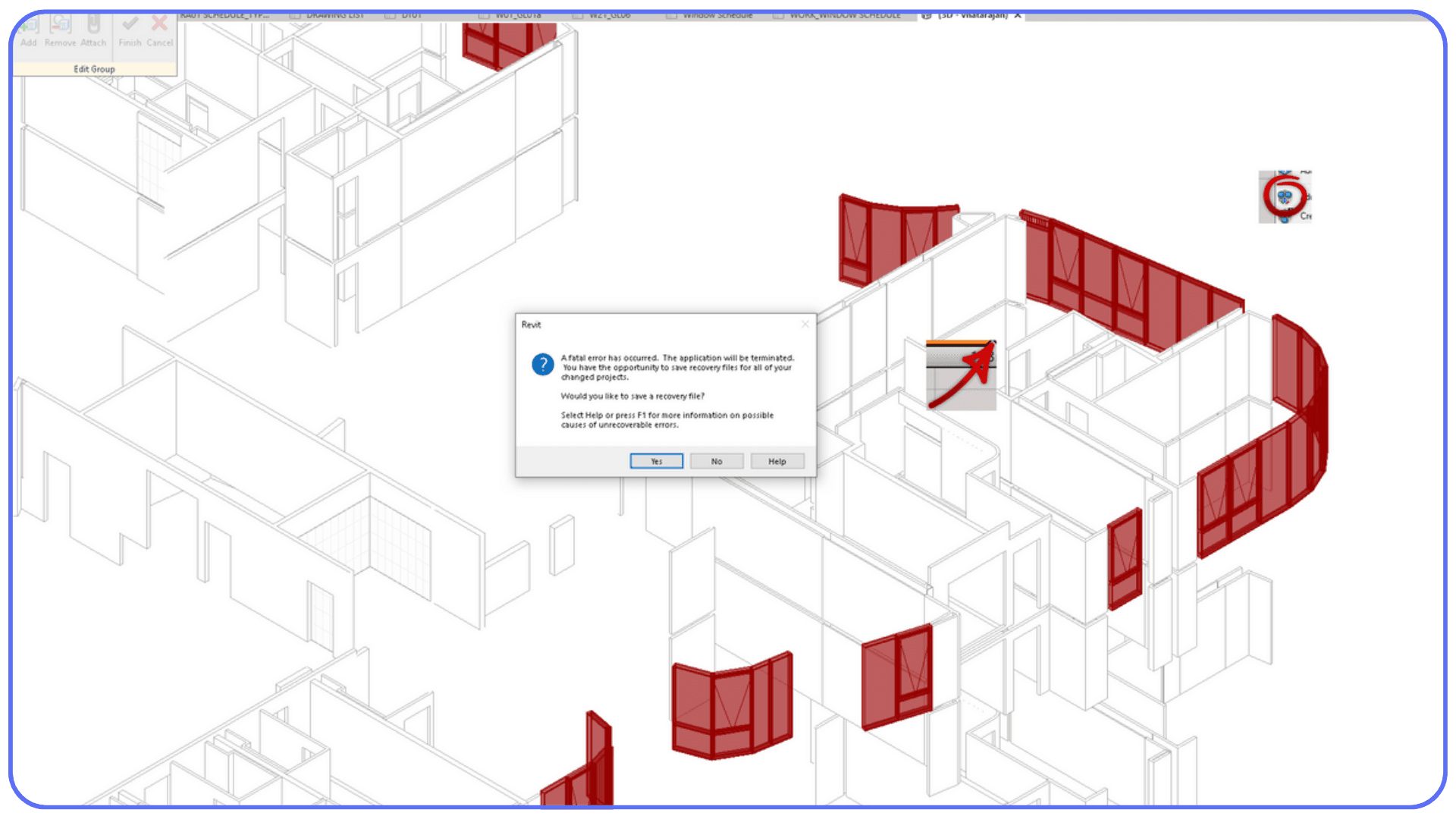
Crashes show up in different forms, and that’s part of the problem. Sometimes Revit won’t even finish launching. You click the icon, the splash screen flashes, and the program closes before you can do anything useful. Other times it lets you work for a while, just long enough to get comfortable, then shuts down mid-session while switching views or syncing changes.
Then there are the crashes tied to specific files or views. You can open the project, move around, maybe even edit sheets. But the moment you open one particular 3D view or section, Revit crashes instantly. Close. Reopen. Same result. It starts to feel personal, like the model itself is fighting back.
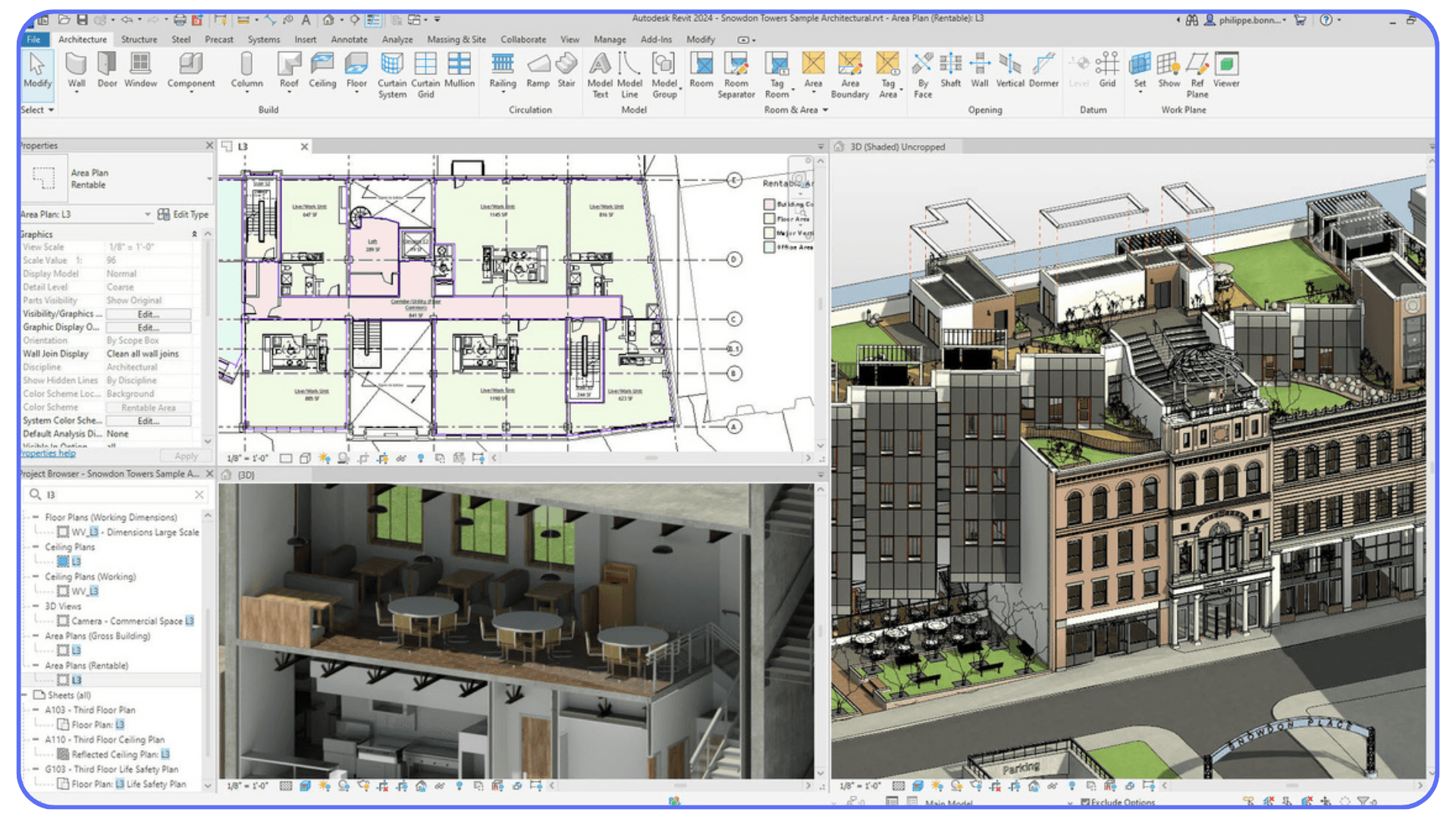
Cloud-based projects add another layer of unpredictability. Models managed through Autodesk BIM 360 can behave differently depending on local cache, sync timing, or network hiccups. One teammate opens the model without issues. You try the same file on the same day, and Revit crashes during sync. Nothing about that feels logical when you’re in the middle of work.
What makes all of this especially frustrating is how quiet Revit is when it fails. There’s rarely a clear explanation. No message saying the model is too heavy or a family is corrupted. It just stops. From the user’s side, it feels sudden. From the software’s side, it’s often been under strain for a while.
This is why crashes hit harder in real project work. They don’t just interrupt modeling. They break concentration, slow coordination, and make you second-guess things that were working fine yesterday. And once you realize how common this is, the question shifts.
Not “why did Revit crash this time?”
But “what usually pushes it over the edge?”
That’s where the real causes start to show up.
When people compare BIM tools in real projects, the differences become obvious, especially in Revit vs Rhino workflows where stability and modeling logic diverge quickly.
Top Causes of Revit Crashes (With What I’ve Seen)
After a while, Revit crashes stop feeling random. You don’t always know the exact cause immediately, but you start recognizing the usual suspects.
#1. Corrupted Models, Families, or Elements
This is one of the hardest problems to spot. A model can look completely fine on the surface and still be broken internally.
I’ve seen single families take down an entire project. You place them without issues. You copy them around. Everything seems normal. Then you open a specific view, edit that family, or reload it, and Revit crashes instantly. No warning. No hint. Just gone.
What makes this worse is that corruption often spreads quietly. A problematic family gets copied from project to project. Suddenly crashes feel inconsistent, even though the root cause has been following you for months.
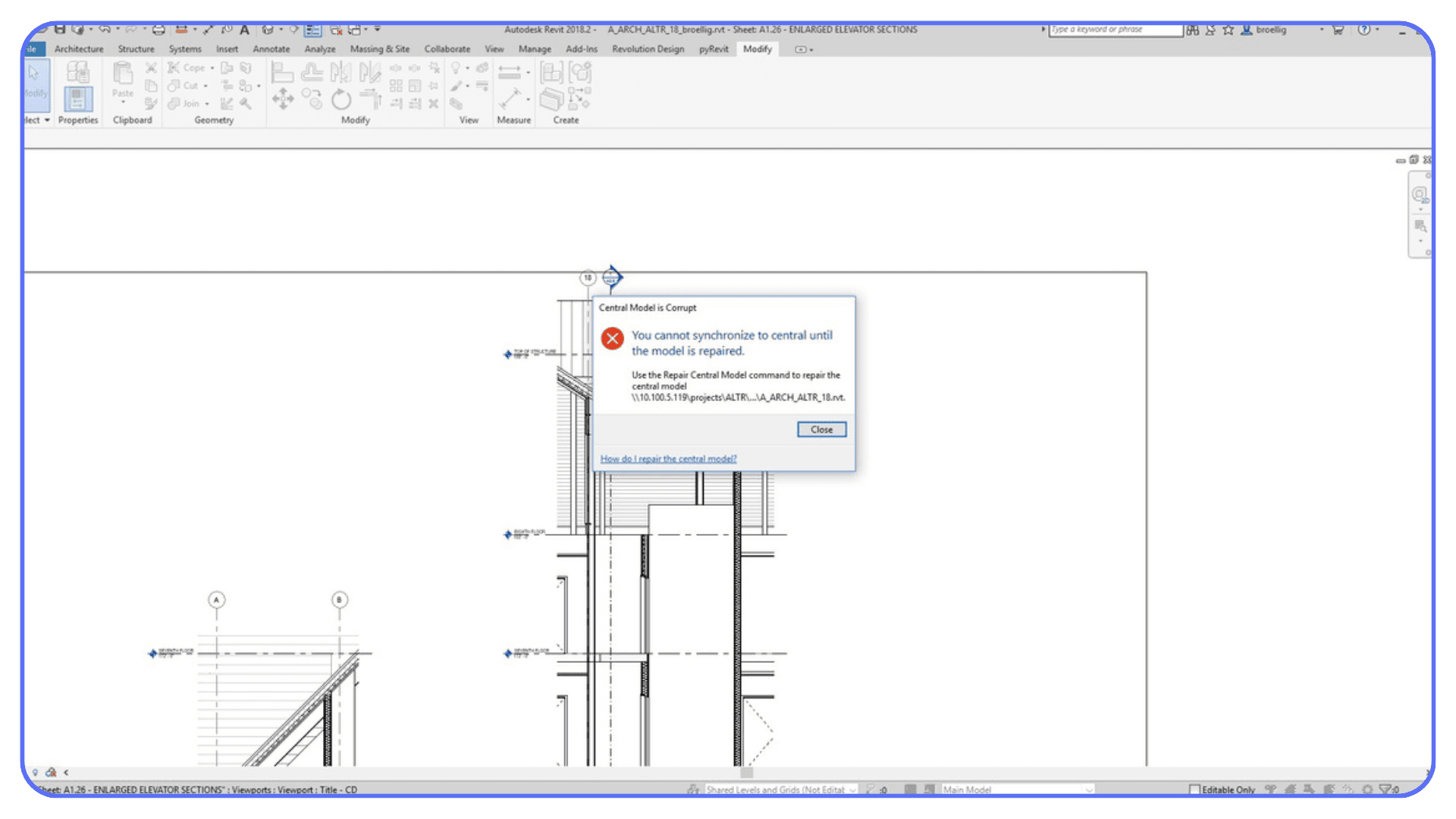
#2. Too Much Complexity and File Size
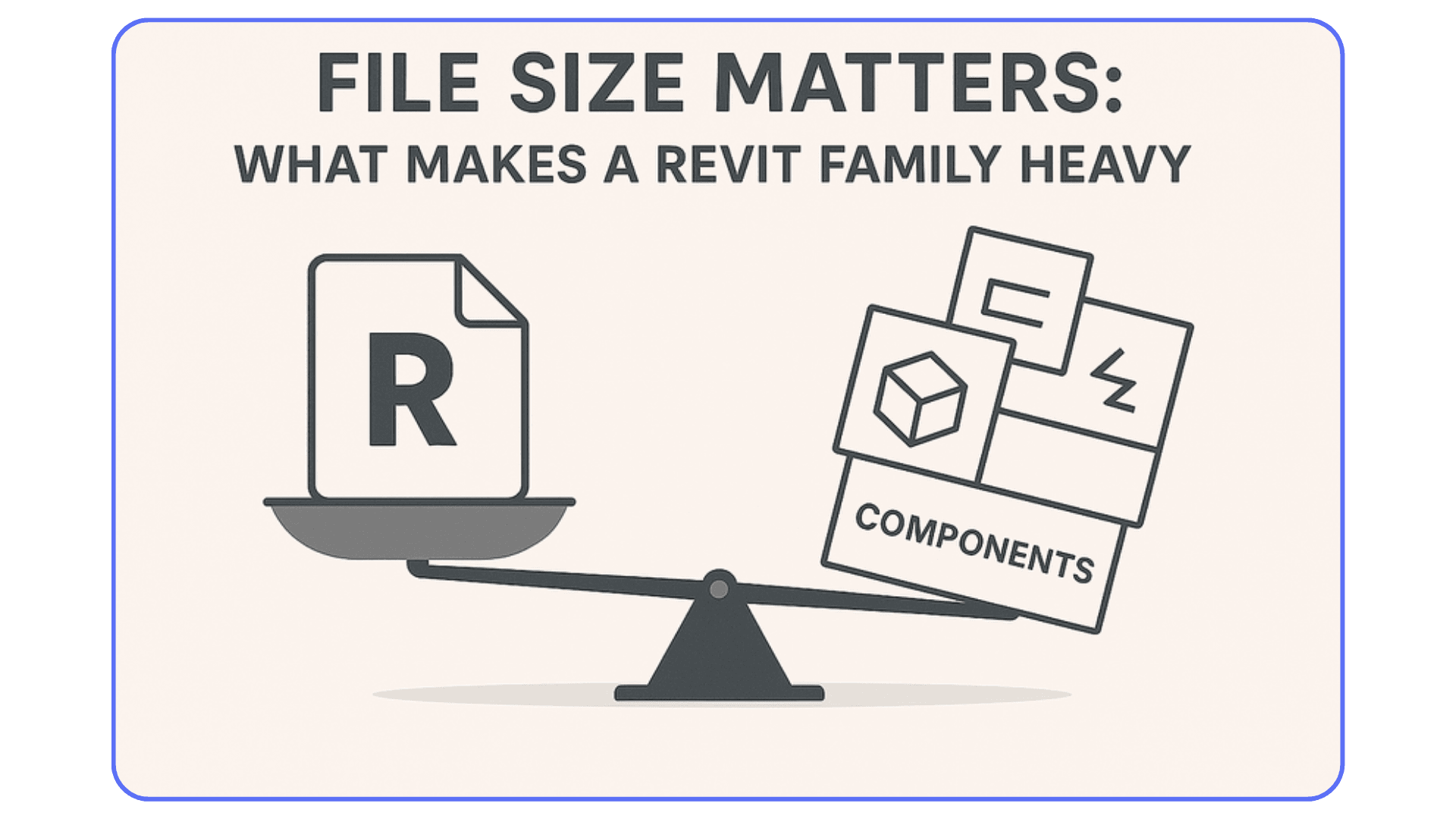
BIM revit architecture files don’t fail because they’re “too big” in a simple way. They fail because of what they’re asking Revit to do at the same time.
Linked models, nested families, imported DWGs, detailed rebar, dense MEP systems, heavy 3D views. Each one adds load. Together, they push memory usage and regeneration times to the edge. Revit might open the file just fine, but the moment it has to recalculate a lot of geometry, everything slows down and then collapses.
This is why crashes often happen during view changes, syncs, or regenerations instead of right at launch.
#3. Add-ins and Third-Party Extensions
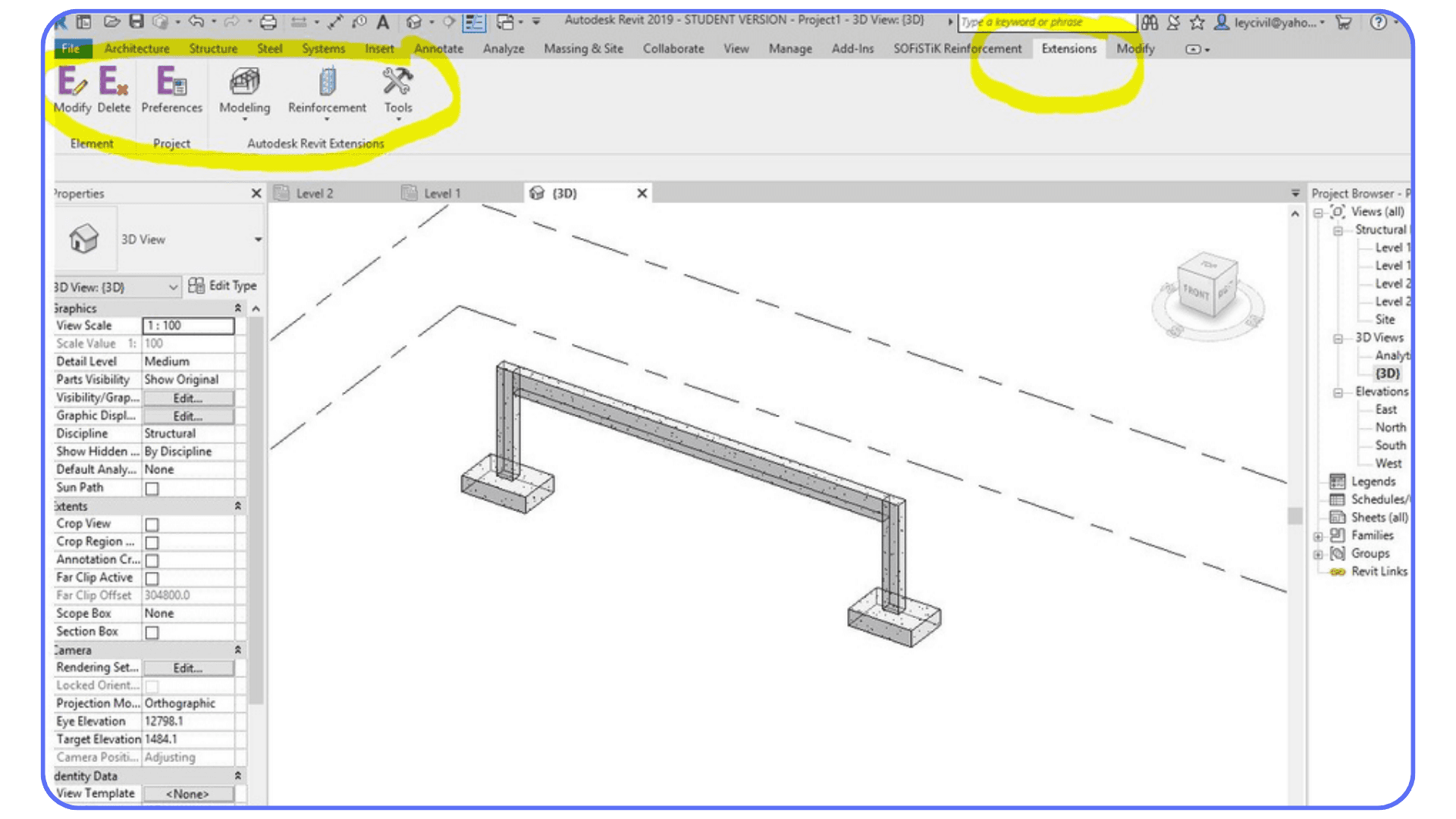
Add-ins are a double-edged sword. Most of us rely on them. They save time and make Revit bearable on large projects.
But they also live inside a fragile ecosystem. One outdated add-in, one version mismatch after a Revit update, or one conflict between tools can cause crashes on startup or mid-session. The frustrating part is that Revit rarely tells you an add-in is responsible. It just shuts down and leaves you guessing.
If crashes suddenly appear after an update, add-ins should always be high on your suspect list.
#4. Graphics Drivers and Hardware Limits
Some crashes have nothing to do with the model itself.
Revit can behave perfectly in plan views and sheets, then crash the moment you open a detailed 3D view or start orbiting. That’s often a graphics driver issue. Certain drivers handle 2D work fine but struggle when Revit pushes the GPU harder.
Because this only shows up in specific situations, people often blame the model when the real issue is the driver or hardware configuration.
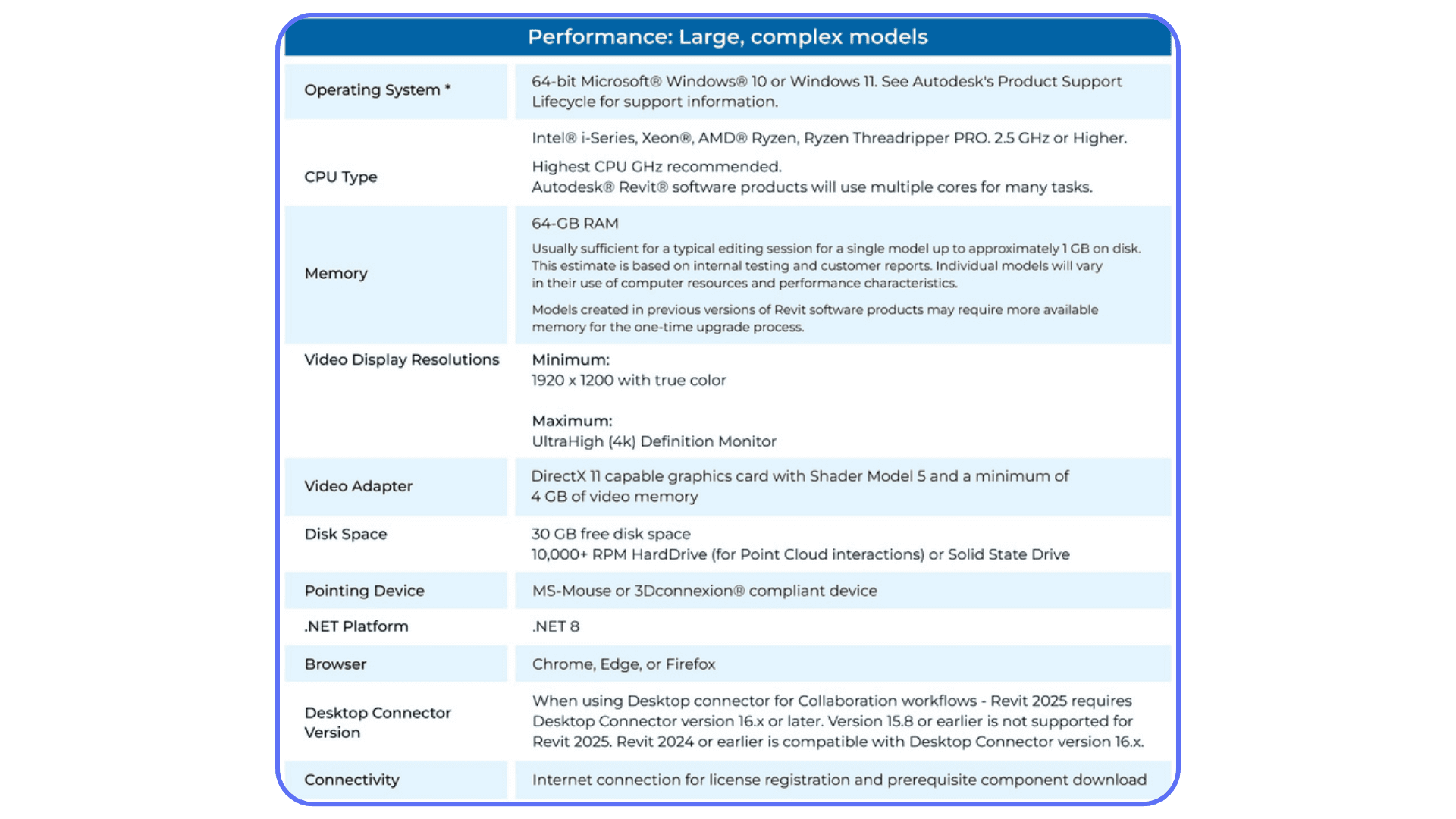
A lot of instability comes from misunderstanding how to use GPU on Autodesk Revit, especially during dense 3D views and regeneration.
#5. Error Reporting and Background Services
This one surprises a lot of users. In some setups, Revit’s own background services and error reporting features have caused instability.
The system designed to report crashes ends up contributing to them. It’s not common, but when it happens, it’s confusing unless you’ve seen it discussed in forums or experienced it yourself.
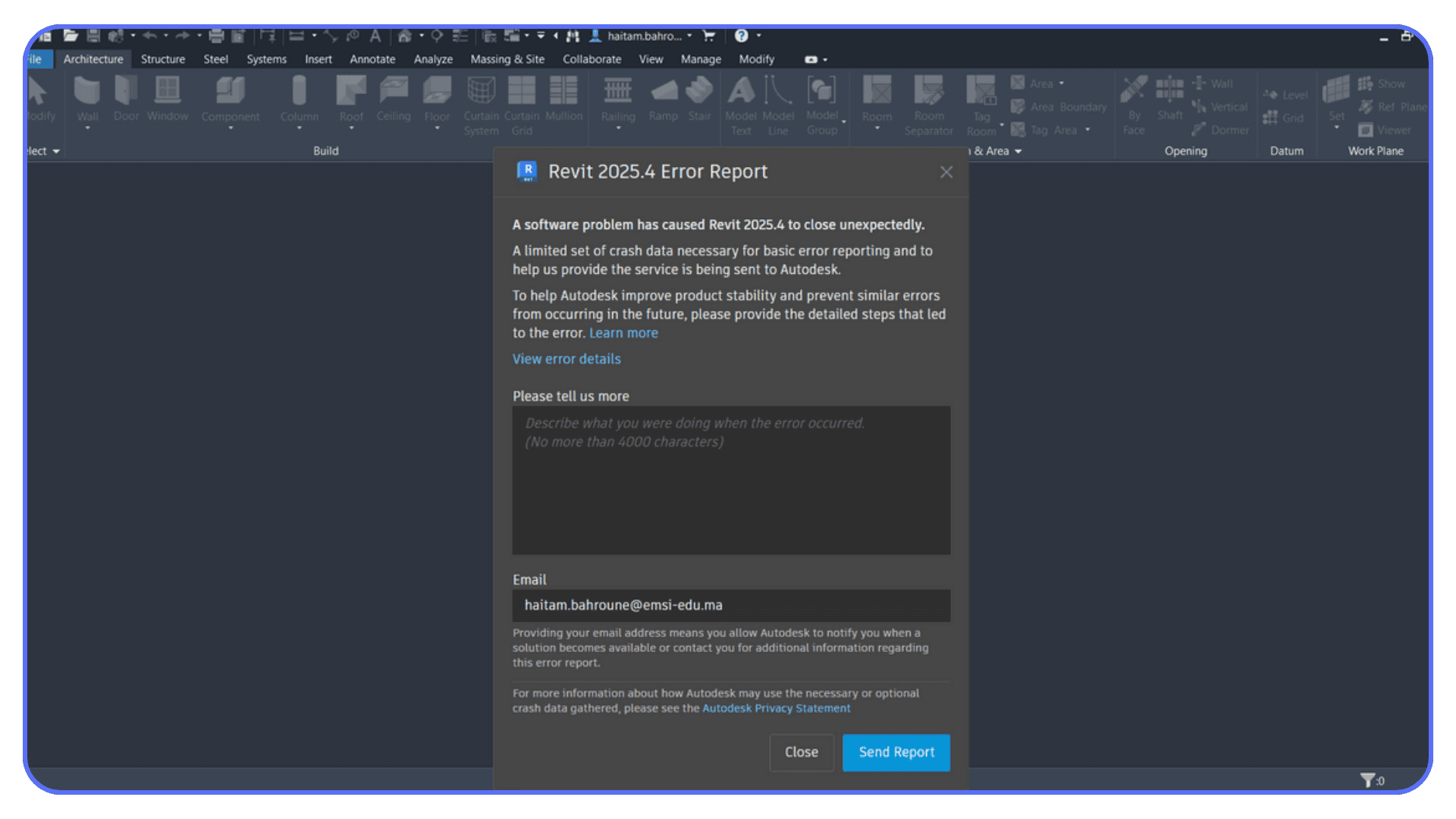
The key takeaway here is simple. Revit usually doesn’t crash because of one dramatic mistake. It crashes because multiple small pressures stack up until the software can’t keep going.
Once you start seeing those pressures clearly, crashes stop feeling like bad luck. They start feeling diagnosable.
How to Diagnose Before You Panic
Before changing settings, reinstalling software, or blaming your machine, it helps to slow down and figure out what’s actually breaking. Revit usually leaves clues. You just have to know where to look.
Journal Files and What They Actually Tell You
Every Revit session generates a journal file in the background. Most people never open them, which is a mistake. When Revit crashes without an error message, the journal file is often the only place where something concrete shows up.
You don’t need to understand every line. What you’re looking for are patterns. Repeated warnings. A command that appears right before the crash. A specific add-in name. If the crash always happens after the same action, the journal usually reflects that.
It’s not glamorous, but it’s one of the fastest ways to turn a “random crash” into a reproducible problem.
Using Audit Without Expecting Miracles
Opening a project with Audit enabled can help, but only in specific cases. Audit is good at catching and repairing certain types of corruption. It’s not good at fixing everything.
If Audit fixes the issue, great. If it doesn’t, running it repeatedly won’t magically make things better. I’ve seen people waste hours reopening the same file with Audit, hoping the next attempt will be different. It usually isn’t.
Use it once, maybe twice. Then move on.
Isolating Add-ins the Fast Way
When crashes start suddenly, especially after an update, add-ins should be one of the first things you suspect.
The quickest test is simple. Disable all add-ins and launch Revit clean. If the crash disappears, you’ve learned something important. From there, you can re-enable add-ins one by one until the problem comes back.
It’s not fun, but it’s far faster than reinstalling Revit and hoping for the best.
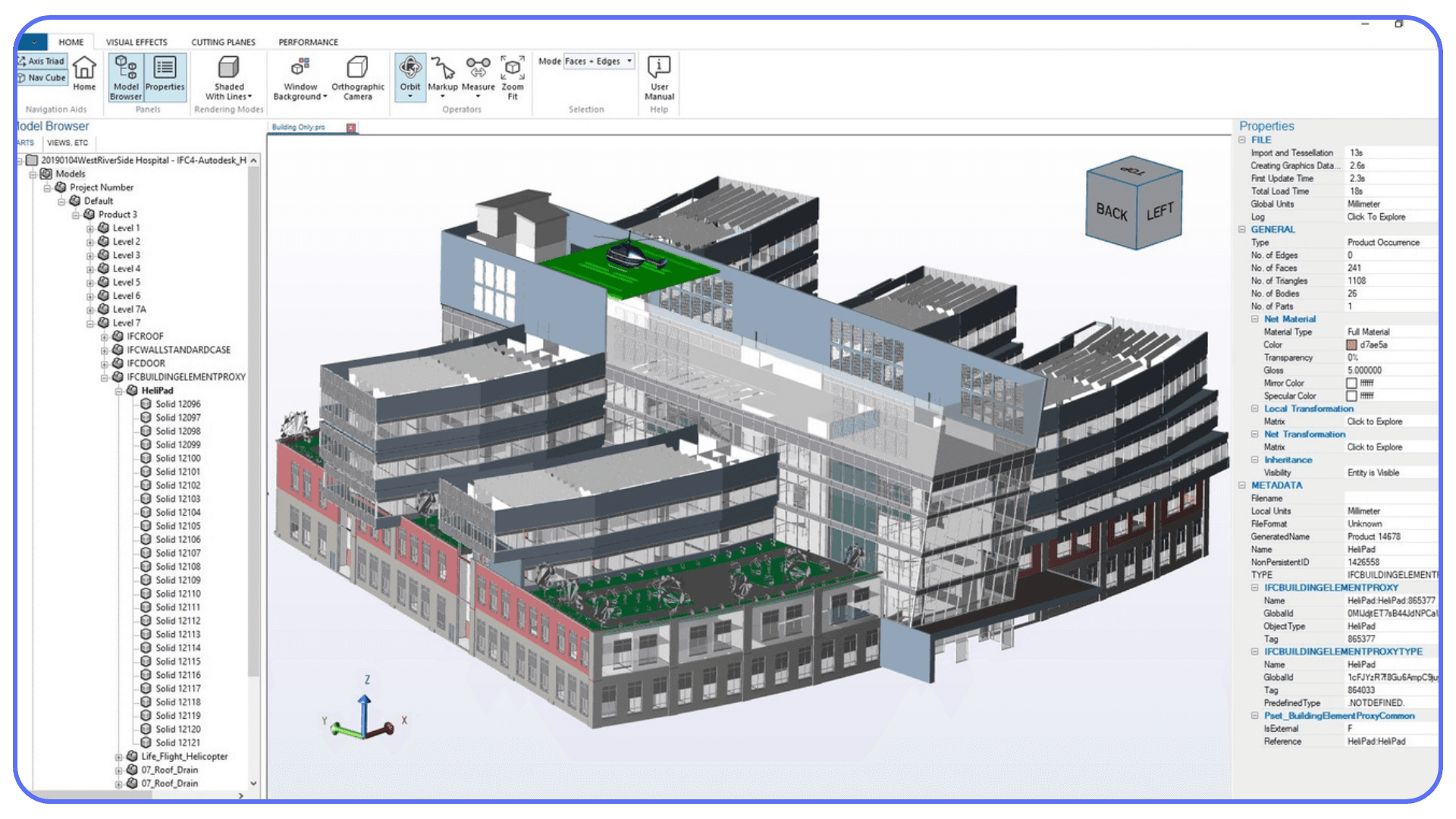
Event Viewer and Silent Failures
Sometimes Revit doesn’t tell you anything useful at all. No dialog. No error code. Just a closed program.
In those cases, the Windows Event Viewer can help. Application-level errors often show up there with references to graphics drivers, memory faults, or background services. Even a vague error can point you in the right direction and save you from guessing.
Administrator Mode and Security Conflicts
This one feels basic, but it still matters. Running Revit as administrator can resolve permission-related issues, especially when working with network files or cloud-synced folders.
Antivirus software can also interfere in subtle ways. Temporarily disabling it for testing can help confirm whether it’s part of the problem. If the crash disappears, you know where to focus next.
The goal of diagnosis isn’t to fix everything at once. It’s to narrow the problem down. Once you understand whether the issue lives in the model, the environment, or the system, the fixes become much more targeted.
Practical Fixes That Actually Work
Once you’ve identified where the problem likely lives, it’s time to fix things that have a real chance of making a difference. Not quick hacks. Not ritual reinstalls. Actual changes that reduce stress on Revit.
#1. Cleaning and Auditing Without Overdoing It
Cleaning a model sounds obvious, but most people either ignore it or go too far.
Saving the project as a new file can help clear out hidden baggage. Purging unused families and materials reduces clutter Revit still has to track in the background. Running Audit once on a problematic file can repair certain issues. The key word there is once. Overusing Audit doesn’t make a model healthier. It just burns time.
I’ve noticed the best results come from treating cleaning as maintenance, not emergency surgery.
#2. Simplifying Heavy Models on Purpose
Not everything needs to live in the same file.
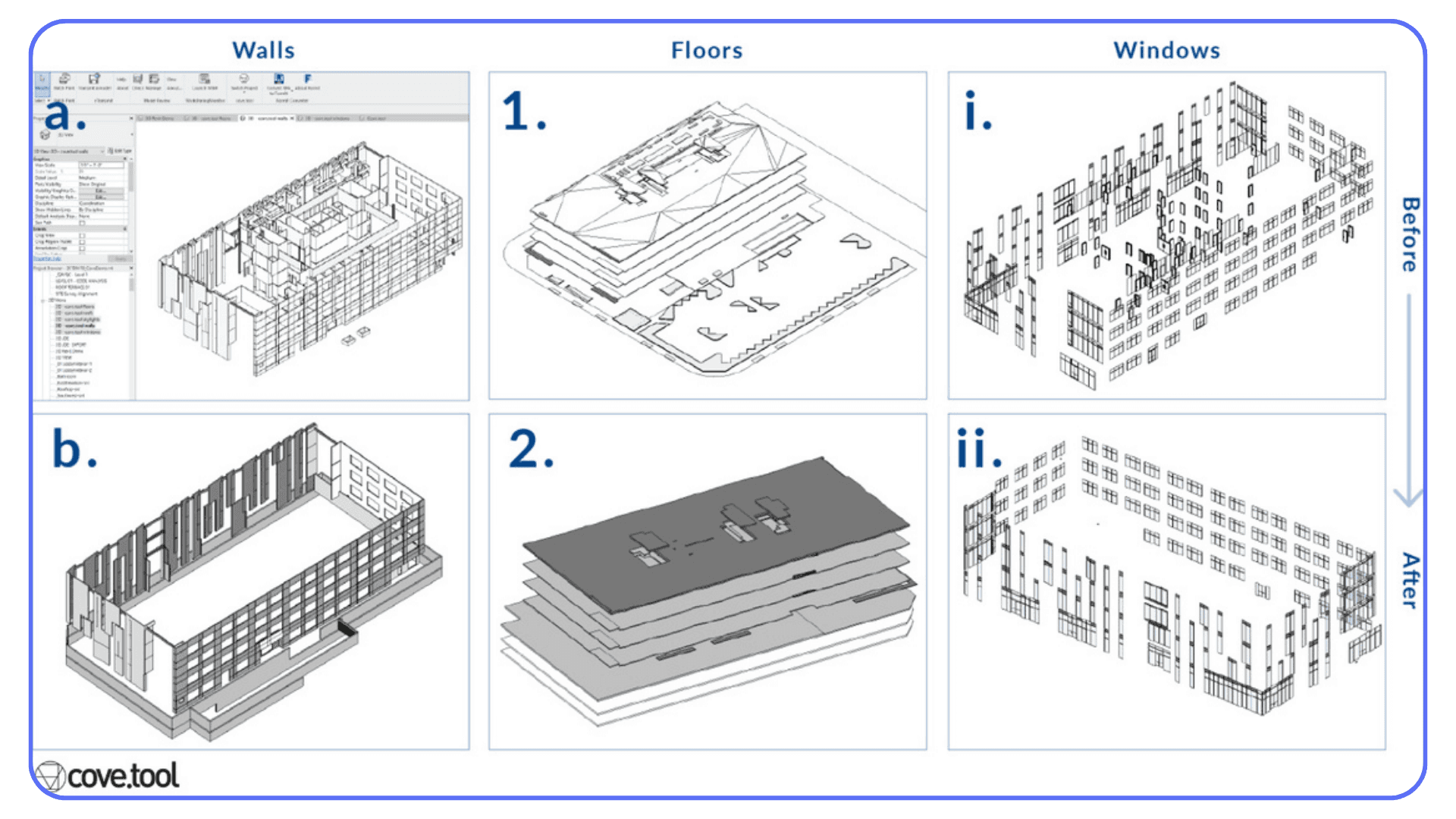
Large revit architecture projects tend t"o accumulate everything in one place. Linked models, detailed geometry, imported CAD files, and legacy content from earlier phases all pile up. Revit doesn’t forget those things just because you’re not looking at them.
Unloading links you don’t actively need, removing unnecessary DWG imports, and splitting oversized models into smaller linked files can dramatically reduce instability. This matters even more in BIM revit architecture workflows where multiple disciplines intersect and complexity multiplies fast.
The goal isn’t to make the model minimal. It’s to make it intentional.
#3. Keeping Revit and Its Ecosystem in Sync
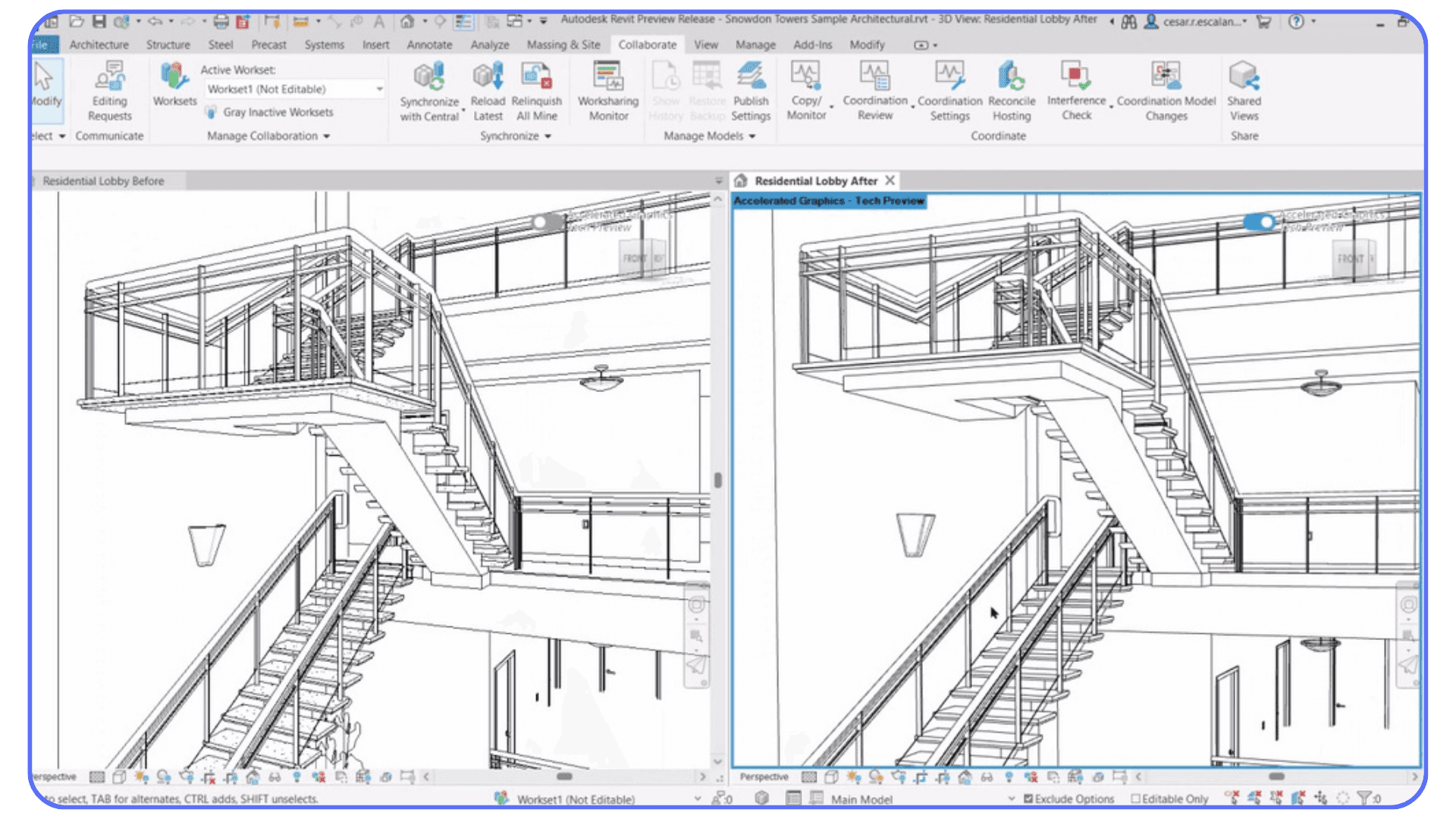
One of the most boring fixes is also one of the most effective. Keeping everything updated.
Revit itself, add-ins, and graphics drivers all need to play nicely together. When one of them lags behind, crashes become more likely. I’ve seen situations where updating a single add-in resolved weeks of instability. I’ve also seen the opposite, where an add-in update caused new crashes and rolling back fixed everything.
There’s no universal rule here. The point is to treat updates as part of troubleshooting, not something you do blindly and hope for the best.
#4. Managing Cloud Cache the Right Way
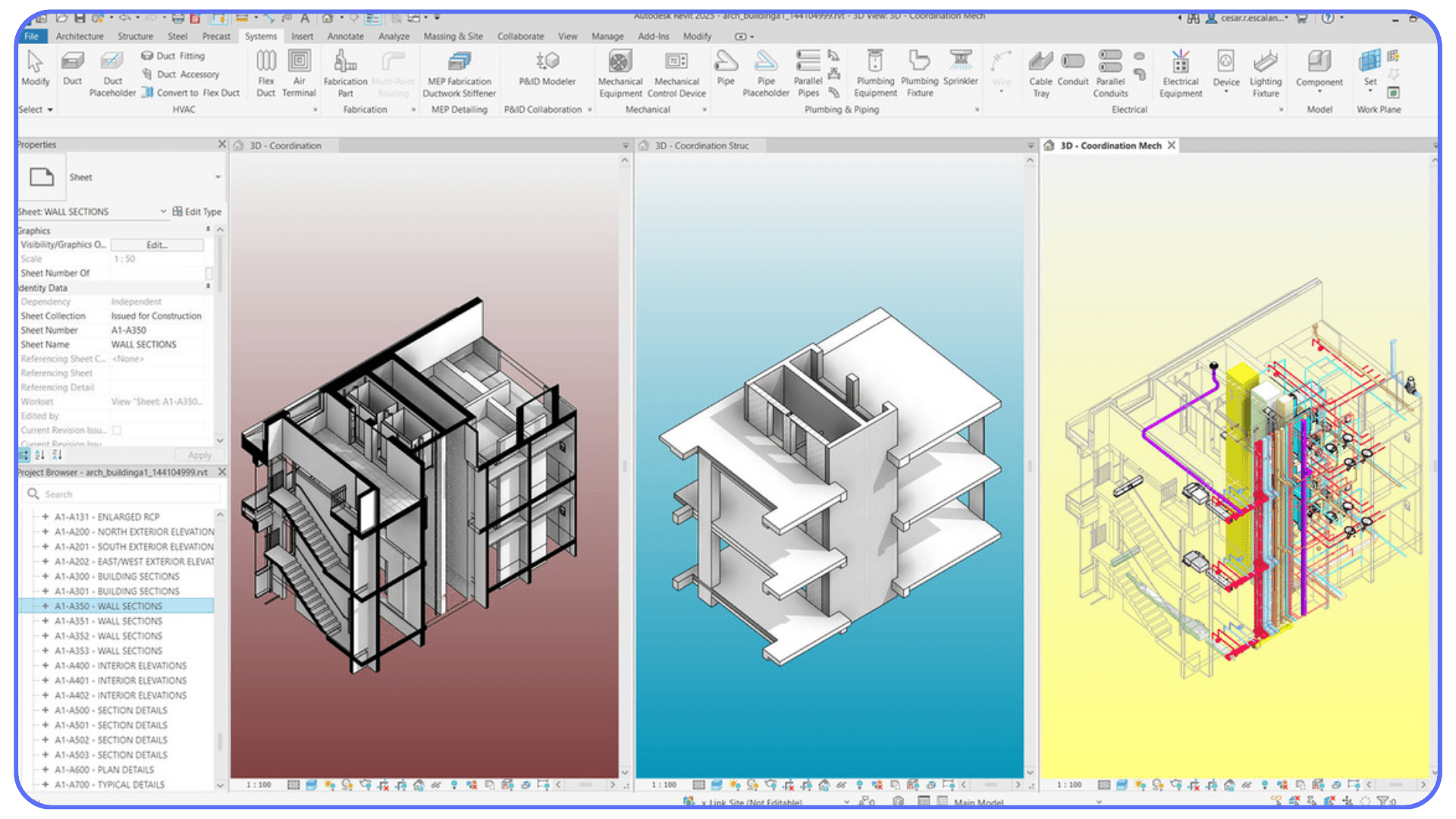
If your project lives in autodesk bim360 or a similar cloud environment, local cache matters more than most people realize.
Revit relies heavily on local cache for cloud models. When that cache gets corrupted or out of sync, crashes can appear out of nowhere. Clearing and rebuilding the cache often fixes issues that look completely unrelated on the surface, especially crashes during opening or syncing.
This is one of those fixes that feels too simple until you’ve seen it work.
#5. Being Honest About Hardware Limits
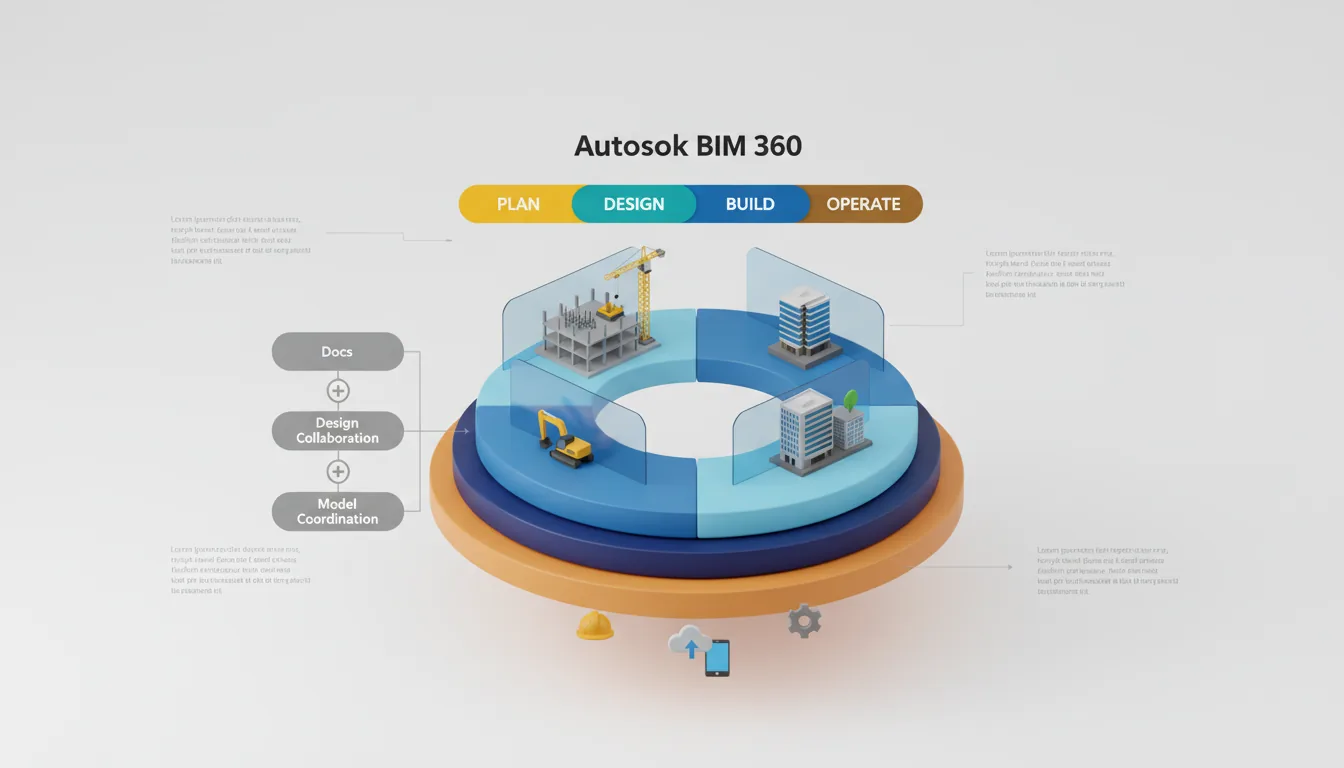
More RAM helps. A better GPU helps. Faster storage helps.
But there’s a ceiling. And once you hit it, Revit becomes unstable no matter how careful you are. Heavy models spike memory usage during regeneration, view changes, and sync operations. When your system can’t keep up, crashes become more frequent.
In many cases, crashes aren’t about settings at all but about whether you’re using the best PC for Autodesk Revit in the first place.
This is usually where people start rethinking how and where they run Revit, especially when project size keeps growing but local hardware doesn’t. That conversation matters later. For now, the important part is recognizing when the problem isn’t your settings, your model, or your workflow. It’s capacity.
Fixing Revit crashes isn’t about finding a single magic switch. It’s about reducing pressure wherever you can, one practical change at a time.
These stability issues become even more noticeable when trying to run Revit on Mac, where performance depends heavily on virtualization or remote setups.
Common Mistakes People Make
Some Revit crashes are hard to avoid. Others are self-inflicted, even by experienced users. Usually without realizing it.
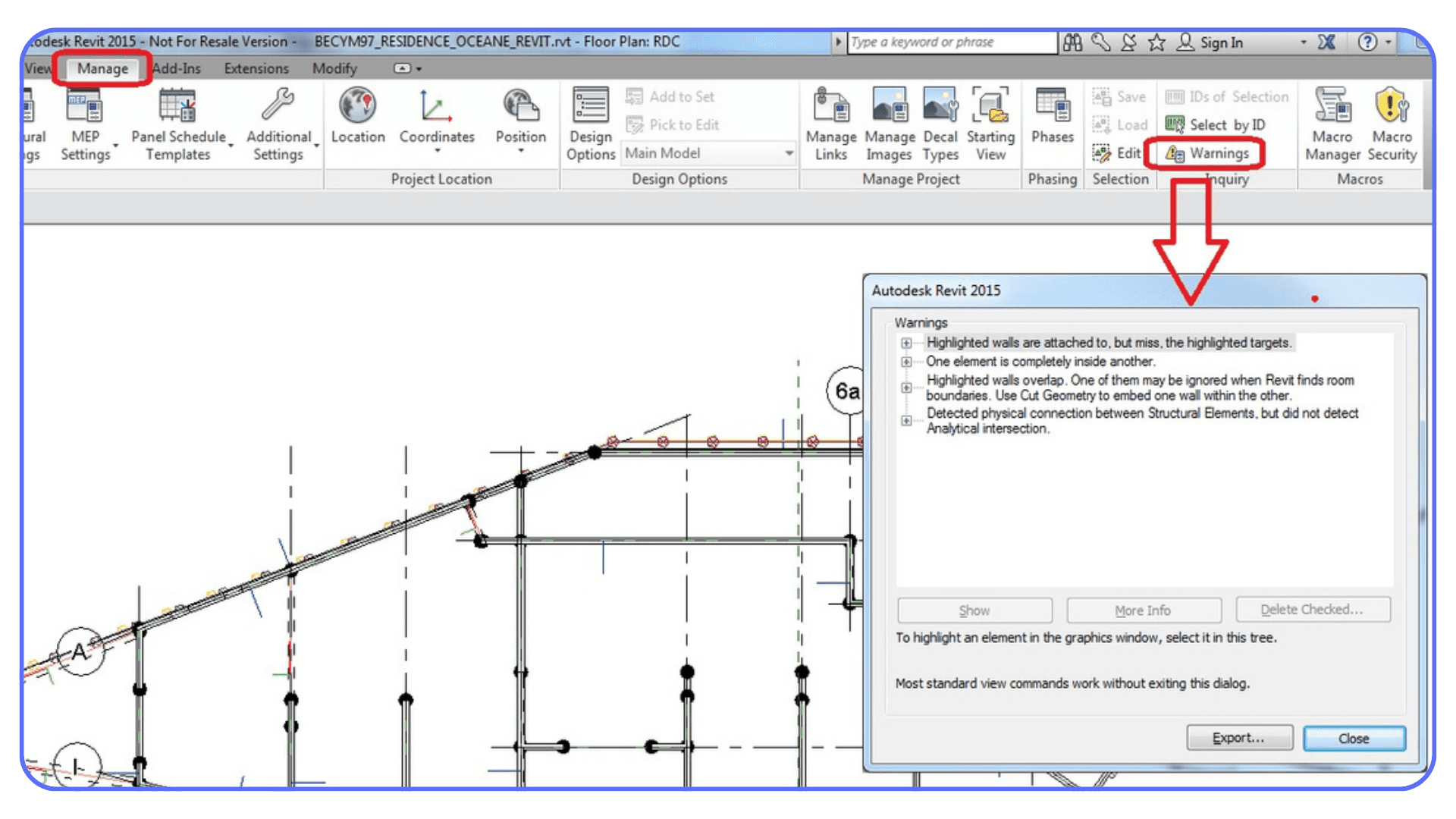
#1. Ignoring Warnings Until They Pile Up
Warnings are easy to dismiss. Revit still opens. Views still load. The model still syncs. So people keep going.
The problem is that warnings aren’t cosmetic. They’re signals. Overlapping elements, duplicate instances, constraints that can’t be satisfied. Each one adds a little friction to regeneration. On their own, they seem harmless. Together, they make the model harder for Revit to process and far more likely to crash under load.
I’ve seen projects where cleaning up warnings reduced crashes more than any hardware upgrade ever did.
#2. Assuming Reinstalling Revit Solves Everything
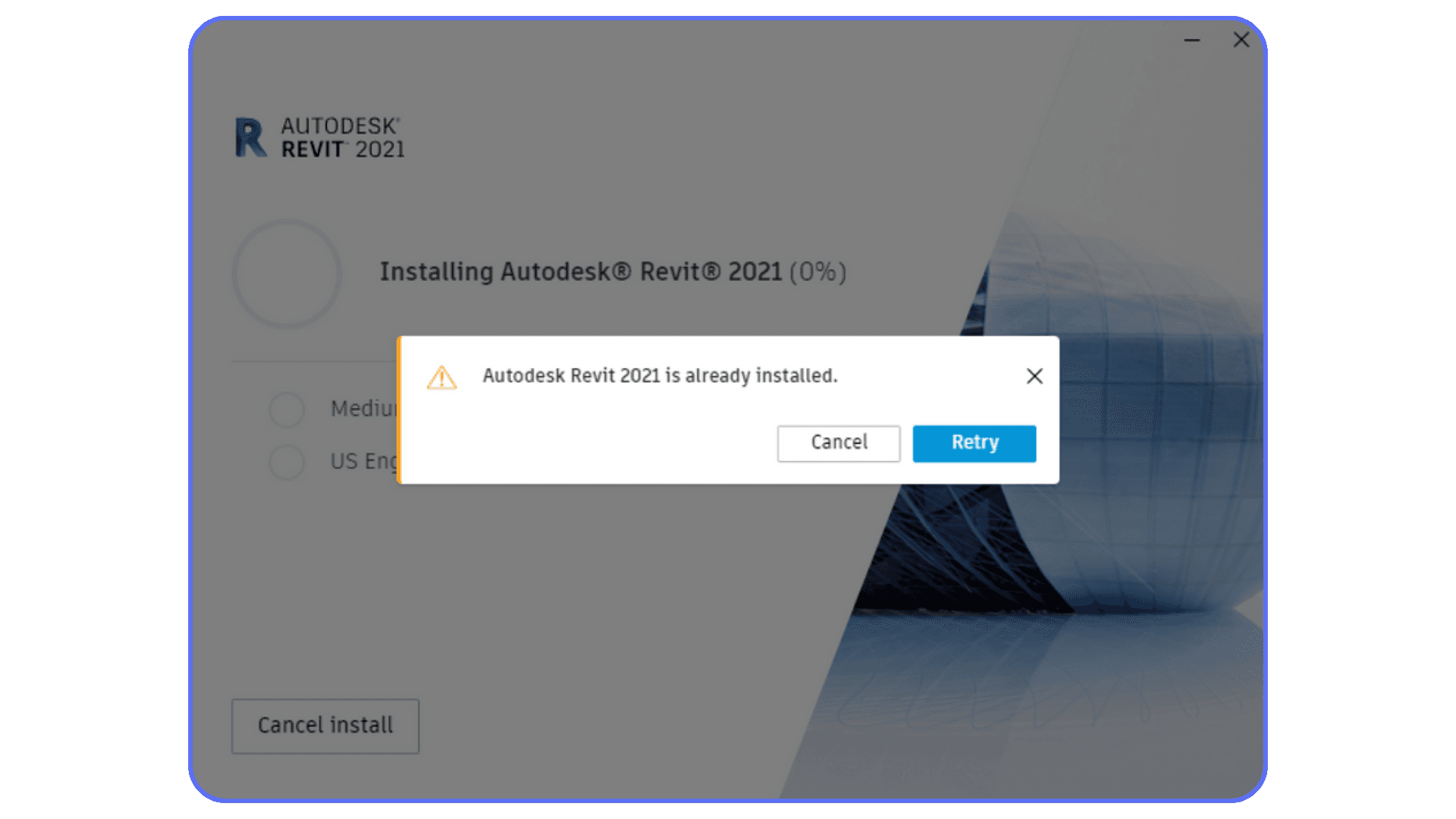
This is the most common reflex. Revit crashes, so people reinstall. Sometimes twice. Sometimes three times.
Reinstalling helps if the installation itself is broken. That’s rare. Most crashes come from the model, the add-ins, or the environment around Revit. A clean install won’t fix a corrupted family. It won’t make an overloaded BIM revit architecture model lighter. It won’t solve a bad graphics driver.
Reinstalling feels productive. Most of the time, it just resets the clock.
#3. Working Only in Massive Central Models
Big central files feel efficient. Everything in one place. Everyone connected. No confusion.
Until something goes wrong.
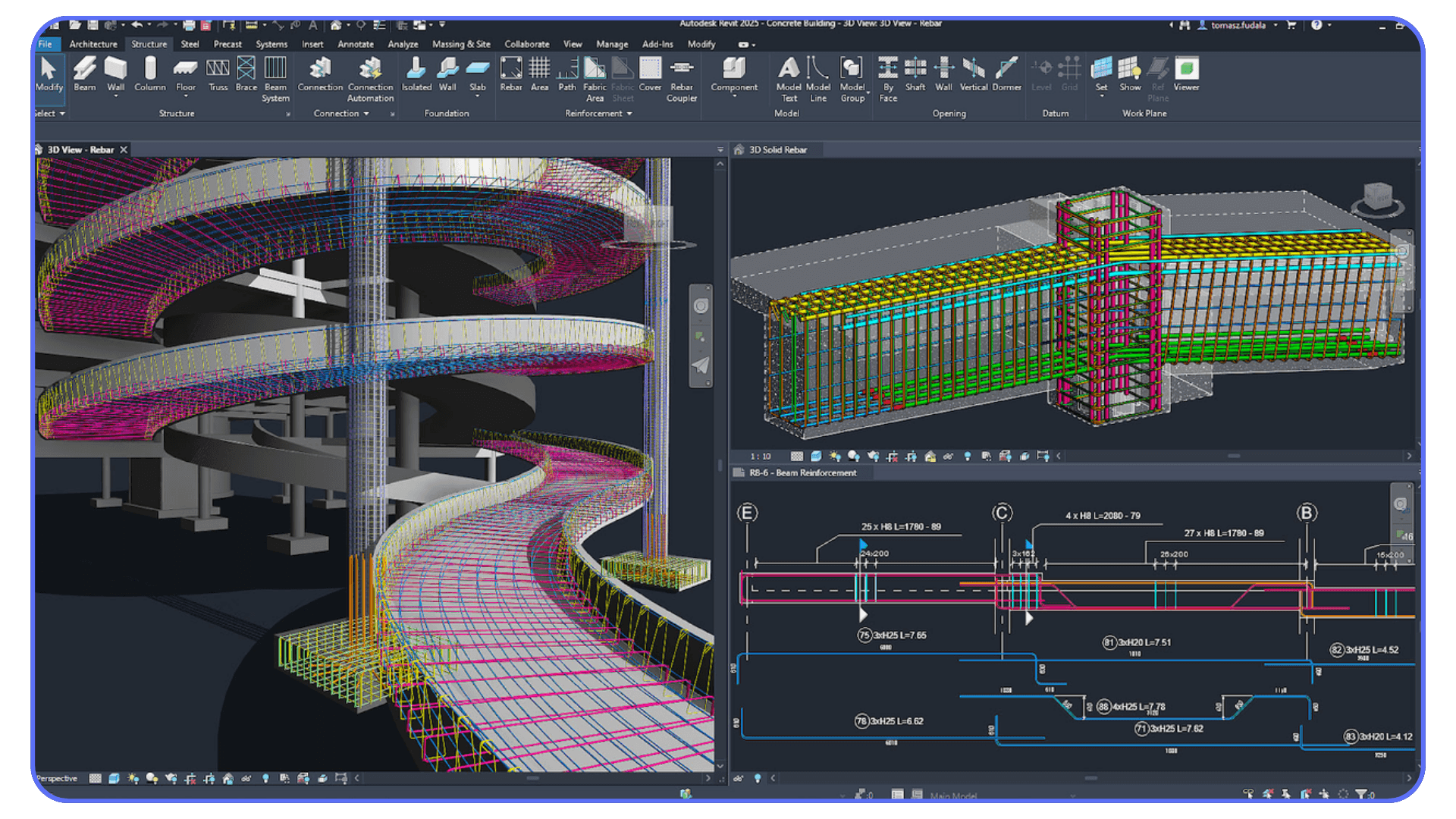
Working directly in heavy central models increases risk. If the file crashes, you lose more. If it corrupts, recovery gets harder. Local copies, detached workflows, and smaller linked files give you room to breathe. They also give you options when something breaks.
People often adopt safer workflows after a major crash. Doing it earlier saves a lot of pain.
These mistakes aren’t about lack of skill. They’re about habits that form when projects move fast and pressure is high. Revit usually tolerates them for a while. Then, without much warning, it stops.
Revit Cost and Workflow Consequences
Revit crashes don’t just waste time. They quietly reshape how projects run, and not in a good way.
Every crash breaks momentum. You lose focus. You reopen files. You wait for models to sync again. You double-check whether things actually saved. Ten minutes here, twenty minutes there. Over a long project, that adds up fast. This is where revit cost starts creeping up in ways nobody budgets for.
Licensing is the obvious expense. People look at autocad revit price or revit architecture cost and think that’s the main investment. In reality, the bigger cost often comes later. Lost productivity. Delayed coordination. Team members waiting on each other because a model won’t open or keeps crashing during sync.
I’ve seen teams become overly cautious after repeated crashes. People stop opening heavy views. They avoid certain tasks because “that’s where it usually crashes.” Workarounds pile up. The model technically still works, but the workflow becomes slower and more fragile. That hesitation is expensive, even if it doesn’t show up on an invoice.
There’s also the human side of it. Crashes erode trust in the tool. People start saving obsessively. They duplicate files “just in case.” They avoid experimenting or cleaning things up because they’re afraid of triggering another crash. That kind of defensive workflow isn’t efficient. It’s survival mode.
The frustrating part is that none of this feels dramatic enough to trigger a big conversation. No one says, “We’re losing thousands because Revit keeps crashing.” It just quietly drains time and energy across weeks and months.
Understanding this cost matters, because it changes how you think about solutions. Fixing crashes isn’t just about stability. It’s about protecting focus, confidence, and the pace of the project.
Hardware planning gets even more complicated for teams that also need the best PC for AutoCAD alongside Revit-heavy workflows.
Using Vagon Cloud Computer for Heavy Revit Work
At some point, fixing Revit crashes stops being about what you’re doing wrong and starts being about where the work is happening.
Revit isn’t lightweight software. As projects grow, so do the demands. Larger models, more links, heavier families, coordination views, AI-assisted tools. All of this creates short but intense spikes in CPU, RAM, and disk usage. Most local machines struggle not because they’re bad, but because they don’t have enough headroom when those spikes hit.
That’s where Vagon Cloud Computer fits in.
Instead of pushing heavy Revit workloads onto already strained local hardware, Vagon lets you run Revit on a high-performance cloud workstation. You’re working in a full Windows environment with more CPU and memory available, so when Revit needs to regenerate a massive view, open a risky file, or process a heavy sync, it has room to do it without immediately crashing.
This is especially useful for high-risk tasks. Opening models you didn’t build yourself. Running audits. Testing fixes that might trigger crashes. On a local machine, those moments often fail. In the cloud, they’re far more manageable.

What I’ve noticed is that this changes how troubleshooting feels. Crashes don’t magically disappear, but they become easier to understand. If a crash still happens on a powerful cloud machine, you know it’s a real model or workflow issue. If it doesn’t, that tells you something just as valuable.
Using Vagon also keeps your local machine usable. You’re not locked out because Revit froze mid-task. You can keep working, communicate with your team, or handle lighter tasks while heavy operations run elsewhere.

This isn’t about replacing local setups. It’s about using the right environment for the right work. Light edits can stay local. Heavy coordination, audits, and crash-prone tasks benefit from a cloud workstation built to absorb that load.
In that sense, Vagon Cloud Computer isn’t a shortcut. It’s a safety margin.
This is also what makes it possible to use Autodesk Revit on iPad, especially for reviews or lighter tasks, by running Revit remotely instead of locally.
Real Talk on Expectations
Here’s the part that’s worth saying out loud. There is no single fix for Revit crashes. Anyone promising that is oversimplifying things.
What works in one project might do nothing in another. A corrupted family fix won’t help if the issue is hardware limits. More RAM won’t solve a broken add-in. Clearing cache won’t matter if the model itself is fundamentally unstable. Revit problems tend to be layered, and you usually have to peel them back one by one.
That can be frustrating, but it’s also freeing. Once you accept that crashes aren’t a personal failure or a sign that you “don’t know Revit well enough,” troubleshooting becomes calmer. More systematic. You test things. You observe patterns. You rule things out.
It’s also important to be realistic about timelines. Some issues can be fixed in minutes. Others take days of trial and error, especially on large, inherited projects. Expecting instant stability usually leads to rushed decisions and bad fixes that come back later.
The goal isn’t to make Revit crash-proof. That’s not realistic. The goal is to reduce how often it crashes, shorten recovery time when it does, and remove as many unknowns from the workflow as possible. Once you aim for that, progress becomes visible.
Many users eventually end up mastering Revit on low-end devices by adjusting workflows instead of blaming themselves for every crash.
Final Thoughts
Revit crashes are exhausting, but they’re also telling you something.
They usually point to imbalance. Between model complexity and system capacity. Between speed and discipline. Between how much you’re asking Revit to do and where you’re asking it to do it. Ignoring that signal only makes the next crash more disruptive.
The teams that handle Revit best aren’t the ones that never crash. They’re the ones that recover quickly, understand their limits, and adjust their workflows before things spiral. They clean models regularly. They question heavy geometry. They choose the right environment for demanding tasks.
If you’ve dealt with enough crashes, you’ve probably built your own set of habits already. Some worked. Some didn’t. That’s normal. The important part is staying intentional about how you work, instead of letting crashes dictate your workflow for you.
And if you’ve found fixes or patterns that saved you time, those are worth sharing. Revit users learn best from each other, usually after something breaks.
FAQs
1. Why does Revit crash so often on large projects?
Because Revit doesn’t scale gently. Large models trigger sudden spikes in RAM and CPU usage, especially during view changes, syncs, and regeneration. When those spikes exceed what your system can handle, Revit doesn’t slow down gracefully. It just stops.
2. Can a single family really crash an entire Revit project?
Yes. This happens more often than people expect. A corrupted or poorly built family can sit quietly in a model for weeks. The crash usually appears only when that family is edited, placed in a specific view, or forces a regeneration. That’s why crashes can feel random when they’re not.
3. Does reinstalling Revit fix most crashes?
Usually no. Reinstalling helps only if the installation itself is broken, which is relatively rare. Most crashes come from model issues, add-ins, drivers, or hardware limits. Reinstalling without addressing those just delays the next crash.
4. Why does Revit crash only in certain views, especially 3D?
That’s often tied to graphics drivers or GPU limitations. Plan and sheet views don’t stress the system the same way detailed 3D views do. If crashes happen mainly during orbiting or visual style changes, the GPU or its driver is a strong suspect.
5. How useful are journal files for troubleshooting crashes?
More useful than most people think. You don’t need to understand every line. You’re looking for patterns like the last command before the crash or repeated references to the same add-in or process. Journal files are often the only clue when Revit gives no error message.
6. When should I use Audit on a Revit file?
Use it when you suspect corruption, especially if a file crashes during opening or when accessing specific elements. Run it once, maybe twice. If it doesn’t help, repeating it usually won’t either.
7. Why do cloud-based Revit models sometimes crash more?
Cloud models add extra moving parts. Local cache, background sync, and network timing all matter. A model can be perfectly fine but still crash because the local cache is corrupted or incomplete. That’s why the same file might work on one machine and not another.
8. Is more RAM always the solution to Revit crashes?
More RAM helps, but it’s not a cure-all. Revit often crashes due to short, intense resource spikes. Once you hit the ceiling, adding small upgrades won’t change much. At that point, changing the environment matters more than tweaking hardware.
9. How does Vagon Cloud Computer help with Revit crashes?
Vagon Cloud Computer gives Revit significantly more CPU and memory headroom in a controlled environment. This reduces crashes caused by local hardware limits and makes it easier to diagnose whether the issue is the model or the machine. It’s especially useful for heavy models, audits, and crash-prone tasks.
10. Can cloud workstations replace good Revit modeling practices?
No. And they shouldn’t. Clean models, disciplined workflows, and proper diagnostics still matter. Cloud workstations simply remove hardware limitations from the equation, making crashes less frequent and recovery much easier.
Ever opened a 500MB model in revit programma and watched it crash before you even blinked? No warning. No chance to save. Just gone. If that sounds familiar, you’re definitely not alone.
I’ve seen this happen on solid machines, fresh installs, even right after someone upgraded their hardware and expected things to finally feel smooth. The file starts loading, the progress bar inches forward, you relax for half a second… and then Revit disappears like it was never there. The deadline, of course, doesn’t.
What makes this worse is how common it feels. These crashes don’t come across as rare edge cases. They feel routine. And after a few of them, the surprise fades. You stop asking why it crashed this time and start asking a more uncomfortable question. Why does this keep happening at all?
When you’re dealing with heavy models, that question comes up fast.
The Reality of Revit Crashes
Once you’ve been around Revit long enough, the crashes stop feeling mysterious. They feel… familiar.
Even adsk Revit, which sits at the heart of most autodesk revit bim workflows, isn’t immune to falling over under pressure. That surprises people at first. This is professional software, built by Autodesk, used on massive commercial projects. You expect stability. What you get instead is something a bit more fragile than advertised.
Crashes show up in different forms, and that’s part of the problem. Sometimes Revit won’t even finish launching. You click the icon, the splash screen flashes, and the program closes before you can do anything useful. Other times it lets you work for a while, just long enough to get comfortable, then shuts down mid-session while switching views or syncing changes.
Then there are the crashes tied to specific files or views. You can open the project, move around, maybe even edit sheets. But the moment you open one particular 3D view or section, Revit crashes instantly. Close. Reopen. Same result. It starts to feel personal, like the model itself is fighting back.
Cloud-based projects add another layer of unpredictability. Models managed through Autodesk BIM 360 can behave differently depending on local cache, sync timing, or network hiccups. One teammate opens the model without issues. You try the same file on the same day, and Revit crashes during sync. Nothing about that feels logical when you’re in the middle of work.
What makes all of this especially frustrating is how quiet Revit is when it fails. There’s rarely a clear explanation. No message saying the model is too heavy or a family is corrupted. It just stops. From the user’s side, it feels sudden. From the software’s side, it’s often been under strain for a while.
This is why crashes hit harder in real project work. They don’t just interrupt modeling. They break concentration, slow coordination, and make you second-guess things that were working fine yesterday. And once you realize how common this is, the question shifts.
Not “why did Revit crash this time?”
But “what usually pushes it over the edge?”
That’s where the real causes start to show up.
When people compare BIM tools in real projects, the differences become obvious, especially in Revit vs Rhino workflows where stability and modeling logic diverge quickly.
Top Causes of Revit Crashes (With What I’ve Seen)
After a while, Revit crashes stop feeling random. You don’t always know the exact cause immediately, but you start recognizing the usual suspects.
#1. Corrupted Models, Families, or Elements
This is one of the hardest problems to spot. A model can look completely fine on the surface and still be broken internally.
I’ve seen single families take down an entire project. You place them without issues. You copy them around. Everything seems normal. Then you open a specific view, edit that family, or reload it, and Revit crashes instantly. No warning. No hint. Just gone.
What makes this worse is that corruption often spreads quietly. A problematic family gets copied from project to project. Suddenly crashes feel inconsistent, even though the root cause has been following you for months.
#2. Too Much Complexity and File Size
BIM revit architecture files don’t fail because they’re “too big” in a simple way. They fail because of what they’re asking Revit to do at the same time.
Linked models, nested families, imported DWGs, detailed rebar, dense MEP systems, heavy 3D views. Each one adds load. Together, they push memory usage and regeneration times to the edge. Revit might open the file just fine, but the moment it has to recalculate a lot of geometry, everything slows down and then collapses.
This is why crashes often happen during view changes, syncs, or regenerations instead of right at launch.
#3. Add-ins and Third-Party Extensions
Add-ins are a double-edged sword. Most of us rely on them. They save time and make Revit bearable on large projects.
But they also live inside a fragile ecosystem. One outdated add-in, one version mismatch after a Revit update, or one conflict between tools can cause crashes on startup or mid-session. The frustrating part is that Revit rarely tells you an add-in is responsible. It just shuts down and leaves you guessing.
If crashes suddenly appear after an update, add-ins should always be high on your suspect list.
#4. Graphics Drivers and Hardware Limits
Some crashes have nothing to do with the model itself.
Revit can behave perfectly in plan views and sheets, then crash the moment you open a detailed 3D view or start orbiting. That’s often a graphics driver issue. Certain drivers handle 2D work fine but struggle when Revit pushes the GPU harder.
Because this only shows up in specific situations, people often blame the model when the real issue is the driver or hardware configuration.
A lot of instability comes from misunderstanding how to use GPU on Autodesk Revit, especially during dense 3D views and regeneration.
#5. Error Reporting and Background Services
This one surprises a lot of users. In some setups, Revit’s own background services and error reporting features have caused instability.
The system designed to report crashes ends up contributing to them. It’s not common, but when it happens, it’s confusing unless you’ve seen it discussed in forums or experienced it yourself.
The key takeaway here is simple. Revit usually doesn’t crash because of one dramatic mistake. It crashes because multiple small pressures stack up until the software can’t keep going.
Once you start seeing those pressures clearly, crashes stop feeling like bad luck. They start feeling diagnosable.
How to Diagnose Before You Panic
Before changing settings, reinstalling software, or blaming your machine, it helps to slow down and figure out what’s actually breaking. Revit usually leaves clues. You just have to know where to look.
Journal Files and What They Actually Tell You
Every Revit session generates a journal file in the background. Most people never open them, which is a mistake. When Revit crashes without an error message, the journal file is often the only place where something concrete shows up.
You don’t need to understand every line. What you’re looking for are patterns. Repeated warnings. A command that appears right before the crash. A specific add-in name. If the crash always happens after the same action, the journal usually reflects that.
It’s not glamorous, but it’s one of the fastest ways to turn a “random crash” into a reproducible problem.
Using Audit Without Expecting Miracles
Opening a project with Audit enabled can help, but only in specific cases. Audit is good at catching and repairing certain types of corruption. It’s not good at fixing everything.
If Audit fixes the issue, great. If it doesn’t, running it repeatedly won’t magically make things better. I’ve seen people waste hours reopening the same file with Audit, hoping the next attempt will be different. It usually isn’t.
Use it once, maybe twice. Then move on.
Isolating Add-ins the Fast Way
When crashes start suddenly, especially after an update, add-ins should be one of the first things you suspect.
The quickest test is simple. Disable all add-ins and launch Revit clean. If the crash disappears, you’ve learned something important. From there, you can re-enable add-ins one by one until the problem comes back.
It’s not fun, but it’s far faster than reinstalling Revit and hoping for the best.
Event Viewer and Silent Failures
Sometimes Revit doesn’t tell you anything useful at all. No dialog. No error code. Just a closed program.
In those cases, the Windows Event Viewer can help. Application-level errors often show up there with references to graphics drivers, memory faults, or background services. Even a vague error can point you in the right direction and save you from guessing.
Administrator Mode and Security Conflicts
This one feels basic, but it still matters. Running Revit as administrator can resolve permission-related issues, especially when working with network files or cloud-synced folders.
Antivirus software can also interfere in subtle ways. Temporarily disabling it for testing can help confirm whether it’s part of the problem. If the crash disappears, you know where to focus next.
The goal of diagnosis isn’t to fix everything at once. It’s to narrow the problem down. Once you understand whether the issue lives in the model, the environment, or the system, the fixes become much more targeted.
Practical Fixes That Actually Work
Once you’ve identified where the problem likely lives, it’s time to fix things that have a real chance of making a difference. Not quick hacks. Not ritual reinstalls. Actual changes that reduce stress on Revit.
#1. Cleaning and Auditing Without Overdoing It
Cleaning a model sounds obvious, but most people either ignore it or go too far.
Saving the project as a new file can help clear out hidden baggage. Purging unused families and materials reduces clutter Revit still has to track in the background. Running Audit once on a problematic file can repair certain issues. The key word there is once. Overusing Audit doesn’t make a model healthier. It just burns time.
I’ve noticed the best results come from treating cleaning as maintenance, not emergency surgery.
#2. Simplifying Heavy Models on Purpose
Not everything needs to live in the same file.
Large revit architecture projects tend t"o accumulate everything in one place. Linked models, detailed geometry, imported CAD files, and legacy content from earlier phases all pile up. Revit doesn’t forget those things just because you’re not looking at them.
Unloading links you don’t actively need, removing unnecessary DWG imports, and splitting oversized models into smaller linked files can dramatically reduce instability. This matters even more in BIM revit architecture workflows where multiple disciplines intersect and complexity multiplies fast.
The goal isn’t to make the model minimal. It’s to make it intentional.
#3. Keeping Revit and Its Ecosystem in Sync
One of the most boring fixes is also one of the most effective. Keeping everything updated.
Revit itself, add-ins, and graphics drivers all need to play nicely together. When one of them lags behind, crashes become more likely. I’ve seen situations where updating a single add-in resolved weeks of instability. I’ve also seen the opposite, where an add-in update caused new crashes and rolling back fixed everything.
There’s no universal rule here. The point is to treat updates as part of troubleshooting, not something you do blindly and hope for the best.
#4. Managing Cloud Cache the Right Way
If your project lives in autodesk bim360 or a similar cloud environment, local cache matters more than most people realize.
Revit relies heavily on local cache for cloud models. When that cache gets corrupted or out of sync, crashes can appear out of nowhere. Clearing and rebuilding the cache often fixes issues that look completely unrelated on the surface, especially crashes during opening or syncing.
This is one of those fixes that feels too simple until you’ve seen it work.
#5. Being Honest About Hardware Limits
More RAM helps. A better GPU helps. Faster storage helps.
But there’s a ceiling. And once you hit it, Revit becomes unstable no matter how careful you are. Heavy models spike memory usage during regeneration, view changes, and sync operations. When your system can’t keep up, crashes become more frequent.
In many cases, crashes aren’t about settings at all but about whether you’re using the best PC for Autodesk Revit in the first place.
This is usually where people start rethinking how and where they run Revit, especially when project size keeps growing but local hardware doesn’t. That conversation matters later. For now, the important part is recognizing when the problem isn’t your settings, your model, or your workflow. It’s capacity.
Fixing Revit crashes isn’t about finding a single magic switch. It’s about reducing pressure wherever you can, one practical change at a time.
These stability issues become even more noticeable when trying to run Revit on Mac, where performance depends heavily on virtualization or remote setups.
Common Mistakes People Make
Some Revit crashes are hard to avoid. Others are self-inflicted, even by experienced users. Usually without realizing it.
#1. Ignoring Warnings Until They Pile Up
Warnings are easy to dismiss. Revit still opens. Views still load. The model still syncs. So people keep going.
The problem is that warnings aren’t cosmetic. They’re signals. Overlapping elements, duplicate instances, constraints that can’t be satisfied. Each one adds a little friction to regeneration. On their own, they seem harmless. Together, they make the model harder for Revit to process and far more likely to crash under load.
I’ve seen projects where cleaning up warnings reduced crashes more than any hardware upgrade ever did.
#2. Assuming Reinstalling Revit Solves Everything
This is the most common reflex. Revit crashes, so people reinstall. Sometimes twice. Sometimes three times.
Reinstalling helps if the installation itself is broken. That’s rare. Most crashes come from the model, the add-ins, or the environment around Revit. A clean install won’t fix a corrupted family. It won’t make an overloaded BIM revit architecture model lighter. It won’t solve a bad graphics driver.
Reinstalling feels productive. Most of the time, it just resets the clock.
#3. Working Only in Massive Central Models
Big central files feel efficient. Everything in one place. Everyone connected. No confusion.
Until something goes wrong.
Working directly in heavy central models increases risk. If the file crashes, you lose more. If it corrupts, recovery gets harder. Local copies, detached workflows, and smaller linked files give you room to breathe. They also give you options when something breaks.
People often adopt safer workflows after a major crash. Doing it earlier saves a lot of pain.
These mistakes aren’t about lack of skill. They’re about habits that form when projects move fast and pressure is high. Revit usually tolerates them for a while. Then, without much warning, it stops.
Revit Cost and Workflow Consequences
Revit crashes don’t just waste time. They quietly reshape how projects run, and not in a good way.
Every crash breaks momentum. You lose focus. You reopen files. You wait for models to sync again. You double-check whether things actually saved. Ten minutes here, twenty minutes there. Over a long project, that adds up fast. This is where revit cost starts creeping up in ways nobody budgets for.
Licensing is the obvious expense. People look at autocad revit price or revit architecture cost and think that’s the main investment. In reality, the bigger cost often comes later. Lost productivity. Delayed coordination. Team members waiting on each other because a model won’t open or keeps crashing during sync.
I’ve seen teams become overly cautious after repeated crashes. People stop opening heavy views. They avoid certain tasks because “that’s where it usually crashes.” Workarounds pile up. The model technically still works, but the workflow becomes slower and more fragile. That hesitation is expensive, even if it doesn’t show up on an invoice.
There’s also the human side of it. Crashes erode trust in the tool. People start saving obsessively. They duplicate files “just in case.” They avoid experimenting or cleaning things up because they’re afraid of triggering another crash. That kind of defensive workflow isn’t efficient. It’s survival mode.
The frustrating part is that none of this feels dramatic enough to trigger a big conversation. No one says, “We’re losing thousands because Revit keeps crashing.” It just quietly drains time and energy across weeks and months.
Understanding this cost matters, because it changes how you think about solutions. Fixing crashes isn’t just about stability. It’s about protecting focus, confidence, and the pace of the project.
Hardware planning gets even more complicated for teams that also need the best PC for AutoCAD alongside Revit-heavy workflows.
Using Vagon Cloud Computer for Heavy Revit Work
At some point, fixing Revit crashes stops being about what you’re doing wrong and starts being about where the work is happening.
Revit isn’t lightweight software. As projects grow, so do the demands. Larger models, more links, heavier families, coordination views, AI-assisted tools. All of this creates short but intense spikes in CPU, RAM, and disk usage. Most local machines struggle not because they’re bad, but because they don’t have enough headroom when those spikes hit.
That’s where Vagon Cloud Computer fits in.
Instead of pushing heavy Revit workloads onto already strained local hardware, Vagon lets you run Revit on a high-performance cloud workstation. You’re working in a full Windows environment with more CPU and memory available, so when Revit needs to regenerate a massive view, open a risky file, or process a heavy sync, it has room to do it without immediately crashing.
This is especially useful for high-risk tasks. Opening models you didn’t build yourself. Running audits. Testing fixes that might trigger crashes. On a local machine, those moments often fail. In the cloud, they’re far more manageable.
What I’ve noticed is that this changes how troubleshooting feels. Crashes don’t magically disappear, but they become easier to understand. If a crash still happens on a powerful cloud machine, you know it’s a real model or workflow issue. If it doesn’t, that tells you something just as valuable.
Using Vagon also keeps your local machine usable. You’re not locked out because Revit froze mid-task. You can keep working, communicate with your team, or handle lighter tasks while heavy operations run elsewhere.
This isn’t about replacing local setups. It’s about using the right environment for the right work. Light edits can stay local. Heavy coordination, audits, and crash-prone tasks benefit from a cloud workstation built to absorb that load.
In that sense, Vagon Cloud Computer isn’t a shortcut. It’s a safety margin.
This is also what makes it possible to use Autodesk Revit on iPad, especially for reviews or lighter tasks, by running Revit remotely instead of locally.
Real Talk on Expectations
Here’s the part that’s worth saying out loud. There is no single fix for Revit crashes. Anyone promising that is oversimplifying things.
What works in one project might do nothing in another. A corrupted family fix won’t help if the issue is hardware limits. More RAM won’t solve a broken add-in. Clearing cache won’t matter if the model itself is fundamentally unstable. Revit problems tend to be layered, and you usually have to peel them back one by one.
That can be frustrating, but it’s also freeing. Once you accept that crashes aren’t a personal failure or a sign that you “don’t know Revit well enough,” troubleshooting becomes calmer. More systematic. You test things. You observe patterns. You rule things out.
It’s also important to be realistic about timelines. Some issues can be fixed in minutes. Others take days of trial and error, especially on large, inherited projects. Expecting instant stability usually leads to rushed decisions and bad fixes that come back later.
The goal isn’t to make Revit crash-proof. That’s not realistic. The goal is to reduce how often it crashes, shorten recovery time when it does, and remove as many unknowns from the workflow as possible. Once you aim for that, progress becomes visible.
Many users eventually end up mastering Revit on low-end devices by adjusting workflows instead of blaming themselves for every crash.
Final Thoughts
Revit crashes are exhausting, but they’re also telling you something.
They usually point to imbalance. Between model complexity and system capacity. Between speed and discipline. Between how much you’re asking Revit to do and where you’re asking it to do it. Ignoring that signal only makes the next crash more disruptive.
The teams that handle Revit best aren’t the ones that never crash. They’re the ones that recover quickly, understand their limits, and adjust their workflows before things spiral. They clean models regularly. They question heavy geometry. They choose the right environment for demanding tasks.
If you’ve dealt with enough crashes, you’ve probably built your own set of habits already. Some worked. Some didn’t. That’s normal. The important part is staying intentional about how you work, instead of letting crashes dictate your workflow for you.
And if you’ve found fixes or patterns that saved you time, those are worth sharing. Revit users learn best from each other, usually after something breaks.
FAQs
1. Why does Revit crash so often on large projects?
Because Revit doesn’t scale gently. Large models trigger sudden spikes in RAM and CPU usage, especially during view changes, syncs, and regeneration. When those spikes exceed what your system can handle, Revit doesn’t slow down gracefully. It just stops.
2. Can a single family really crash an entire Revit project?
Yes. This happens more often than people expect. A corrupted or poorly built family can sit quietly in a model for weeks. The crash usually appears only when that family is edited, placed in a specific view, or forces a regeneration. That’s why crashes can feel random when they’re not.
3. Does reinstalling Revit fix most crashes?
Usually no. Reinstalling helps only if the installation itself is broken, which is relatively rare. Most crashes come from model issues, add-ins, drivers, or hardware limits. Reinstalling without addressing those just delays the next crash.
4. Why does Revit crash only in certain views, especially 3D?
That’s often tied to graphics drivers or GPU limitations. Plan and sheet views don’t stress the system the same way detailed 3D views do. If crashes happen mainly during orbiting or visual style changes, the GPU or its driver is a strong suspect.
5. How useful are journal files for troubleshooting crashes?
More useful than most people think. You don’t need to understand every line. You’re looking for patterns like the last command before the crash or repeated references to the same add-in or process. Journal files are often the only clue when Revit gives no error message.
6. When should I use Audit on a Revit file?
Use it when you suspect corruption, especially if a file crashes during opening or when accessing specific elements. Run it once, maybe twice. If it doesn’t help, repeating it usually won’t either.
7. Why do cloud-based Revit models sometimes crash more?
Cloud models add extra moving parts. Local cache, background sync, and network timing all matter. A model can be perfectly fine but still crash because the local cache is corrupted or incomplete. That’s why the same file might work on one machine and not another.
8. Is more RAM always the solution to Revit crashes?
More RAM helps, but it’s not a cure-all. Revit often crashes due to short, intense resource spikes. Once you hit the ceiling, adding small upgrades won’t change much. At that point, changing the environment matters more than tweaking hardware.
9. How does Vagon Cloud Computer help with Revit crashes?
Vagon Cloud Computer gives Revit significantly more CPU and memory headroom in a controlled environment. This reduces crashes caused by local hardware limits and makes it easier to diagnose whether the issue is the model or the machine. It’s especially useful for heavy models, audits, and crash-prone tasks.
10. Can cloud workstations replace good Revit modeling practices?
No. And they shouldn’t. Clean models, disciplined workflows, and proper diagnostics still matter. Cloud workstations simply remove hardware limitations from the equation, making crashes less frequent and recovery much easier.
Get Beyond Your Computer Performance
Run applications on your cloud computer with the latest generation hardware. No more crashes or lags.

Trial includes 1 hour usage + 7 days of storage.
Summarize with AI

Ready to focus on your creativity?
Vagon gives you the ability to create & render projects, collaborate, and stream applications with the power of the best hardware.

Vagon Blog
Run heavy applications on any device with
your personal computer on the cloud.
San Francisco, California
Solutions
Vagon Teams
Vagon Streams
Use Cases
Resources
Vagon Blog
How to Use DaVinci Resolve With Codex: MCP & Computer Use
How to Use ComfyUI With Claude: MCP & Computer Use Guide
How to Use Rhino With Codex: MCP & Computer Use Guide
How to Use KiCad With Codex: MCP & Computer Use Guide
How to Use KiCad With Claude: MCP & Computer Use Guide Meta
How to Use FreeCAD With Codex: MCP & Computer Use
How to Use FreeCAD With Claude: MCP & Computer Use
How to Use 3ds Max With Codex: MCP & Computer Use
How to Use Houdini With Claude: MCP & Computer Use
Vagon Blog
Run heavy applications on any device with
your personal computer on the cloud.
San Francisco, California
Solutions
Vagon Teams
Vagon Streams
Use Cases
Resources
Vagon Blog
How to Use DaVinci Resolve With Codex: MCP & Computer Use
How to Use ComfyUI With Claude: MCP & Computer Use Guide
How to Use Rhino With Codex: MCP & Computer Use Guide
How to Use KiCad With Codex: MCP & Computer Use Guide
How to Use KiCad With Claude: MCP & Computer Use Guide Meta
How to Use FreeCAD With Codex: MCP & Computer Use
How to Use FreeCAD With Claude: MCP & Computer Use
How to Use 3ds Max With Codex: MCP & Computer Use
How to Use Houdini With Claude: MCP & Computer Use
Vagon Blog
Run heavy applications on any device with
your personal computer on the cloud.
San Francisco, California
Solutions
Vagon Teams
Vagon Streams
Use Cases
Resources
Vagon Blog