Instant Connection for Pixel Streaming
— New Feature Automated Setup
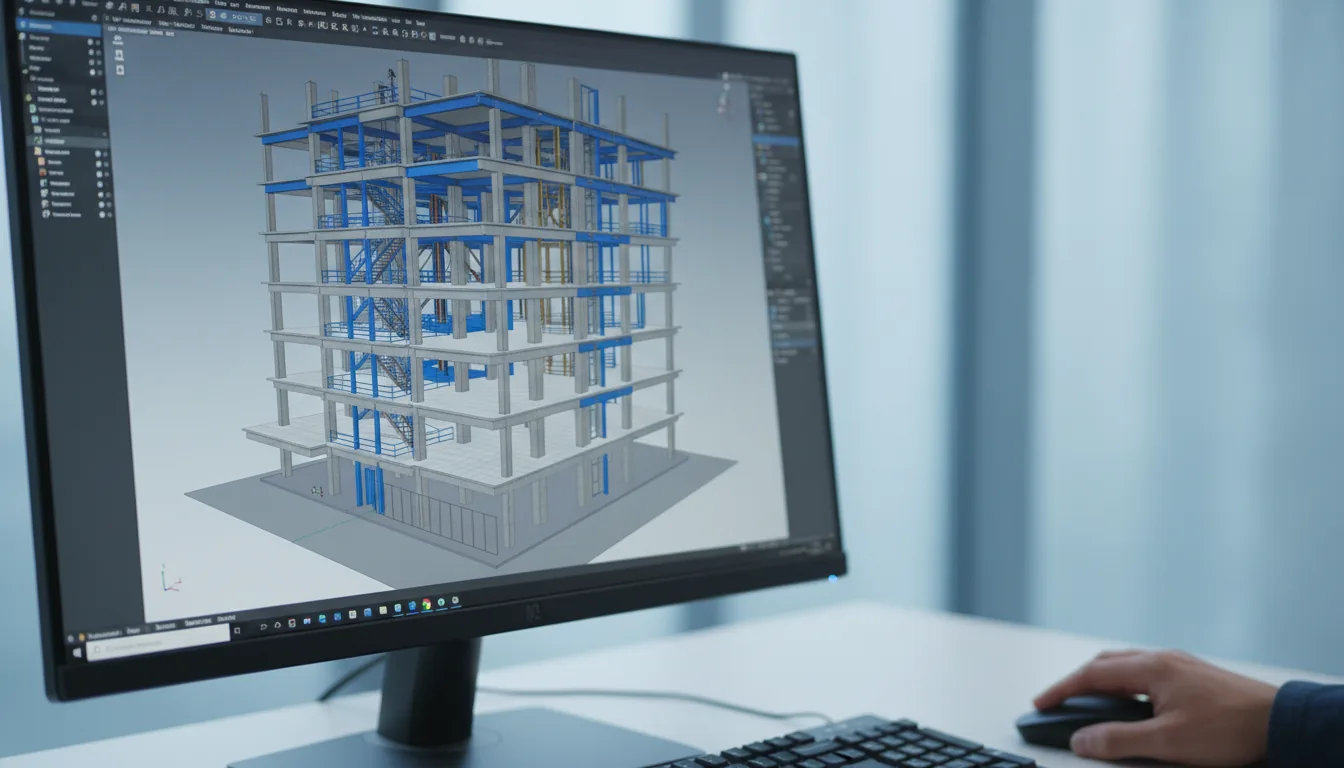
Best GPU for Autodesk Revit in 2026: Real Recommendations for Revit Modeling and BIM Workflows
Architecture
-
Best GPU for Autodesk Revit in 2026: Real Recommendations for Revit Modeling and BIM Workflows
Architecture
Best GPU for Autodesk Revit in 2026: Real Recommendations for Revit Modeling and BIM Workflows
Architecture
-
Table of Contents
I was helping a colleague review a small housing project last year. Nothing wild. Two floors, a few linked views, some basic families she pulled from an old revit programma folder. The kind of thing you expect any decent machine to breeze through.
Then she rotated the model. Just a simple orbit around the living room. The entire viewport stuttered like it was trying to lift a concrete block. Shadows popped in and out. Materials flickered. At one point the walls looked like they were melting.
We both stared at the screen like, wait, what just happened? This was a machine with a strong CPU, plenty of RAM, and a GPU that on paper should’ve handled any revit arch workflow without breaking a sweat. Yet a basic navigation move felt like wading through mud.
That was the moment it hit me again. Revit isn’t as light as people say. It behaves differently from other design tools, and sometimes the smallest model exposes the weird gaps between what the software needs and what most people think it needs.
If you’ve ever had a similar moment, you already know the question that comes next: does the GPU actually matter here, or is something else going on?
Prefer watching? See which GPUs actually make sense for Revit in the video below, or keep reading for the complete recommendations.
What Changed in 2026
Not much changed… and that’s kind of the point.
Revit is still mostly CPU-driven. Regeneration, model updates, all the core BIM logic still ignore your GPU. If you were hoping for a big shift toward GPU-heavy performance like Unreal or Twinmotion, it’s not here yet.
But there are two subtle changes that matter in real work.
The viewport feels a bit heavier
Realistic view, shadows, and dense models feel slightly more demanding than they did a couple years ago. Not enough to break things, but enough that older GPUs start to show small issues. You’ll notice it when orbiting, especially in crowded views with lots of materials or linked files.
VRAM matters more than before
This is the bigger shift.
With larger BIM models, more links, and heavier assets, running out of VRAM happens faster now. And when it does, Revit doesn’t handle it gracefully. You get stutter, flickering, or weird visual behavior.
The safe zone in 2026 looks like:
8 GB → fine for smaller projects
12 GB → the comfortable middle
16 GB+ → for large coordination models
It’s less about raw GPU power, more about having enough memory to avoid bottlenecks.
The real change isn’t Revit. It’s your workflow.
Most people aren’t using Revit alone anymore.
You’re probably jumping between Revit, Enscape, Twinmotion, maybe even Unreal. And those do rely heavily on the GPU. That’s where stronger cards actually start to make sense.
So what’s the takeaway?
Same core idea, slightly updated:
Don’t overspend on a GPU just for Revit
Do prioritize enough VRAM
Do consider your entire workflow, not just Revit
And honestly, this is why cloud machines like Vagon make more sense than ever. Not because Revit suddenly demands a 4090, but because your workload isn’t consistent anymore.
One day everything runs fine.
Next day you’re in a massive model with real-time rendering open, and your system taps out.
That gap is what changed in 2026.
How Revit Actually Uses the GPU
If you ask ten Revit users whether the GPU matters, you’ll get ten different answers. Some swear the card barely does anything. Others blame every stutter, every frozen orbit, every weird material glitch on the GPU. The truth sits somewhere in the middle, and it’s honestly a bit stranger than most people expect.
Revit leans on the GPU mainly when it comes to how the model looks while you’re working. Not the calculations under the hood, not the regeneration steps, not the guts of the BIM logic. Those still sit on the CPU. But the moment you switch to realistic mode or turn on shadows, the GPU steps forward. And that’s when weak cards start hissing.
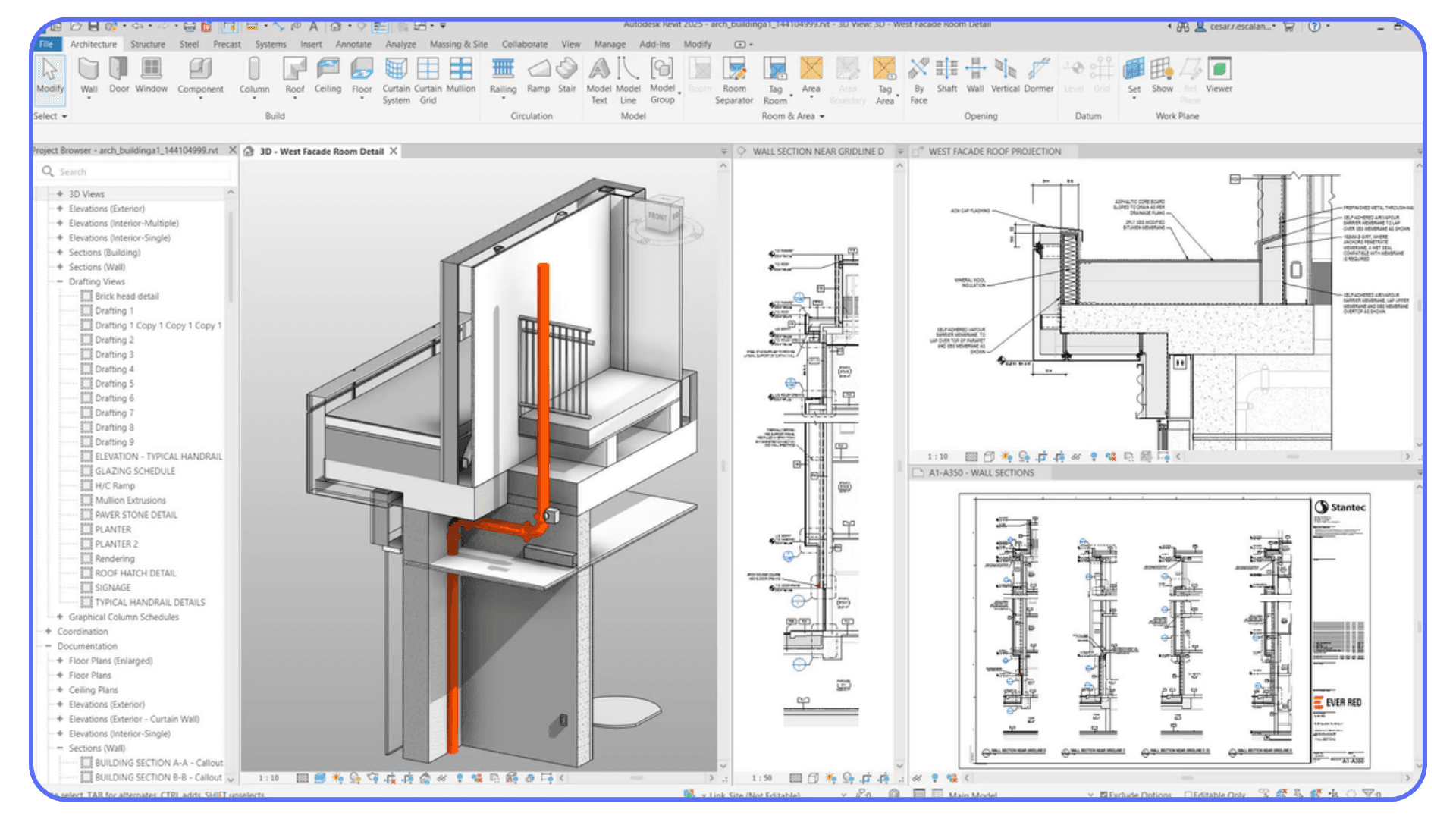
For example, realistic view might seem harmless, but it pushes the GPU pretty hard, especially when you’re dealing with linked models or older families you downloaded years ago from Revit City or Revitcity. If those families have messy geometry, the viewport turns into a slow slideshow. Autodesk Revit BIM workflows also get heavier when you bring in big coordination models from Autodesk BIM360. Every material, every linked file, every transparency layer adds more work to the GPU.
The odd part is that Revit Modeling doesn’t behave like games, Unreal, Blender, or anything else that people usually compare GPUs with. A powerful GPU doesn’t always fix the pain. A weaker GPU doesn’t always choke. Revit has its own personality, and some of it comes from the fact that the visual engine wasn’t built for modern rendering loads.
But here’s the consistent pattern I’ve noticed:
If your views rely on shadows, transparency, ambient effects, or heavy linked content, the GPU suddenly matters a lot more than many guides admit. If you stay in hidden line or simple shaded mode, you can get away with less power for much longer.
Understanding where that line sits is what determines whether you’re overpaying for a GPU or constantly fighting with one that isn’t keeping up.
If you’re still figuring out whether Revit is the right tool for your workflow, this comparison of Revit vs Rhino can help you understand where each one shines.
The GPUs I Actually Recommend for Revit in 2026
People love to jump straight to the question, so let’s just get into it. Revit isn’t fully GPU driven, but the right card does make your day smoother, especially when your workflow mixes shaded or realistic views, linked BIM files, Autodesk BIM360 coordination, and big families from places like Revit City or Revitcity.
Different users need different levels of power, so here are the cards I think make the most sense in real daily work, not just on spec sheets.
I’ve met plenty of people who prefer working on macOS, and this guide on how to run Revit on a Mac explains the options clearly.
A. For everyday Revit Architecture workflows
These are for designers who mostly stay in shaded mode, do moderate modeling, and handle projects under a few hundred MB.
Nvidia RTX 3050 or RTX 3060
Still the sweet spot for a lot of people. Enough VRAM to keep realistic mode stable, cheap enough to match a tight revit cost, and widely available. If you’re watching your revit price budget carefully, this tier makes sense.
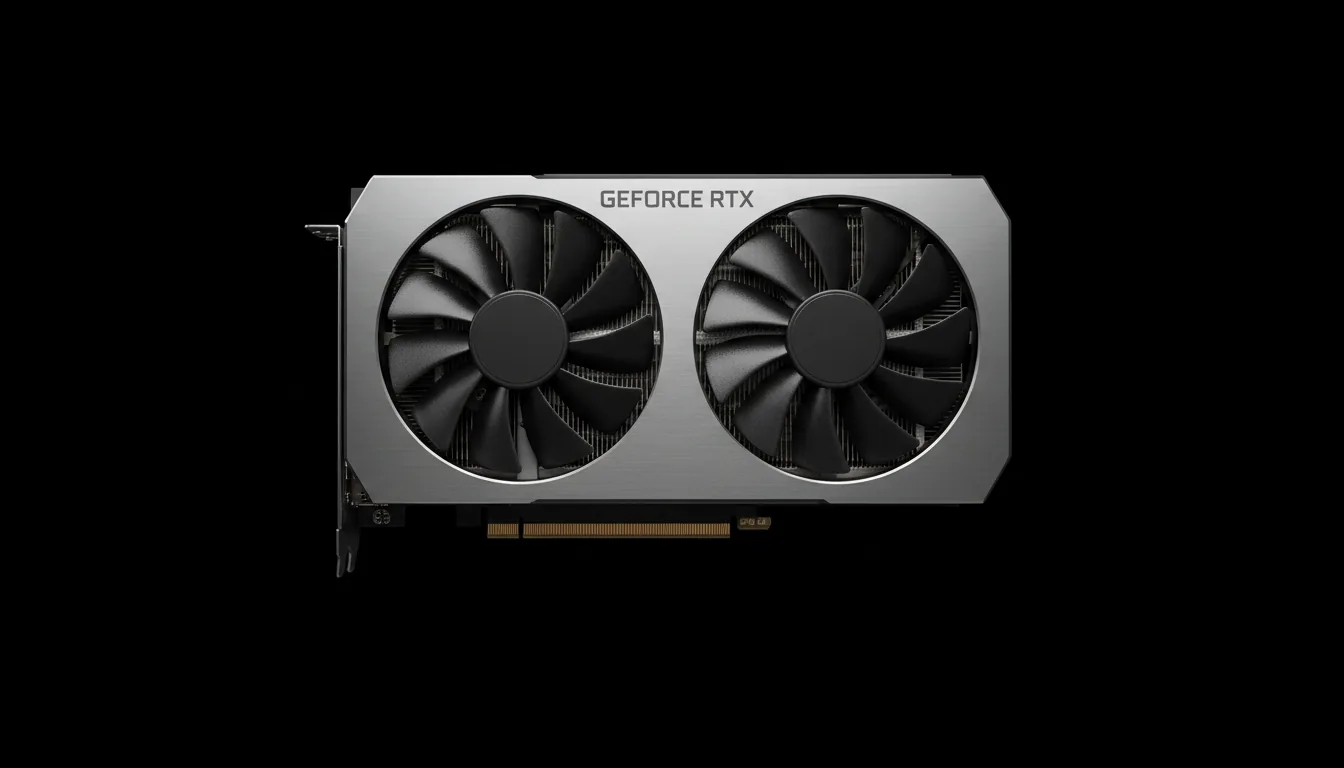
AMD Radeon RX 6600 XT
Good value, smoother than people expect in Revit Modeling, and plenty for small to mid sized revit arch work. If you don’t push transparency and shadows too hard, these cards feel more than fine.
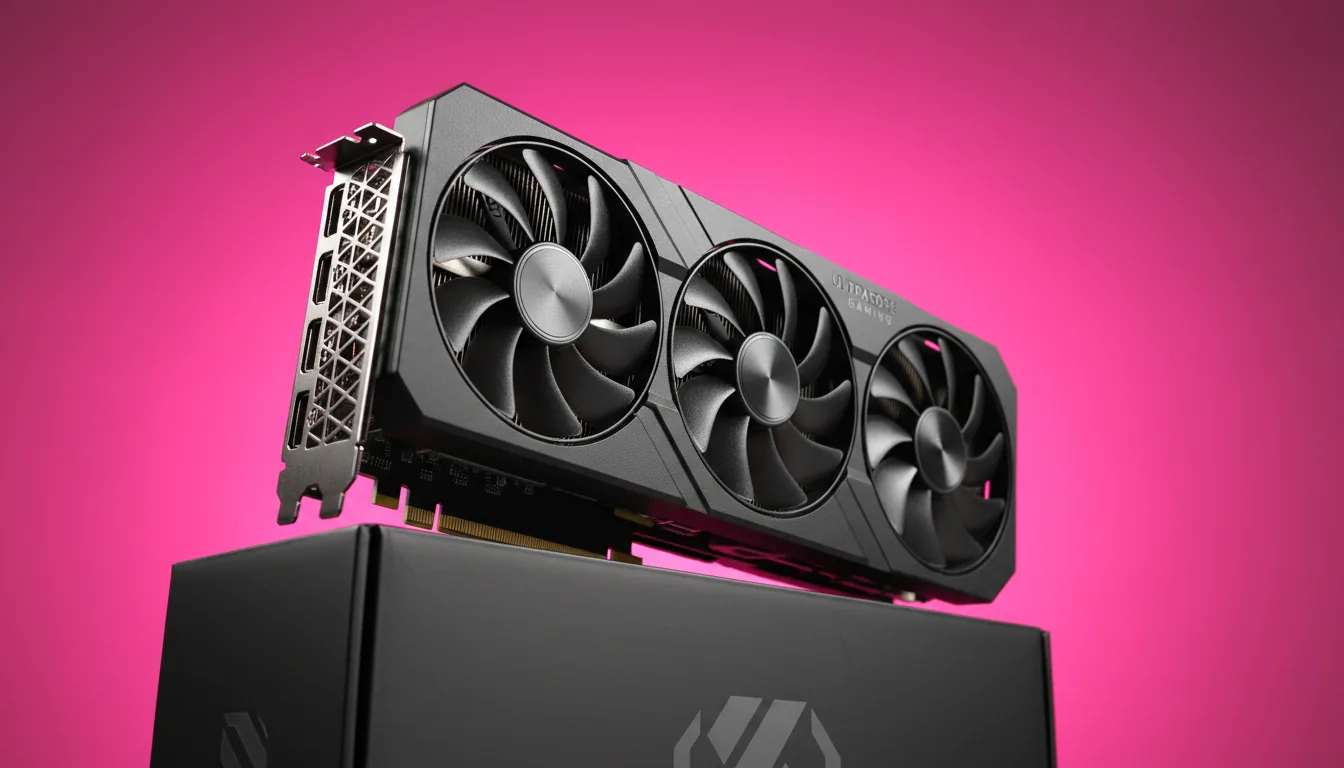
B. For medium to large BIM projects
This is where Autodesk Revit BIM starts to ask more from the GPU, especially when linked files come into play.
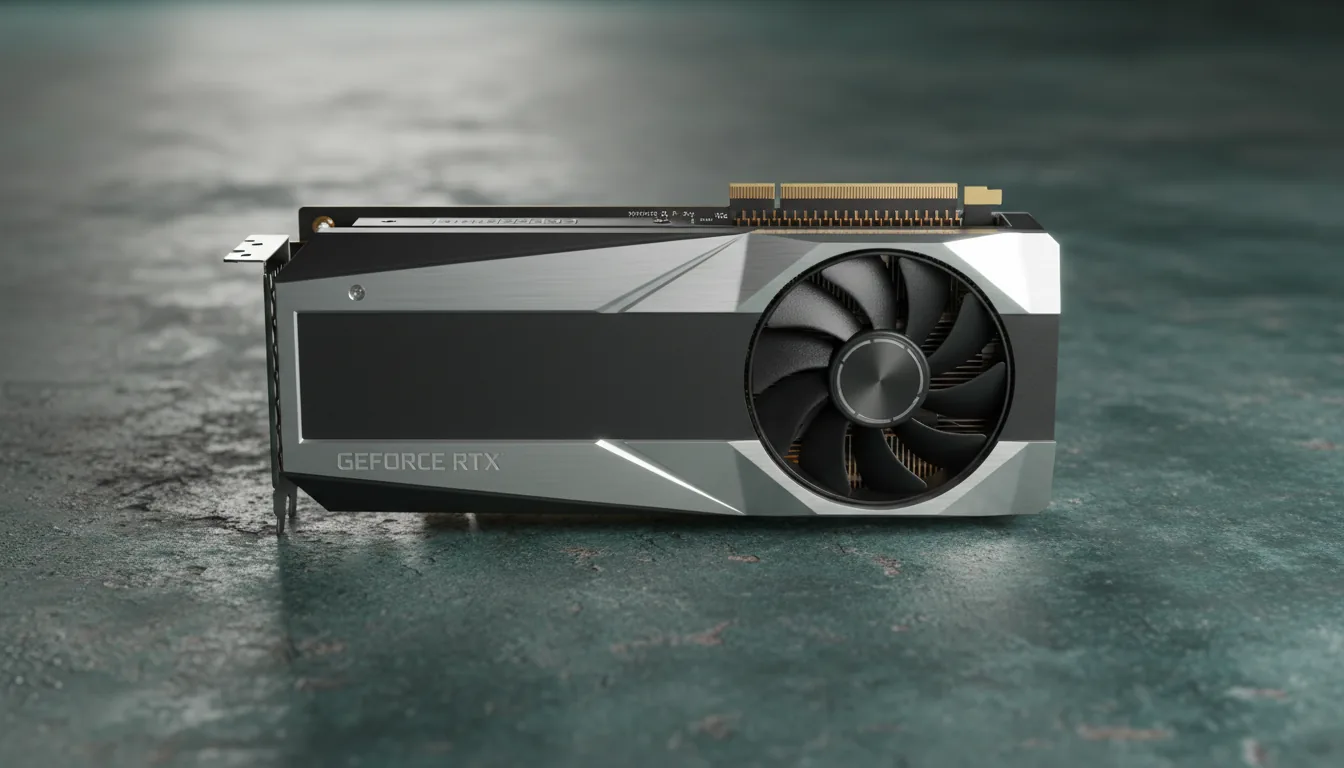
Nvidia RTX 4060 Ti or RTX 4070
These cards sit in a comfortable middle zone. Great VRAM options, stable drivers, and noticeably better behavior in realistic view when the model gets crowded. If you’re pulling in coordination data from Autodesk BIM360 or loading a lot of content from Revit City, this tier holds up without feeling overpriced.
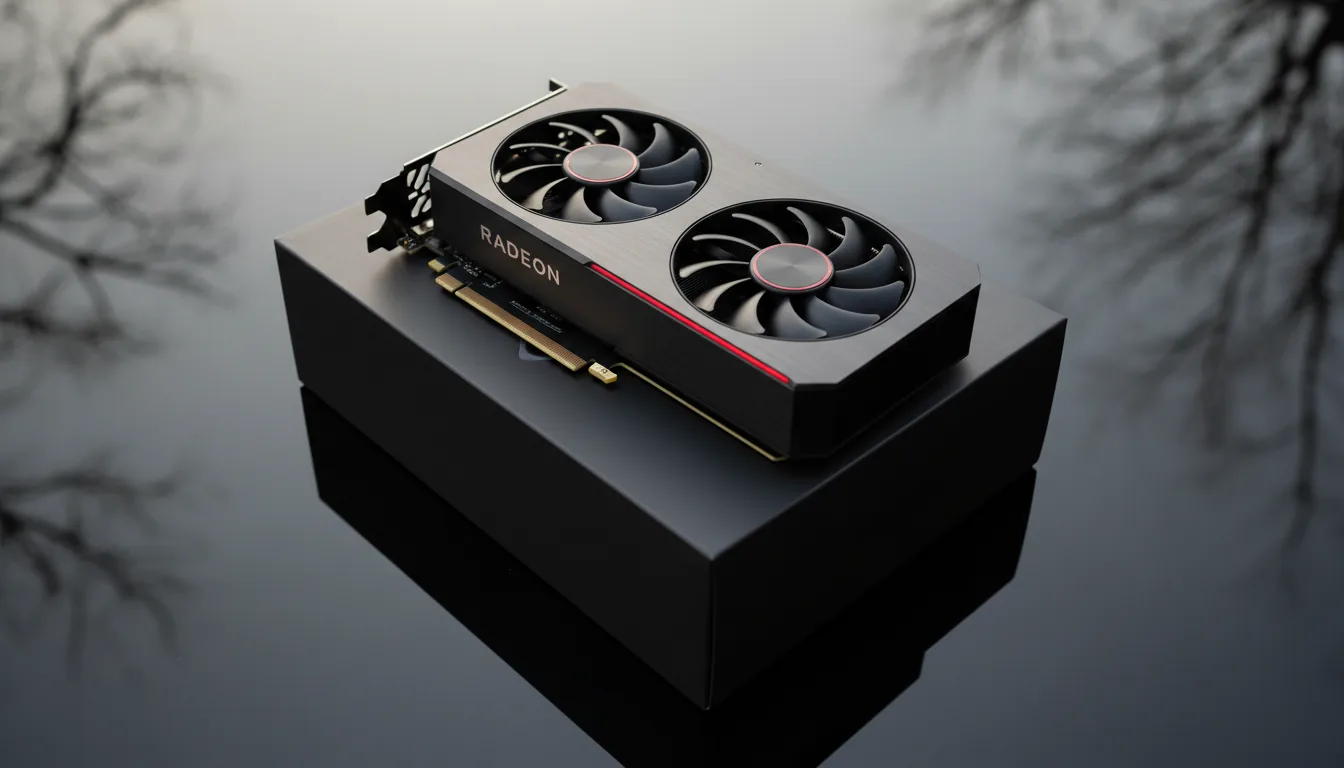
AMD Radeon RX 7800 XT
Strong performance per dollar. Handles shadows and materials surprisingly well for Revit and BIM. A good pick if you’re tired of paying Nvidia premiums.
C. For huge coordination workloads or massive linked models
These are for people who open 1 GB RVT files regularly or handle multi link BIM environments with complicated geometry.
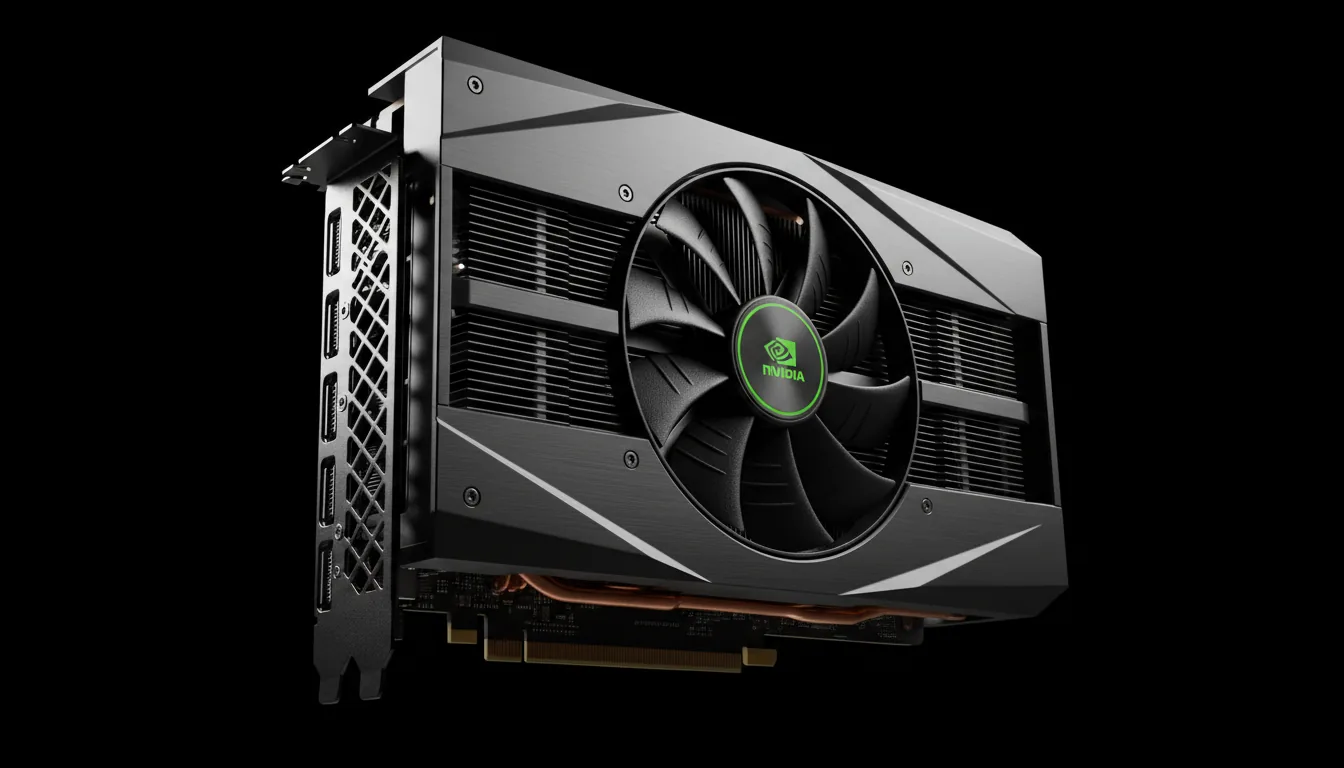
Nvidia RTX 4080 Super or RTX 4090
Yes, they’re expensive. Yes, they’re overkill for simple Revit Modeling. But if you’re working in heavy BIM Revit Architecture environments all day, these cards cut through realistic view like butter.
The extra VRAM helps avoid viewport choking when you orbit around clusters of detailed families.
Nvidia RTX A4000 or A4500 (workstation class)
If you want certified drivers and a GPU designed for Autodesk workflows, these workstation cards offer stability above everything else. They’re not cheap, but they behave predictably in long BIM sessions.
Most Revit users don’t need the top tier. A surprising number overpay. But if your models keep getting larger, or if you spend half your day waiting for the viewport to catch up, the right GPU tier makes a real difference.
If your model sizes, revit programma usage, or team workflows change throughout the year, these tiers give you a sense of what you actually need instead of throwing money in the dark.
If you want a deeper look at how the GPU actually interacts with Revit’s visual engine, this piece breaks it down really well.
How Much GPU Power You Really Need
One of the biggest mistakes I see in Revit circles is people buying a GPU the same way they’d buy one for gaming or Unreal Engine. Bigger number, better experience, right? Not always. Revit sits in its own category. It rewards balance more than brute force, and it punishes mismatched hardware harder than most design tools.
The real question isn’t “what’s the best GPU,” it’s “what’s the right GPU for the size of the model you actually open every day.”
If you mostly work on residential layouts, light commercial spaces, or simple revit arch studies, you don’t need a monster card. A mid range GPU will handle shaded mode, sun settings, and light realistic views just fine. The CPU does the heavy lifting here anyway.
Once your Autodesk Revit BIM workflow starts creeping into multi link territory, everything changes. Even if your RVT files stay under a gigabyte, the number of linked models, imported CAD files, and view templates starts adding pressure to the GPU. Shadows get heavier. Materials need more memory. Transparency stops feeling friendly. You can get real stutter in places you didn’t expect.
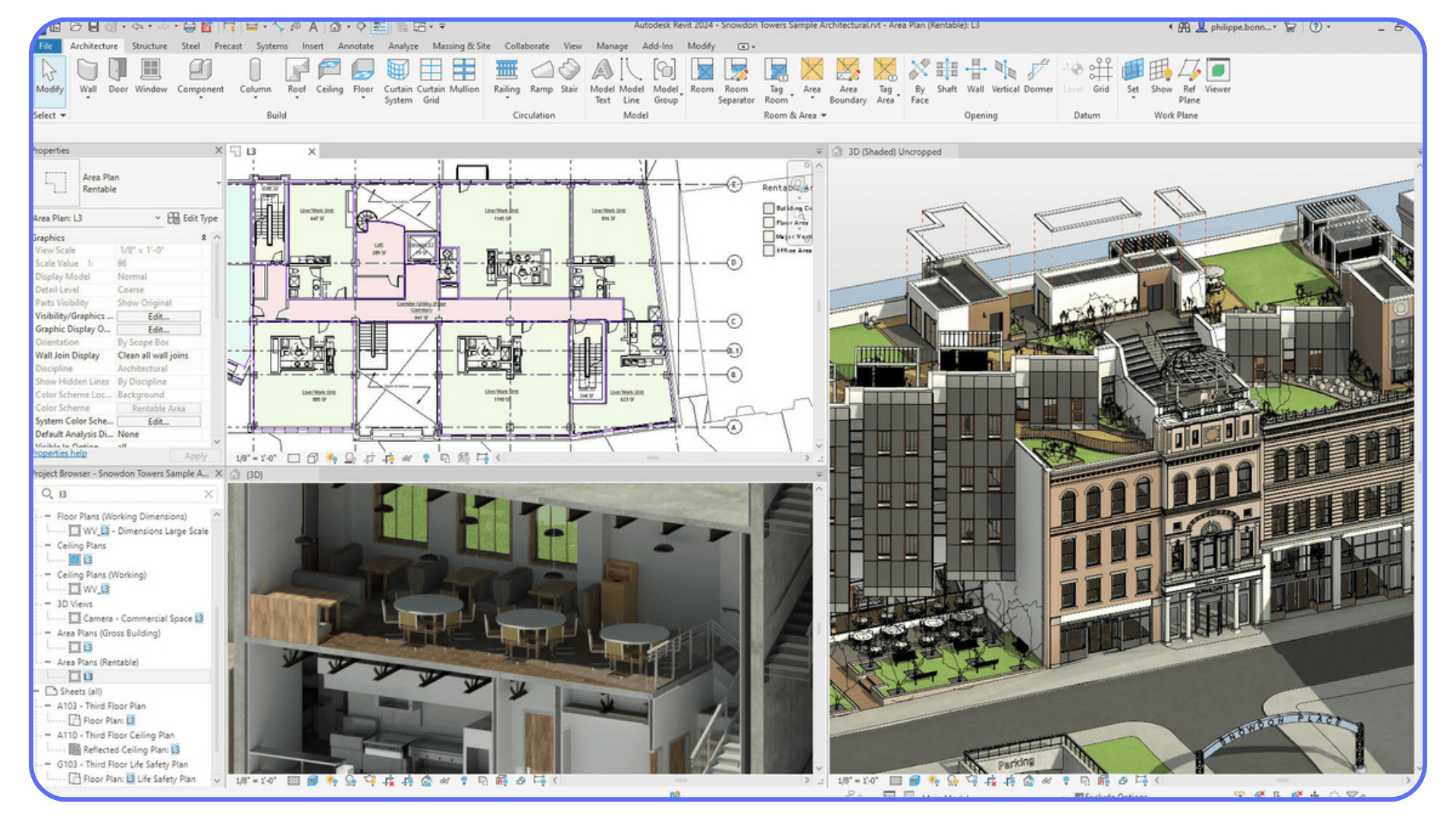
And for the people living inside huge coordination models, you know how harsh Revit can be. BIM Revit Architecture with dense geometry and messy families from Revit City or Revitcity tends to expose weaknesses right away. Build enough detail into a model and the GPU turns into a bottleneck the moment you rotate the camera.
This is where VRAM matters more than people think.
A 4 GB card might survive small models, but once you hit large BIM scenes, you’ll see artifacts, hitching, or frozen frames during realistic view. Not because the card is weak, but because it simply runs out of room.
The trick is understanding your own patterns.
If half your week is spent cleaning linked files from Autodesk BIM360, you need a stronger tier.
If you rarely leave hidden line mode, you probably don’t.
Buying too much GPU is expensive.
Buying too little is frustrating.
Finding the middle is where most Revit users win, and it’s usually the part people skip.
Some users squeeze a surprising amount of performance out of modest machines, and this guide on optimizing Revit without a dedicated GPU shows useful tricks.
Nvidia vs AMD: What Actually Matters
This is the part where people usually expect a dramatic showdown, but honestly, Revit isn’t that kind of software. It doesn’t push GPUs the way rendering engines do, and it doesn’t tap into every fancy feature modern cards offer. What actually matters is a lot more boring, and a lot more practical.
In my experience, Nvidia still holds the edge for most Revit users. Not because the hardware is magically better, but because the drivers tend to behave more predictably in shaded and realistic views. When you’re orbiting around a dense Autodesk Revit BIM model, predictable is everything. Nobody wants textures flickering or shadows breaking while reviewing a sheet set with a client.
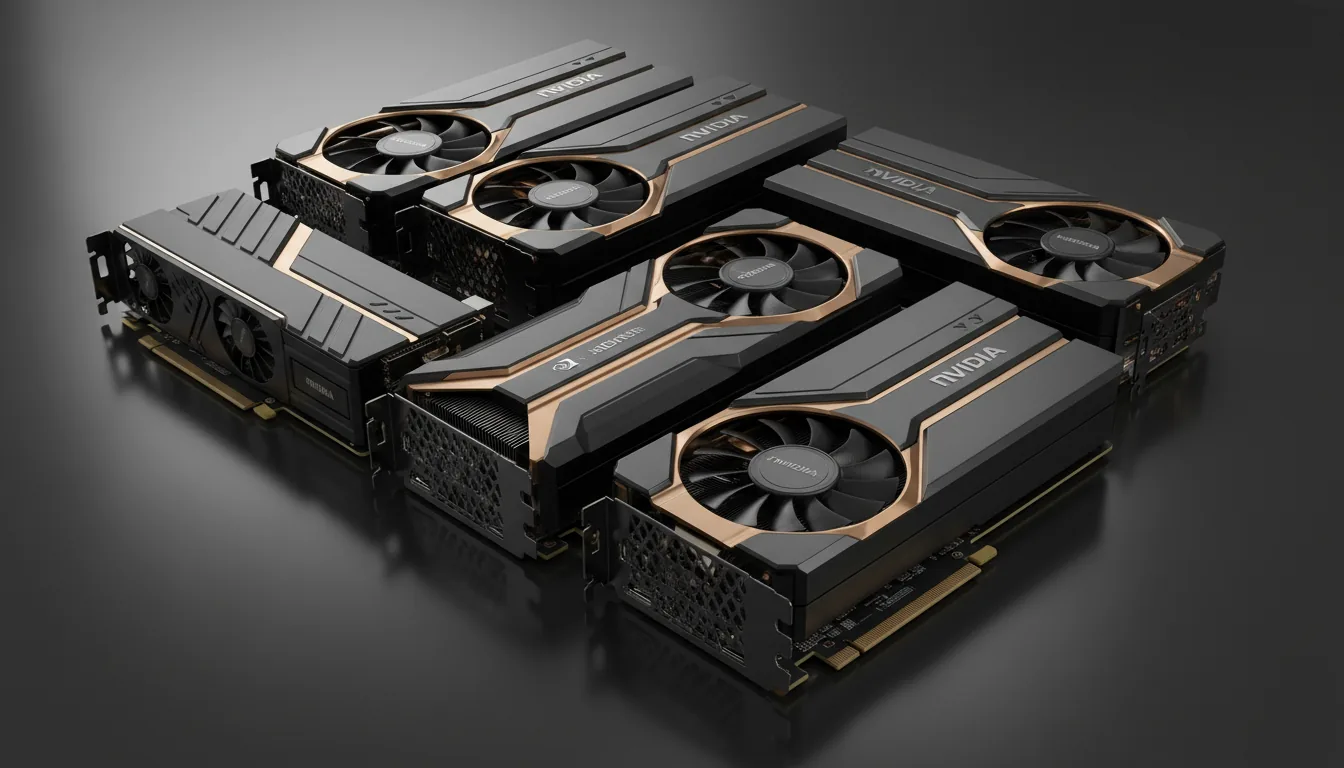
AMD cards can absolutely run Revit Modeling smoothly. I’ve seen plenty of teams use them with no complaints. The biggest difference shows up when you push transparency, heavy shadows, or large BIM Revit Architecture scenes with lots of materials. Nvidia usually stays smoother under those conditions. That doesn’t mean AMD fails. It just means you’ll see the occasional hiccup more often.
Workstation cards are another story.
People assume a Quadro or an RTX A series card will magically transform their workflow. Sometimes it does. Sometimes it changes nothing. These cards shine in long sessions with complex Autodesk BIM360 coordination models because the certified drivers reduce weird viewport bugs. But if you’re working on small revit arch projects, you won’t feel the difference. You’ll just feel the price.

There’s also the “gaming GPU vs workstation GPU” debate. I’ve noticed gaming cards perform incredibly well for the money, especially in mid tier Revit setups. Unless your office requires certified hardware or you’re routinely opening huge multi link models, a good gaming GPU often gives you more value.
So which brand should you choose?
It depends on what you crave more:
Stable drivers and stronger performance in realistic view? Nvidia.
Good price to performance for shaded workflows? AMD works fine.
Revit doesn’t care about brand loyalty. It cares about stable drivers, decent VRAM, and a card that won’t panic when you open a large family from Revit City.
If your workflow jumps between Revit and AutoCAD, this breakdown of the best PCs for AutoCAD helps put the hardware requirements into perspective.
When Upgrading Your GPU Isn’t The Smart Move
I’ve lost count of how many times someone told me their Revit Modeling feels slow, only to discover the GPU wasn’t the real problem. It’s easy to point at the graphics card because that’s what most people do with visual software. But Revit doesn’t work like a traditional 3D engine. A lot of the pain you feel in the viewport comes from somewhere else.
The biggest culprit is usually the CPU.
Revit relies heavily on single core performance for regeneration, view updates, and a good chunk of BIM logic. If your processor is three or four generations old, even a top tier GPU won’t save you from lag when switching sheets or updating sections.
RAM plays a bigger role than people expect too.
If your system keeps dipping into page file territory, the viewport will stutter no matter what GPU you have. I’ve seen RTX 4090 setups crawl because the system only had 16 GB of RAM while juggling large Autodesk Revit BIM files.
Storage also matters.
Slow drives turn every linked file from Autodesk BIM360 into a mini loading screen. Even a perfect GPU can’t outrun a bottleneck on disk speed.
And then there’s the model itself.
A messy family from Revit City or Revitcity can drag an entire project down. Overly detailed geometry, nested elements, imported DWG junk, old massing… all of it stacks up and creates chaos in the viewport. No GPU can fix a poorly structured model.
This is why upgrading blindly often leads to disappointment.
Before spending money, it makes sense to look at your workflow and ask a few simple questions:
Are your views overloaded with unnecessary detail?
Is your CPU strong enough to match the GPU you want?
Do you have enough RAM for the size of your BIM Revit Architecture projects?
Is your storage fast, or is it acting like a hidden brake?
If the answer is no to any of these, a new GPU might not move the needle as much as you hope. Sometimes the smartest upgrade isn’t the GPU at all. It’s fixing the bottleneck that’s actually slowing everything down.
If you spend time preparing architectural visuals, this guide on exporting from Revit to Twinmotion makes the transition a lot smoother.
When Vagon Cloud Computer Makes More Sense
There are days when even a good workstation feels out of its depth. You open a giant Autodesk BIM360 model, the fans start screaming, the viewport lags behind every orbit, and you can almost hear your GPU asking for mercy. Upgrading your hardware is one option, but sometimes that’s not the smartest or fastest solution. Especially if the heavy work only shows up a few times a month.
This is exactly where Vagon Cloud Computer becomes the better move.
Instead of sinking money into a new GPU, you can jump onto a cloud machine with the kind of power you’d normally only find in high end workstations. You sign in, pick a machine, open your Revit project, and get to work. No installation headaches. No waiting for parts. No guessing whether your workstation will hold up.
What I like most is how flexible it feels.
If your everyday revit arch work runs fine on your local setup but a huge coordination model from Autodesk BIM360 suddenly lands on your desk, you can switch to Vagon for that one task. When the heavy work is done, go back to your normal machine. You’re not locked into anything.
It also solves the problem of working with detailed families from Revit City or Revitcity that tend to push GPUs over the edge. On a Vagon machine, those same files behave like they finally have room to breathe. Large BIM Revit Architecture scenes feel smoother, and realistic view doesn’t fall apart when you rotate the model.
And if you’re collaborating with someone who doesn’t have powerful hardware, Vagon makes it possible for them to open and explore the same model without downloading huge files or relying on an underpowered laptop. They just connect and interact with the project through the cloud.
It’s not about replacing your workstation. It’s about having a way to scale your performance instantly whenever your Revit Modeling workload jumps beyond what your hardware can handle. Sometimes the smartest upgrade is the one that doesn’t involve opening your computer at all.
Final Thoughts
Choosing the right GPU for Revit isn’t really about chasing the biggest number. It’s about understanding the kind of work you open every day and matching your hardware to that reality. Some people live in hidden line views and never stress their system. Others jump between heavy Autodesk BIM360 coordination models, detailed revit arch designs, and old families from Revit City that behave like ticking time bombs. Different workflows, different needs.
What I’ve seen, over and over, is that balance beats brute force. A mid tier card in a well built workstation usually feels better than a top tier card dropped into an aging setup. A clean BIM model outperforms a messy one no matter what sits in your GPU slot. And sometimes the smartest move isn’t buying a new GPU at all but using cloud power only when you need it.
Revit will always have its quirks. GPU behavior is one of them. But once you know what actually affects performance and where each tier of hardware makes a real difference, the whole thing stops being guesswork. You make choices that fit your projects, not someone else’s benchmark.
If your models stay light, enjoy the savings.
If they grow, you’ve got options.
And if they get huge for short bursts, you don’t have to panic about hardware anymore.
And if you want to sharpen your Revit setup, this list of top Revit plugins covers tools that actually improve daily work instead of cluttering your install.
FAQs
1. Does Revit actually use the GPU heavily?
Only in certain situations. Revit leans on the GPU for realistic view, shadows, transparency, ambient effects, and heavy Revit Modeling navigation. Most of the core Autodesk Revit BIM calculations still rely on the CPU. If your workflow stays in hidden line, you won’t see dramatic GPU gains.
2. How much VRAM do I need for Revit?
For small to medium revit arch projects, 6 to 8 GB is usually enough. Once you get into large BIM files, Autodesk BIM360 coordination models, or detailed families from Revit City or Revitcity, 12 GB or more starts to feel safer. VRAM is often the quiet bottleneck behind stuttering in realistic mode.
3. Are workstation GPUs better than gaming GPUs for Revit?
Sometimes. Workstation cards offer certified drivers that can reduce viewport glitches, especially in huge BIM Revit Architecture scenes. But for most users, mid range gaming GPUs provide better value. Unless your office requires certification, you won’t always feel a huge difference.
4. Is Nvidia better than AMD for Revit?
Generally, yes. Not because AMD is weak, but because Nvidia’s drivers tend to behave more consistently with Revit’s visual engine. This shows up when using heavy shadows, transparency, and realistic views. AMD still works fine for shaded workflows or lighter revit programma projects.
5. Why does my Revit model lag even after upgrading the GPU?
Because GPU isn’t always the real issue. Revit depends heavily on single core CPU speed, fast storage, enough RAM, and clean BIM structure. A messy family or large linked file can slow things down even on a powerful GPU.
6. Is it worth buying a very high end GPU just for Revit?
Only if your models are huge. If you spend most of your day inside multi link Autodesk BIM360 environments or massive architectural coordination files, a high end card can help. Otherwise, mid tier options are usually the sweet spot for performance and revit cost balance.
7. Can I use Vagon Cloud Computer for Revit instead of upgrading hardware?
Yes. It’s a practical option if you occasionally deal with heavy BIM workloads or need access to a strong GPU for short periods. You can open large projects, explore complex models, or share files with clients without upgrading your local machine. It’s especially helpful when your regular workstation struggles only during certain phases of the project.
8. Does the GPU affect rendering in Revit?
Not much. Revit’s built-in renderer doesn’t use the GPU the way modern renderers do. If you want GPU rendering, you usually need an external engine like Enscape, Twinmotion, or V-Ray. Revit uses the GPU mostly for viewport performance.
9. Will Revit run on a low end laptop if I use cloud machines?
Yes. Since Vagon Cloud Computer handles the heavy lifting, your local device just streams the session. Even older laptops or tablets can work with complex BIM Revit Architecture scenes through the cloud.
I was helping a colleague review a small housing project last year. Nothing wild. Two floors, a few linked views, some basic families she pulled from an old revit programma folder. The kind of thing you expect any decent machine to breeze through.
Then she rotated the model. Just a simple orbit around the living room. The entire viewport stuttered like it was trying to lift a concrete block. Shadows popped in and out. Materials flickered. At one point the walls looked like they were melting.
We both stared at the screen like, wait, what just happened? This was a machine with a strong CPU, plenty of RAM, and a GPU that on paper should’ve handled any revit arch workflow without breaking a sweat. Yet a basic navigation move felt like wading through mud.
That was the moment it hit me again. Revit isn’t as light as people say. It behaves differently from other design tools, and sometimes the smallest model exposes the weird gaps between what the software needs and what most people think it needs.
If you’ve ever had a similar moment, you already know the question that comes next: does the GPU actually matter here, or is something else going on?
Prefer watching? See which GPUs actually make sense for Revit in the video below, or keep reading for the complete recommendations.
What Changed in 2026
Not much changed… and that’s kind of the point.
Revit is still mostly CPU-driven. Regeneration, model updates, all the core BIM logic still ignore your GPU. If you were hoping for a big shift toward GPU-heavy performance like Unreal or Twinmotion, it’s not here yet.
But there are two subtle changes that matter in real work.
The viewport feels a bit heavier
Realistic view, shadows, and dense models feel slightly more demanding than they did a couple years ago. Not enough to break things, but enough that older GPUs start to show small issues. You’ll notice it when orbiting, especially in crowded views with lots of materials or linked files.
VRAM matters more than before
This is the bigger shift.
With larger BIM models, more links, and heavier assets, running out of VRAM happens faster now. And when it does, Revit doesn’t handle it gracefully. You get stutter, flickering, or weird visual behavior.
The safe zone in 2026 looks like:
8 GB → fine for smaller projects
12 GB → the comfortable middle
16 GB+ → for large coordination models
It’s less about raw GPU power, more about having enough memory to avoid bottlenecks.
The real change isn’t Revit. It’s your workflow.
Most people aren’t using Revit alone anymore.
You’re probably jumping between Revit, Enscape, Twinmotion, maybe even Unreal. And those do rely heavily on the GPU. That’s where stronger cards actually start to make sense.
So what’s the takeaway?
Same core idea, slightly updated:
Don’t overspend on a GPU just for Revit
Do prioritize enough VRAM
Do consider your entire workflow, not just Revit
And honestly, this is why cloud machines like Vagon make more sense than ever. Not because Revit suddenly demands a 4090, but because your workload isn’t consistent anymore.
One day everything runs fine.
Next day you’re in a massive model with real-time rendering open, and your system taps out.
That gap is what changed in 2026.
How Revit Actually Uses the GPU
If you ask ten Revit users whether the GPU matters, you’ll get ten different answers. Some swear the card barely does anything. Others blame every stutter, every frozen orbit, every weird material glitch on the GPU. The truth sits somewhere in the middle, and it’s honestly a bit stranger than most people expect.
Revit leans on the GPU mainly when it comes to how the model looks while you’re working. Not the calculations under the hood, not the regeneration steps, not the guts of the BIM logic. Those still sit on the CPU. But the moment you switch to realistic mode or turn on shadows, the GPU steps forward. And that’s when weak cards start hissing.
For example, realistic view might seem harmless, but it pushes the GPU pretty hard, especially when you’re dealing with linked models or older families you downloaded years ago from Revit City or Revitcity. If those families have messy geometry, the viewport turns into a slow slideshow. Autodesk Revit BIM workflows also get heavier when you bring in big coordination models from Autodesk BIM360. Every material, every linked file, every transparency layer adds more work to the GPU.
The odd part is that Revit Modeling doesn’t behave like games, Unreal, Blender, or anything else that people usually compare GPUs with. A powerful GPU doesn’t always fix the pain. A weaker GPU doesn’t always choke. Revit has its own personality, and some of it comes from the fact that the visual engine wasn’t built for modern rendering loads.
But here’s the consistent pattern I’ve noticed:
If your views rely on shadows, transparency, ambient effects, or heavy linked content, the GPU suddenly matters a lot more than many guides admit. If you stay in hidden line or simple shaded mode, you can get away with less power for much longer.
Understanding where that line sits is what determines whether you’re overpaying for a GPU or constantly fighting with one that isn’t keeping up.
If you’re still figuring out whether Revit is the right tool for your workflow, this comparison of Revit vs Rhino can help you understand where each one shines.
The GPUs I Actually Recommend for Revit in 2026
People love to jump straight to the question, so let’s just get into it. Revit isn’t fully GPU driven, but the right card does make your day smoother, especially when your workflow mixes shaded or realistic views, linked BIM files, Autodesk BIM360 coordination, and big families from places like Revit City or Revitcity.
Different users need different levels of power, so here are the cards I think make the most sense in real daily work, not just on spec sheets.
I’ve met plenty of people who prefer working on macOS, and this guide on how to run Revit on a Mac explains the options clearly.
A. For everyday Revit Architecture workflows
These are for designers who mostly stay in shaded mode, do moderate modeling, and handle projects under a few hundred MB.
Nvidia RTX 3050 or RTX 3060
Still the sweet spot for a lot of people. Enough VRAM to keep realistic mode stable, cheap enough to match a tight revit cost, and widely available. If you’re watching your revit price budget carefully, this tier makes sense.
AMD Radeon RX 6600 XT
Good value, smoother than people expect in Revit Modeling, and plenty for small to mid sized revit arch work. If you don’t push transparency and shadows too hard, these cards feel more than fine.
B. For medium to large BIM projects
This is where Autodesk Revit BIM starts to ask more from the GPU, especially when linked files come into play.
Nvidia RTX 4060 Ti or RTX 4070
These cards sit in a comfortable middle zone. Great VRAM options, stable drivers, and noticeably better behavior in realistic view when the model gets crowded. If you’re pulling in coordination data from Autodesk BIM360 or loading a lot of content from Revit City, this tier holds up without feeling overpriced.
AMD Radeon RX 7800 XT
Strong performance per dollar. Handles shadows and materials surprisingly well for Revit and BIM. A good pick if you’re tired of paying Nvidia premiums.
C. For huge coordination workloads or massive linked models
These are for people who open 1 GB RVT files regularly or handle multi link BIM environments with complicated geometry.
Nvidia RTX 4080 Super or RTX 4090
Yes, they’re expensive. Yes, they’re overkill for simple Revit Modeling. But if you’re working in heavy BIM Revit Architecture environments all day, these cards cut through realistic view like butter.
The extra VRAM helps avoid viewport choking when you orbit around clusters of detailed families.
Nvidia RTX A4000 or A4500 (workstation class)
If you want certified drivers and a GPU designed for Autodesk workflows, these workstation cards offer stability above everything else. They’re not cheap, but they behave predictably in long BIM sessions.
Most Revit users don’t need the top tier. A surprising number overpay. But if your models keep getting larger, or if you spend half your day waiting for the viewport to catch up, the right GPU tier makes a real difference.
If your model sizes, revit programma usage, or team workflows change throughout the year, these tiers give you a sense of what you actually need instead of throwing money in the dark.
If you want a deeper look at how the GPU actually interacts with Revit’s visual engine, this piece breaks it down really well.
How Much GPU Power You Really Need
One of the biggest mistakes I see in Revit circles is people buying a GPU the same way they’d buy one for gaming or Unreal Engine. Bigger number, better experience, right? Not always. Revit sits in its own category. It rewards balance more than brute force, and it punishes mismatched hardware harder than most design tools.
The real question isn’t “what’s the best GPU,” it’s “what’s the right GPU for the size of the model you actually open every day.”
If you mostly work on residential layouts, light commercial spaces, or simple revit arch studies, you don’t need a monster card. A mid range GPU will handle shaded mode, sun settings, and light realistic views just fine. The CPU does the heavy lifting here anyway.
Once your Autodesk Revit BIM workflow starts creeping into multi link territory, everything changes. Even if your RVT files stay under a gigabyte, the number of linked models, imported CAD files, and view templates starts adding pressure to the GPU. Shadows get heavier. Materials need more memory. Transparency stops feeling friendly. You can get real stutter in places you didn’t expect.
And for the people living inside huge coordination models, you know how harsh Revit can be. BIM Revit Architecture with dense geometry and messy families from Revit City or Revitcity tends to expose weaknesses right away. Build enough detail into a model and the GPU turns into a bottleneck the moment you rotate the camera.
This is where VRAM matters more than people think.
A 4 GB card might survive small models, but once you hit large BIM scenes, you’ll see artifacts, hitching, or frozen frames during realistic view. Not because the card is weak, but because it simply runs out of room.
The trick is understanding your own patterns.
If half your week is spent cleaning linked files from Autodesk BIM360, you need a stronger tier.
If you rarely leave hidden line mode, you probably don’t.
Buying too much GPU is expensive.
Buying too little is frustrating.
Finding the middle is where most Revit users win, and it’s usually the part people skip.
Some users squeeze a surprising amount of performance out of modest machines, and this guide on optimizing Revit without a dedicated GPU shows useful tricks.
Nvidia vs AMD: What Actually Matters
This is the part where people usually expect a dramatic showdown, but honestly, Revit isn’t that kind of software. It doesn’t push GPUs the way rendering engines do, and it doesn’t tap into every fancy feature modern cards offer. What actually matters is a lot more boring, and a lot more practical.
In my experience, Nvidia still holds the edge for most Revit users. Not because the hardware is magically better, but because the drivers tend to behave more predictably in shaded and realistic views. When you’re orbiting around a dense Autodesk Revit BIM model, predictable is everything. Nobody wants textures flickering or shadows breaking while reviewing a sheet set with a client.
AMD cards can absolutely run Revit Modeling smoothly. I’ve seen plenty of teams use them with no complaints. The biggest difference shows up when you push transparency, heavy shadows, or large BIM Revit Architecture scenes with lots of materials. Nvidia usually stays smoother under those conditions. That doesn’t mean AMD fails. It just means you’ll see the occasional hiccup more often.
Workstation cards are another story.
People assume a Quadro or an RTX A series card will magically transform their workflow. Sometimes it does. Sometimes it changes nothing. These cards shine in long sessions with complex Autodesk BIM360 coordination models because the certified drivers reduce weird viewport bugs. But if you’re working on small revit arch projects, you won’t feel the difference. You’ll just feel the price.
There’s also the “gaming GPU vs workstation GPU” debate. I’ve noticed gaming cards perform incredibly well for the money, especially in mid tier Revit setups. Unless your office requires certified hardware or you’re routinely opening huge multi link models, a good gaming GPU often gives you more value.
So which brand should you choose?
It depends on what you crave more:
Stable drivers and stronger performance in realistic view? Nvidia.
Good price to performance for shaded workflows? AMD works fine.
Revit doesn’t care about brand loyalty. It cares about stable drivers, decent VRAM, and a card that won’t panic when you open a large family from Revit City.
If your workflow jumps between Revit and AutoCAD, this breakdown of the best PCs for AutoCAD helps put the hardware requirements into perspective.
When Upgrading Your GPU Isn’t The Smart Move
I’ve lost count of how many times someone told me their Revit Modeling feels slow, only to discover the GPU wasn’t the real problem. It’s easy to point at the graphics card because that’s what most people do with visual software. But Revit doesn’t work like a traditional 3D engine. A lot of the pain you feel in the viewport comes from somewhere else.
The biggest culprit is usually the CPU.
Revit relies heavily on single core performance for regeneration, view updates, and a good chunk of BIM logic. If your processor is three or four generations old, even a top tier GPU won’t save you from lag when switching sheets or updating sections.
RAM plays a bigger role than people expect too.
If your system keeps dipping into page file territory, the viewport will stutter no matter what GPU you have. I’ve seen RTX 4090 setups crawl because the system only had 16 GB of RAM while juggling large Autodesk Revit BIM files.
Storage also matters.
Slow drives turn every linked file from Autodesk BIM360 into a mini loading screen. Even a perfect GPU can’t outrun a bottleneck on disk speed.
And then there’s the model itself.
A messy family from Revit City or Revitcity can drag an entire project down. Overly detailed geometry, nested elements, imported DWG junk, old massing… all of it stacks up and creates chaos in the viewport. No GPU can fix a poorly structured model.
This is why upgrading blindly often leads to disappointment.
Before spending money, it makes sense to look at your workflow and ask a few simple questions:
Are your views overloaded with unnecessary detail?
Is your CPU strong enough to match the GPU you want?
Do you have enough RAM for the size of your BIM Revit Architecture projects?
Is your storage fast, or is it acting like a hidden brake?
If the answer is no to any of these, a new GPU might not move the needle as much as you hope. Sometimes the smartest upgrade isn’t the GPU at all. It’s fixing the bottleneck that’s actually slowing everything down.
If you spend time preparing architectural visuals, this guide on exporting from Revit to Twinmotion makes the transition a lot smoother.
When Vagon Cloud Computer Makes More Sense
There are days when even a good workstation feels out of its depth. You open a giant Autodesk BIM360 model, the fans start screaming, the viewport lags behind every orbit, and you can almost hear your GPU asking for mercy. Upgrading your hardware is one option, but sometimes that’s not the smartest or fastest solution. Especially if the heavy work only shows up a few times a month.
This is exactly where Vagon Cloud Computer becomes the better move.
Instead of sinking money into a new GPU, you can jump onto a cloud machine with the kind of power you’d normally only find in high end workstations. You sign in, pick a machine, open your Revit project, and get to work. No installation headaches. No waiting for parts. No guessing whether your workstation will hold up.
What I like most is how flexible it feels.
If your everyday revit arch work runs fine on your local setup but a huge coordination model from Autodesk BIM360 suddenly lands on your desk, you can switch to Vagon for that one task. When the heavy work is done, go back to your normal machine. You’re not locked into anything.
It also solves the problem of working with detailed families from Revit City or Revitcity that tend to push GPUs over the edge. On a Vagon machine, those same files behave like they finally have room to breathe. Large BIM Revit Architecture scenes feel smoother, and realistic view doesn’t fall apart when you rotate the model.
And if you’re collaborating with someone who doesn’t have powerful hardware, Vagon makes it possible for them to open and explore the same model without downloading huge files or relying on an underpowered laptop. They just connect and interact with the project through the cloud.
It’s not about replacing your workstation. It’s about having a way to scale your performance instantly whenever your Revit Modeling workload jumps beyond what your hardware can handle. Sometimes the smartest upgrade is the one that doesn’t involve opening your computer at all.
Final Thoughts
Choosing the right GPU for Revit isn’t really about chasing the biggest number. It’s about understanding the kind of work you open every day and matching your hardware to that reality. Some people live in hidden line views and never stress their system. Others jump between heavy Autodesk BIM360 coordination models, detailed revit arch designs, and old families from Revit City that behave like ticking time bombs. Different workflows, different needs.
What I’ve seen, over and over, is that balance beats brute force. A mid tier card in a well built workstation usually feels better than a top tier card dropped into an aging setup. A clean BIM model outperforms a messy one no matter what sits in your GPU slot. And sometimes the smartest move isn’t buying a new GPU at all but using cloud power only when you need it.
Revit will always have its quirks. GPU behavior is one of them. But once you know what actually affects performance and where each tier of hardware makes a real difference, the whole thing stops being guesswork. You make choices that fit your projects, not someone else’s benchmark.
If your models stay light, enjoy the savings.
If they grow, you’ve got options.
And if they get huge for short bursts, you don’t have to panic about hardware anymore.
And if you want to sharpen your Revit setup, this list of top Revit plugins covers tools that actually improve daily work instead of cluttering your install.
FAQs
1. Does Revit actually use the GPU heavily?
Only in certain situations. Revit leans on the GPU for realistic view, shadows, transparency, ambient effects, and heavy Revit Modeling navigation. Most of the core Autodesk Revit BIM calculations still rely on the CPU. If your workflow stays in hidden line, you won’t see dramatic GPU gains.
2. How much VRAM do I need for Revit?
For small to medium revit arch projects, 6 to 8 GB is usually enough. Once you get into large BIM files, Autodesk BIM360 coordination models, or detailed families from Revit City or Revitcity, 12 GB or more starts to feel safer. VRAM is often the quiet bottleneck behind stuttering in realistic mode.
3. Are workstation GPUs better than gaming GPUs for Revit?
Sometimes. Workstation cards offer certified drivers that can reduce viewport glitches, especially in huge BIM Revit Architecture scenes. But for most users, mid range gaming GPUs provide better value. Unless your office requires certification, you won’t always feel a huge difference.
4. Is Nvidia better than AMD for Revit?
Generally, yes. Not because AMD is weak, but because Nvidia’s drivers tend to behave more consistently with Revit’s visual engine. This shows up when using heavy shadows, transparency, and realistic views. AMD still works fine for shaded workflows or lighter revit programma projects.
5. Why does my Revit model lag even after upgrading the GPU?
Because GPU isn’t always the real issue. Revit depends heavily on single core CPU speed, fast storage, enough RAM, and clean BIM structure. A messy family or large linked file can slow things down even on a powerful GPU.
6. Is it worth buying a very high end GPU just for Revit?
Only if your models are huge. If you spend most of your day inside multi link Autodesk BIM360 environments or massive architectural coordination files, a high end card can help. Otherwise, mid tier options are usually the sweet spot for performance and revit cost balance.
7. Can I use Vagon Cloud Computer for Revit instead of upgrading hardware?
Yes. It’s a practical option if you occasionally deal with heavy BIM workloads or need access to a strong GPU for short periods. You can open large projects, explore complex models, or share files with clients without upgrading your local machine. It’s especially helpful when your regular workstation struggles only during certain phases of the project.
8. Does the GPU affect rendering in Revit?
Not much. Revit’s built-in renderer doesn’t use the GPU the way modern renderers do. If you want GPU rendering, you usually need an external engine like Enscape, Twinmotion, or V-Ray. Revit uses the GPU mostly for viewport performance.
9. Will Revit run on a low end laptop if I use cloud machines?
Yes. Since Vagon Cloud Computer handles the heavy lifting, your local device just streams the session. Even older laptops or tablets can work with complex BIM Revit Architecture scenes through the cloud.
Get Beyond Your Computer Performance
Run applications on your cloud computer with the latest generation hardware. No more crashes or lags.

Trial includes 1 hour usage + 7 days of storage.
Summarize with AI

Ready to focus on your creativity?
Vagon gives you the ability to create & render projects, collaborate, and stream applications with the power of the best hardware.

Vagon Blog
Run heavy applications on any device with
your personal computer on the cloud.
San Francisco, California
Solutions
Vagon Teams
Vagon Streams
Use Cases
Resources
Vagon Blog
How to Use FreeCAD With Codex: MCP & Computer Use
How to Use FreeCAD With Claude: MCP & Computer Use
How to Use 3ds Max With Codex: MCP & Computer Use
How to Use Houdini With Claude: MCP & Computer Use
How to Use Cinema 4D With Claude: MCP & Computer Use
How to Use 3ds Max With Claude: MCP & Computer Use
How to Use DaVinci Resolve With Claude: MCP & Computer Use
How to Use Godot With Claude: MCP & Computer Use
How to Use Unreal Engine With Claude: MCP & Computer Use
Vagon Blog
Run heavy applications on any device with
your personal computer on the cloud.
San Francisco, California
Solutions
Vagon Teams
Vagon Streams
Use Cases
Resources
Vagon Blog
How to Use FreeCAD With Codex: MCP & Computer Use
How to Use FreeCAD With Claude: MCP & Computer Use
How to Use 3ds Max With Codex: MCP & Computer Use
How to Use Houdini With Claude: MCP & Computer Use
How to Use Cinema 4D With Claude: MCP & Computer Use
How to Use 3ds Max With Claude: MCP & Computer Use
How to Use DaVinci Resolve With Claude: MCP & Computer Use
How to Use Godot With Claude: MCP & Computer Use
How to Use Unreal Engine With Claude: MCP & Computer Use
Vagon Blog
Run heavy applications on any device with
your personal computer on the cloud.
San Francisco, California
Solutions
Vagon Teams
Vagon Streams
Use Cases
Resources
Vagon Blog