Instant Connection for Pixel Streaming
— New Feature Automated Setup
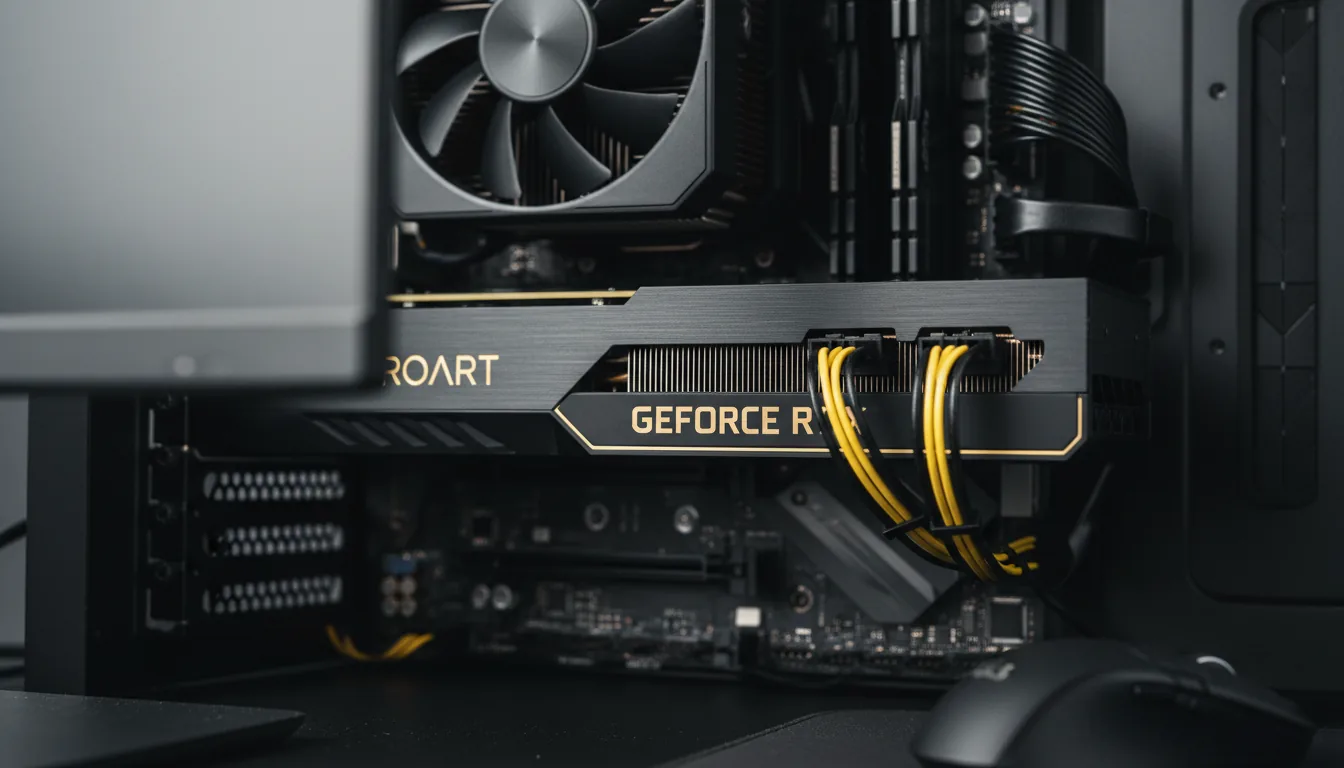
Finding the Best GPU for V-Ray Rendering
Architecture
-
Finding the Best GPU for V-Ray Rendering
Architecture
Finding the Best GPU for V-Ray Rendering
Architecture
-
Table of Contents
The first time I saw a V-Ray GPU benchmark finish in under a minute, I thought something was broken. Same scene, same materials, same lighting. The only difference was the GPU. According to Chaos’ own benchmarks, jumping from an older mid-range card to a modern high-end RTX GPU can cut render times by 2x to 4x. Sometimes more. That’s not a small win. That’s the difference between waiting and working.
I felt that shift immediately after my own upgrade. Before, I’d hit render and mentally check out. Coffee. Email. Maybe a walk. After moving to a newer RTX card, renders stopped being a “come back later” thing and turned into something closer to real time feedback. Adjust a light, re-render. Change a material, re-render again. You stay in the flow instead of constantly breaking it.
That’s the part people don’t talk about enough. Faster GPUs don’t just save minutes. They change how you work. You try more ideas because the penalty for being wrong is lower. You iterate instead of settling. And once you experience that, it’s very hard to go back.
So let’s talk about what actually makes a GPU good for V-Ray, which ones are worth your money right now, and where the hype doesn’t quite line up with reality.

Why GPU Matters for V-Ray
If you’ve been using V-Ray for a while, you probably started on CPU rendering. Most of us did. CPUs were predictable, reliable, and for a long time they were the only serious option. But GPU rendering isn’t just a faster version of the same thing. It behaves differently, and that difference matters.
V-Ray GPU leans heavily on parallel processing. Instead of a handful of very smart cores like a CPU, you’re throwing thousands of smaller cores at the problem all at once. Ray tracing, light bounces, brute force GI. All of that maps extremely well to modern GPUs, especially Nvidia’s RTX lineup with dedicated RT cores.
Here’s what that looks like in practice. CPU rendering is steady and linear. GPU rendering is explosive. When the scene fits in VRAM and the features you’re using are GPU-friendly, render times don’t just drop a little. They fall off a cliff.
I’ve noticed this most during look development. With CPU rendering, you tend to batch your decisions. Change three things, then render once because each render is expensive. With GPU rendering, you make micro-adjustments. One light. One roughness value. One texture tweak. Hit render again. That feedback loop is the real advantage.
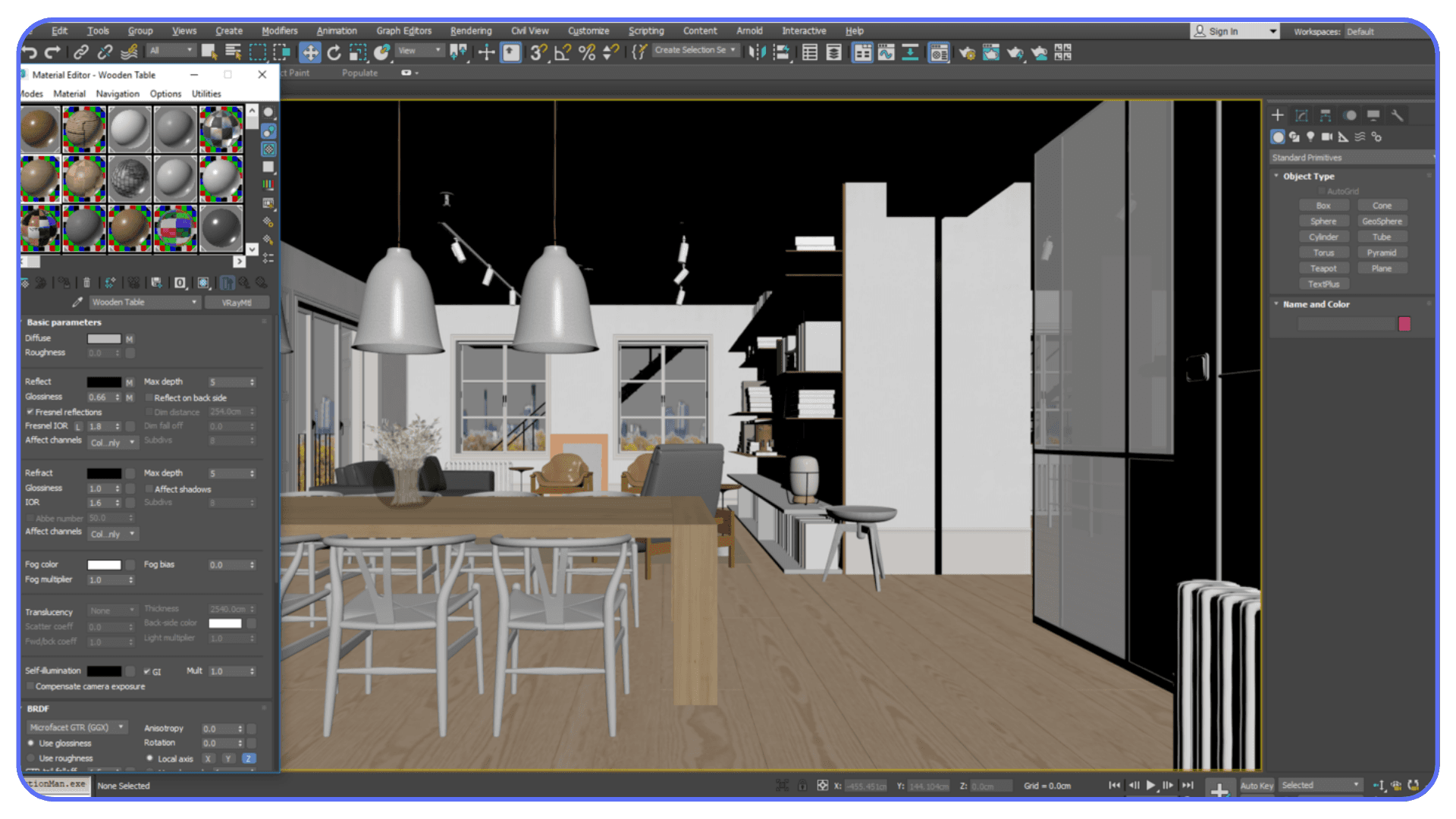
Of course, GPU rendering isn’t magic. It has constraints. VRAM is the big one. If your scene doesn’t fit, performance tanks or the render fails outright. Some legacy features still favor CPU. And no, slapping a powerful GPU into an otherwise weak system won’t fix everything.
But for the way most people actually use V-Ray today, especially for interiors, product shots, archviz previews, and iterative client work, the GPU often becomes the bottleneck worth fixing first.
If your workflow involves a lot of “render, adjust, render again,” the GPU isn’t optional anymore. It’s the engine.
For many users, GPU performance also depends heavily on the modeling tool behind the scene, which is why choosing between tools like Rhino and SketchUp can affect how your V-Ray workflow behaves.
What to Look For in a GPU for V-Ray
Let’s clear something up early. The “best” GPU for V-Ray depends less on raw power and more on whether the card fits your scenes and your habits. I’ve seen monster GPUs choke on poorly planned scenes, and modest cards fly through clean, well-managed projects.
That said, a few specs matter a lot more than others.
If you’re coming from real-time engines, it’s worth understanding how V-Ray compares to alternatives like Enscape in terms of GPU usage and visual control.
VRAM is king.
If your scene doesn’t fit in VRAM, nothing else matters. V-Ray GPU needs to load geometry, textures, lights, and acceleration structures into GPU memory. Once you hit the ceiling, you’re either falling back to slower behavior or not rendering at all. For small product renders, 8 to 12 GB can work. For serious archviz, detailed interiors, or large exterior scenes, 16 GB is the bare minimum. Personally, I think 24 GB is where things stop feeling tight.
CUDA cores and RT cores actually matter here.
This isn’t gaming marketing fluff. V-Ray GPU is built around CUDA, and it uses RTX RT cores for ray tracing acceleration. More cores generally means more rays processed in parallel, faster lighting calculations, and shorter noise cleanup. It’s one of the reasons Nvidia still dominates V-Ray GPU performance.
Clock speed matters less than you think.
People obsess over boost clocks. For rendering, it’s mostly about sustained performance and thermal stability. A slightly slower card that can run flat-out for hours will outperform a faster one that throttles.
Multi-GPU setups can help, but only in the right cases.
V-Ray scales well across multiple GPUs, but only if your scenes fit in the smallest card’s VRAM. Two GPUs don’t combine memory. They mirror it. That catches a lot of people off guard. If your scene needs 20 GB, two 12 GB cards won’t save you.
Ignore gaming benchmarks. Seriously.
FPS charts are almost useless for V-Ray. Rendering performance doesn’t track with gaming performance the way people assume. V-Ray’s own GPU benchmark is far more relevant than anything you’ll see in a gaming review.
If you keep those points in mind, you’ll avoid most of the expensive mistakes. Now let’s talk about actual cards, starting at the top and working our way down.
If you’re working in 3ds Max, understanding how V-Ray GPU is configured makes a noticeable difference in performance and stability.
#1. NVIDIA RTX 5090 (32GB)

I’ll say this upfront. Most people don’t need an RTX 5090. And yet, if you do need it, nothing else really compares right now.
On paper, the 5090 is ridiculous. Massive core counts, next-gen RT acceleration, and a full 32 GB of VRAM. In V-Ray GPU benchmarks, this card sits comfortably at the top, often finishing renders in nearly half the time of a 4090 depending on the scene. Not every scene. But the heavy ones. The kind that used to make you nervous before hitting render.
Where the 5090 really earns its keep is scene complexity. Large interiors packed with high-resolution textures. Exterior shots with dense vegetation and displacement everywhere. Lighting setups that push brute force GI hard. This is where lesser cards start to feel cramped and the 5090 just keeps going.
In my experience, the biggest benefit isn’t even raw speed. It’s headroom. You stop worrying about memory budgets so aggressively. You load the textures you actually want to use. You don’t decimate geometry just to make things fit. That mental freedom matters more than most spec sheets admit.
Now, the reality check. This card is expensive. Power hungry. And honestly, overkill for freelancers doing small to mid-scale projects. If your scenes rarely exceed 12 to 16 GB of VRAM usage, the 5090 won’t magically make you a better artist. It’ll just finish faster.
But for studios, visualization teams, or anyone pushing V-Ray GPU to its limits every day, the RTX 5090 is the closest thing to “don’t think about it, just render” hardware we’ve had so far.
If your bottleneck is no longer creativity but waiting, this is the card that removes excuses.
#2. NVIDIA RTX A6000 and Professional RTX Line
The RTX A6000 is one of those GPUs people argue about endlessly. On paper, it doesn’t look as exciting as the flagship consumer cards. Lower clocks. Less buzz. A price tag that makes freelancers wince. And yet, in a lot of real studios, this is still the card quietly doing the work.
The reason is simple. Stability and memory.
With 48 GB of VRAM, the A6000 gives you breathing room that even the RTX 5090 doesn’t. Massive texture sets. Heavy CAD imports. Huge exterior scenes that just refuse to fit on consumer cards. When those scenes load without compromises, the slower clock speeds suddenly don’t feel like such a big deal.
I’ve seen A6000 systems chew through scenes that brought 24 GB cards to their knees. Not faster, necessarily. Just without drama. No memory juggling. No emergency texture downscaling. No late-night “why did this crash” moments before a deadline.
Another factor people overlook is drivers. The professional RTX line is built for long, sustained workloads and validated software stacks. In environments where machines render for days, not hours, that matters. A lot. Especially when V-Ray is only one piece of a larger pipeline.
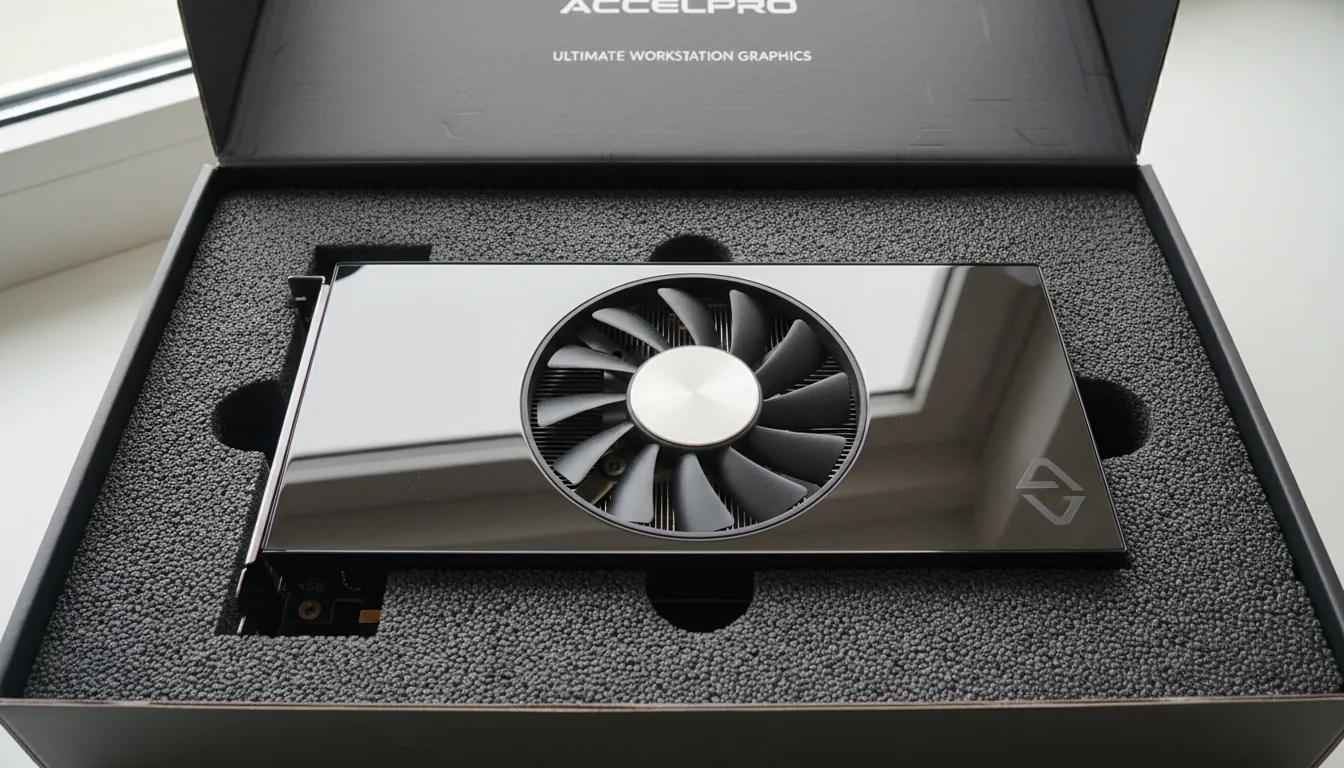
Now, the downside. Price-to-performance is not great if you’re judging purely on render speed. A consumer RTX 4090 or 5090 will usually outrun it in raw V-Ray GPU benchmarks. And for solo artists or small teams, that extra VRAM may sit unused most of the time.
This is a card for people who already know why they want it. Large studios. Engineering-heavy scenes. Mission-critical projects where stability beats speed. If that’s you, the RTX A6000 earns its reputation. If not, you can probably spend your money more wisely elsewhere.
#3. NVIDIA RTX 4090 (24GB)
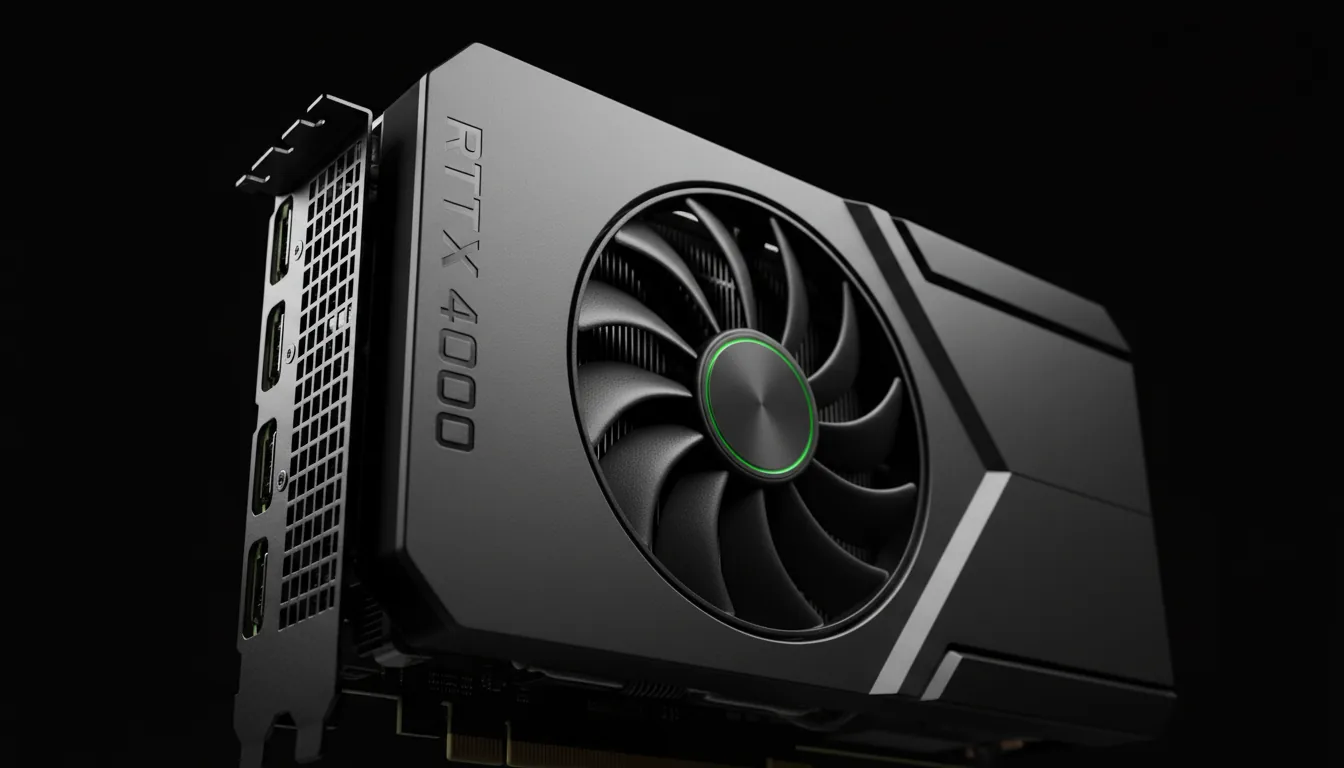
If I had to pick one GPU that changed how most V-Ray users work over the last couple of years, it’s the RTX 4090. Even now, with newer cards stealing headlines, this thing refuses to feel outdated.
The combination of raw compute power and 24 GB of VRAM hits a very practical balance. It’s fast enough that V-Ray GPU feels genuinely interactive, even on complex scenes, and it has enough memory to handle serious archviz work without constant compromises. Interiors with 8K textures. Dense furniture libraries. Heavy displacement. The 4090 handles all of it without breaking a sweat most of the time.
In real projects, I’ve seen the 4090 cut render times by 40 to 60 percent compared to older high-end cards like the 3090. Not in synthetic tests. In actual production scenes. The kind clients keep changing at the last minute.
What really stands out, though, is consistency. The 4090 doesn’t just win benchmarks. It stays fast over long renders. No sudden throttling. No weird slowdowns halfway through a job. That matters when you’re rendering overnight or running batch jobs across dozens of frames.
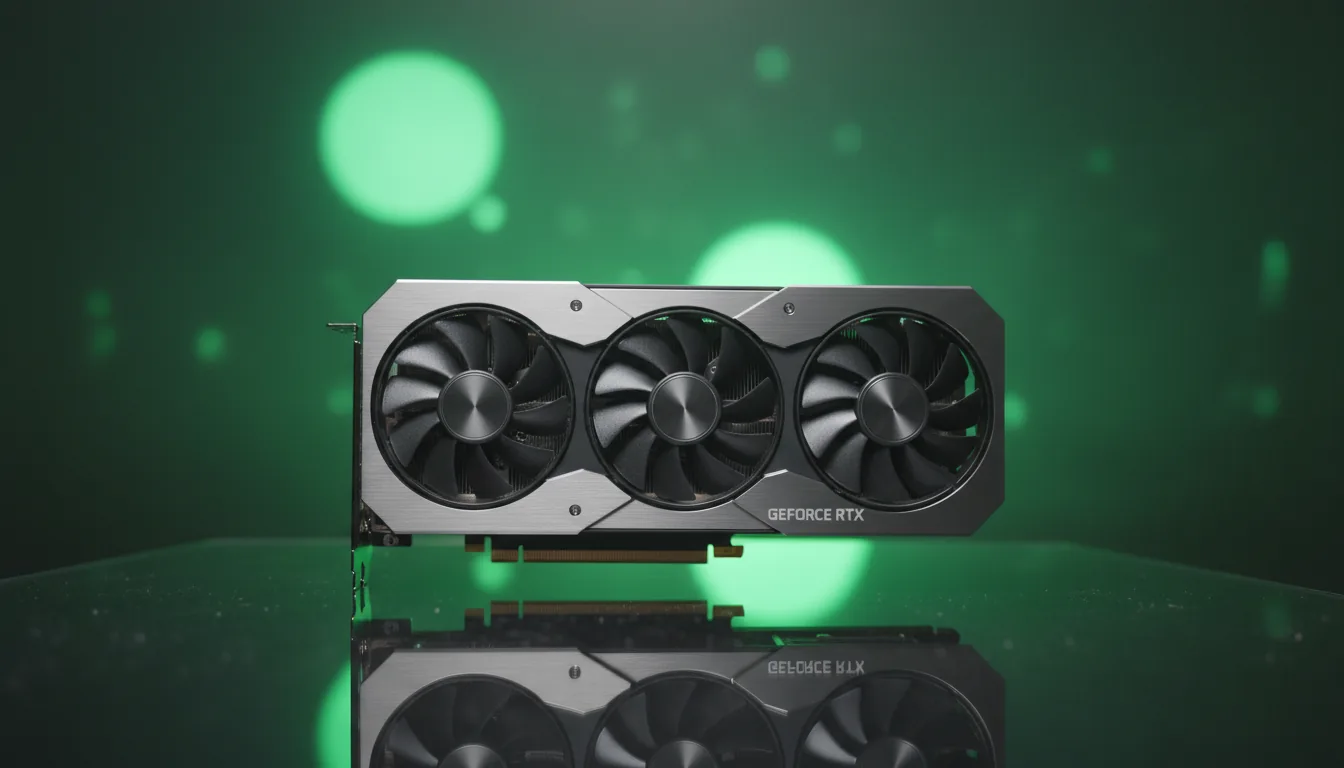
There are caveats. Power draw is high, so a cheap power supply is asking for trouble. Cooling matters too. A poorly ventilated case will choke this card faster than you’d expect. And yes, prices have been all over the place depending on availability.
But if you want a GPU that just works for V-Ray GPU, without workstation pricing and without feeling like you’re settling, the RTX 4090 is still a very hard card to beat.
For a lot of freelancers and small studios, this is the card where performance stops being the excuse and workflow becomes the focus.
#4. NVIDIA RTX 4080 and 4080 Super
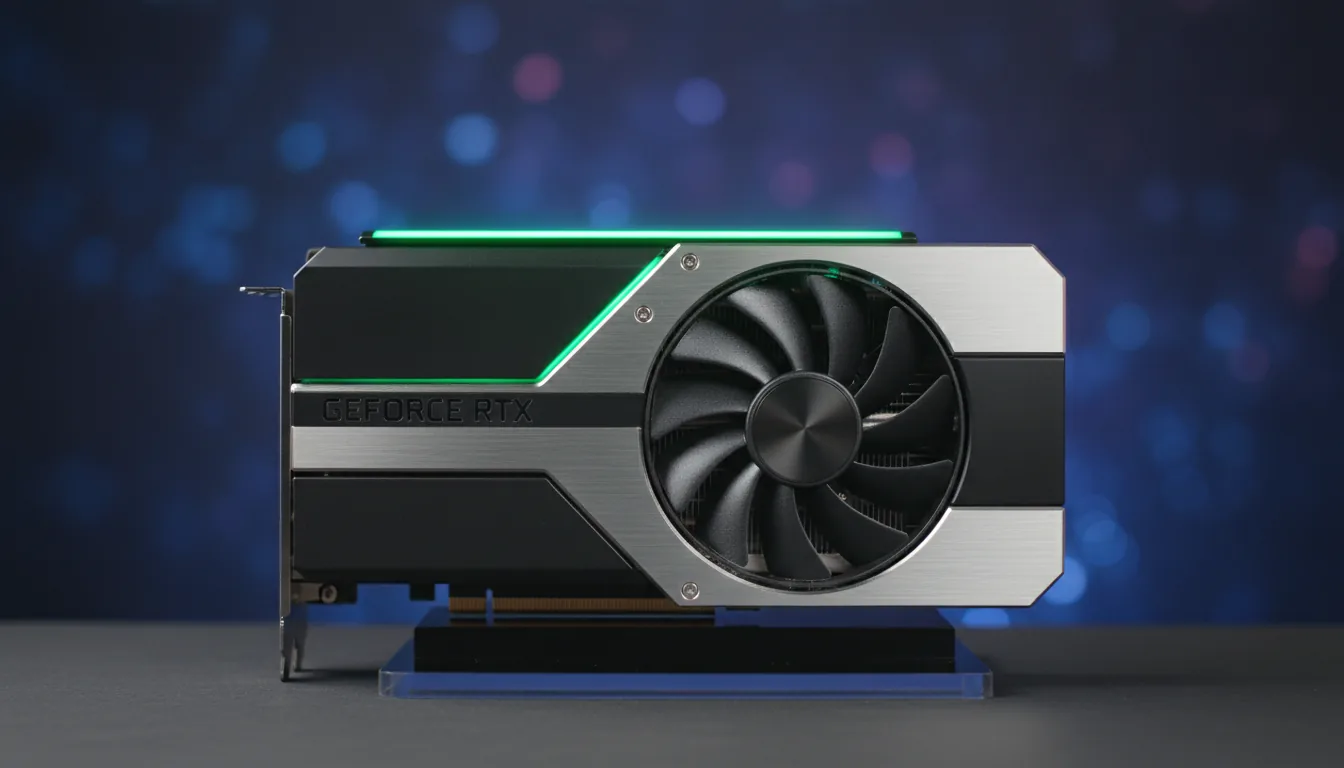
Not everyone wants to build their workflow around a flagship GPU. And honestly, that’s fine. The RTX 4080 and 4080 Super exist for people who want strong V-Ray GPU performance without committing to the size, heat, and cost of a 4090.
In practice, the 4080 delivers more than enough power for most V-Ray GPU users. Lighting-heavy interiors, mid-scale exterior scenes, product visualization with complex materials. All very comfortable territory. Render times are noticeably faster than previous-gen high-end cards, and interactive rendering feels responsive enough that you’re not constantly waiting for feedback.
The main difference compared to a 4090 shows up in two places. First, VRAM. With 16 GB, you need to be more disciplined. High-resolution textures, large proxy libraries, and dense vegetation can push you close to the limit faster than you’d expect. If you’re used to throwing everything into a scene and sorting it out later, the 4080 will remind you to plan ahead.
Second, brute force speed. On heavy scenes, the 4090 still pulls away. Not by a little, but enough that you’ll notice it on long renders or animation sequences. For stills, it often doesn’t matter. For hundreds of frames, it can.
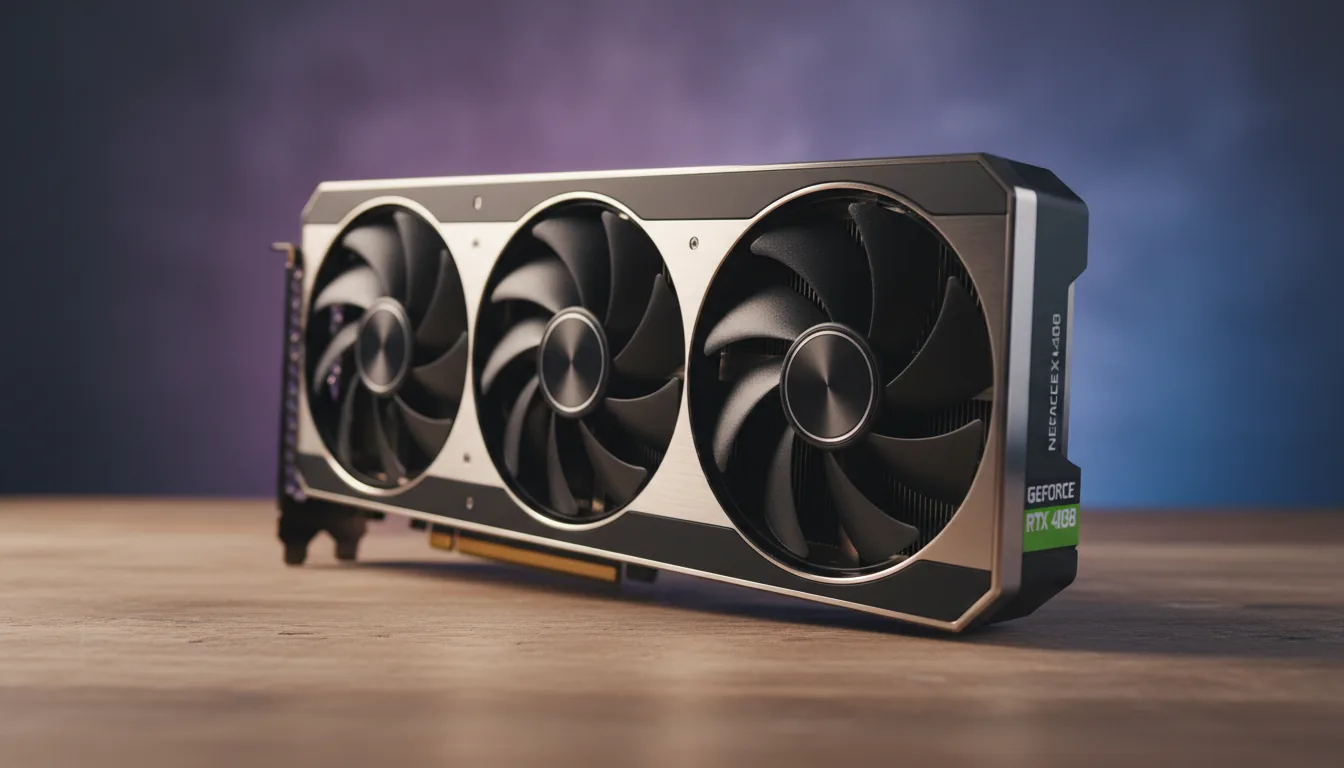
That said, the efficiency of the 4080 is underrated. Lower power draw, easier cooling, quieter systems. If your workstation lives under your desk and runs all day, those things add up. I’ve seen more than one artist choose a 4080 simply because it fit their workspace and sanity better.
If your scenes are well-managed and your projects don’t regularly blow past 16 GB of VRAM, the RTX 4080 or 4080 Super can feel like the smart choice. Not flashy. Not extreme. Just solid, dependable performance that gets out of the way and lets you work.
#5. RTX 4070 Ti and the New 5070 Variants
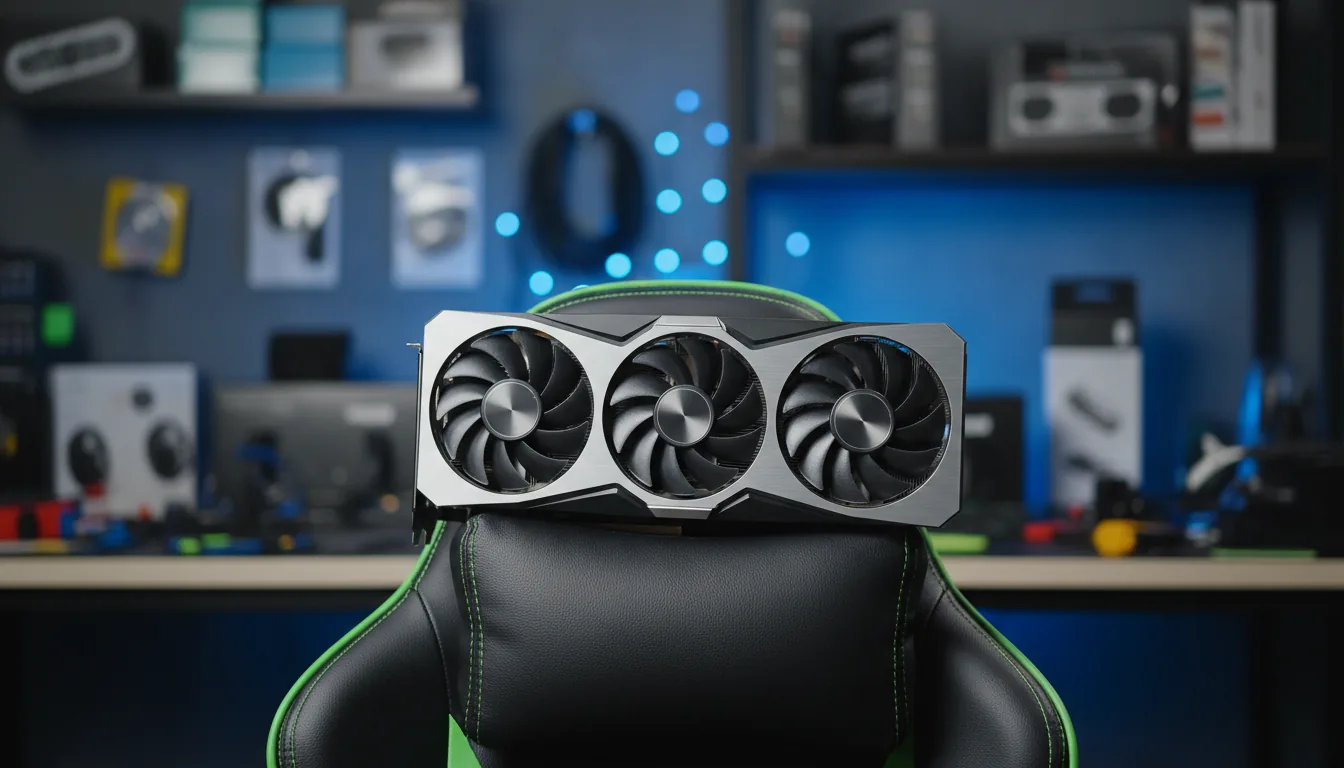
Mid-range GPUs are where expectations need to be set carefully. The RTX 4070 Ti and the newer 5070-class cards can run V-Ray GPU well. They’re not toys. But they also won’t forgive sloppy scenes or unrealistic assumptions.
In clean projects, these cards are surprisingly capable. Product renders, smaller interiors, residential archviz without insane texture sizes. All fine. Interactive rendering feels responsive enough that you can still work iteratively, especially if you’re smart about texture resolution and instancing.
The bottleneck shows up quickly once scenes grow. VRAM is the main constraint here. Most of these cards top out around 12 GB. That disappears fast when you start stacking 4K and 8K textures, detailed vegetation, and displacement. When people complain that GPU rendering “doesn’t work,” this is often why.
I’ve noticed these cards shine in very specific setups. Freelancers doing still images. Designers who rely heavily on V-Ray GPU for previews but switch to CPU for final output. Artists who value speed over absolute realism in early stages.
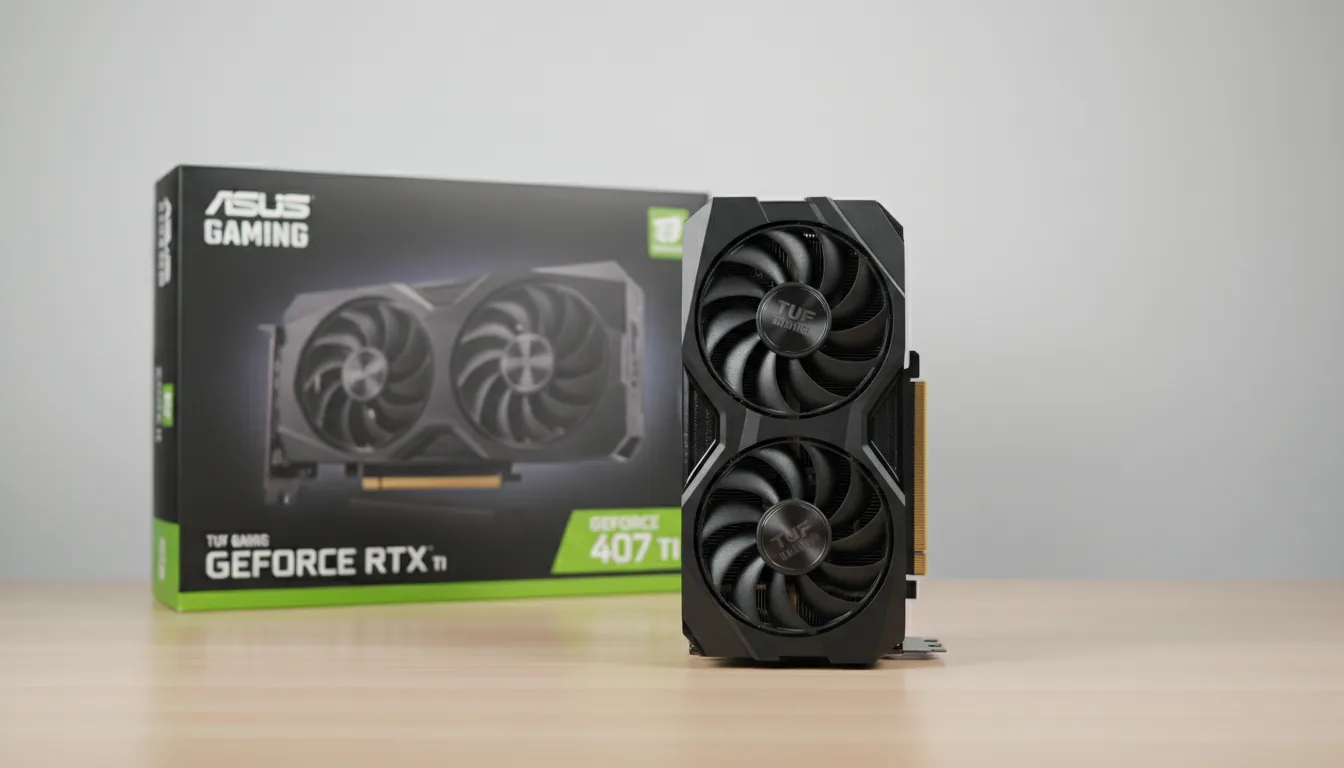
Where they struggle is long animations and complex environments. Render times stretch out, and you lose the interactivity that makes GPU rendering so appealing in the first place. That doesn’t mean they’re bad cards. It means they have a ceiling, and you need to respect it.
If you’re just getting into V-Ray GPU or upgrading from something truly old, a 4070 Ti or 5070 can feel like a revelation. Just don’t expect flagship behavior on a mid-range budget. That’s where disappointment creeps in.
Where AMD Fits and Where It Still Falls Short
This is where I usually get some pushback. Yes, AMD makes powerful GPUs. Yes, they’re often cheaper on paper. And yes, they can be great for viewport performance, modeling, and general 3D work. But when it comes specifically to V-Ray GPU, the reality is still a bit lopsided.
V-Ray GPU is built around CUDA. That’s an Nvidia thing. AMD cards rely on different compute frameworks, and while Chaos has made progress toward broader compatibility, the feature set and performance consistency still favor Nvidia heavily. In real production work, that gap shows up in stability, render times, and feature support.
I’ve seen AMD cards work fine for lookdev previews and lighter scenes. If your main focus is modeling, animation, or working inside DCC viewports, an AMD GPU can feel fast and responsive. No argument there. But once you start leaning hard on V-Ray GPU for final-quality renders, things get less predictable.
The biggest issue isn’t just speed. It’s tooling and reliability. Nvidia’s OptiX denoising, RT core acceleration, and mature CUDA stack give V-Ray GPU a smoother ride. Fewer surprises. Fewer edge cases. Fewer late-night troubleshooting sessions.
That doesn’t mean AMD is useless for V-Ray users. It means you should be honest about how you plan to render. If GPU rendering is your primary engine and deadlines matter, Nvidia is still the safer bet. If V-Ray GPU is more of a secondary tool and you value price or viewport performance more, AMD can make sense.
I want AMD to be a stronger option here. Competition is good for everyone. But today, if someone asks me what to buy for V-Ray GPU specifically, I don’t hedge. Nvidia still wins where it counts.
Benchmarks You Can Trust and How to Read Them Without Lying to Yourself
At some point, every GPU discussion turns into charts. Bars. Percentages. Someone zooming in on a 3 percent difference like it’s life changing. Benchmarks matter, but only if you understand what they’re actually telling you.
For V-Ray users, the only benchmark I really trust is the V-Ray GPU Benchmark from Chaos. Not because it’s perfect, but because it’s built around the same engine you’re using every day. Same renderer. Same math. Same problems. When a GPU scores higher there, it almost always translates to faster real-world renders.
Here’s the key thing people miss. Those benchmark numbers represent ideal conditions. Clean scenes. No bloated textures. No messy imports. No insane memory pressure. That’s why you’ll sometimes see a card score incredibly well in a benchmark and then struggle in a real project. The benchmark fits neatly into VRAM. Your scene probably doesn’t.
What benchmarks are great for is relative comparison. If GPU A consistently scores 30 to 40 percent higher than GPU B, you can expect that kind of gap in production too, assuming your scene fits in memory. If the difference is 5 percent, you’ll barely feel it unless you’re rendering all day, every day.
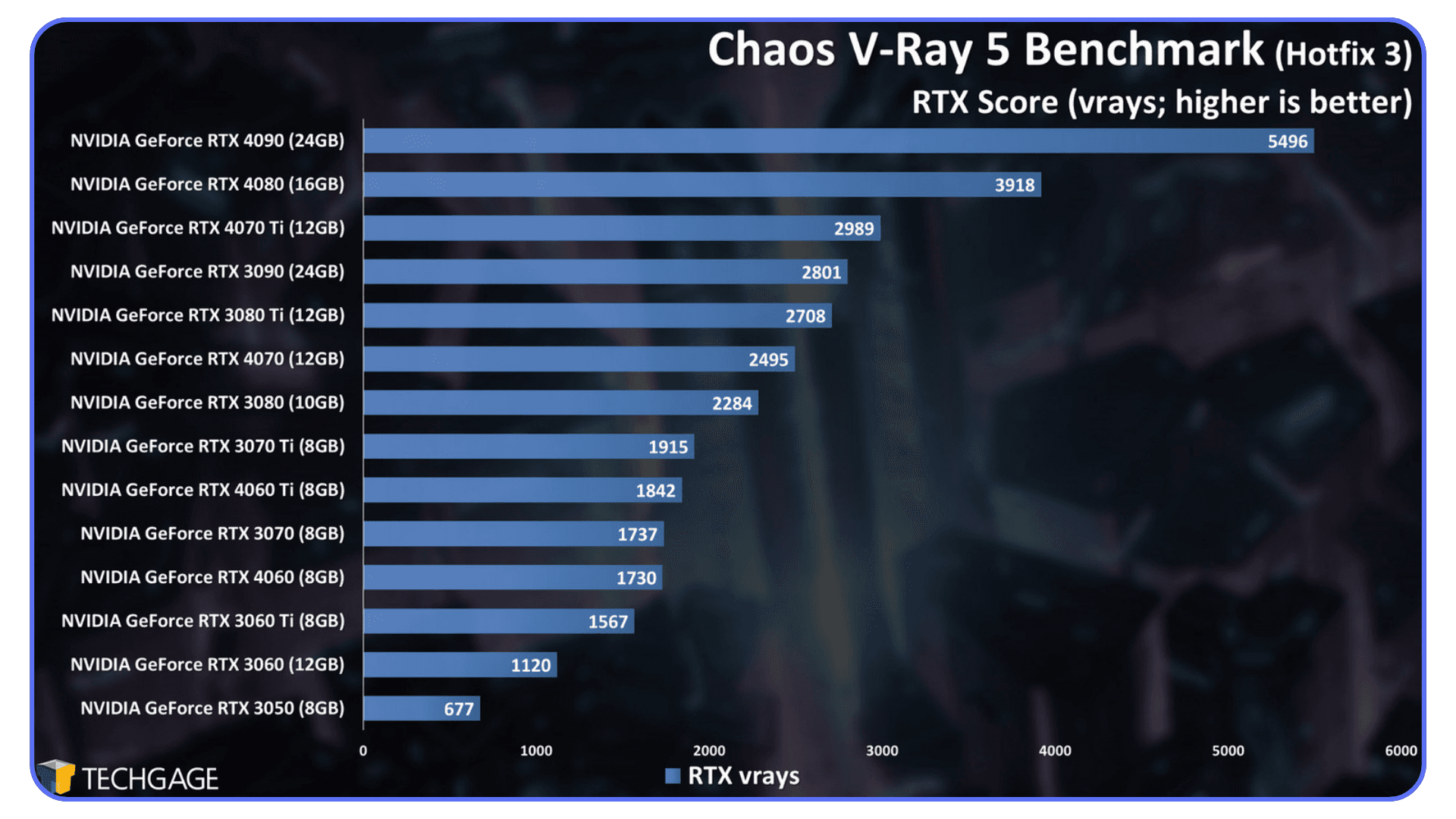
Another mistake I see is comparing single-GPU scores when people plan to run multiple GPUs. V-Ray scales well, but not infinitely. Two GPUs rarely mean double the speed, especially once you factor in VRAM limits and scene complexity. Benchmarks won’t show you that friction.
So use benchmarks as a compass, not a promise. They’ll tell you which direction performance goes. They won’t tell you how your worst scene at 3 a.m. will behave the night before a deadline.
If you want to make a smart decision, combine benchmark data with an honest look at your own scenes. Texture sizes. Poly counts. Typical lighting setups. That’s where the real answer lives, not in the tallest bar on a chart.
This becomes even more relevant when running benchmarks or production renders through V-Ray Standalone, where GPU setup directly affects results.
Real-World Advice Before You Spend the Money
Most GPU buying mistakes don’t come from bad specs. They come from unrealistic expectations.
Before you order anything, open one of your heaviest V-Ray scenes and watch VRAM usage during a GPU render. Not the average project. The one that already makes your machine uncomfortable. If you’re brushing up against the limit now, buying a card with “almost enough” memory is just kicking the problem down the road.
Textures are usually the real culprit. I see people obsess over poly counts while quietly loading dozens of 4K and 8K maps that barely add visible detail. Those add up fast. Being disciplined with texture resolution often does more for performance than a hardware upgrade.
Another reality check. A faster GPU won’t save a poorly balanced system. If you’re running 32 GB of system RAM or slow storage, even the best GPU will spend time waiting for data. For serious V-Ray GPU work, 64 GB of RAM and fast NVMe storage should feel normal, not luxurious.
Also, don’t assume denoising will fix everything. OptiX is excellent, but cleaner renders come from more rays, not heavier denoising. A stronger GPU gives you that headroom.
Most importantly, think one project ahead. Scenes rarely get smaller. Clients don’t ask for less detail. If you’re already tight on memory today, you’ll be out of room sooner than you expect.
Maya users in particular should pay attention to how V-Ray GPU is configured, since defaults aren’t always optimized out of the box.
When Owning the GPU Isn’t the Only Option
Not everyone needs to own a top-tier GPU full time. And not everyone should.
Sometimes you just need access. To test a massive scene. To render an animation overnight. To see how your workflow behaves on hardware you’re considering. Being able to run your V-Ray projects on high-end RTX GPUs without committing to a permanent upgrade can be surprisingly useful.
This is where cloud workstations start making sense. Especially for V-Ray users who want to experience what more VRAM or more raw GPU power actually changes in practice. It removes the guesswork. You learn very quickly whether the upgrade is worth it for your kind of work.
Used thoughtfully, cloud machines aren’t a replacement for a solid local setup. They’re a way to stay flexible. Scale when you need to. Experiment without regret.
This kind of flexibility also helps when switching between tools, especially if you’re balancing V-Ray work alongside real-time engines like Twinmotion.
A Smarter Way to Access High-End GPUs
At some point, the GPU decision stops being theoretical. You know a faster card would help. You’ve seen the benchmarks. You’ve read the specs. But buying a 24 GB or 32 GB GPU right now just doesn’t line up. Budget limits. Power and cooling constraints. Or simply not wanting to commit until you’re sure it actually changes how you work day to day.
This is exactly where Vagon Cloud Computer makes sense. Not as a concept. As a tool.
Instead of guessing, you load your actual V-Ray project into a cloud workstation powered by high-end RTX GPUs. Same scene. Same materials. Same lighting setup. You render the frame that crawls on your local machine and watch how it behaves with real GPU headroom behind it.
That experience is hard to replace with numbers on a chart. Specs won’t tell you how it feels when interactive rendering finally stays interactive. When lighting tweaks don’t break your rhythm. When test renders stop being interruptions and start feeling like part of the creative process.
In practice, people use Vagon in a few very practical ways. To test whether a GPU upgrade is worth the money before buying hardware. To handle heavy animation renders or deadline spikes without locking up their local system. To offload the brutal renders while keeping their own machine free for lookdev, modeling, and layout.
Because you’re working on a full remote workstation, not a simplified render service, your V-Ray workflow doesn’t change. Same software. Same plugins. Same files. The only difference is the GPU underneath.
This becomes even more valuable if you’re experimenting with AI-assisted workflows or heavier assets than you used to. Scene sizes grow fast. Texture counts explode quietly. Having access to more GPU power without committing to a permanent upgrade gives you room to explore without second-guessing every decision.
The real benefit is clarity. You stop asking, “Would a better GPU help?” and start answering it with your own scenes. That’s a far more honest way to decide what your next move should be.
Final Thoughts
At the end of the day, choosing a GPU for V-Ray isn’t about chasing the newest model or winning a benchmark argument online. It’s about how you actually work. How often you render. How big your scenes get when no one is watching. How much friction you’re willing to tolerate before it starts shaping your creative decisions.
I’ve watched people overbuy and barely use the power they paid for. I’ve also watched others struggle for years on hardware that quietly slowed everything down. The difference usually comes from understanding your own workflow instead of copying someone else’s setup.
If faster GPU rendering keeps you in the flow, helps you explore more ideas, and removes that little hesitation before hitting render, it’s doing its job. Whether that comes from a local upgrade or experimenting with cloud GPUs first doesn’t really matter. What matters is that the hardware starts working for you instead of against you.
Once that happens, the conversation about “best GPU” gets a lot simpler. You stop thinking about the card. And you get back to thinking about the image.
FAQs
1. Is GPU rendering always faster than CPU in V-Ray?
Not always, but often. When your scene fits comfortably in VRAM and you’re using GPU-friendly features, V-Ray GPU can be dramatically faster than CPU. Where GPU struggles is memory limits and certain legacy features. For huge scenes that don’t fit in VRAM, CPU can still be the safer option.
2. How much VRAM do I really need for V-Ray?
That depends on your scenes, not your ambition. For product renders or small interiors, 12 GB can work. For serious archviz, detailed interiors, or asset-heavy scenes, 16 GB is the practical minimum. If you regularly work with high-resolution textures, large libraries, or complex environments, 24 GB or more is where things stop feeling restrictive.
3. Does V-Ray GPU work better with Nvidia than AMD?
Yes, at least right now. V-Ray GPU is built around CUDA and takes advantage of Nvidia’s RT cores and OptiX denoising. AMD cards can work for certain tasks, especially viewport performance, but for consistent V-Ray GPU rendering, Nvidia is still the safer and more predictable choice.
4. Do multiple GPUs help with V-Ray?
They can, but with caveats. V-Ray scales well across multiple GPUs as long as your scene fits into the VRAM of the smallest card. Memory is mirrored, not combined. Two GPUs don’t give you double the VRAM. They give you more compute, assuming memory isn’t the bottleneck.
5. Is the RTX 4090 still worth buying with newer cards available?
For many V-Ray users, yes. The RTX 4090 still offers an excellent balance of raw performance and 24 GB of VRAM. Unless your scenes demand more memory or you’re chasing absolute top-end performance, it remains a very practical choice.
6. Should I upgrade my GPU or use cloud GPUs instead?
That depends on how often you need the power. If heavy GPU rendering is part of your daily workflow, a local upgrade usually makes sense. If your needs spike occasionally, for animations, deadline crunches, or testing heavier scenes, using cloud GPUs through Vagon Cloud Computer can be a smarter and more flexible option.
7. Will a faster GPU fix slow renders on its own?
Not if the rest of your system is holding you back. V-Ray GPU still relies on system RAM, storage speed, and overall system balance. A powerful GPU paired with low RAM or slow storage will never reach its full potential.
The first time I saw a V-Ray GPU benchmark finish in under a minute, I thought something was broken. Same scene, same materials, same lighting. The only difference was the GPU. According to Chaos’ own benchmarks, jumping from an older mid-range card to a modern high-end RTX GPU can cut render times by 2x to 4x. Sometimes more. That’s not a small win. That’s the difference between waiting and working.
I felt that shift immediately after my own upgrade. Before, I’d hit render and mentally check out. Coffee. Email. Maybe a walk. After moving to a newer RTX card, renders stopped being a “come back later” thing and turned into something closer to real time feedback. Adjust a light, re-render. Change a material, re-render again. You stay in the flow instead of constantly breaking it.
That’s the part people don’t talk about enough. Faster GPUs don’t just save minutes. They change how you work. You try more ideas because the penalty for being wrong is lower. You iterate instead of settling. And once you experience that, it’s very hard to go back.
So let’s talk about what actually makes a GPU good for V-Ray, which ones are worth your money right now, and where the hype doesn’t quite line up with reality.
Why GPU Matters for V-Ray
If you’ve been using V-Ray for a while, you probably started on CPU rendering. Most of us did. CPUs were predictable, reliable, and for a long time they were the only serious option. But GPU rendering isn’t just a faster version of the same thing. It behaves differently, and that difference matters.
V-Ray GPU leans heavily on parallel processing. Instead of a handful of very smart cores like a CPU, you’re throwing thousands of smaller cores at the problem all at once. Ray tracing, light bounces, brute force GI. All of that maps extremely well to modern GPUs, especially Nvidia’s RTX lineup with dedicated RT cores.
Here’s what that looks like in practice. CPU rendering is steady and linear. GPU rendering is explosive. When the scene fits in VRAM and the features you’re using are GPU-friendly, render times don’t just drop a little. They fall off a cliff.
I’ve noticed this most during look development. With CPU rendering, you tend to batch your decisions. Change three things, then render once because each render is expensive. With GPU rendering, you make micro-adjustments. One light. One roughness value. One texture tweak. Hit render again. That feedback loop is the real advantage.
Of course, GPU rendering isn’t magic. It has constraints. VRAM is the big one. If your scene doesn’t fit, performance tanks or the render fails outright. Some legacy features still favor CPU. And no, slapping a powerful GPU into an otherwise weak system won’t fix everything.
But for the way most people actually use V-Ray today, especially for interiors, product shots, archviz previews, and iterative client work, the GPU often becomes the bottleneck worth fixing first.
If your workflow involves a lot of “render, adjust, render again,” the GPU isn’t optional anymore. It’s the engine.
For many users, GPU performance also depends heavily on the modeling tool behind the scene, which is why choosing between tools like Rhino and SketchUp can affect how your V-Ray workflow behaves.
What to Look For in a GPU for V-Ray
Let’s clear something up early. The “best” GPU for V-Ray depends less on raw power and more on whether the card fits your scenes and your habits. I’ve seen monster GPUs choke on poorly planned scenes, and modest cards fly through clean, well-managed projects.
That said, a few specs matter a lot more than others.
If you’re coming from real-time engines, it’s worth understanding how V-Ray compares to alternatives like Enscape in terms of GPU usage and visual control.
VRAM is king.
If your scene doesn’t fit in VRAM, nothing else matters. V-Ray GPU needs to load geometry, textures, lights, and acceleration structures into GPU memory. Once you hit the ceiling, you’re either falling back to slower behavior or not rendering at all. For small product renders, 8 to 12 GB can work. For serious archviz, detailed interiors, or large exterior scenes, 16 GB is the bare minimum. Personally, I think 24 GB is where things stop feeling tight.
CUDA cores and RT cores actually matter here.
This isn’t gaming marketing fluff. V-Ray GPU is built around CUDA, and it uses RTX RT cores for ray tracing acceleration. More cores generally means more rays processed in parallel, faster lighting calculations, and shorter noise cleanup. It’s one of the reasons Nvidia still dominates V-Ray GPU performance.
Clock speed matters less than you think.
People obsess over boost clocks. For rendering, it’s mostly about sustained performance and thermal stability. A slightly slower card that can run flat-out for hours will outperform a faster one that throttles.
Multi-GPU setups can help, but only in the right cases.
V-Ray scales well across multiple GPUs, but only if your scenes fit in the smallest card’s VRAM. Two GPUs don’t combine memory. They mirror it. That catches a lot of people off guard. If your scene needs 20 GB, two 12 GB cards won’t save you.
Ignore gaming benchmarks. Seriously.
FPS charts are almost useless for V-Ray. Rendering performance doesn’t track with gaming performance the way people assume. V-Ray’s own GPU benchmark is far more relevant than anything you’ll see in a gaming review.
If you keep those points in mind, you’ll avoid most of the expensive mistakes. Now let’s talk about actual cards, starting at the top and working our way down.
If you’re working in 3ds Max, understanding how V-Ray GPU is configured makes a noticeable difference in performance and stability.
#1. NVIDIA RTX 5090 (32GB)
I’ll say this upfront. Most people don’t need an RTX 5090. And yet, if you do need it, nothing else really compares right now.
On paper, the 5090 is ridiculous. Massive core counts, next-gen RT acceleration, and a full 32 GB of VRAM. In V-Ray GPU benchmarks, this card sits comfortably at the top, often finishing renders in nearly half the time of a 4090 depending on the scene. Not every scene. But the heavy ones. The kind that used to make you nervous before hitting render.
Where the 5090 really earns its keep is scene complexity. Large interiors packed with high-resolution textures. Exterior shots with dense vegetation and displacement everywhere. Lighting setups that push brute force GI hard. This is where lesser cards start to feel cramped and the 5090 just keeps going.
In my experience, the biggest benefit isn’t even raw speed. It’s headroom. You stop worrying about memory budgets so aggressively. You load the textures you actually want to use. You don’t decimate geometry just to make things fit. That mental freedom matters more than most spec sheets admit.
Now, the reality check. This card is expensive. Power hungry. And honestly, overkill for freelancers doing small to mid-scale projects. If your scenes rarely exceed 12 to 16 GB of VRAM usage, the 5090 won’t magically make you a better artist. It’ll just finish faster.
But for studios, visualization teams, or anyone pushing V-Ray GPU to its limits every day, the RTX 5090 is the closest thing to “don’t think about it, just render” hardware we’ve had so far.
If your bottleneck is no longer creativity but waiting, this is the card that removes excuses.
#2. NVIDIA RTX A6000 and Professional RTX Line
The RTX A6000 is one of those GPUs people argue about endlessly. On paper, it doesn’t look as exciting as the flagship consumer cards. Lower clocks. Less buzz. A price tag that makes freelancers wince. And yet, in a lot of real studios, this is still the card quietly doing the work.
The reason is simple. Stability and memory.
With 48 GB of VRAM, the A6000 gives you breathing room that even the RTX 5090 doesn’t. Massive texture sets. Heavy CAD imports. Huge exterior scenes that just refuse to fit on consumer cards. When those scenes load without compromises, the slower clock speeds suddenly don’t feel like such a big deal.
I’ve seen A6000 systems chew through scenes that brought 24 GB cards to their knees. Not faster, necessarily. Just without drama. No memory juggling. No emergency texture downscaling. No late-night “why did this crash” moments before a deadline.
Another factor people overlook is drivers. The professional RTX line is built for long, sustained workloads and validated software stacks. In environments where machines render for days, not hours, that matters. A lot. Especially when V-Ray is only one piece of a larger pipeline.
Now, the downside. Price-to-performance is not great if you’re judging purely on render speed. A consumer RTX 4090 or 5090 will usually outrun it in raw V-Ray GPU benchmarks. And for solo artists or small teams, that extra VRAM may sit unused most of the time.
This is a card for people who already know why they want it. Large studios. Engineering-heavy scenes. Mission-critical projects where stability beats speed. If that’s you, the RTX A6000 earns its reputation. If not, you can probably spend your money more wisely elsewhere.
#3. NVIDIA RTX 4090 (24GB)
If I had to pick one GPU that changed how most V-Ray users work over the last couple of years, it’s the RTX 4090. Even now, with newer cards stealing headlines, this thing refuses to feel outdated.
The combination of raw compute power and 24 GB of VRAM hits a very practical balance. It’s fast enough that V-Ray GPU feels genuinely interactive, even on complex scenes, and it has enough memory to handle serious archviz work without constant compromises. Interiors with 8K textures. Dense furniture libraries. Heavy displacement. The 4090 handles all of it without breaking a sweat most of the time.
In real projects, I’ve seen the 4090 cut render times by 40 to 60 percent compared to older high-end cards like the 3090. Not in synthetic tests. In actual production scenes. The kind clients keep changing at the last minute.
What really stands out, though, is consistency. The 4090 doesn’t just win benchmarks. It stays fast over long renders. No sudden throttling. No weird slowdowns halfway through a job. That matters when you’re rendering overnight or running batch jobs across dozens of frames.
There are caveats. Power draw is high, so a cheap power supply is asking for trouble. Cooling matters too. A poorly ventilated case will choke this card faster than you’d expect. And yes, prices have been all over the place depending on availability.
But if you want a GPU that just works for V-Ray GPU, without workstation pricing and without feeling like you’re settling, the RTX 4090 is still a very hard card to beat.
For a lot of freelancers and small studios, this is the card where performance stops being the excuse and workflow becomes the focus.
#4. NVIDIA RTX 4080 and 4080 Super
Not everyone wants to build their workflow around a flagship GPU. And honestly, that’s fine. The RTX 4080 and 4080 Super exist for people who want strong V-Ray GPU performance without committing to the size, heat, and cost of a 4090.
In practice, the 4080 delivers more than enough power for most V-Ray GPU users. Lighting-heavy interiors, mid-scale exterior scenes, product visualization with complex materials. All very comfortable territory. Render times are noticeably faster than previous-gen high-end cards, and interactive rendering feels responsive enough that you’re not constantly waiting for feedback.
The main difference compared to a 4090 shows up in two places. First, VRAM. With 16 GB, you need to be more disciplined. High-resolution textures, large proxy libraries, and dense vegetation can push you close to the limit faster than you’d expect. If you’re used to throwing everything into a scene and sorting it out later, the 4080 will remind you to plan ahead.
Second, brute force speed. On heavy scenes, the 4090 still pulls away. Not by a little, but enough that you’ll notice it on long renders or animation sequences. For stills, it often doesn’t matter. For hundreds of frames, it can.
That said, the efficiency of the 4080 is underrated. Lower power draw, easier cooling, quieter systems. If your workstation lives under your desk and runs all day, those things add up. I’ve seen more than one artist choose a 4080 simply because it fit their workspace and sanity better.
If your scenes are well-managed and your projects don’t regularly blow past 16 GB of VRAM, the RTX 4080 or 4080 Super can feel like the smart choice. Not flashy. Not extreme. Just solid, dependable performance that gets out of the way and lets you work.
#5. RTX 4070 Ti and the New 5070 Variants
Mid-range GPUs are where expectations need to be set carefully. The RTX 4070 Ti and the newer 5070-class cards can run V-Ray GPU well. They’re not toys. But they also won’t forgive sloppy scenes or unrealistic assumptions.
In clean projects, these cards are surprisingly capable. Product renders, smaller interiors, residential archviz without insane texture sizes. All fine. Interactive rendering feels responsive enough that you can still work iteratively, especially if you’re smart about texture resolution and instancing.
The bottleneck shows up quickly once scenes grow. VRAM is the main constraint here. Most of these cards top out around 12 GB. That disappears fast when you start stacking 4K and 8K textures, detailed vegetation, and displacement. When people complain that GPU rendering “doesn’t work,” this is often why.
I’ve noticed these cards shine in very specific setups. Freelancers doing still images. Designers who rely heavily on V-Ray GPU for previews but switch to CPU for final output. Artists who value speed over absolute realism in early stages.
Where they struggle is long animations and complex environments. Render times stretch out, and you lose the interactivity that makes GPU rendering so appealing in the first place. That doesn’t mean they’re bad cards. It means they have a ceiling, and you need to respect it.
If you’re just getting into V-Ray GPU or upgrading from something truly old, a 4070 Ti or 5070 can feel like a revelation. Just don’t expect flagship behavior on a mid-range budget. That’s where disappointment creeps in.
Where AMD Fits and Where It Still Falls Short
This is where I usually get some pushback. Yes, AMD makes powerful GPUs. Yes, they’re often cheaper on paper. And yes, they can be great for viewport performance, modeling, and general 3D work. But when it comes specifically to V-Ray GPU, the reality is still a bit lopsided.
V-Ray GPU is built around CUDA. That’s an Nvidia thing. AMD cards rely on different compute frameworks, and while Chaos has made progress toward broader compatibility, the feature set and performance consistency still favor Nvidia heavily. In real production work, that gap shows up in stability, render times, and feature support.
I’ve seen AMD cards work fine for lookdev previews and lighter scenes. If your main focus is modeling, animation, or working inside DCC viewports, an AMD GPU can feel fast and responsive. No argument there. But once you start leaning hard on V-Ray GPU for final-quality renders, things get less predictable.
The biggest issue isn’t just speed. It’s tooling and reliability. Nvidia’s OptiX denoising, RT core acceleration, and mature CUDA stack give V-Ray GPU a smoother ride. Fewer surprises. Fewer edge cases. Fewer late-night troubleshooting sessions.
That doesn’t mean AMD is useless for V-Ray users. It means you should be honest about how you plan to render. If GPU rendering is your primary engine and deadlines matter, Nvidia is still the safer bet. If V-Ray GPU is more of a secondary tool and you value price or viewport performance more, AMD can make sense.
I want AMD to be a stronger option here. Competition is good for everyone. But today, if someone asks me what to buy for V-Ray GPU specifically, I don’t hedge. Nvidia still wins where it counts.
Benchmarks You Can Trust and How to Read Them Without Lying to Yourself
At some point, every GPU discussion turns into charts. Bars. Percentages. Someone zooming in on a 3 percent difference like it’s life changing. Benchmarks matter, but only if you understand what they’re actually telling you.
For V-Ray users, the only benchmark I really trust is the V-Ray GPU Benchmark from Chaos. Not because it’s perfect, but because it’s built around the same engine you’re using every day. Same renderer. Same math. Same problems. When a GPU scores higher there, it almost always translates to faster real-world renders.
Here’s the key thing people miss. Those benchmark numbers represent ideal conditions. Clean scenes. No bloated textures. No messy imports. No insane memory pressure. That’s why you’ll sometimes see a card score incredibly well in a benchmark and then struggle in a real project. The benchmark fits neatly into VRAM. Your scene probably doesn’t.
What benchmarks are great for is relative comparison. If GPU A consistently scores 30 to 40 percent higher than GPU B, you can expect that kind of gap in production too, assuming your scene fits in memory. If the difference is 5 percent, you’ll barely feel it unless you’re rendering all day, every day.
Another mistake I see is comparing single-GPU scores when people plan to run multiple GPUs. V-Ray scales well, but not infinitely. Two GPUs rarely mean double the speed, especially once you factor in VRAM limits and scene complexity. Benchmarks won’t show you that friction.
So use benchmarks as a compass, not a promise. They’ll tell you which direction performance goes. They won’t tell you how your worst scene at 3 a.m. will behave the night before a deadline.
If you want to make a smart decision, combine benchmark data with an honest look at your own scenes. Texture sizes. Poly counts. Typical lighting setups. That’s where the real answer lives, not in the tallest bar on a chart.
This becomes even more relevant when running benchmarks or production renders through V-Ray Standalone, where GPU setup directly affects results.
Real-World Advice Before You Spend the Money
Most GPU buying mistakes don’t come from bad specs. They come from unrealistic expectations.
Before you order anything, open one of your heaviest V-Ray scenes and watch VRAM usage during a GPU render. Not the average project. The one that already makes your machine uncomfortable. If you’re brushing up against the limit now, buying a card with “almost enough” memory is just kicking the problem down the road.
Textures are usually the real culprit. I see people obsess over poly counts while quietly loading dozens of 4K and 8K maps that barely add visible detail. Those add up fast. Being disciplined with texture resolution often does more for performance than a hardware upgrade.
Another reality check. A faster GPU won’t save a poorly balanced system. If you’re running 32 GB of system RAM or slow storage, even the best GPU will spend time waiting for data. For serious V-Ray GPU work, 64 GB of RAM and fast NVMe storage should feel normal, not luxurious.
Also, don’t assume denoising will fix everything. OptiX is excellent, but cleaner renders come from more rays, not heavier denoising. A stronger GPU gives you that headroom.
Most importantly, think one project ahead. Scenes rarely get smaller. Clients don’t ask for less detail. If you’re already tight on memory today, you’ll be out of room sooner than you expect.
Maya users in particular should pay attention to how V-Ray GPU is configured, since defaults aren’t always optimized out of the box.
When Owning the GPU Isn’t the Only Option
Not everyone needs to own a top-tier GPU full time. And not everyone should.
Sometimes you just need access. To test a massive scene. To render an animation overnight. To see how your workflow behaves on hardware you’re considering. Being able to run your V-Ray projects on high-end RTX GPUs without committing to a permanent upgrade can be surprisingly useful.
This is where cloud workstations start making sense. Especially for V-Ray users who want to experience what more VRAM or more raw GPU power actually changes in practice. It removes the guesswork. You learn very quickly whether the upgrade is worth it for your kind of work.
Used thoughtfully, cloud machines aren’t a replacement for a solid local setup. They’re a way to stay flexible. Scale when you need to. Experiment without regret.
This kind of flexibility also helps when switching between tools, especially if you’re balancing V-Ray work alongside real-time engines like Twinmotion.
A Smarter Way to Access High-End GPUs
At some point, the GPU decision stops being theoretical. You know a faster card would help. You’ve seen the benchmarks. You’ve read the specs. But buying a 24 GB or 32 GB GPU right now just doesn’t line up. Budget limits. Power and cooling constraints. Or simply not wanting to commit until you’re sure it actually changes how you work day to day.
This is exactly where Vagon Cloud Computer makes sense. Not as a concept. As a tool.
Instead of guessing, you load your actual V-Ray project into a cloud workstation powered by high-end RTX GPUs. Same scene. Same materials. Same lighting setup. You render the frame that crawls on your local machine and watch how it behaves with real GPU headroom behind it.
That experience is hard to replace with numbers on a chart. Specs won’t tell you how it feels when interactive rendering finally stays interactive. When lighting tweaks don’t break your rhythm. When test renders stop being interruptions and start feeling like part of the creative process.
In practice, people use Vagon in a few very practical ways. To test whether a GPU upgrade is worth the money before buying hardware. To handle heavy animation renders or deadline spikes without locking up their local system. To offload the brutal renders while keeping their own machine free for lookdev, modeling, and layout.
Because you’re working on a full remote workstation, not a simplified render service, your V-Ray workflow doesn’t change. Same software. Same plugins. Same files. The only difference is the GPU underneath.
This becomes even more valuable if you’re experimenting with AI-assisted workflows or heavier assets than you used to. Scene sizes grow fast. Texture counts explode quietly. Having access to more GPU power without committing to a permanent upgrade gives you room to explore without second-guessing every decision.
The real benefit is clarity. You stop asking, “Would a better GPU help?” and start answering it with your own scenes. That’s a far more honest way to decide what your next move should be.
Final Thoughts
At the end of the day, choosing a GPU for V-Ray isn’t about chasing the newest model or winning a benchmark argument online. It’s about how you actually work. How often you render. How big your scenes get when no one is watching. How much friction you’re willing to tolerate before it starts shaping your creative decisions.
I’ve watched people overbuy and barely use the power they paid for. I’ve also watched others struggle for years on hardware that quietly slowed everything down. The difference usually comes from understanding your own workflow instead of copying someone else’s setup.
If faster GPU rendering keeps you in the flow, helps you explore more ideas, and removes that little hesitation before hitting render, it’s doing its job. Whether that comes from a local upgrade or experimenting with cloud GPUs first doesn’t really matter. What matters is that the hardware starts working for you instead of against you.
Once that happens, the conversation about “best GPU” gets a lot simpler. You stop thinking about the card. And you get back to thinking about the image.
FAQs
1. Is GPU rendering always faster than CPU in V-Ray?
Not always, but often. When your scene fits comfortably in VRAM and you’re using GPU-friendly features, V-Ray GPU can be dramatically faster than CPU. Where GPU struggles is memory limits and certain legacy features. For huge scenes that don’t fit in VRAM, CPU can still be the safer option.
2. How much VRAM do I really need for V-Ray?
That depends on your scenes, not your ambition. For product renders or small interiors, 12 GB can work. For serious archviz, detailed interiors, or asset-heavy scenes, 16 GB is the practical minimum. If you regularly work with high-resolution textures, large libraries, or complex environments, 24 GB or more is where things stop feeling restrictive.
3. Does V-Ray GPU work better with Nvidia than AMD?
Yes, at least right now. V-Ray GPU is built around CUDA and takes advantage of Nvidia’s RT cores and OptiX denoising. AMD cards can work for certain tasks, especially viewport performance, but for consistent V-Ray GPU rendering, Nvidia is still the safer and more predictable choice.
4. Do multiple GPUs help with V-Ray?
They can, but with caveats. V-Ray scales well across multiple GPUs as long as your scene fits into the VRAM of the smallest card. Memory is mirrored, not combined. Two GPUs don’t give you double the VRAM. They give you more compute, assuming memory isn’t the bottleneck.
5. Is the RTX 4090 still worth buying with newer cards available?
For many V-Ray users, yes. The RTX 4090 still offers an excellent balance of raw performance and 24 GB of VRAM. Unless your scenes demand more memory or you’re chasing absolute top-end performance, it remains a very practical choice.
6. Should I upgrade my GPU or use cloud GPUs instead?
That depends on how often you need the power. If heavy GPU rendering is part of your daily workflow, a local upgrade usually makes sense. If your needs spike occasionally, for animations, deadline crunches, or testing heavier scenes, using cloud GPUs through Vagon Cloud Computer can be a smarter and more flexible option.
7. Will a faster GPU fix slow renders on its own?
Not if the rest of your system is holding you back. V-Ray GPU still relies on system RAM, storage speed, and overall system balance. A powerful GPU paired with low RAM or slow storage will never reach its full potential.
Get Beyond Your Computer Performance
Run applications on your cloud computer with the latest generation hardware. No more crashes or lags.

Trial includes 1 hour usage + 7 days of storage.
Summarize with AI

Ready to focus on your creativity?
Vagon gives you the ability to create & render projects, collaborate, and stream applications with the power of the best hardware.

Vagon Blog
Run heavy applications on any device with
your personal computer on the cloud.
San Francisco, California
Solutions
Vagon Teams
Vagon Streams
Use Cases
Resources
Vagon Blog
How to Use DaVinci Resolve With Codex: MCP & Computer Use
How to Use ComfyUI With Claude: MCP & Computer Use Guide
How to Use Rhino With Codex: MCP & Computer Use Guide
How to Use KiCad With Codex: MCP & Computer Use Guide
How to Use KiCad With Claude: MCP & Computer Use Guide Meta
How to Use FreeCAD With Codex: MCP & Computer Use
How to Use FreeCAD With Claude: MCP & Computer Use
How to Use 3ds Max With Codex: MCP & Computer Use
How to Use Houdini With Claude: MCP & Computer Use
Vagon Blog
Run heavy applications on any device with
your personal computer on the cloud.
San Francisco, California
Solutions
Vagon Teams
Vagon Streams
Use Cases
Resources
Vagon Blog
How to Use DaVinci Resolve With Codex: MCP & Computer Use
How to Use ComfyUI With Claude: MCP & Computer Use Guide
How to Use Rhino With Codex: MCP & Computer Use Guide
How to Use KiCad With Codex: MCP & Computer Use Guide
How to Use KiCad With Claude: MCP & Computer Use Guide Meta
How to Use FreeCAD With Codex: MCP & Computer Use
How to Use FreeCAD With Claude: MCP & Computer Use
How to Use 3ds Max With Codex: MCP & Computer Use
How to Use Houdini With Claude: MCP & Computer Use
Vagon Blog
Run heavy applications on any device with
your personal computer on the cloud.
San Francisco, California
Solutions
Vagon Teams
Vagon Streams
Use Cases
Resources
Vagon Blog