Instant Connection for Pixel Streaming
— New Feature Automated Setup
Best Plugins for Godot: Top Addons to Speed Up 3D, 2D, Workflow, and Testing in 2026
GameDevelopment
Best Plugins for Godot: Top Addons to Speed Up 3D, 2D, Workflow, and Testing in 2026
GameDevelopment
Best Plugins for Godot: Top Addons to Speed Up 3D, 2D, Workflow, and Testing in 2026
GameDevelopment
Table of Contents
The first time I tried building a small prototype, I thought the built-in tools would take me all the way. I placed a few objects, slapped together a basic player controller, and started tweaking the scene. Everything felt fine until I tried to polish the details. The camera didn’t move quite the way I wanted. The physics had a strange wobble I couldn’t get rid of. A simple task like scattering props turned into a repetitive chore that drained all the fun out of the session.
That moment is when most developers realize the base editor is good, but not always enough. It gives you a foundation, not a fully equipped workshop. Once you push past early prototypes, you start feeling the gaps. Movement feels okay, but not quite smooth. Lighting works, but needs more nuance. AI scripts do the job, but lack structure. And every small limitation slows down your momentum.
Plugins fix that problem. They speed up iteration by removing the repetitive, low-value steps. Instead of wrestling with a camera system for two hours, you install a plugin that already handles smoothing, transitions, and following logic. Instead of sculpting terrain by hand and fighting mesh settings, you use a tool built for that exact task. Your energy goes into designing, not repairing.
They also raise the ceiling on what your project can look and feel like. Good plugins give you polish without forcing you to rebuild features from scratch. They let you add small touches and big systems alike without derailing your workflow.
And the best part is that installing them is simple. Open the asset library, choose the plugin you want, download it, and enable it in your project settings. If you grab an addon from a repo, you just drop it into your project folder and restart the editor. No complicated setup. No long configuration.
Most people don’t start with plugins. They arrive there after hitting their first wall. Once you add the right tools, though, the whole development process opens up.
Here’s your short 2026 update section with a clear heading, matching the tone and flow:
What’s Changed About Plugins in 2026
A couple of years ago, plugins felt like optional upgrades. Nice to have, not essential.
That’s not really true anymore.
In 2026, plugins are starting to feel like part of the default toolkit, especially once your project moves past the prototype phase.
Here’s what’s actually changed:
Plugins are getting more specialized.
Instead of “do everything” tools, we’re seeing smaller, focused plugins that solve one problem really well. Better camera systems. Smarter AI behaviors. Cleaner terrain workflows. Less bloat, more precision.
AI is creeping into plugin workflows.
Some tools now help generate behaviors, assist with level layout, or speed up repetitive setup tasks. It’s not magic, but it cuts down the grunt work in a noticeable way.
Performance matters more than features.
Developers are less impressed by huge feature lists and more focused on whether a plugin is lightweight, stable, and actively maintained. A flashy tool that tanks your FPS? No one’s touching it twice.
Compatibility is finally a bigger conversation.
With faster engine updates, plugin breakage is a real concern. More devs are locking versions, testing in isolation, and treating plugins like core dependencies, not throwaway add-ons.
Cloud testing is becoming part of the workflow.
This one surprised me a bit. Instead of risking their main setup, more developers are testing plugins in clean, separate environments. Especially when dealing with heavy tools or unstable builds.
That’s where something like Vagon Cloud Computer fits naturally.
Not as a replacement for your machine, but as a safe testing ground. Spin up a clean setup, try the plugin, break things if you want, then walk away without touching your main project.
And honestly, that changes how willing you are to experiment.
Because the real shift in 2026 isn’t just better plugins.
It’s that developers are getting smarter about how they use them.
Essential Plugins for 3D Projects
Working in 3D is exciting until you hit the first real friction point. Maybe the physics feel unpredictable. Maybe your terrain looks like a flat sheet of paper no matter how much you tweak it. Maybe you spend half an hour placing rocks one by one and realize you’ve barely filled ten percent of the scene. This is where the right plugins stop being optional and start feeling like part of the core toolkit.
Here are the ones that consistently save time and polish your results.
#1. Godot Jolt
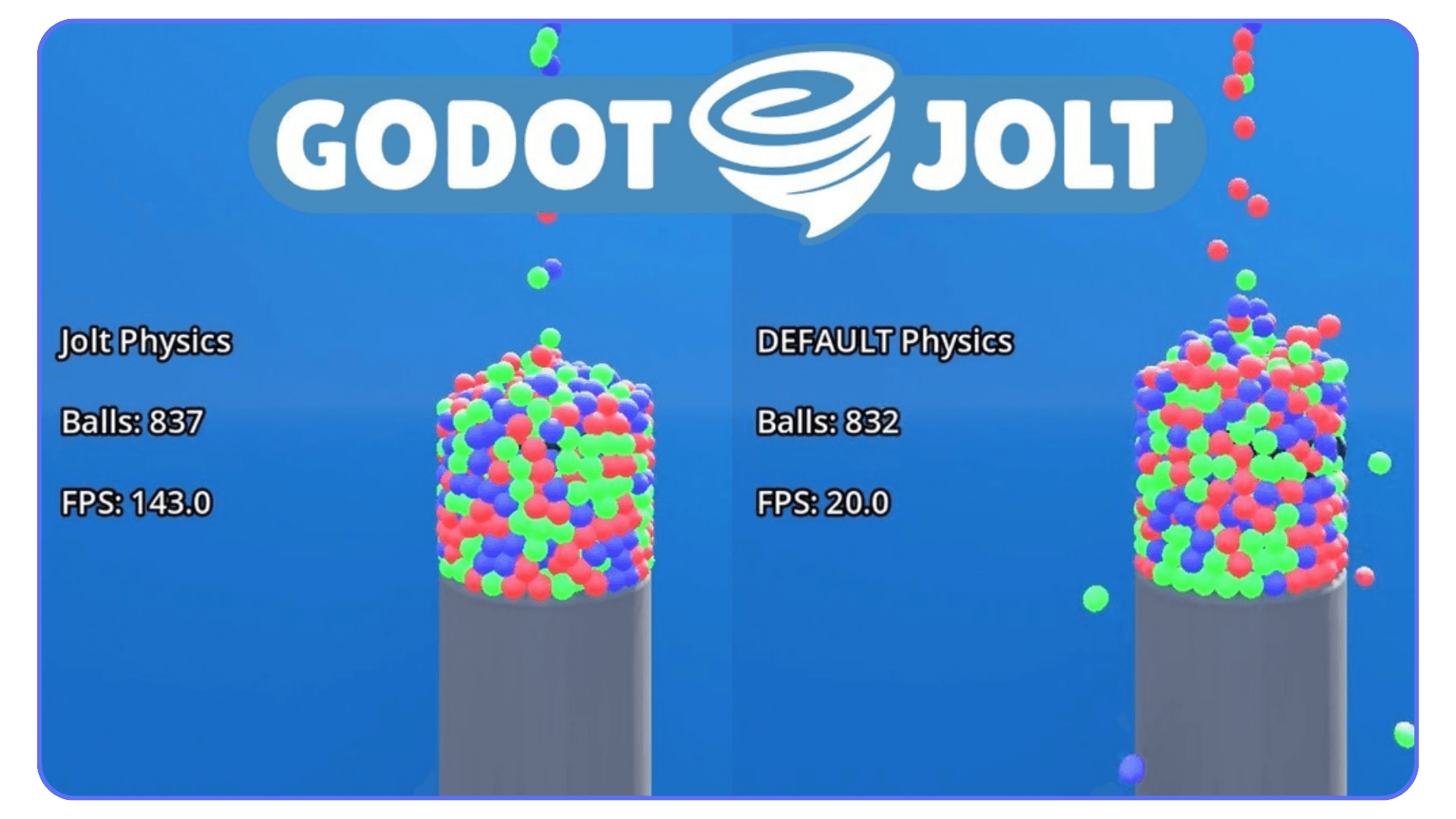
If you’ve ever had objects jitter, clip, or explode into the sky for no reason, you know the built-in physics can get weird. Godot Jolt replaces that system with a more stable backend. Rigid bodies behave correctly. Collisions feel consistent. Fast-moving objects stop teleporting through walls. It makes your whole project feel sturdier.
#2. Terrain3D
Hand-building terrain is one of the fastest ways to lose an entire evening. Terrain3D lets you sculpt hills, paint textures, smooth edges, and iterate naturally. It feels like working with real terrain instead of fighting a mesh. For any outdoor level, this plugin is a game changer.
#3. ProtonScatter
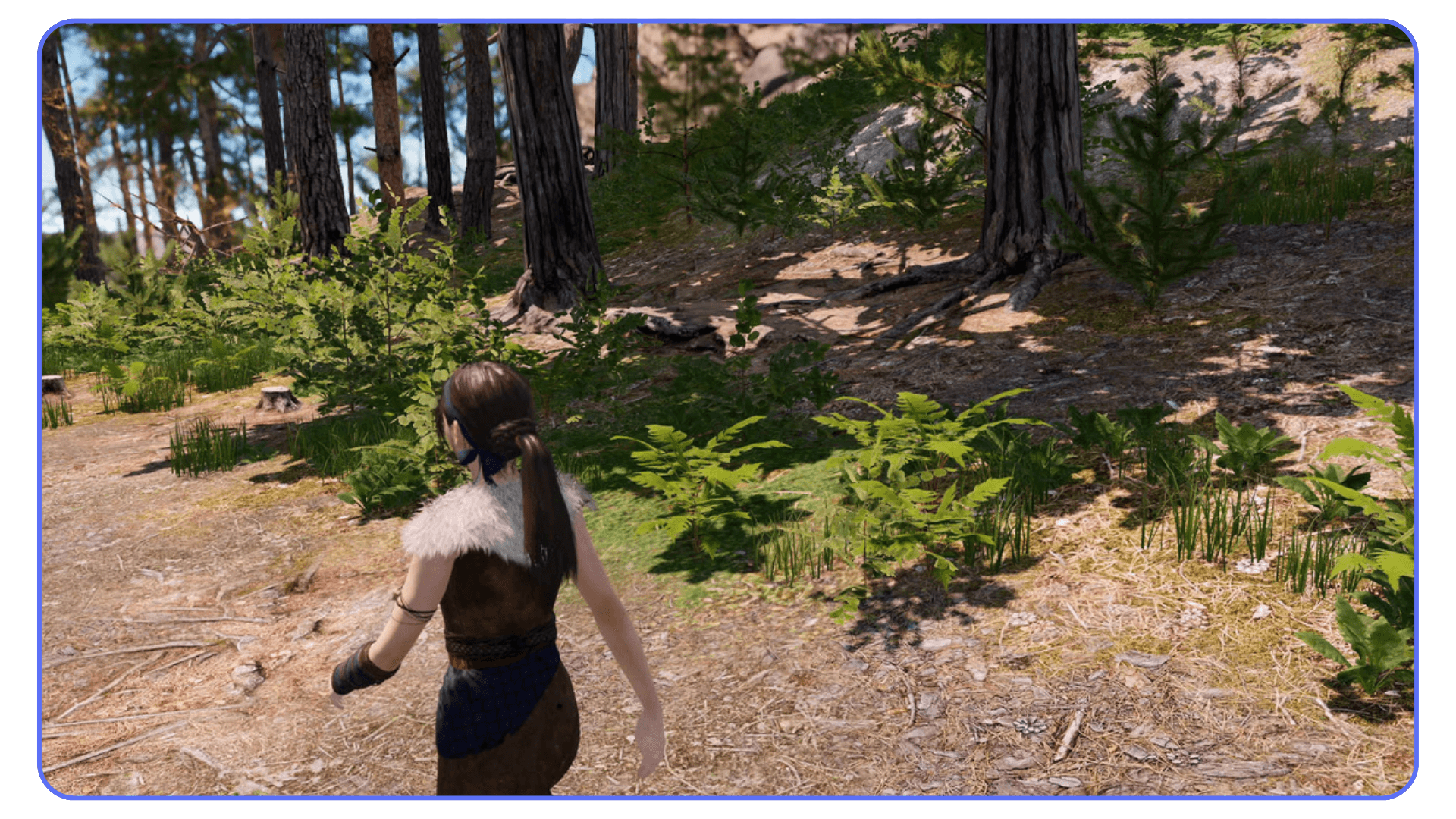
If you’ve ever tried populating a forest manually, you know the pain. Place a tree. Duplicate it. Rotate it slightly. Nudge it. Repeat three hundred times. ProtonScatter automates that process. It spreads props across your terrain with natural variation, saving hours while giving you better results than manual placement ever would.
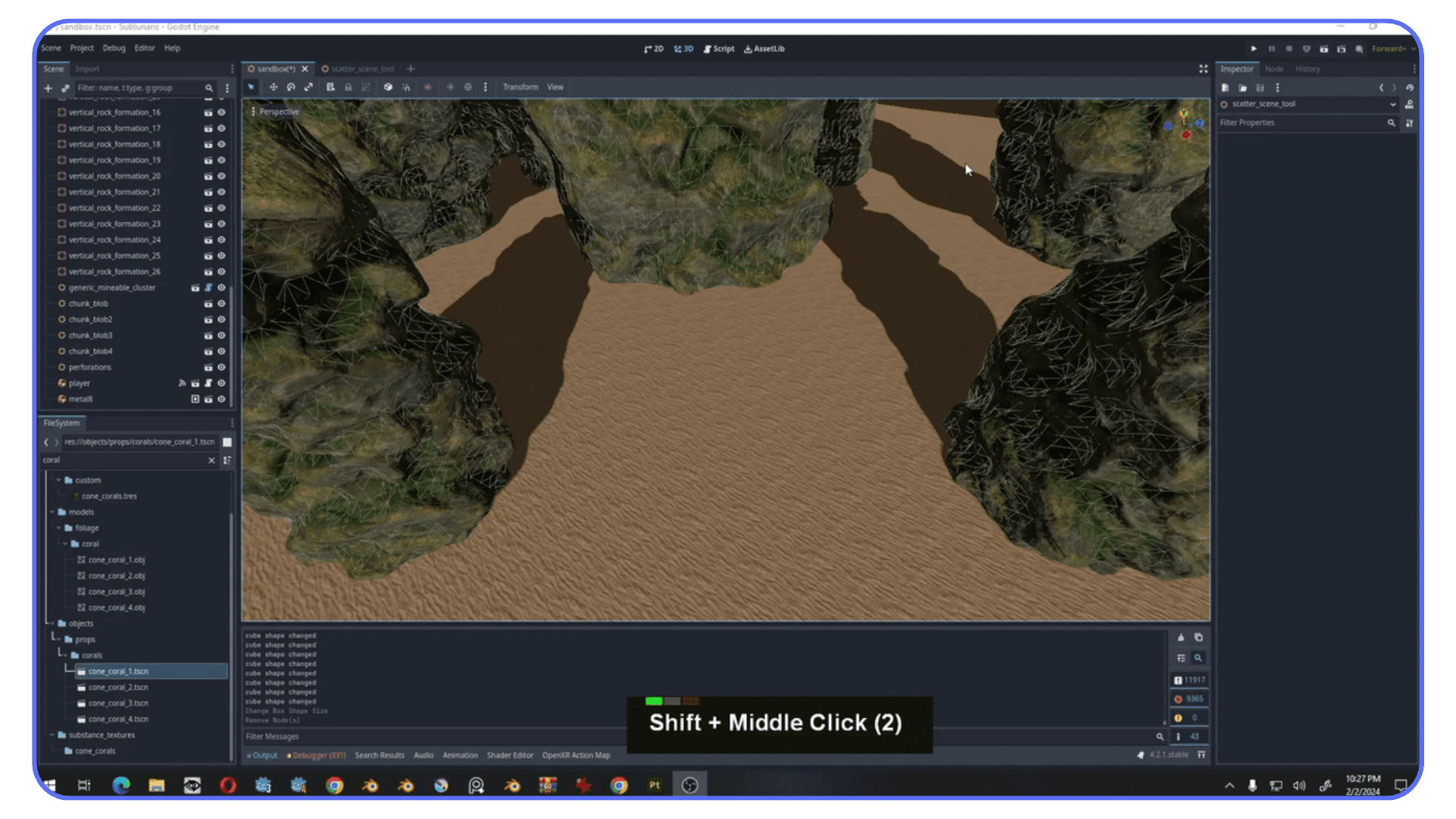
#4. Phantom Camera
Camera feel can make or break a 3D game. The built-in tools work, but they take a lot of extra work to feel smooth. Phantom Camera handles transitions, collisions, follow logic, zooming, and more. It gives your project a cinematic feel without you wrestling with a dozen scripts.
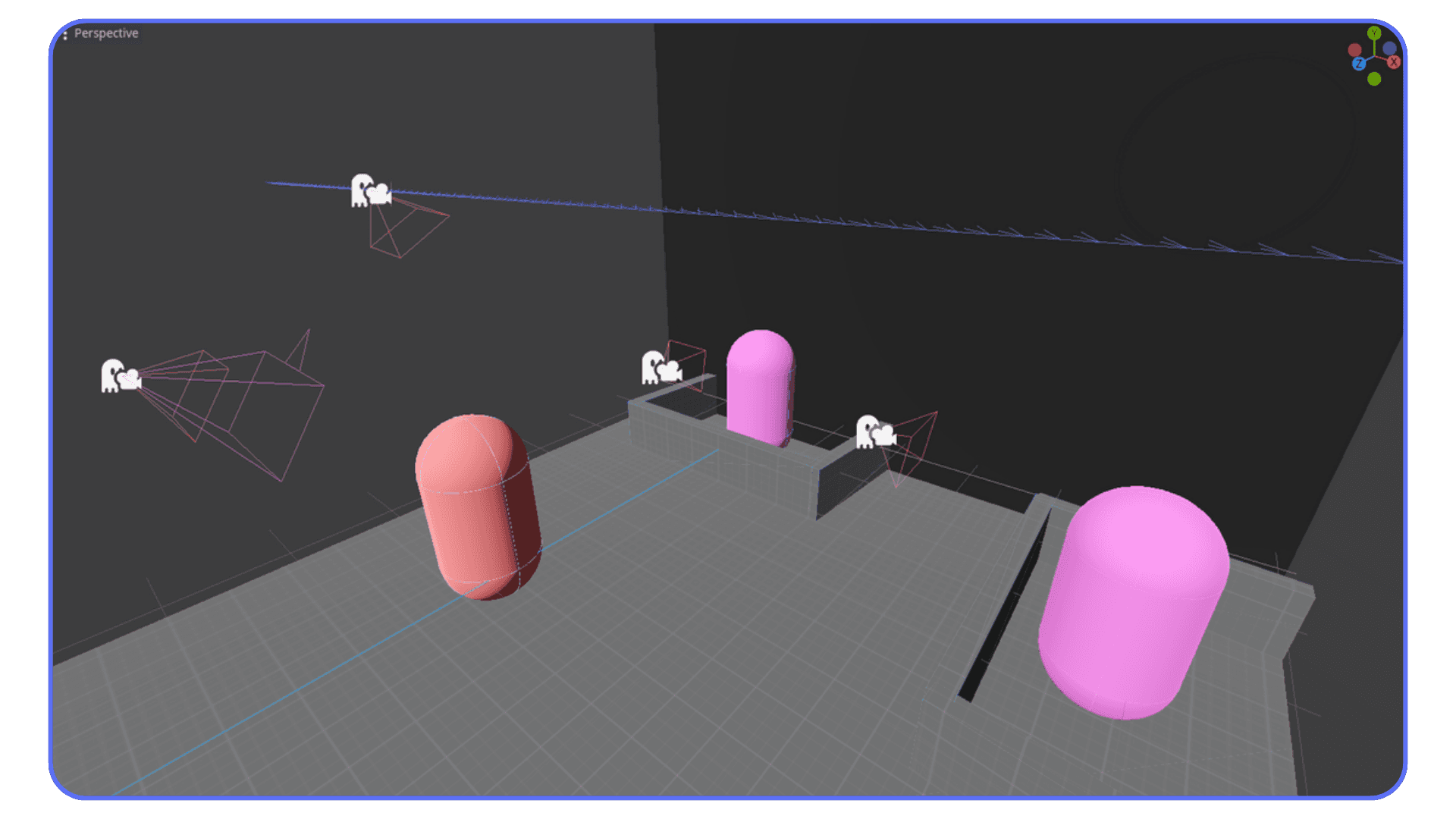
#5. Character Controller Packs
Sometimes you just want to test an idea without rebuilding movement from scratch. These packs give you ready-to-use first-person or third-person controllers that already feel decent. Not perfect, but good enough to let you focus on level design or mechanics instead of redoing the basics yet again.
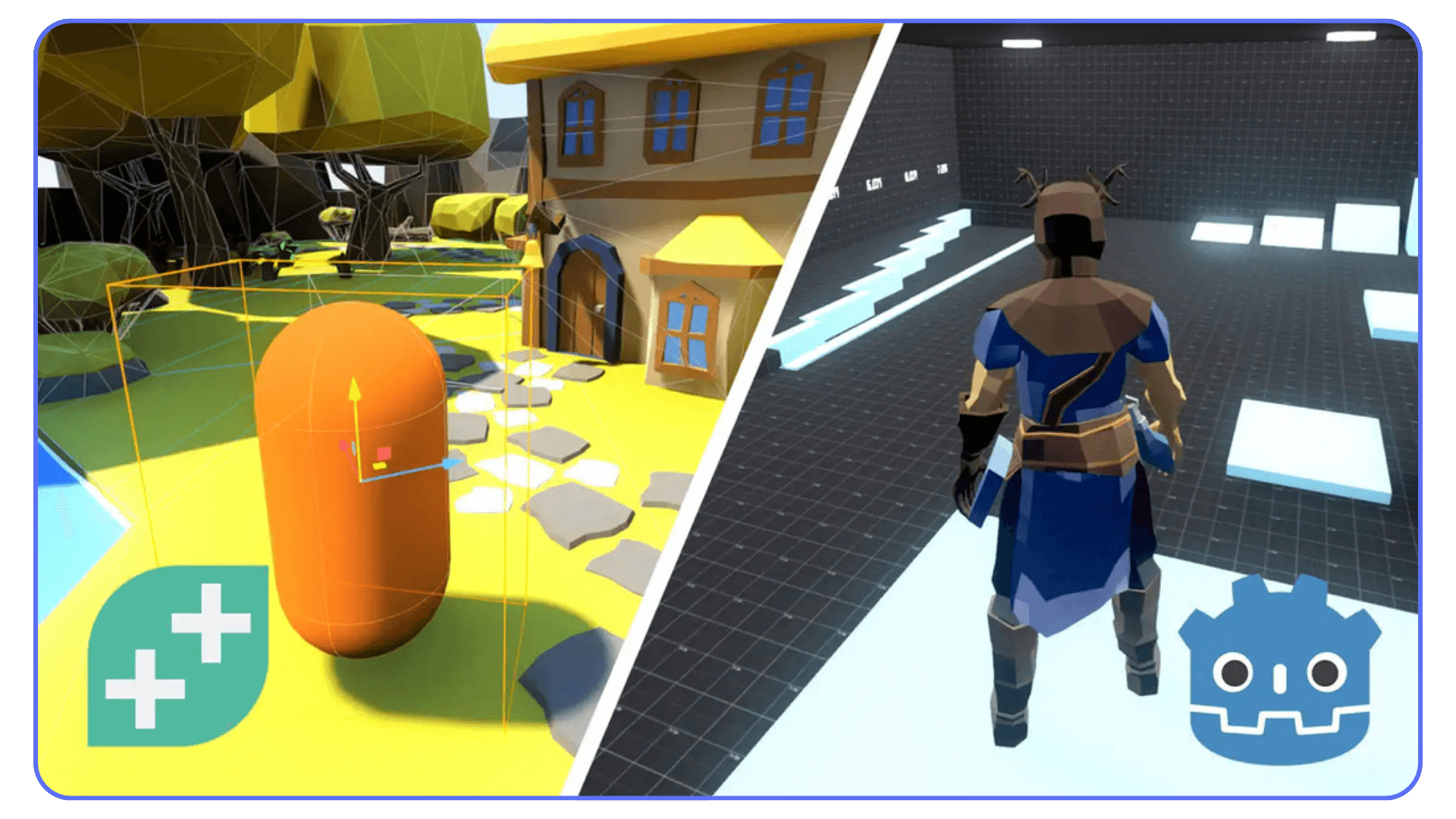
All these plugins have one thing in common. They remove the heavy lifting so you can actually build. They turn the frustrating parts of 3D development into quick, manageable steps. And once you get used to working with them, it’s hard to imagine building a project without them.
Workflow Boosters That Save Time
Some plugins don’t touch gameplay at all, yet they’re the ones that quietly shape your entire development experience. They reduce friction, prevent messy mistakes, and keep your project from turning into a maze of scripts and half-finished ideas.
These are the tools that make everyday work smoother.
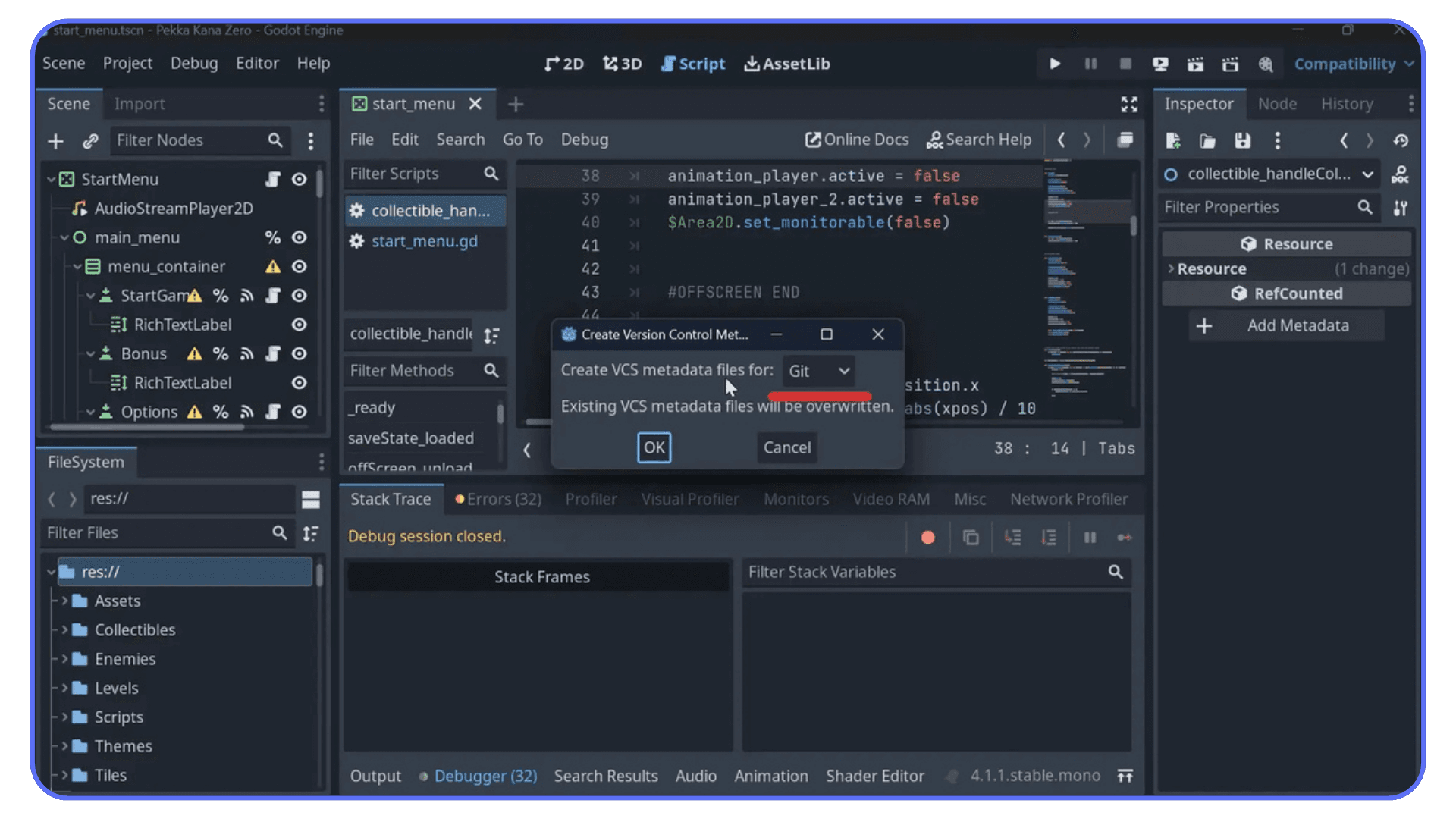
#1. Git Integration Plugin
Everyone knows they should use version control, but many developers only learn that lesson after losing hours of work. This plugin brings commits, diffs, and history right into the editor. No external app, no excuses. It becomes second nature to save meaningful snapshots of your project, and your future self will thank you.
#2. GUT (Godot Unit Test)
Tests aren’t glamorous, but they protect you. GUT lets you automate checks for your scripts, catching mistakes before they snowball into real bugs. A missing variable, a bad return value, a broken state transition… GUT finds these fast. Once you start using it, you wonder how you ever worked without it.
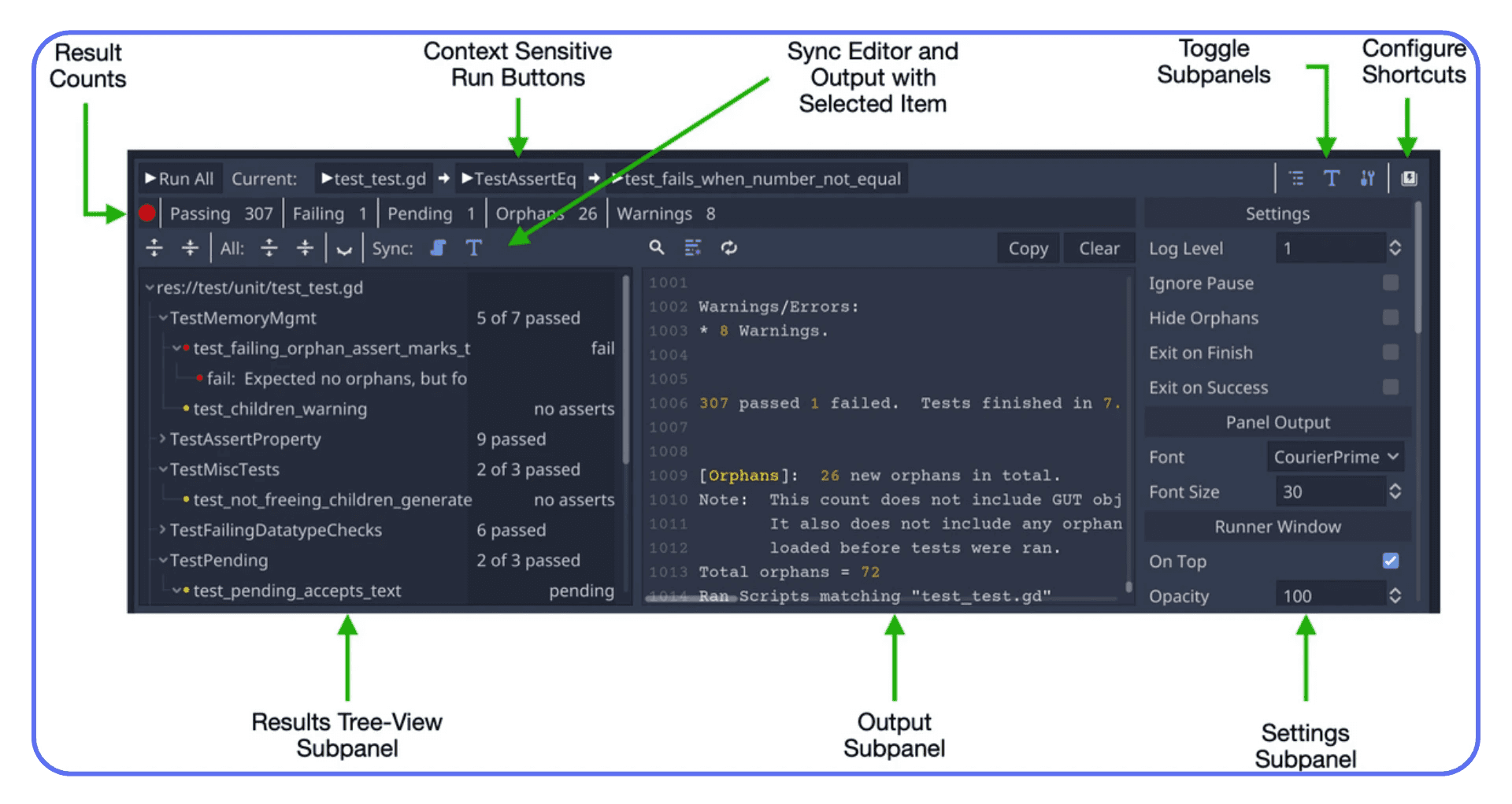
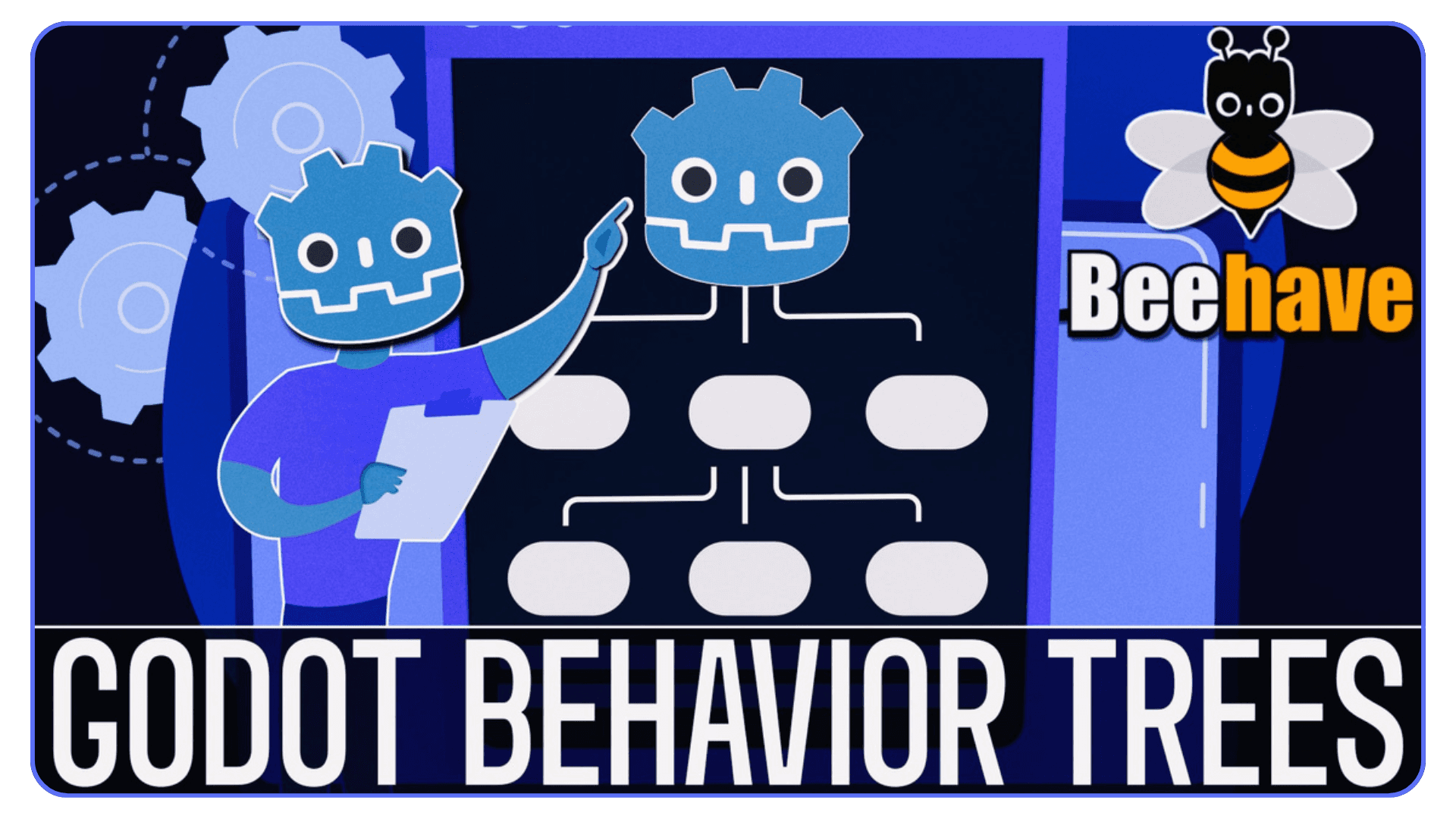
#3. Beehave
Enemy and NPC logic gets messy quickly. Conditionals piled on top of conditionals. States you forgot about. Behaviors that interact in ways you never predicted. Beehave gives you a behavior tree system that makes AI readable and structured. You stop debugging spaghetti and start designing intentional actions.
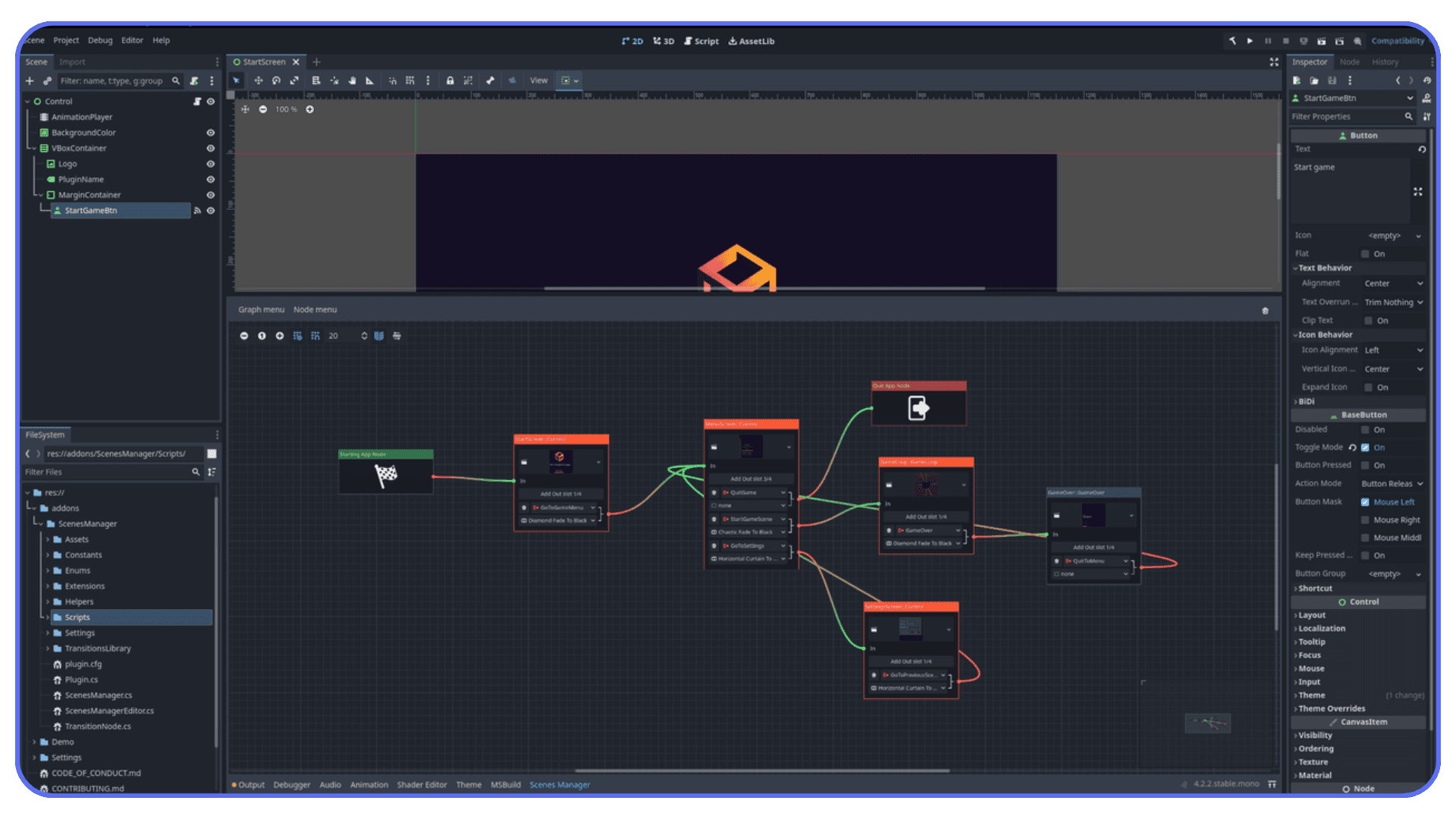
#4. Scene Manager Plugins
If your game uses multiple areas or levels, scene transitions become a headache. A good scene manager plugin handles loading, unloading, and smooth transitions with less boilerplate. It also keeps memory usage cleaner, especially in big projects where every resource matters.
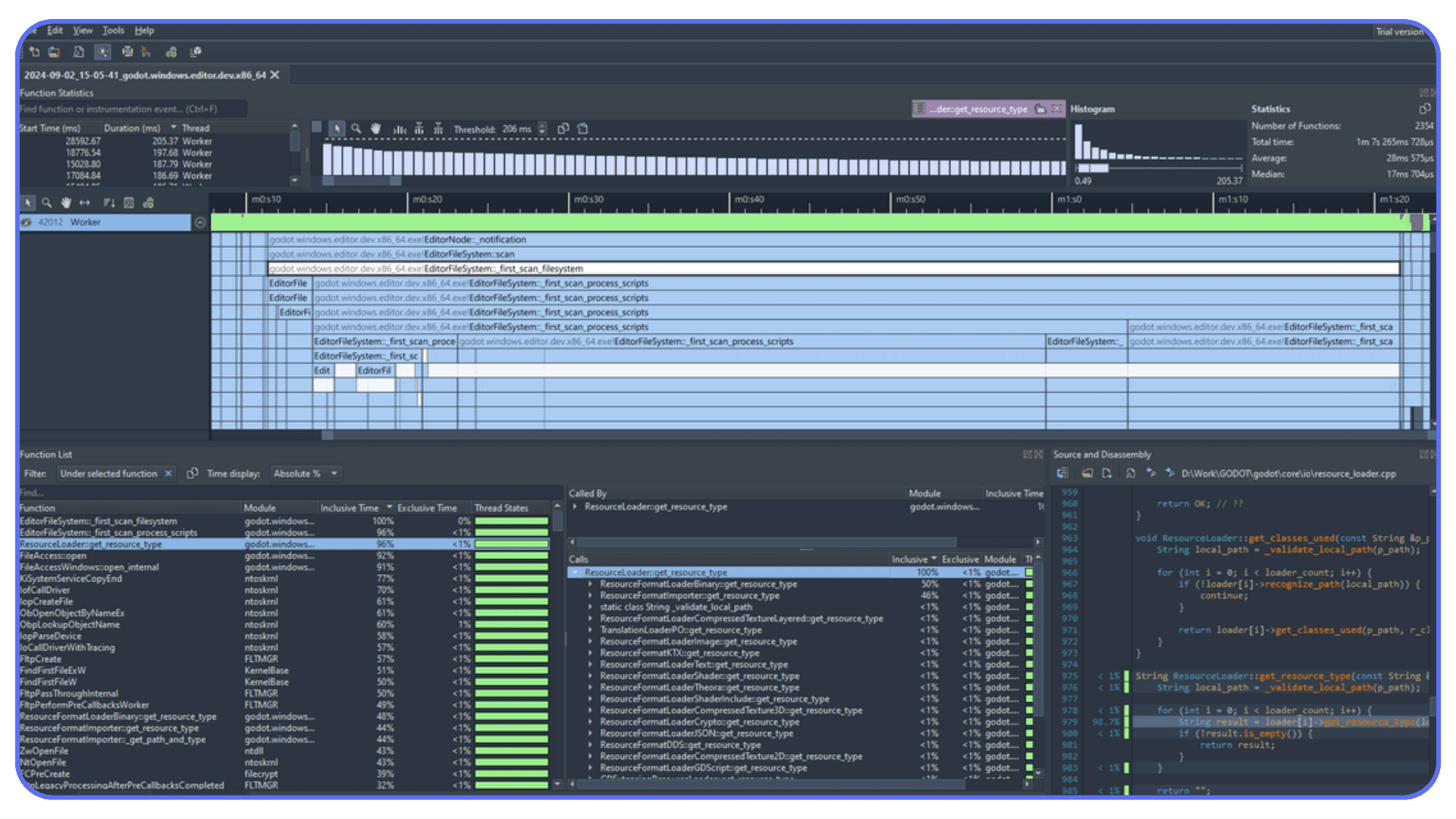
#5. Performance Analysis Tools
When your frame rate drops, guessing is the worst thing you can do. Extra profiling plugins give you deeper insight into where your project is slowing down. Maybe a script runs too often. Maybe a shader is too heavy. Maybe a scene loads too much at once. Data solves problems a lot faster than intuition.
These workflow plugins don’t make flashy changes, but they quietly support everything else you build. They’re the difference between feeling lost in your own project and feeling like you’re building with intention.
Plugins for 2D, UI, and Narrative Work
Not every project is a giant 3D world. Some rely on crisp 2D animation, tight UI, or story moments that actually stick with players. And for those projects, a few plugins feel almost essential.
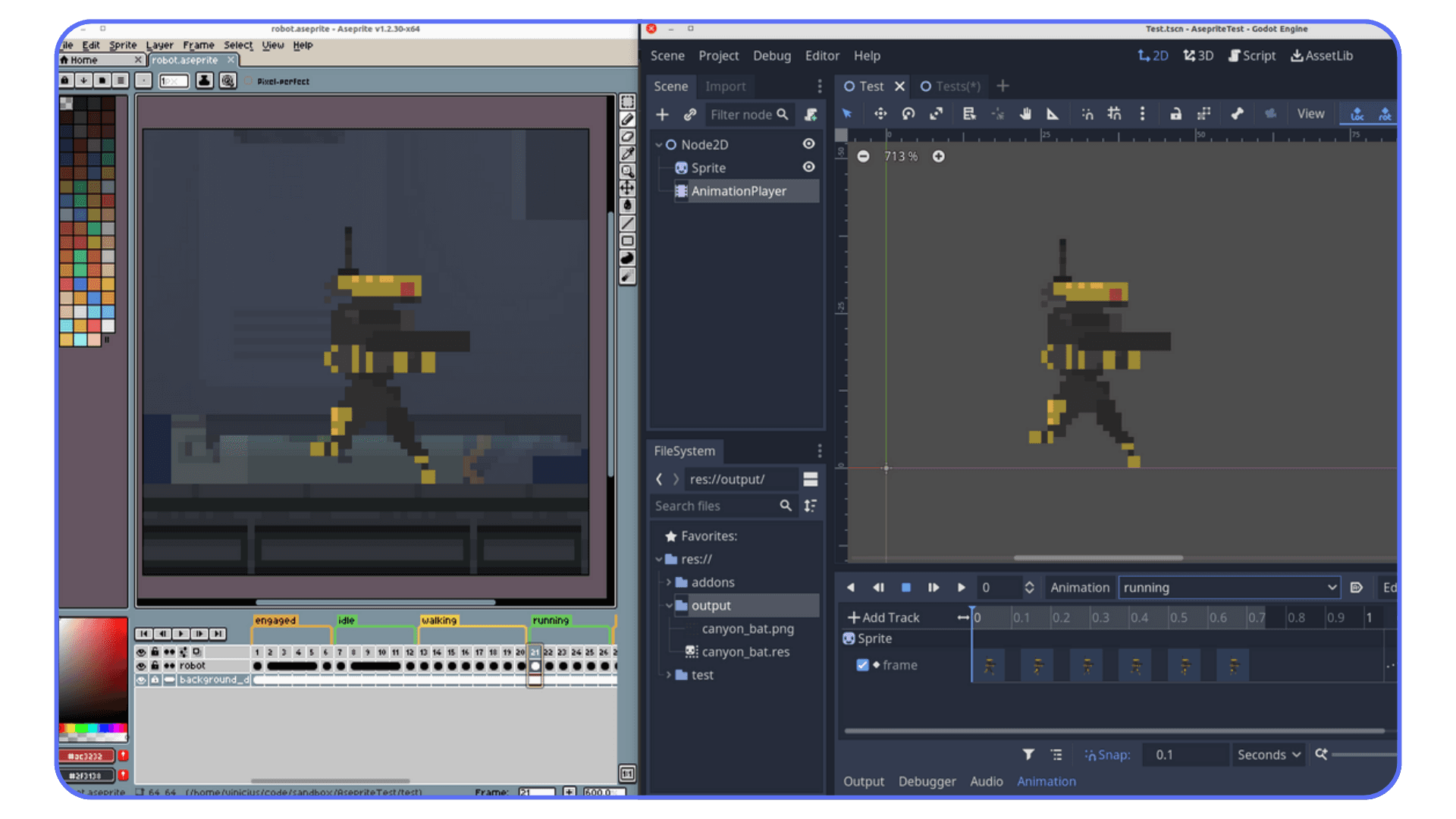
#1. Aseprite Wizard
If you work with pixel art, you already know the pain of exporting animations, aligning frames, slicing sheets, and hoping everything lines up once you import it. Aseprite Wizard skips all of that. You import your .ase file directly and the plugin handles the rest. It saves so much time that it’s almost hard to go back to the manual workflow.
#2. Dialogic
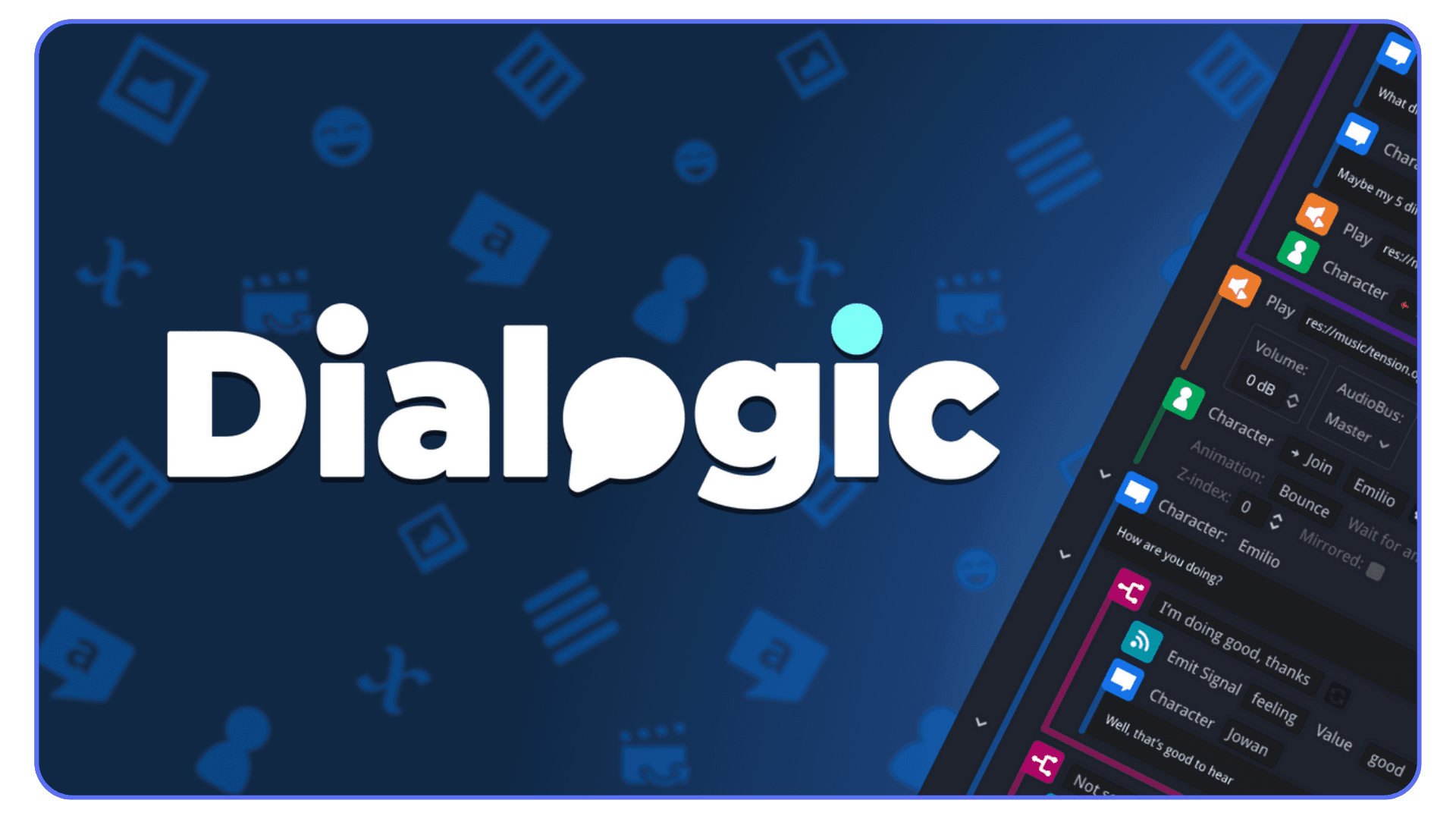
Building a dialogue system from scratch seems easy until it isn’t. Branching choices, conditions, portraits, timing, triggers, variables… it gets complicated fast. Dialogic gives you a clean visual interface where you can build conversations like story blocks. It’s perfect for RPGs, visual novels, and anything where characters actually talk to each other.
#3. Easy Input
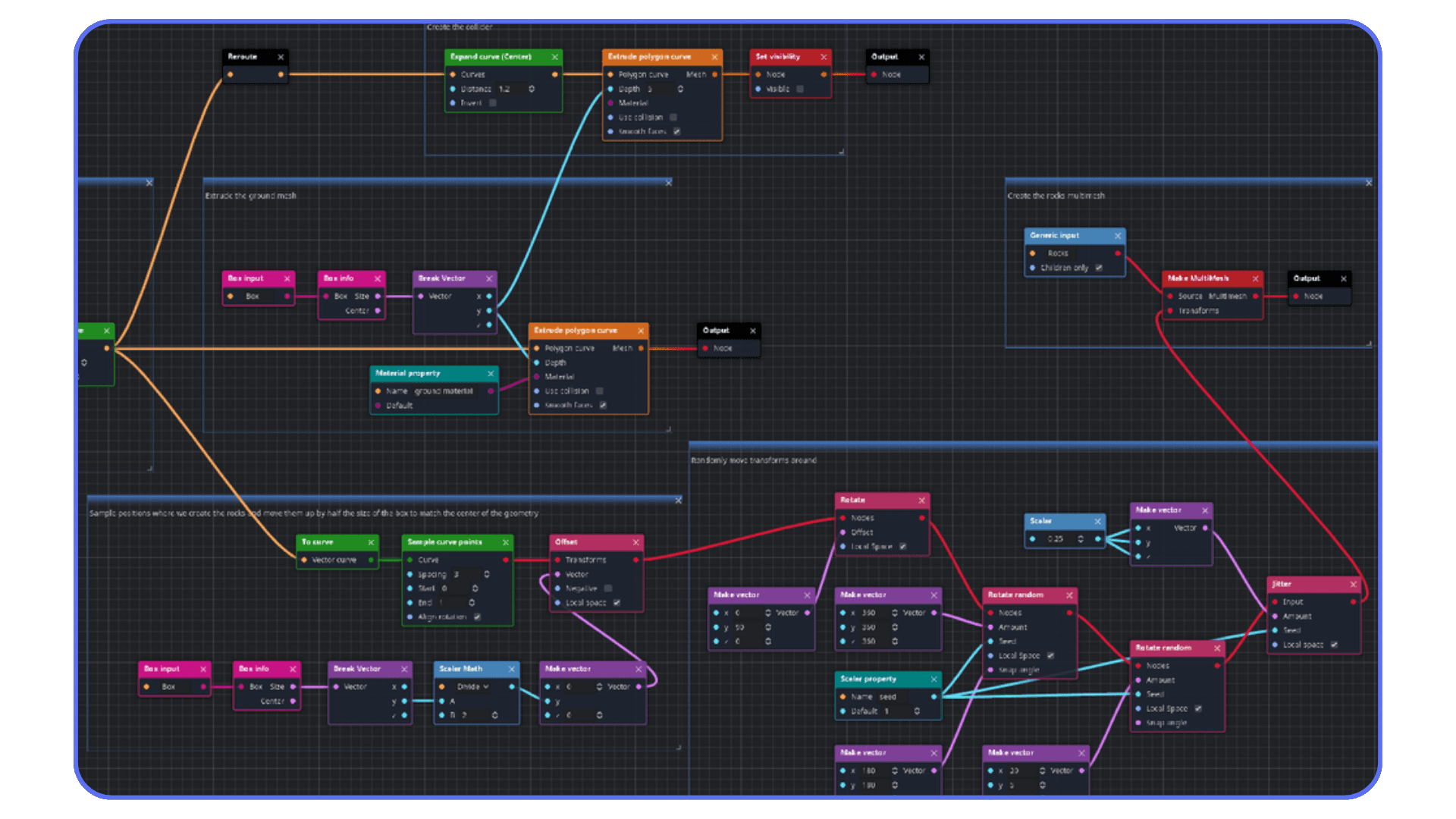
Input mapping is one of those chores that always feels a little too technical for how simple it should be. Easy Input streamlines that setup. You can add bindings, remap them, and build input menus quickly without digging through configuration files every two minutes.
#4. Camera2D Helpers
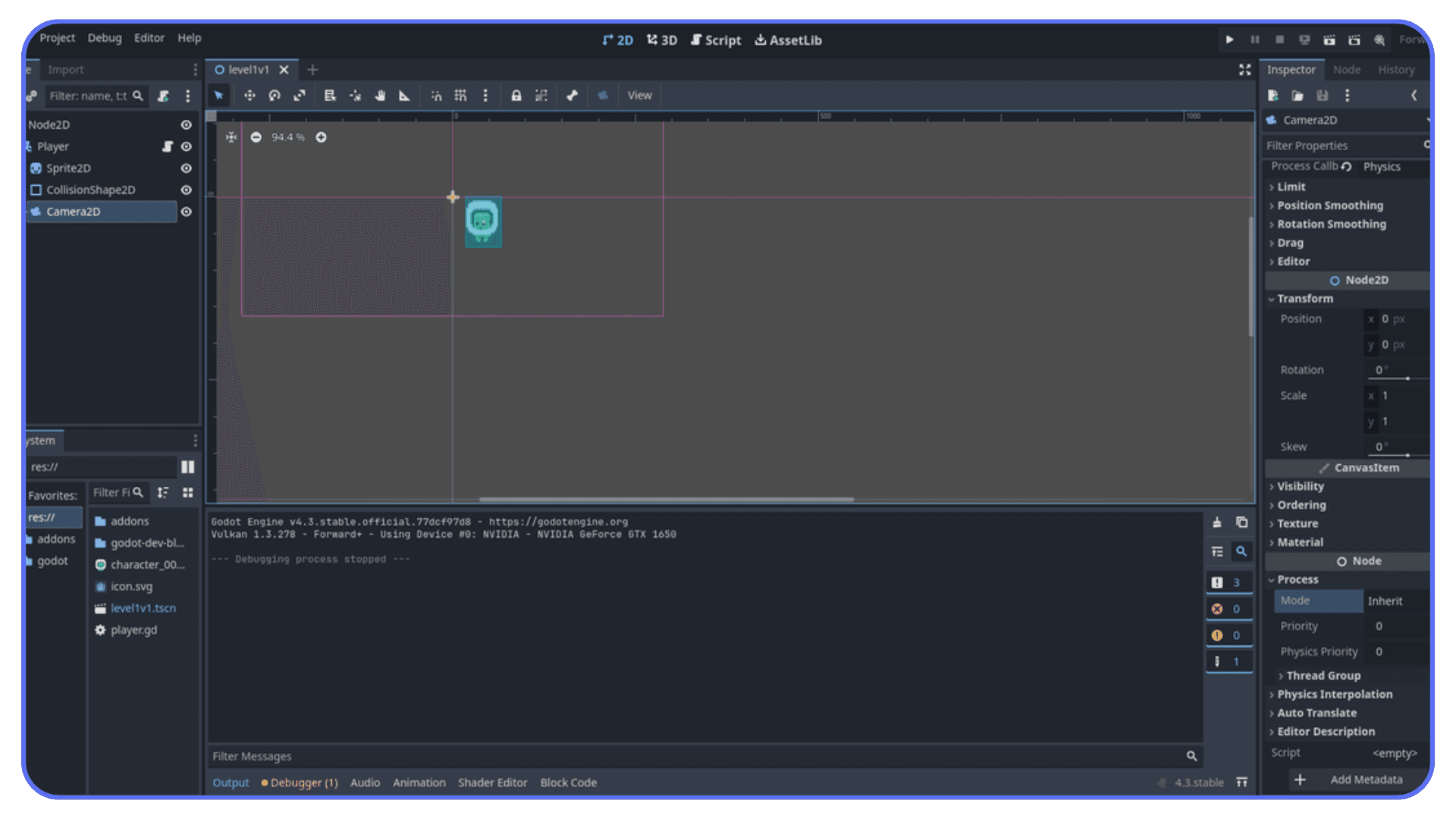
A 2D game lives or dies by how it feels, and camera behavior plays a bigger role than most people admit. Smooth following, easing, limits, screen shake, room transitions… these small pieces can elevate the entire feel of a game. A good helper plugin lets you drop these behaviors in instantly so you can focus on designing scenes instead of writing endless camera scripts.
#5. Ink Integration
If your narrative is more than simple branches, and you prefer writing in an external tool, Ink integration lets you connect Ink scripts to your project cleanly. It’s a great option for story-heavy games where writers want full control without touching code.
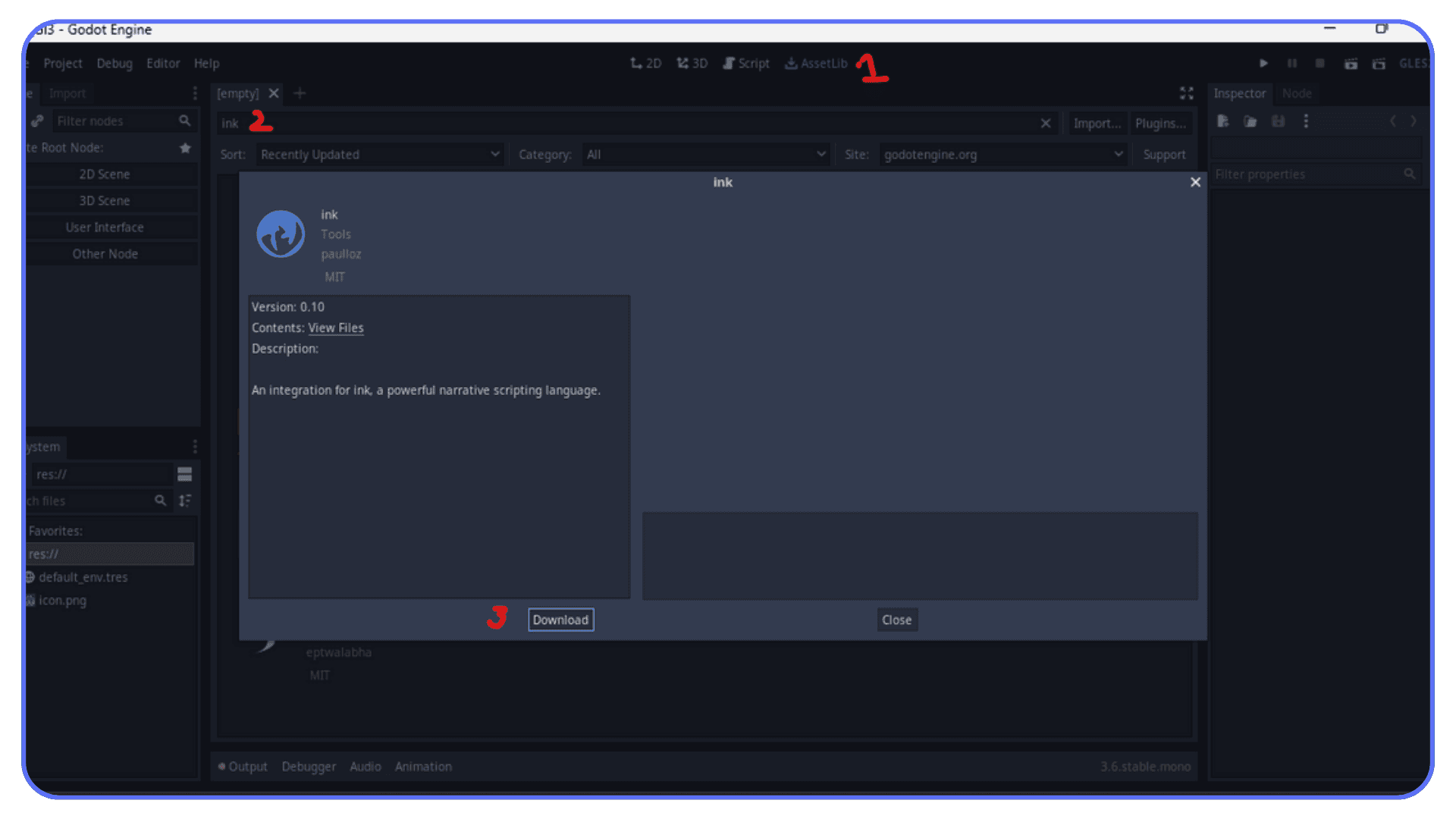
These plugins aren’t huge systems. They’re focused tools that remove pain points in the exact places where 2D and narrative projects tend to slow down. And the time they save stacks quickly. You spend less energy fighting small details and more energy shaping the experience you actually want players to have.
Common Plugin Mistakes to Avoid
Once you discover how much time plugins can save, it’s very easy to get carried away. You install everything that looks interesting, enable them all at once, and suddenly your smooth little project starts behaving like it’s haunted. Most developers hit this stage at least once. It’s normal, but it’s also avoidable.
#1. Installing Too Many Plugins at the Same Time
Every plugin touches something. Maybe it replaces a system. Maybe it injects scripts. Maybe it modifies your scene setup. If you add five or six new tools at once, you lose track of which one changed what. When something breaks, you’re left guessing.
Adding plugins slowly and testing as you go keeps you sane.
If you’re still getting familiar with the editor or want a clearer path to improve your fundamentals, these top Godot tutorials can help you build confidence before jumping into more advanced tools.
#2. Using Outdated or Abandoned Plugins
A plugin might look great, but if it hasn’t been updated in years, you’re taking a risk. Engine updates often break older addons, and outdated tools can cause subtle issues you won’t notice until you’re deep into development.
Always check activity, issues, and last update dates before committing.
#3. Ignoring Version Compatibility
If you switch engine versions during development, some plugins won’t follow. A feature that worked yesterday might completely collapse today. This is one of the easiest traps to fall into, especially when you’re excited about trying new engine features.
Lock your plugin versions when your project gets serious.
#4. Using Heavy Plugins for Small Problems
Some plugins come with a lot of moving parts. They might fix one issue you’re having, but they also bring two dozen systems you don’t actually need. That extra baggage shows up in performance, scene load times, or memory usage.
Make sure the plugin solves a meaningful problem before adding it to your toolbox.
If you’re curious how Godot’s feature set compares to other tools, this breakdown on exploring game engines gives helpful context when deciding which plugins or workflows fit your style.
#5. Not Testing in Isolation
The fastest way to break a project is to drop a new plugin into your main scene without testing it first. A small conflict in one script can cascade into hours of debugging.
Test plugins in a sandbox scene before adding them to your real game.
Developers love plugins because they make life easier, but only when they’re added intentionally. A little discipline here saves a lot of time later.
A Safe Workflow for Plugin Testing
Adding plugins is exciting, but testing them safely is what keeps your project from turning into a science experiment gone wrong. A clean workflow lets you explore new tools without putting your main game at risk.
Start by Duplicating Your Project
Before trying anything new, make a copy of your project folder. It takes a few seconds and saves you from the nightmare of digging through broken scenes trying to remember what you changed. A stable backup is the best safety net you can have.
Use a Sandbox Scene
Don’t drop a new plugin into your full game right away. Create a simple test scene. Add only the objects you need. Try the plugin’s core features. See how it behaves. If something glitches here, you’ve saved yourself hours of hunting through your real project.
A lot of early mistakes come from unclear workflows, and it happens across all engines. This guide on common Unreal Engine beginner mistakes shows patterns that apply to Godot users too.
Enable One Plugin at a Time
This feels obvious, but nobody follows it until they learn the hard way. Installing multiple plugins at once makes it impossible to know which one caused a problem. Enable one, explore it, disable it if needed, then move to the next.
Document Plugin Versions
As your project grows, your plugin setup becomes part of your foundation. Write down the version number of each plugin and the date you installed it. If something breaks after an update, you’ll know exactly where to look.
Keep a Clean “Reference Project”
Some developers maintain a small, empty Godot project where no scripts, plugins, or custom settings exist. It’s a neutral testing ground. Anytime you’re unsure whether a plugin conflict is coming from your game or the plugin itself, drop it into the reference project and see how it behaves.
If you’re planning a hardware upgrade or want to know what kind of machine handles plugin-heavy projects smoothly, here’s a detailed look at the best PC builds for Unity, which applies well to similar workloads.
Disable What You Don’t Use
A plugin you needed two months ago might not be relevant anymore. Leaving unused addons active can create hidden conflicts down the road. If a plugin isn’t actively helping your game, disable it. Keep your workspace lean.
This workflow isn’t complicated. It’s just a set of habits that protect your momentum. Plugins should help you build faster, not slow you down with unexpected chaos. A safe testing routine makes all the difference.
Testing Plugins Efficiently with Vagon Cloud Computer
Vagon Cloud Computer gives you a dedicated workspace that’s perfect for experimenting with plugins without touching your main setup. You can open a fresh machine, choose the engine version you want, and install any plugin you’re curious about. If something breaks or behaves strangely, you reset the machine and start clean in seconds. No clutter. No conflicts. No digging through folders trying to undo changes.
This setup is especially helpful when you’re testing performance heavy tools or large scenes. Instead of pushing your personal laptop to its limit, you can switch to a more powerful machine on demand. It keeps testing smooth and lets you focus on how the plugin behaves, not how hard your hardware is struggling.
Sharing work is straightforward too. Instead of packaging builds or explaining settings, you share a link and your teammate sees the project exactly the way you see it. Same environment, same performance, same setup.
For developers who try a lot of tools and iterate quickly, Vagon Cloud Computer removes the mess and gives you a clean space to test ideas freely. It keeps your main system stable while giving you room to explore.
If you enjoy testing workflows on different platforms, you might also like seeing how creators run Unreal Engine 5 on iPad, since the same flexibility mindset applies when experimenting with cloud setups.
Final Thoughts
Plugins don’t replace skill, but they make the process a lot smoother. They give you shortcuts through the boring parts and help you reach the version of your game you actually want to build. Some handle the heavy lifting in 3D scenes. Others clean up your workflow. Some just save you from rewriting the same script for the twentieth time.
The trick is knowing which tools truly help your project and testing them in a way that doesn’t slow you down. A clean setup, a good testing routine, and the right place to experiment make a big difference. Once you have that foundation, exploring new plugins becomes fun instead of risky.
If you’re the type who likes trying new tools and pushing the engine to see what’s possible, having a separate space where you can break things freely is invaluable. It keeps your main project safe and your creativity flowing.
If you want structured learning paths to complement plugin experimentation, here are some excellent game development courses worth checking out.
FAQs
1. Do I need plugins to make a full game?
Not necessarily. You can build an entire project using only the built-in tools. Plugins just speed up the parts that tend to slow people down, especially polishing movement, building terrain, handling AI, or managing larger scenes.
2. Will plugins slow down my project?
Some might, especially heavy systems or tools that add extra layers on top of your scenes. That’s why testing in a separate environment and using only the plugins you genuinely need is important.
3. Is it safe to update plugins during development?
It depends. Updates can introduce breaking changes. Before updating, save a duplicate of your project and test the new version there. If everything works, then update your main project.
4. How many plugins are too many?
There’s no exact number, but if you don’t know what half your plugins are doing, it’s too many. A good rule is to keep only the ones that actively support your current feature set.
5. Where should I download plugins from?
Use the built-in asset library or trusted repositories from the community. Active maintenance, clear documentation, and recent updates are good signs.
6. Can plugins conflict with one another?
Yes. Two plugins that modify similar systems can cause unexpected behavior. Testing them individually before combining them helps avoid surprises.
7. Should I use plugins while learning the engine?
Sure, as long as you don’t rely on them to replace fundamentals. They’re great for learning how certain systems can be structured, and you can always study how they work under the hood.
8. How do I clean up my project if a plugin left files behind?
Manually removing leftover folders works, but this is exactly why testing in a separate workspace is safer. It keeps your main project from becoming cluttered.
9. What if my computer struggles with heavy plugin testing?
This is where cloud machines shine. Offloading plugin testing to a clean, powerful environment keeps your local hardware free and your project stable.
The first time I tried building a small prototype, I thought the built-in tools would take me all the way. I placed a few objects, slapped together a basic player controller, and started tweaking the scene. Everything felt fine until I tried to polish the details. The camera didn’t move quite the way I wanted. The physics had a strange wobble I couldn’t get rid of. A simple task like scattering props turned into a repetitive chore that drained all the fun out of the session.
That moment is when most developers realize the base editor is good, but not always enough. It gives you a foundation, not a fully equipped workshop. Once you push past early prototypes, you start feeling the gaps. Movement feels okay, but not quite smooth. Lighting works, but needs more nuance. AI scripts do the job, but lack structure. And every small limitation slows down your momentum.
Plugins fix that problem. They speed up iteration by removing the repetitive, low-value steps. Instead of wrestling with a camera system for two hours, you install a plugin that already handles smoothing, transitions, and following logic. Instead of sculpting terrain by hand and fighting mesh settings, you use a tool built for that exact task. Your energy goes into designing, not repairing.
They also raise the ceiling on what your project can look and feel like. Good plugins give you polish without forcing you to rebuild features from scratch. They let you add small touches and big systems alike without derailing your workflow.
And the best part is that installing them is simple. Open the asset library, choose the plugin you want, download it, and enable it in your project settings. If you grab an addon from a repo, you just drop it into your project folder and restart the editor. No complicated setup. No long configuration.
Most people don’t start with plugins. They arrive there after hitting their first wall. Once you add the right tools, though, the whole development process opens up.
Here’s your short 2026 update section with a clear heading, matching the tone and flow:
What’s Changed About Plugins in 2026
A couple of years ago, plugins felt like optional upgrades. Nice to have, not essential.
That’s not really true anymore.
In 2026, plugins are starting to feel like part of the default toolkit, especially once your project moves past the prototype phase.
Here’s what’s actually changed:
Plugins are getting more specialized.
Instead of “do everything” tools, we’re seeing smaller, focused plugins that solve one problem really well. Better camera systems. Smarter AI behaviors. Cleaner terrain workflows. Less bloat, more precision.
AI is creeping into plugin workflows.
Some tools now help generate behaviors, assist with level layout, or speed up repetitive setup tasks. It’s not magic, but it cuts down the grunt work in a noticeable way.
Performance matters more than features.
Developers are less impressed by huge feature lists and more focused on whether a plugin is lightweight, stable, and actively maintained. A flashy tool that tanks your FPS? No one’s touching it twice.
Compatibility is finally a bigger conversation.
With faster engine updates, plugin breakage is a real concern. More devs are locking versions, testing in isolation, and treating plugins like core dependencies, not throwaway add-ons.
Cloud testing is becoming part of the workflow.
This one surprised me a bit. Instead of risking their main setup, more developers are testing plugins in clean, separate environments. Especially when dealing with heavy tools or unstable builds.
That’s where something like Vagon Cloud Computer fits naturally.
Not as a replacement for your machine, but as a safe testing ground. Spin up a clean setup, try the plugin, break things if you want, then walk away without touching your main project.
And honestly, that changes how willing you are to experiment.
Because the real shift in 2026 isn’t just better plugins.
It’s that developers are getting smarter about how they use them.
Essential Plugins for 3D Projects
Working in 3D is exciting until you hit the first real friction point. Maybe the physics feel unpredictable. Maybe your terrain looks like a flat sheet of paper no matter how much you tweak it. Maybe you spend half an hour placing rocks one by one and realize you’ve barely filled ten percent of the scene. This is where the right plugins stop being optional and start feeling like part of the core toolkit.
Here are the ones that consistently save time and polish your results.
#1. Godot Jolt
If you’ve ever had objects jitter, clip, or explode into the sky for no reason, you know the built-in physics can get weird. Godot Jolt replaces that system with a more stable backend. Rigid bodies behave correctly. Collisions feel consistent. Fast-moving objects stop teleporting through walls. It makes your whole project feel sturdier.
#2. Terrain3D
Hand-building terrain is one of the fastest ways to lose an entire evening. Terrain3D lets you sculpt hills, paint textures, smooth edges, and iterate naturally. It feels like working with real terrain instead of fighting a mesh. For any outdoor level, this plugin is a game changer.
#3. ProtonScatter
If you’ve ever tried populating a forest manually, you know the pain. Place a tree. Duplicate it. Rotate it slightly. Nudge it. Repeat three hundred times. ProtonScatter automates that process. It spreads props across your terrain with natural variation, saving hours while giving you better results than manual placement ever would.
#4. Phantom Camera
Camera feel can make or break a 3D game. The built-in tools work, but they take a lot of extra work to feel smooth. Phantom Camera handles transitions, collisions, follow logic, zooming, and more. It gives your project a cinematic feel without you wrestling with a dozen scripts.
#5. Character Controller Packs
Sometimes you just want to test an idea without rebuilding movement from scratch. These packs give you ready-to-use first-person or third-person controllers that already feel decent. Not perfect, but good enough to let you focus on level design or mechanics instead of redoing the basics yet again.
All these plugins have one thing in common. They remove the heavy lifting so you can actually build. They turn the frustrating parts of 3D development into quick, manageable steps. And once you get used to working with them, it’s hard to imagine building a project without them.
Workflow Boosters That Save Time
Some plugins don’t touch gameplay at all, yet they’re the ones that quietly shape your entire development experience. They reduce friction, prevent messy mistakes, and keep your project from turning into a maze of scripts and half-finished ideas.
These are the tools that make everyday work smoother.
#1. Git Integration Plugin
Everyone knows they should use version control, but many developers only learn that lesson after losing hours of work. This plugin brings commits, diffs, and history right into the editor. No external app, no excuses. It becomes second nature to save meaningful snapshots of your project, and your future self will thank you.
#2. GUT (Godot Unit Test)
Tests aren’t glamorous, but they protect you. GUT lets you automate checks for your scripts, catching mistakes before they snowball into real bugs. A missing variable, a bad return value, a broken state transition… GUT finds these fast. Once you start using it, you wonder how you ever worked without it.
#3. Beehave
Enemy and NPC logic gets messy quickly. Conditionals piled on top of conditionals. States you forgot about. Behaviors that interact in ways you never predicted. Beehave gives you a behavior tree system that makes AI readable and structured. You stop debugging spaghetti and start designing intentional actions.
#4. Scene Manager Plugins
If your game uses multiple areas or levels, scene transitions become a headache. A good scene manager plugin handles loading, unloading, and smooth transitions with less boilerplate. It also keeps memory usage cleaner, especially in big projects where every resource matters.
#5. Performance Analysis Tools
When your frame rate drops, guessing is the worst thing you can do. Extra profiling plugins give you deeper insight into where your project is slowing down. Maybe a script runs too often. Maybe a shader is too heavy. Maybe a scene loads too much at once. Data solves problems a lot faster than intuition.
These workflow plugins don’t make flashy changes, but they quietly support everything else you build. They’re the difference between feeling lost in your own project and feeling like you’re building with intention.
Plugins for 2D, UI, and Narrative Work
Not every project is a giant 3D world. Some rely on crisp 2D animation, tight UI, or story moments that actually stick with players. And for those projects, a few plugins feel almost essential.
#1. Aseprite Wizard
If you work with pixel art, you already know the pain of exporting animations, aligning frames, slicing sheets, and hoping everything lines up once you import it. Aseprite Wizard skips all of that. You import your .ase file directly and the plugin handles the rest. It saves so much time that it’s almost hard to go back to the manual workflow.
#2. Dialogic
Building a dialogue system from scratch seems easy until it isn’t. Branching choices, conditions, portraits, timing, triggers, variables… it gets complicated fast. Dialogic gives you a clean visual interface where you can build conversations like story blocks. It’s perfect for RPGs, visual novels, and anything where characters actually talk to each other.
#3. Easy Input
Input mapping is one of those chores that always feels a little too technical for how simple it should be. Easy Input streamlines that setup. You can add bindings, remap them, and build input menus quickly without digging through configuration files every two minutes.
#4. Camera2D Helpers
A 2D game lives or dies by how it feels, and camera behavior plays a bigger role than most people admit. Smooth following, easing, limits, screen shake, room transitions… these small pieces can elevate the entire feel of a game. A good helper plugin lets you drop these behaviors in instantly so you can focus on designing scenes instead of writing endless camera scripts.
#5. Ink Integration
If your narrative is more than simple branches, and you prefer writing in an external tool, Ink integration lets you connect Ink scripts to your project cleanly. It’s a great option for story-heavy games where writers want full control without touching code.
These plugins aren’t huge systems. They’re focused tools that remove pain points in the exact places where 2D and narrative projects tend to slow down. And the time they save stacks quickly. You spend less energy fighting small details and more energy shaping the experience you actually want players to have.
Common Plugin Mistakes to Avoid
Once you discover how much time plugins can save, it’s very easy to get carried away. You install everything that looks interesting, enable them all at once, and suddenly your smooth little project starts behaving like it’s haunted. Most developers hit this stage at least once. It’s normal, but it’s also avoidable.
#1. Installing Too Many Plugins at the Same Time
Every plugin touches something. Maybe it replaces a system. Maybe it injects scripts. Maybe it modifies your scene setup. If you add five or six new tools at once, you lose track of which one changed what. When something breaks, you’re left guessing.
Adding plugins slowly and testing as you go keeps you sane.
If you’re still getting familiar with the editor or want a clearer path to improve your fundamentals, these top Godot tutorials can help you build confidence before jumping into more advanced tools.
#2. Using Outdated or Abandoned Plugins
A plugin might look great, but if it hasn’t been updated in years, you’re taking a risk. Engine updates often break older addons, and outdated tools can cause subtle issues you won’t notice until you’re deep into development.
Always check activity, issues, and last update dates before committing.
#3. Ignoring Version Compatibility
If you switch engine versions during development, some plugins won’t follow. A feature that worked yesterday might completely collapse today. This is one of the easiest traps to fall into, especially when you’re excited about trying new engine features.
Lock your plugin versions when your project gets serious.
#4. Using Heavy Plugins for Small Problems
Some plugins come with a lot of moving parts. They might fix one issue you’re having, but they also bring two dozen systems you don’t actually need. That extra baggage shows up in performance, scene load times, or memory usage.
Make sure the plugin solves a meaningful problem before adding it to your toolbox.
If you’re curious how Godot’s feature set compares to other tools, this breakdown on exploring game engines gives helpful context when deciding which plugins or workflows fit your style.
#5. Not Testing in Isolation
The fastest way to break a project is to drop a new plugin into your main scene without testing it first. A small conflict in one script can cascade into hours of debugging.
Test plugins in a sandbox scene before adding them to your real game.
Developers love plugins because they make life easier, but only when they’re added intentionally. A little discipline here saves a lot of time later.
A Safe Workflow for Plugin Testing
Adding plugins is exciting, but testing them safely is what keeps your project from turning into a science experiment gone wrong. A clean workflow lets you explore new tools without putting your main game at risk.
Start by Duplicating Your Project
Before trying anything new, make a copy of your project folder. It takes a few seconds and saves you from the nightmare of digging through broken scenes trying to remember what you changed. A stable backup is the best safety net you can have.
Use a Sandbox Scene
Don’t drop a new plugin into your full game right away. Create a simple test scene. Add only the objects you need. Try the plugin’s core features. See how it behaves. If something glitches here, you’ve saved yourself hours of hunting through your real project.
A lot of early mistakes come from unclear workflows, and it happens across all engines. This guide on common Unreal Engine beginner mistakes shows patterns that apply to Godot users too.
Enable One Plugin at a Time
This feels obvious, but nobody follows it until they learn the hard way. Installing multiple plugins at once makes it impossible to know which one caused a problem. Enable one, explore it, disable it if needed, then move to the next.
Document Plugin Versions
As your project grows, your plugin setup becomes part of your foundation. Write down the version number of each plugin and the date you installed it. If something breaks after an update, you’ll know exactly where to look.
Keep a Clean “Reference Project”
Some developers maintain a small, empty Godot project where no scripts, plugins, or custom settings exist. It’s a neutral testing ground. Anytime you’re unsure whether a plugin conflict is coming from your game or the plugin itself, drop it into the reference project and see how it behaves.
If you’re planning a hardware upgrade or want to know what kind of machine handles plugin-heavy projects smoothly, here’s a detailed look at the best PC builds for Unity, which applies well to similar workloads.
Disable What You Don’t Use
A plugin you needed two months ago might not be relevant anymore. Leaving unused addons active can create hidden conflicts down the road. If a plugin isn’t actively helping your game, disable it. Keep your workspace lean.
This workflow isn’t complicated. It’s just a set of habits that protect your momentum. Plugins should help you build faster, not slow you down with unexpected chaos. A safe testing routine makes all the difference.
Testing Plugins Efficiently with Vagon Cloud Computer
Vagon Cloud Computer gives you a dedicated workspace that’s perfect for experimenting with plugins without touching your main setup. You can open a fresh machine, choose the engine version you want, and install any plugin you’re curious about. If something breaks or behaves strangely, you reset the machine and start clean in seconds. No clutter. No conflicts. No digging through folders trying to undo changes.
This setup is especially helpful when you’re testing performance heavy tools or large scenes. Instead of pushing your personal laptop to its limit, you can switch to a more powerful machine on demand. It keeps testing smooth and lets you focus on how the plugin behaves, not how hard your hardware is struggling.
Sharing work is straightforward too. Instead of packaging builds or explaining settings, you share a link and your teammate sees the project exactly the way you see it. Same environment, same performance, same setup.
For developers who try a lot of tools and iterate quickly, Vagon Cloud Computer removes the mess and gives you a clean space to test ideas freely. It keeps your main system stable while giving you room to explore.
If you enjoy testing workflows on different platforms, you might also like seeing how creators run Unreal Engine 5 on iPad, since the same flexibility mindset applies when experimenting with cloud setups.
Final Thoughts
Plugins don’t replace skill, but they make the process a lot smoother. They give you shortcuts through the boring parts and help you reach the version of your game you actually want to build. Some handle the heavy lifting in 3D scenes. Others clean up your workflow. Some just save you from rewriting the same script for the twentieth time.
The trick is knowing which tools truly help your project and testing them in a way that doesn’t slow you down. A clean setup, a good testing routine, and the right place to experiment make a big difference. Once you have that foundation, exploring new plugins becomes fun instead of risky.
If you’re the type who likes trying new tools and pushing the engine to see what’s possible, having a separate space where you can break things freely is invaluable. It keeps your main project safe and your creativity flowing.
If you want structured learning paths to complement plugin experimentation, here are some excellent game development courses worth checking out.
FAQs
1. Do I need plugins to make a full game?
Not necessarily. You can build an entire project using only the built-in tools. Plugins just speed up the parts that tend to slow people down, especially polishing movement, building terrain, handling AI, or managing larger scenes.
2. Will plugins slow down my project?
Some might, especially heavy systems or tools that add extra layers on top of your scenes. That’s why testing in a separate environment and using only the plugins you genuinely need is important.
3. Is it safe to update plugins during development?
It depends. Updates can introduce breaking changes. Before updating, save a duplicate of your project and test the new version there. If everything works, then update your main project.
4. How many plugins are too many?
There’s no exact number, but if you don’t know what half your plugins are doing, it’s too many. A good rule is to keep only the ones that actively support your current feature set.
5. Where should I download plugins from?
Use the built-in asset library or trusted repositories from the community. Active maintenance, clear documentation, and recent updates are good signs.
6. Can plugins conflict with one another?
Yes. Two plugins that modify similar systems can cause unexpected behavior. Testing them individually before combining them helps avoid surprises.
7. Should I use plugins while learning the engine?
Sure, as long as you don’t rely on them to replace fundamentals. They’re great for learning how certain systems can be structured, and you can always study how they work under the hood.
8. How do I clean up my project if a plugin left files behind?
Manually removing leftover folders works, but this is exactly why testing in a separate workspace is safer. It keeps your main project from becoming cluttered.
9. What if my computer struggles with heavy plugin testing?
This is where cloud machines shine. Offloading plugin testing to a clean, powerful environment keeps your local hardware free and your project stable.
Get Beyond Your Computer Performance
Run applications on your cloud computer with the latest generation hardware. No more crashes or lags.

Trial includes 1 hour usage + 7 days of storage.
Summarize with AI

Ready to focus on your creativity?
Vagon gives you the ability to create & render projects, collaborate, and stream applications with the power of the best hardware.

Run heavy applications on any device with
your personal computer on the cloud.
San Francisco, California
Solutions
Vagon Teams
Vagon Streams
Use Cases
© 2026 Vagon. All rights reserved.
Run heavy applications on any device with
your personal computer on the cloud.
San Francisco, California
Solutions
Vagon Teams
Vagon Streams
Use Cases
© 2026 Vagon. All rights reserved.
Run heavy applications on any device with
your personal computer on the cloud.
San Francisco, California
Solutions
Vagon Teams
Vagon Streams
Use Cases
© 2026 Vagon. All rights reserved.