Instant Connection for Pixel Streaming
— New Feature Automated Setup
DaVinci Resolve Keeps Crashing? Common Causes and Fixes by Crash Type
VideoProduction
DaVinci Resolve Keeps Crashing? Common Causes and Fixes by Crash Type
VideoProduction
DaVinci Resolve Keeps Crashing? Common Causes and Fixes by Crash Type
VideoProduction
Table of Contents
DaVinci Resolve crashes are easier to fix when you stop treating them like one big mystery.
The first question is not “Why does Resolve hate my computer?” It’s this: when does it crash?
If Resolve crashes on startup, I’d check plugins and GPU drivers first. If it crashes when opening a project, I’d suspect the project library, cache, or one damaged timeline. If it crashes while importing media, the problem is often a codec, a corrupt clip, or phone footage with a weird frame rate. If it crashes during export, look at the exact percentage where it fails. That number usually points to the clip, effect, or drive causing the problem.
That’s the part people skip. They reinstall DaVinci Resolve, update five random things, delete half their cache, and still end up with the same crash because they never isolated the moment where it happens.
I still remember the night Resolve bailed on me at two percent of a render. Not forty. Not ninety-nine. Two. The fans were spinning, everything looked normal, and then the screen froze like the software had just decided it didn’t feel like working anymore. I stared at it for a good minute, hoping it would magically unfreeze. It didn’t.
Anyone who has used DaVinci Resolve long enough knows that feeling. Resolve is powerful. It can handle color work that makes other editors sweat. But when it breaks, it breaks loudly. Sometimes it crashes in the middle of a simple cut. Sometimes it refuses to launch. Sometimes it waits until the final export just to test your patience.
So this guide is organized around the crash itself.
We’ll look at what to try first when DaVinci Resolve crashes on startup, when opening a project, when importing media, during playback, inside Fusion, during rendering or export, and when the crash clearly looks GPU-related. The goal is not to throw every possible fix at the wall. It’s to help you narrow the problem fast and fix the thing that’s actually breaking your workflow.
Find the Crash Type First
Before you start changing settings, try to name the crash. It sounds obvious, but it saves a lot of time.
If Resolve crashes on startup, start with OFX plugins, GPU drivers, and corrupted preferences.
If Resolve crashes when opening a project, start with the project library, render cache, timeline corruption, or media stored on a slow drive.
If Resolve crashes while importing media, start with the clip itself. Phone footage, variable frame rate files, HEVC 10-bit media, damaged files, and external drives cause more trouble than people expect.
If Resolve crashes during playback or editing, start with GPU memory, render cache, timeline effects, and background apps eating RAM.
If Resolve crashes in Fusion, start by reducing node complexity, caching the comp, lowering preview resolution, or disabling heavy effects one by one.
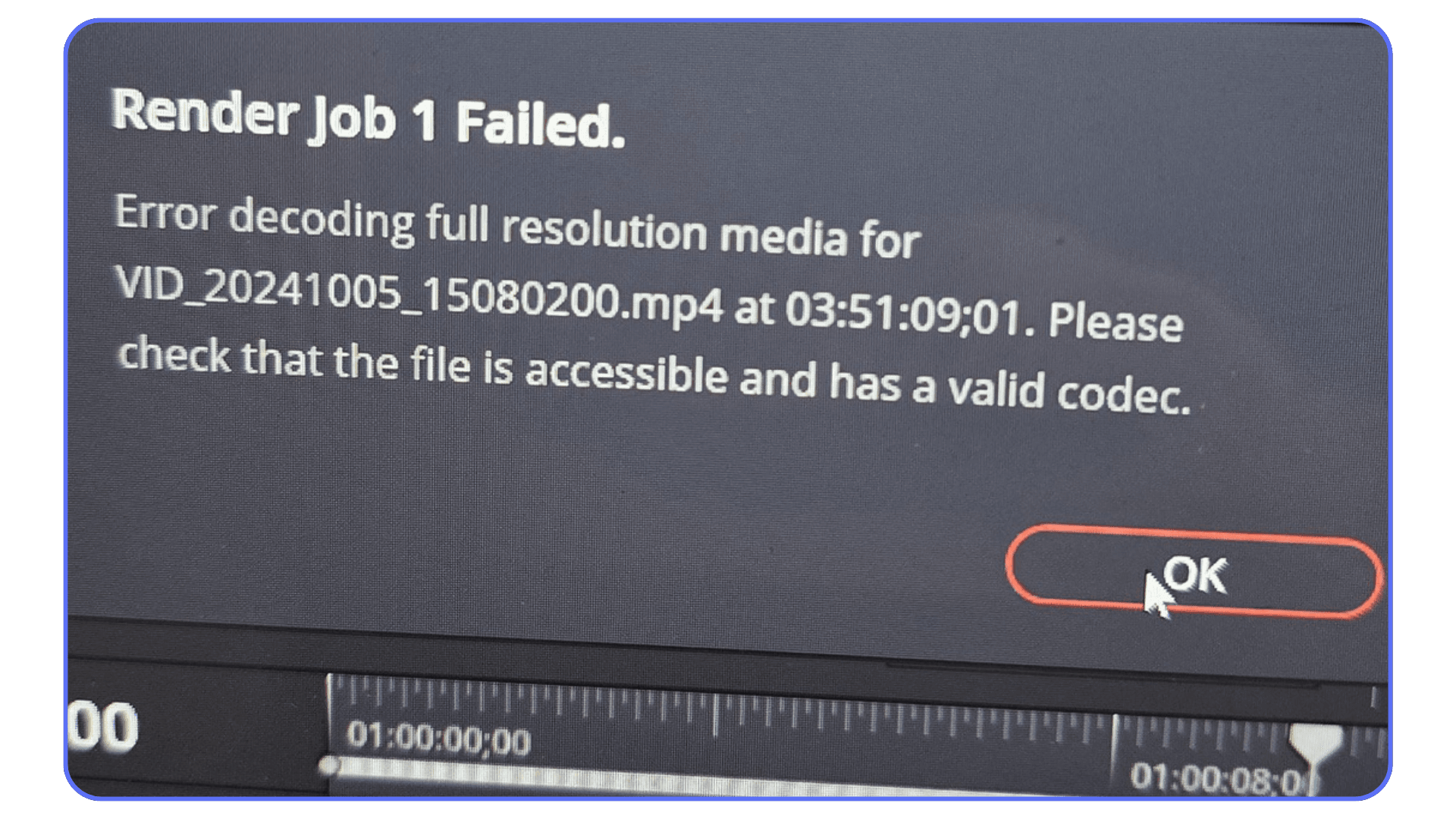
If Resolve crashes during rendering or export, check whether it fails at the same percentage every time. If it does, that spot in the timeline is probably where the problem lives.
If Resolve crashes when using color grading, noise reduction, Magic Mask, Super Scale, or AI tools, treat it like a GPU or VRAM problem first.
That’s the order I’d use. Not because it catches every single crash, but because it catches the boring, common ones first. And boring is good when you’re troubleshooting. Boring usually means fixable.
Why DaVinci Resolve Crashes More Often Than You Think
I’ve used a lot of editing tools over the years, and DaVinci Resolve is easily one of the most capable. It’s also one of the easiest to break when the machine, media, driver, or project file is even slightly out of sync. The funny thing is that most people assume their computer is dying or that they installed Resolve wrong. In reality, the reasons are usually boring and predictable.
Resolve pushes hardware harder than almost any other editing software. Blackmagic built it around heavy GPU processing, which is great for performance but rough for stability if your system isn’t ready for it. Color grading, Fusion, noise reduction, Magic Mask, Super Scale, and newer AI-assisted tools can all hit the GPU hard. I’ve seen machines with solid CPUs fall apart because the GPU was running out of VRAM during Fusion effects. I’ve also seen the opposite: powerful GPUs paired with weak RAM setups that choke during simple color grading.
Another thing people forget is that Resolve reacts badly to small system inconsistencies. Outdated GPU drivers. Odd codecs. Background apps eating memory. A project library that has been upgraded across multiple Resolve versions. Even a plugin you installed months ago can suddenly turn into the reason Resolve crashes on startup.
And it’s not just new users. Experienced editors switching from Premiere Pro or Final Cut Pro run into this too. They expect Resolve to behave like a typical NLE, but it doesn’t. Resolve leans heavily on the GPU, even for tasks that other editors mostly handle with the CPU. If your setup isn’t tuned for that, crashes start to feel random, even when they usually aren’t.
So when you hear about “common causes of DaVinci Resolve crashes,” it’s not hype. The list is real, and most systems hit at least one of those weak points without realizing it.
Common Causes of DaVinci Resolve Crashes
Most Resolve crashes trace back to a handful of troublemakers. The exact fix depends on when the crash happens, but the causes are usually the same cast of characters: GPU pressure, awkward media files, limited system resources, damaged project data, or third-party plugins.
Once you understand these, you can predict almost every “why DaVinci Resolve crashes” moment before it happens. And honestly, half the time it’s something simple that spirals into a full crash.
#1. GPU Problems That Blow Everything Up
If I had to bet on the number one cause, I’d put my money on GPU issues. Resolve leans on the GPU for nearly everything. Color grading, Fusion, noise reduction, playback, timeline scrubbing, Magic Mask, Super Scale, and a lot of the newer AI-assisted features. And when the GPU runs out of VRAM, Resolve usually doesn’t give you a polite warning. It just quits.
Try this first:
Update your GPU driver, but avoid beta drivers.
On Nvidia systems, use the Studio Driver unless you have a specific reason not to.
On laptops, make sure Resolve is using the dedicated GPU, not the integrated one.
Lower timeline resolution or switch to proxy mode before testing again.
Disable Noise Reduction, Fusion effects, Magic Mask, and heavy OFX effects temporarily.
If the crash stops after that, you probably found a GPU or VRAM ceiling.
A few patterns I’ve seen:
Nvidia drivers that haven’t been updated in months
Switching between Studio and Game Ready drivers and forgetting which one Resolve prefers
AMD cards on older Windows builds
Mac systems trying to push heavy Fusion nodes with limited unified memory
Laptops overheating faster than Resolve can offload the load
GPU errors can spiral into startup crashes, playback crashes, Fusion crashes, and export crashes on both Mac and Windows. And when people start searching for Blackmagic Resolve crash solutions, this is usually where they end up.
#2. Codec Chaos: Footage That Makes Resolve Miserable
Smartphone footage is the silent killer here. Variable frame rates, HEVC 10-bit clips, screen recordings, drone clips, and highly compressed files can push Resolve into weird behavior. I’ve seen project timelines lock up because a single clip was recorded on a cheap Android phone at some strange bitrate.
Try this first:
Import one clip at a time instead of dragging in the whole folder.
If the crash happens on one file, transcode that file before blaming the project.
Convert variable frame rate footage to constant frame rate.
Use ProRes, DNxHR, or another edit-friendly codec for difficult clips.
Move media from an external drive to a local SSD and test again.
Resolve can handle most formats, but not all of them gracefully. When media is encoded in a way that doesn’t match your timeline or GPU expectations, playback stalls. Then the software freezes. Then it crashes.
Optimized media fixes a lot of this. Proxy media helps too. But many people don’t know that the problem came from codecs in the first place, so they waste an hour changing GPU settings when the real villain is one ugly phone clip.
#3. System Resource Limits
Even powerful machines can choke. Resolve doesn’t care if you have a beefy CPU when your RAM gets stretched thin, your GPU memory fills up, or the OS starts throttling background tasks.
Try this first:
Close browsers, screen recorders, launchers, and other apps before opening Resolve again.
Lower timeline resolution while editing.
Turn off heavy effects temporarily, especially Noise Reduction, Fusion comps, and AI tools.
On Windows, check that the pagefile is enabled.
On laptops, plug in power and use a high-performance power mode.
Common problems:
8 GB or 16 GB RAM machines trying to edit 4K.
Windows laptops using the iGPU instead of the dedicated GPU.
macOS running out of unified memory during Fusion.
Browsers eating RAM in the background.
No pagefile on Windows.
When Resolve crashes frequently during simple edits, this is often why. The timeline may not look complicated, but a few browser tabs, cached previews, background uploads, and one heavy color node can be enough to push a borderline system over the edge.
#4. Broken Databases and Weird Project Files
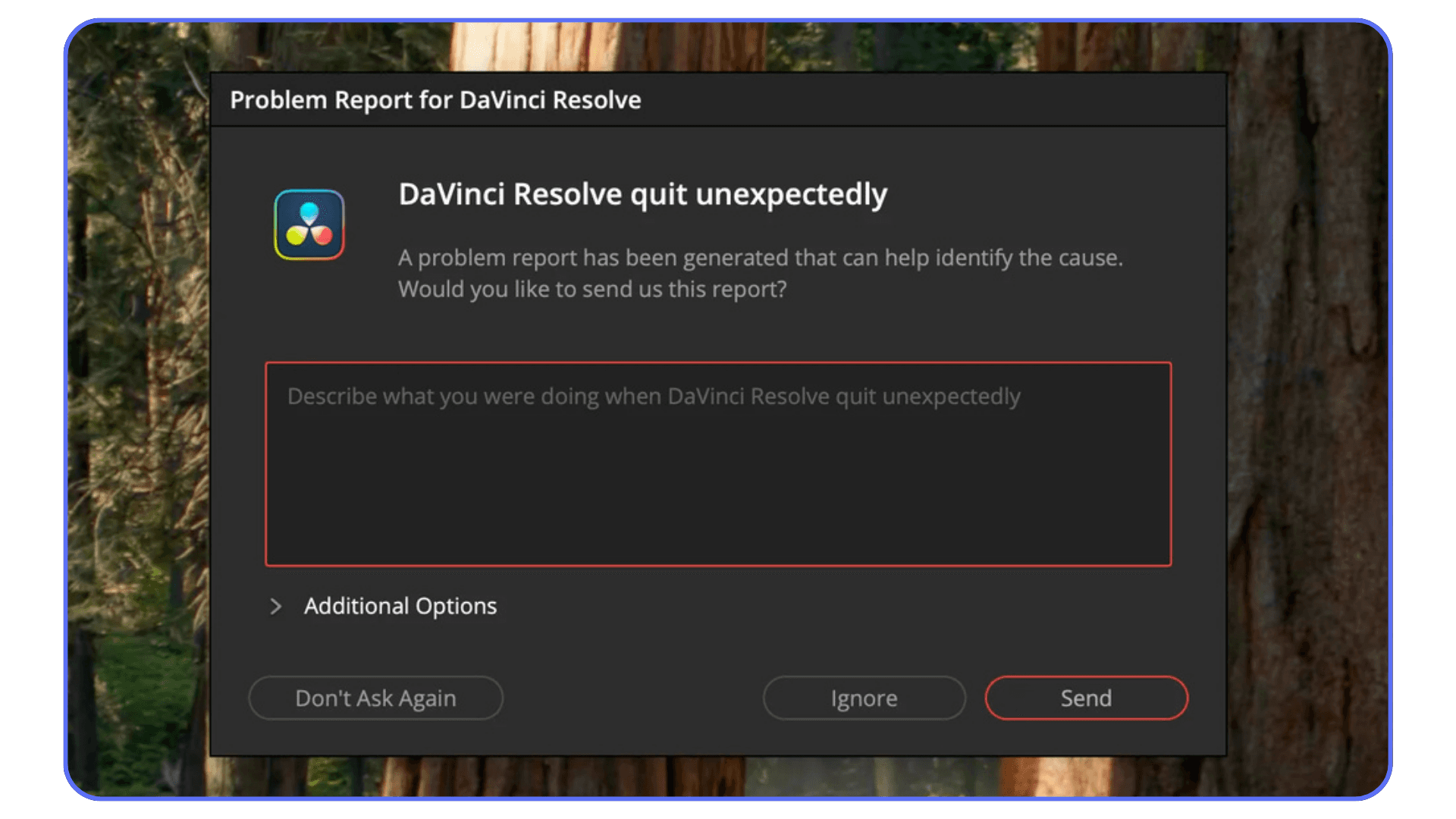
People underestimate how fragile DaVinci Resolve project libraries can be. If you’ve upgraded from an older version, changed OS, restored an old backup, or moved the project library around, things can get messy fast.
Try this first:
Open a different project and see if Resolve still crashes.
Duplicate the problem project before changing anything.
Clear render cache for the project.
Restore a recent project backup if you have one.
Import the timeline into a fresh project if only one timeline keeps crashing.
Problems I’ve seen:
Project libraries bloated from old timelines.
Project backups stored on slow external drives.
Files imported from unsafe DaVinci Resolve downloads.
Timelines converted from older versions that glitch on load.
One damaged timeline making the whole project feel broken.
A corrupted project library or project file can make Resolve crash on open, crash on save, or crash right when you switch timelines. This is why I like testing another project before touching drivers or reinstalling the app. If every other project opens fine, the app probably isn’t the problem.
#5. OFX Plugins: The Wild West
This is a fun one. Resolve might be stable, but third-party plugins aren’t always on the same page.
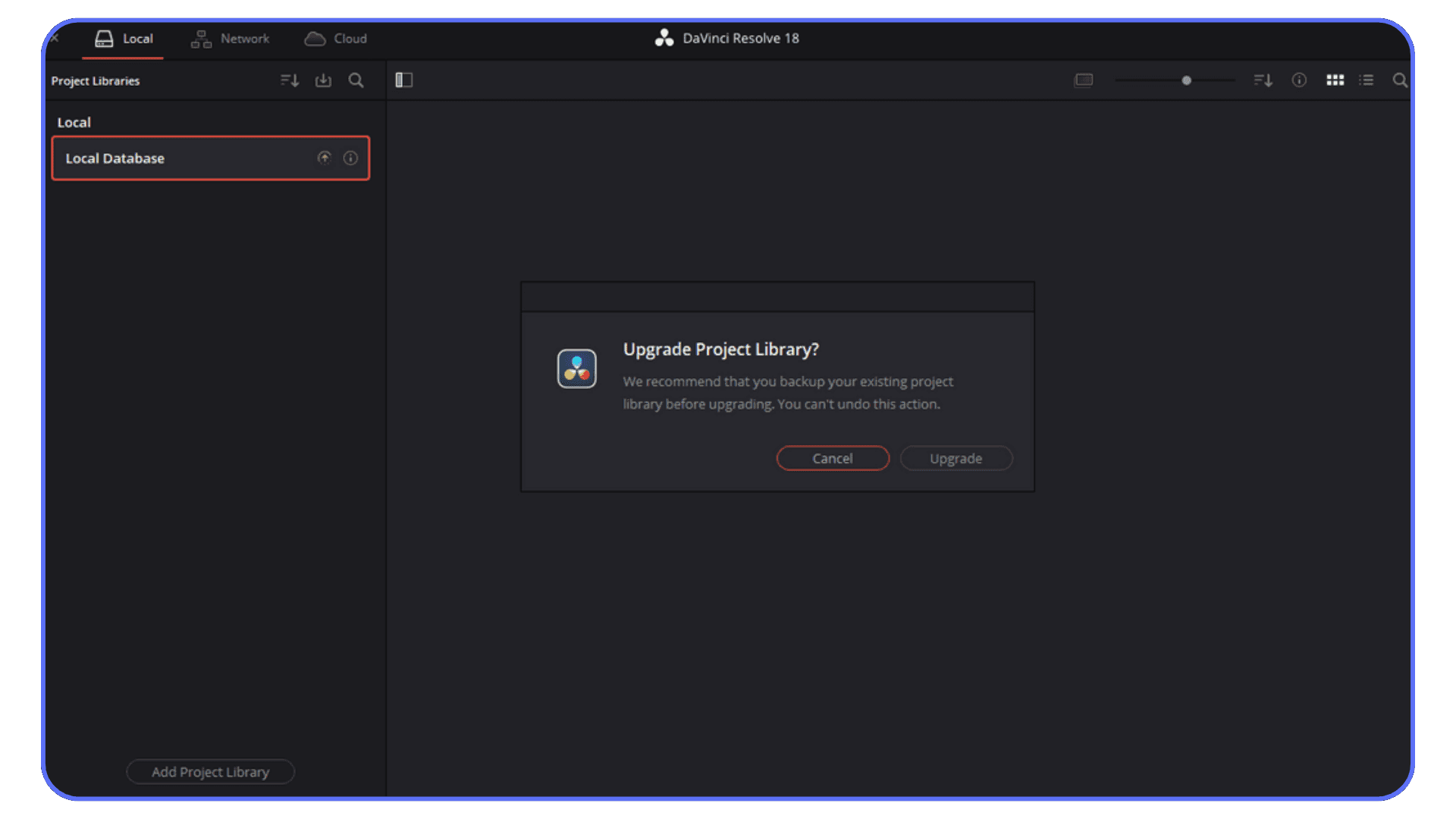
Neat Video. Magic Bullet. Boris FX. Even some free plugins can cause chaos. I’m not saying those tools are bad. Some of them are excellent. But plugins sit right in the middle of your GPU, timeline, color page, Fusion comps, and export pipeline, so one outdated plugin can make Resolve look guilty.
Try this first:
Update the plugin if a newer version supports your Resolve version.
Disable the plugin on the problem clip or node.
Move OFX plugins out of the plugin folder temporarily and relaunch Resolve.
Test the same project without third-party OFX effects.
If Resolve crashes on startup, test plugins before reinstalling the whole app.
When Resolve crashes before you even see the interface, you’re probably dealing with:
A plugin that’s not updated.
A plugin that doesn’t support your Resolve version.
A plugin pulling GPU memory it shouldn’t.
A plugin that worked fine in one Resolve version and broke after an update.
It’s surprising how often the cause isn’t Resolve at all but what you installed last month and forgot about.
How To Actually Fix DaVinci Resolve Crashes
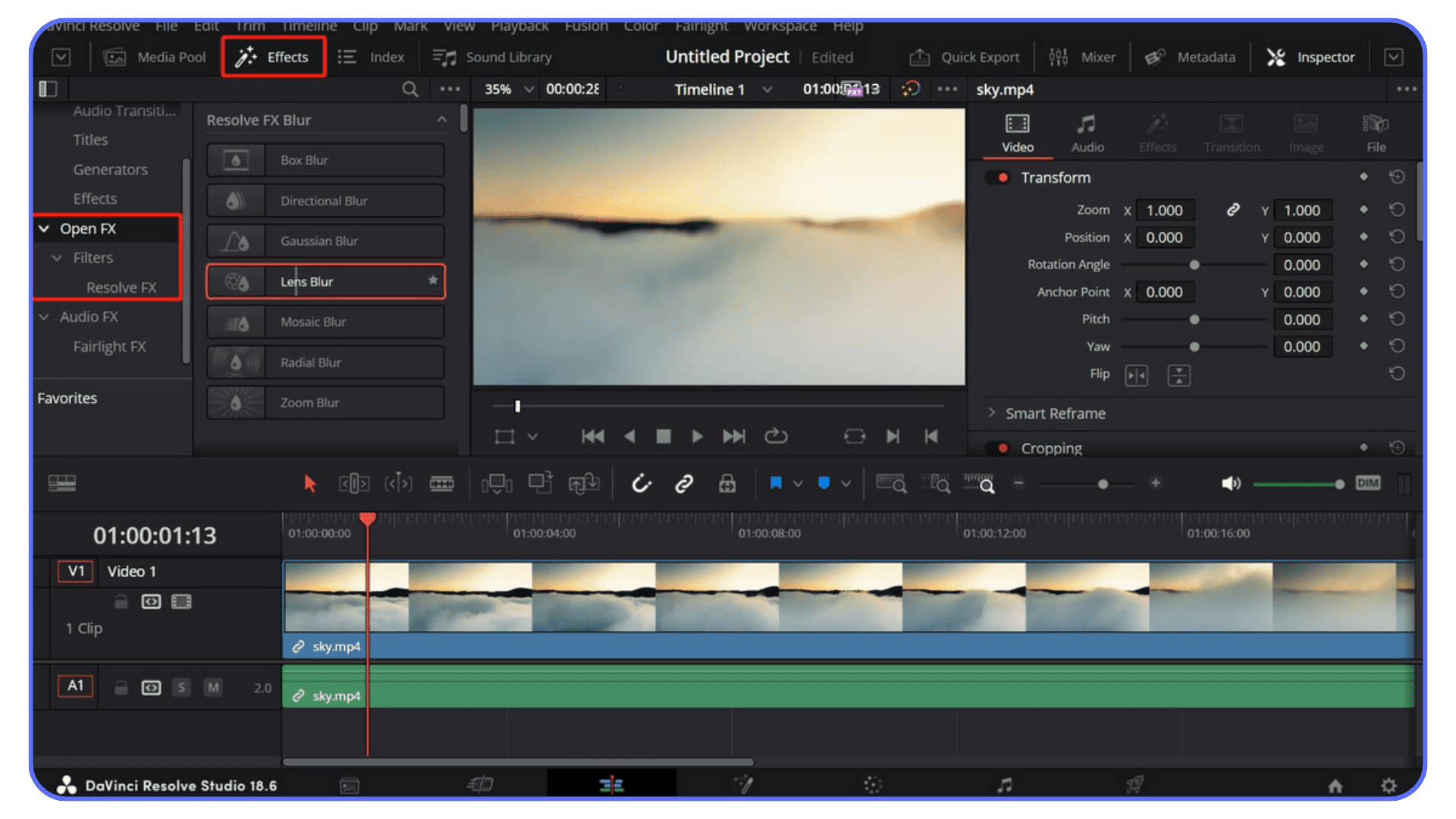
At this point, most people want a magic button. Sadly, Resolve doesn’t have one. But there is a decent troubleshooting order, and it starts with the crash pattern you’re seeing.
If Resolve crashes before it opens, think plugins, preferences, or GPU drivers. If it crashes when a project opens, think project library, cache, or one damaged timeline. If it crashes during import, think media. If it crashes during playback, Fusion, rendering, or export, think GPU pressure, effects, cache, or the exact clip where the crash happens.
The fixes below overlap a little with the causes above, but this is the order I’d actually work through when Resolve keeps crashing on Mac or Windows and you don’t want to reinstall your entire life.
#1. GPU Fixes That Solve Most Problems
If Resolve keeps crashing out of nowhere, start with the GPU. Nine times out of ten, the issue is sitting right there.
Update your GPU drivers the right way
Not just “update drivers”. I mean:
Nvidia Studio Driver for stable editing.
Game Ready only if you truly need it.
AMD driver versions that match your OS and Resolve version.
Avoiding beta drivers unless you enjoy chaos.
Rolling back one driver version if crashes started right after an update.
Old drivers are a classic reason why DaVinci Resolve crashes during playback or color work. New drivers can cause problems too, especially right after a major GPU update. If Resolve was stable yesterday and started crashing today, don’t ignore the driver you just installed.
Switch GPU processing mode if needed
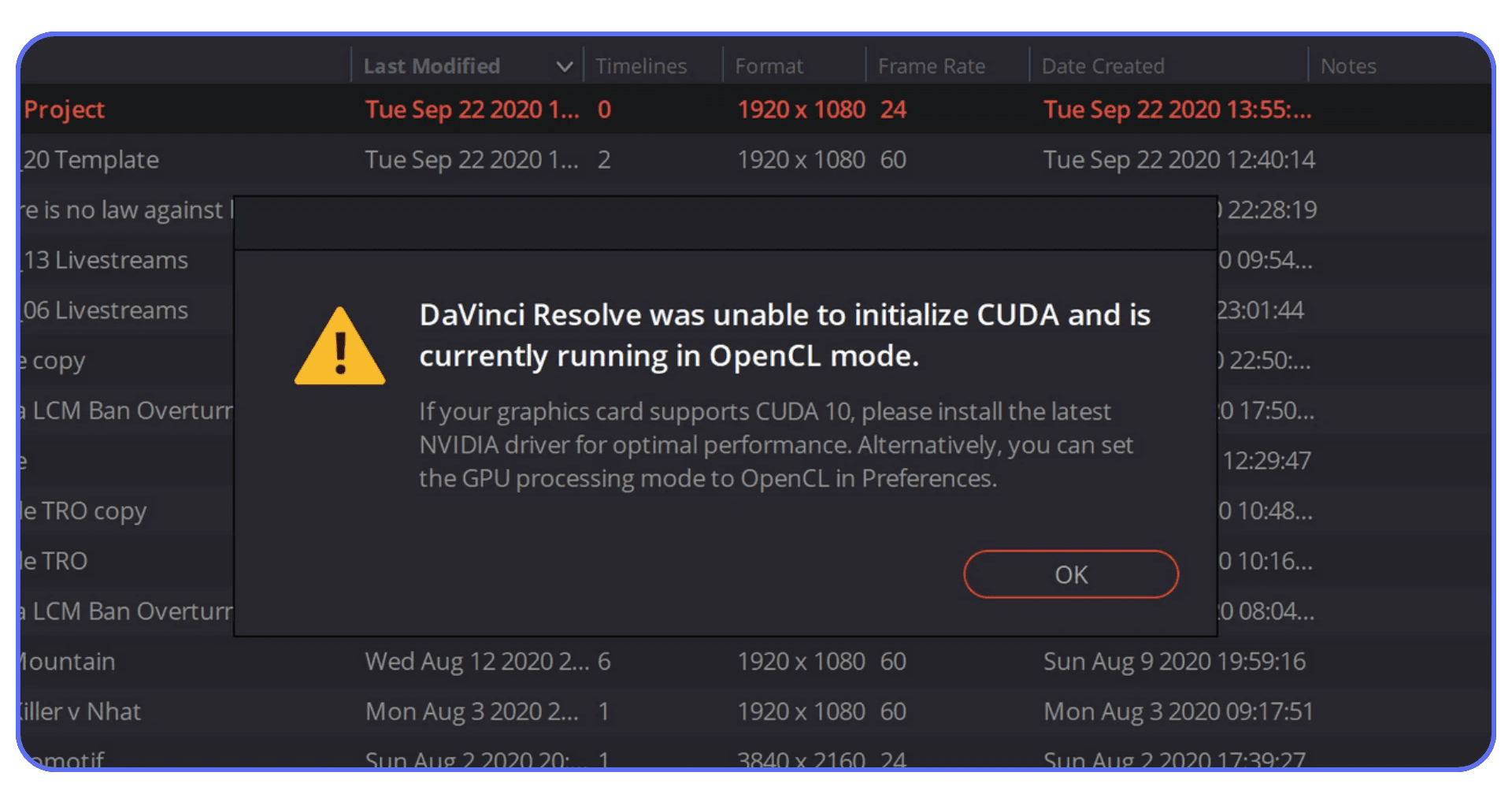
Under Preferences > System > Memory and GPU:
On Windows with Nvidia, test CUDA first.
On Windows with AMD, test OpenCL or Auto.
If Auto keeps picking the wrong device, manually select the dedicated GPU.
On laptops, make sure Resolve is not using the integrated GPU.
On Mac, Metal is the main path, but checking GPU selection and memory limits can still help.
Don’t change every setting at once. Change one thing, restart Resolve, and test the same action again. Boring, yes. But it tells you what actually fixed the crash.
Reduce VRAM pressure
A few small changes can stop constant crashing:
Lower timeline resolution during editing.
Switch to proxy mode before working on heavy timelines.
Temporarily disable Fusion or color nodes.
Turn on “Bypass Color Grades and Fusion Effects” while troubleshooting.
Turn off Noise Reduction, Magic Mask, Super Scale, and heavy OFX effects on lower-VRAM cards.
Cache heavy sections instead of forcing Resolve to calculate everything live.
Resolve hates running out of VRAM. Anything you do to protect VRAM gives you instant stability. If the crash disappears after you disable GPU-heavy effects, don’t treat that as a coincidence. That’s your system telling you where the ceiling is.
#2. System-Level Fixes
Resolve can eat RAM like a hungry kid in front of a snack cabinet. When it runs out, it crashes with no warning. This is especially true when you’re editing 4K or 6K footage, running Fusion comps, using Noise Reduction, or exporting while other apps are still open.
On Windows
Increase the pagefile size or make sure Windows is managing it automatically.
Close browser tabs, launchers, screen recorders, and background sync apps.
Disable overlays and background GPU apps while testing.
Check temperatures, especially on laptops.
Confirm Resolve is using the dedicated GPU.
On macOS
Free unified memory before opening a heavy project.
Close Safari, Chrome, screen recorders, and cloud sync apps.
Keep an eye on Activity Monitor while reproducing the crash.
Move media to a fast local or reliable external SSD.
Expect older Intel Macs to struggle with heavier Fusion and AI-assisted work.
These fixes don’t sound glamorous, but they’re the most underrated solution for frequent Resolve crashes. If the app becomes stable after you close everything else, the issue probably wasn’t one setting inside Resolve. It was the system running out of room.
#3. Media Fixes
Footage problems account for a surprising number of crashes, especially when Resolve crashes while importing media, scrubbing the timeline, or rendering the same section over and over.
Convert difficult footage first
HEVC, high bitrate phone clips, variable frame rate files, screen recordings, and some drone clips can destroy a timeline.
Create Optimized Media.
Create Proxy Media.
Transcode problem clips to ProRes or DNxHR.
Convert variable frame rate footage to constant frame rate.
Test the project again with only the converted clip.
After that, playback suddenly becomes smooth and Resolve stops falling apart.
Check mismatched frame rates
A 24 fps timeline with 29.97 fps clips? Resolve tries to compensate. Sometimes it works. Sometimes it just gives up.
If the crash happens right after importing media, don’t start by reinstalling Resolve. Start with the clip. Bring files in one by one, find the one that breaks the project, and convert that file before touching anything else.
#4. Project and Database Fixes
Resolve’s project library is powerful but sensitive. If DaVinci Resolve crashes when opening a project, switching timelines, saving, or loading an old archive, treat the project itself as a suspect.
Back up your project library
Do it weekly. Or daily, if you’re deep into client work. Small, healthy project libraries are easier to recover than bloated ones full of abandoned timelines.
Clean your render cache
A surprising number of playback crashes come from corrupted cache files. Clear the render cache, restart Resolve, and test the same timeline again.
Export your timeline and import it into a new project
This trick saves damaged timelines more often than you’d think. If one project crashes but others open normally, create a fresh project and move only the timeline you need.
Avoid storing project libraries on slow external drives
A slow or unreliable drive can make Resolve freeze so hard it looks like a crash. Media can live on fast external storage, but I’d be much more careful with the project library itself.
#5. OFX Troubleshooting
If Resolve crashes before the interface loads, assume it might be a plugin. Not always. But often enough that I’d test it early.
How to test it fast
Move OFX plugins out of their folder temporarily.
Restart Resolve.
Open the same project without the plugin loaded.
If it opens, add plugins back one by one.
Update or remove the plugin that triggers the crash.
Plugins are one of the main reasons Blackmagic Design DaVinci Resolve Studio users think the software is broken when it’s really just one flaky OFX. This can also show up during export, especially if the plugin is used on the exact clip where the render fails.
If you’re curious how Resolve behaves on an iPad for quick edits or travel work, this breakdown covers what the mobile version can realistically handle.
Why Resolve Crashes During Export
If Resolve is going to crash, it loves doing it during export. It’s almost a personality trait. Everything can run smoothly in the timeline, playback might be fine, color nodes behave, Fusion doesn’t complain… and then the moment you hit Deliver, Resolve collapses. I’ve seen this happen on projects that worked perfectly for hours.
Rendering stresses the system differently than editing. Resolve starts pulling more GPU memory, stacking CPU load, decoding every clip, and running effects in full quality. If anything in your project is unstable, render time exposes it instantly.
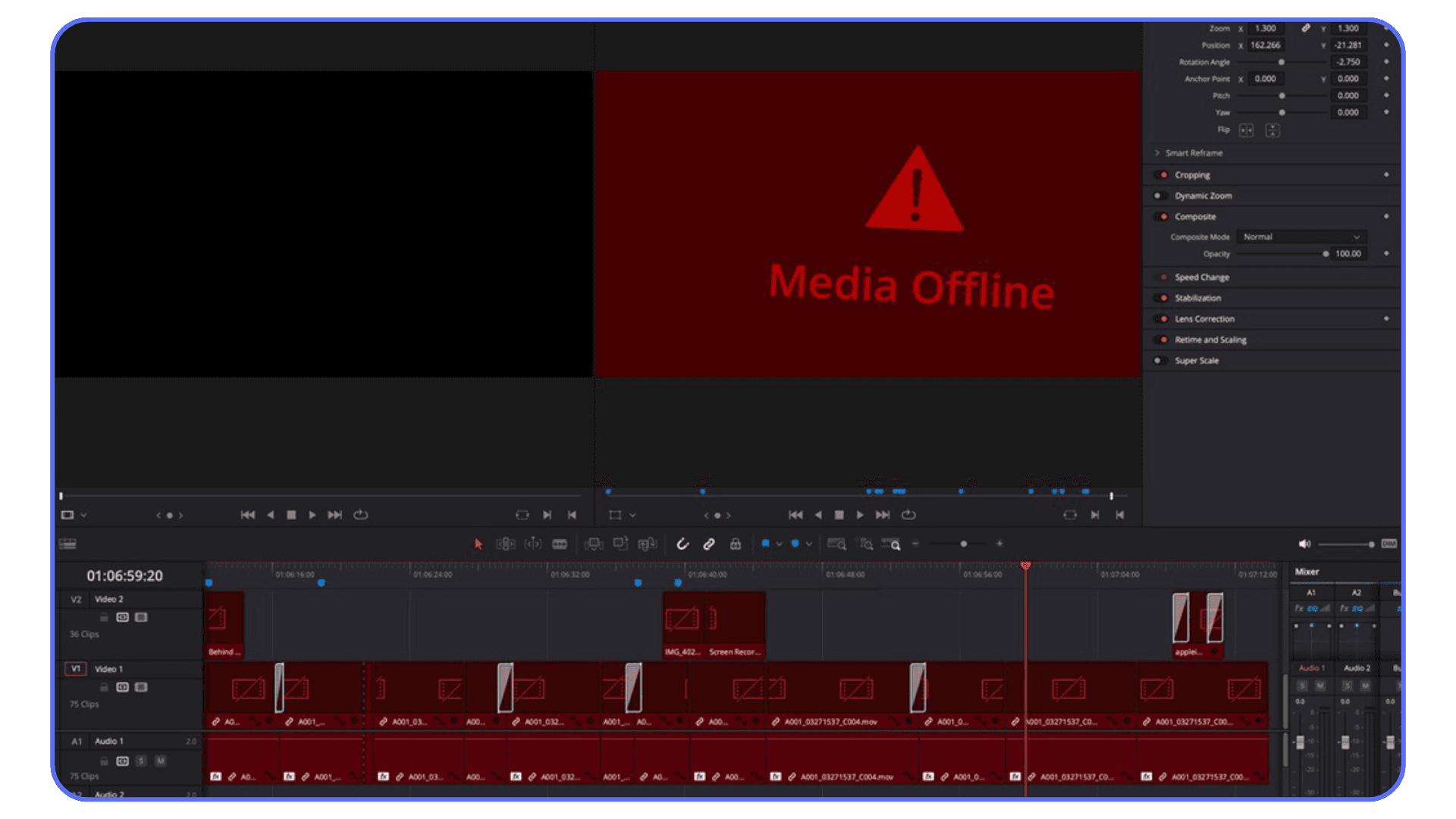
The first thing I check is whether Resolve crashes at the same percentage every time. If it dies at 37 percent on every export, that is not random. That is usually a clip, effect, transition, Fusion comp, or drive issue around that point in the timeline.
The usual render crash suspects
A single corrupted clip
I’ve had timelines with one bad frame in one clip that caused crashes every time I tried to export. Scrub the timeline slowly around the crash point until you find the frame that freezes Resolve. Replace that clip or transcode it.
Codec overload
HEVC 10-bit clips, log footage shot on phones, screen recordings, and variable frame rate media often crash Resolve during exports. They may decode fine during editing but collapse during full-quality render.
Noise reduction, Fusion, and heavy OFX
GPU VRAM goes through the roof when these run at export quality. If Resolve crashes at the same percent every time, there’s probably an effect stack, Fusion comp, or plugin on that spot.
Render settings that don’t match the timeline
Wrong bitrates, wrong codecs, or attempting massive H.264 or H.265 exports on underpowered machines can shut everything down.
Drive bottlenecks
Exporting to a slow HDD, network drive, external drive with a bad cable, or almost-full SSD can turn Resolve unstable. It sounds trivial, but it causes more crashes than people expect.
How to keep render crashes under control
Try this first:
Render the timeline in chunks. This is the fastest way to identify the trouble area.
If the crash happens at the same percentage, inspect that part of the timeline first.
Temporarily disable heavy color nodes, Fusion effects, Noise Reduction, Magic Mask, or OFX plugins.
Switch to ProRes or DNxHR if your machine struggles with H.264 or H.265.
Use “Render Cache Color Output” on heavy sections.
Try a different export location. Slow drives can kill your render.
Export a high-quality master first, then compress that file separately.
When people search for Blackmagic Resolve crash solutions, this is usually the category they’re stuck in. Render crashes feel the most unfair because you already did the work. But the good news is that once you isolate the problem clip or effect, the fix is usually straightforward.
A. Fixes for DaVinci Resolve on Mac
Mac users often assume Resolve will “just work” because macOS feels stable in general. And to be fair, Resolve on a modern Apple silicon Mac is usually smoother than on a lot of messy Windows systems. But Resolve still crashes on macOS, and the reasons are usually pretty specific.
Try this first:
Close background apps before launching Resolve.
Move the project media to a fast SSD.
Convert phone footage, screen recordings, and HEVC clips to ProRes.
Clear render cache if the crash happens during playback or export.
Check macOS permissions for Desktop, Documents, external drives, and removable volumes.
Reduce Fusion, Noise Reduction, Magic Mask, and other GPU-heavy effects on lower-memory Macs.
Unified memory hits the ceiling fast
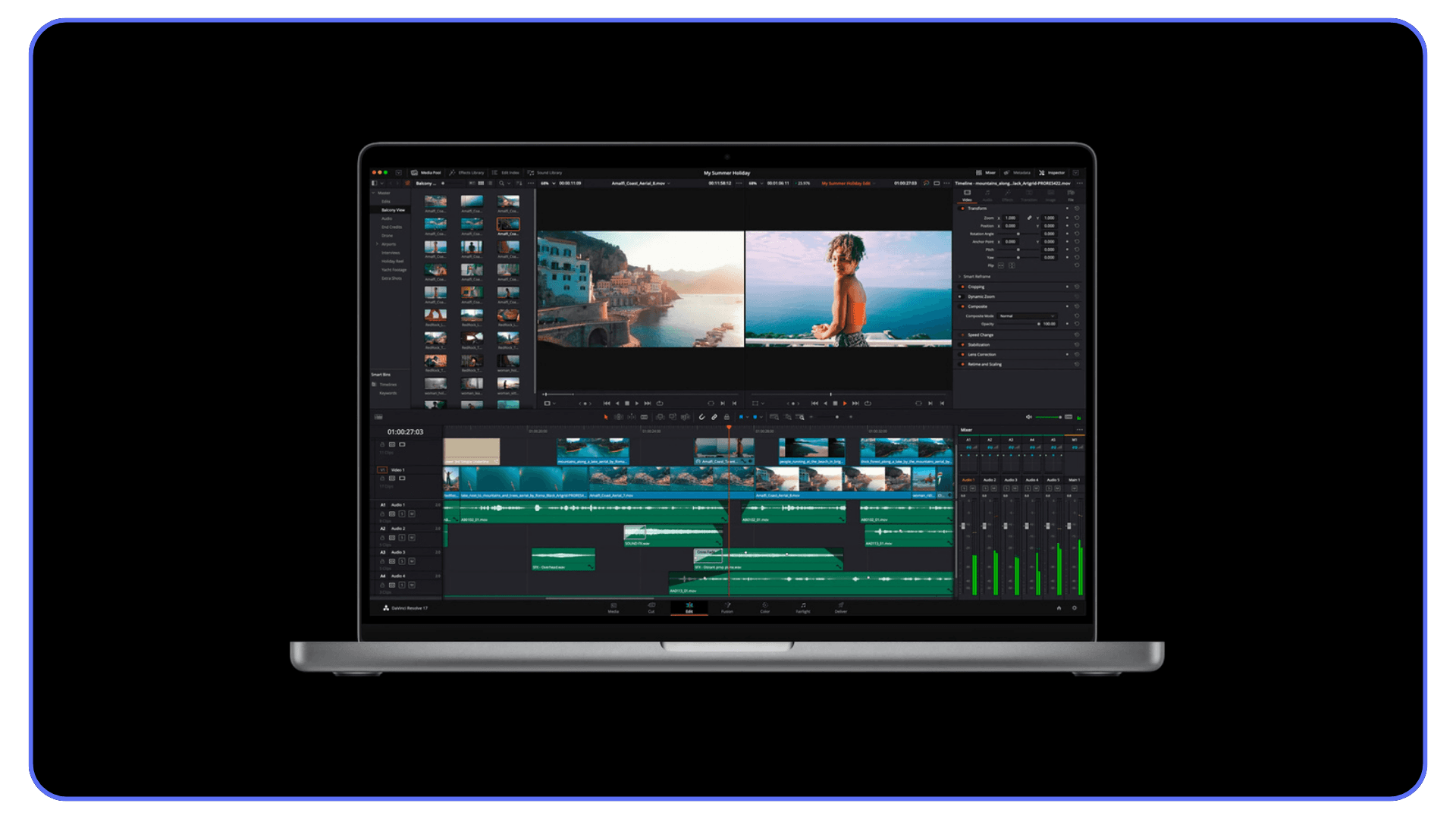
Resolve treats unified memory like a giant shared pool. When you stack Fusion nodes, noise reduction, or heavy color grading, that pool drains quickly. Once it fills up, Resolve doesn’t slow down. It crashes.
Signs you’re hitting the limit:
The fan ramps up
The timeline stutters
Resolve freezes when you add one more node
On M1 and M2 models with 8 or 16 GB, this happens often. Even 32 GB systems can hit walls with 4K Fusion comps.
Metal conflicts
Resolve uses Metal for GPU processing on macOS. When Metal crashes, Resolve follows. I’ve seen this happen especially when:
You’re using older versions of Resolve
You’ve installed outdated plugins
You’re switching between different color-managed workflows
Updating Resolve and plugins usually fixes it.
Intel Macs have their own headaches
Older Intel Macs struggle with modern Resolve features. I’ve worked with editors who tried Fusion on a 2017 Intel iMac, and Resolve crashed on simple masks. DaVinci Resolve editing software is powerful, but Intel GPUs just can’t keep up with today’s effects.
If you’re on Intel:
Turn down timeline resolution
Turn off noise reduction
Use proxies for anything above 1080p
It’s not ideal, but it keeps Resolve alive.
macOS permissions and storage
This one surprises people. Resolve needs explicit permissions for:
Desktop
Documents
External drives
Network drives
If you don’t allow full access, Resolve sometimes crashes when importing or exporting media.
Also check free storage. macOS freaks out when you hit low space, and Resolve is usually the first to fall apart.
DaVinci Resolve on iPad behaves differently
Resolve on iPad is surprisingly good, but it’s not the same app. It crashes for different reasons:
Background apps eating memory
4K footage too heavy for the iPad’s RAM
Limited plugin support
Fusion missing key features
It’s great for rough edits, but you’ll hit limits fast with complex timelines.
The fixes that help Mac users the most
Keep Resolve updated to the latest stable version, but avoid jumping on major updates the first hour they ship.
Convert phone footage, screen recordings, and HEVC clips to ProRes.
Close every background app before launching Resolve.
Use optimized media or proxy media when working with 4K, 6K, or log clips.
Don’t push Fusion too hard on machines with limited unified memory.
Keep project files, cache, and active media on reliable fast storage.
Resolve on macOS can be very stable if you stay within the hardware’s comfort zone. When you push past it, that familiar beachball shows up and you know what comes next.
If you’re thinking about upgrading your GPU because Resolve keeps hitting VRAM limits, this list shows which cards perform best.
B. Fixes for DaVinci Resolve on Windows
Windows users live in a different world when it comes to DaVinci Resolve crashes. macOS has a controlled environment. Windows is a playground of different GPUs, drivers, BIOS settings, background apps, overlays, antivirus tools, and random software that all compete for resources. Resolve tries to manage all of that, but it doesn’t always win.
Try this first:
Install or roll back to a stable GPU driver.
Use Nvidia Studio Driver if you’re on an Nvidia GPU.
Force Resolve to use the dedicated GPU on laptops.
Disable overlays like Xbox Game Bar, Nvidia ShadowPlay, Discord, and similar background capture tools.
Make sure Windows power mode is set to high performance while testing.
Keep media and cache on an SSD, not an old HDD.
Driver problems are the biggest villain
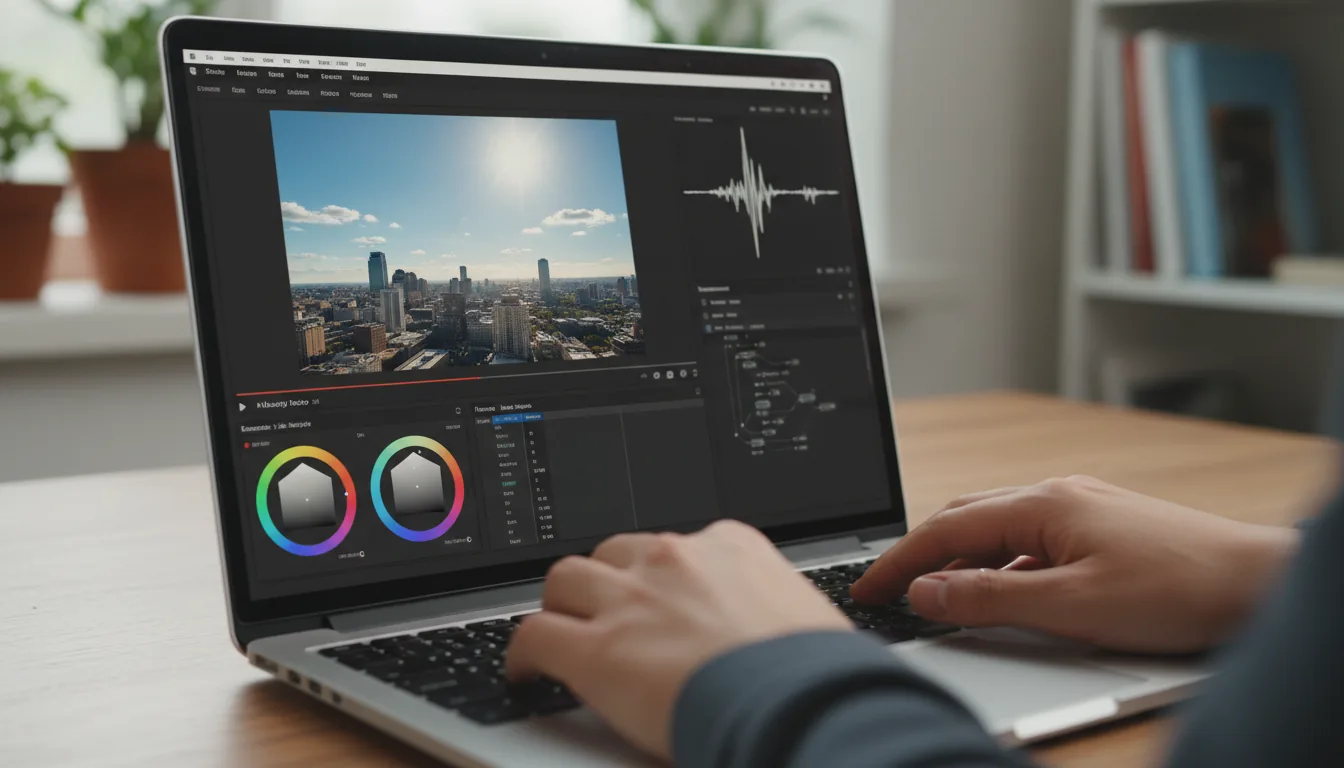
If I had to guess why DaVinci Resolve crashes on a Windows machine, I’d guess drivers before anything else. Nvidia updates constantly, and not all versions play well with Resolve. Game Ready drivers can be fine, but Studio Driver is usually the safer choice for editing, color work, Fusion, and long exports.
A few things I’ve seen over and over:
Drivers installed on top of old ones.
Beta versions causing GPU spikes.
Nvidia Control Panel settings fighting Resolve.
AMD drivers missing required codecs or behaving badly after a Windows update.
A crash pattern that starts right after a GPU driver update.
Switching to Nvidia Studio Driver fixes more problems than people expect. Rolling back can also be the right move if everything broke right after an update.
Integrated GPU confusion
Some Windows laptops default to the integrated GPU instead of the dedicated one. Resolve hates that. It looks like a normal launch, but then it crashes as soon as you hit a heavy timeline.
The fix is simple:
Force Resolve to use the dedicated GPU in Nvidia Control Panel
Disable hybrid mode if your laptop allows it
Suddenly Resolve becomes stable.
BIOS and power settings matter more than you think
This surprises people, but a lot of random Resolve crashes come from:
CPU undervolting
Automatic power limit throttling
Turbo mode disabled
Fan curves too conservative
Resolve wants full performance. If your BIOS or power plan holds the system back, Resolve taps out.
Windows background apps eat resources silently
Steam, Discord, OneDrive, Chrome… all of them love to sit in the background. And they all love GPU and RAM.
When Resolve starts crashing frequently, check for:
Hardware-accelerated apps running silently
Overlays (Xbox Game Bar, Nvidia ShadowPlay)
Antivirus real-time scanning
I’ve seen Windows Defender freeze Resolve during a render by scanning a cache folder mid-export.
Storage problems
Resolve hates slow drives. Many Windows editors store footage on old HDDs or cheap external USB drives. That’s a recipe for sudden freezing during renders.
Also watch for file paths:
Special characters
Network drives disconnecting
Missing clips from moved folders
These can all trigger crashes.
The fixes that help Windows users the most
Clean install Nvidia Studio Driver if you use an Nvidia GPU.
Roll back the GPU driver if crashes started immediately after an update.
Force Resolve to use the dedicated GPU.
Disable unnecessary overlays, capture tools, and background apps.
Set Windows power mode to high performance while editing or rendering.
Keep footage, cache, and exports on SSDs, not old HDDs.
Increase pagefile size or let Windows manage it automatically.
Exclude Resolve cache folders from aggressive real-time antivirus scanning if needed.
Once Windows and Resolve agree on who controls what, the stability improves a lot. Most crashes come from the system environment, not Resolve itself.
If you’re constantly stuck with crashes during export, these render-speed tricks can make everything more stable.
How Your Hardware Affects Resolve’s Stability
A lot of people assume Resolve crashes because the software is unstable, but in my experience most issues come from hardware bottlenecks. Resolve leans heavily on the GPU. Color grading, Fusion, noise reduction, Magic Mask, Super Scale, and OFX effects all pull VRAM nonstop, and when the GPU hits its limit, Resolve usually crashes instead of slowing down. You can have a strong CPU and still run into constant instability if the GPU isn’t equally capable.
Memory plays a big role too. Resolve fills RAM fast, especially with 4K, 6K, log footage, multicam timelines, and Fusion comps. Once macOS or Windows starts borrowing storage as temporary memory, the whole workflow becomes shaky. That’s usually when you see Resolve freezing at random points or crashing during simple timeline moves.
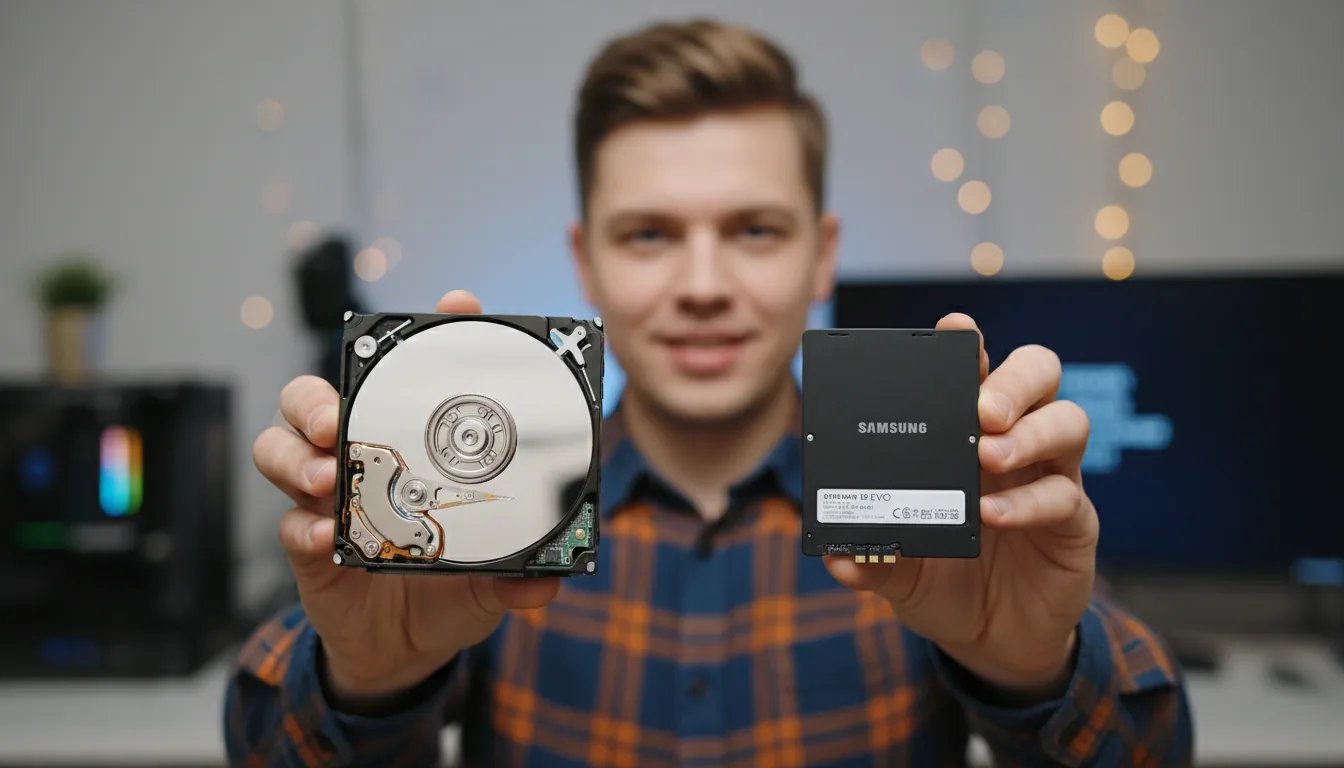
Storage speed shows up in stability more than people expect. If your media, cache, project backups, or exports live on a slow HDD, unstable external drive, or almost-full SSD, Resolve stutters, errors show up, and renders fail without warning. SSDs or NVMe drives don’t just improve speed. They keep the software from choking while reading or writing large files.
There’s also the difference between the free version and DaVinci Resolve Studio. The Studio version unlocks stronger GPU acceleration, hardware decoding support, and features like noise reduction that run more efficiently on supported systems. It’s a one-time purchase, and the added stability alone can make the DaVinci Resolve Studio price feel reasonable, especially for people working with heavier footage.
Even cooling and power delivery matter. Resolve pushes hardware harder than most apps, and if a laptop overheats, a desktop has a weak power supply, or the system throttles during long exports, the software reacts immediately. I’ve seen perfectly fine systems crash only because fans couldn’t keep up.
And then there’s the iPad version. DaVinci Resolve on iPad is great for quick cuts, but it’s still running on mobile hardware. Heavy color work, big timelines, external media, or Fusion-style work can hit the limit fast, and crashes are more about the device than the app itself.
If you’re not sure whether Resolve is even using your GPU the right way, this guide walks through the settings that actually matter.
When Resolve Crashes Because of Bugs or Updates
Every now and then, Resolve crashes for reasons that have nothing to do with your hardware or your workflow. Blackmagic ships updates often, and sometimes a new build introduces a bug that slips through testing. I’ve seen versions where Fusion would freeze on simple masks, or where the color page crashed every time you used certain OFX effects. These problems usually show up right after an update, which makes them pretty easy to spot.
Try this first:
Check whether the crash started right after a Resolve update.
Check whether your GPU driver updated around the same time.
Update third-party plugins before opening important projects.
Test the same project in a duplicated copy before upgrading old work.
If a new version breaks a deadline-critical workflow, roll back to the previous stable version if you can.
Version mismatches can cause chaos too. If you open a project created in an older version of Resolve, it might behave strangely even if everything looks normal at first. Timelines can load with broken node connections, effects may not work the same way, and in some cases Resolve crashes the moment you scrub to a specific clip. This happens a lot with big upgrades, especially when people skip several versions.
Plugins can also break after updates. A plugin that worked perfectly in one version might start causing crashes in the next because of API changes or GPU compatibility shifts. I’ve seen editors blame their system for weeks before realizing the issue was a single plugin that hadn’t been updated.

In rare cases, the installation itself gets corrupted. Maybe the download glitched. Maybe Windows or macOS blocked part of the install. Maybe you moved Resolve between drives. Whatever the cause, something small breaks and Resolve becomes unstable until you reinstall it cleanly.
The good news is that these issues are usually temporary. Blackmagic fixes bugs quickly, and plugin developers release patches when compatibility problems show up. When crashes appear out of nowhere after an update, it’s usually a sign that the fault isn’t yours at all.
If you’re coming from After Effects or Premiere and Resolve feels tougher on your system, this comparison helps explain why the two behave so differently.
Simple Habits That Prevent Future Resolve Crashes
Once you go through a few Resolve crashes, you start building habits that keep things from falling apart in the first place. They’re simple, but they save you hours of frustration.
My basic prevention checklist looks like this:
Turn on project backups.
Use proxies or optimized media for difficult footage.
Keep cache and active media on fast storage.
Update Resolve, GPU drivers, and plugins intentionally.
Avoid stacking heavy Fusion, Noise Reduction, Magic Mask, and OFX effects until the edit is stable.
Export important timelines in chunks before the final master if the project is already acting fragile.
The first habit is backing up your projects. Resolve has built-in project backups, and they work well if you actually turn them on. I keep mine set to save versions every ten minutes. It sounds excessive, but the one time you lose a timeline and can roll back instantly, you’ll be glad you did.
Another trick that has saved me more times than I can count is working in shorter timelines. Instead of dumping an entire video into one massive 40-minute timeline, I break it into sections. Resolve handles smaller timelines much better, and if something corrupts, it affects only a small chunk instead of the whole project.
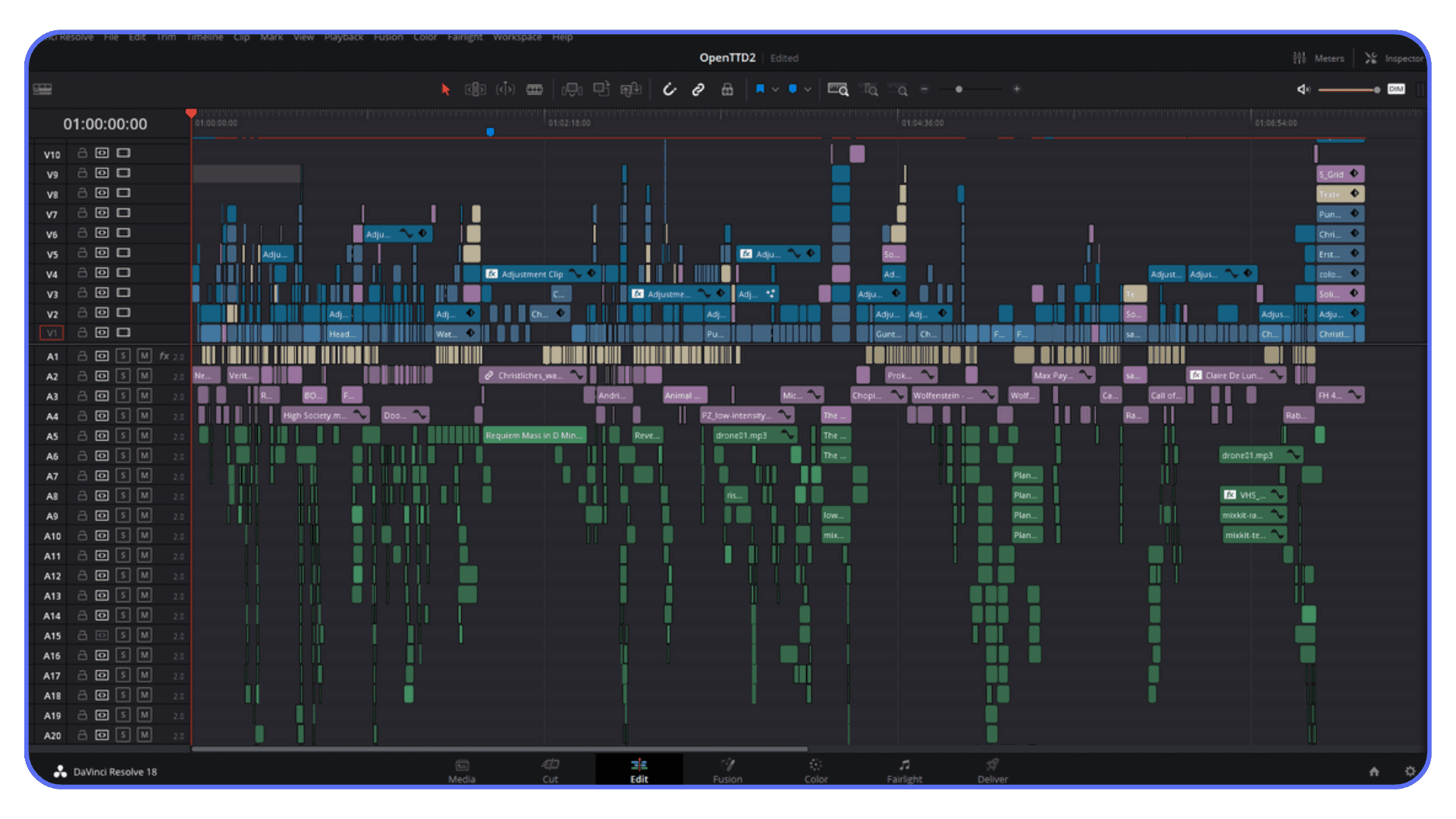
Using proxies or optimized media also goes a long way. People underestimate how much stress high-compression or log footage puts on the system. Converting a handful of clips to ProRes or DNx often removes half the instability right away. It feels like extra work, but in practice it speeds everything up.
Keeping your system clean helps too. Delete old render cache files. Clear unused media. Close browsers before editing. It’s boring but effective. Resolve becomes unpredictable when the system is already stretched thin.
I’ve also learned to avoid installing every plugin I find online. Third-party OFX can be great, but it can also be the reason Resolve refuses to launch after a reboot. Only install what you truly need, and keep it updated.
The last habit is updating Resolve intentionally, not automatically. When Blackmagic releases a new version, I wait a few days and check user reports. If people mention crashes with Fusion or the color page, I hold off. If the update looks stable, then I go for it. This alone prevents a surprising number of headaches.
These small habits don’t make Resolve crash-proof, but they make it much more predictable. And predictability is what most editors want. When Resolve behaves consistently, everything else feels easier.
If you’re trying to figure out whether your laptop is the real reason Resolve keeps crashing, you might want to look at which machines actually handle the software well.
What To Do When Your Machine Just Can’t Keep Up
At a certain point, you fix the crashes, optimize your media, clear the cache, update the drivers, and Resolve finally behaves. But there’s still a limit to how far your local hardware can go. I’ve had projects that ran fine at first and then started crashing again when I added heavier grading, turned on Noise Reduction, stacked Magic Mask, or jumped into Fusion. It becomes a cycle, and it gets old fast.
That’s where Vagon Cloud Computer starts to make sense. Not as a replacement for your system, and not as a magic cure for a broken project, but as a stronger environment for heavy Resolve work when your local machine is clearly the bottleneck.
The biggest advantage is GPU headroom. Nodes that push laptop GPUs to the edge have more room to breathe. Fusion effects that would normally freeze the screen can actually respond. Exports are less likely to fall apart because the machine ran out of memory halfway through. It feels like Resolve finally gets the environment it wants.
The flexibility helps too. You can start a timeline on your main machine, jump onto another device, and keep working inside the same cloud workstation. That matters when you’re moving between places, working from a lightweight laptop, or trying to avoid the usual “this project only works on my desktop” problem.
It still won’t fix a corrupted clip, a broken plugin, or a damaged project library. Those need troubleshooting. But if your crashes keep coming back because your GPU, RAM, storage, or cooling can’t keep up, moving the workload to a more capable cloud computer removes a lot of the pressure that causes Resolve to crash in the first place.

Final Thoughts
Resolve is one of those tools that rewards you for pushing it. The better you get, the more you want to try, and the heavier your projects become. Crashes feel like a personal attack when you’re in the middle of something important, but they’re usually just symptoms of a system that’s not aligned with what the software wants.
The good news is that most of the problems have clear fixes. Updating drivers, managing GPU load, converting difficult footage, cleaning up old databases, and keeping your system healthy go a long way. Once you understand the patterns behind these crashes, Resolve starts to make more sense. It becomes predictable, even with bigger timelines.
And if you reach a point where your hardware taps out, you still have options. You’re not stuck. You can move the project to a stronger setup, share a session with someone else, or switch to a more stable workflow without changing your creative direction.
Resolve isn’t perfect, but it’s powerful enough to be worth the occasional troubleshooting. When it works well, it’s one of the best tools you can have. And with the right setup, it can stay that way.
FAQs
1. Why does DaVinci Resolve crash so often?
Resolve crashes mostly because of GPU overload, driver issues, heavy codecs, or corrupted project files. It relies on GPU VRAM a lot more than other editing tools, so even small hardware mismatches can cause sudden crashes.
2. What are the most common causes of DaVinci Resolve crashes?
The usual culprits are GPU driver conflicts, HEVC or variable frame rate footage, outdated OFX plugins, low RAM, slow storage, and old databases. Once you fix those, Resolve becomes much more stable.
3. How do I fix DaVinci Resolve crashing frequently?
Start by updating your GPU drivers properly, converting heavy footage to ProRes or DNx, cleaning the render cache, checking your RAM usage, and removing outdated plugins. These fixes solve most Blackmagic Resolve crash issues on both Mac and Windows.
4. Does DaVinci Resolve need a strong GPU?
Yes. Resolve leans heavily on GPU processing. Color grading, Fusion, noise reduction, stabilization, and many OFX effects depend on VRAM. A weak GPU leads to freezes and crashes.
5. Is DaVinci Resolve Studio more stable than the free version?
In my experience, yes. The paid version unlocks hardware decoding, better GPU acceleration, noise reduction, and several features that offload work from the CPU. The DaVinci Resolve Studio price is a one-time payment, and the stability boost alone is worth it if you edit a lot.
6. How do I stop Resolve from crashing during export?
Render in smaller chunks, disable heavy effects temporarily, switch to ProRes or DNx, and check for corrupted clips. Export crashes usually come from GPU overload or damaged media files.
7. Why does DaVinci Resolve crash on startup?
Most of the time it’s a bad plugin. Move your OFX plugins out of the folder, restart Resolve, and add them back one by one until you find the one causing the issue.
8. Does Resolve crash more on Windows or Mac?
Windows tends to have more driver-related crashes, while macOS usually struggles when unified memory runs out. Both can be stable, but the causes of crashes differ.
9. Why does DaVinci Resolve iPad crash on heavy footage?
The iPad version runs on mobile hardware. When you load 4K, log, or 10-bit footage with multiple layers, memory fills quickly. It’s great for simple edits but not built for complex color or Fusion work.
10. Should I reinstall DaVinci Resolve if nothing works?
A clean reinstall helps when the original install is corrupted, especially after unsafe DaVinci Resolve downloads or failed updates. Just back up your database first.
11. Is there an easier way to avoid hardware-related crashes?
If your local system keeps hitting its limits, working on a stronger remote machine is the simplest solution. A cloud setup avoids the hardware bottlenecks that cause most crashes in the first place.
DaVinci Resolve crashes are easier to fix when you stop treating them like one big mystery.
The first question is not “Why does Resolve hate my computer?” It’s this: when does it crash?
If Resolve crashes on startup, I’d check plugins and GPU drivers first. If it crashes when opening a project, I’d suspect the project library, cache, or one damaged timeline. If it crashes while importing media, the problem is often a codec, a corrupt clip, or phone footage with a weird frame rate. If it crashes during export, look at the exact percentage where it fails. That number usually points to the clip, effect, or drive causing the problem.
That’s the part people skip. They reinstall DaVinci Resolve, update five random things, delete half their cache, and still end up with the same crash because they never isolated the moment where it happens.
I still remember the night Resolve bailed on me at two percent of a render. Not forty. Not ninety-nine. Two. The fans were spinning, everything looked normal, and then the screen froze like the software had just decided it didn’t feel like working anymore. I stared at it for a good minute, hoping it would magically unfreeze. It didn’t.
Anyone who has used DaVinci Resolve long enough knows that feeling. Resolve is powerful. It can handle color work that makes other editors sweat. But when it breaks, it breaks loudly. Sometimes it crashes in the middle of a simple cut. Sometimes it refuses to launch. Sometimes it waits until the final export just to test your patience.
So this guide is organized around the crash itself.
We’ll look at what to try first when DaVinci Resolve crashes on startup, when opening a project, when importing media, during playback, inside Fusion, during rendering or export, and when the crash clearly looks GPU-related. The goal is not to throw every possible fix at the wall. It’s to help you narrow the problem fast and fix the thing that’s actually breaking your workflow.
Find the Crash Type First
Before you start changing settings, try to name the crash. It sounds obvious, but it saves a lot of time.
If Resolve crashes on startup, start with OFX plugins, GPU drivers, and corrupted preferences.
If Resolve crashes when opening a project, start with the project library, render cache, timeline corruption, or media stored on a slow drive.
If Resolve crashes while importing media, start with the clip itself. Phone footage, variable frame rate files, HEVC 10-bit media, damaged files, and external drives cause more trouble than people expect.
If Resolve crashes during playback or editing, start with GPU memory, render cache, timeline effects, and background apps eating RAM.
If Resolve crashes in Fusion, start by reducing node complexity, caching the comp, lowering preview resolution, or disabling heavy effects one by one.
If Resolve crashes during rendering or export, check whether it fails at the same percentage every time. If it does, that spot in the timeline is probably where the problem lives.
If Resolve crashes when using color grading, noise reduction, Magic Mask, Super Scale, or AI tools, treat it like a GPU or VRAM problem first.
That’s the order I’d use. Not because it catches every single crash, but because it catches the boring, common ones first. And boring is good when you’re troubleshooting. Boring usually means fixable.
Why DaVinci Resolve Crashes More Often Than You Think
I’ve used a lot of editing tools over the years, and DaVinci Resolve is easily one of the most capable. It’s also one of the easiest to break when the machine, media, driver, or project file is even slightly out of sync. The funny thing is that most people assume their computer is dying or that they installed Resolve wrong. In reality, the reasons are usually boring and predictable.
Resolve pushes hardware harder than almost any other editing software. Blackmagic built it around heavy GPU processing, which is great for performance but rough for stability if your system isn’t ready for it. Color grading, Fusion, noise reduction, Magic Mask, Super Scale, and newer AI-assisted tools can all hit the GPU hard. I’ve seen machines with solid CPUs fall apart because the GPU was running out of VRAM during Fusion effects. I’ve also seen the opposite: powerful GPUs paired with weak RAM setups that choke during simple color grading.
Another thing people forget is that Resolve reacts badly to small system inconsistencies. Outdated GPU drivers. Odd codecs. Background apps eating memory. A project library that has been upgraded across multiple Resolve versions. Even a plugin you installed months ago can suddenly turn into the reason Resolve crashes on startup.
And it’s not just new users. Experienced editors switching from Premiere Pro or Final Cut Pro run into this too. They expect Resolve to behave like a typical NLE, but it doesn’t. Resolve leans heavily on the GPU, even for tasks that other editors mostly handle with the CPU. If your setup isn’t tuned for that, crashes start to feel random, even when they usually aren’t.
So when you hear about “common causes of DaVinci Resolve crashes,” it’s not hype. The list is real, and most systems hit at least one of those weak points without realizing it.
Common Causes of DaVinci Resolve Crashes
Most Resolve crashes trace back to a handful of troublemakers. The exact fix depends on when the crash happens, but the causes are usually the same cast of characters: GPU pressure, awkward media files, limited system resources, damaged project data, or third-party plugins.
Once you understand these, you can predict almost every “why DaVinci Resolve crashes” moment before it happens. And honestly, half the time it’s something simple that spirals into a full crash.
#1. GPU Problems That Blow Everything Up
If I had to bet on the number one cause, I’d put my money on GPU issues. Resolve leans on the GPU for nearly everything. Color grading, Fusion, noise reduction, playback, timeline scrubbing, Magic Mask, Super Scale, and a lot of the newer AI-assisted features. And when the GPU runs out of VRAM, Resolve usually doesn’t give you a polite warning. It just quits.
Try this first:
Update your GPU driver, but avoid beta drivers.
On Nvidia systems, use the Studio Driver unless you have a specific reason not to.
On laptops, make sure Resolve is using the dedicated GPU, not the integrated one.
Lower timeline resolution or switch to proxy mode before testing again.
Disable Noise Reduction, Fusion effects, Magic Mask, and heavy OFX effects temporarily.
If the crash stops after that, you probably found a GPU or VRAM ceiling.
A few patterns I’ve seen:
Nvidia drivers that haven’t been updated in months
Switching between Studio and Game Ready drivers and forgetting which one Resolve prefers
AMD cards on older Windows builds
Mac systems trying to push heavy Fusion nodes with limited unified memory
Laptops overheating faster than Resolve can offload the load
GPU errors can spiral into startup crashes, playback crashes, Fusion crashes, and export crashes on both Mac and Windows. And when people start searching for Blackmagic Resolve crash solutions, this is usually where they end up.
#2. Codec Chaos: Footage That Makes Resolve Miserable
Smartphone footage is the silent killer here. Variable frame rates, HEVC 10-bit clips, screen recordings, drone clips, and highly compressed files can push Resolve into weird behavior. I’ve seen project timelines lock up because a single clip was recorded on a cheap Android phone at some strange bitrate.
Try this first:
Import one clip at a time instead of dragging in the whole folder.
If the crash happens on one file, transcode that file before blaming the project.
Convert variable frame rate footage to constant frame rate.
Use ProRes, DNxHR, or another edit-friendly codec for difficult clips.
Move media from an external drive to a local SSD and test again.
Resolve can handle most formats, but not all of them gracefully. When media is encoded in a way that doesn’t match your timeline or GPU expectations, playback stalls. Then the software freezes. Then it crashes.
Optimized media fixes a lot of this. Proxy media helps too. But many people don’t know that the problem came from codecs in the first place, so they waste an hour changing GPU settings when the real villain is one ugly phone clip.
#3. System Resource Limits
Even powerful machines can choke. Resolve doesn’t care if you have a beefy CPU when your RAM gets stretched thin, your GPU memory fills up, or the OS starts throttling background tasks.
Try this first:
Close browsers, screen recorders, launchers, and other apps before opening Resolve again.
Lower timeline resolution while editing.
Turn off heavy effects temporarily, especially Noise Reduction, Fusion comps, and AI tools.
On Windows, check that the pagefile is enabled.
On laptops, plug in power and use a high-performance power mode.
Common problems:
8 GB or 16 GB RAM machines trying to edit 4K.
Windows laptops using the iGPU instead of the dedicated GPU.
macOS running out of unified memory during Fusion.
Browsers eating RAM in the background.
No pagefile on Windows.
When Resolve crashes frequently during simple edits, this is often why. The timeline may not look complicated, but a few browser tabs, cached previews, background uploads, and one heavy color node can be enough to push a borderline system over the edge.
#4. Broken Databases and Weird Project Files
People underestimate how fragile DaVinci Resolve project libraries can be. If you’ve upgraded from an older version, changed OS, restored an old backup, or moved the project library around, things can get messy fast.
Try this first:
Open a different project and see if Resolve still crashes.
Duplicate the problem project before changing anything.
Clear render cache for the project.
Restore a recent project backup if you have one.
Import the timeline into a fresh project if only one timeline keeps crashing.
Problems I’ve seen:
Project libraries bloated from old timelines.
Project backups stored on slow external drives.
Files imported from unsafe DaVinci Resolve downloads.
Timelines converted from older versions that glitch on load.
One damaged timeline making the whole project feel broken.
A corrupted project library or project file can make Resolve crash on open, crash on save, or crash right when you switch timelines. This is why I like testing another project before touching drivers or reinstalling the app. If every other project opens fine, the app probably isn’t the problem.
#5. OFX Plugins: The Wild West
This is a fun one. Resolve might be stable, but third-party plugins aren’t always on the same page.
Neat Video. Magic Bullet. Boris FX. Even some free plugins can cause chaos. I’m not saying those tools are bad. Some of them are excellent. But plugins sit right in the middle of your GPU, timeline, color page, Fusion comps, and export pipeline, so one outdated plugin can make Resolve look guilty.
Try this first:
Update the plugin if a newer version supports your Resolve version.
Disable the plugin on the problem clip or node.
Move OFX plugins out of the plugin folder temporarily and relaunch Resolve.
Test the same project without third-party OFX effects.
If Resolve crashes on startup, test plugins before reinstalling the whole app.
When Resolve crashes before you even see the interface, you’re probably dealing with:
A plugin that’s not updated.
A plugin that doesn’t support your Resolve version.
A plugin pulling GPU memory it shouldn’t.
A plugin that worked fine in one Resolve version and broke after an update.
It’s surprising how often the cause isn’t Resolve at all but what you installed last month and forgot about.
How To Actually Fix DaVinci Resolve Crashes
At this point, most people want a magic button. Sadly, Resolve doesn’t have one. But there is a decent troubleshooting order, and it starts with the crash pattern you’re seeing.
If Resolve crashes before it opens, think plugins, preferences, or GPU drivers. If it crashes when a project opens, think project library, cache, or one damaged timeline. If it crashes during import, think media. If it crashes during playback, Fusion, rendering, or export, think GPU pressure, effects, cache, or the exact clip where the crash happens.
The fixes below overlap a little with the causes above, but this is the order I’d actually work through when Resolve keeps crashing on Mac or Windows and you don’t want to reinstall your entire life.
#1. GPU Fixes That Solve Most Problems
If Resolve keeps crashing out of nowhere, start with the GPU. Nine times out of ten, the issue is sitting right there.
Update your GPU drivers the right way
Not just “update drivers”. I mean:
Nvidia Studio Driver for stable editing.
Game Ready only if you truly need it.
AMD driver versions that match your OS and Resolve version.
Avoiding beta drivers unless you enjoy chaos.
Rolling back one driver version if crashes started right after an update.
Old drivers are a classic reason why DaVinci Resolve crashes during playback or color work. New drivers can cause problems too, especially right after a major GPU update. If Resolve was stable yesterday and started crashing today, don’t ignore the driver you just installed.
Switch GPU processing mode if needed
Under Preferences > System > Memory and GPU:
On Windows with Nvidia, test CUDA first.
On Windows with AMD, test OpenCL or Auto.
If Auto keeps picking the wrong device, manually select the dedicated GPU.
On laptops, make sure Resolve is not using the integrated GPU.
On Mac, Metal is the main path, but checking GPU selection and memory limits can still help.
Don’t change every setting at once. Change one thing, restart Resolve, and test the same action again. Boring, yes. But it tells you what actually fixed the crash.
Reduce VRAM pressure
A few small changes can stop constant crashing:
Lower timeline resolution during editing.
Switch to proxy mode before working on heavy timelines.
Temporarily disable Fusion or color nodes.
Turn on “Bypass Color Grades and Fusion Effects” while troubleshooting.
Turn off Noise Reduction, Magic Mask, Super Scale, and heavy OFX effects on lower-VRAM cards.
Cache heavy sections instead of forcing Resolve to calculate everything live.
Resolve hates running out of VRAM. Anything you do to protect VRAM gives you instant stability. If the crash disappears after you disable GPU-heavy effects, don’t treat that as a coincidence. That’s your system telling you where the ceiling is.
#2. System-Level Fixes
Resolve can eat RAM like a hungry kid in front of a snack cabinet. When it runs out, it crashes with no warning. This is especially true when you’re editing 4K or 6K footage, running Fusion comps, using Noise Reduction, or exporting while other apps are still open.
On Windows
Increase the pagefile size or make sure Windows is managing it automatically.
Close browser tabs, launchers, screen recorders, and background sync apps.
Disable overlays and background GPU apps while testing.
Check temperatures, especially on laptops.
Confirm Resolve is using the dedicated GPU.
On macOS
Free unified memory before opening a heavy project.
Close Safari, Chrome, screen recorders, and cloud sync apps.
Keep an eye on Activity Monitor while reproducing the crash.
Move media to a fast local or reliable external SSD.
Expect older Intel Macs to struggle with heavier Fusion and AI-assisted work.
These fixes don’t sound glamorous, but they’re the most underrated solution for frequent Resolve crashes. If the app becomes stable after you close everything else, the issue probably wasn’t one setting inside Resolve. It was the system running out of room.
#3. Media Fixes
Footage problems account for a surprising number of crashes, especially when Resolve crashes while importing media, scrubbing the timeline, or rendering the same section over and over.
Convert difficult footage first
HEVC, high bitrate phone clips, variable frame rate files, screen recordings, and some drone clips can destroy a timeline.
Create Optimized Media.
Create Proxy Media.
Transcode problem clips to ProRes or DNxHR.
Convert variable frame rate footage to constant frame rate.
Test the project again with only the converted clip.
After that, playback suddenly becomes smooth and Resolve stops falling apart.
Check mismatched frame rates
A 24 fps timeline with 29.97 fps clips? Resolve tries to compensate. Sometimes it works. Sometimes it just gives up.
If the crash happens right after importing media, don’t start by reinstalling Resolve. Start with the clip. Bring files in one by one, find the one that breaks the project, and convert that file before touching anything else.
#4. Project and Database Fixes
Resolve’s project library is powerful but sensitive. If DaVinci Resolve crashes when opening a project, switching timelines, saving, or loading an old archive, treat the project itself as a suspect.
Back up your project library
Do it weekly. Or daily, if you’re deep into client work. Small, healthy project libraries are easier to recover than bloated ones full of abandoned timelines.
Clean your render cache
A surprising number of playback crashes come from corrupted cache files. Clear the render cache, restart Resolve, and test the same timeline again.
Export your timeline and import it into a new project
This trick saves damaged timelines more often than you’d think. If one project crashes but others open normally, create a fresh project and move only the timeline you need.
Avoid storing project libraries on slow external drives
A slow or unreliable drive can make Resolve freeze so hard it looks like a crash. Media can live on fast external storage, but I’d be much more careful with the project library itself.
#5. OFX Troubleshooting
If Resolve crashes before the interface loads, assume it might be a plugin. Not always. But often enough that I’d test it early.
How to test it fast
Move OFX plugins out of their folder temporarily.
Restart Resolve.
Open the same project without the plugin loaded.
If it opens, add plugins back one by one.
Update or remove the plugin that triggers the crash.
Plugins are one of the main reasons Blackmagic Design DaVinci Resolve Studio users think the software is broken when it’s really just one flaky OFX. This can also show up during export, especially if the plugin is used on the exact clip where the render fails.
If you’re curious how Resolve behaves on an iPad for quick edits or travel work, this breakdown covers what the mobile version can realistically handle.
Why Resolve Crashes During Export
If Resolve is going to crash, it loves doing it during export. It’s almost a personality trait. Everything can run smoothly in the timeline, playback might be fine, color nodes behave, Fusion doesn’t complain… and then the moment you hit Deliver, Resolve collapses. I’ve seen this happen on projects that worked perfectly for hours.
Rendering stresses the system differently than editing. Resolve starts pulling more GPU memory, stacking CPU load, decoding every clip, and running effects in full quality. If anything in your project is unstable, render time exposes it instantly.
The first thing I check is whether Resolve crashes at the same percentage every time. If it dies at 37 percent on every export, that is not random. That is usually a clip, effect, transition, Fusion comp, or drive issue around that point in the timeline.
The usual render crash suspects
A single corrupted clip
I’ve had timelines with one bad frame in one clip that caused crashes every time I tried to export. Scrub the timeline slowly around the crash point until you find the frame that freezes Resolve. Replace that clip or transcode it.
Codec overload
HEVC 10-bit clips, log footage shot on phones, screen recordings, and variable frame rate media often crash Resolve during exports. They may decode fine during editing but collapse during full-quality render.
Noise reduction, Fusion, and heavy OFX
GPU VRAM goes through the roof when these run at export quality. If Resolve crashes at the same percent every time, there’s probably an effect stack, Fusion comp, or plugin on that spot.
Render settings that don’t match the timeline
Wrong bitrates, wrong codecs, or attempting massive H.264 or H.265 exports on underpowered machines can shut everything down.
Drive bottlenecks
Exporting to a slow HDD, network drive, external drive with a bad cable, or almost-full SSD can turn Resolve unstable. It sounds trivial, but it causes more crashes than people expect.
How to keep render crashes under control
Try this first:
Render the timeline in chunks. This is the fastest way to identify the trouble area.
If the crash happens at the same percentage, inspect that part of the timeline first.
Temporarily disable heavy color nodes, Fusion effects, Noise Reduction, Magic Mask, or OFX plugins.
Switch to ProRes or DNxHR if your machine struggles with H.264 or H.265.
Use “Render Cache Color Output” on heavy sections.
Try a different export location. Slow drives can kill your render.
Export a high-quality master first, then compress that file separately.
When people search for Blackmagic Resolve crash solutions, this is usually the category they’re stuck in. Render crashes feel the most unfair because you already did the work. But the good news is that once you isolate the problem clip or effect, the fix is usually straightforward.
A. Fixes for DaVinci Resolve on Mac
Mac users often assume Resolve will “just work” because macOS feels stable in general. And to be fair, Resolve on a modern Apple silicon Mac is usually smoother than on a lot of messy Windows systems. But Resolve still crashes on macOS, and the reasons are usually pretty specific.
Try this first:
Close background apps before launching Resolve.
Move the project media to a fast SSD.
Convert phone footage, screen recordings, and HEVC clips to ProRes.
Clear render cache if the crash happens during playback or export.
Check macOS permissions for Desktop, Documents, external drives, and removable volumes.
Reduce Fusion, Noise Reduction, Magic Mask, and other GPU-heavy effects on lower-memory Macs.
Unified memory hits the ceiling fast
Resolve treats unified memory like a giant shared pool. When you stack Fusion nodes, noise reduction, or heavy color grading, that pool drains quickly. Once it fills up, Resolve doesn’t slow down. It crashes.
Signs you’re hitting the limit:
The fan ramps up
The timeline stutters
Resolve freezes when you add one more node
On M1 and M2 models with 8 or 16 GB, this happens often. Even 32 GB systems can hit walls with 4K Fusion comps.
Metal conflicts
Resolve uses Metal for GPU processing on macOS. When Metal crashes, Resolve follows. I’ve seen this happen especially when:
You’re using older versions of Resolve
You’ve installed outdated plugins
You’re switching between different color-managed workflows
Updating Resolve and plugins usually fixes it.
Intel Macs have their own headaches
Older Intel Macs struggle with modern Resolve features. I’ve worked with editors who tried Fusion on a 2017 Intel iMac, and Resolve crashed on simple masks. DaVinci Resolve editing software is powerful, but Intel GPUs just can’t keep up with today’s effects.
If you’re on Intel:
Turn down timeline resolution
Turn off noise reduction
Use proxies for anything above 1080p
It’s not ideal, but it keeps Resolve alive.
macOS permissions and storage
This one surprises people. Resolve needs explicit permissions for:
Desktop
Documents
External drives
Network drives
If you don’t allow full access, Resolve sometimes crashes when importing or exporting media.
Also check free storage. macOS freaks out when you hit low space, and Resolve is usually the first to fall apart.
DaVinci Resolve on iPad behaves differently
Resolve on iPad is surprisingly good, but it’s not the same app. It crashes for different reasons:
Background apps eating memory
4K footage too heavy for the iPad’s RAM
Limited plugin support
Fusion missing key features
It’s great for rough edits, but you’ll hit limits fast with complex timelines.
The fixes that help Mac users the most
Keep Resolve updated to the latest stable version, but avoid jumping on major updates the first hour they ship.
Convert phone footage, screen recordings, and HEVC clips to ProRes.
Close every background app before launching Resolve.
Use optimized media or proxy media when working with 4K, 6K, or log clips.
Don’t push Fusion too hard on machines with limited unified memory.
Keep project files, cache, and active media on reliable fast storage.
Resolve on macOS can be very stable if you stay within the hardware’s comfort zone. When you push past it, that familiar beachball shows up and you know what comes next.
If you’re thinking about upgrading your GPU because Resolve keeps hitting VRAM limits, this list shows which cards perform best.
B. Fixes for DaVinci Resolve on Windows
Windows users live in a different world when it comes to DaVinci Resolve crashes. macOS has a controlled environment. Windows is a playground of different GPUs, drivers, BIOS settings, background apps, overlays, antivirus tools, and random software that all compete for resources. Resolve tries to manage all of that, but it doesn’t always win.
Try this first:
Install or roll back to a stable GPU driver.
Use Nvidia Studio Driver if you’re on an Nvidia GPU.
Force Resolve to use the dedicated GPU on laptops.
Disable overlays like Xbox Game Bar, Nvidia ShadowPlay, Discord, and similar background capture tools.
Make sure Windows power mode is set to high performance while testing.
Keep media and cache on an SSD, not an old HDD.
Driver problems are the biggest villain
If I had to guess why DaVinci Resolve crashes on a Windows machine, I’d guess drivers before anything else. Nvidia updates constantly, and not all versions play well with Resolve. Game Ready drivers can be fine, but Studio Driver is usually the safer choice for editing, color work, Fusion, and long exports.
A few things I’ve seen over and over:
Drivers installed on top of old ones.
Beta versions causing GPU spikes.
Nvidia Control Panel settings fighting Resolve.
AMD drivers missing required codecs or behaving badly after a Windows update.
A crash pattern that starts right after a GPU driver update.
Switching to Nvidia Studio Driver fixes more problems than people expect. Rolling back can also be the right move if everything broke right after an update.
Integrated GPU confusion
Some Windows laptops default to the integrated GPU instead of the dedicated one. Resolve hates that. It looks like a normal launch, but then it crashes as soon as you hit a heavy timeline.
The fix is simple:
Force Resolve to use the dedicated GPU in Nvidia Control Panel
Disable hybrid mode if your laptop allows it
Suddenly Resolve becomes stable.
BIOS and power settings matter more than you think
This surprises people, but a lot of random Resolve crashes come from:
CPU undervolting
Automatic power limit throttling
Turbo mode disabled
Fan curves too conservative
Resolve wants full performance. If your BIOS or power plan holds the system back, Resolve taps out.
Windows background apps eat resources silently
Steam, Discord, OneDrive, Chrome… all of them love to sit in the background. And they all love GPU and RAM.
When Resolve starts crashing frequently, check for:
Hardware-accelerated apps running silently
Overlays (Xbox Game Bar, Nvidia ShadowPlay)
Antivirus real-time scanning
I’ve seen Windows Defender freeze Resolve during a render by scanning a cache folder mid-export.
Storage problems
Resolve hates slow drives. Many Windows editors store footage on old HDDs or cheap external USB drives. That’s a recipe for sudden freezing during renders.
Also watch for file paths:
Special characters
Network drives disconnecting
Missing clips from moved folders
These can all trigger crashes.
The fixes that help Windows users the most
Clean install Nvidia Studio Driver if you use an Nvidia GPU.
Roll back the GPU driver if crashes started immediately after an update.
Force Resolve to use the dedicated GPU.
Disable unnecessary overlays, capture tools, and background apps.
Set Windows power mode to high performance while editing or rendering.
Keep footage, cache, and exports on SSDs, not old HDDs.
Increase pagefile size or let Windows manage it automatically.
Exclude Resolve cache folders from aggressive real-time antivirus scanning if needed.
Once Windows and Resolve agree on who controls what, the stability improves a lot. Most crashes come from the system environment, not Resolve itself.
If you’re constantly stuck with crashes during export, these render-speed tricks can make everything more stable.
How Your Hardware Affects Resolve’s Stability
A lot of people assume Resolve crashes because the software is unstable, but in my experience most issues come from hardware bottlenecks. Resolve leans heavily on the GPU. Color grading, Fusion, noise reduction, Magic Mask, Super Scale, and OFX effects all pull VRAM nonstop, and when the GPU hits its limit, Resolve usually crashes instead of slowing down. You can have a strong CPU and still run into constant instability if the GPU isn’t equally capable.
Memory plays a big role too. Resolve fills RAM fast, especially with 4K, 6K, log footage, multicam timelines, and Fusion comps. Once macOS or Windows starts borrowing storage as temporary memory, the whole workflow becomes shaky. That’s usually when you see Resolve freezing at random points or crashing during simple timeline moves.
Storage speed shows up in stability more than people expect. If your media, cache, project backups, or exports live on a slow HDD, unstable external drive, or almost-full SSD, Resolve stutters, errors show up, and renders fail without warning. SSDs or NVMe drives don’t just improve speed. They keep the software from choking while reading or writing large files.
There’s also the difference between the free version and DaVinci Resolve Studio. The Studio version unlocks stronger GPU acceleration, hardware decoding support, and features like noise reduction that run more efficiently on supported systems. It’s a one-time purchase, and the added stability alone can make the DaVinci Resolve Studio price feel reasonable, especially for people working with heavier footage.
Even cooling and power delivery matter. Resolve pushes hardware harder than most apps, and if a laptop overheats, a desktop has a weak power supply, or the system throttles during long exports, the software reacts immediately. I’ve seen perfectly fine systems crash only because fans couldn’t keep up.
And then there’s the iPad version. DaVinci Resolve on iPad is great for quick cuts, but it’s still running on mobile hardware. Heavy color work, big timelines, external media, or Fusion-style work can hit the limit fast, and crashes are more about the device than the app itself.
If you’re not sure whether Resolve is even using your GPU the right way, this guide walks through the settings that actually matter.
When Resolve Crashes Because of Bugs or Updates
Every now and then, Resolve crashes for reasons that have nothing to do with your hardware or your workflow. Blackmagic ships updates often, and sometimes a new build introduces a bug that slips through testing. I’ve seen versions where Fusion would freeze on simple masks, or where the color page crashed every time you used certain OFX effects. These problems usually show up right after an update, which makes them pretty easy to spot.
Try this first:
Check whether the crash started right after a Resolve update.
Check whether your GPU driver updated around the same time.
Update third-party plugins before opening important projects.
Test the same project in a duplicated copy before upgrading old work.
If a new version breaks a deadline-critical workflow, roll back to the previous stable version if you can.
Version mismatches can cause chaos too. If you open a project created in an older version of Resolve, it might behave strangely even if everything looks normal at first. Timelines can load with broken node connections, effects may not work the same way, and in some cases Resolve crashes the moment you scrub to a specific clip. This happens a lot with big upgrades, especially when people skip several versions.
Plugins can also break after updates. A plugin that worked perfectly in one version might start causing crashes in the next because of API changes or GPU compatibility shifts. I’ve seen editors blame their system for weeks before realizing the issue was a single plugin that hadn’t been updated.
In rare cases, the installation itself gets corrupted. Maybe the download glitched. Maybe Windows or macOS blocked part of the install. Maybe you moved Resolve between drives. Whatever the cause, something small breaks and Resolve becomes unstable until you reinstall it cleanly.
The good news is that these issues are usually temporary. Blackmagic fixes bugs quickly, and plugin developers release patches when compatibility problems show up. When crashes appear out of nowhere after an update, it’s usually a sign that the fault isn’t yours at all.
If you’re coming from After Effects or Premiere and Resolve feels tougher on your system, this comparison helps explain why the two behave so differently.
Simple Habits That Prevent Future Resolve Crashes
Once you go through a few Resolve crashes, you start building habits that keep things from falling apart in the first place. They’re simple, but they save you hours of frustration.
My basic prevention checklist looks like this:
Turn on project backups.
Use proxies or optimized media for difficult footage.
Keep cache and active media on fast storage.
Update Resolve, GPU drivers, and plugins intentionally.
Avoid stacking heavy Fusion, Noise Reduction, Magic Mask, and OFX effects until the edit is stable.
Export important timelines in chunks before the final master if the project is already acting fragile.
The first habit is backing up your projects. Resolve has built-in project backups, and they work well if you actually turn them on. I keep mine set to save versions every ten minutes. It sounds excessive, but the one time you lose a timeline and can roll back instantly, you’ll be glad you did.
Another trick that has saved me more times than I can count is working in shorter timelines. Instead of dumping an entire video into one massive 40-minute timeline, I break it into sections. Resolve handles smaller timelines much better, and if something corrupts, it affects only a small chunk instead of the whole project.
Using proxies or optimized media also goes a long way. People underestimate how much stress high-compression or log footage puts on the system. Converting a handful of clips to ProRes or DNx often removes half the instability right away. It feels like extra work, but in practice it speeds everything up.
Keeping your system clean helps too. Delete old render cache files. Clear unused media. Close browsers before editing. It’s boring but effective. Resolve becomes unpredictable when the system is already stretched thin.
I’ve also learned to avoid installing every plugin I find online. Third-party OFX can be great, but it can also be the reason Resolve refuses to launch after a reboot. Only install what you truly need, and keep it updated.
The last habit is updating Resolve intentionally, not automatically. When Blackmagic releases a new version, I wait a few days and check user reports. If people mention crashes with Fusion or the color page, I hold off. If the update looks stable, then I go for it. This alone prevents a surprising number of headaches.
These small habits don’t make Resolve crash-proof, but they make it much more predictable. And predictability is what most editors want. When Resolve behaves consistently, everything else feels easier.
If you’re trying to figure out whether your laptop is the real reason Resolve keeps crashing, you might want to look at which machines actually handle the software well.
What To Do When Your Machine Just Can’t Keep Up
At a certain point, you fix the crashes, optimize your media, clear the cache, update the drivers, and Resolve finally behaves. But there’s still a limit to how far your local hardware can go. I’ve had projects that ran fine at first and then started crashing again when I added heavier grading, turned on Noise Reduction, stacked Magic Mask, or jumped into Fusion. It becomes a cycle, and it gets old fast.
That’s where Vagon Cloud Computer starts to make sense. Not as a replacement for your system, and not as a magic cure for a broken project, but as a stronger environment for heavy Resolve work when your local machine is clearly the bottleneck.
The biggest advantage is GPU headroom. Nodes that push laptop GPUs to the edge have more room to breathe. Fusion effects that would normally freeze the screen can actually respond. Exports are less likely to fall apart because the machine ran out of memory halfway through. It feels like Resolve finally gets the environment it wants.
The flexibility helps too. You can start a timeline on your main machine, jump onto another device, and keep working inside the same cloud workstation. That matters when you’re moving between places, working from a lightweight laptop, or trying to avoid the usual “this project only works on my desktop” problem.
It still won’t fix a corrupted clip, a broken plugin, or a damaged project library. Those need troubleshooting. But if your crashes keep coming back because your GPU, RAM, storage, or cooling can’t keep up, moving the workload to a more capable cloud computer removes a lot of the pressure that causes Resolve to crash in the first place.
Final Thoughts
Resolve is one of those tools that rewards you for pushing it. The better you get, the more you want to try, and the heavier your projects become. Crashes feel like a personal attack when you’re in the middle of something important, but they’re usually just symptoms of a system that’s not aligned with what the software wants.
The good news is that most of the problems have clear fixes. Updating drivers, managing GPU load, converting difficult footage, cleaning up old databases, and keeping your system healthy go a long way. Once you understand the patterns behind these crashes, Resolve starts to make more sense. It becomes predictable, even with bigger timelines.
And if you reach a point where your hardware taps out, you still have options. You’re not stuck. You can move the project to a stronger setup, share a session with someone else, or switch to a more stable workflow without changing your creative direction.
Resolve isn’t perfect, but it’s powerful enough to be worth the occasional troubleshooting. When it works well, it’s one of the best tools you can have. And with the right setup, it can stay that way.
FAQs
1. Why does DaVinci Resolve crash so often?
Resolve crashes mostly because of GPU overload, driver issues, heavy codecs, or corrupted project files. It relies on GPU VRAM a lot more than other editing tools, so even small hardware mismatches can cause sudden crashes.
2. What are the most common causes of DaVinci Resolve crashes?
The usual culprits are GPU driver conflicts, HEVC or variable frame rate footage, outdated OFX plugins, low RAM, slow storage, and old databases. Once you fix those, Resolve becomes much more stable.
3. How do I fix DaVinci Resolve crashing frequently?
Start by updating your GPU drivers properly, converting heavy footage to ProRes or DNx, cleaning the render cache, checking your RAM usage, and removing outdated plugins. These fixes solve most Blackmagic Resolve crash issues on both Mac and Windows.
4. Does DaVinci Resolve need a strong GPU?
Yes. Resolve leans heavily on GPU processing. Color grading, Fusion, noise reduction, stabilization, and many OFX effects depend on VRAM. A weak GPU leads to freezes and crashes.
5. Is DaVinci Resolve Studio more stable than the free version?
In my experience, yes. The paid version unlocks hardware decoding, better GPU acceleration, noise reduction, and several features that offload work from the CPU. The DaVinci Resolve Studio price is a one-time payment, and the stability boost alone is worth it if you edit a lot.
6. How do I stop Resolve from crashing during export?
Render in smaller chunks, disable heavy effects temporarily, switch to ProRes or DNx, and check for corrupted clips. Export crashes usually come from GPU overload or damaged media files.
7. Why does DaVinci Resolve crash on startup?
Most of the time it’s a bad plugin. Move your OFX plugins out of the folder, restart Resolve, and add them back one by one until you find the one causing the issue.
8. Does Resolve crash more on Windows or Mac?
Windows tends to have more driver-related crashes, while macOS usually struggles when unified memory runs out. Both can be stable, but the causes of crashes differ.
9. Why does DaVinci Resolve iPad crash on heavy footage?
The iPad version runs on mobile hardware. When you load 4K, log, or 10-bit footage with multiple layers, memory fills quickly. It’s great for simple edits but not built for complex color or Fusion work.
10. Should I reinstall DaVinci Resolve if nothing works?
A clean reinstall helps when the original install is corrupted, especially after unsafe DaVinci Resolve downloads or failed updates. Just back up your database first.
11. Is there an easier way to avoid hardware-related crashes?
If your local system keeps hitting its limits, working on a stronger remote machine is the simplest solution. A cloud setup avoids the hardware bottlenecks that cause most crashes in the first place.
Get Beyond Your Computer Performance
Run applications on your cloud computer with the latest generation hardware. No more crashes or lags.

Trial includes 1 hour usage + 7 days of storage.
Summarize with AI

Ready to focus on your creativity?
Vagon gives you the ability to create & render projects, collaborate, and stream applications with the power of the best hardware.

Run heavy applications on any device with
your personal computer on the cloud.
San Francisco, California
Solutions
Vagon Teams
Vagon Streams
Use Cases
© 2026 Vagon. All rights reserved.
Run heavy applications on any device with
your personal computer on the cloud.
San Francisco, California
Solutions
Vagon Teams
Vagon Streams
Use Cases
© 2026 Vagon. All rights reserved.
Run heavy applications on any device with
your personal computer on the cloud.
San Francisco, California
Solutions
Vagon Teams
Vagon Streams
Use Cases
© 2026 Vagon. All rights reserved.