Instant Connection for Pixel Streaming
— New Feature Automated Setup
Tips for Organizing Your Compositions in After Effects
VideoProduction
Tips for Organizing Your Compositions in After Effects
VideoProduction
Tips for Organizing Your Compositions in After Effects
VideoProduction
Table of Contents
I once opened an After Effects project from a client and counted 214 compositions. Only maybe 30 of them were actually used. The rest? Old tests, half-finished ideas, forgotten precomps, and that one version someone duplicated “just in case.” Sound familiar.
If you’ve been using After Effects for a while, this probably hit a little too close to home. Projects don’t usually start messy. They become messy. One duplicate turns into ten. One precomp turns into a nesting doll situation you’re scared to click into. And suddenly, finding the right comp feels like scrolling Netflix for 40 minutes and still not watching anything.
So let’s be clear about something upfront. This isn’t one of those “just stay organized” posts that tells you to name things better and call it a day. We’re talking real habits. The kind that save you time when a client asks for a change at 11:47 PM. The kind that keep you from rage-soloing layers just to figure out what’s breaking your animation. Practical stuff. Things you can actually start doing today and feel the difference by your next project.
Why Organization Matters (Even If You Think You’re Fine Without It)
Most After Effects users don’t ignore organization because they’re lazy. They ignore it because everything feels manageable… at first.
You start with one main comp. A couple of shape layers. Maybe a logo animation. Easy. Then feedback rolls in. New versions. Alternate timings. Social cutdowns. Before you know it, you’re juggling dozens of comps that all look suspiciously similar. This is usually the moment people say, “I’ll clean it up later.”
Later rarely comes.
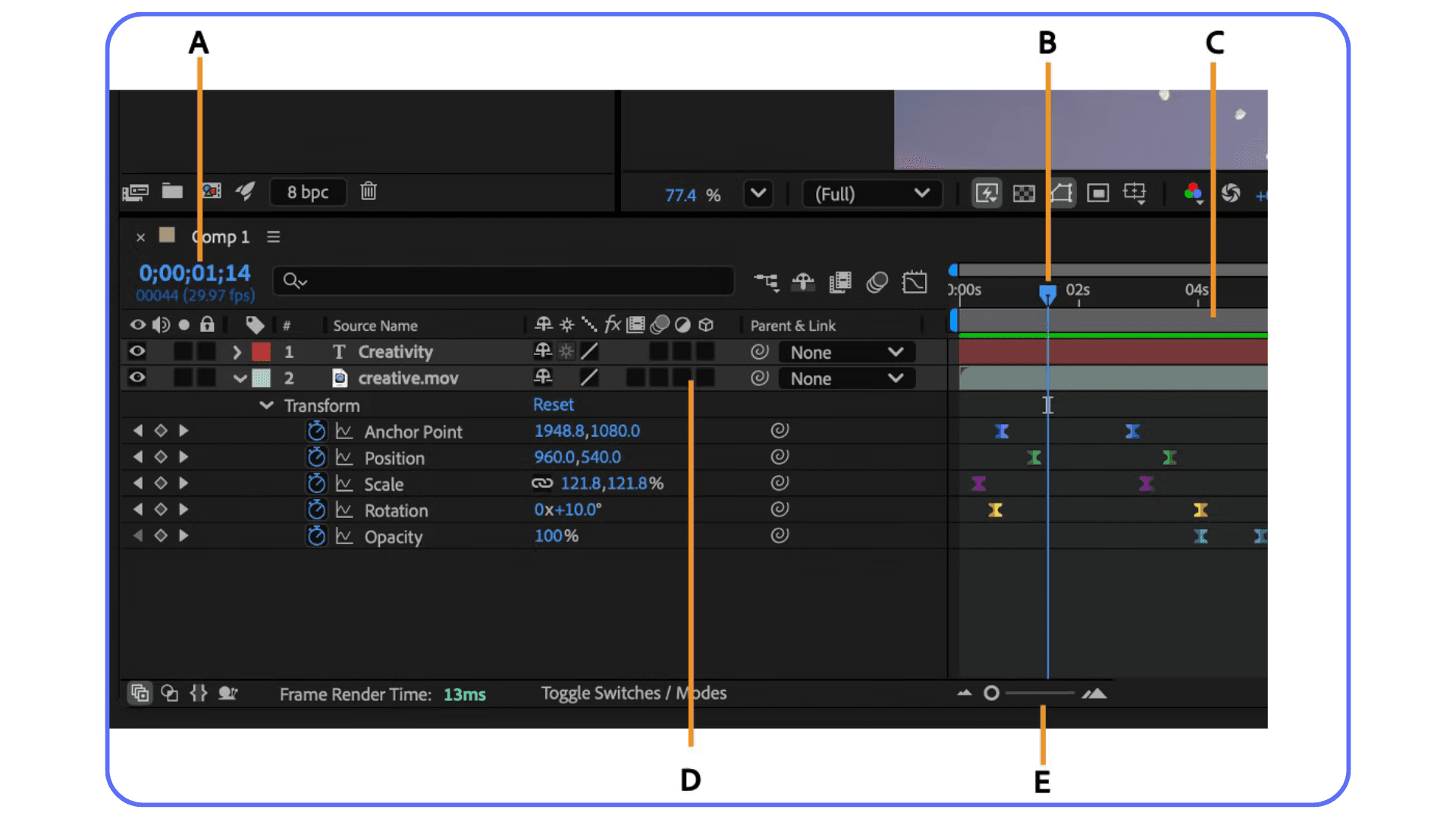
In my experience, bad organization doesn’t just slow you down. It changes how you work. You hesitate before making changes because you’re not sure what’ll break. You duplicate comps instead of reusing them because it feels safer. You avoid opening old projects altogether because you know it’ll be a mess. That’s not a workflow problem. That’s a stress problem.
Good organization does the opposite. It gives you confidence. You can jump into a project you haven’t touched in weeks and understand what’s happening in under a minute. You can hand a file to someone else without writing a three-paragraph explanation in Slack. You can experiment more because you’re not afraid of losing track of things.
And here’s a slightly contrarian take. Organization isn’t about being neat. It’s about reducing decision fatigue. When your project panel, comps, and timelines are predictable, your brain has more room for actual creative work. Motion curves. Timing. Design choices. The stuff that actually matters.
If you’ve ever thought, “I don’t have time to organize,” that’s usually the clearest sign that you really do.
If your machine constantly struggles, even good habits won’t save you, and choosing the right hardware for After Effects becomes part of staying organized.
Start at the Beginning: Folder Structure That Doesn’t Fight You
This is where most people either overdo it or give up entirely.
They create twelve folders before importing a single file. Or they dump everything into the Project panel and promise themselves they’ll “sort it out later.” Neither works for long.
Here’s what I’ve noticed after years of opening other people’s After Effects projects. The best folder structures are boring. Predictable. Almost repetitive. And that’s a good thing.
I usually start every project with the same basic skeleton:
_Assets
Footage
Images
Audio
_Precomps
_Solids
_Exports
_Reference
_Renders
Nothing fancy. No clever naming. Just folders that answer one question fast. “Where would this live?”
The underscore trick is intentional, by the way. It keeps core folders pinned to the top of the Project panel. Small detail. Huge quality-of-life improvement.

Inside those folders, I’ll nest only when it earns its place. For example, inside Footage I might add “Interview,” “B-roll,” or dates if the shoot spans multiple days. But I don’t mirror my entire hard drive inside After Effects. That’s how you end up clicking through five folders just to find one PNG.
One habit that’s helped more than I expected is matching my disk folders to my Project panel. Same names. Same structure. When someone sends me an updated file, I know exactly where it goes. Drag. Drop. Done. No guessing.
A quick warning here. Folder structure won’t save a chaotic project on its own. It’s a foundation, not a magic fix. But when this part is solid, everything else gets easier. Naming comps. Cleaning timelines. Sharing projects. All of it builds on this.
If your current project already looks like a junk drawer, don’t panic. We’ll talk later about how to clean things up without starting from scratch. But for new projects? Start clean. Your future self will thank you.
A lot of this comes down to GPU behavior in After Effects, which most users never fully optimize.
Naming Conventions That Save You From Yourself
Let’s talk about names. Because “Comp 1 copy 2 final REALLY final” is not doing you any favors.
I get why this happens. You’re moving fast. You duplicate a comp to try something. It works. Or it doesn’t. Either way, you keep going. Naming feels like friction in the moment. But it quietly becomes the biggest tax on your time later.
Here’s the rule I follow, and it’s boring on purpose. A comp name should tell you what it is, where it lives, and why it exists. If it doesn’t do at least two of those, it’s not done.
For example:
Hero_Text_Anim_v03LowerThird_Name_16x9BG_Shapes_Loop_05s
Nothing clever. Just clear.
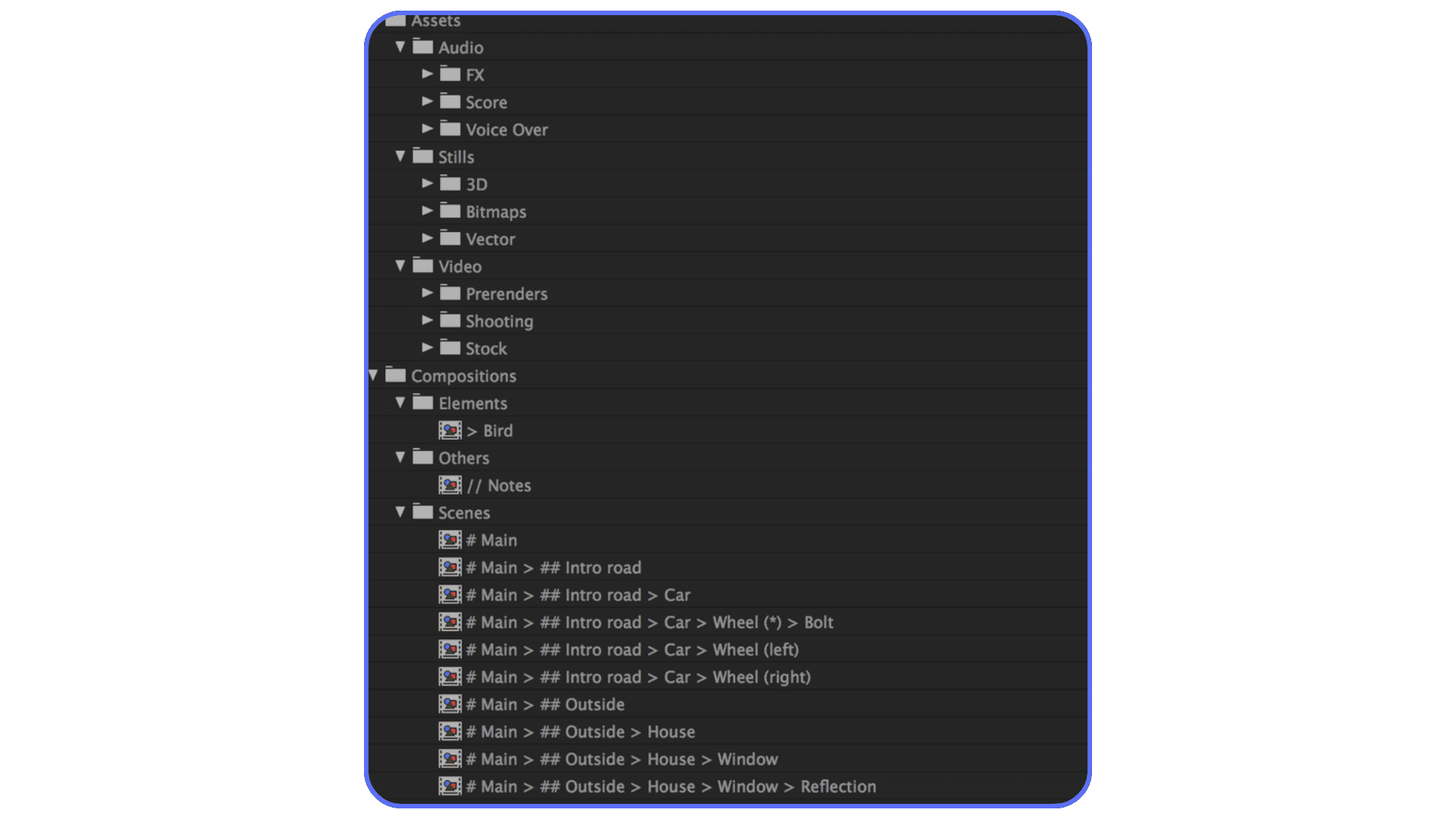
I also prefix things by type when projects get large. Main comps start with M_. Precomps start with PC_. Renders get OUT_. This keeps related comps grouped together and makes the Project panel sortable in a way that actually makes sense. After Effects sorts alphabetically. You might as well work with it instead of against it.
Versioning is another spot where people either go too far or not far enough. I stick to two-digit versions and only increment when something meaningfully changes. Tiny tweaks? Same version. Structural change? New version. This keeps the list short and tells me which comps actually matter.
One more opinionated take. If a comp exists only as a test and you’ve moved past it, name it that way. TEST_Color_Blocking. Or delete it. Fear-based hoarding is how projects balloon to hundreds of unused comps. If it’s not used, label it honestly or let it go.
You don’t need a perfect naming system. You need one you’ll actually use at 2 AM when you’re tired and slightly annoyed. Simple beats clever every time.
If you’ve ever wondered whether your GPU is the bottleneck, this breakdown helps clarify what actually matters for real-world After Effects projects.
Organize Inside Comps, Not Just the Project Panel
This is the part a lot of people skip. They clean up the Project panel, feel proud of themselves, then open a comp and immediately get hit with a 300-layer timeline that looks like a crime scene.
A clean Project panel won’t save you if your timelines are chaos.
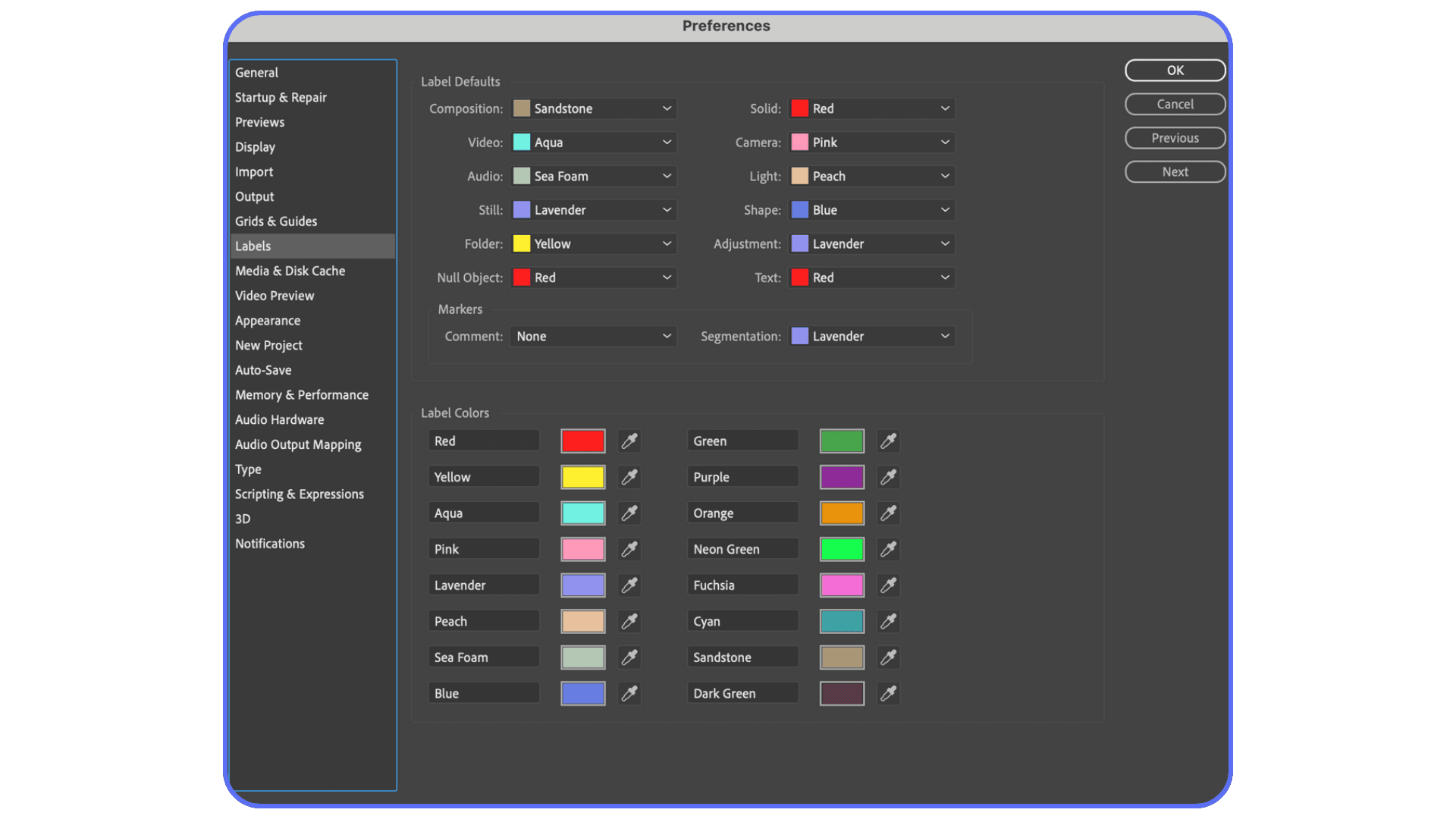
Start with layer labels. Not because they’re pretty, but because they’re fast. I use the same colors every time. Text is one color. Shape layers another. Adjustment layers get their own. Nulls and controllers stand out instantly. After a while, your brain reads color before it reads names. That’s real speed.
Consistency matters more than the actual color choice. Pick a system and don’t freestyle it halfway through the project.
Precomposing is the next big lever. Used well, it makes timelines readable. Used badly, it creates a maze you regret entering. My rule is simple. Precompose when layers belong together conceptually, not just because the timeline feels long. A lower third animation. A background loop. A character rig. Those make sense as units.
What doesn’t help is precomposing every three layers just to “clean things up.” That’s how you end up five levels deep trying to adjust one opacity keyframe.
Inside complex comps, I also group layers spatially. Background stuff lives at the bottom. Primary animation sits in the middle. Overlays and effects go on top. I leave empty space between groups. Literally blank layers of nothing. It sounds silly, but visual separation makes scanning faster.
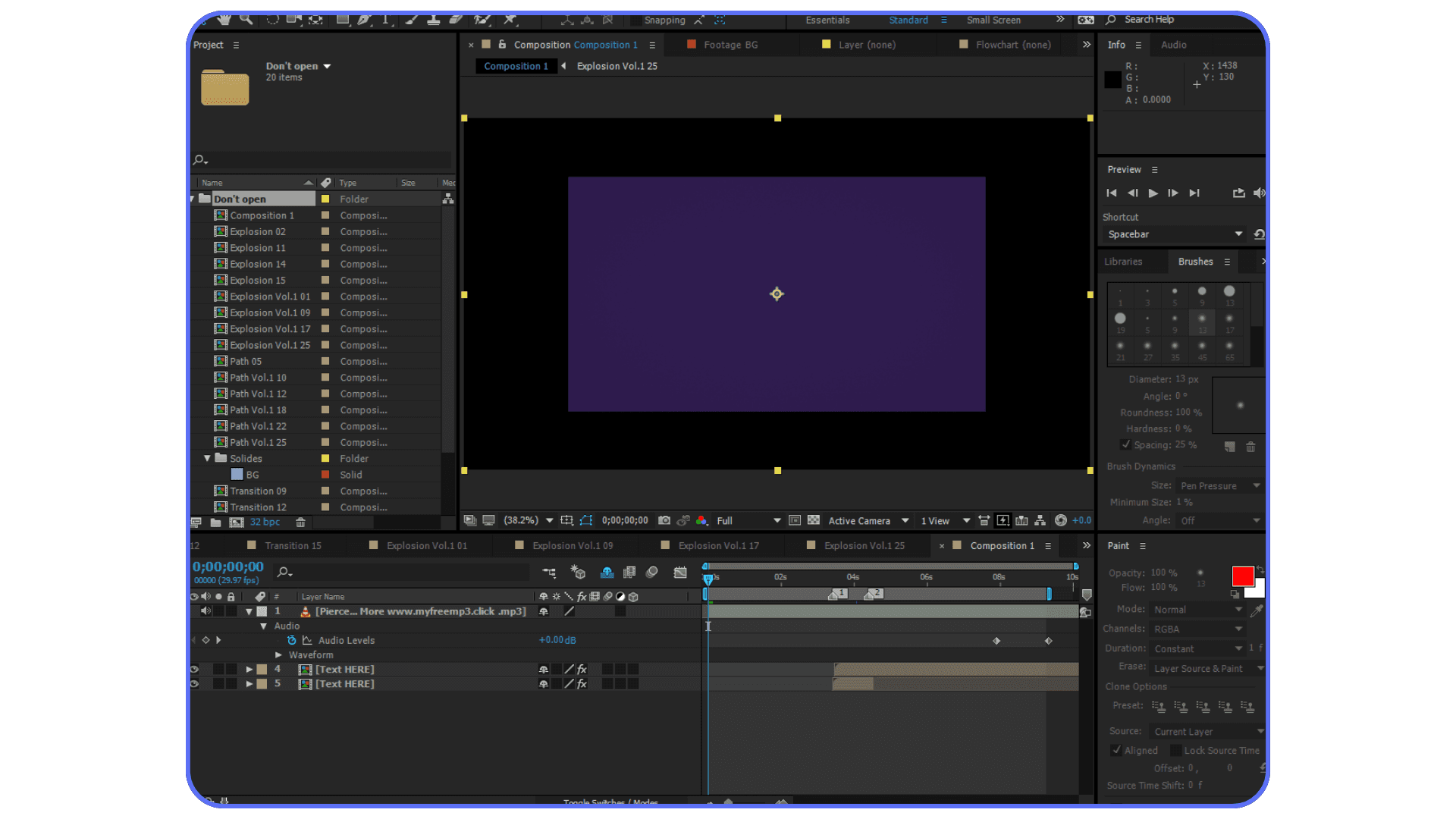
And here’s something I don’t see talked about enough. Lock layers you’re done with. Not forever. Just until you need them again. It stops accidental clicks and forces a tiny moment of intention when you unlock something. That pause saves mistakes.
If opening one of your comps makes you sigh before you even scrub the timeline, that’s a signal. Not that the animation is bad. That the structure is fighting you. Fixing it usually takes less time than you think.
Shortcuts make this even faster, especially when you’re constantly toggling labels, locking layers, or navigating dense timelines.
The Project Panel Is Not a Junk Drawer
I know the Project panel feels like the place where things land while you’re busy doing the “real work.” Footage comes in. Fonts sneak in. Random PSDs you forgot you imported three days ago just sit there, quietly judging you.
But this panel is either your fastest navigation tool or your biggest time sink. There’s no middle ground.
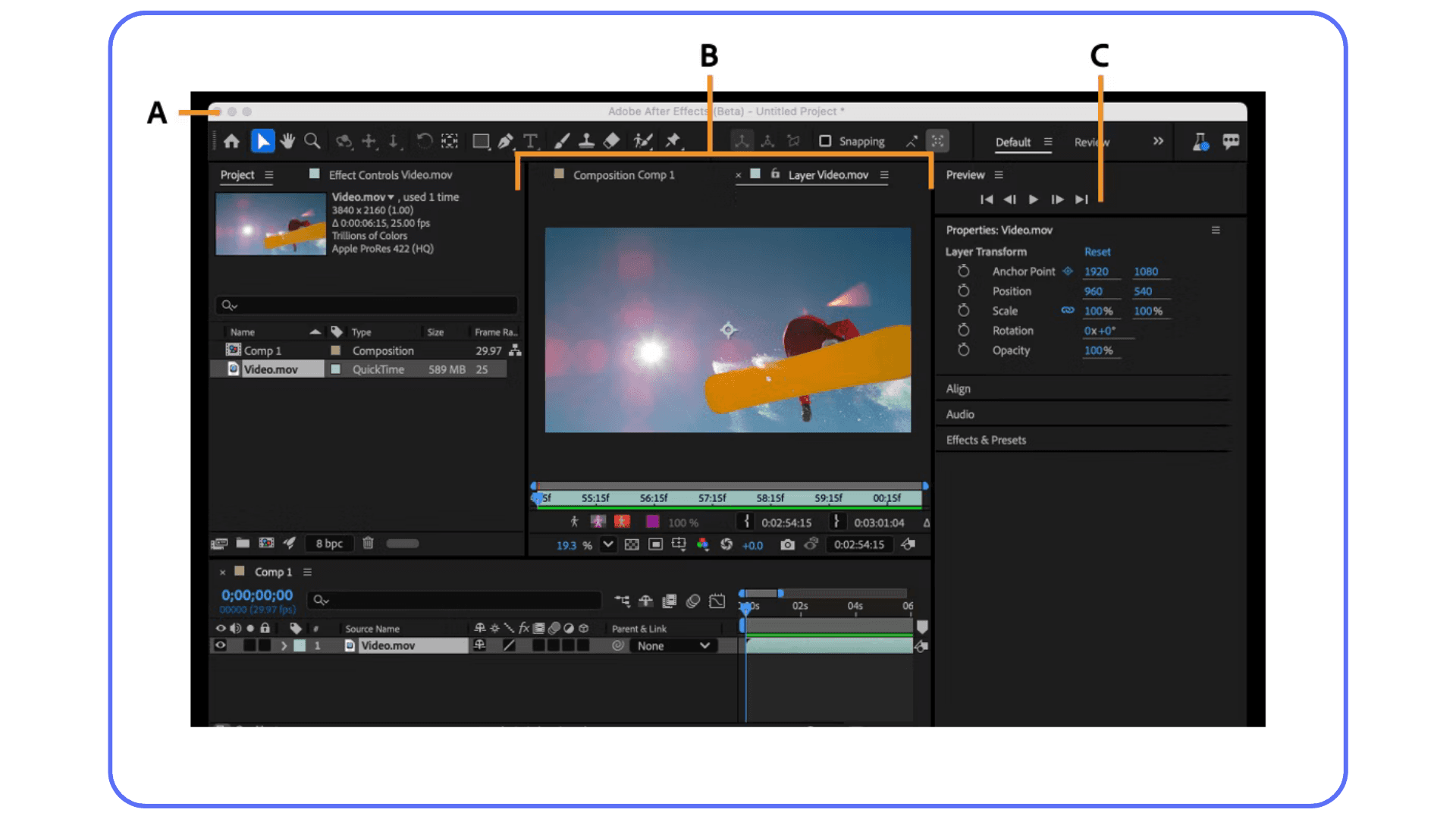
First thing I do on larger projects is turn on the columns that actually matter. Frame rate. Resolution. Duration. Suddenly you can spot the oddball clip instantly. That 29.97 file hiding in a 24 fps project stops being a surprise at render time. Small win. Big relief.
Search is another underused lifesaver. If you name things consistently, the search bar becomes a scalpel instead of a blunt instrument. Type “BG” and you see only background elements. Type “OUT” and your final comps pop up. No scrolling. No guessing.
Unused footage is where projects quietly rot. After Effects will happily let you carry dead weight forever. I try to clean this up at natural pause points. After a delivery. After feedback rounds. If a file hasn’t been used and you’re confident it won’t be, remove it. Not hide it. Remove it. You can always re-import later if you’re wrong. You usually won’t be.
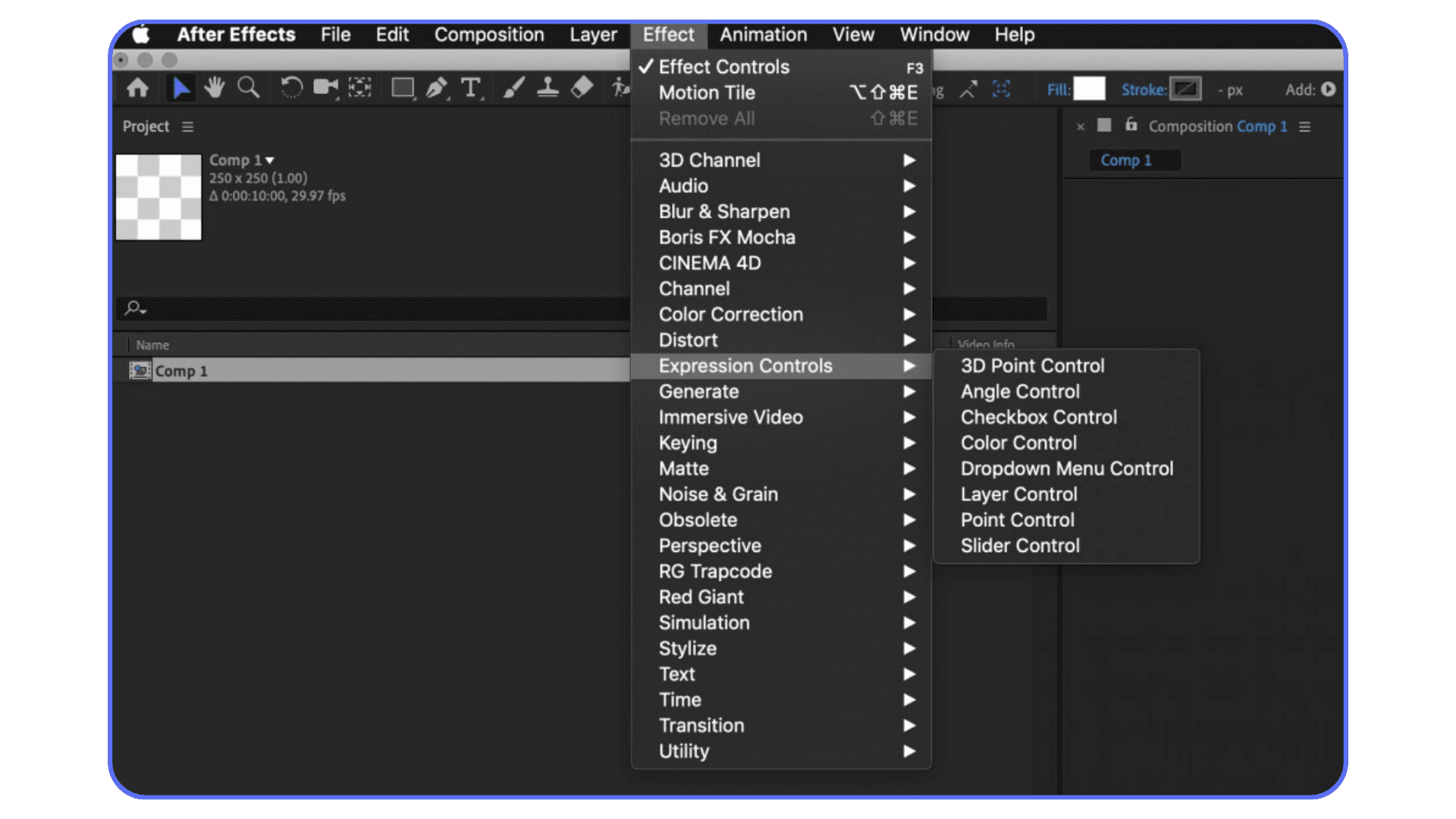
Expressions and controllers deserve their own respect too. If you’re using nulls, sliders, or custom control layers, group them. Name them clearly. Put “CTRL” in the name so they’re obvious. There’s nothing worse than spending five minutes wondering why something is moving, only to realize it’s driven by a hidden slider you forgot existed.
Think of the Project panel like a map. You shouldn’t have to remember where things are. You should be able to see it. If you’re constantly hunting, the system needs adjusting. Not you.
Next up, let’s talk about saving. Not the boring “remember to save” advice. The kind that saves you when After Effects doesn’t.
Save Like You Expect Things to Break
Because they will. Not every day, but often enough that pretending otherwise is optimistic at best.
I don’t trust a single save file. Never have. After Effects is powerful, but it’s still After Effects. One corrupted project can wipe out hours of work if you’re not prepared. So I build paranoia into my workflow and I recommend you do the same.
Incremental saving is non-negotiable for me. I save versions manually, usually at clear moments. After client feedback. Before big structural changes. When something finally works and I don’t want to touch it again. Those files get names like Project_v12.aep, not “final_final_ok_this_one.” Boring. Clear. Reliable.
Auto-save is a backup, not a strategy. It’s there for crashes, not for “I regret everything I just did.” I’ve noticed auto-save files tend to show up when you’re already stressed, so having clean manual versions you trust makes a huge difference emotionally. You open the file knowing you’re safe.
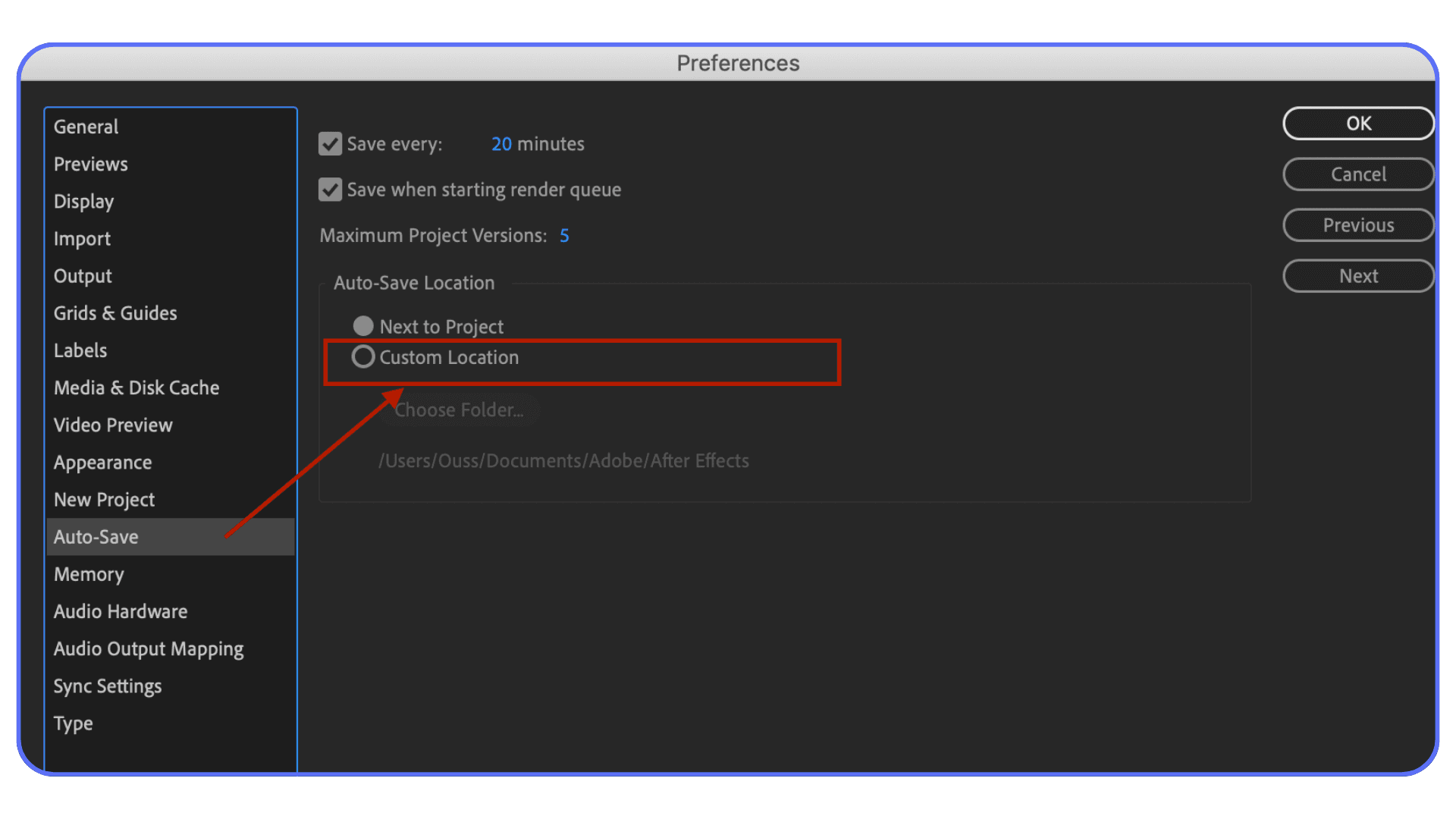
Another habit that helps is keeping old versions longer than you think you need. Storage is cheap. Rebuilding a motion system from memory is not. I’ve rolled back to a version from two weeks earlier more times than I’d like to admit, usually because a “quick tweak” snowballed into a mess.
One more thing people forget. Save copies before major renders. Especially long ones. Nothing hurts quite like discovering your project file is unstable after a three-hour render finishes.
Saving well doesn’t feel productive in the moment. It feels boring. But when something goes wrong and you lose maybe five minutes instead of a day, you’ll understand why it matters.
Now let’s zoom out a bit. Everything so far works great when you’re solo. Things change when other people get involved.
Comparisons like After Effects vs DaVinci Resolve often come down to how much motion complexity and compositing control you actually need.
Organization Changes When Other People Touch the File
Everything we’ve talked about so far works beautifully when it’s just you. Your habits. Your shortcuts. Your mental map of the project. The moment someone else opens that file, all of that disappears.
This is where “organized enough for me” stops being enough.
I’ve noticed that most collaboration issues in After Effects aren’t technical. They’re interpretive. Someone opens a project and doesn’t know which comp is the real one. They don’t know what’s safe to edit. They don’t know which version went to the client. So they duplicate things. Or worse, they change something global without realizing it.
Clear naming and structure become a form of communication. A comp called M_Main_Animation_LOCKED sends a very different message than Comp 4. Same with folders like _DO_NOT_TOUCH or _DELIVERED. They’re not elegant, but they’re effective. And effectiveness wins here.
I also think teams benefit from agreeing on a few rules upfront. Not a manifesto. Just basics. How versions are named. Where final comps live. What “final” actually means. If everyone follows the same logic, handoffs stop being stressful.
And here’s a small habit that pays off fast. Leave notes inside the project. A text layer that says “Client approved timing, don’t change speed.” A marker explaining why something is precomposed the way it is. You won’t remember later. Someone else definitely won’t.
Collaboration exposes every weak spot in your organization. That’s not a bad thing. It’s feedback. If your system falls apart the moment another person touches it, the system needs work. Not the people.
Next, let’s talk about the uncomfortable truth. Even with good habits, projects still get messy. Sometimes badly. What then?
When Organization Fails and How to Recover Without Starting Over
Let’s be honest. Sometimes the project is already a disaster by the time you realize it. Deadlines happened. Ideas changed. People duplicated things out of panic. Now you’re staring at a Project panel that feels beyond saving.
This is where a lot of people give up and say, “I’ll just push through.” I’ve done that. It usually costs more time than fixing the mess.
The trick is not to clean everything. That’s overwhelming. You clean just enough to keep moving.
I usually start by identifying the one comp that actually matters. The one that goes to render. Everything else becomes secondary. I rename that comp clearly. OUT_Main_16x9_APPROVED. That alone removes a ton of mental noise.
Next, I do a ruthless pass on obvious junk. Tests that are clearly abandoned. Old imports that aren’t referenced anywhere. You don’t need to be perfect here. You just need to remove the low-hanging confusion.
If the Project panel is completely out of control, this is where cleanup scripts can help. I don’t use them every day, but when things get bad, they save hours. Tools that collect used footage, remove unused items, or auto-sort assets can snap a project back into shape faster than manual cleanup. Just don’t treat scripts as a replacement for habits. They’re emergency tools, not a lifestyle.
There’s also a moment where the right move is to stop fixing and start fresh. If a project has been Frankensteined across multiple deliveries and directions, duplicating the file and rebuilding the structure around the final animation can be healthier than patching forever. I usually do this after a major approval. New project. Clean slate. Only the assets that matter.
Messy projects aren’t a personal failure. They’re often a side effect of real-world work. Tight timelines. Changing feedback. Multiple hands in the file. The goal isn’t perfection. It’s recovery. Being able to look at chaos and calmly bring it back to something usable.
And now for something people rarely connect to organization, but absolutely should. Performance. Because a slow setup makes disorganization feel ten times worse.
Some users even explore other motion tools when organization feels overwhelming, though each option comes with trade-offs.
Where Vagon Cloud Computer Actually Helps With Organized After Effects Projects
Once your After Effects projects are properly organized, a new problem usually shows up. Scale.
More comps. Heavier footage. Higher resolutions. Cleaner structure, but suddenly your local machine is the bottleneck. Timelines lag. Previews take longer. Opening nested comps feels risky. Organization helps, but it can’t compensate for limited hardware.
This is where Vagon Cloud Computer makes a real difference.
Vagon gives you access to a high-performance cloud computer that’s purpose-built for demanding software like After Effects. More CPU power. More GPU headroom. More memory. The practical result is simple. Organized projects stay responsive even as they grow. You’re more willing to open complex precomps, reuse existing assets, and keep your structure clean instead of duplicating things to avoid slowdowns.
There’s also a quieter benefit when it comes to portability.
When your After Effects project lives on a cloud computer, you’re no longer tied to one physical machine. You can open the same organized project from different locations without migrating files, relinking assets, or worrying about mismatched setups. Same folder structure. Same cache behavior. Same project state.
This matters when projects get long or complex. Instead of copying large folders between systems or trimming projects just to make them portable, you work where the project already exists. Organization stays intact because nothing has to be reshuffled just to move the file.
Vagon Cloud Computer doesn’t replace good After Effects habits. You still need clear comp names, sensible folder structures, and clean timelines. What it does is remove the hardware limitations that usually push people into bad habits. When performance stays consistent and projects don’t need to be constantly moved around, staying organized becomes much easier to maintain.
This becomes especially relevant if you’re exploring ways to access After Effects beyond a traditional desktop setup.
Final Thoughts
Here’s the thing I wish someone had told me earlier. Organization doesn’t magically make you faster on day one. It compounds.
At first, it just feels slightly nicer. You can find things. You don’t swear as much. Cool. Then a few projects later, you realize you’re making different decisions. You reuse instead of duplicate. You experiment without fear. You jump back into old files without that sinking feeling in your stomach.
That’s when it really clicks.
Good organization changes how you think inside After Effects. You spend less energy managing chaos and more energy shaping motion. Timing feels more intentional. Systems emerge. Work gets cleaner, not just visually, but structurally.
And when you pair those habits with an environment that can actually keep up, like running your projects on a Vagon Cloud Computer, the benefits stick. You’re not constantly fighting hardware limits or restructuring files just to make them portable. Your organized projects stay organized because nothing is forcing you to compromise.
You don’t need perfection. You don’t need color-coded nirvana. You just need habits that reduce friction instead of adding to it.
If opening your After Effects projects feels lighter, clearer, and a little less stressful than it used to, you’re doing it right. And once you feel that difference, it’s very hard to go back.
FAQs
1. Do I really need to organize comps on small projects?
Short answer: not as much. Longer answer: a little organization still helps. If it’s a one-day explainer with five comps, you can get away with chaos. But projects have a funny habit of growing. One revision turns into three. One format turns into six. If you build light structure early, even small jobs stay painless when they unexpectedly balloon.
2. How many precomps is too many?
When you feel lost clicking through them, you’ve crossed the line. Precomps should represent ideas or functional groups, not just a way to hide layers. If you’re nesting things purely to shorten the timeline, pause and rethink. A readable timeline with fewer precomps often beats a “clean” timeline that’s impossible to navigate.
3. Is there a perfect naming convention I should follow?
No. And anyone who tells you otherwise is lying or selling a template. The best naming system is the one you’ll actually use consistently. Clear beats clever. Predictable beats stylish. If someone else can open your project and understand it without asking questions, your system is working.
4. How often should I clean up unused comps and assets?
I like tying cleanup to milestones. After a delivery. After approvals. Before archiving. Trying to clean continuously can slow you down. Never cleaning at all guarantees pain later. Batch cleanup keeps momentum without letting things rot.
5. Can scripts replace good organization habits?
They help, but they don’t think for you. Cleanup scripts are great for removing unused footage or sorting assets after the fact. They won’t decide which comp is the real master or which version matters. Use scripts as tools, not crutches.
6. Does performance really affect how organized I am?
In my experience, yes. A lot. When previews are slow, people avoid touching things. They duplicate instead of reuse. They stop cleaning because every action feels expensive. Faster performance encourages better habits because nothing feels risky to open or adjust.
7. When does it make sense to use something like Vagon Cloud Computer?
Usually when projects get heavy or long-lived. If your After Effects files are growing in size and complexity, or you find yourself restructuring projects just to move them between machines, working on a Vagon Cloud Computer can remove that friction. Your organized project lives in one place, runs on stronger hardware, and doesn’t need to be constantly adapted to fit local limitations.
8. What’s the biggest organization mistake to avoid?
Waiting for the “right time” to start. That moment almost never comes. Organization works best when it’s incremental. Small decisions. Clear names. Light structure. Do a little early, and you avoid doing a lot later under pressure.
I once opened an After Effects project from a client and counted 214 compositions. Only maybe 30 of them were actually used. The rest? Old tests, half-finished ideas, forgotten precomps, and that one version someone duplicated “just in case.” Sound familiar.
If you’ve been using After Effects for a while, this probably hit a little too close to home. Projects don’t usually start messy. They become messy. One duplicate turns into ten. One precomp turns into a nesting doll situation you’re scared to click into. And suddenly, finding the right comp feels like scrolling Netflix for 40 minutes and still not watching anything.
So let’s be clear about something upfront. This isn’t one of those “just stay organized” posts that tells you to name things better and call it a day. We’re talking real habits. The kind that save you time when a client asks for a change at 11:47 PM. The kind that keep you from rage-soloing layers just to figure out what’s breaking your animation. Practical stuff. Things you can actually start doing today and feel the difference by your next project.
Why Organization Matters (Even If You Think You’re Fine Without It)
Most After Effects users don’t ignore organization because they’re lazy. They ignore it because everything feels manageable… at first.
You start with one main comp. A couple of shape layers. Maybe a logo animation. Easy. Then feedback rolls in. New versions. Alternate timings. Social cutdowns. Before you know it, you’re juggling dozens of comps that all look suspiciously similar. This is usually the moment people say, “I’ll clean it up later.”
Later rarely comes.
In my experience, bad organization doesn’t just slow you down. It changes how you work. You hesitate before making changes because you’re not sure what’ll break. You duplicate comps instead of reusing them because it feels safer. You avoid opening old projects altogether because you know it’ll be a mess. That’s not a workflow problem. That’s a stress problem.
Good organization does the opposite. It gives you confidence. You can jump into a project you haven’t touched in weeks and understand what’s happening in under a minute. You can hand a file to someone else without writing a three-paragraph explanation in Slack. You can experiment more because you’re not afraid of losing track of things.
And here’s a slightly contrarian take. Organization isn’t about being neat. It’s about reducing decision fatigue. When your project panel, comps, and timelines are predictable, your brain has more room for actual creative work. Motion curves. Timing. Design choices. The stuff that actually matters.
If you’ve ever thought, “I don’t have time to organize,” that’s usually the clearest sign that you really do.
If your machine constantly struggles, even good habits won’t save you, and choosing the right hardware for After Effects becomes part of staying organized.
Start at the Beginning: Folder Structure That Doesn’t Fight You
This is where most people either overdo it or give up entirely.
They create twelve folders before importing a single file. Or they dump everything into the Project panel and promise themselves they’ll “sort it out later.” Neither works for long.
Here’s what I’ve noticed after years of opening other people’s After Effects projects. The best folder structures are boring. Predictable. Almost repetitive. And that’s a good thing.
I usually start every project with the same basic skeleton:
_Assets
Footage
Images
Audio
_Precomps
_Solids
_Exports
_Reference
_Renders
Nothing fancy. No clever naming. Just folders that answer one question fast. “Where would this live?”
The underscore trick is intentional, by the way. It keeps core folders pinned to the top of the Project panel. Small detail. Huge quality-of-life improvement.
Inside those folders, I’ll nest only when it earns its place. For example, inside Footage I might add “Interview,” “B-roll,” or dates if the shoot spans multiple days. But I don’t mirror my entire hard drive inside After Effects. That’s how you end up clicking through five folders just to find one PNG.
One habit that’s helped more than I expected is matching my disk folders to my Project panel. Same names. Same structure. When someone sends me an updated file, I know exactly where it goes. Drag. Drop. Done. No guessing.
A quick warning here. Folder structure won’t save a chaotic project on its own. It’s a foundation, not a magic fix. But when this part is solid, everything else gets easier. Naming comps. Cleaning timelines. Sharing projects. All of it builds on this.
If your current project already looks like a junk drawer, don’t panic. We’ll talk later about how to clean things up without starting from scratch. But for new projects? Start clean. Your future self will thank you.
A lot of this comes down to GPU behavior in After Effects, which most users never fully optimize.
Naming Conventions That Save You From Yourself
Let’s talk about names. Because “Comp 1 copy 2 final REALLY final” is not doing you any favors.
I get why this happens. You’re moving fast. You duplicate a comp to try something. It works. Or it doesn’t. Either way, you keep going. Naming feels like friction in the moment. But it quietly becomes the biggest tax on your time later.
Here’s the rule I follow, and it’s boring on purpose. A comp name should tell you what it is, where it lives, and why it exists. If it doesn’t do at least two of those, it’s not done.
For example:
Hero_Text_Anim_v03LowerThird_Name_16x9BG_Shapes_Loop_05s
Nothing clever. Just clear.
I also prefix things by type when projects get large. Main comps start with M_. Precomps start with PC_. Renders get OUT_. This keeps related comps grouped together and makes the Project panel sortable in a way that actually makes sense. After Effects sorts alphabetically. You might as well work with it instead of against it.
Versioning is another spot where people either go too far or not far enough. I stick to two-digit versions and only increment when something meaningfully changes. Tiny tweaks? Same version. Structural change? New version. This keeps the list short and tells me which comps actually matter.
One more opinionated take. If a comp exists only as a test and you’ve moved past it, name it that way. TEST_Color_Blocking. Or delete it. Fear-based hoarding is how projects balloon to hundreds of unused comps. If it’s not used, label it honestly or let it go.
You don’t need a perfect naming system. You need one you’ll actually use at 2 AM when you’re tired and slightly annoyed. Simple beats clever every time.
If you’ve ever wondered whether your GPU is the bottleneck, this breakdown helps clarify what actually matters for real-world After Effects projects.
Organize Inside Comps, Not Just the Project Panel
This is the part a lot of people skip. They clean up the Project panel, feel proud of themselves, then open a comp and immediately get hit with a 300-layer timeline that looks like a crime scene.
A clean Project panel won’t save you if your timelines are chaos.
Start with layer labels. Not because they’re pretty, but because they’re fast. I use the same colors every time. Text is one color. Shape layers another. Adjustment layers get their own. Nulls and controllers stand out instantly. After a while, your brain reads color before it reads names. That’s real speed.
Consistency matters more than the actual color choice. Pick a system and don’t freestyle it halfway through the project.
Precomposing is the next big lever. Used well, it makes timelines readable. Used badly, it creates a maze you regret entering. My rule is simple. Precompose when layers belong together conceptually, not just because the timeline feels long. A lower third animation. A background loop. A character rig. Those make sense as units.
What doesn’t help is precomposing every three layers just to “clean things up.” That’s how you end up five levels deep trying to adjust one opacity keyframe.
Inside complex comps, I also group layers spatially. Background stuff lives at the bottom. Primary animation sits in the middle. Overlays and effects go on top. I leave empty space between groups. Literally blank layers of nothing. It sounds silly, but visual separation makes scanning faster.
And here’s something I don’t see talked about enough. Lock layers you’re done with. Not forever. Just until you need them again. It stops accidental clicks and forces a tiny moment of intention when you unlock something. That pause saves mistakes.
If opening one of your comps makes you sigh before you even scrub the timeline, that’s a signal. Not that the animation is bad. That the structure is fighting you. Fixing it usually takes less time than you think.
Shortcuts make this even faster, especially when you’re constantly toggling labels, locking layers, or navigating dense timelines.
The Project Panel Is Not a Junk Drawer
I know the Project panel feels like the place where things land while you’re busy doing the “real work.” Footage comes in. Fonts sneak in. Random PSDs you forgot you imported three days ago just sit there, quietly judging you.
But this panel is either your fastest navigation tool or your biggest time sink. There’s no middle ground.
First thing I do on larger projects is turn on the columns that actually matter. Frame rate. Resolution. Duration. Suddenly you can spot the oddball clip instantly. That 29.97 file hiding in a 24 fps project stops being a surprise at render time. Small win. Big relief.
Search is another underused lifesaver. If you name things consistently, the search bar becomes a scalpel instead of a blunt instrument. Type “BG” and you see only background elements. Type “OUT” and your final comps pop up. No scrolling. No guessing.
Unused footage is where projects quietly rot. After Effects will happily let you carry dead weight forever. I try to clean this up at natural pause points. After a delivery. After feedback rounds. If a file hasn’t been used and you’re confident it won’t be, remove it. Not hide it. Remove it. You can always re-import later if you’re wrong. You usually won’t be.
Expressions and controllers deserve their own respect too. If you’re using nulls, sliders, or custom control layers, group them. Name them clearly. Put “CTRL” in the name so they’re obvious. There’s nothing worse than spending five minutes wondering why something is moving, only to realize it’s driven by a hidden slider you forgot existed.
Think of the Project panel like a map. You shouldn’t have to remember where things are. You should be able to see it. If you’re constantly hunting, the system needs adjusting. Not you.
Next up, let’s talk about saving. Not the boring “remember to save” advice. The kind that saves you when After Effects doesn’t.
Save Like You Expect Things to Break
Because they will. Not every day, but often enough that pretending otherwise is optimistic at best.
I don’t trust a single save file. Never have. After Effects is powerful, but it’s still After Effects. One corrupted project can wipe out hours of work if you’re not prepared. So I build paranoia into my workflow and I recommend you do the same.
Incremental saving is non-negotiable for me. I save versions manually, usually at clear moments. After client feedback. Before big structural changes. When something finally works and I don’t want to touch it again. Those files get names like Project_v12.aep, not “final_final_ok_this_one.” Boring. Clear. Reliable.
Auto-save is a backup, not a strategy. It’s there for crashes, not for “I regret everything I just did.” I’ve noticed auto-save files tend to show up when you’re already stressed, so having clean manual versions you trust makes a huge difference emotionally. You open the file knowing you’re safe.
Another habit that helps is keeping old versions longer than you think you need. Storage is cheap. Rebuilding a motion system from memory is not. I’ve rolled back to a version from two weeks earlier more times than I’d like to admit, usually because a “quick tweak” snowballed into a mess.
One more thing people forget. Save copies before major renders. Especially long ones. Nothing hurts quite like discovering your project file is unstable after a three-hour render finishes.
Saving well doesn’t feel productive in the moment. It feels boring. But when something goes wrong and you lose maybe five minutes instead of a day, you’ll understand why it matters.
Now let’s zoom out a bit. Everything so far works great when you’re solo. Things change when other people get involved.
Comparisons like After Effects vs DaVinci Resolve often come down to how much motion complexity and compositing control you actually need.
Organization Changes When Other People Touch the File
Everything we’ve talked about so far works beautifully when it’s just you. Your habits. Your shortcuts. Your mental map of the project. The moment someone else opens that file, all of that disappears.
This is where “organized enough for me” stops being enough.
I’ve noticed that most collaboration issues in After Effects aren’t technical. They’re interpretive. Someone opens a project and doesn’t know which comp is the real one. They don’t know what’s safe to edit. They don’t know which version went to the client. So they duplicate things. Or worse, they change something global without realizing it.
Clear naming and structure become a form of communication. A comp called M_Main_Animation_LOCKED sends a very different message than Comp 4. Same with folders like _DO_NOT_TOUCH or _DELIVERED. They’re not elegant, but they’re effective. And effectiveness wins here.
I also think teams benefit from agreeing on a few rules upfront. Not a manifesto. Just basics. How versions are named. Where final comps live. What “final” actually means. If everyone follows the same logic, handoffs stop being stressful.
And here’s a small habit that pays off fast. Leave notes inside the project. A text layer that says “Client approved timing, don’t change speed.” A marker explaining why something is precomposed the way it is. You won’t remember later. Someone else definitely won’t.
Collaboration exposes every weak spot in your organization. That’s not a bad thing. It’s feedback. If your system falls apart the moment another person touches it, the system needs work. Not the people.
Next, let’s talk about the uncomfortable truth. Even with good habits, projects still get messy. Sometimes badly. What then?
When Organization Fails and How to Recover Without Starting Over
Let’s be honest. Sometimes the project is already a disaster by the time you realize it. Deadlines happened. Ideas changed. People duplicated things out of panic. Now you’re staring at a Project panel that feels beyond saving.
This is where a lot of people give up and say, “I’ll just push through.” I’ve done that. It usually costs more time than fixing the mess.
The trick is not to clean everything. That’s overwhelming. You clean just enough to keep moving.
I usually start by identifying the one comp that actually matters. The one that goes to render. Everything else becomes secondary. I rename that comp clearly. OUT_Main_16x9_APPROVED. That alone removes a ton of mental noise.
Next, I do a ruthless pass on obvious junk. Tests that are clearly abandoned. Old imports that aren’t referenced anywhere. You don’t need to be perfect here. You just need to remove the low-hanging confusion.
If the Project panel is completely out of control, this is where cleanup scripts can help. I don’t use them every day, but when things get bad, they save hours. Tools that collect used footage, remove unused items, or auto-sort assets can snap a project back into shape faster than manual cleanup. Just don’t treat scripts as a replacement for habits. They’re emergency tools, not a lifestyle.
There’s also a moment where the right move is to stop fixing and start fresh. If a project has been Frankensteined across multiple deliveries and directions, duplicating the file and rebuilding the structure around the final animation can be healthier than patching forever. I usually do this after a major approval. New project. Clean slate. Only the assets that matter.
Messy projects aren’t a personal failure. They’re often a side effect of real-world work. Tight timelines. Changing feedback. Multiple hands in the file. The goal isn’t perfection. It’s recovery. Being able to look at chaos and calmly bring it back to something usable.
And now for something people rarely connect to organization, but absolutely should. Performance. Because a slow setup makes disorganization feel ten times worse.
Some users even explore other motion tools when organization feels overwhelming, though each option comes with trade-offs.
Where Vagon Cloud Computer Actually Helps With Organized After Effects Projects
Once your After Effects projects are properly organized, a new problem usually shows up. Scale.
More comps. Heavier footage. Higher resolutions. Cleaner structure, but suddenly your local machine is the bottleneck. Timelines lag. Previews take longer. Opening nested comps feels risky. Organization helps, but it can’t compensate for limited hardware.
This is where Vagon Cloud Computer makes a real difference.
Vagon gives you access to a high-performance cloud computer that’s purpose-built for demanding software like After Effects. More CPU power. More GPU headroom. More memory. The practical result is simple. Organized projects stay responsive even as they grow. You’re more willing to open complex precomps, reuse existing assets, and keep your structure clean instead of duplicating things to avoid slowdowns.
There’s also a quieter benefit when it comes to portability.
When your After Effects project lives on a cloud computer, you’re no longer tied to one physical machine. You can open the same organized project from different locations without migrating files, relinking assets, or worrying about mismatched setups. Same folder structure. Same cache behavior. Same project state.
This matters when projects get long or complex. Instead of copying large folders between systems or trimming projects just to make them portable, you work where the project already exists. Organization stays intact because nothing has to be reshuffled just to move the file.
Vagon Cloud Computer doesn’t replace good After Effects habits. You still need clear comp names, sensible folder structures, and clean timelines. What it does is remove the hardware limitations that usually push people into bad habits. When performance stays consistent and projects don’t need to be constantly moved around, staying organized becomes much easier to maintain.
This becomes especially relevant if you’re exploring ways to access After Effects beyond a traditional desktop setup.
Final Thoughts
Here’s the thing I wish someone had told me earlier. Organization doesn’t magically make you faster on day one. It compounds.
At first, it just feels slightly nicer. You can find things. You don’t swear as much. Cool. Then a few projects later, you realize you’re making different decisions. You reuse instead of duplicate. You experiment without fear. You jump back into old files without that sinking feeling in your stomach.
That’s when it really clicks.
Good organization changes how you think inside After Effects. You spend less energy managing chaos and more energy shaping motion. Timing feels more intentional. Systems emerge. Work gets cleaner, not just visually, but structurally.
And when you pair those habits with an environment that can actually keep up, like running your projects on a Vagon Cloud Computer, the benefits stick. You’re not constantly fighting hardware limits or restructuring files just to make them portable. Your organized projects stay organized because nothing is forcing you to compromise.
You don’t need perfection. You don’t need color-coded nirvana. You just need habits that reduce friction instead of adding to it.
If opening your After Effects projects feels lighter, clearer, and a little less stressful than it used to, you’re doing it right. And once you feel that difference, it’s very hard to go back.
FAQs
1. Do I really need to organize comps on small projects?
Short answer: not as much. Longer answer: a little organization still helps. If it’s a one-day explainer with five comps, you can get away with chaos. But projects have a funny habit of growing. One revision turns into three. One format turns into six. If you build light structure early, even small jobs stay painless when they unexpectedly balloon.
2. How many precomps is too many?
When you feel lost clicking through them, you’ve crossed the line. Precomps should represent ideas or functional groups, not just a way to hide layers. If you’re nesting things purely to shorten the timeline, pause and rethink. A readable timeline with fewer precomps often beats a “clean” timeline that’s impossible to navigate.
3. Is there a perfect naming convention I should follow?
No. And anyone who tells you otherwise is lying or selling a template. The best naming system is the one you’ll actually use consistently. Clear beats clever. Predictable beats stylish. If someone else can open your project and understand it without asking questions, your system is working.
4. How often should I clean up unused comps and assets?
I like tying cleanup to milestones. After a delivery. After approvals. Before archiving. Trying to clean continuously can slow you down. Never cleaning at all guarantees pain later. Batch cleanup keeps momentum without letting things rot.
5. Can scripts replace good organization habits?
They help, but they don’t think for you. Cleanup scripts are great for removing unused footage or sorting assets after the fact. They won’t decide which comp is the real master or which version matters. Use scripts as tools, not crutches.
6. Does performance really affect how organized I am?
In my experience, yes. A lot. When previews are slow, people avoid touching things. They duplicate instead of reuse. They stop cleaning because every action feels expensive. Faster performance encourages better habits because nothing feels risky to open or adjust.
7. When does it make sense to use something like Vagon Cloud Computer?
Usually when projects get heavy or long-lived. If your After Effects files are growing in size and complexity, or you find yourself restructuring projects just to move them between machines, working on a Vagon Cloud Computer can remove that friction. Your organized project lives in one place, runs on stronger hardware, and doesn’t need to be constantly adapted to fit local limitations.
8. What’s the biggest organization mistake to avoid?
Waiting for the “right time” to start. That moment almost never comes. Organization works best when it’s incremental. Small decisions. Clear names. Light structure. Do a little early, and you avoid doing a lot later under pressure.
Get Beyond Your Computer Performance
Run applications on your cloud computer with the latest generation hardware. No more crashes or lags.

Trial includes 1 hour usage + 7 days of storage.
Summarize with AI

Ready to focus on your creativity?
Vagon gives you the ability to create & render projects, collaborate, and stream applications with the power of the best hardware.

Run heavy applications on any device with
your personal computer on the cloud.
San Francisco, California
Solutions
Vagon Teams
Vagon Streams
Use Cases
© 2026 Vagon. All rights reserved.
Run heavy applications on any device with
your personal computer on the cloud.
San Francisco, California
Solutions
Vagon Teams
Vagon Streams
Use Cases
© 2026 Vagon. All rights reserved.
Run heavy applications on any device with
your personal computer on the cloud.
San Francisco, California
Solutions
Vagon Teams
Vagon Streams
Use Cases
© 2026 Vagon. All rights reserved.