Instant Connection for Pixel Streaming
— New Feature Automated Setup
Unreal Engine Shortcuts That Actually Speed Up Your Workflow
GameDevelopment
Unreal Engine Shortcuts That Actually Speed Up Your Workflow
GameDevelopment
Unreal Engine Shortcuts That Actually Speed Up Your Workflow
GameDevelopment
Table of Contents
Ever notice how Unreal feels fast one minute and painfully slow the next?
One second you’re flying through a scene, snapping actors into place, bouncing between viewports like everything finally clicked. Then it happens. The editor hesitates. The viewport stutters. A shader compile kicks off at the worst possible time. Your hands are still moving, but the engine isn’t keeping up anymore.
That moment is brutal. Not because Unreal is “hard” but because it breaks momentum. And once your flow is gone, getting it back takes way longer than it should.
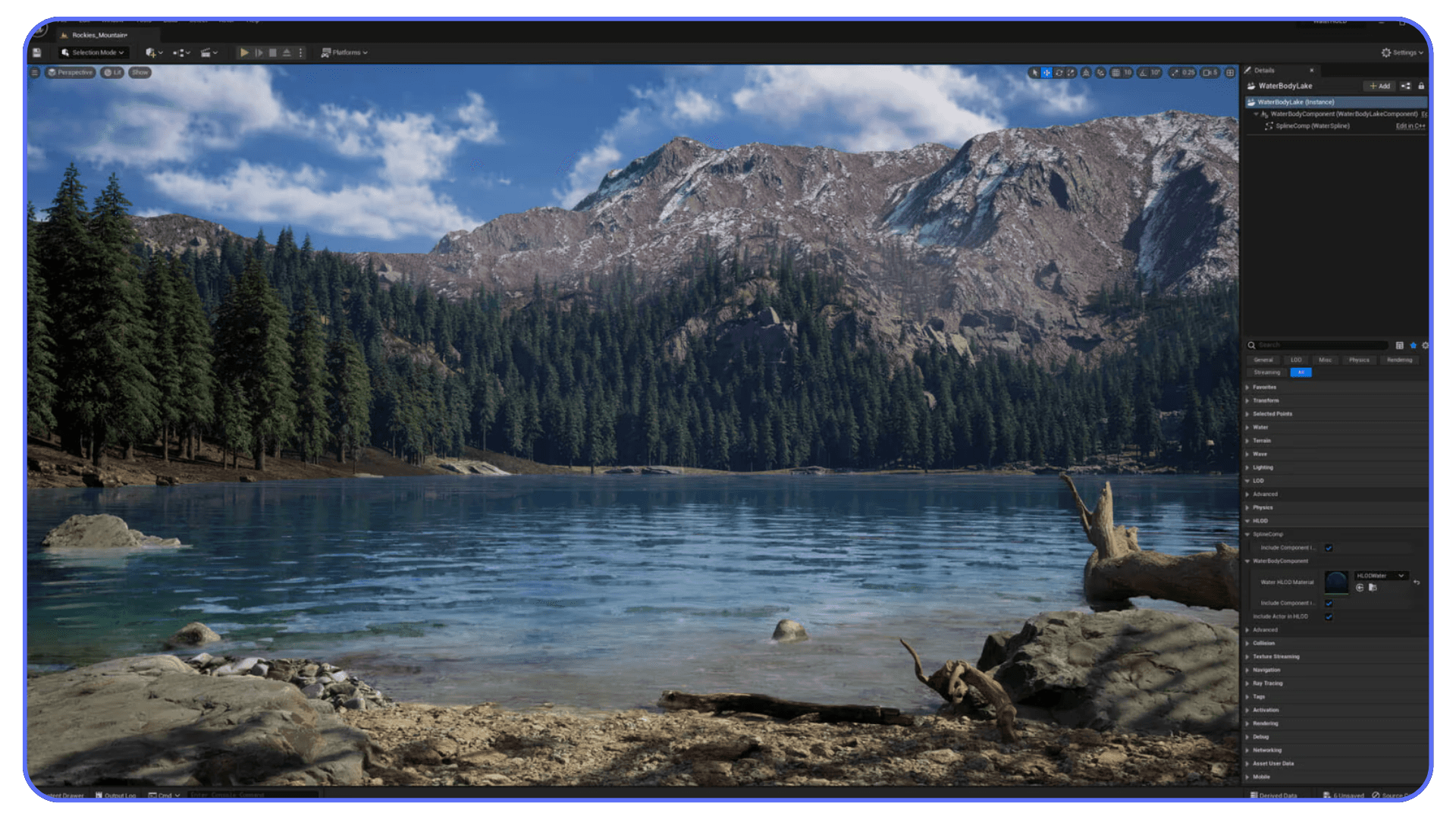
I’ve noticed this pattern over and over. The slowdown rarely comes from one big mistake. It comes from tiny interruptions stacking up. Extra clicks. Mouse hunting. Waiting for panels to open. Waiting for the editor to respond. You don’t feel it immediately, but ten minutes later you’re somehow exhausted and not much further along.
This is where shortcuts start to matter. Not as a “power user flex,” but as a way to stay in motion when Unreal is doing everything it can to slow you down.
Let’s talk about that.
Why Keyboard Shortcuts Matter
You can use Unreal without shortcuts. Plenty of people do. They click menus, hunt for icons, drag sliders around, and technically get the job done.
I wouldn’t recommend it.
In Unreal, every extra click is a tiny interruption. One click is nothing. Fifty clicks an hour is a problem. By the end of the day, those interruptions add up to a weird kind of fatigue where you feel busy but not productive.
Shortcuts aren’t about being fast for the sake of speed. They’re about staying in the same mental lane. When your hands know where to go without thinking, your brain stays focused on the scene, the lighting, the logic, the problem you’re actually trying to solve.
In my experience, Unreal only starts to feel smooth once shortcuts become muscle memory. Before that, the editor feels heavy. After that, it feels surprisingly light, even on complex projects.
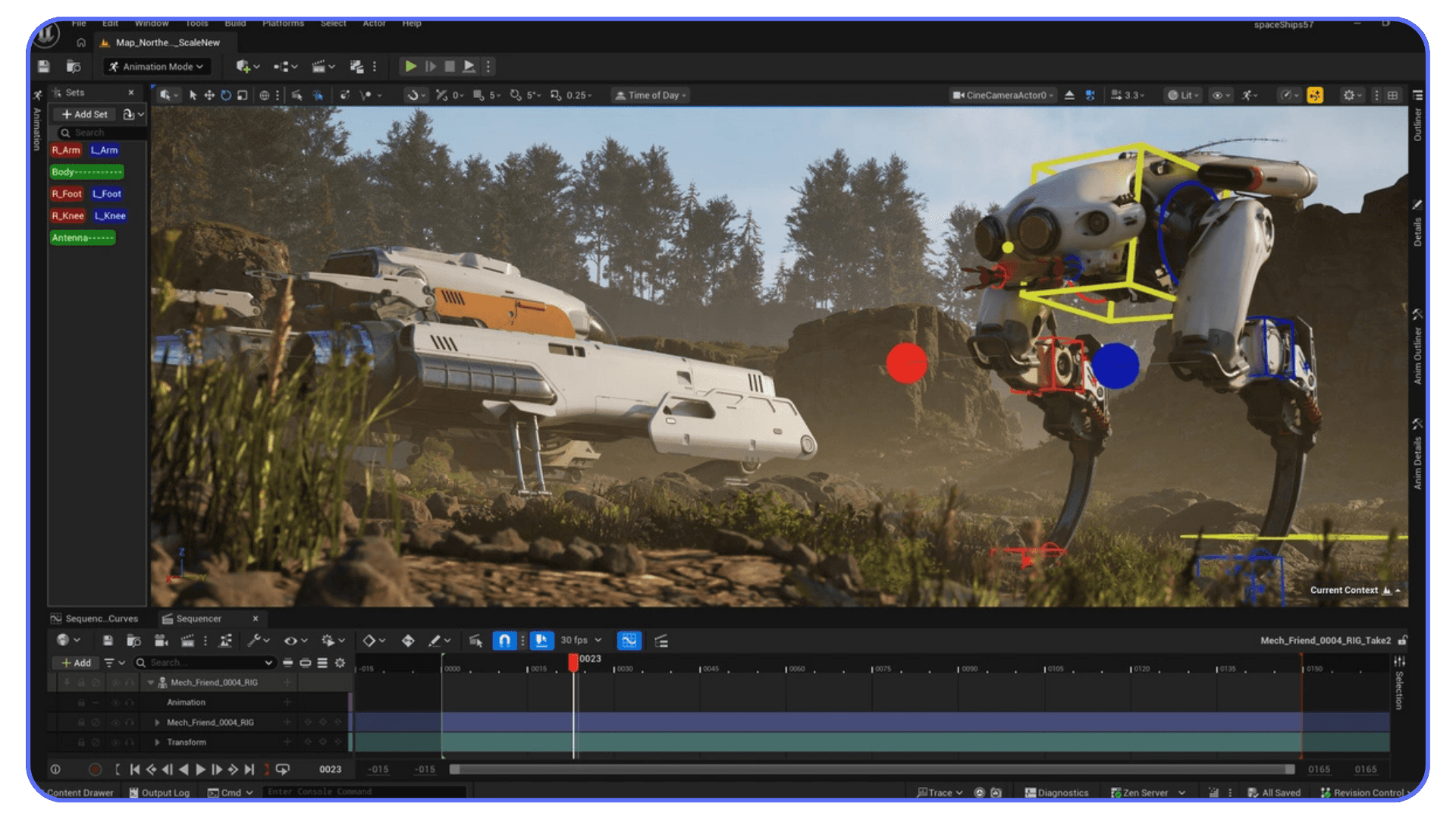
There’s also a rhythm to Unreal that shortcuts help you lock into. Select. Move. Focus. Adjust. Test. Repeat. When you’re constantly reaching for menus, that rhythm falls apart. When you’re using keys, it flows.
I’ve worked with people who insisted shortcuts were optional. Most of them changed their minds after a few weeks on a real project. Big levels. Lots of assets. Blueprints everywhere. At that scale, shortcuts stop being “nice to have” and start feeling like basic survival tools.
And no, you don’t need to memorize everything. That’s a trap. A handful of shortcuts will carry you further than a giant cheat sheet you never look at again.
Let’s start with the ones you’ll actually use every day.
A lot of the biggest projects built with Unreal didn’t get there by accident. Many of the top games made with Unreal Engine were developed by teams obsessing over iteration speed and workflow efficiency.
#1. Everyday Unreal Engine Shortcuts
I’m not going to dump a massive shortcut list on you. Nobody remembers those. What actually sticks are the keys you hit dozens of times an hour without thinking.
These are the ones that quietly change how Unreal feels to use.
General Editor Essentials
Let’s get the obvious ones out of the way first. Yes, they’re basic. Yes, they still matter more in Unreal than almost anywhere else.
Ctrl + S. Save. Constantly. Unreal projects are big, complex, and occasionally fragile. Autosave helps, but trusting it completely is asking for heartbreak.
Ctrl + Z / Ctrl + Y. Undo and redo. You’ll lean on these harder than you expect, especially when blocking out levels or experimenting with layout changes. I’ve noticed Unreal undo feels less forgiving the deeper you go, so staying aware of what you just changed matters.
Ctrl + C / Ctrl + V. Copy and paste actors, assets, Blueprint nodes. Obvious, sure, but copying inside Unreal is faster and safer than re-creating things manually. Especially when variations are involved.
Ctrl + D. Duplicate. This one deserves its own callout. Duplicating actors directly in the viewport is faster than copy-paste and keeps your placement context intact. Once this becomes muscle memory, you’ll wonder why you ever did it any other way.
Ctrl + B. Find asset in Content Browser. This shortcut saves way more time than people realize. Click an actor in the scene, hit Ctrl + B, and there’s the asset. No digging. No guessing folders. It’s one of those keys that quietly fixes a lot of small annoyances.
Ctrl + Tab. Jump between open editor tabs. When you’re bouncing between Level Editor, Blueprint, Material Editor, and back again, this keeps things moving without breaking focus.
None of these are flashy. That’s the point. They remove friction you’ve probably stopped noticing because it’s been there so long.
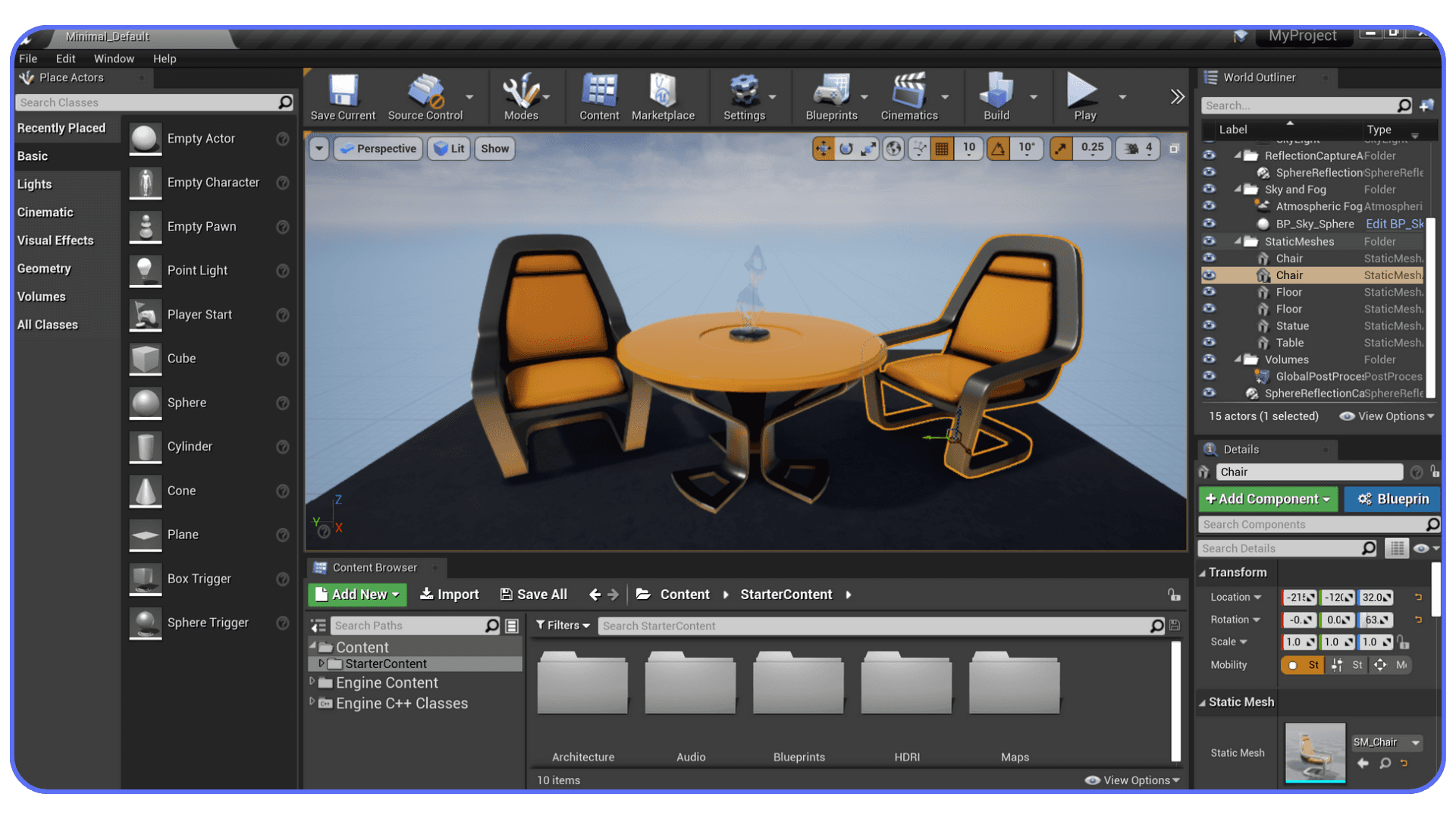
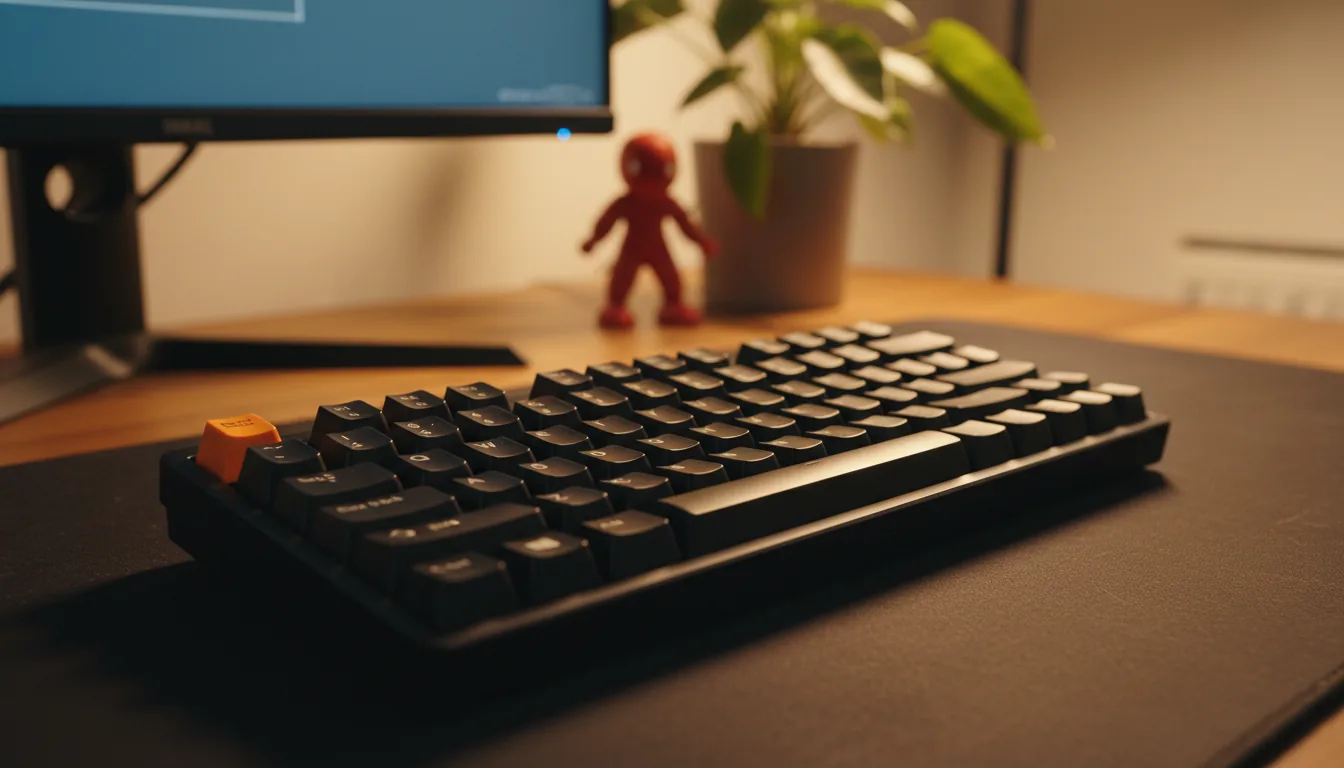
Viewport and Camera Control
This is where Unreal either feels great or absolutely miserable. There’s very little middle ground.
W, E, R switch between Move, Rotate, and Scale. If you’re still clicking the gizmo icons, you’re slowing yourself down for no reason. These three keys alone can shave minutes off repetitive layout work.
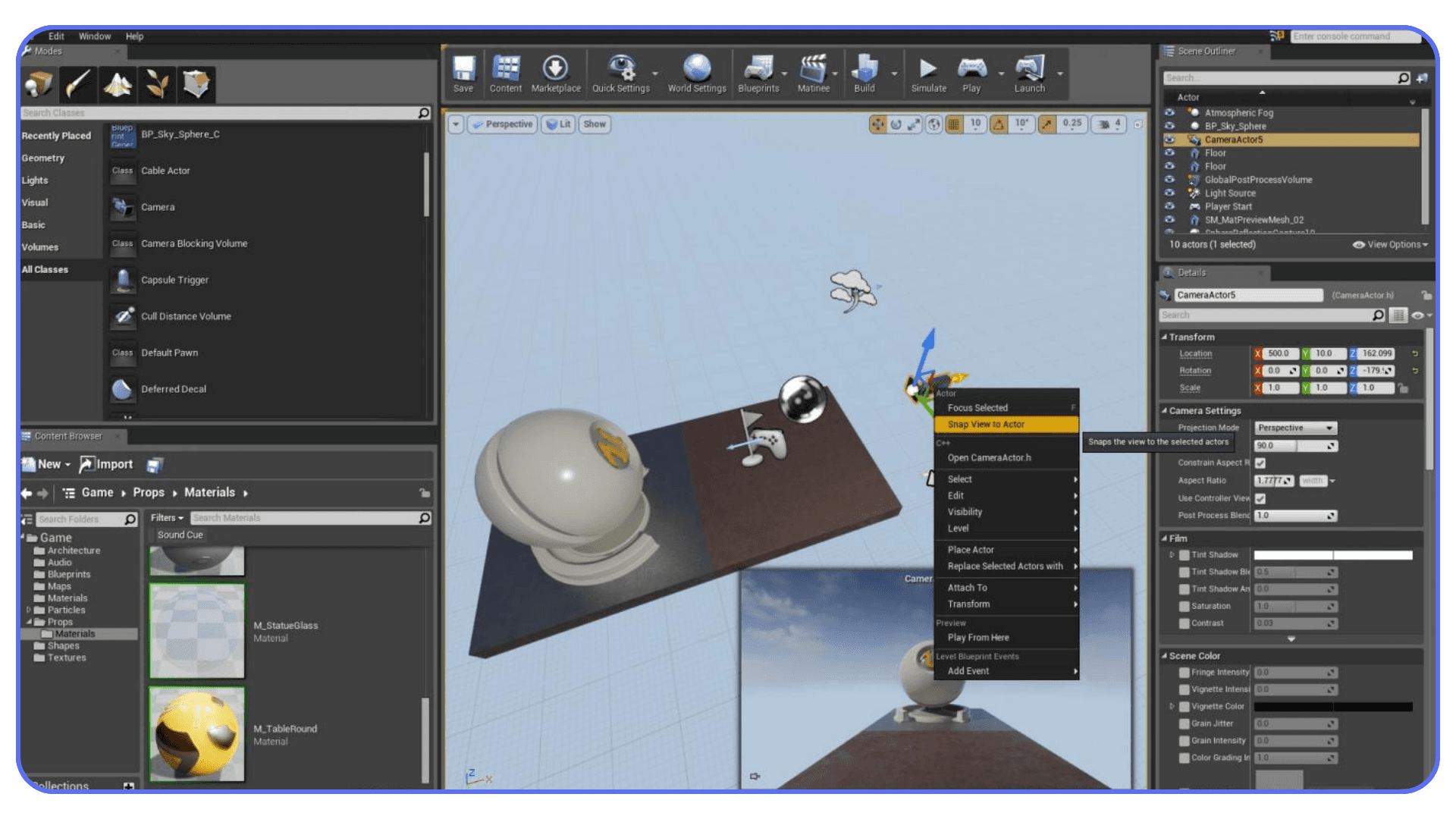
F to focus on the selected actor. This one is huge. Select something, hit F, and your camera snaps right to it. In large scenes, this saves you from endless scrolling and zooming. I use this constantly, sometimes without even thinking about it.
G toggles Game View. No icons, no helpers, just the scene as it will appear in-game. Great for quick composition checks and spotting visual issues you’d otherwise miss.
Then there’s camera movement. Hold right mouse button and use WASD to fly through the scene. It feels natural if you’ve ever played a first-person game, and once you’re used to it, traditional viewport controls feel painfully slow.
Here’s the thing. Camera shortcuts don’t just save time. They change how you explore your level. You move more. You check angles you might’ve skipped. You catch mistakes earlier. That has real downstream effects on quality.
A Quick Reality Check
If Unreal feels clunky to you right now, there’s a decent chance it’s not because you’re bad at it. It’s because you’re fighting the editor instead of flowing with it.
And we’re just getting started.
#2. Level Editing Shortcuts That Save Time
This is where Unreal projects either stay manageable or slowly turn into a mess. Level size increases. Asset counts climb. Suddenly, basic navigation takes longer than the actual creative work.
Shortcuts help keep things under control.
Snapping, Placement, and Not Losing Your Mind
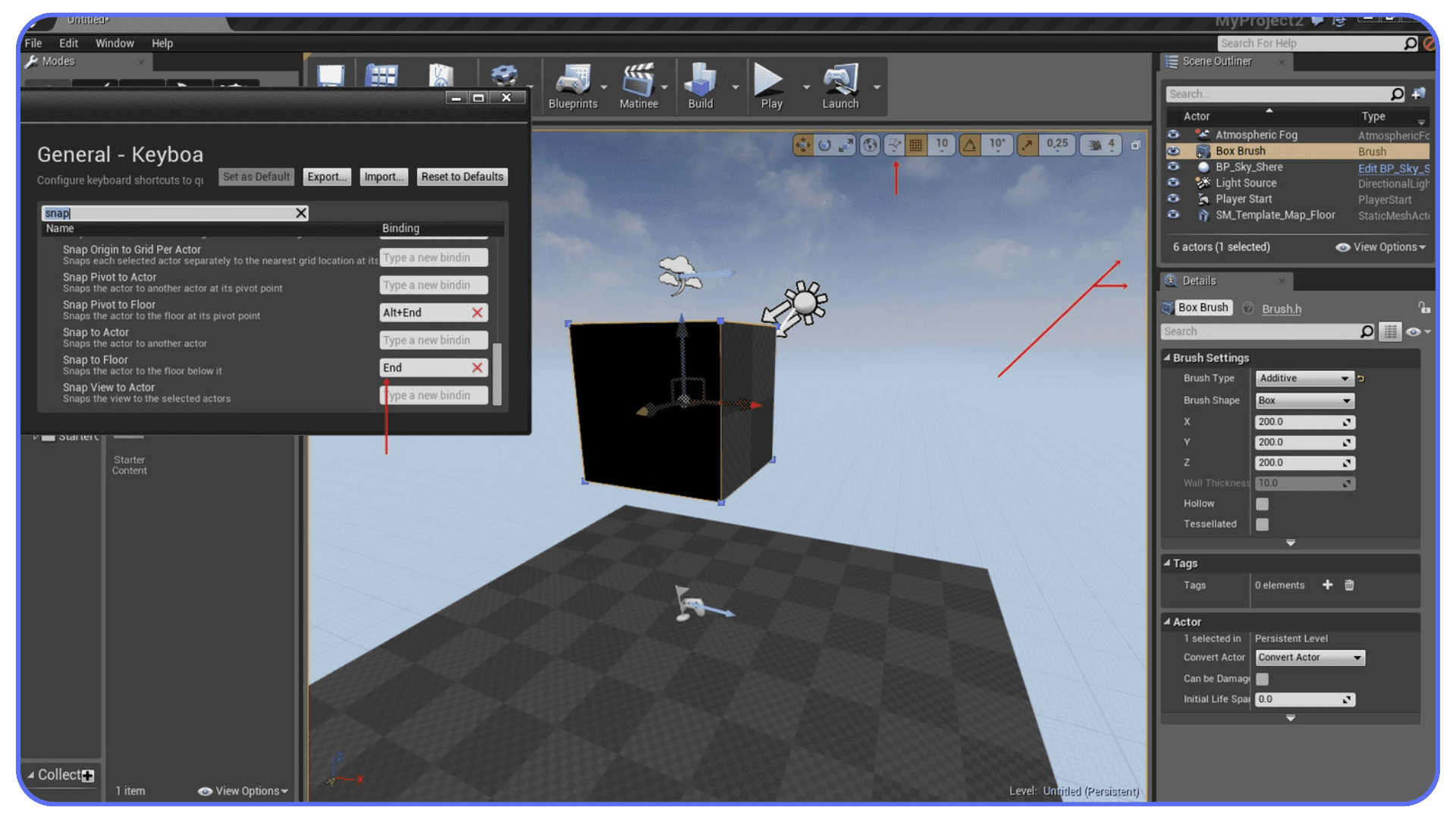
End snaps a selected actor to the floor. Simple. Incredibly useful. If you’ve ever dragged an object down manually and still ended up with it floating a few units above the surface, you know why this matters.
Alt + End snaps an actor to the grid based on its pivot. Great for modular environments, walls, floors, and anything that needs clean alignment.
Shift + End aligns the pivot to the bottom of the actor. This one’s less obvious, but it saves time when you’re dealing with oddly shaped meshes or props that weren’t modeled with perfect pivots.
I used to manually adjust pivots all the time. It worked, but it was slow and error-prone. Once these shortcuts became habit, placement stopped feeling like a chore.
Hide, Isolate, and Actually See What You’re Working On
Big scenes get visually noisy fast. Unreal gives you a way out.
H hides the selected actor.
Ctrl + H unhides everything.
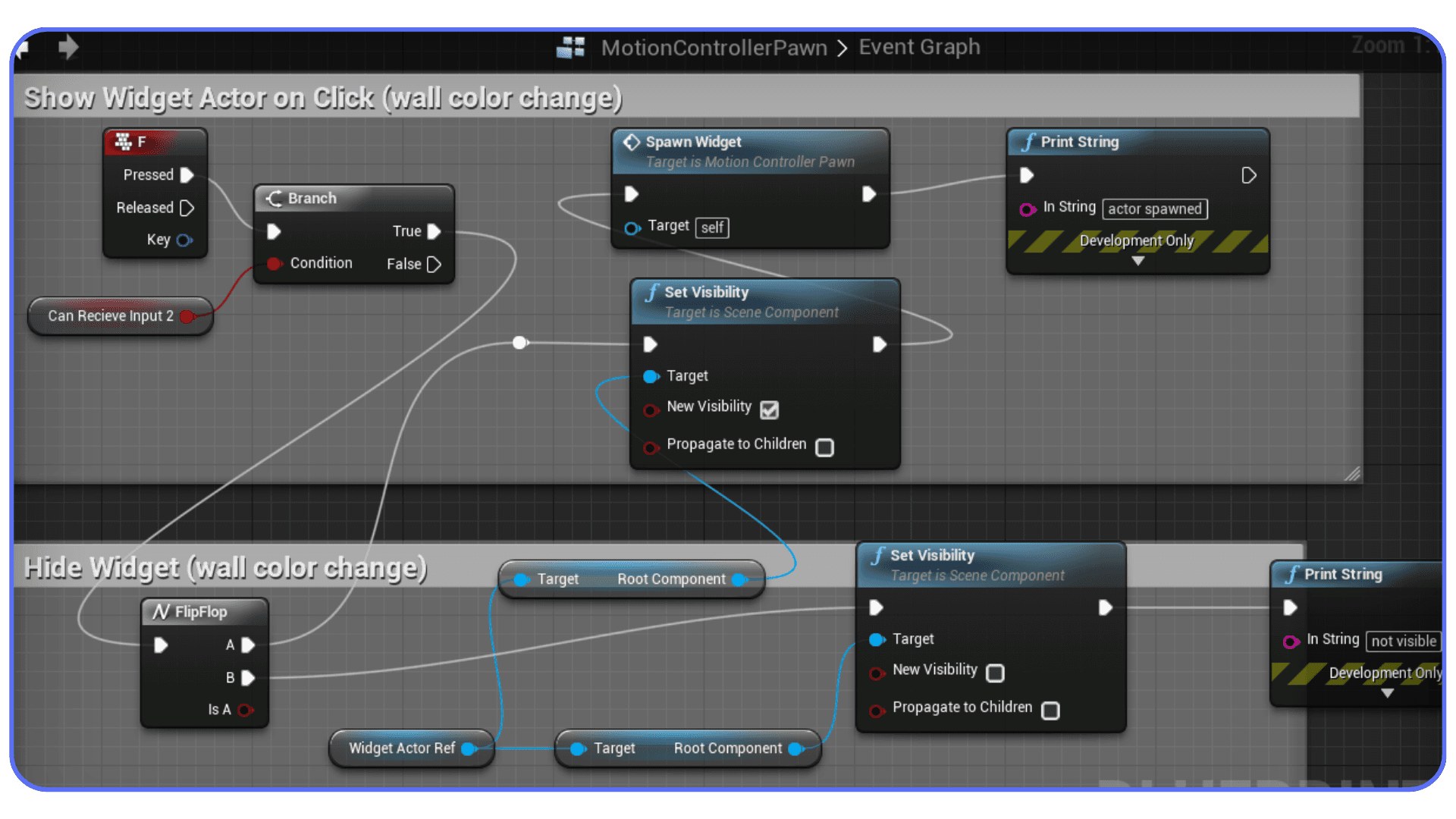
That’s it. No menu diving. No layer gymnastics. When you’re adjusting lighting, collision, or Blueprint logic on a specific object, hiding everything else keeps your brain focused.
I’ve noticed people tend to avoid hiding actors because it feels like extra work. With shortcuts, it’s the opposite. You hide things more often, and your scenes stay cleaner as a result.
Viewport Bookmarks Are Criminally Underused
This one surprises people.
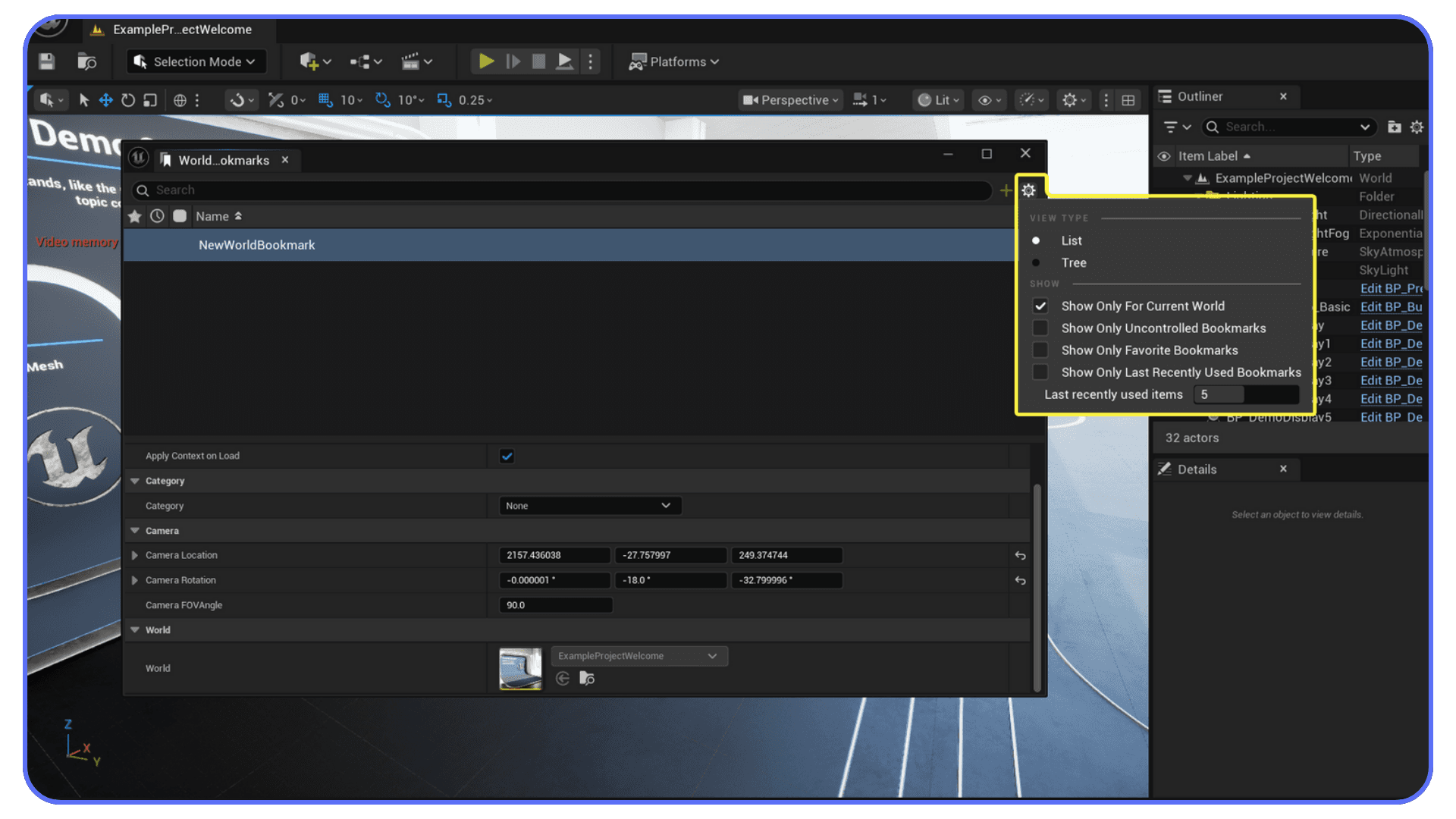
Ctrl + 0–9 sets a viewport bookmark.
Press 0–9 to jump back to it.
If your level has multiple key areas, use bookmarks. Entrance. Combat zone. Interior. Cinematic shot. Testing area. Whatever makes sense.
Instead of flying across the map every time, you teleport instantly. On large levels, this saves absurd amounts of time. It also encourages you to check multiple areas more frequently, which helps catch problems earlier.
I’ve worked on projects where bookmarks felt optional at first. By mid-production, they were essential.
Small Actions, Big Impact
None of these shortcuts feel dramatic on their own. That’s why people ignore them. But stack them together across hours of level work, and the difference becomes obvious.
Less fiddling. Less camera wrestling. Less visual clutter.
#3. F-Keys and Editor Navigation Tips
This is the part where a lot of Unreal users have an “oh… wow” moment. Not because these shortcuts are complicated, but because nobody ever points them out early.
They’re small. They’re easy to remember. And once you use them for a week, they stick.
The F-Keys That Actually Matter
F2 to rename. Assets, actors, folders. Fast renaming sounds boring until you realize how much cleaner your projects get when renaming isn’t annoying anymore. I’ve noticed people avoid organizing simply because the process feels slow. This fixes that.
F8 to possess or eject from a Pawn while playing in editor. If you do any gameplay work at all, this one is gold. Jump into PIE, hit F8, and you’re back in editor mode without stopping the session. It makes iteration feel way less rigid.
F11 toggles fullscreen. Useful when you want to focus on composition, lighting, or just reduce visual noise for a minute. Especially handy on smaller screens.
None of these are flashy. They just remove friction. And friction is the enemy here.
Content Drawer and Panel Navigation
Here’s one that still surprises people.
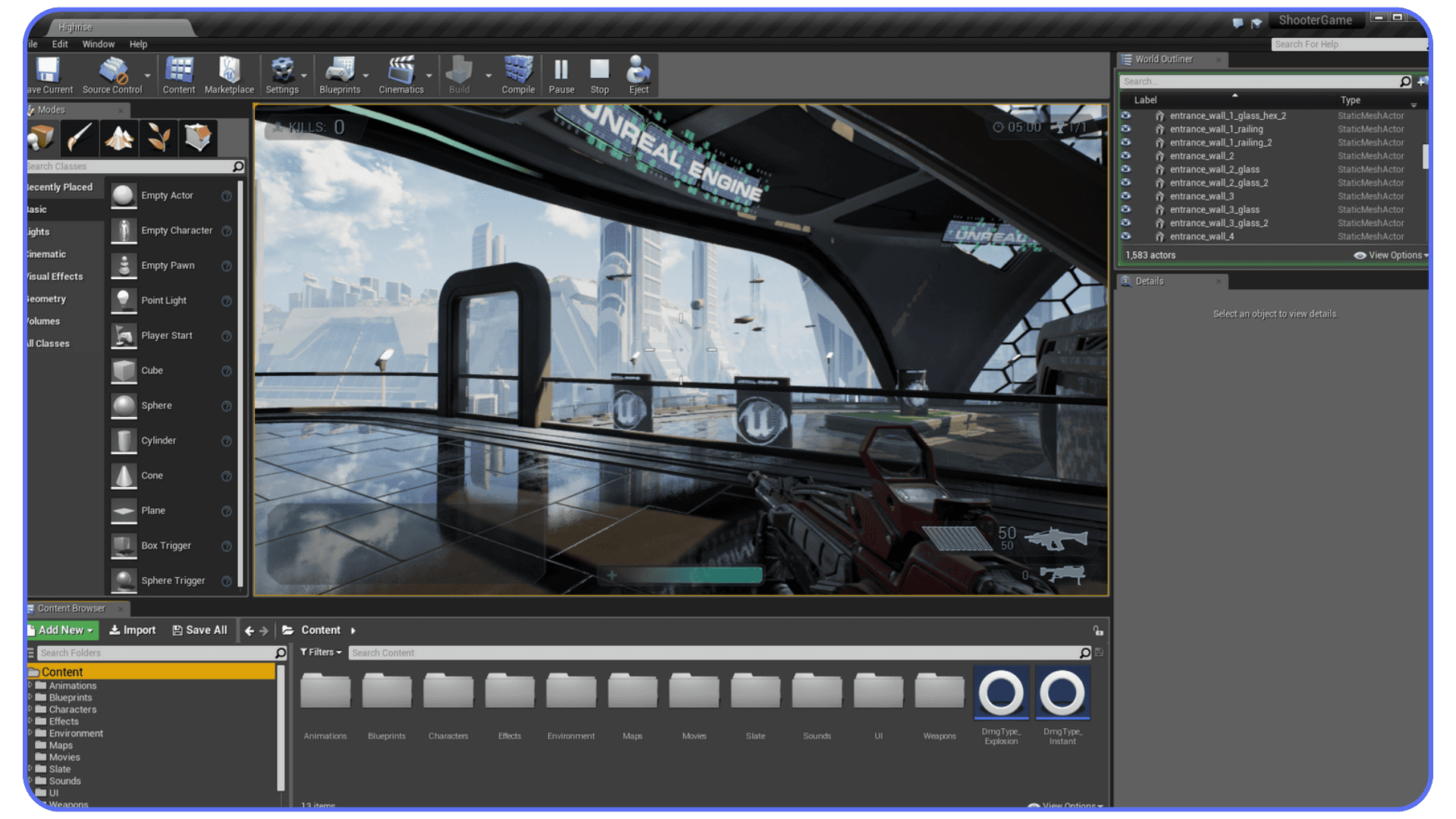
Ctrl + Space opens the Content Drawer. Instantly. No hunting for the panel. No resizing layouts. Hit it again and it’s gone.
Once you start using this, the Content Browser stops feeling like a permanent chunk of your screen and starts feeling like a tool you pull up only when you need it. That alone can make the editor feel less cramped.
Then there’s panel navigation in general. Unreal loves panels. Details, World Outliner, Blueprints, Materials. They add up fast.
Using keyboard navigation to bounce between tabs instead of clicking around helps keep your hands where they belong. On the keyboard. Not chasing UI elements.
Fullscreen Focus Is Underrated
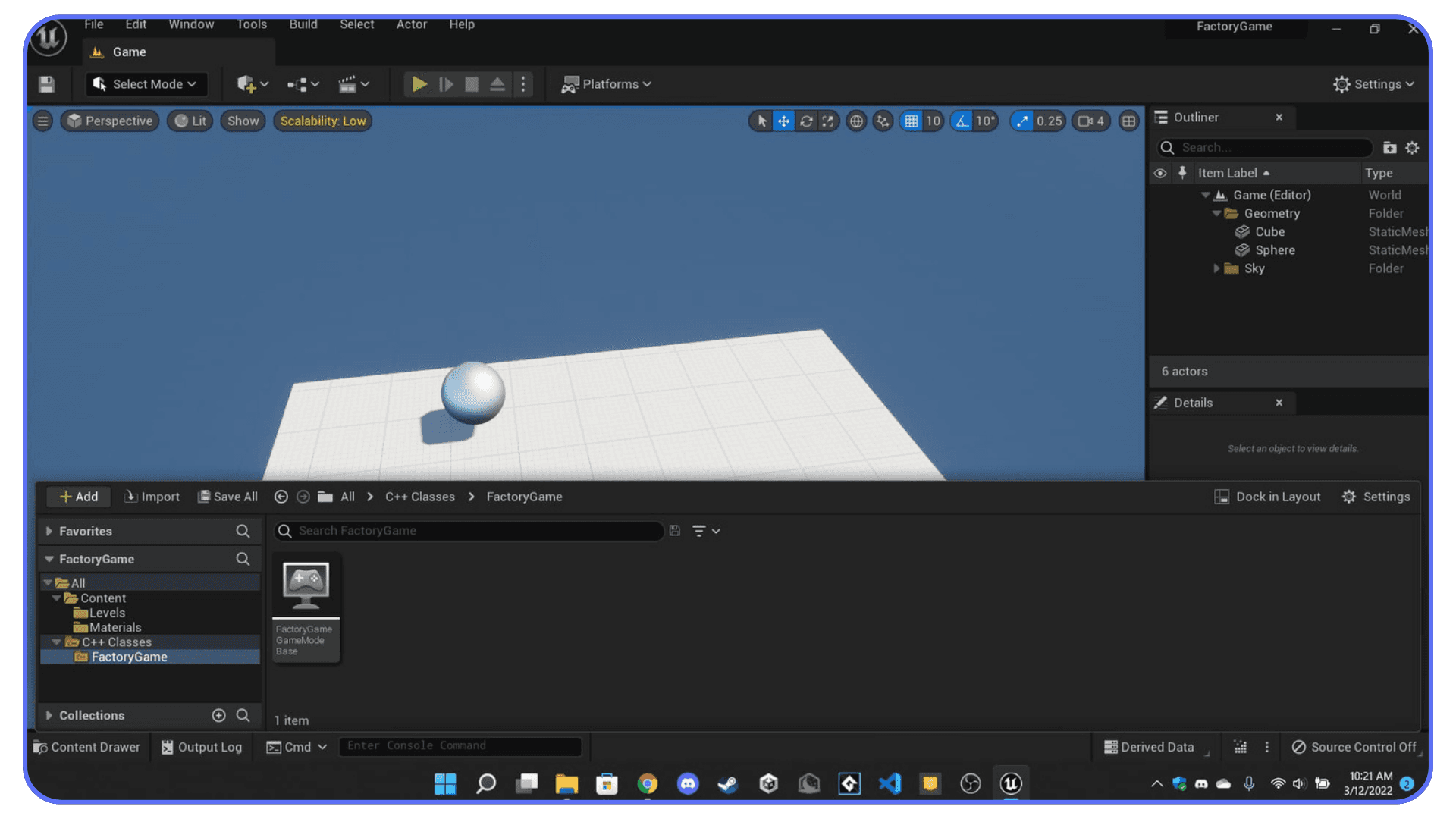
A quick opinion here. Working fullscreen more often improves decision-making.
When the editor fills the screen, distractions disappear. You see composition issues faster. You notice scale problems sooner. Lighting mistakes stand out. Even Blueprint graphs feel easier to read.
I don’t work fullscreen all the time. But when I do, I get better results faster. That’s not accidental.
Why These Shortcuts Stick
What I like about these keys is that they don’t require a mindset shift. You don’t need to plan around them. You just use them when the moment comes.
Rename. Jump in and out of play mode. Pull up content. Focus.
#4. Blueprint Shortcuts Worth Learning
Blueprints are where Unreal can either feel empowering or completely overwhelming. When graphs are clean, everything makes sense. When they’re not, even simple logic turns into a headache.
Shortcuts won’t fix bad logic. But they make working with Blueprints a lot less painful.
Creating Nodes Without Breaking Flow
This is one of those things that feels almost magical the first time you do it.
Hold B and left-click to create a Branch node. No right-click menu. No searching. Just drop it exactly where you need it.
There are similar shortcuts for other common nodes, and once you learn a few, you’ll stop reaching for the context menu as often. That matters because Blueprint work is all about staying in the logic, not hunting UI.
I’ve noticed people who rely heavily on right-click menus tend to build slower, messier graphs. Not because they’re worse at logic, but because the interruption adds up.
Duplicating and Organizing Nodes Faster
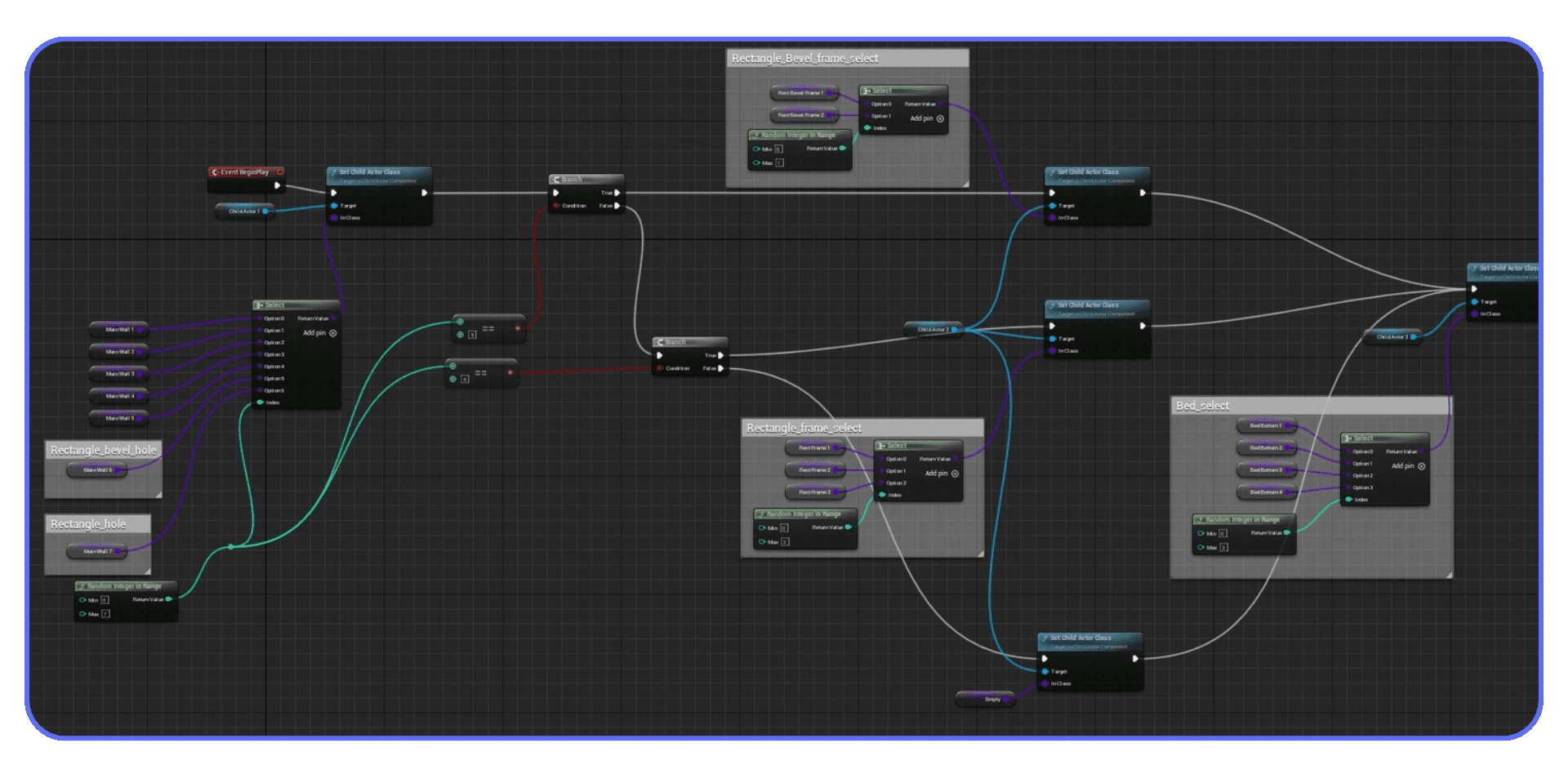
Ctrl + D duplicates selected nodes. This used to be different in older Unreal versions, which still trips people up, but once you adjust, it’s hard to go back.
Duplicating chunks of logic instead of rebuilding them from scratch encourages experimentation. You’re more likely to try variations when the cost of doing so is low.
For cleanup, alignment shortcuts matter more than most people think.
Straightening connections, aligning nodes, and keeping spacing consistent doesn’t just make things prettier. It makes graphs readable. And readable graphs are easier to debug.
Searching and Navigating Large Graphs
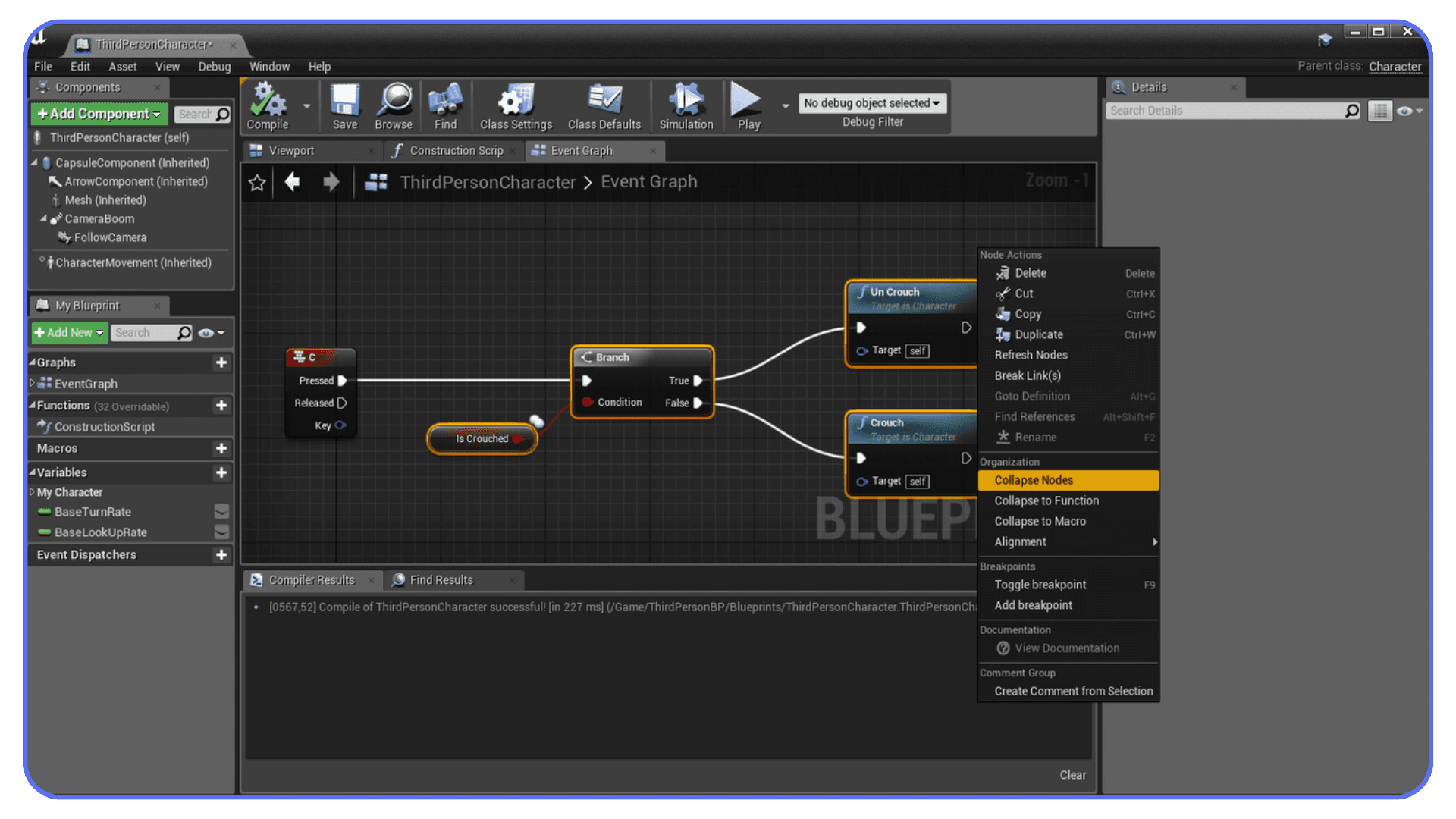
Ctrl + F inside a Blueprint graph is your lifeline. On small graphs, you can get away without it. On large ones, it’s essential.
As projects grow, Blueprint graphs tend to sprawl. Being able to jump directly to a variable, function, or comment saves time and reduces frustration.
There’s also Ctrl + Shift + P, which lets you pilot an actor directly from the viewport. This isn’t strictly Blueprint-only, but it pairs well with gameplay debugging. Jump into an actor, inspect behavior, then jump back out. Fast iteration without restarting play mode.
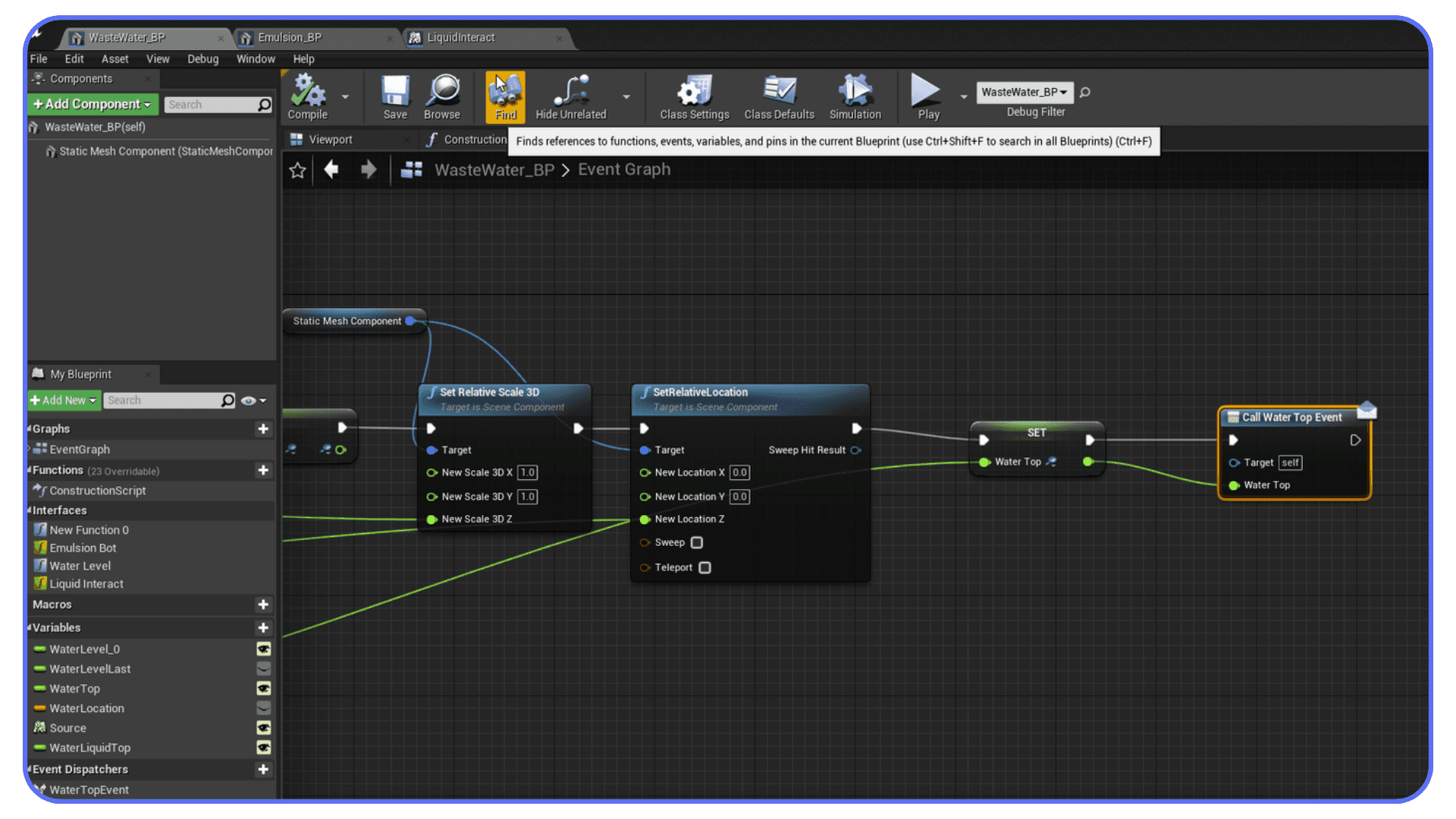
Clean Graphs Are Faster Graphs
Here’s a mild contrarian take. Spending time organizing Blueprints is not wasted time.
Messy graphs slow you down later. They make debugging harder. They make collaboration painful. Shortcuts lower the barrier to keeping things tidy, which pays off over the life of the project.
If you’re avoiding cleanup because it feels tedious, that’s usually a sign you’re not using the right shortcuts yet.
Customizing Shortcuts the Smart Way
Unreal gives you a lot of freedom with keybindings. That’s a good thing. It’s also where people get into trouble.
The goal isn’t to create a “perfect” shortcut setup. It’s to remove friction without introducing new confusion.
Where to Find Keybindings (And Why It’s Easy to Miss)
If you’ve never looked for it, Unreal doesn’t exactly put this front and center.
Editor Preferences. Keyboard Shortcuts. That’s where everything lives.
It’s tempting to scroll through the list and start changing things immediately. I’d suggest resisting that urge. At least at first.
Use Unreal for a while. Pay attention to the actions you repeat constantly. Those are the only candidates worth touching.
What’s Worth Customizing
In my experience, the best shortcuts to customize are the ones that feel awkward by default.
Maybe a command you use all the time is buried behind an uncomfortable key combo. Maybe you’re switching between tools that would feel better closer together. Small changes here can make a noticeable difference.
What usually isn’t worth customizing are the core navigation keys. W, E, R. Camera controls. Save. Undo. Those are shared muscle memory across teams, tutorials, and machines. Changing them often creates more friction than it removes.
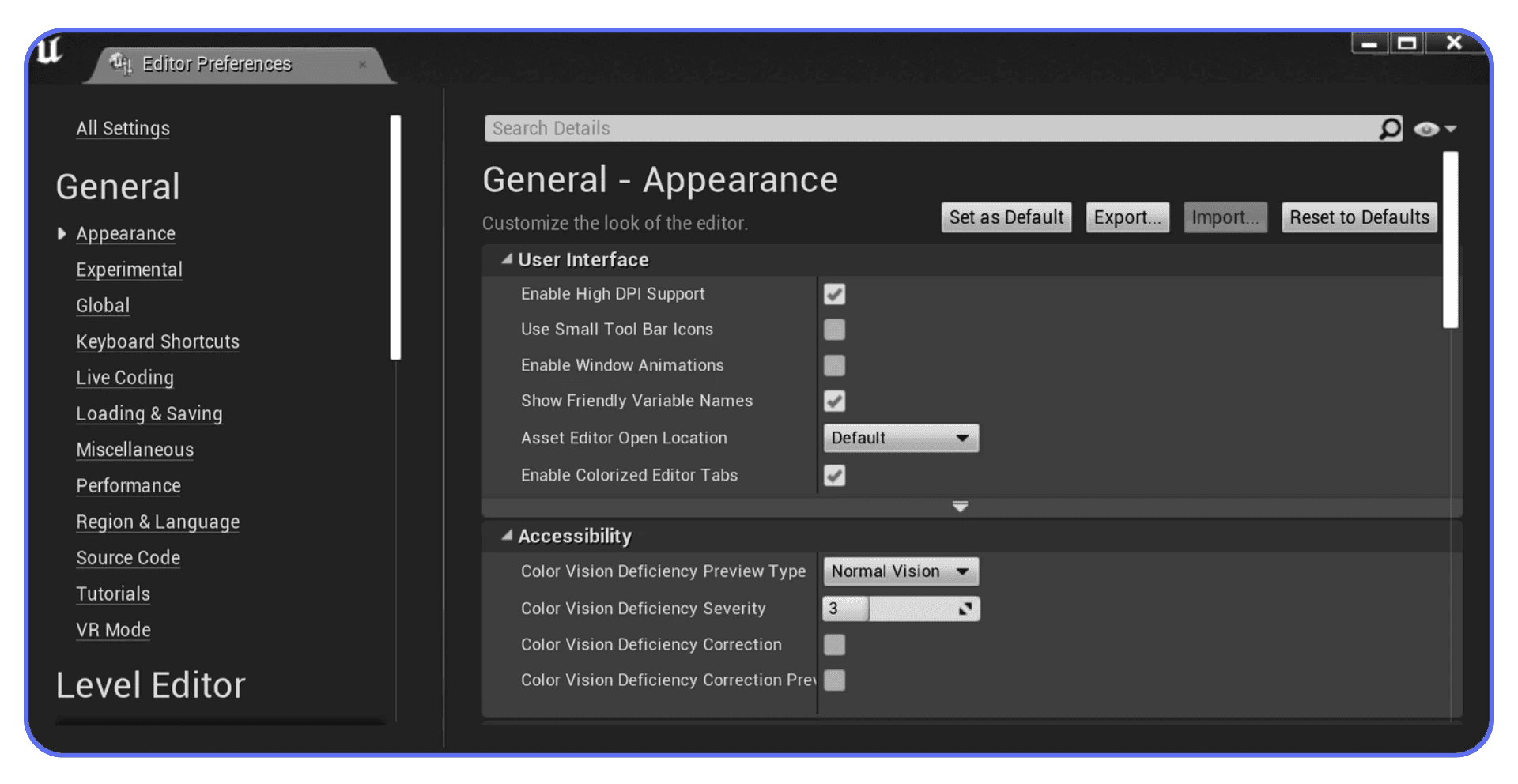
Export Your Setup. Seriously.
Unreal lets you export your keyboard shortcut settings. Do it.
If you ever switch machines, reinstall Unreal, or jump onto a cloud system, having your shortcuts ready to import saves time and frustration. This matters more than people realize until they lose a setup they spent months refining.
I’ve learned this one the hard way.
Different Roles, Different Needs
One setup rarely fits everyone.
Level designers, lighting artists, technical artists, and gameplay programmers all touch Unreal differently. If you switch roles often, you might even consider separate shortcut profiles rather than forcing one layout to do everything.
Just don’t overthink it. The moment shortcuts become a project of their own, they stop helping.
Real Workflow Examples Where Shortcuts Help
This is where all of this stops being theoretical.
Shortcuts matter most when things get busy. Tight deadlines. Large scenes. Iteration loops that never seem to end. Here are a few situations where the difference becomes obvious fast.
#1. Blocking Out a Level Without Killing Momentum
Early level blocking should feel loose and fast. Drop shapes. Move things around. Delete half of it. Try again.
When shortcuts are dialed in, this phase is almost playful. W, E, R to transform. F to snap the camera. Ctrl + D to duplicate. End to drop objects cleanly onto surfaces. You’re thinking about space, scale, and flow. Not the editor.
Without shortcuts, blocking feels heavier. You hesitate more. You second-guess small changes because they take longer to undo. That hesitation adds up, and suddenly the “rough pass” takes way longer than it should.
I’ve noticed the best blockouts usually come from people who move fast enough that they don’t get precious about early decisions.
Fast iteration also depends on not reinventing the wheel. Pulling from the best marketplaces for Unreal Engine assets and plugins can save hours during blockout and prototyping.
#2. Navigating Massive Scenes Without Getting Lost
Once a level grows, navigation becomes its own problem.
This is where viewport bookmarks quietly save the day. One key takes you back to the entrance. Another jumps to the combat arena. Another to the lighting test area. No flying across kilometers of space just to check a detail.
Combine bookmarks with focus shortcuts and game view toggles, and large environments stay manageable longer than you’d expect.
Without them, people tend to avoid checking distant areas. Problems linger. Bugs survive longer. Not because no one cares, but because getting there feels annoying.
Shortcuts remove that excuse.
#3. Blueprint Debugging Without Losing Your Train of Thought
Blueprint debugging is a mental exercise. You’re holding logic in your head, following execution paths, checking variables, jumping between graphs.
Every interruption hurts.
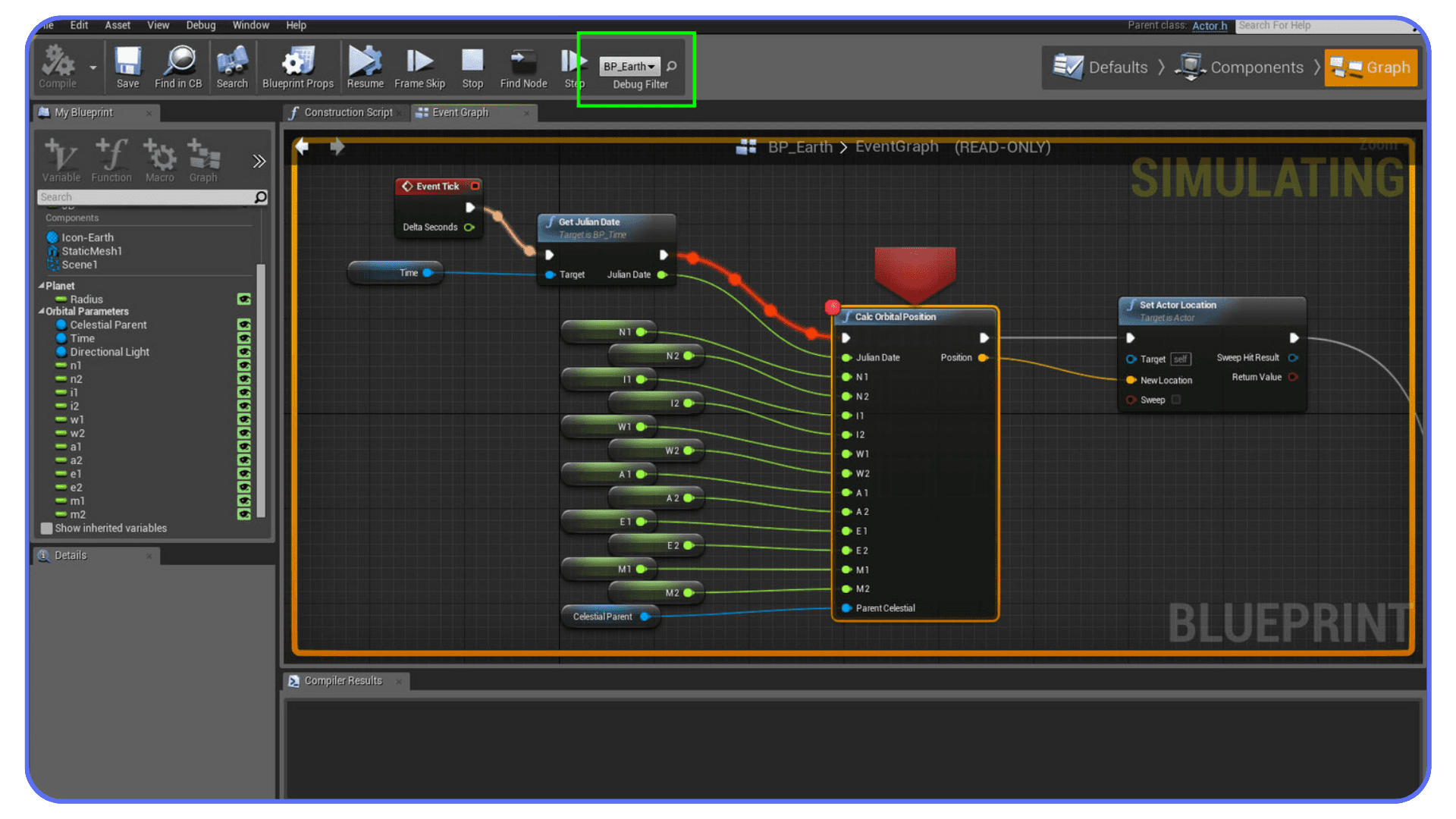
Being able to duplicate logic chunks instantly, search graphs quickly, align nodes cleanly, and jump in and out of play mode without restarting keeps your brain in the problem instead of the interface.
I’ve watched people fix bugs faster simply because their graphs were easier to read and navigate. Not smarter logic. Cleaner execution.
#4. Iteration Speed Changes Decisions
Here’s something subtle. When iteration is fast, people experiment more.
They try alternate lighting setups. They tweak camera angles. They refactor Blueprints they would’ve left alone otherwise. Shortcuts lower the cost of curiosity.
When iteration is slow, people settle. “Good enough” shows up earlier. That’s rarely where the best results live.
And this is where performance starts to matter just as much as technique. Because even the best shortcut setup can’t help if the editor itself starts dragging.
That brings us to the point where workflow and hardware intersect. Especially in Unreal.
When Your Workflow Is Faster Than Your Machine
There’s a point where Unreal stops responding to skill and starts responding to hardware.
You can know every shortcut by heart and still hit limits. Large environments begin to stutter in the viewport. Shader compiles interrupt your train of thought. Light builds take long enough that you stop iterating as often. The editor doesn’t crash. It just slows you down enough to break focus.
This is where Vagon Cloud Computer comes in.
Vagon Cloud Computer lets you run Unreal Engine on a high-performance cloud machine instead of your local system. You’re not streaming a simplified version or switching tools. You’re running the same Unreal Editor, just backed by more powerful hardware. That means more GPU headroom, more memory, and better performance when scenes get heavy.
The practical benefit shows up fast. Viewports stay responsive in dense levels. Camera movement feels consistent instead of jittery. Shader compilation and lighting tasks don’t dominate your work sessions. The shortcuts you rely on still matter, but now Unreal can keep up with the pace they create.
What I find most useful is that it doesn’t change your workflow. Your projects open the same way. Your keybinds behave the same way. You don’t have to rethink how you build levels or debug Blueprints. You just remove the performance ceiling underneath everything.
There’s also a flexibility advantage that’s easy to overlook. You can access the same Unreal setup from different machines without worrying about specs. If you’ve ever moved between workstations, laptops, or remote setups and felt your productivity drop, this solves that problem quietly.
One underrated benefit of cloud workflows is accessibility. It’s even possible to run Unreal Engine on a low-end device without a GPU when the heavy lifting happens elsewhere.
That flexibility extends to mobile setups too. For example, some teams explore ways to use Unreal Engine 5 on an iPad when portability matters more than raw power.
Vagon Cloud Computer isn’t about replacing shortcuts or optimizing technique. It’s about supporting them when projects grow past what local hardware can comfortably handle.
Once projects reach a certain scale, even well-specced local machines can struggle. If you’re weighing upgrade options, this breakdown of the best computer for Unreal Engine 5.6 gives a realistic look at what actually matters for editor performance.
If you’re curious how much the GPU really affects editor performance, this guide on picking the best GPU for Unreal Engine goes into the details.
Final Thoughts
If Unreal feels slow, it’s usually not one big thing. It’s a hundred small interruptions stacked together. Extra clicks. Tiny delays. Moments where the editor pulls you out of the work instead of staying out of the way.
Shortcuts don’t fix everything, but they change how the engine feels in your hands. They keep you moving. They help you stay focused long enough to make better decisions. Over time, that adds up to real improvements in both speed and quality.
I think the most important shift is this. Stop thinking of shortcuts as tricks and start treating them as part of the craft. The same way you learn composition, lighting, or Blueprint structure, you learn how to move through Unreal efficiently.
And when projects grow to the point where performance starts fighting back, it’s worth removing that friction too. Whether that’s optimizing scenes, rethinking workflows, or running Unreal on something like Vagon Cloud Computer, the goal is the same. Protect your momentum.
If your goal is sharing Unreal experiences beyond your own machine, deployment choices matter too. This comparison of Pixel Streaming vs WebGL vs WebGPU breaks down which approaches actually work for Unreal projects on the web.
FAQs
1. Do I really need to learn shortcuts, or can I just pick them up over time?
You can pick them up over time. Most people do. The problem is that “over time” often means months of unnecessary friction. I’ve seen people struggle with Unreal for way longer than needed simply because they never paused to learn a handful of high-impact keys. You don’t need dozens. Five to ten shortcuts learned intentionally will change your daily experience almost immediately.
2. Should beginners focus on shortcuts, or is that an advanced thing?
Beginners should learn them early. Not all of them, but the basics. W, E, R. F to focus. Ctrl + D to duplicate. Camera navigation. These don’t make Unreal harder to learn. They actually make it less frustrating. Waiting too long usually means unlearning habits later, which is harder.
3. Are Unreal Engine shortcuts the same across versions?
Mostly, yes. The core shortcuts have stayed consistent from UE4 through UE5. Some things have moved or been renamed, and a few behaviors changed slightly, but muscle memory carries over far more than people expect. If you’re switching versions, you’ll adapt quickly.
4. Is it worth customizing shortcuts, or should I stick to defaults?
Stick to defaults first. Always. Defaults are what tutorials assume, what teammates expect, and what your hands will find familiar on any machine. Customize only after you notice a specific pain point you hit every day. If you can’t explain why you changed a shortcut, you probably shouldn’t change it.
5. My shortcuts are fine, but Unreal still feels slow. What gives?
That’s common. Shortcuts speed up you, not the engine. Once projects grow, performance becomes part of the workflow whether you like it or not. Large scenes, complex materials, and heavy Blueprints can overwhelm local hardware. That’s often when people look at options like running Unreal on a cloud machine, where the editor stays responsive even under load.
6. Does using a cloud computer change how shortcuts work?
No. That’s the nice part. Your shortcuts, keybinds, and workflow stay the same. You’re still using Unreal exactly the way you’re used to. The difference is that the editor keeps up with you instead of lagging behind. For many people, that’s the missing piece once their projects scale up.
Ever notice how Unreal feels fast one minute and painfully slow the next?
One second you’re flying through a scene, snapping actors into place, bouncing between viewports like everything finally clicked. Then it happens. The editor hesitates. The viewport stutters. A shader compile kicks off at the worst possible time. Your hands are still moving, but the engine isn’t keeping up anymore.
That moment is brutal. Not because Unreal is “hard” but because it breaks momentum. And once your flow is gone, getting it back takes way longer than it should.
I’ve noticed this pattern over and over. The slowdown rarely comes from one big mistake. It comes from tiny interruptions stacking up. Extra clicks. Mouse hunting. Waiting for panels to open. Waiting for the editor to respond. You don’t feel it immediately, but ten minutes later you’re somehow exhausted and not much further along.
This is where shortcuts start to matter. Not as a “power user flex,” but as a way to stay in motion when Unreal is doing everything it can to slow you down.
Let’s talk about that.
Why Keyboard Shortcuts Matter
You can use Unreal without shortcuts. Plenty of people do. They click menus, hunt for icons, drag sliders around, and technically get the job done.
I wouldn’t recommend it.
In Unreal, every extra click is a tiny interruption. One click is nothing. Fifty clicks an hour is a problem. By the end of the day, those interruptions add up to a weird kind of fatigue where you feel busy but not productive.
Shortcuts aren’t about being fast for the sake of speed. They’re about staying in the same mental lane. When your hands know where to go without thinking, your brain stays focused on the scene, the lighting, the logic, the problem you’re actually trying to solve.
In my experience, Unreal only starts to feel smooth once shortcuts become muscle memory. Before that, the editor feels heavy. After that, it feels surprisingly light, even on complex projects.
There’s also a rhythm to Unreal that shortcuts help you lock into. Select. Move. Focus. Adjust. Test. Repeat. When you’re constantly reaching for menus, that rhythm falls apart. When you’re using keys, it flows.
I’ve worked with people who insisted shortcuts were optional. Most of them changed their minds after a few weeks on a real project. Big levels. Lots of assets. Blueprints everywhere. At that scale, shortcuts stop being “nice to have” and start feeling like basic survival tools.
And no, you don’t need to memorize everything. That’s a trap. A handful of shortcuts will carry you further than a giant cheat sheet you never look at again.
Let’s start with the ones you’ll actually use every day.
A lot of the biggest projects built with Unreal didn’t get there by accident. Many of the top games made with Unreal Engine were developed by teams obsessing over iteration speed and workflow efficiency.
#1. Everyday Unreal Engine Shortcuts
I’m not going to dump a massive shortcut list on you. Nobody remembers those. What actually sticks are the keys you hit dozens of times an hour without thinking.
These are the ones that quietly change how Unreal feels to use.
General Editor Essentials
Let’s get the obvious ones out of the way first. Yes, they’re basic. Yes, they still matter more in Unreal than almost anywhere else.
Ctrl + S. Save. Constantly. Unreal projects are big, complex, and occasionally fragile. Autosave helps, but trusting it completely is asking for heartbreak.
Ctrl + Z / Ctrl + Y. Undo and redo. You’ll lean on these harder than you expect, especially when blocking out levels or experimenting with layout changes. I’ve noticed Unreal undo feels less forgiving the deeper you go, so staying aware of what you just changed matters.
Ctrl + C / Ctrl + V. Copy and paste actors, assets, Blueprint nodes. Obvious, sure, but copying inside Unreal is faster and safer than re-creating things manually. Especially when variations are involved.
Ctrl + D. Duplicate. This one deserves its own callout. Duplicating actors directly in the viewport is faster than copy-paste and keeps your placement context intact. Once this becomes muscle memory, you’ll wonder why you ever did it any other way.
Ctrl + B. Find asset in Content Browser. This shortcut saves way more time than people realize. Click an actor in the scene, hit Ctrl + B, and there’s the asset. No digging. No guessing folders. It’s one of those keys that quietly fixes a lot of small annoyances.
Ctrl + Tab. Jump between open editor tabs. When you’re bouncing between Level Editor, Blueprint, Material Editor, and back again, this keeps things moving without breaking focus.
None of these are flashy. That’s the point. They remove friction you’ve probably stopped noticing because it’s been there so long.
Viewport and Camera Control
This is where Unreal either feels great or absolutely miserable. There’s very little middle ground.
W, E, R switch between Move, Rotate, and Scale. If you’re still clicking the gizmo icons, you’re slowing yourself down for no reason. These three keys alone can shave minutes off repetitive layout work.
F to focus on the selected actor. This one is huge. Select something, hit F, and your camera snaps right to it. In large scenes, this saves you from endless scrolling and zooming. I use this constantly, sometimes without even thinking about it.
G toggles Game View. No icons, no helpers, just the scene as it will appear in-game. Great for quick composition checks and spotting visual issues you’d otherwise miss.
Then there’s camera movement. Hold right mouse button and use WASD to fly through the scene. It feels natural if you’ve ever played a first-person game, and once you’re used to it, traditional viewport controls feel painfully slow.
Here’s the thing. Camera shortcuts don’t just save time. They change how you explore your level. You move more. You check angles you might’ve skipped. You catch mistakes earlier. That has real downstream effects on quality.
A Quick Reality Check
If Unreal feels clunky to you right now, there’s a decent chance it’s not because you’re bad at it. It’s because you’re fighting the editor instead of flowing with it.
And we’re just getting started.
#2. Level Editing Shortcuts That Save Time
This is where Unreal projects either stay manageable or slowly turn into a mess. Level size increases. Asset counts climb. Suddenly, basic navigation takes longer than the actual creative work.
Shortcuts help keep things under control.
Snapping, Placement, and Not Losing Your Mind
End snaps a selected actor to the floor. Simple. Incredibly useful. If you’ve ever dragged an object down manually and still ended up with it floating a few units above the surface, you know why this matters.
Alt + End snaps an actor to the grid based on its pivot. Great for modular environments, walls, floors, and anything that needs clean alignment.
Shift + End aligns the pivot to the bottom of the actor. This one’s less obvious, but it saves time when you’re dealing with oddly shaped meshes or props that weren’t modeled with perfect pivots.
I used to manually adjust pivots all the time. It worked, but it was slow and error-prone. Once these shortcuts became habit, placement stopped feeling like a chore.
Hide, Isolate, and Actually See What You’re Working On
Big scenes get visually noisy fast. Unreal gives you a way out.
H hides the selected actor.
Ctrl + H unhides everything.
That’s it. No menu diving. No layer gymnastics. When you’re adjusting lighting, collision, or Blueprint logic on a specific object, hiding everything else keeps your brain focused.
I’ve noticed people tend to avoid hiding actors because it feels like extra work. With shortcuts, it’s the opposite. You hide things more often, and your scenes stay cleaner as a result.
Viewport Bookmarks Are Criminally Underused
This one surprises people.
Ctrl + 0–9 sets a viewport bookmark.
Press 0–9 to jump back to it.
If your level has multiple key areas, use bookmarks. Entrance. Combat zone. Interior. Cinematic shot. Testing area. Whatever makes sense.
Instead of flying across the map every time, you teleport instantly. On large levels, this saves absurd amounts of time. It also encourages you to check multiple areas more frequently, which helps catch problems earlier.
I’ve worked on projects where bookmarks felt optional at first. By mid-production, they were essential.
Small Actions, Big Impact
None of these shortcuts feel dramatic on their own. That’s why people ignore them. But stack them together across hours of level work, and the difference becomes obvious.
Less fiddling. Less camera wrestling. Less visual clutter.
#3. F-Keys and Editor Navigation Tips
This is the part where a lot of Unreal users have an “oh… wow” moment. Not because these shortcuts are complicated, but because nobody ever points them out early.
They’re small. They’re easy to remember. And once you use them for a week, they stick.
The F-Keys That Actually Matter
F2 to rename. Assets, actors, folders. Fast renaming sounds boring until you realize how much cleaner your projects get when renaming isn’t annoying anymore. I’ve noticed people avoid organizing simply because the process feels slow. This fixes that.
F8 to possess or eject from a Pawn while playing in editor. If you do any gameplay work at all, this one is gold. Jump into PIE, hit F8, and you’re back in editor mode without stopping the session. It makes iteration feel way less rigid.
F11 toggles fullscreen. Useful when you want to focus on composition, lighting, or just reduce visual noise for a minute. Especially handy on smaller screens.
None of these are flashy. They just remove friction. And friction is the enemy here.
Content Drawer and Panel Navigation
Here’s one that still surprises people.
Ctrl + Space opens the Content Drawer. Instantly. No hunting for the panel. No resizing layouts. Hit it again and it’s gone.
Once you start using this, the Content Browser stops feeling like a permanent chunk of your screen and starts feeling like a tool you pull up only when you need it. That alone can make the editor feel less cramped.
Then there’s panel navigation in general. Unreal loves panels. Details, World Outliner, Blueprints, Materials. They add up fast.
Using keyboard navigation to bounce between tabs instead of clicking around helps keep your hands where they belong. On the keyboard. Not chasing UI elements.
Fullscreen Focus Is Underrated
A quick opinion here. Working fullscreen more often improves decision-making.
When the editor fills the screen, distractions disappear. You see composition issues faster. You notice scale problems sooner. Lighting mistakes stand out. Even Blueprint graphs feel easier to read.
I don’t work fullscreen all the time. But when I do, I get better results faster. That’s not accidental.
Why These Shortcuts Stick
What I like about these keys is that they don’t require a mindset shift. You don’t need to plan around them. You just use them when the moment comes.
Rename. Jump in and out of play mode. Pull up content. Focus.
#4. Blueprint Shortcuts Worth Learning
Blueprints are where Unreal can either feel empowering or completely overwhelming. When graphs are clean, everything makes sense. When they’re not, even simple logic turns into a headache.
Shortcuts won’t fix bad logic. But they make working with Blueprints a lot less painful.
Creating Nodes Without Breaking Flow
This is one of those things that feels almost magical the first time you do it.
Hold B and left-click to create a Branch node. No right-click menu. No searching. Just drop it exactly where you need it.
There are similar shortcuts for other common nodes, and once you learn a few, you’ll stop reaching for the context menu as often. That matters because Blueprint work is all about staying in the logic, not hunting UI.
I’ve noticed people who rely heavily on right-click menus tend to build slower, messier graphs. Not because they’re worse at logic, but because the interruption adds up.
Duplicating and Organizing Nodes Faster
Ctrl + D duplicates selected nodes. This used to be different in older Unreal versions, which still trips people up, but once you adjust, it’s hard to go back.
Duplicating chunks of logic instead of rebuilding them from scratch encourages experimentation. You’re more likely to try variations when the cost of doing so is low.
For cleanup, alignment shortcuts matter more than most people think.
Straightening connections, aligning nodes, and keeping spacing consistent doesn’t just make things prettier. It makes graphs readable. And readable graphs are easier to debug.
Searching and Navigating Large Graphs
Ctrl + F inside a Blueprint graph is your lifeline. On small graphs, you can get away without it. On large ones, it’s essential.
As projects grow, Blueprint graphs tend to sprawl. Being able to jump directly to a variable, function, or comment saves time and reduces frustration.
There’s also Ctrl + Shift + P, which lets you pilot an actor directly from the viewport. This isn’t strictly Blueprint-only, but it pairs well with gameplay debugging. Jump into an actor, inspect behavior, then jump back out. Fast iteration without restarting play mode.
Clean Graphs Are Faster Graphs
Here’s a mild contrarian take. Spending time organizing Blueprints is not wasted time.
Messy graphs slow you down later. They make debugging harder. They make collaboration painful. Shortcuts lower the barrier to keeping things tidy, which pays off over the life of the project.
If you’re avoiding cleanup because it feels tedious, that’s usually a sign you’re not using the right shortcuts yet.
Customizing Shortcuts the Smart Way
Unreal gives you a lot of freedom with keybindings. That’s a good thing. It’s also where people get into trouble.
The goal isn’t to create a “perfect” shortcut setup. It’s to remove friction without introducing new confusion.
Where to Find Keybindings (And Why It’s Easy to Miss)
If you’ve never looked for it, Unreal doesn’t exactly put this front and center.
Editor Preferences. Keyboard Shortcuts. That’s where everything lives.
It’s tempting to scroll through the list and start changing things immediately. I’d suggest resisting that urge. At least at first.
Use Unreal for a while. Pay attention to the actions you repeat constantly. Those are the only candidates worth touching.
What’s Worth Customizing
In my experience, the best shortcuts to customize are the ones that feel awkward by default.
Maybe a command you use all the time is buried behind an uncomfortable key combo. Maybe you’re switching between tools that would feel better closer together. Small changes here can make a noticeable difference.
What usually isn’t worth customizing are the core navigation keys. W, E, R. Camera controls. Save. Undo. Those are shared muscle memory across teams, tutorials, and machines. Changing them often creates more friction than it removes.
Export Your Setup. Seriously.
Unreal lets you export your keyboard shortcut settings. Do it.
If you ever switch machines, reinstall Unreal, or jump onto a cloud system, having your shortcuts ready to import saves time and frustration. This matters more than people realize until they lose a setup they spent months refining.
I’ve learned this one the hard way.
Different Roles, Different Needs
One setup rarely fits everyone.
Level designers, lighting artists, technical artists, and gameplay programmers all touch Unreal differently. If you switch roles often, you might even consider separate shortcut profiles rather than forcing one layout to do everything.
Just don’t overthink it. The moment shortcuts become a project of their own, they stop helping.
Real Workflow Examples Where Shortcuts Help
This is where all of this stops being theoretical.
Shortcuts matter most when things get busy. Tight deadlines. Large scenes. Iteration loops that never seem to end. Here are a few situations where the difference becomes obvious fast.
#1. Blocking Out a Level Without Killing Momentum
Early level blocking should feel loose and fast. Drop shapes. Move things around. Delete half of it. Try again.
When shortcuts are dialed in, this phase is almost playful. W, E, R to transform. F to snap the camera. Ctrl + D to duplicate. End to drop objects cleanly onto surfaces. You’re thinking about space, scale, and flow. Not the editor.
Without shortcuts, blocking feels heavier. You hesitate more. You second-guess small changes because they take longer to undo. That hesitation adds up, and suddenly the “rough pass” takes way longer than it should.
I’ve noticed the best blockouts usually come from people who move fast enough that they don’t get precious about early decisions.
Fast iteration also depends on not reinventing the wheel. Pulling from the best marketplaces for Unreal Engine assets and plugins can save hours during blockout and prototyping.
#2. Navigating Massive Scenes Without Getting Lost
Once a level grows, navigation becomes its own problem.
This is where viewport bookmarks quietly save the day. One key takes you back to the entrance. Another jumps to the combat arena. Another to the lighting test area. No flying across kilometers of space just to check a detail.
Combine bookmarks with focus shortcuts and game view toggles, and large environments stay manageable longer than you’d expect.
Without them, people tend to avoid checking distant areas. Problems linger. Bugs survive longer. Not because no one cares, but because getting there feels annoying.
Shortcuts remove that excuse.
#3. Blueprint Debugging Without Losing Your Train of Thought
Blueprint debugging is a mental exercise. You’re holding logic in your head, following execution paths, checking variables, jumping between graphs.
Every interruption hurts.
Being able to duplicate logic chunks instantly, search graphs quickly, align nodes cleanly, and jump in and out of play mode without restarting keeps your brain in the problem instead of the interface.
I’ve watched people fix bugs faster simply because their graphs were easier to read and navigate. Not smarter logic. Cleaner execution.
#4. Iteration Speed Changes Decisions
Here’s something subtle. When iteration is fast, people experiment more.
They try alternate lighting setups. They tweak camera angles. They refactor Blueprints they would’ve left alone otherwise. Shortcuts lower the cost of curiosity.
When iteration is slow, people settle. “Good enough” shows up earlier. That’s rarely where the best results live.
And this is where performance starts to matter just as much as technique. Because even the best shortcut setup can’t help if the editor itself starts dragging.
That brings us to the point where workflow and hardware intersect. Especially in Unreal.
When Your Workflow Is Faster Than Your Machine
There’s a point where Unreal stops responding to skill and starts responding to hardware.
You can know every shortcut by heart and still hit limits. Large environments begin to stutter in the viewport. Shader compiles interrupt your train of thought. Light builds take long enough that you stop iterating as often. The editor doesn’t crash. It just slows you down enough to break focus.
This is where Vagon Cloud Computer comes in.
Vagon Cloud Computer lets you run Unreal Engine on a high-performance cloud machine instead of your local system. You’re not streaming a simplified version or switching tools. You’re running the same Unreal Editor, just backed by more powerful hardware. That means more GPU headroom, more memory, and better performance when scenes get heavy.
The practical benefit shows up fast. Viewports stay responsive in dense levels. Camera movement feels consistent instead of jittery. Shader compilation and lighting tasks don’t dominate your work sessions. The shortcuts you rely on still matter, but now Unreal can keep up with the pace they create.
What I find most useful is that it doesn’t change your workflow. Your projects open the same way. Your keybinds behave the same way. You don’t have to rethink how you build levels or debug Blueprints. You just remove the performance ceiling underneath everything.
There’s also a flexibility advantage that’s easy to overlook. You can access the same Unreal setup from different machines without worrying about specs. If you’ve ever moved between workstations, laptops, or remote setups and felt your productivity drop, this solves that problem quietly.
One underrated benefit of cloud workflows is accessibility. It’s even possible to run Unreal Engine on a low-end device without a GPU when the heavy lifting happens elsewhere.
That flexibility extends to mobile setups too. For example, some teams explore ways to use Unreal Engine 5 on an iPad when portability matters more than raw power.
Vagon Cloud Computer isn’t about replacing shortcuts or optimizing technique. It’s about supporting them when projects grow past what local hardware can comfortably handle.
Once projects reach a certain scale, even well-specced local machines can struggle. If you’re weighing upgrade options, this breakdown of the best computer for Unreal Engine 5.6 gives a realistic look at what actually matters for editor performance.
If you’re curious how much the GPU really affects editor performance, this guide on picking the best GPU for Unreal Engine goes into the details.
Final Thoughts
If Unreal feels slow, it’s usually not one big thing. It’s a hundred small interruptions stacked together. Extra clicks. Tiny delays. Moments where the editor pulls you out of the work instead of staying out of the way.
Shortcuts don’t fix everything, but they change how the engine feels in your hands. They keep you moving. They help you stay focused long enough to make better decisions. Over time, that adds up to real improvements in both speed and quality.
I think the most important shift is this. Stop thinking of shortcuts as tricks and start treating them as part of the craft. The same way you learn composition, lighting, or Blueprint structure, you learn how to move through Unreal efficiently.
And when projects grow to the point where performance starts fighting back, it’s worth removing that friction too. Whether that’s optimizing scenes, rethinking workflows, or running Unreal on something like Vagon Cloud Computer, the goal is the same. Protect your momentum.
If your goal is sharing Unreal experiences beyond your own machine, deployment choices matter too. This comparison of Pixel Streaming vs WebGL vs WebGPU breaks down which approaches actually work for Unreal projects on the web.
FAQs
1. Do I really need to learn shortcuts, or can I just pick them up over time?
You can pick them up over time. Most people do. The problem is that “over time” often means months of unnecessary friction. I’ve seen people struggle with Unreal for way longer than needed simply because they never paused to learn a handful of high-impact keys. You don’t need dozens. Five to ten shortcuts learned intentionally will change your daily experience almost immediately.
2. Should beginners focus on shortcuts, or is that an advanced thing?
Beginners should learn them early. Not all of them, but the basics. W, E, R. F to focus. Ctrl + D to duplicate. Camera navigation. These don’t make Unreal harder to learn. They actually make it less frustrating. Waiting too long usually means unlearning habits later, which is harder.
3. Are Unreal Engine shortcuts the same across versions?
Mostly, yes. The core shortcuts have stayed consistent from UE4 through UE5. Some things have moved or been renamed, and a few behaviors changed slightly, but muscle memory carries over far more than people expect. If you’re switching versions, you’ll adapt quickly.
4. Is it worth customizing shortcuts, or should I stick to defaults?
Stick to defaults first. Always. Defaults are what tutorials assume, what teammates expect, and what your hands will find familiar on any machine. Customize only after you notice a specific pain point you hit every day. If you can’t explain why you changed a shortcut, you probably shouldn’t change it.
5. My shortcuts are fine, but Unreal still feels slow. What gives?
That’s common. Shortcuts speed up you, not the engine. Once projects grow, performance becomes part of the workflow whether you like it or not. Large scenes, complex materials, and heavy Blueprints can overwhelm local hardware. That’s often when people look at options like running Unreal on a cloud machine, where the editor stays responsive even under load.
6. Does using a cloud computer change how shortcuts work?
No. That’s the nice part. Your shortcuts, keybinds, and workflow stay the same. You’re still using Unreal exactly the way you’re used to. The difference is that the editor keeps up with you instead of lagging behind. For many people, that’s the missing piece once their projects scale up.
Get Beyond Your Computer Performance
Run applications on your cloud computer with the latest generation hardware. No more crashes or lags.

Trial includes 1 hour usage + 7 days of storage.
Summarize with AI

Ready to focus on your creativity?
Vagon gives you the ability to create & render projects, collaborate, and stream applications with the power of the best hardware.

Run heavy applications on any device with
your personal computer on the cloud.
San Francisco, California
Solutions
Vagon Teams
Vagon Streams
Use Cases
© 2026 Vagon. All rights reserved.
Run heavy applications on any device with
your personal computer on the cloud.
San Francisco, California
Solutions
Vagon Teams
Vagon Streams
Use Cases
© 2026 Vagon. All rights reserved.
Run heavy applications on any device with
your personal computer on the cloud.
San Francisco, California
Solutions
Vagon Teams
Vagon Streams
Use Cases
© 2026 Vagon. All rights reserved.