
Run Local AI Models on a Cloud GPU
TL;DR
If a model does not fit your laptop, run it on a cloud GPU desktop. VRAM decides what fits, so match the model to the card first, keep your weights on persistent storage, and shut the machine down when you finish. For an always-on endpoint, a dedicated server or hosted API is the better fit.
Updated
·
5 chapters
·
8 min read
Start here: read the first post →
See the chapters ↓


Apps
In this guide
What you’ll learn
5 chapters

01
Why run a model on a cloud GPU
Control, privacy and VRAM: what a cloud desktop gives you that a laptop and a hosted API do not.
Jump to chapter ↓
02
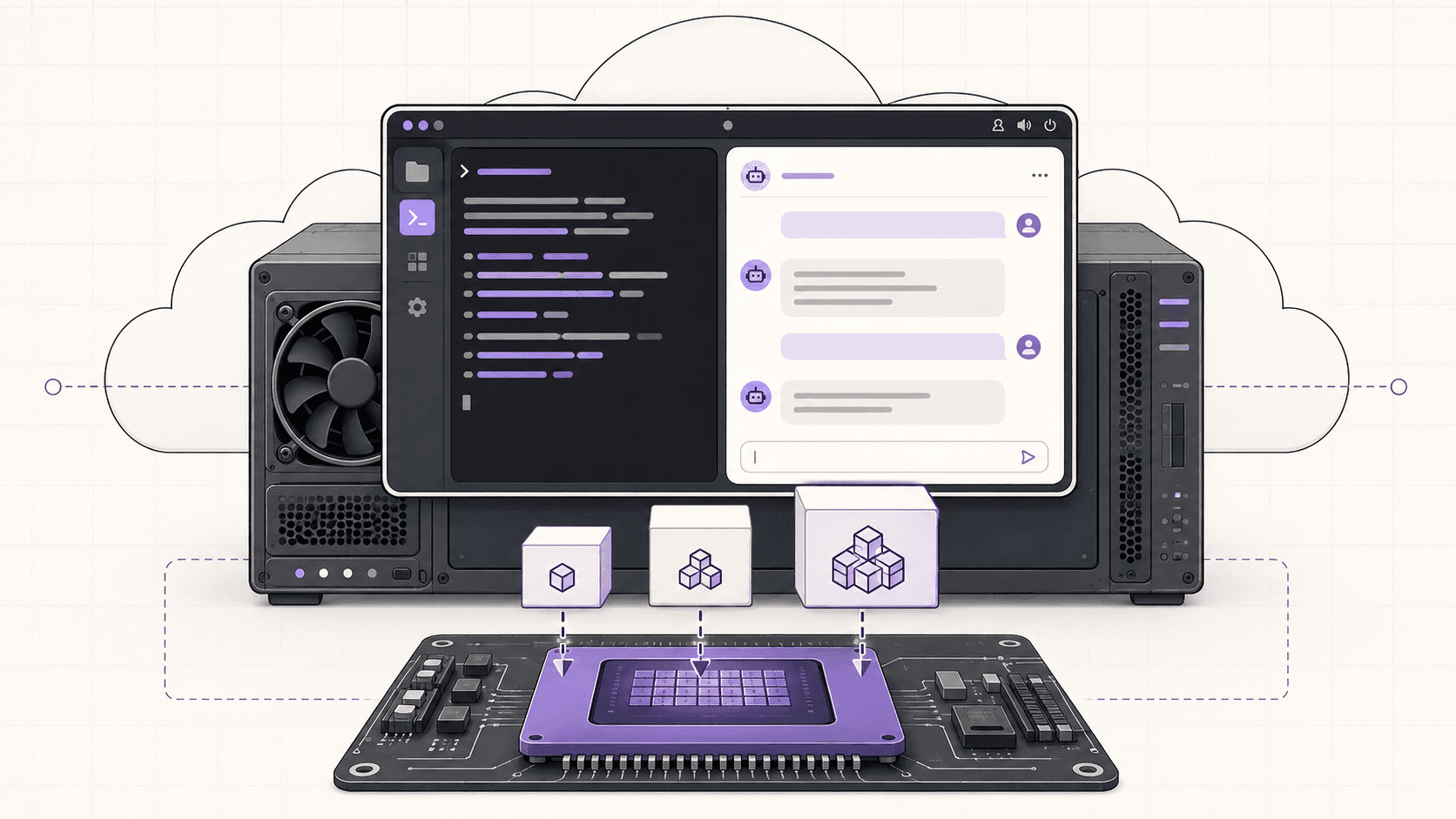
Large language models: Ollama, runtimes and DeepSeek-R1
Pick a runtime, size the model to the card, and run it on an isolated machine.
Jump to chapter ↓
03
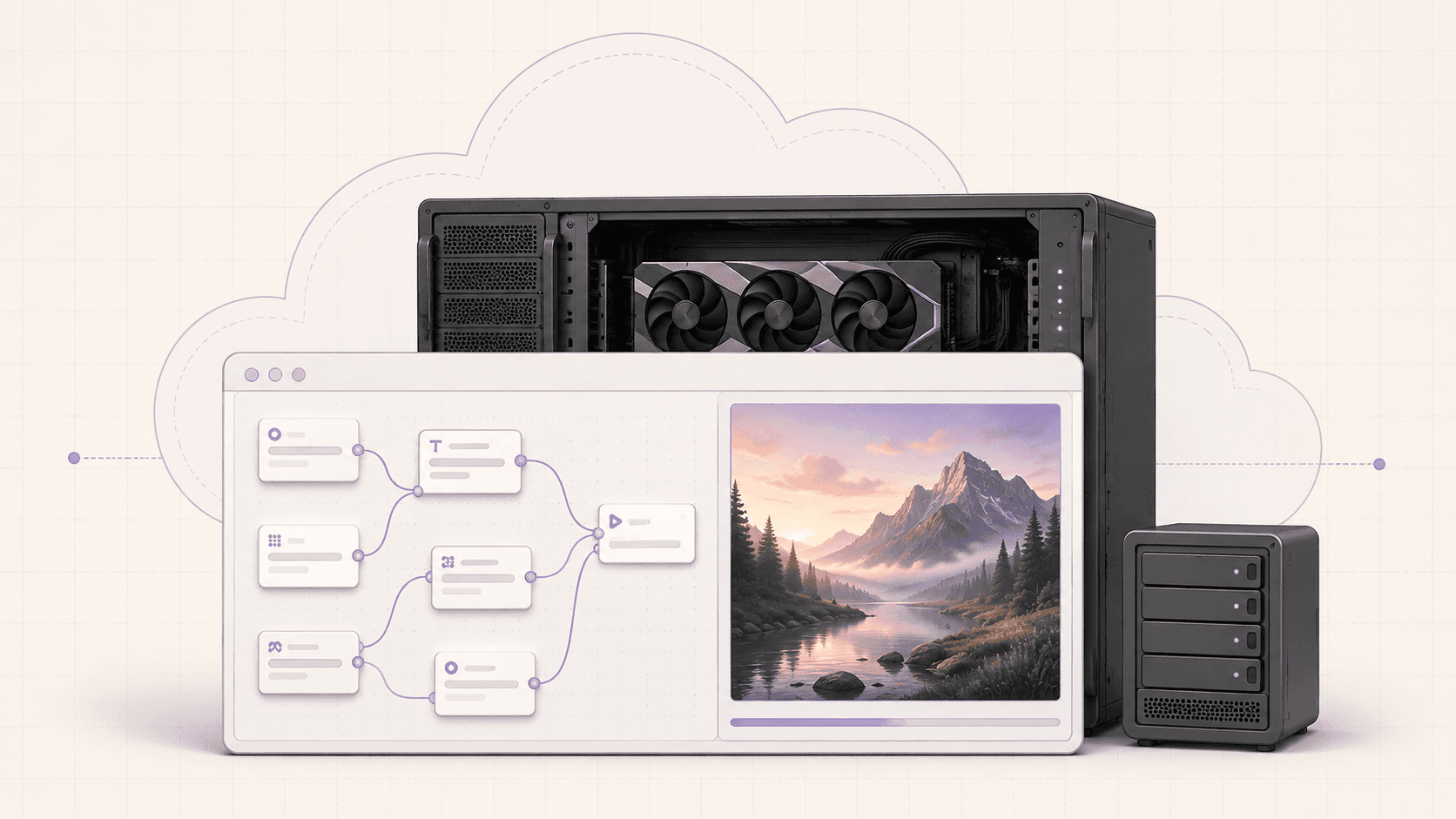
Image generation: ComfyUI and Stable Diffusion
A node editor needs a real desktop and a lot of VRAM. Set it up on a GPU Ubuntu desktop.
Jump to chapter ↓

04
Notebooks and training with Jupyter
Run the cells that crash your laptop kernel, on a GPU with the drivers already set up.
Jump to chapter ↓

05
Let Claude or Codex drive ComfyUI
Connect an agent to a working ComfyUI install through MCP, then compare the results.
Jump to chapter ↓
If you want to run a language model, an image model or a notebook yourself and your laptop cannot hold it, this guide is for you. It covers why a cloud GPU desktop helps, how to size a model to a card, and how to set up Ollama, a local LLM, DeepSeek-R1, ComfyUI, Stable Diffusion and Jupyter. It ends with an honest section on when a per-minute desktop is the wrong tool. Everything here comes from Vagon's own posts, so the sizing numbers are rough guides, not benchmarks.
Why run a model on a cloud GPU
Vagon's local LLM guide makes a point of the wording. The point of a "local" model was never the word local. It is control. You pick the model, you keep your prompts and data on a machine you command, there is no per-token bill, and a provider cannot change the model under you. In the cloud you get a real NVIDIA card to do it with.
The other reason is memory. The guides keep returning to VRAM: it decides what fits, before speed matters. A model that crawls on a laptop, or does not load, can run properly on a card with enough memory. The Ollama post frames the moment well: you run a model bigger than your laptop can handle, the fan spins up, and tokens crawl out.
A cloud desktop adds two things a headless GPU pod does not. You can open a browser and a chat UI or node editor on the machine itself, and each Vagon computer is an isolated VM, so experiments and custom code stay contained and you can reset. Drivers and CUDA come preconfigured in these posts' setups, so you skip the part that usually breaks on a fresh machine.
Read next
Large language models: Ollama, runtimes and DeepSeek-R1
Start with Ollama. The Ollama guide is the simplest path: launch a GPU Ubuntu desktop, check the card with nvidia-smi, install with the one-line script, pull a model and run it. The post says a cloud GPU lets you run 34B and 70B models at usable speed, and that you can put a web chat UI in front of it because the machine is a real desktop.
The local LLM guide widens the choice of runtime. Ollama is the easiest start, a web UI gives a richer interface, and vLLM or a dedicated inference server gives throughput. Its sizing table is the most useful part of this guide. For quantized models it gives roughly 5 to 8 GB of VRAM for 7B to 8B, 10 to 12 GB for 13B, 20 to 24 GB for 34B, and 40 GB or more for 70B. Quantization (a tag such as q4) shrinks memory use for a small loss in quality, and long context windows need extra headroom. Start with a model comfortably inside your card.
Safety matters because the machine can reach things. The same post says to use scoped, throwaway credentials, keep the endpoint private, treat model-driven actions with suspicion, and reset when in doubt. For the agent side of that, see Cloud computers for AI agents.
DeepSeek-R1 has its own older walkthrough. The DeepSeek-R1 guide uses llama.cpp and a quantized model, with an optional web interface, and compares serverless GPUs, Vagon desktops and local machines. It also lists local requirements: a high-performance GPU, 16 GB of RAM or more, and 10 GB to 50 GB of disk for a 4-bit model depending on its size. It is older than the Ubuntu series, so check model names before you follow it.
Read next
How to Run Ollama in the Cloud on a GPU Ubuntu Desktop (2026 Guide)
A Step-by-Step Guide to Running DeepSeek-R1 on Low-End Devices & Cloud
Image generation: ComfyUI and Stable Diffusion
ComfyUI is the heaviest of these on VRAM. How to Run ComfyUI in the Cloud says SDXL, Flux and video models overwhelm most laptop GPUs, and that the node editor suits a real desktop better than a headless pod. It lists other reasons for the cloud: a Mac or machine without NVIDIA, a disposable setup for custom nodes, and needing the GPU only sometimes.
Its rough GPU guide is: a T4 for older or small models and basic generation, an A10G for SDXL at standard resolutions, A10G or higher for SDXL with upscaling and for Flux, and higher plans for video generation. Storage matters here, because checkpoints are large and re-downloading them every session is painful.
Run Stable Diffusion on a low-end device is the older, simpler version. Pick a GPU-backed performance, start the computer, and use a GUI. That GUI works only with NVIDIA GPUs, per the post. You can switch performance later and keep your files.
Read next
Notebooks and training with Jupyter
How to Run Jupyter on a Cloud GPU Linux Desktop is for the cell that kills your kernel: training, large datasets and big-model inference. On a GPU Ubuntu desktop, torch.cuda.is_available() returns True without version wrangling, because drivers and CUDA are set up. You open Jupyter in a real browser, manage files normally and can watch the GPU work. The advice carries over from the other guides: match model and batch size to your VRAM, keep notebooks and datasets on persistent storage, and use the desktop for bursty work rather than as an always-on notebook server.
Read next
Let Claude or Codex drive ComfyUI
Once ComfyUI runs, an agent can help you iterate. The Claude guide and the Codex guide are twins. Through Comfy MCP the assistant can inspect available nodes and models, validate workflows and manage execution. Computer use covers what MCP does not: navigating the canvas and reviewing images.
The two posts agree on method. Start with a workflow that already runs, so you know ComfyUI, the models and your hardware can execute it. Change specified parameters instead of asking for endless generations. Preserve the settings behind images you keep. The Codex guide adds a product-photo problem: a label that changes or a bottle that gets wider between generations, which is why a workflow beats a vague prompt.
To decide whether the agent itself needs a GPU, read When Does Your AI Agent Workflow Need a GPU?. The model answering requests and the tools running locally are two different loads.
Read next
What to run, and on what
What you want to run | Rough fit (from the posts) | Watch for |
|---|---|---|
7B to 8B LLM (quantized) | About 5 to 8 GB VRAM; T4 and up | Long context needs headroom |
13B LLM | About 10 to 12 GB; tight on T4, comfortable on A10G | Quantization trades a little quality |
34B LLM | About 20 to 24 GB; A10G | Check the fit before downloading |
70B LLM | 40 GB or more; higher GPU plans | Larger plans needed |
ComfyUI, older or small models | T4 | Keep checkpoints on persistent storage |
ComfyUI, SDXL and Flux | A10G or higher | Start comfortable, step up on out-of-memory errors |
ComfyUI, video models | Higher GPU plans | Heavy on VRAM |
Jupyter training or big-model inference | Match model and batch to VRAM | Use persistent storage for data |
Always-on endpoint | Not a desktop | Use a dedicated server or hosted API |
Doing this on Vagon
Running models locally is mostly a VRAM problem, and a Vagon Cloud Computer lets you rent the VRAM instead of buying it. Create a Linux (Ubuntu) computer with a GPU performance. T4 tiers have 16 GB of GPU memory and A10G tiers 24 GB, so check them against the VRAM guide above. Switch performance when a model needs more, and shut down when you're done; billing stops with it.
Add a storage plan so weights and checkpoints survive between sessions (pricing). This suits focused sessions. If you generate or serve all day, every day, owning a GPU or renting a monthly server will likely cost less.
FAQ
Can I run Ollama on a cloud GPU?
Yes. Vagon's guide launches a GPU Ubuntu desktop, checks the GPU with nvidia-smi, installs Ollama with its one-line script, then pulls a model. A cloud GPU lets you run larger models than a laptop can handle.
How much VRAM do I need for a local LLM?
Vagon's local-LLM guide gives a rough quantized guide: about 5 to 8 GB for 7B to 8B models, 10 to 12 GB for 13B, 20 to 24 GB for 34B and 40 GB or more for 70B. Long context windows use extra VRAM, so leave headroom.
Is a cloud GPU desktop good for an always-on model endpoint?
No. Vagon's guides say a per-minute desktop is built for bursts of building, testing or generating. For a model that runs around the clock, a dedicated monthly GPU server or a hosted API is cheaper and simpler.
Can I run ComfyUI on a Mac or a laptop without an NVIDIA GPU?
You can run it on a cloud desktop instead. Vagon's ComfyUI guide lists being on a Mac or a machine without NVIDIA as a reason to use the cloud, with drivers and CUDA already configured.
Do I need to re-download models every session?
Not if you use persistent storage. The Ollama and ComfyUI guides both recommend it because model weights and checkpoints are large.
Can Claude or Codex run ComfyUI workflows?
Through Comfy MCP they can inspect nodes and models, validate workflows and manage execution, per Vagon's guides. Both advise starting from a workflow that already runs and reviewing the results.


Read next
All posts in this guide
All guides →


Keep going
Related guides
All guides →


AI agents
6 chapters
AI agents for creative and CAD software: the guide
An AI agent can only work with a creative or CAD app through a connection you set up: a script, an MCP server or computer use. Pick the narrowest connection that does the job, start read-only on a copy, and give the agent its own machine to run on.


Read →


Hardware
6 chapters
Best GPU for 3D, CAD and video work
Match the GPU to the app, and look at VRAM before speed. CAD and editing work depends on drivers, stability and the CPU as much as raw GPU power. GPU renderers, real-time engines and AI features run out of VRAM first. If your needs change by project, renting by the minute can beat buying.


Read →

AI agents
6 chapters
Cloud Computers for AI Agents: How to Choose
An agent needs a cloud computer when the job involves real applications, files and a desktop you can watch, not just code. A sandbox bounds what a process can touch, a local PC is the easy start, and a GPU only helps when the work the agent triggers can use one. Run the agent inside the computer, and start with one bounded job.

Read →
