Instant Connection for Pixel Streaming
— New Feature Automated Setup
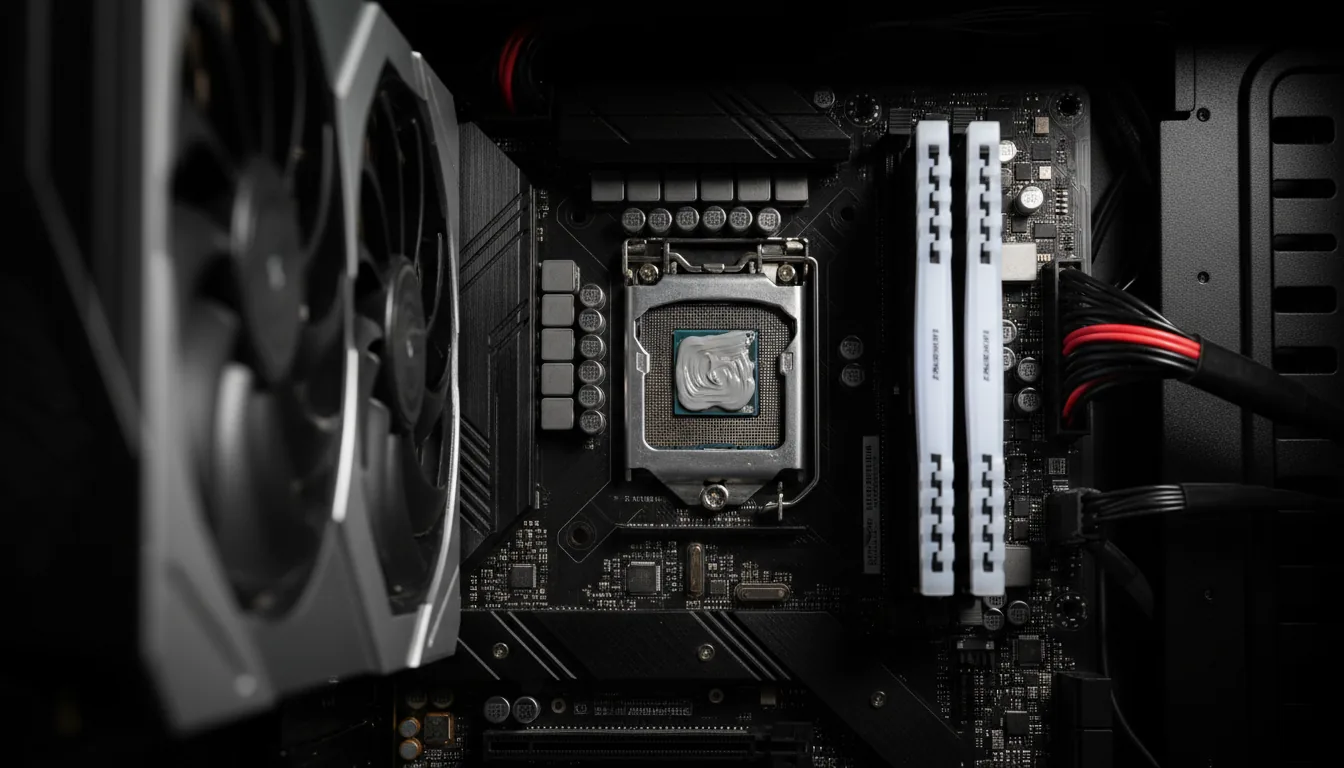
Best GPU for Twinmotion in 2026: Real Performance, VRAM, and What Actually Matters
Architecture
-
Best GPU for Twinmotion in 2026: Real Performance, VRAM, and What Actually Matters
Architecture
Best GPU for Twinmotion in 2026: Real Performance, VRAM, and What Actually Matters
Architecture
-
Table of Contents
I still remember the moment Twinmotion broke my confidence a little. A scene that looked fine yesterday suddenly turned into a slideshow. Orbiting the camera felt sticky. Trees popped in late. Reflections lagged behind like they were thinking about it.
Nothing about the model had changed in a dramatic way. Same building. Same materials. Same lighting setup. The only difference was scale. More vegetation, a bigger site boundary, a few extra assets layered in. Enough to push the GPU over the edge without warning.
At first, I did what everyone does. I blamed Twinmotion. Then I blamed the file. Then I blamed myself. Scene optimization. Lower quality. Turning things off one by one. It helped a bit, but not in the way you actually want. The experience still felt fragile.
The real fix came later. A GPU upgrade. Same scene, reopened. Suddenly the viewport was smooth again. Path tracing didn’t feel like a punishment. Camera moves were boring in the best way possible. That’s when it clicked. With Twinmotion, the GPU isn’t just important. It’s the difference between fighting your project and actually enjoying the work.
Why Your GPU Matters More Than You Think in Twinmotion
Twinmotion looks friendly on the surface. Drag, drop, tweak a slider, move on. That ease can fool you into thinking it’s forgiving on hardware. It isn’t. Not once your scenes start to resemble real projects.
Most of what you feel inside Twinmotion comes straight from the GPU. Camera movement. Shadow updates. Reflections refreshing in real time. Vegetation density. All of it lives and dies on graphics performance. The CPU helps, sure, but it’s rarely the bottleneck once you’re past basic modeling.
I’ve seen machines with strong CPUs and plenty of RAM struggle badly because the GPU couldn’t keep up. The viewport stutters even before you touch path tracing. Simple edits feel heavier than they should. You start hesitating before adding assets because you know what’s coming.
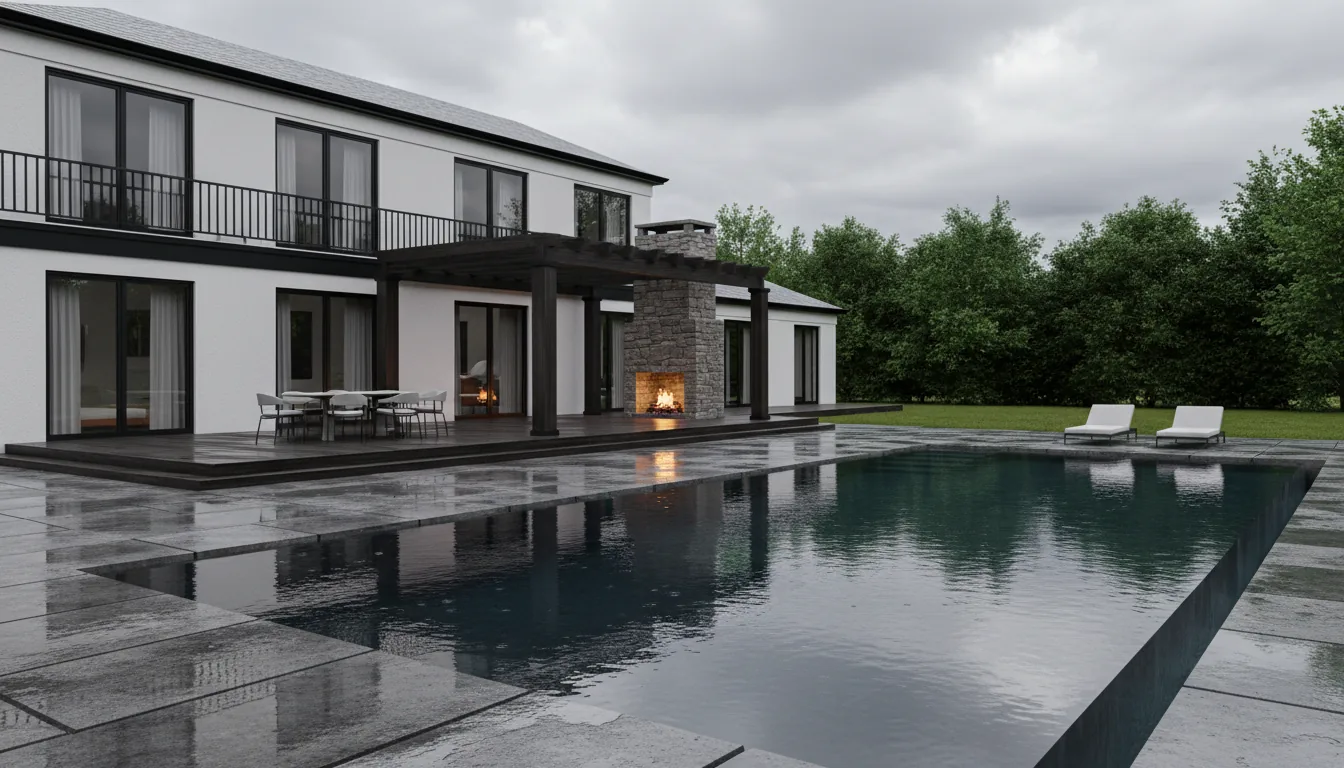
Path tracing makes this even more obvious. The moment you switch it on, Twinmotion stops being polite. It demands raw GPU power and enough VRAM to hold the entire scene without spilling over. If the card can’t handle it, you’ll know immediately. Long render times. Memory warnings. Sometimes crashes if you push too far.
What surprises most people is how fast this happens. You don’t need a massive city model. A mid-sized architectural scene with dense landscaping, good lighting, and high-res materials is enough to expose a weak GPU. And once that limit shows up, no amount of scene cleanup fully fixes the experience.
This is why GPU choice matters more than spec sheets suggest. On paper, many cards look “supported.” In practice, Twinmotion rewards headroom. Extra VRAM. Strong real-time performance. The ability to stay smooth when the project stops being simple.
If you’re tweaking visuals and want better results without pushing your GPU harder, this guide on best render settings in Twinmotion walks through what actually improves quality versus what just wastes performance.
How Twinmotion Actually Uses Your GPU
Twinmotion doesn’t use your GPU in one neat, predictable way. It leans on it constantly, but the type of load changes depending on what you’re doing. That’s why some machines feel fine in early stages and then fall apart later.
In real-time mode, the GPU is busy keeping the viewport responsive. Every camera move triggers updates to lighting, shadows, reflections, and post effects. Add vegetation and it ramps up fast. Thousands of instanced trees and grasses don’t look heavy at first glance, but they chew through GPU memory and bandwidth quietly.
VRAM is the big limiter here. Twinmotion loads a lot into memory at once. Textures, geometry, shadow maps, reflection data. When VRAM runs out, performance doesn’t gently degrade. It drops off a cliff. The app starts swapping data, stuttering becomes obvious, and in worst cases you’ll hit stability issues.
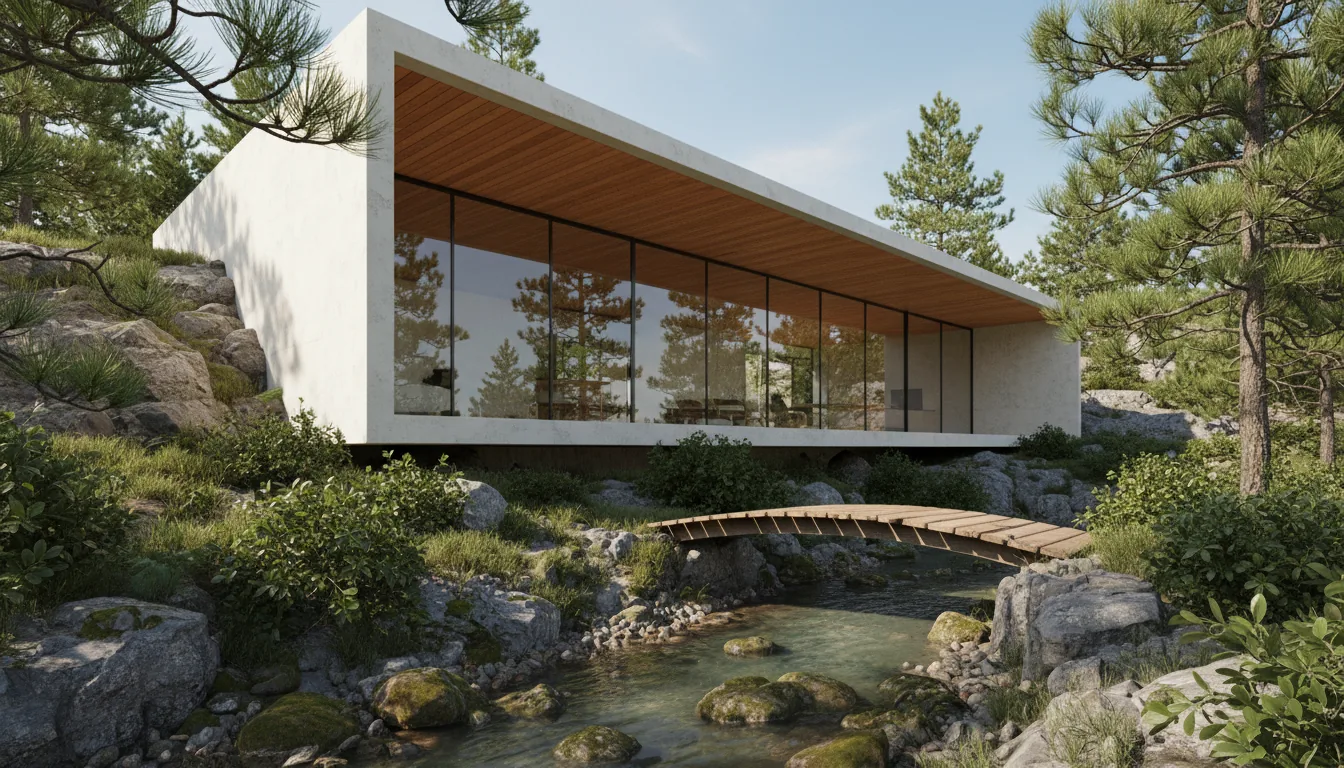
Path tracing is a different beast. The moment you enable it, Twinmotion switches to a workload that favors modern GPUs with strong ray tracing cores and plenty of memory. Every bounce of light is calculated on the GPU. More glass, more lights, more detail equals exponentially more work. This is where cards that “technically support” Twinmotion start to feel underpowered.
DirectX 12 support also matters more than people expect. Twinmotion relies on it for advanced rendering features. Older GPUs or weaker implementations might run, but they won’t feel good. You’ll notice slower updates, longer waits after adjustments, and less predictable performance.
One thing I’ve noticed over time is that Twinmotion rewards excess. A GPU that’s barely enough will work until it doesn’t. A GPU with headroom stays smooth even when you push things too far. That extra margin isn’t wasted. It buys you confidence. You stop second-guessing every asset you place, and that alone changes how you work.
If your scenes look good but still feel heavier than they should, adjusting export and quality settings can help. This breakdown of best render settings in Twinmotion for high-quality visuals is a good place to start.
Best GPU for Twinmotion: High-End Power Picks
If you work on large Twinmotion scenes and don’t want to think about limits, this is the tier that fixes the problem.
The RTX 4090 is the safest choice here. The reason isn’t raw speed. It’s the 24GB of VRAM. Big sites, dense vegetation, high-resolution textures, path tracing on. It all fits without drama. Viewport navigation stays smooth. You stop getting memory warnings. Renders become predictable instead of fragile.
Path tracing especially benefits. On weaker GPUs, turning it on feels like a gamble. On a 4090, it feels usable. You adjust lighting, materials, reflections, and the feedback loop stays tight enough to keep working.
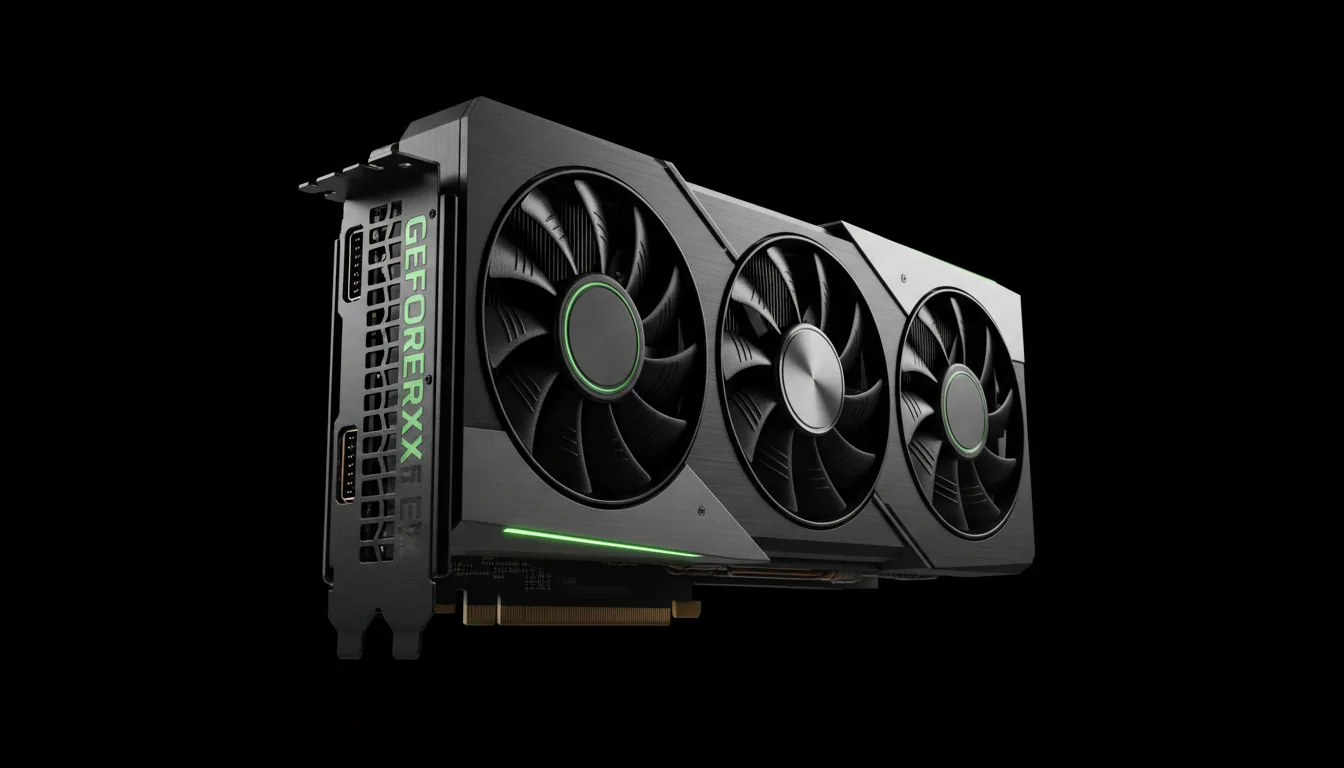
Newer flagship cards with even more VRAM follow the same logic. More memory equals more headroom. You’re not buying them to save seconds on export. You’re buying them so Twinmotion doesn’t slow you down while you design.
This tier makes sense if you’re doing large exteriors, masterplans, campuses, or anything vegetation-heavy. It also makes sense for studios that want consistency across projects without tuning every scene to survive.
One thing to be clear about. These GPUs don’t magically fix everything. If your storage is slow or your system runs hot, you’ll notice it. Once the GPU stops being the bottleneck, the rest of the machine gets exposed.
If you want the smoothest Twinmotion experience possible on local hardware, this is it. If that feels like overkill, the next tier is where most people should actually be looking.
If you’re deciding between Twinmotion and another real-time renderer and wondering how GPU requirements compare, this Twinmotion vs Enscape comparison gives a clear, practical perspective.
Sweet Spot GPUs for Most Twinmotion Users
This is where I think most Twinmotion users should land. Strong performance. Enough VRAM to stay comfortable. No extreme pricing. Just cards that let you work without constantly managing quality settings.
The RTX 4080 and 4080 Super sit right in the middle of that balance. They’re fast enough to keep the viewport smooth on serious projects and they have enough VRAM to handle path tracing on medium to large scenes without falling apart. You can push lighting, reflections, and vegetation pretty hard before things get uncomfortable.
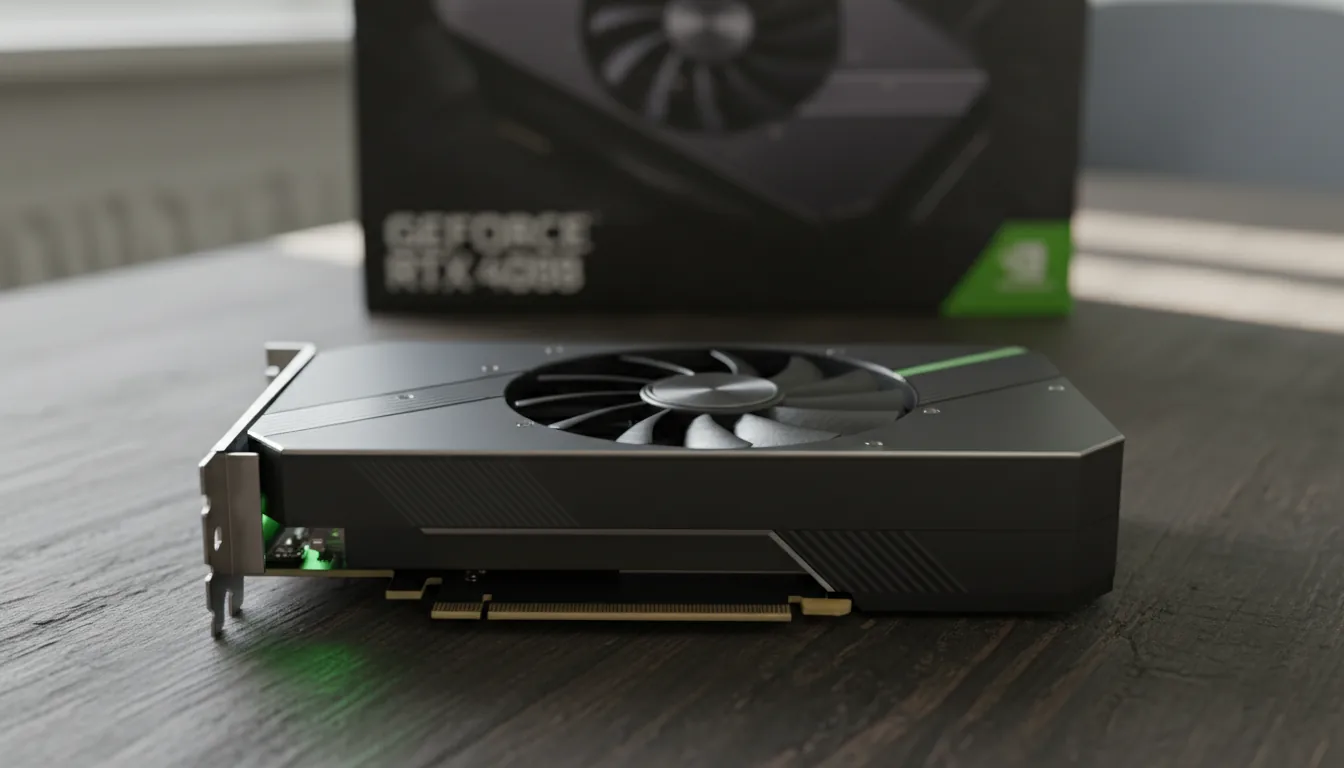
What I like about this tier is consistency. You’re not tiptoeing around limits. You can keep real-time quality high while you work, then switch to path tracing when you need it, without mentally preparing for a slowdown. For architectural exteriors and detailed interiors, this level just works.
The RTX 4070 Ti Super is another solid option here, especially because of the higher VRAM compared to older 4070 models. In practice, that extra memory matters more than a small difference in raw speed. I’ve noticed far fewer hiccups on complex scenes when VRAM isn’t constantly maxed out.
This tier is ideal if you’re working professionally but not building massive city-scale environments every week. Small studios. Freelancers. Designers who want reliability without paying flagship prices. You’ll still hit limits eventually, but they show up much later and more predictably.
If there’s one mistake people make here, it’s choosing a slightly faster GPU with less VRAM. Twinmotion doesn’t reward that tradeoff. Given the choice, always lean toward more memory. It buys you smoother navigation, fewer crashes, and less second-guessing while you work.
If you’re bringing complex geometry from Rhino and notice performance drops early, this guide on exporting from Rhino to Twinmotion can help avoid common bottlenecks before they hit your GPU.
Best Value GPUs That Still Work Well in Twinmotion
This tier is about being realistic. You want Twinmotion to run well, not perfectly. You accept that there are limits, but you don’t want to fight the software every day.
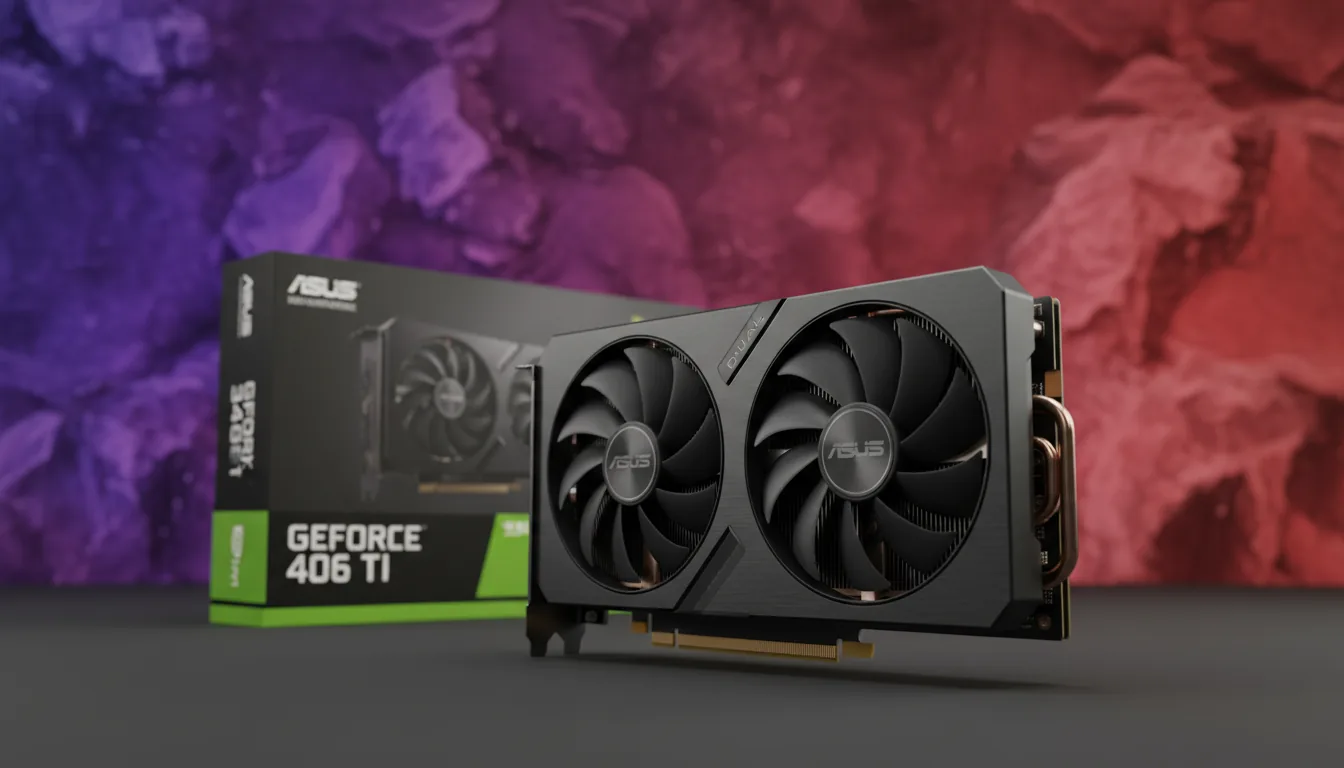
The RTX 4060 Ti 16GB version is the standout here. Not the 8GB one. The extra VRAM makes a noticeable difference in Twinmotion. Viewport performance is fine for most projects, and medium-scale scenes stay stable as long as you don’t go wild with vegetation or ultra-high-res textures. Path tracing works, but you’ll want patience and sensible settings.
Older cards like the RTX 3070 or 3080 can still be usable, but this is where VRAM starts to hurt. They’re fast, but memory runs out quickly on modern Twinmotion projects. You’ll feel it when adding trees, cars, or detailed assets. It’s manageable, but you’ll spend more time dialing things back.
This tier works best for interiors, smaller exterior scenes, and early design visuals. If your work is mostly conceptual or you export stills rather than long animations, you can get away with it. Just don’t expect to leave everything on high all the time.
The biggest mistake here is buying based on raw speed alone. Twinmotion doesn’t care how fast your GPU is if it can’t hold the scene in memory. I’d take a slower card with more VRAM over a faster one that’s constantly at the limit.
If you know your projects are growing, think carefully before staying in this tier. It’s fine as a starting point. It’s frustrating if you outgrow it six months later.
If you’re planning a full hardware upgrade and want to see how GPU choice fits into the bigger picture, this best PC for Twinmotion guide covers balanced system builds, not just graphics cards.
Laptop GPUs for Twinmotion
Laptop GPUs are where expectations and reality drift apart fast. On paper, an RTX 4080 laptop sounds close to a desktop 4080. In Twinmotion, they are not the same thing. Not even close.
The issue is power limits. Laptop GPUs run at much lower wattage to manage heat and battery life. That means less sustained performance, especially during long sessions or path-traced renders. You’ll feel it when scenes get heavier. The viewport slows sooner. Path tracing ramps up fans and still takes longer than you expect.
That said, high-end laptop GPUs can still be very usable. An RTX 4080 or 4090 laptop can handle professional Twinmotion work if the scenes aren’t massive. Interiors, mid-sized exteriors, client walkthroughs. All doable. Just don’t expect desktop-class headroom.
VRAM matters even more on laptops. If you’re choosing between models, always prioritize the one with more memory, even if the clock speeds look lower. Once VRAM fills up, there’s nowhere to hide. Performance drops hard.
Thermals also matter more than spec sheets admit. Thin laptops throttle. Aggressive cooling designs perform better but come with noise and weight. In my experience, a heavier laptop that stays cool will outperform a sleek one in Twinmotion every time.
Laptops make sense if you travel, present on-site, or work between locations. They’re a compromise, not a shortcut. If your Twinmotion projects keep growing, you’ll hit their limits faster than you think.
AMD GPUs for Twinmotion: Honest Pros and Cons
AMD cards can run Twinmotion. That’s the honest baseline. The question is how they feel once projects get real.
On the plus side, higher-end AMD GPUs like the RX 7900 XTX are strong at raw raster performance. In real-time mode, with path tracing off, they can push solid frame rates and handle large viewports fairly well. If your workflow leans heavily on real-time previews and you’re careful with scene complexity, AMD can work.
Where things get shaky is path tracing. Twinmotion’s path tracer is clearly tuned with NVIDIA in mind. Ray tracing performance is more consistent on RTX cards, and stability tends to be better when scenes get complex. With AMD, path tracing often feels slower and less predictable, especially as lighting complexity increases.
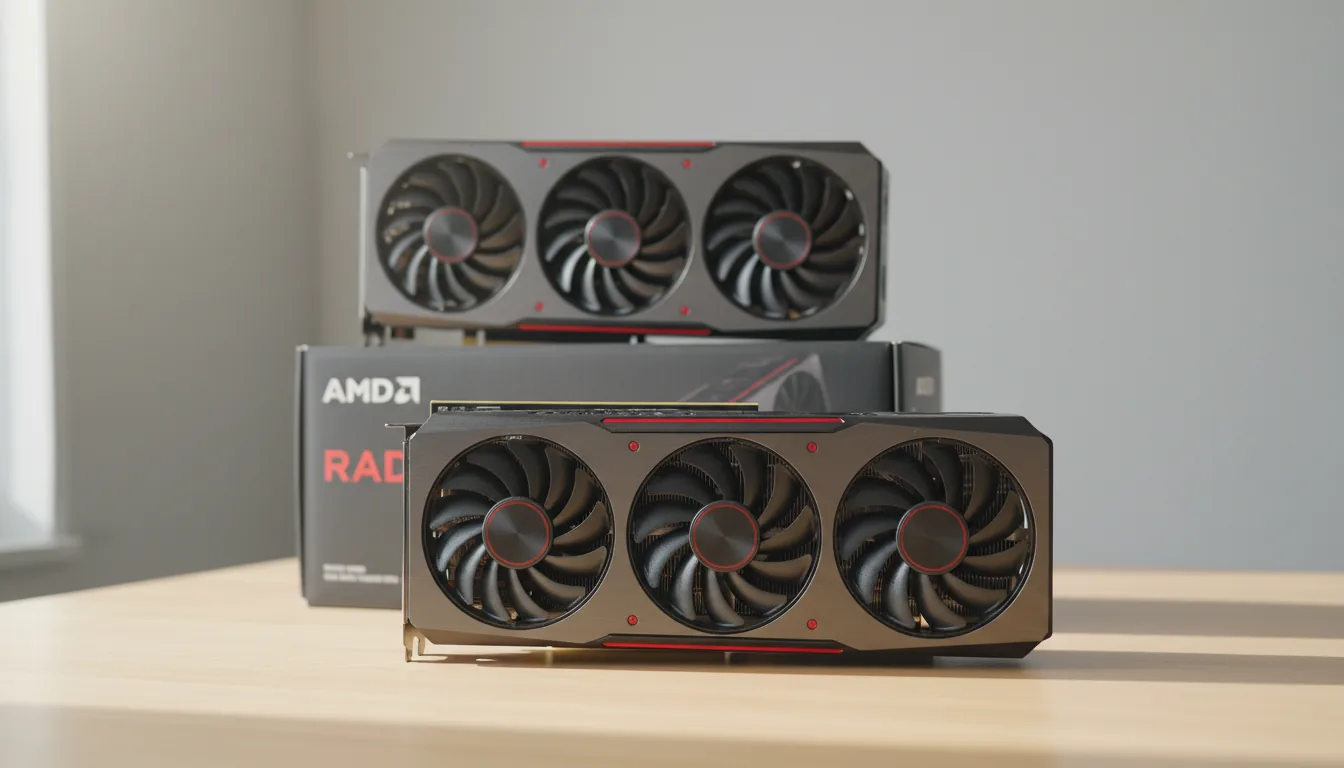
Another factor is tooling and features. NVIDIA has better support for things like DLSS, which can help smooth viewport performance at higher resolutions. AMD alternatives exist, but they’re not as widely adopted or as well integrated in Twinmotion workflows right now.
Driver behavior is another mixed bag. Some users run AMD cards without issues. Others report random quirks after updates. Nothing catastrophic, but enough to be annoying when you’re in the middle of a project.
My take is simple. If you already own a strong AMD GPU, use it. You can get good results. If you’re buying specifically for Twinmotion and plan to use path tracing regularly, NVIDIA is still the safer choice. Less guesswork. Fewer compromises. More predictable behavior over time.
If SketchUp is part of your workflow and your scenes start slowing down after import, this article on mastering the SketchUp to Twinmotion workflow explains how to keep things lighter and more stable.
The Biggest GPU Mistakes Twinmotion Users Make
The most common mistake is buying too little VRAM. It happens all the time. A fast GPU with 8GB looks good on paper, benchmarks well, costs less. Then a real Twinmotion project shows up. Trees, cars, people, high-res textures. Suddenly the viewport stutters and nobody knows why. Twinmotion fills VRAM quickly, and once it’s full, performance collapses instead of tapering off.
Another big one is assuming minimum specs equal a good experience. Twinmotion will launch. It will render. That doesn’t mean it will feel good to work in. Minimum requirements are about compatibility, not comfort. If you’re working professionally, that distinction matters a lot.
Workstation GPUs are another trap. RTX A-series cards sound professional, so people assume they’re better. In Twinmotion, they usually aren’t. You pay more for stability certifications you don’t really need and get less real-time performance than a consumer RTX card at the same price. Twinmotion favors raw GPU power and VRAM, not enterprise branding.
Laptop naming causes confusion too. An RTX 4070 laptop GPU is not a desktop 4070. It’s not even close. If you don’t check power limits and VRAM, you’ll end up disappointed, even though the model name looked right.
Finally, people underestimate how fast projects grow. You might think your scenes are small now. They won’t stay that way. More detail creeps in. Clients ask for revisions. Landscapes get richer. Choosing a GPU that only barely fits your current work is almost always a short-term decision you regret later.
If Twinmotion starts crashing or behaving unpredictably once projects grow, this guide on how to fix Twinmotion crashes can help you separate GPU limits from actual stability issues.
When Your GPU Still Isn’t Enough
Even with a solid GPU, there’s a point where Twinmotion starts pushing back. Not because your hardware is bad, but because the project has grown past what a single local machine is comfortable handling.
This usually shows up on large sites. Masterplans with long sightlines. Dense vegetation everywhere. High-resolution textures stacked on top of each other. Add path tracing and animations, and suddenly even a strong GPU feels busy all the time. Viewport responsiveness drops. Iterations slow down. You start making design decisions based on performance instead of intent.
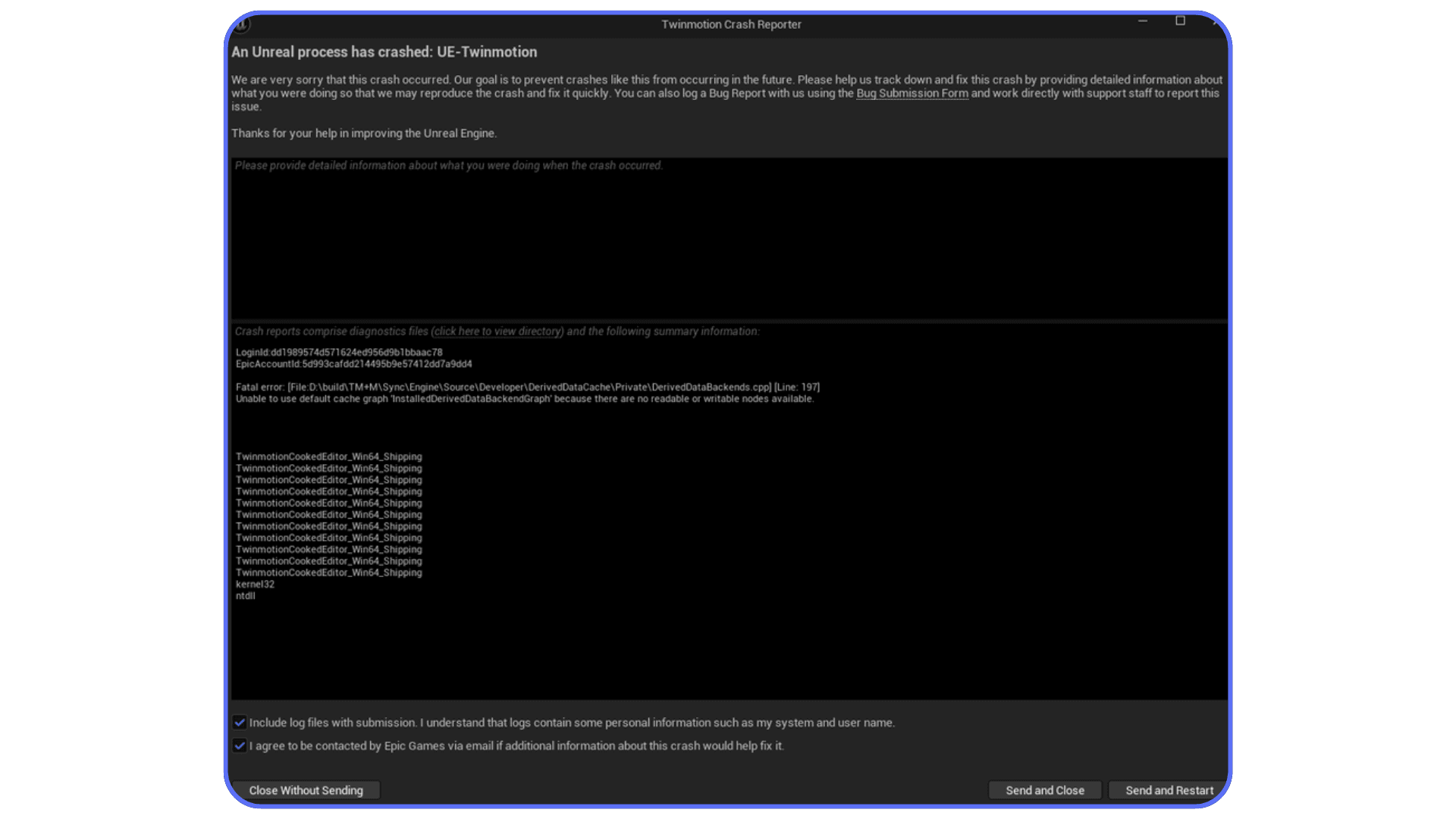
Deadlines make this worse. You don’t have time to optimize every asset or split scenes into pieces. You just need the project to move. This is where a lot of users realize that buying another GPU isn’t always the cleanest solution. Especially if these heavy projects are occasional, not daily.
Another common case is collaboration. Not everyone on the team has the same hardware. One person’s machine handles the scene fine. Another person can barely open it. Sharing Twinmotion files becomes painful, and suddenly hardware differences shape the workflow more than they should.
This is also where hardware testing becomes expensive. You think about upgrading, but you’re not sure how much GPU is enough. Buy too small and you’re back where you started. Buy too big and you’ve sunk a lot of money into something you only needed for a few projects.
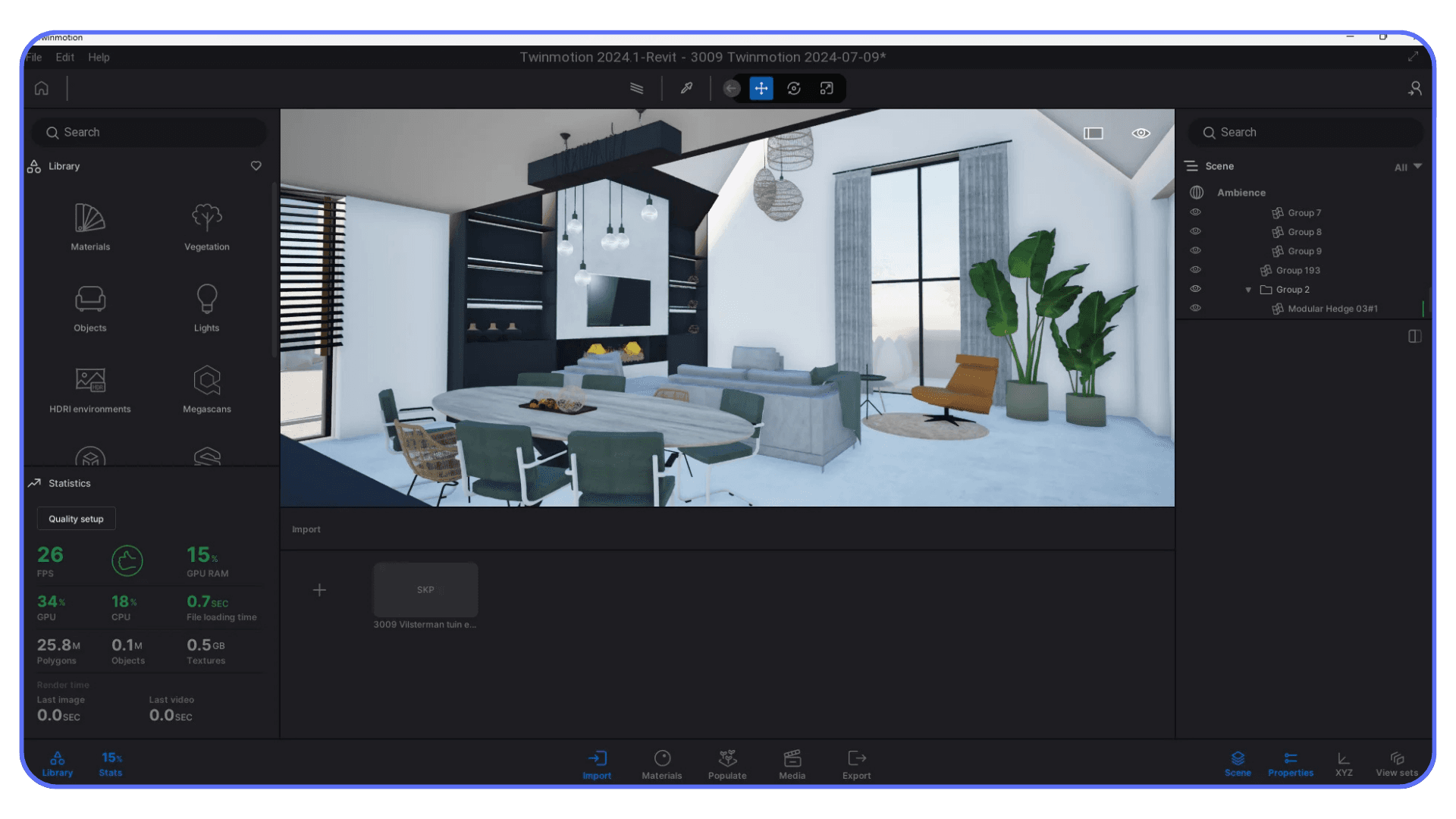
At this stage, the problem isn’t just GPU power. It’s flexibility. The ability to scale up when a project demands it, without rebuilding your entire setup. That’s where alternative approaches start making sense. And that’s a good moment to talk about cloud-based options, when local hardware stops being the obvious answer.
Using Vagon Cloud Computer When Local GPUs Hit Their Limits
When Twinmotion starts to slow you down, the usual reaction is simple. Upgrade the GPU. Spend more. Hope it fixes everything. That works sometimes. Other times, it’s overkill for a problem that only shows up on a few projects.
This is where Vagon Cloud Computer makes practical sense. Instead of being locked to the GPU inside your machine, you can access high-end cloud GPUs only when you actually need them. Big exterior scenes. Heavy vegetation. Path-traced animations. The kind of workloads that push local hardware past its comfort zone.
One of the biggest advantages is scale. You can open the same Twinmotion project on a much stronger GPU without changing anything in your workflow. No scene rebuilding. No optimization gymnastics just to survive. The viewport stays responsive, and path tracing becomes usable instead of something you avoid until the last minute.
Vagon is also useful if you’re unsure about your next hardware move. Rather than guessing which GPU tier is enough, you can test real performance with your actual Twinmotion files. See how much VRAM your scenes consume. Feel the difference between mid-range and high-end GPUs before spending on a permanent upgrade.
Collaboration benefits too. Team members with weaker machines aren’t blocked anymore. Everyone works on the same project with the same level of performance, regardless of local hardware. That alone can save hours of back-and-forth and broken files.
Vagon Cloud Computer isn’t about replacing your local setup entirely. It’s about removing bottlenecks when they matter most. When deadlines are tight or project scale jumps unexpectedly, having instant access to more GPU power is often more valuable than owning it full time.
Final Thoughts
If there’s one thing Twinmotion teaches you quickly, it’s this. Hardware choices shape how you design, not just how fast you render.
A weak GPU doesn’t just slow exports. It changes behavior. You hesitate before adding detail. You avoid path tracing until the very end. You compromise earlier than you should. A good GPU does the opposite. It stays out of the way. You focus on the scene, not the settings.
There isn’t one “best GPU for Twinmotion” for everyone. Large sites and cinematic work benefit from flagship cards with lots of VRAM. Most professionals are better served by strong mid-high GPUs that balance price and headroom. Budget cards can work, as long as you respect their limits. Laptops are fine, but only if you accept the tradeoffs.
What matters most is honesty about your projects. Not the ones you did last year. The ones you’re moving toward. Twinmotion scenes almost always grow, not shrink.
And when local hardware stops making sense, that doesn’t mean you’ve failed your setup. It just means your needs changed. Having options like Vagon Cloud Computer gives you room to scale without locking yourself into constant upgrades.
In the end, the best Twinmotion experience is the one where performance fades into the background. When the viewport stays smooth, renders feel predictable, and you stop thinking about your GPU altogether. That’s the real goal.
FAQs
1. What is the minimum GPU required to run Twinmotion smoothly?
You can technically run Twinmotion on a GPU with 6GB of VRAM, but “run” and “work comfortably” are very different things. In real projects, especially with vegetation and decent lighting, 8GB fills up fast. In practice, I wouldn’t recommend anything under 12GB of VRAM if you want a smooth experience.
2. Is VRAM more important than GPU speed for Twinmotion?
Most of the time, yes. Twinmotion is very sensitive to memory limits. A slightly slower GPU with more VRAM often performs better than a faster card that constantly runs out of memory. Once VRAM is full, performance drops hard and suddenly.
3. Does Twinmotion benefit from ray tracing GPUs?
Absolutely. If you use path tracing, ray tracing cores make a noticeable difference. NVIDIA RTX GPUs handle this more consistently than most alternatives right now. Without ray tracing hardware, path tracing works, but it’s slower and less predictable.
4. Is an RTX 4090 overkill for Twinmotion?
For many users, yes. For large scenes, studios, or heavy path-traced work, no. The main benefit isn’t speed, it’s headroom. The 24GB of VRAM lets you work without constantly managing limits. If your projects are smaller, you’ll be better served by a lower tier.
5. Are workstation GPUs better for Twinmotion?
Usually not. Cards like the RTX A-series are built for stability and certification, not real-time rendering performance. For the same price, consumer RTX GPUs almost always deliver better Twinmotion performance and more value.
6. Can I use Twinmotion on a laptop GPU?
Yes, but with realistic expectations. Laptop GPUs are power-limited and slower than their desktop counterparts, even if the names match. High-end laptop GPUs can handle professional work, but they reach their limits sooner. VRAM matters even more here.
7. Does Twinmotion use multiple GPUs?
No. Twinmotion relies on a single GPU. Adding a second card won’t improve performance. That’s why choosing the right single GPU matters more than building a complex system.
8. Is cloud computing actually useful for Twinmotion?
For many users, yes. Especially when project size fluctuates or deadlines are tight. Cloud solutions like Vagon Cloud Computer let you access higher-end GPUs when you need them, without committing to permanent hardware upgrades.
9. Should I upgrade my GPU now or wait?
If Twinmotion already feels restrictive, waiting rarely helps. Projects tend to grow, not shrink. If you’re on the edge today, you’ll likely be over the edge soon. Whether that upgrade is local hardware or cloud-based depends on how often you hit those limits.
I still remember the moment Twinmotion broke my confidence a little. A scene that looked fine yesterday suddenly turned into a slideshow. Orbiting the camera felt sticky. Trees popped in late. Reflections lagged behind like they were thinking about it.
Nothing about the model had changed in a dramatic way. Same building. Same materials. Same lighting setup. The only difference was scale. More vegetation, a bigger site boundary, a few extra assets layered in. Enough to push the GPU over the edge without warning.
At first, I did what everyone does. I blamed Twinmotion. Then I blamed the file. Then I blamed myself. Scene optimization. Lower quality. Turning things off one by one. It helped a bit, but not in the way you actually want. The experience still felt fragile.
The real fix came later. A GPU upgrade. Same scene, reopened. Suddenly the viewport was smooth again. Path tracing didn’t feel like a punishment. Camera moves were boring in the best way possible. That’s when it clicked. With Twinmotion, the GPU isn’t just important. It’s the difference between fighting your project and actually enjoying the work.
Why Your GPU Matters More Than You Think in Twinmotion
Twinmotion looks friendly on the surface. Drag, drop, tweak a slider, move on. That ease can fool you into thinking it’s forgiving on hardware. It isn’t. Not once your scenes start to resemble real projects.
Most of what you feel inside Twinmotion comes straight from the GPU. Camera movement. Shadow updates. Reflections refreshing in real time. Vegetation density. All of it lives and dies on graphics performance. The CPU helps, sure, but it’s rarely the bottleneck once you’re past basic modeling.
I’ve seen machines with strong CPUs and plenty of RAM struggle badly because the GPU couldn’t keep up. The viewport stutters even before you touch path tracing. Simple edits feel heavier than they should. You start hesitating before adding assets because you know what’s coming.
Path tracing makes this even more obvious. The moment you switch it on, Twinmotion stops being polite. It demands raw GPU power and enough VRAM to hold the entire scene without spilling over. If the card can’t handle it, you’ll know immediately. Long render times. Memory warnings. Sometimes crashes if you push too far.
What surprises most people is how fast this happens. You don’t need a massive city model. A mid-sized architectural scene with dense landscaping, good lighting, and high-res materials is enough to expose a weak GPU. And once that limit shows up, no amount of scene cleanup fully fixes the experience.
This is why GPU choice matters more than spec sheets suggest. On paper, many cards look “supported.” In practice, Twinmotion rewards headroom. Extra VRAM. Strong real-time performance. The ability to stay smooth when the project stops being simple.
If you’re tweaking visuals and want better results without pushing your GPU harder, this guide on best render settings in Twinmotion walks through what actually improves quality versus what just wastes performance.
How Twinmotion Actually Uses Your GPU
Twinmotion doesn’t use your GPU in one neat, predictable way. It leans on it constantly, but the type of load changes depending on what you’re doing. That’s why some machines feel fine in early stages and then fall apart later.
In real-time mode, the GPU is busy keeping the viewport responsive. Every camera move triggers updates to lighting, shadows, reflections, and post effects. Add vegetation and it ramps up fast. Thousands of instanced trees and grasses don’t look heavy at first glance, but they chew through GPU memory and bandwidth quietly.
VRAM is the big limiter here. Twinmotion loads a lot into memory at once. Textures, geometry, shadow maps, reflection data. When VRAM runs out, performance doesn’t gently degrade. It drops off a cliff. The app starts swapping data, stuttering becomes obvious, and in worst cases you’ll hit stability issues.
Path tracing is a different beast. The moment you enable it, Twinmotion switches to a workload that favors modern GPUs with strong ray tracing cores and plenty of memory. Every bounce of light is calculated on the GPU. More glass, more lights, more detail equals exponentially more work. This is where cards that “technically support” Twinmotion start to feel underpowered.
DirectX 12 support also matters more than people expect. Twinmotion relies on it for advanced rendering features. Older GPUs or weaker implementations might run, but they won’t feel good. You’ll notice slower updates, longer waits after adjustments, and less predictable performance.
One thing I’ve noticed over time is that Twinmotion rewards excess. A GPU that’s barely enough will work until it doesn’t. A GPU with headroom stays smooth even when you push things too far. That extra margin isn’t wasted. It buys you confidence. You stop second-guessing every asset you place, and that alone changes how you work.
If your scenes look good but still feel heavier than they should, adjusting export and quality settings can help. This breakdown of best render settings in Twinmotion for high-quality visuals is a good place to start.
Best GPU for Twinmotion: High-End Power Picks
If you work on large Twinmotion scenes and don’t want to think about limits, this is the tier that fixes the problem.
The RTX 4090 is the safest choice here. The reason isn’t raw speed. It’s the 24GB of VRAM. Big sites, dense vegetation, high-resolution textures, path tracing on. It all fits without drama. Viewport navigation stays smooth. You stop getting memory warnings. Renders become predictable instead of fragile.
Path tracing especially benefits. On weaker GPUs, turning it on feels like a gamble. On a 4090, it feels usable. You adjust lighting, materials, reflections, and the feedback loop stays tight enough to keep working.
Newer flagship cards with even more VRAM follow the same logic. More memory equals more headroom. You’re not buying them to save seconds on export. You’re buying them so Twinmotion doesn’t slow you down while you design.
This tier makes sense if you’re doing large exteriors, masterplans, campuses, or anything vegetation-heavy. It also makes sense for studios that want consistency across projects without tuning every scene to survive.
One thing to be clear about. These GPUs don’t magically fix everything. If your storage is slow or your system runs hot, you’ll notice it. Once the GPU stops being the bottleneck, the rest of the machine gets exposed.
If you want the smoothest Twinmotion experience possible on local hardware, this is it. If that feels like overkill, the next tier is where most people should actually be looking.
If you’re deciding between Twinmotion and another real-time renderer and wondering how GPU requirements compare, this Twinmotion vs Enscape comparison gives a clear, practical perspective.
Sweet Spot GPUs for Most Twinmotion Users
This is where I think most Twinmotion users should land. Strong performance. Enough VRAM to stay comfortable. No extreme pricing. Just cards that let you work without constantly managing quality settings.
The RTX 4080 and 4080 Super sit right in the middle of that balance. They’re fast enough to keep the viewport smooth on serious projects and they have enough VRAM to handle path tracing on medium to large scenes without falling apart. You can push lighting, reflections, and vegetation pretty hard before things get uncomfortable.
What I like about this tier is consistency. You’re not tiptoeing around limits. You can keep real-time quality high while you work, then switch to path tracing when you need it, without mentally preparing for a slowdown. For architectural exteriors and detailed interiors, this level just works.
The RTX 4070 Ti Super is another solid option here, especially because of the higher VRAM compared to older 4070 models. In practice, that extra memory matters more than a small difference in raw speed. I’ve noticed far fewer hiccups on complex scenes when VRAM isn’t constantly maxed out.
This tier is ideal if you’re working professionally but not building massive city-scale environments every week. Small studios. Freelancers. Designers who want reliability without paying flagship prices. You’ll still hit limits eventually, but they show up much later and more predictably.
If there’s one mistake people make here, it’s choosing a slightly faster GPU with less VRAM. Twinmotion doesn’t reward that tradeoff. Given the choice, always lean toward more memory. It buys you smoother navigation, fewer crashes, and less second-guessing while you work.
If you’re bringing complex geometry from Rhino and notice performance drops early, this guide on exporting from Rhino to Twinmotion can help avoid common bottlenecks before they hit your GPU.
Best Value GPUs That Still Work Well in Twinmotion
This tier is about being realistic. You want Twinmotion to run well, not perfectly. You accept that there are limits, but you don’t want to fight the software every day.
The RTX 4060 Ti 16GB version is the standout here. Not the 8GB one. The extra VRAM makes a noticeable difference in Twinmotion. Viewport performance is fine for most projects, and medium-scale scenes stay stable as long as you don’t go wild with vegetation or ultra-high-res textures. Path tracing works, but you’ll want patience and sensible settings.
Older cards like the RTX 3070 or 3080 can still be usable, but this is where VRAM starts to hurt. They’re fast, but memory runs out quickly on modern Twinmotion projects. You’ll feel it when adding trees, cars, or detailed assets. It’s manageable, but you’ll spend more time dialing things back.
This tier works best for interiors, smaller exterior scenes, and early design visuals. If your work is mostly conceptual or you export stills rather than long animations, you can get away with it. Just don’t expect to leave everything on high all the time.
The biggest mistake here is buying based on raw speed alone. Twinmotion doesn’t care how fast your GPU is if it can’t hold the scene in memory. I’d take a slower card with more VRAM over a faster one that’s constantly at the limit.
If you know your projects are growing, think carefully before staying in this tier. It’s fine as a starting point. It’s frustrating if you outgrow it six months later.
If you’re planning a full hardware upgrade and want to see how GPU choice fits into the bigger picture, this best PC for Twinmotion guide covers balanced system builds, not just graphics cards.
Laptop GPUs for Twinmotion
Laptop GPUs are where expectations and reality drift apart fast. On paper, an RTX 4080 laptop sounds close to a desktop 4080. In Twinmotion, they are not the same thing. Not even close.
The issue is power limits. Laptop GPUs run at much lower wattage to manage heat and battery life. That means less sustained performance, especially during long sessions or path-traced renders. You’ll feel it when scenes get heavier. The viewport slows sooner. Path tracing ramps up fans and still takes longer than you expect.
That said, high-end laptop GPUs can still be very usable. An RTX 4080 or 4090 laptop can handle professional Twinmotion work if the scenes aren’t massive. Interiors, mid-sized exteriors, client walkthroughs. All doable. Just don’t expect desktop-class headroom.
VRAM matters even more on laptops. If you’re choosing between models, always prioritize the one with more memory, even if the clock speeds look lower. Once VRAM fills up, there’s nowhere to hide. Performance drops hard.
Thermals also matter more than spec sheets admit. Thin laptops throttle. Aggressive cooling designs perform better but come with noise and weight. In my experience, a heavier laptop that stays cool will outperform a sleek one in Twinmotion every time.
Laptops make sense if you travel, present on-site, or work between locations. They’re a compromise, not a shortcut. If your Twinmotion projects keep growing, you’ll hit their limits faster than you think.
AMD GPUs for Twinmotion: Honest Pros and Cons
AMD cards can run Twinmotion. That’s the honest baseline. The question is how they feel once projects get real.
On the plus side, higher-end AMD GPUs like the RX 7900 XTX are strong at raw raster performance. In real-time mode, with path tracing off, they can push solid frame rates and handle large viewports fairly well. If your workflow leans heavily on real-time previews and you’re careful with scene complexity, AMD can work.
Where things get shaky is path tracing. Twinmotion’s path tracer is clearly tuned with NVIDIA in mind. Ray tracing performance is more consistent on RTX cards, and stability tends to be better when scenes get complex. With AMD, path tracing often feels slower and less predictable, especially as lighting complexity increases.
Another factor is tooling and features. NVIDIA has better support for things like DLSS, which can help smooth viewport performance at higher resolutions. AMD alternatives exist, but they’re not as widely adopted or as well integrated in Twinmotion workflows right now.
Driver behavior is another mixed bag. Some users run AMD cards without issues. Others report random quirks after updates. Nothing catastrophic, but enough to be annoying when you’re in the middle of a project.
My take is simple. If you already own a strong AMD GPU, use it. You can get good results. If you’re buying specifically for Twinmotion and plan to use path tracing regularly, NVIDIA is still the safer choice. Less guesswork. Fewer compromises. More predictable behavior over time.
If SketchUp is part of your workflow and your scenes start slowing down after import, this article on mastering the SketchUp to Twinmotion workflow explains how to keep things lighter and more stable.
The Biggest GPU Mistakes Twinmotion Users Make
The most common mistake is buying too little VRAM. It happens all the time. A fast GPU with 8GB looks good on paper, benchmarks well, costs less. Then a real Twinmotion project shows up. Trees, cars, people, high-res textures. Suddenly the viewport stutters and nobody knows why. Twinmotion fills VRAM quickly, and once it’s full, performance collapses instead of tapering off.
Another big one is assuming minimum specs equal a good experience. Twinmotion will launch. It will render. That doesn’t mean it will feel good to work in. Minimum requirements are about compatibility, not comfort. If you’re working professionally, that distinction matters a lot.
Workstation GPUs are another trap. RTX A-series cards sound professional, so people assume they’re better. In Twinmotion, they usually aren’t. You pay more for stability certifications you don’t really need and get less real-time performance than a consumer RTX card at the same price. Twinmotion favors raw GPU power and VRAM, not enterprise branding.
Laptop naming causes confusion too. An RTX 4070 laptop GPU is not a desktop 4070. It’s not even close. If you don’t check power limits and VRAM, you’ll end up disappointed, even though the model name looked right.
Finally, people underestimate how fast projects grow. You might think your scenes are small now. They won’t stay that way. More detail creeps in. Clients ask for revisions. Landscapes get richer. Choosing a GPU that only barely fits your current work is almost always a short-term decision you regret later.
If Twinmotion starts crashing or behaving unpredictably once projects grow, this guide on how to fix Twinmotion crashes can help you separate GPU limits from actual stability issues.
When Your GPU Still Isn’t Enough
Even with a solid GPU, there’s a point where Twinmotion starts pushing back. Not because your hardware is bad, but because the project has grown past what a single local machine is comfortable handling.
This usually shows up on large sites. Masterplans with long sightlines. Dense vegetation everywhere. High-resolution textures stacked on top of each other. Add path tracing and animations, and suddenly even a strong GPU feels busy all the time. Viewport responsiveness drops. Iterations slow down. You start making design decisions based on performance instead of intent.
Deadlines make this worse. You don’t have time to optimize every asset or split scenes into pieces. You just need the project to move. This is where a lot of users realize that buying another GPU isn’t always the cleanest solution. Especially if these heavy projects are occasional, not daily.
Another common case is collaboration. Not everyone on the team has the same hardware. One person’s machine handles the scene fine. Another person can barely open it. Sharing Twinmotion files becomes painful, and suddenly hardware differences shape the workflow more than they should.
This is also where hardware testing becomes expensive. You think about upgrading, but you’re not sure how much GPU is enough. Buy too small and you’re back where you started. Buy too big and you’ve sunk a lot of money into something you only needed for a few projects.
At this stage, the problem isn’t just GPU power. It’s flexibility. The ability to scale up when a project demands it, without rebuilding your entire setup. That’s where alternative approaches start making sense. And that’s a good moment to talk about cloud-based options, when local hardware stops being the obvious answer.
Using Vagon Cloud Computer When Local GPUs Hit Their Limits
When Twinmotion starts to slow you down, the usual reaction is simple. Upgrade the GPU. Spend more. Hope it fixes everything. That works sometimes. Other times, it’s overkill for a problem that only shows up on a few projects.
This is where Vagon Cloud Computer makes practical sense. Instead of being locked to the GPU inside your machine, you can access high-end cloud GPUs only when you actually need them. Big exterior scenes. Heavy vegetation. Path-traced animations. The kind of workloads that push local hardware past its comfort zone.
One of the biggest advantages is scale. You can open the same Twinmotion project on a much stronger GPU without changing anything in your workflow. No scene rebuilding. No optimization gymnastics just to survive. The viewport stays responsive, and path tracing becomes usable instead of something you avoid until the last minute.
Vagon is also useful if you’re unsure about your next hardware move. Rather than guessing which GPU tier is enough, you can test real performance with your actual Twinmotion files. See how much VRAM your scenes consume. Feel the difference between mid-range and high-end GPUs before spending on a permanent upgrade.
Collaboration benefits too. Team members with weaker machines aren’t blocked anymore. Everyone works on the same project with the same level of performance, regardless of local hardware. That alone can save hours of back-and-forth and broken files.
Vagon Cloud Computer isn’t about replacing your local setup entirely. It’s about removing bottlenecks when they matter most. When deadlines are tight or project scale jumps unexpectedly, having instant access to more GPU power is often more valuable than owning it full time.
Final Thoughts
If there’s one thing Twinmotion teaches you quickly, it’s this. Hardware choices shape how you design, not just how fast you render.
A weak GPU doesn’t just slow exports. It changes behavior. You hesitate before adding detail. You avoid path tracing until the very end. You compromise earlier than you should. A good GPU does the opposite. It stays out of the way. You focus on the scene, not the settings.
There isn’t one “best GPU for Twinmotion” for everyone. Large sites and cinematic work benefit from flagship cards with lots of VRAM. Most professionals are better served by strong mid-high GPUs that balance price and headroom. Budget cards can work, as long as you respect their limits. Laptops are fine, but only if you accept the tradeoffs.
What matters most is honesty about your projects. Not the ones you did last year. The ones you’re moving toward. Twinmotion scenes almost always grow, not shrink.
And when local hardware stops making sense, that doesn’t mean you’ve failed your setup. It just means your needs changed. Having options like Vagon Cloud Computer gives you room to scale without locking yourself into constant upgrades.
In the end, the best Twinmotion experience is the one where performance fades into the background. When the viewport stays smooth, renders feel predictable, and you stop thinking about your GPU altogether. That’s the real goal.
FAQs
1. What is the minimum GPU required to run Twinmotion smoothly?
You can technically run Twinmotion on a GPU with 6GB of VRAM, but “run” and “work comfortably” are very different things. In real projects, especially with vegetation and decent lighting, 8GB fills up fast. In practice, I wouldn’t recommend anything under 12GB of VRAM if you want a smooth experience.
2. Is VRAM more important than GPU speed for Twinmotion?
Most of the time, yes. Twinmotion is very sensitive to memory limits. A slightly slower GPU with more VRAM often performs better than a faster card that constantly runs out of memory. Once VRAM is full, performance drops hard and suddenly.
3. Does Twinmotion benefit from ray tracing GPUs?
Absolutely. If you use path tracing, ray tracing cores make a noticeable difference. NVIDIA RTX GPUs handle this more consistently than most alternatives right now. Without ray tracing hardware, path tracing works, but it’s slower and less predictable.
4. Is an RTX 4090 overkill for Twinmotion?
For many users, yes. For large scenes, studios, or heavy path-traced work, no. The main benefit isn’t speed, it’s headroom. The 24GB of VRAM lets you work without constantly managing limits. If your projects are smaller, you’ll be better served by a lower tier.
5. Are workstation GPUs better for Twinmotion?
Usually not. Cards like the RTX A-series are built for stability and certification, not real-time rendering performance. For the same price, consumer RTX GPUs almost always deliver better Twinmotion performance and more value.
6. Can I use Twinmotion on a laptop GPU?
Yes, but with realistic expectations. Laptop GPUs are power-limited and slower than their desktop counterparts, even if the names match. High-end laptop GPUs can handle professional work, but they reach their limits sooner. VRAM matters even more here.
7. Does Twinmotion use multiple GPUs?
No. Twinmotion relies on a single GPU. Adding a second card won’t improve performance. That’s why choosing the right single GPU matters more than building a complex system.
8. Is cloud computing actually useful for Twinmotion?
For many users, yes. Especially when project size fluctuates or deadlines are tight. Cloud solutions like Vagon Cloud Computer let you access higher-end GPUs when you need them, without committing to permanent hardware upgrades.
9. Should I upgrade my GPU now or wait?
If Twinmotion already feels restrictive, waiting rarely helps. Projects tend to grow, not shrink. If you’re on the edge today, you’ll likely be over the edge soon. Whether that upgrade is local hardware or cloud-based depends on how often you hit those limits.
Get Beyond Your Computer Performance
Run applications on your cloud computer with the latest generation hardware. No more crashes or lags.

Trial includes 1 hour usage + 7 days of storage.
Summarize with AI

Ready to focus on your creativity?
Vagon gives you the ability to create & render projects, collaborate, and stream applications with the power of the best hardware.

Vagon Blog
Run heavy applications on any device with
your personal computer on the cloud.
San Francisco, California
Solutions
Vagon Teams
Vagon Streams
Use Cases
Resources
Vagon Blog
How to Use SketchUp With Claude: MCP and Computer Use
How to Use ComfyUI With Codex: MCP and Computer Use
How to Use Godot With Codex: MCP & Computer Use Guide
How to Use Houdini With Codex: MCP, Computer Use & RBD
How to Use Cinema 4D With Codex: MCP & Computer Use
How to Use Higgsfield With Codex: MCP & Computer Use
How to Use DaVinci Resolve With Codex: MCP & Computer Use
How to Use ComfyUI With Claude: MCP & Computer Use Guide
How to Use Rhino With Codex: MCP & Computer Use Guide
Vagon Blog
Run heavy applications on any device with
your personal computer on the cloud.
San Francisco, California
Solutions
Vagon Teams
Vagon Streams
Use Cases
Resources
Vagon Blog
How to Use SketchUp With Claude: MCP and Computer Use
How to Use ComfyUI With Codex: MCP and Computer Use
How to Use Godot With Codex: MCP & Computer Use Guide
How to Use Houdini With Codex: MCP, Computer Use & RBD
How to Use Cinema 4D With Codex: MCP & Computer Use
How to Use Higgsfield With Codex: MCP & Computer Use
How to Use DaVinci Resolve With Codex: MCP & Computer Use
How to Use ComfyUI With Claude: MCP & Computer Use Guide
How to Use Rhino With Codex: MCP & Computer Use Guide
Vagon Blog
Run heavy applications on any device with
your personal computer on the cloud.
San Francisco, California
Solutions
Vagon Teams
Vagon Streams
Use Cases
Resources
Vagon Blog