Instant Connection for Pixel Streaming
— New Feature Automated Setup
The Best Final Cut Pro Alternatives and How to Choose the Right One
VideoProduction
The Best Final Cut Pro Alternatives and How to Choose the Right One
VideoProduction
The Best Final Cut Pro Alternatives and How to Choose the Right One
VideoProduction
Table of Contents
I still remember the exact frame where Final Cut decided to give up on me.
A simple multicam edit, two angles, nothing fancy, and the timeline just… froze. Not crashed. Not errored. Froze. Like it needed a moment to think about its life choices. I sat there staring at the spinning beachball, wondering if this was some kind of cosmic joke.
And that’s when the question hit me:
What if the tool you love isn’t the one you need anymore?
Not in a dramatic way. More like a quiet realization that maybe, just maybe, there are other editors out there that fit different workflows better, especially if you’re not living fully inside Apple’s walled garden anymore.
So that’s what this guide is about.
Let’s look at the best Final Cut Pro alternatives, why they matter, what they solve, and which one actually fits the way you work.
Why Look Beyond Final Cut Pro?
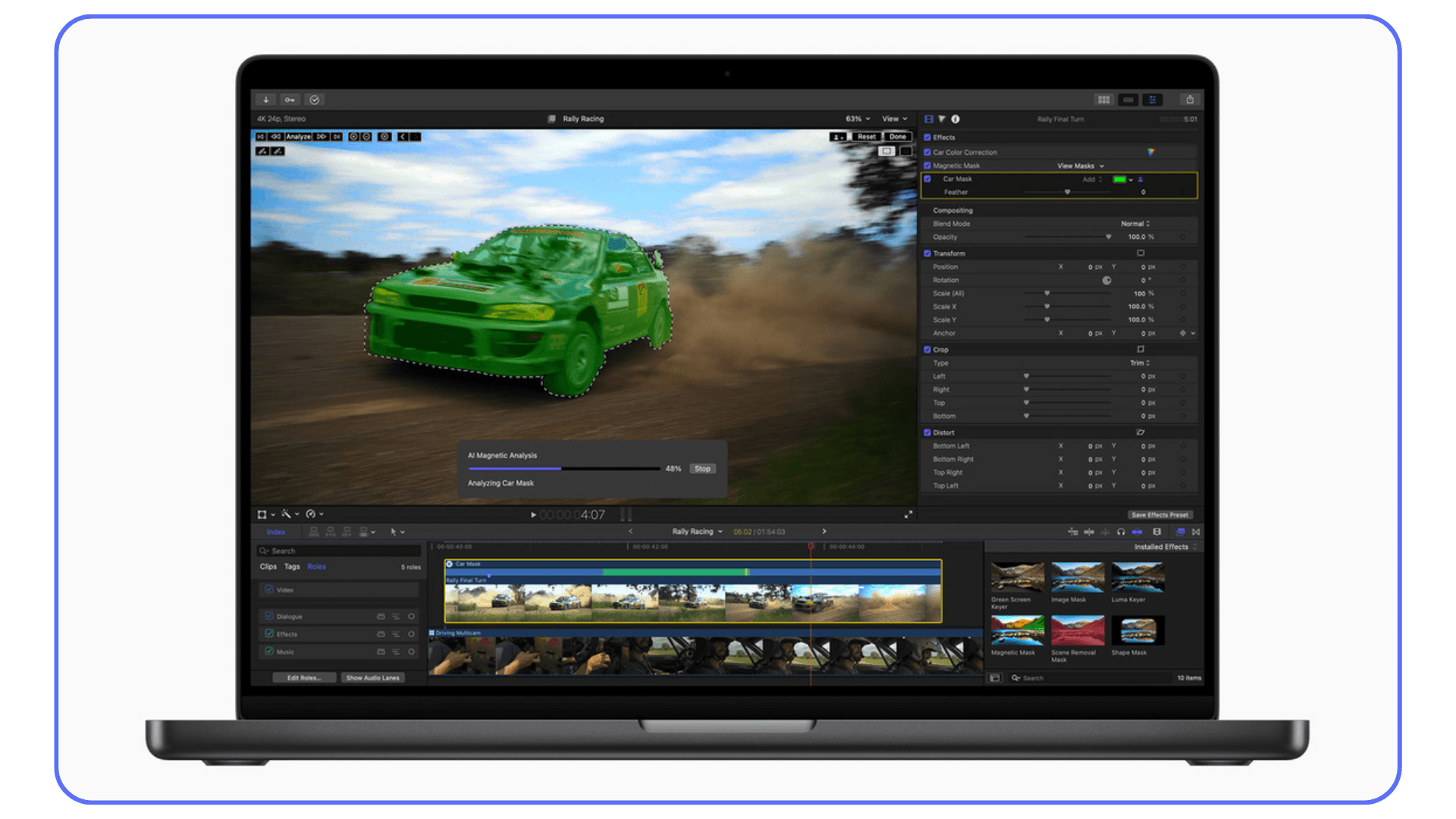
If you’ve used Final Cut Pro for more than a few projects, you already know its charm. It’s fast, ridiculously fast on Apple Silicon. The magnetic timeline feels like cheating once you get used to it. And for straightforward editing, it’s almost soothing. You drop clips in, trim a little, color a little, export, done.
But here’s the part nobody loves admitting: Final Cut Pro has a ceiling. And you eventually hit it. Sometimes it’s subtle. Sometimes it’s loud. Sometimes it’s the moment you try to open a client’s Windows-based Premiere project and realize you can’t. At all.
For me, the cracks showed up when my projects got heavier. Multicam. 6K. RAW. Bigger teams. External colorists. Collaborators using Windows machines. Plug-ins that existed everywhere except Final Cut. And that quiet frustration of being locked into macOS, whether your budget likes it or not.
Here’s what I’ve noticed over the years:
Final Cut is lightning-fast… but only inside Apple’s universe. It’s brilliantly optimized for Apple Silicon, no doubt. But step outside that bubble and you hit a wall immediately. If your workflow ever needs Windows or Linux tools, Final Cut isn’t a bridge, it’s a barrier.
Plugin and VFX ecosystems evolve faster outside FCP. Motion is good. After Effects and Fusion are better, and the entire industry knows it. High-end VFX workflows almost never start or end in Final Cut.
Team collaboration isn’t Final Cut’s strongest suit. Most teams stick to Premiere, Resolve, or Avid because shared projects, timelines, and interchange formats simply behave better across multiple editors.
And of course: hardware. Final Cut basically says, “Do you have a Mac? Is it modern? No? Then… sorry.” If your Mac struggles with heavy footage or you’re not ready to drop a few thousand dollars on a new one, your workflow becomes very small, very fast.
So if you’ve felt any of these limitations, even once, that’s usually the moment people start looking around. Not to abandon Final Cut. Just to see if something else fits better right now.
If you’re still trying to get more performance out of your current setup before exploring alternatives, this guide on how to fix lag and speed up Final Cut Pro covers the most effective performance boosts.
#1. DaVinci Resolve
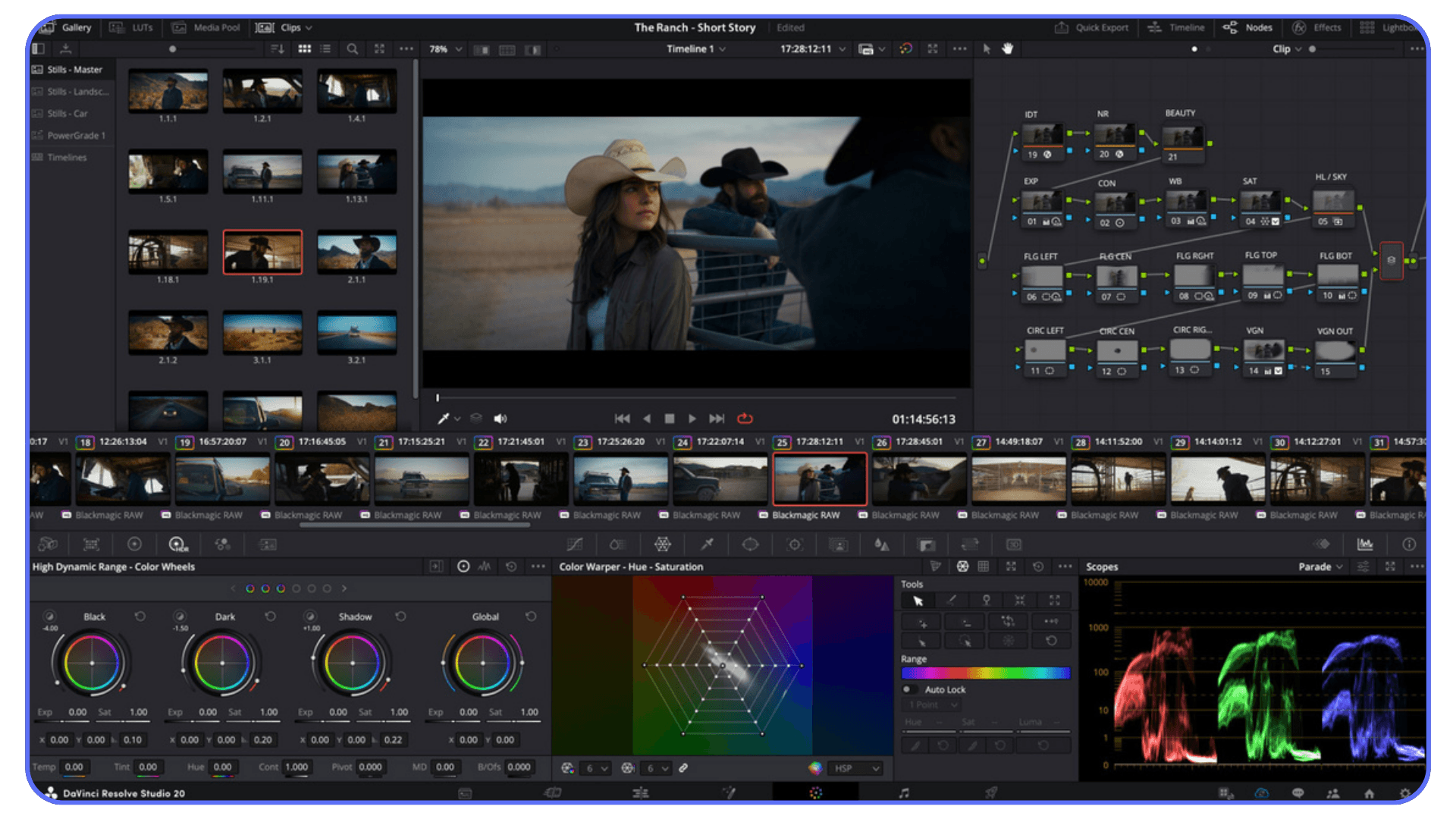
DaVinci Resolve is the first stop for most editors leaving Final Cut, and honestly, it earns that position. Even the free version gives you a full professional toolset: a powerful editing page, industry-leading color correction, Fusion for VFX, and Fairlight for audio. And unlike FCP, it runs on macOS, Windows, and Linux, which instantly opens up your hardware options.
Resolve does feel different at first. The interface is more technical, the layout is divided into “pages,” and it doesn’t have the same magnetic flow you’re used to. But once the structure clicks, you get finer control than Final Cut ever offered. If your projects involve RAW footage, heavy color work, or clients expecting cinematic finishing, Resolve gives you room to grow.
The catch? Hardware. Resolve loves GPUs, and it loves VRAM even more. Noise reduction, node-heavy grades, Fusion comps, they all hit weaker machines hard. Older Intel Macs especially start to choke fast. But on a strong machine (or a cloud workstation), Resolve becomes one of the most capable editors available today.
If you’re used to Final Cut’s simplicity but want more depth, flexibility, and cross-platform freedom, Resolve is usually the most natural next step.
#2. Adobe Premiere Pro
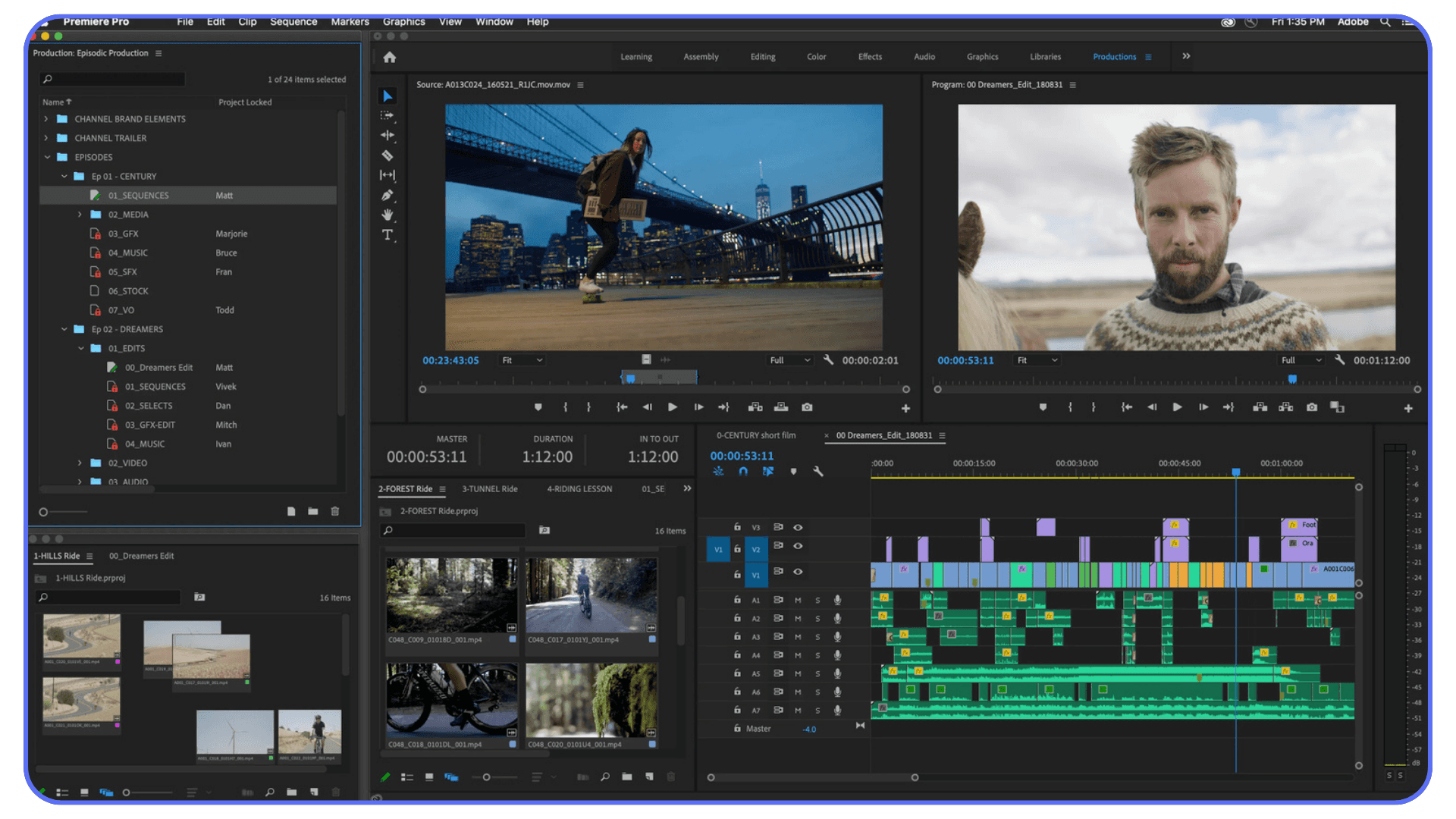
Adobe Premiere Pro is the editor you end up trying when your projects start involving more people, more tools, or more complicated workflows. It’s everywhere, agencies, production houses, YouTube studios, broadcasters, and the reason is simple: it plays nicely with almost everything.
The biggest advantage is the ecosystem. If you already use Photoshop, Illustrator, or especially After Effects, Premiere slides right into that workflow. Dynamic Link alone can save hours if you do motion graphics or compositing. And unlike Final Cut, Premiere runs on both macOS and Windows, which instantly makes collaboration smoother if your team isn’t fully Apple-based.
That said, Premiere can feel … temperamental. I’ve seen it fly on a well-optimized system, and I’ve seen it crawl on machines that look good on paper. Performance depends heavily on GPU acceleration, media cache settings, and how organized your project is. But once you dial in those preferences, it becomes a very flexible tool.
Premiere shines when you’re working with teams, passing sequences back and forth, using shared storage, or integrating VFX pipelines. The timeline is traditional, track-based, and familiar to anyone with editing experience. And while it doesn’t have Resolve’s color depth or Final Cut’s speed, it does a solid job across everything, from documentaries to ads to YouTube channels.
If your workflow touches multiple Adobe tools, or if you frequently swap project files with collaborators, Premiere Pro makes life easier in ways Final Cut can’t. If you want a deeper side-by-side comparison, our full Final Cut Pro vs Premiere Pro guide breaks down performance, color, rendering, and workflow differences in detail.
#3. Filmora
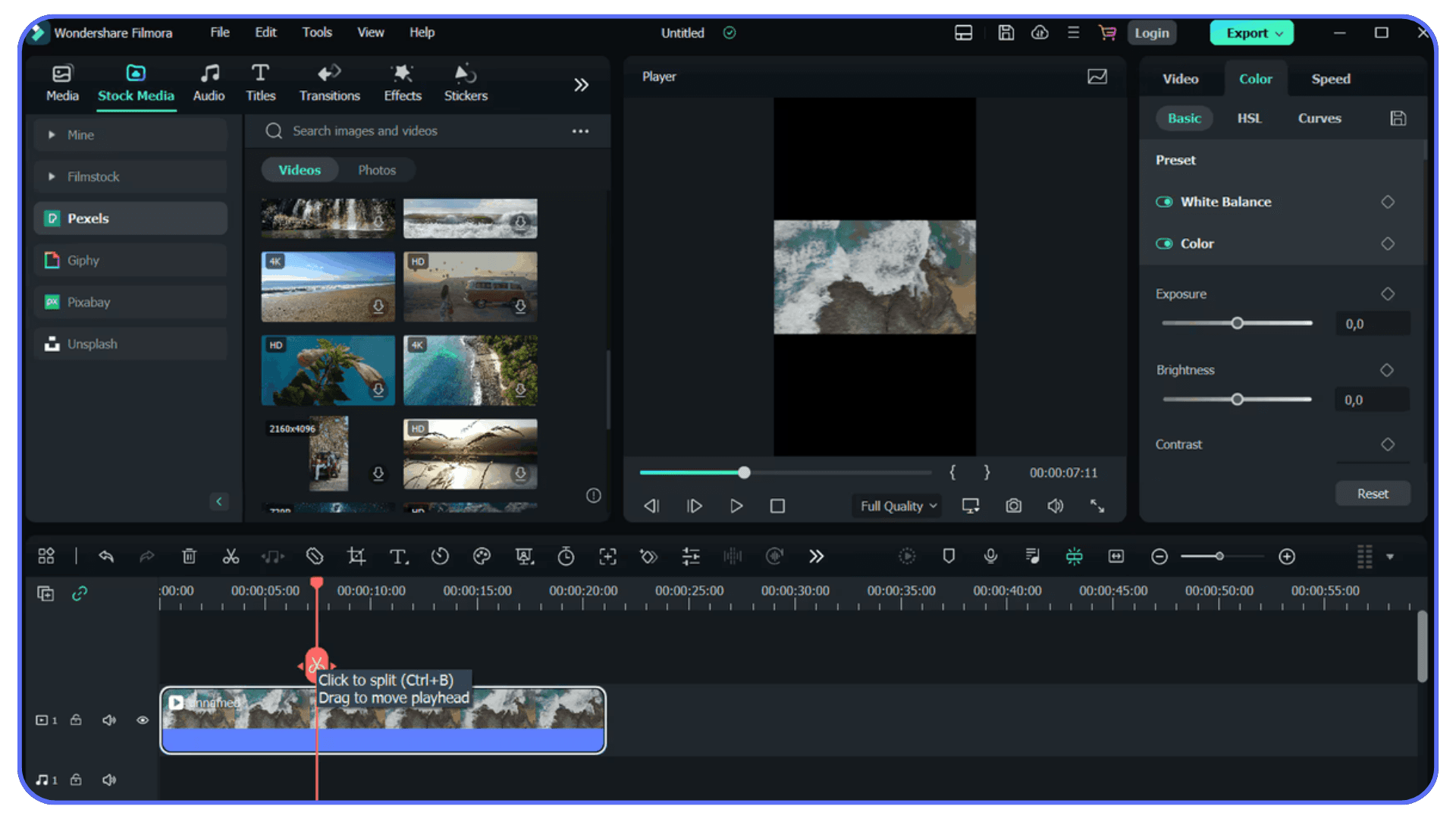
Filmora is the alternative people often underestimate, mostly because it looks simple. And it is. But that simplicity is exactly why so many creators end up liking it. If your editing life revolves around social media content, client promos, tutorials, event videos, or anything that doesn’t require heavy compositing or advanced color work, Filmora hits a sweet spot.
The interface is clean, fast to learn, and doesn’t bury basic tools behind layers of menus. You can drop footage in, add transitions, tweak color, throw in titles, and export without thinking too hard. Compared to Final Cut, it feels lighter and more “approachable,” especially for editors who don’t want a full-blown professional-suite experience.
Of course, that comes with limits. Filmora isn’t built for RAW workflows, big multicam timelines, high-end color grading, or VFX-heavy productions. If you try to treat it like Resolve or Premiere, you’ll feel the boundaries pretty quickly. But that’s not the point of Filmora. It’s meant to be efficient, simple, and stable for everyday editing, and it delivers on that promise.
I’ve seen plenty of FCP users switch to Filmora temporarily while upgrading hardware, working on travel setups, or doing fast-turnaround client projects where speed matters more than advanced features. It’s also cost-friendly, which makes it appealing if you’re trying to avoid subscription fatigue or don’t want to pay for massive toolsets you won’t fully use.
If your projects lean more toward quick edits than complex cinematic builds, Filmora is a surprisingly strong Final Cut alternative.
#4. Open-Source Options (Shotcut, Kdenlive, OpenShot)
Open-source editors don’t get the same spotlight as the big players, but they absolutely deserve a mention, especially if you’re experimenting, working on lighter hardware, or just not ready to invest in another paid tool yet. Shotcut, Kdenlive, and OpenShot are the three most popular names here, each with its own strengths.
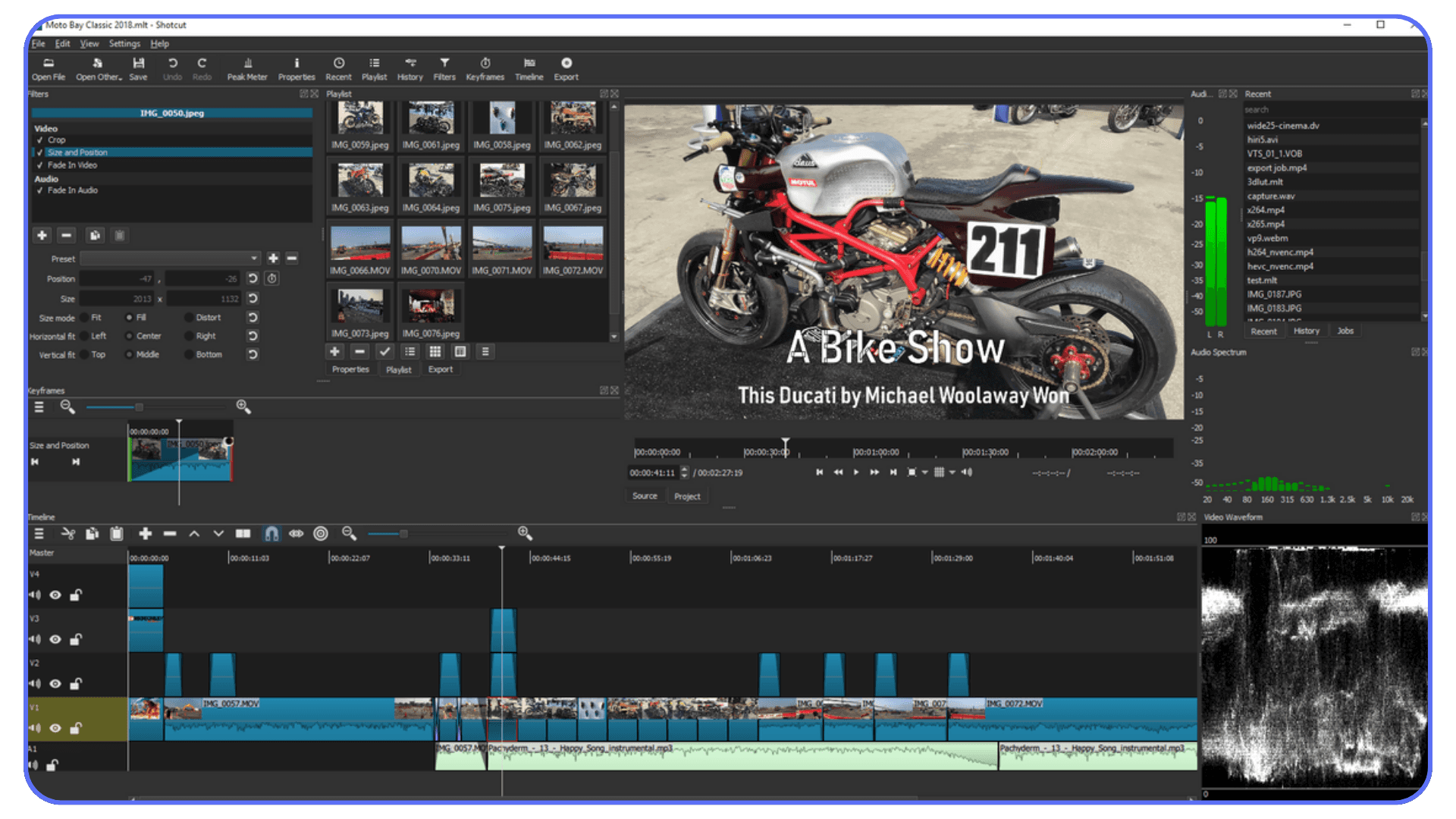
Shotcut is the most stable and straightforward of the bunch. It supports a wide range of formats, has a clean timeline, and offers enough effects and transitions to handle basic to mid-level projects. It’s not flashy, but it’s dependable, and it runs on Windows, macOS, and Linux without drama.
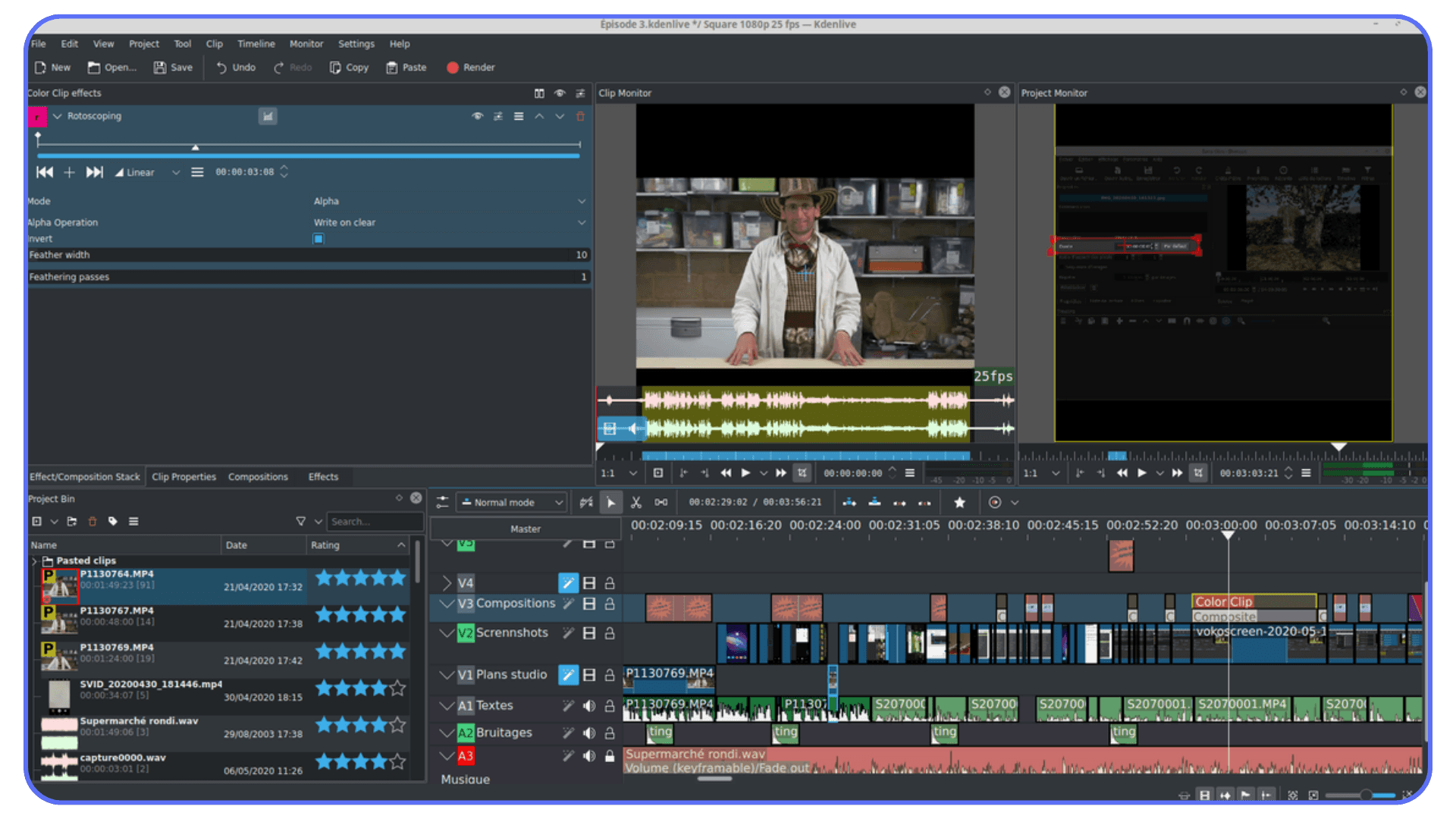
Kdenlive is the most “editor-ish” in a professional sense. It uses a track-based workflow similar to Premiere, supports proxies, handles multiple sequences, and offers more advanced control over effects and color than you’d expect from free software. It feels closer to a real NLE, and many indie filmmakers swear by it because it’s fast, stable, and constantly improving.
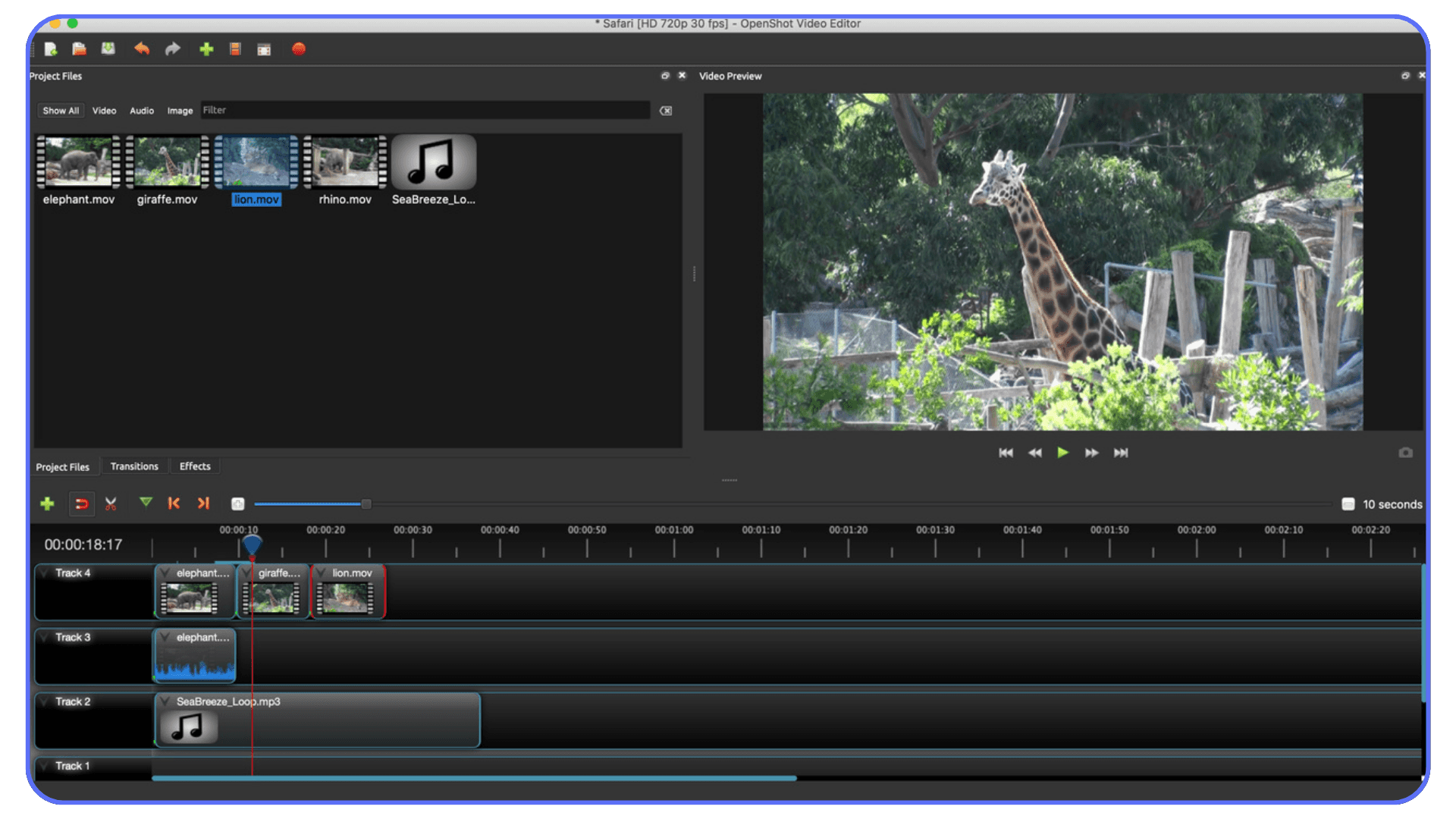
OpenShot is probably the simplest of all three. It’s great if you want clean cuts, quick transitions, simple titles, and fast exports. It won’t handle complex grading or compositing, but for lightweight editing or YouTube videos, it gets the job done without a learning curve.
All open-source editors share the same benefits: they’re free, cross-platform, and surprisingly flexible for everyday work. But they also share the same limitations. The UIs can be rough around the edges, features vary by operating system, and you’ll sometimes need to troubleshoot manually. If you’re used to Final Cut’s polish, these will feel a bit “bare bones.”
Still, they’re fantastic choices if you want to experiment, train, cut simple projects, or avoid hardware commitments. And for many workflows, that’s more than enough.
And if you want to get even more out of Final Cut before considering a switch, our Final Cut Pro keyboard shortcuts guide can help you edit much faster.
How to Choose the Right Alternative
Choosing your next editor isn’t really about features. Almost every major NLE can cut, trim, color, add effects, and export. The real difference, the thing that actually affects your day-to-day editing life, is fit. How the tool matches your workflow, your hardware, and the kind of work you’re doing right now.
Here are the factors that matter most when you’re moving beyond Final Cut Pro:
Platform & Hardware
Final Cut ties you to macOS. Premiere and Resolve give you freedom. If you want the option to work on Windows or Linux, or if your Mac is getting old, that alone might guide your decision. Resolve and Premiere both scale well with strong GPUs, while Filmora and the open-source options can run comfortably on lighter machines. Your hardware isn’t just a detail here; it might be the deciding factor.
Budget & Subscription Fatigue
Final Cut is a one-time purchase. Premiere is a subscription. Resolve comes in free and paid versions. Filmora is inexpensive. Open-source tools are completely free. Your budget doesn’t just affect what you buy, it affects how long you stick with a tool. If you’re tired of monthly payments, Premiere might feel heavy. If you want maximum value without spending anything, Resolve Free or Kdenlive could make the choice easy.
Workflow Style
Final Cut’s magnetic timeline is unique. If you love that style, the “cut first, organize later” flow, then Filmora or Premiere will feel familiar enough. Resolve’s structure is more segmented, which some editors love for organization but others find stiff. Editors coming from collaborative environments usually prefer Premiere. Color-focused creators often migrate to Resolve.
Plugins, Effects & Ecosystem
If you rely heavily on third-party plugins or VFX work, you’ll feel the limits of Final Cut quickly. Premiere has the largest plugin ecosystem. Resolve has an increasingly strong one. Filmora has a more lightweight marketplace. Open-source editors are hit or miss depending on your needs. Think long-term here: the ecosystem you pick will shape your editing possibilities.
Collaboration & Remote Work
If you work solo, this might not matter much. If you work with a team, even a small one, Premiere and Resolve both offer smoother project sharing. Final Cut can work with libraries and shared storage, but it’s not as flexible. And if you’re planning to work remotely or send timelines between platforms, Final Cut is the least friendly option.
Mistakes People Make When Switching
The biggest one? Switching without a plan. They jump tools, then realize they can’t import old project files, their plugins don’t work, their hardware is too weak, or they’re suddenly missing features they relied on. Another common mistake: expecting instant speed. Every editor has its own logic, keyboard shortcuts, quirks, and muscle memory curve. Give yourself a few days, not a few minutes.
When you look at your actual workflow, the kind of footage you handle, the tools you depend on, the hardware you have, and the collaboration your projects demand, the “best” alternative becomes much clearer.
If you’re staying with Final Cut for template-heavy work, you can speed things up by using high-quality presets from our Top Final Cut Pro Templates guide.
Using Vagon Cloud Computer When Exploring New Tools
When you start looking beyond Final Cut Pro, one of the first things you notice is that different tools expect different levels of performance. Some handle large files easily, some want more GPU power, some feel smoother on different operating systems, and some simply run better on stronger hardware.
This is where Vagon Cloud Computer becomes useful.
A Simple Way to Work Without Hardware Limits
Instead of relying on whatever device you currently own, Vagon gives you access to a high-performance computer in the cloud. You open it, install what you want to test, load your files, and work inside a machine that isn’t slowed down by your laptop’s age, storage, or thermal issues.
You’re not tied to a single operating system.
You’re not tied to a specific GPU.
You’re not tied to the hardware sitting on your desk.
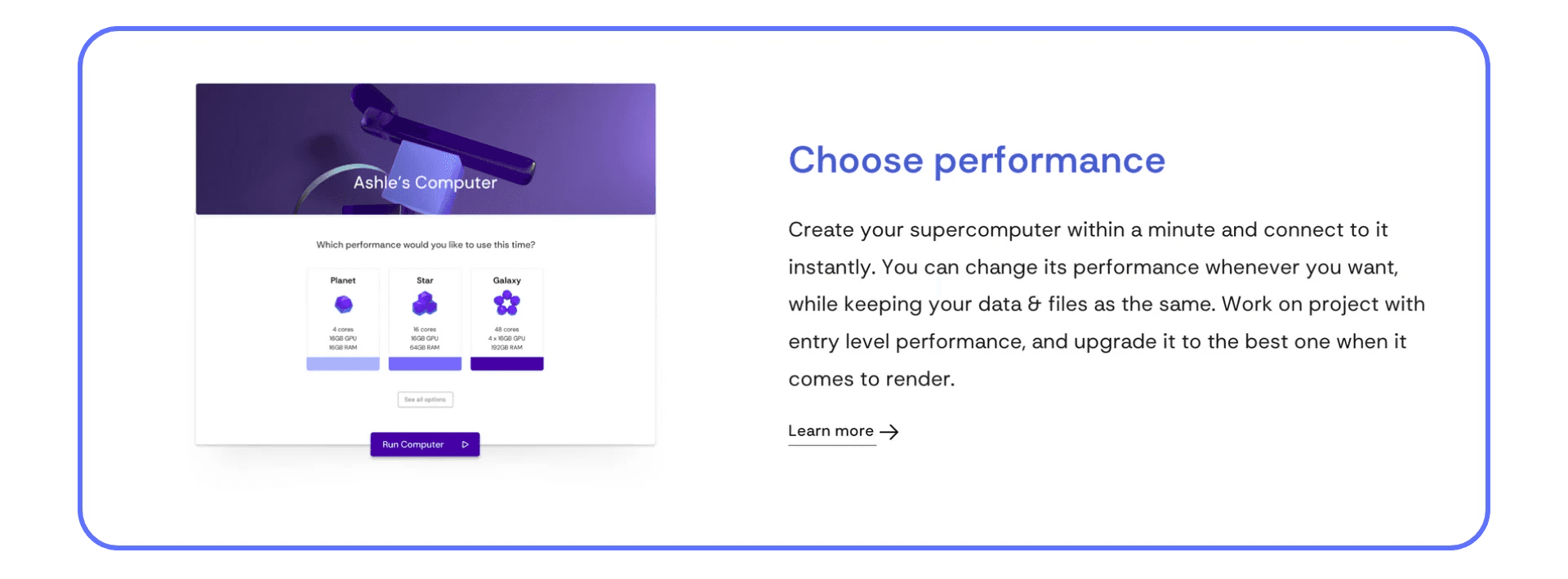
Why It Helps When Exploring Alternatives
Different tools behave differently depending on the machine running them. Some run smoother with stronger graphics, some need more memory, some benefit from faster storage.
With Vagon Cloud Computer, you remove that entire question mark. You can try things in an environment that’s already built to handle demanding workloads, then decide whether the tool you’re testing fits you.
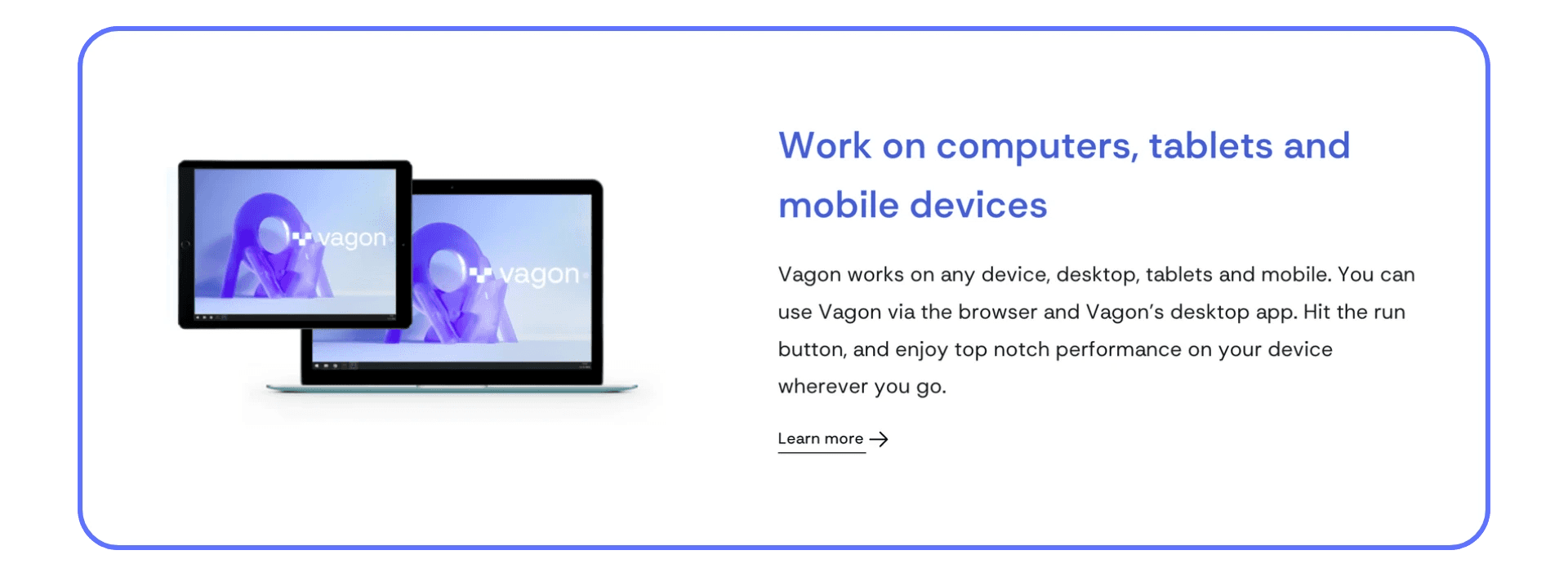
A Straightforward Example
If you want to experiment with something new, maybe a different workflow style, a different way of organizing your projects, or a tool that uses heavier effects, you can open Vagon, upload your media, and try it there. No installations on your personal computer, no hardware stress, no risk of slowing down your main setup.
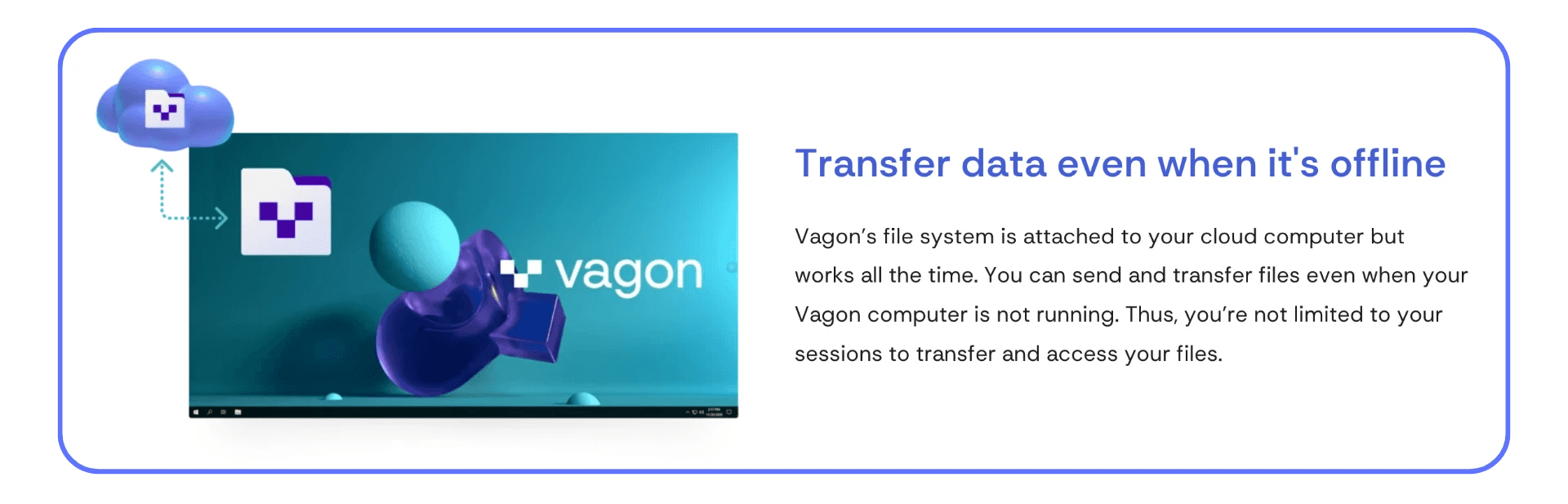
A Few Things to Consider
Cloud computing still depends on your internet connection. Long or intensive tasks may cost more depending on how much power and time you use. And some people prefer a local machine for everyday work. But when you want to explore, compare, or push your projects further without upgrading your hardware, Vagon Cloud Computer gives you a flexible way to do that on a pay-as-you-go basis.
If you’re curious about alternatives, want to test new workflows, or simply need more power on demand, Vagon lets you do all of that without buying anything new.
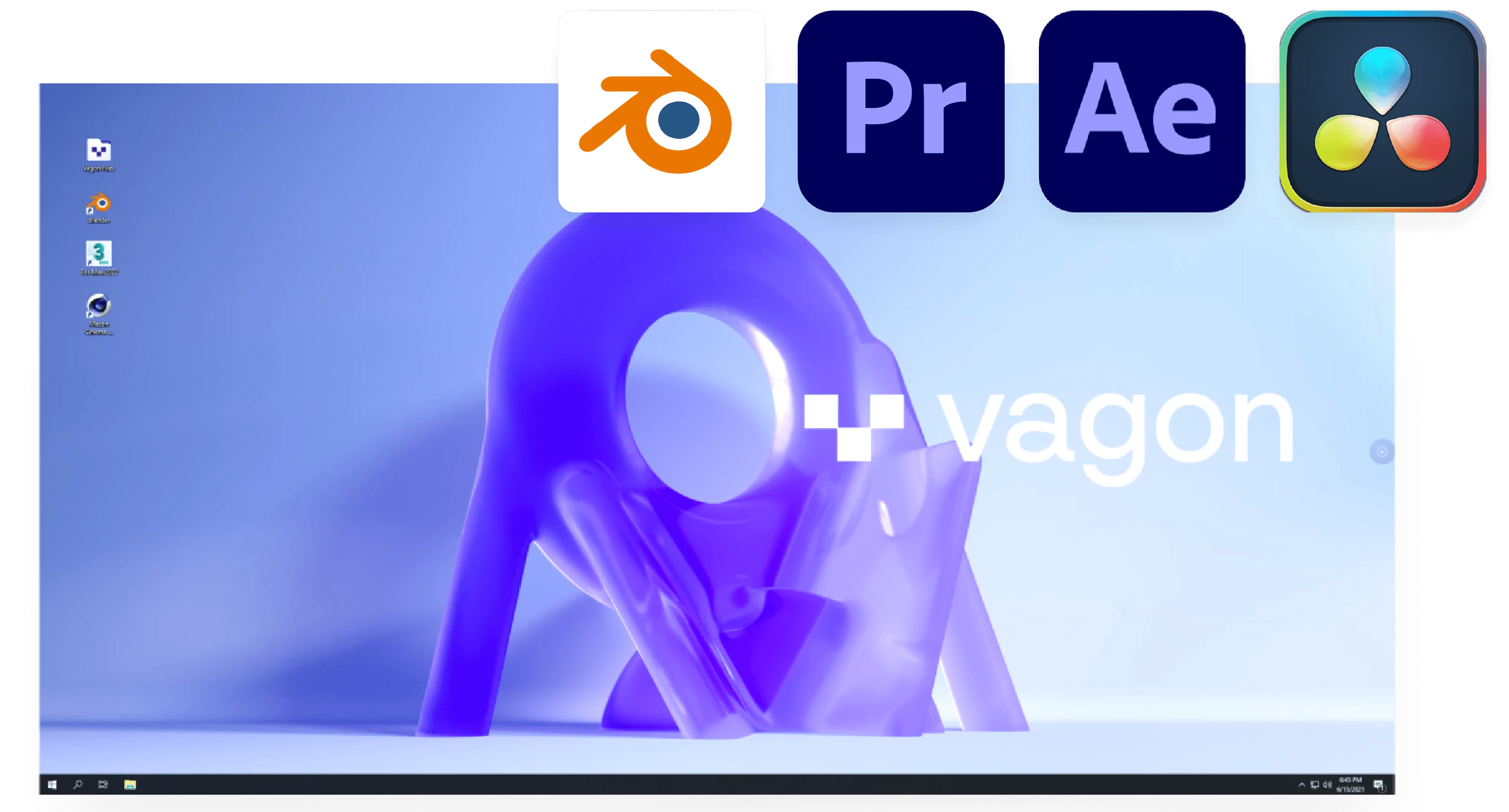
Final Thoughts
If you’ve made it this far, you’re probably in the same spot many Final Cut users eventually reach: you still like FCP, but you’re curious about what else is out there. That curiosity is a good sign. It usually means your projects are growing, your workflow is changing, or you’ve started running into limits you didn’t notice before.
Switching tools isn’t a dramatic move. It doesn’t mean abandoning Final Cut or deleting muscle memory you’ve built over years. It just means giving yourself more options. And the easiest way to figure out whether something fits you is to test it with real work, not tutorials, not demos, but your actual footage, your actual timeline style, your actual needs.
Here’s a simple approach that works for most people:
Pick one alternative and try it for a single project.
Not your biggest job, not your most urgent deadline, just something real enough that you can feel how it handles.
Pay attention to how it feels, not just how it performs.
Editing is muscle memory. If something feels off, you’ll notice. If something feels surprisingly smooth, you’ll notice that too.
Give it a few days.
Every tool feels weird at first. A week is usually enough to know whether it’s worth continuing.
And don’t upgrade hardware just to experiment.
Tools behave differently depending on the machine. If you need more power or want to compare environments, you can spin up a Vagon Cloud Computer for short sessions and test your workflow without committing to new hardware upfront.
By the time you’ve tried one or two alternatives, you’ll know exactly where each one fits into your workflow, whether as a full switch, a secondary tool, or simply something you revisit when a project calls for it. That’s the real value of exploring beyond Final Cut: not replacing what you know, but expanding what you can do.
And if you’re curious about moving some of your Final Cut work onto a portable setup, here’s how you can run Final Cut Pro on iPad as part of a mobile workflow.
FAQs
1. Is it worth exploring alternatives if I already like Final Cut Pro?
Yes. Even if you’re comfortable with Final Cut, it’s useful to understand what other tools offer. Resolve gives you deeper color control, Premiere integrates better with design and animation workflows, and simpler tools like Filmora or Shotcut can be faster for small projects. You don’t have to replace Final Cut; you’re just expanding your options based on the type of work you’re doing.
2. Can I move my Final Cut projects into other software?
You can, but not perfectly. Exporting an XML from Final Cut allows Premiere and Resolve to rebuild the basic timeline, cuts, audio, markers. Effects, titles, transitions, and color rarely translate cleanly. Think of XML as a structural transfer rather than a full project migration. It saves time, but some rebuilding is always needed.
3. Which alternative should I choose for heavier, more complex projects?
If your work involves RAW footage, detailed color grading, or advanced visual tasks, DaVinci Resolve is generally the strongest choice. Premiere makes more sense if your workflow includes Photoshop, Illustrator, or After Effects. For lighter projects or quick edits, Filmora or Shotcut often feel faster. The “best” option depends on what you edit most, not on which software is most popular.
4. How does Vagon Cloud Computer help when testing alternatives?
The main issue when trying new tools is usually hardware. Some software needs more GPU power or memory than your device offers. With Vagon Cloud Computer, you can run these tools on a high-performance remote machine, test how they handle your footage, and compare results without upgrading your own hardware. It’s a practical way to experiment or offload demanding tasks without buying a new computer.
5. What’s the best way to start if I want to try a new editor?
Pick one real project, preferably something small but meaningful, and rebuild it in the new tool. This shows quickly whether the workflow feels natural, whether performance holds up, and how easily you can find the tools you rely on. A few days with a real project tells you more than any tutorial ever will.
I still remember the exact frame where Final Cut decided to give up on me.
A simple multicam edit, two angles, nothing fancy, and the timeline just… froze. Not crashed. Not errored. Froze. Like it needed a moment to think about its life choices. I sat there staring at the spinning beachball, wondering if this was some kind of cosmic joke.
And that’s when the question hit me:
What if the tool you love isn’t the one you need anymore?
Not in a dramatic way. More like a quiet realization that maybe, just maybe, there are other editors out there that fit different workflows better, especially if you’re not living fully inside Apple’s walled garden anymore.
So that’s what this guide is about.
Let’s look at the best Final Cut Pro alternatives, why they matter, what they solve, and which one actually fits the way you work.
Why Look Beyond Final Cut Pro?
If you’ve used Final Cut Pro for more than a few projects, you already know its charm. It’s fast, ridiculously fast on Apple Silicon. The magnetic timeline feels like cheating once you get used to it. And for straightforward editing, it’s almost soothing. You drop clips in, trim a little, color a little, export, done.
But here’s the part nobody loves admitting: Final Cut Pro has a ceiling. And you eventually hit it. Sometimes it’s subtle. Sometimes it’s loud. Sometimes it’s the moment you try to open a client’s Windows-based Premiere project and realize you can’t. At all.
For me, the cracks showed up when my projects got heavier. Multicam. 6K. RAW. Bigger teams. External colorists. Collaborators using Windows machines. Plug-ins that existed everywhere except Final Cut. And that quiet frustration of being locked into macOS, whether your budget likes it or not.
Here’s what I’ve noticed over the years:
Final Cut is lightning-fast… but only inside Apple’s universe. It’s brilliantly optimized for Apple Silicon, no doubt. But step outside that bubble and you hit a wall immediately. If your workflow ever needs Windows or Linux tools, Final Cut isn’t a bridge, it’s a barrier.
Plugin and VFX ecosystems evolve faster outside FCP. Motion is good. After Effects and Fusion are better, and the entire industry knows it. High-end VFX workflows almost never start or end in Final Cut.
Team collaboration isn’t Final Cut’s strongest suit. Most teams stick to Premiere, Resolve, or Avid because shared projects, timelines, and interchange formats simply behave better across multiple editors.
And of course: hardware. Final Cut basically says, “Do you have a Mac? Is it modern? No? Then… sorry.” If your Mac struggles with heavy footage or you’re not ready to drop a few thousand dollars on a new one, your workflow becomes very small, very fast.
So if you’ve felt any of these limitations, even once, that’s usually the moment people start looking around. Not to abandon Final Cut. Just to see if something else fits better right now.
If you’re still trying to get more performance out of your current setup before exploring alternatives, this guide on how to fix lag and speed up Final Cut Pro covers the most effective performance boosts.
#1. DaVinci Resolve
DaVinci Resolve is the first stop for most editors leaving Final Cut, and honestly, it earns that position. Even the free version gives you a full professional toolset: a powerful editing page, industry-leading color correction, Fusion for VFX, and Fairlight for audio. And unlike FCP, it runs on macOS, Windows, and Linux, which instantly opens up your hardware options.
Resolve does feel different at first. The interface is more technical, the layout is divided into “pages,” and it doesn’t have the same magnetic flow you’re used to. But once the structure clicks, you get finer control than Final Cut ever offered. If your projects involve RAW footage, heavy color work, or clients expecting cinematic finishing, Resolve gives you room to grow.
The catch? Hardware. Resolve loves GPUs, and it loves VRAM even more. Noise reduction, node-heavy grades, Fusion comps, they all hit weaker machines hard. Older Intel Macs especially start to choke fast. But on a strong machine (or a cloud workstation), Resolve becomes one of the most capable editors available today.
If you’re used to Final Cut’s simplicity but want more depth, flexibility, and cross-platform freedom, Resolve is usually the most natural next step.
#2. Adobe Premiere Pro
Adobe Premiere Pro is the editor you end up trying when your projects start involving more people, more tools, or more complicated workflows. It’s everywhere, agencies, production houses, YouTube studios, broadcasters, and the reason is simple: it plays nicely with almost everything.
The biggest advantage is the ecosystem. If you already use Photoshop, Illustrator, or especially After Effects, Premiere slides right into that workflow. Dynamic Link alone can save hours if you do motion graphics or compositing. And unlike Final Cut, Premiere runs on both macOS and Windows, which instantly makes collaboration smoother if your team isn’t fully Apple-based.
That said, Premiere can feel … temperamental. I’ve seen it fly on a well-optimized system, and I’ve seen it crawl on machines that look good on paper. Performance depends heavily on GPU acceleration, media cache settings, and how organized your project is. But once you dial in those preferences, it becomes a very flexible tool.
Premiere shines when you’re working with teams, passing sequences back and forth, using shared storage, or integrating VFX pipelines. The timeline is traditional, track-based, and familiar to anyone with editing experience. And while it doesn’t have Resolve’s color depth or Final Cut’s speed, it does a solid job across everything, from documentaries to ads to YouTube channels.
If your workflow touches multiple Adobe tools, or if you frequently swap project files with collaborators, Premiere Pro makes life easier in ways Final Cut can’t. If you want a deeper side-by-side comparison, our full Final Cut Pro vs Premiere Pro guide breaks down performance, color, rendering, and workflow differences in detail.
#3. Filmora
Filmora is the alternative people often underestimate, mostly because it looks simple. And it is. But that simplicity is exactly why so many creators end up liking it. If your editing life revolves around social media content, client promos, tutorials, event videos, or anything that doesn’t require heavy compositing or advanced color work, Filmora hits a sweet spot.
The interface is clean, fast to learn, and doesn’t bury basic tools behind layers of menus. You can drop footage in, add transitions, tweak color, throw in titles, and export without thinking too hard. Compared to Final Cut, it feels lighter and more “approachable,” especially for editors who don’t want a full-blown professional-suite experience.
Of course, that comes with limits. Filmora isn’t built for RAW workflows, big multicam timelines, high-end color grading, or VFX-heavy productions. If you try to treat it like Resolve or Premiere, you’ll feel the boundaries pretty quickly. But that’s not the point of Filmora. It’s meant to be efficient, simple, and stable for everyday editing, and it delivers on that promise.
I’ve seen plenty of FCP users switch to Filmora temporarily while upgrading hardware, working on travel setups, or doing fast-turnaround client projects where speed matters more than advanced features. It’s also cost-friendly, which makes it appealing if you’re trying to avoid subscription fatigue or don’t want to pay for massive toolsets you won’t fully use.
If your projects lean more toward quick edits than complex cinematic builds, Filmora is a surprisingly strong Final Cut alternative.
#4. Open-Source Options (Shotcut, Kdenlive, OpenShot)
Open-source editors don’t get the same spotlight as the big players, but they absolutely deserve a mention, especially if you’re experimenting, working on lighter hardware, or just not ready to invest in another paid tool yet. Shotcut, Kdenlive, and OpenShot are the three most popular names here, each with its own strengths.
Shotcut is the most stable and straightforward of the bunch. It supports a wide range of formats, has a clean timeline, and offers enough effects and transitions to handle basic to mid-level projects. It’s not flashy, but it’s dependable, and it runs on Windows, macOS, and Linux without drama.
Kdenlive is the most “editor-ish” in a professional sense. It uses a track-based workflow similar to Premiere, supports proxies, handles multiple sequences, and offers more advanced control over effects and color than you’d expect from free software. It feels closer to a real NLE, and many indie filmmakers swear by it because it’s fast, stable, and constantly improving.
OpenShot is probably the simplest of all three. It’s great if you want clean cuts, quick transitions, simple titles, and fast exports. It won’t handle complex grading or compositing, but for lightweight editing or YouTube videos, it gets the job done without a learning curve.
All open-source editors share the same benefits: they’re free, cross-platform, and surprisingly flexible for everyday work. But they also share the same limitations. The UIs can be rough around the edges, features vary by operating system, and you’ll sometimes need to troubleshoot manually. If you’re used to Final Cut’s polish, these will feel a bit “bare bones.”
Still, they’re fantastic choices if you want to experiment, train, cut simple projects, or avoid hardware commitments. And for many workflows, that’s more than enough.
And if you want to get even more out of Final Cut before considering a switch, our Final Cut Pro keyboard shortcuts guide can help you edit much faster.
How to Choose the Right Alternative
Choosing your next editor isn’t really about features. Almost every major NLE can cut, trim, color, add effects, and export. The real difference, the thing that actually affects your day-to-day editing life, is fit. How the tool matches your workflow, your hardware, and the kind of work you’re doing right now.
Here are the factors that matter most when you’re moving beyond Final Cut Pro:
Platform & Hardware
Final Cut ties you to macOS. Premiere and Resolve give you freedom. If you want the option to work on Windows or Linux, or if your Mac is getting old, that alone might guide your decision. Resolve and Premiere both scale well with strong GPUs, while Filmora and the open-source options can run comfortably on lighter machines. Your hardware isn’t just a detail here; it might be the deciding factor.
Budget & Subscription Fatigue
Final Cut is a one-time purchase. Premiere is a subscription. Resolve comes in free and paid versions. Filmora is inexpensive. Open-source tools are completely free. Your budget doesn’t just affect what you buy, it affects how long you stick with a tool. If you’re tired of monthly payments, Premiere might feel heavy. If you want maximum value without spending anything, Resolve Free or Kdenlive could make the choice easy.
Workflow Style
Final Cut’s magnetic timeline is unique. If you love that style, the “cut first, organize later” flow, then Filmora or Premiere will feel familiar enough. Resolve’s structure is more segmented, which some editors love for organization but others find stiff. Editors coming from collaborative environments usually prefer Premiere. Color-focused creators often migrate to Resolve.
Plugins, Effects & Ecosystem
If you rely heavily on third-party plugins or VFX work, you’ll feel the limits of Final Cut quickly. Premiere has the largest plugin ecosystem. Resolve has an increasingly strong one. Filmora has a more lightweight marketplace. Open-source editors are hit or miss depending on your needs. Think long-term here: the ecosystem you pick will shape your editing possibilities.
Collaboration & Remote Work
If you work solo, this might not matter much. If you work with a team, even a small one, Premiere and Resolve both offer smoother project sharing. Final Cut can work with libraries and shared storage, but it’s not as flexible. And if you’re planning to work remotely or send timelines between platforms, Final Cut is the least friendly option.
Mistakes People Make When Switching
The biggest one? Switching without a plan. They jump tools, then realize they can’t import old project files, their plugins don’t work, their hardware is too weak, or they’re suddenly missing features they relied on. Another common mistake: expecting instant speed. Every editor has its own logic, keyboard shortcuts, quirks, and muscle memory curve. Give yourself a few days, not a few minutes.
When you look at your actual workflow, the kind of footage you handle, the tools you depend on, the hardware you have, and the collaboration your projects demand, the “best” alternative becomes much clearer.
If you’re staying with Final Cut for template-heavy work, you can speed things up by using high-quality presets from our Top Final Cut Pro Templates guide.
Using Vagon Cloud Computer When Exploring New Tools
When you start looking beyond Final Cut Pro, one of the first things you notice is that different tools expect different levels of performance. Some handle large files easily, some want more GPU power, some feel smoother on different operating systems, and some simply run better on stronger hardware.
This is where Vagon Cloud Computer becomes useful.
A Simple Way to Work Without Hardware Limits
Instead of relying on whatever device you currently own, Vagon gives you access to a high-performance computer in the cloud. You open it, install what you want to test, load your files, and work inside a machine that isn’t slowed down by your laptop’s age, storage, or thermal issues.
You’re not tied to a single operating system.
You’re not tied to a specific GPU.
You’re not tied to the hardware sitting on your desk.
Why It Helps When Exploring Alternatives
Different tools behave differently depending on the machine running them. Some run smoother with stronger graphics, some need more memory, some benefit from faster storage.
With Vagon Cloud Computer, you remove that entire question mark. You can try things in an environment that’s already built to handle demanding workloads, then decide whether the tool you’re testing fits you.
A Straightforward Example
If you want to experiment with something new, maybe a different workflow style, a different way of organizing your projects, or a tool that uses heavier effects, you can open Vagon, upload your media, and try it there. No installations on your personal computer, no hardware stress, no risk of slowing down your main setup.
A Few Things to Consider
Cloud computing still depends on your internet connection. Long or intensive tasks may cost more depending on how much power and time you use. And some people prefer a local machine for everyday work. But when you want to explore, compare, or push your projects further without upgrading your hardware, Vagon Cloud Computer gives you a flexible way to do that on a pay-as-you-go basis.
If you’re curious about alternatives, want to test new workflows, or simply need more power on demand, Vagon lets you do all of that without buying anything new.
Final Thoughts
If you’ve made it this far, you’re probably in the same spot many Final Cut users eventually reach: you still like FCP, but you’re curious about what else is out there. That curiosity is a good sign. It usually means your projects are growing, your workflow is changing, or you’ve started running into limits you didn’t notice before.
Switching tools isn’t a dramatic move. It doesn’t mean abandoning Final Cut or deleting muscle memory you’ve built over years. It just means giving yourself more options. And the easiest way to figure out whether something fits you is to test it with real work, not tutorials, not demos, but your actual footage, your actual timeline style, your actual needs.
Here’s a simple approach that works for most people:
Pick one alternative and try it for a single project.
Not your biggest job, not your most urgent deadline, just something real enough that you can feel how it handles.
Pay attention to how it feels, not just how it performs.
Editing is muscle memory. If something feels off, you’ll notice. If something feels surprisingly smooth, you’ll notice that too.
Give it a few days.
Every tool feels weird at first. A week is usually enough to know whether it’s worth continuing.
And don’t upgrade hardware just to experiment.
Tools behave differently depending on the machine. If you need more power or want to compare environments, you can spin up a Vagon Cloud Computer for short sessions and test your workflow without committing to new hardware upfront.
By the time you’ve tried one or two alternatives, you’ll know exactly where each one fits into your workflow, whether as a full switch, a secondary tool, or simply something you revisit when a project calls for it. That’s the real value of exploring beyond Final Cut: not replacing what you know, but expanding what you can do.
And if you’re curious about moving some of your Final Cut work onto a portable setup, here’s how you can run Final Cut Pro on iPad as part of a mobile workflow.
FAQs
1. Is it worth exploring alternatives if I already like Final Cut Pro?
Yes. Even if you’re comfortable with Final Cut, it’s useful to understand what other tools offer. Resolve gives you deeper color control, Premiere integrates better with design and animation workflows, and simpler tools like Filmora or Shotcut can be faster for small projects. You don’t have to replace Final Cut; you’re just expanding your options based on the type of work you’re doing.
2. Can I move my Final Cut projects into other software?
You can, but not perfectly. Exporting an XML from Final Cut allows Premiere and Resolve to rebuild the basic timeline, cuts, audio, markers. Effects, titles, transitions, and color rarely translate cleanly. Think of XML as a structural transfer rather than a full project migration. It saves time, but some rebuilding is always needed.
3. Which alternative should I choose for heavier, more complex projects?
If your work involves RAW footage, detailed color grading, or advanced visual tasks, DaVinci Resolve is generally the strongest choice. Premiere makes more sense if your workflow includes Photoshop, Illustrator, or After Effects. For lighter projects or quick edits, Filmora or Shotcut often feel faster. The “best” option depends on what you edit most, not on which software is most popular.
4. How does Vagon Cloud Computer help when testing alternatives?
The main issue when trying new tools is usually hardware. Some software needs more GPU power or memory than your device offers. With Vagon Cloud Computer, you can run these tools on a high-performance remote machine, test how they handle your footage, and compare results without upgrading your own hardware. It’s a practical way to experiment or offload demanding tasks without buying a new computer.
5. What’s the best way to start if I want to try a new editor?
Pick one real project, preferably something small but meaningful, and rebuild it in the new tool. This shows quickly whether the workflow feels natural, whether performance holds up, and how easily you can find the tools you rely on. A few days with a real project tells you more than any tutorial ever will.
Get Beyond Your Computer Performance
Run applications on your cloud computer with the latest generation hardware. No more crashes or lags.

Trial includes 1 hour usage + 7 days of storage.
Summarize with AI

Ready to focus on your creativity?
Vagon gives you the ability to create & render projects, collaborate, and stream applications with the power of the best hardware.

Run heavy applications on any device with
your personal computer on the cloud.
San Francisco, California
Solutions
Vagon Teams
Vagon Streams
Use Cases
© 2026 Vagon. All rights reserved.
Run heavy applications on any device with
your personal computer on the cloud.
San Francisco, California
Solutions
Vagon Teams
Vagon Streams
Use Cases
© 2026 Vagon. All rights reserved.
Run heavy applications on any device with
your personal computer on the cloud.
San Francisco, California
Solutions
Vagon Teams
Vagon Streams
Use Cases
© 2026 Vagon. All rights reserved.