Instant Connection for Pixel Streaming
— New Feature Automated Setup
Best Laptops for Digital Art and Artists in 2026 Guide
DigitalArt
Best Laptops for Digital Art and Artists in 2026 Guide
DigitalArt
Best Laptops for Digital Art and Artists in 2026 Guide
DigitalArt
Table of Contents
Quick question before we go any further. When you’re picking a laptop for digital art, what do you care about more. Raw power that looks impressive on paper, or a screen that shows your colors the way you actually painted them?
I’ve made the wrong call more than once. Bought a laptop with specs that sounded incredible, only to realize the display made my work look dull and off. Returned another because it looked beautiful but slowed to a crawl once my files got even slightly serious. Those were short relationships. Painfully short.
So this isn’t going to be a hype-driven list or a spec parade. It’s an artist-first guide, shaped by real frustrations, real wins, and a few expensive lessons. If something doesn’t matter as much as people claim, I’ll say it. If a laptop shines in one workflow but falls apart in another, we’ll talk about that too.
Let’s start with the machines that artists actually end up using, not just the ones that photograph well on a product page.
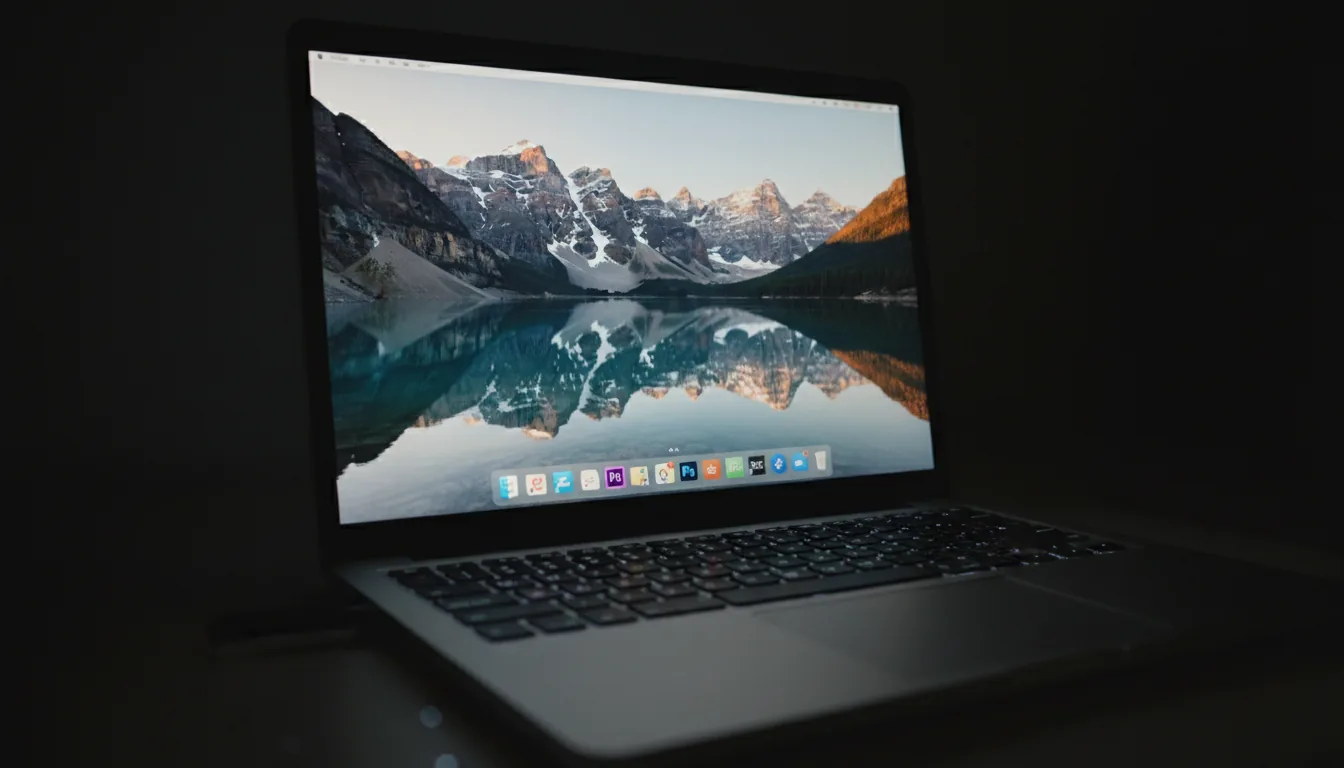
#1. Apple MacBook Pro (M-Series)
I’ll admit it. I was skeptical about the M-series hype at first. After a few long illustration sessions on one, that skepticism didn’t last. The MacBook Pro doesn’t feel flashy when you’re working on it. It feels steady. And for artists, that calm matters more than raw benchmark numbers.
Who it’s actually for: This machine makes sense for artists who work with an external drawing tablet and value stability above everything else. If your days involve Photoshop, Illustrator, large layered files, or AI tools running alongside creative apps, the Apple MacBook Pro rarely breaks focus. It doesn’t stutter halfway through a session or ramp up fans at the worst possible moment.
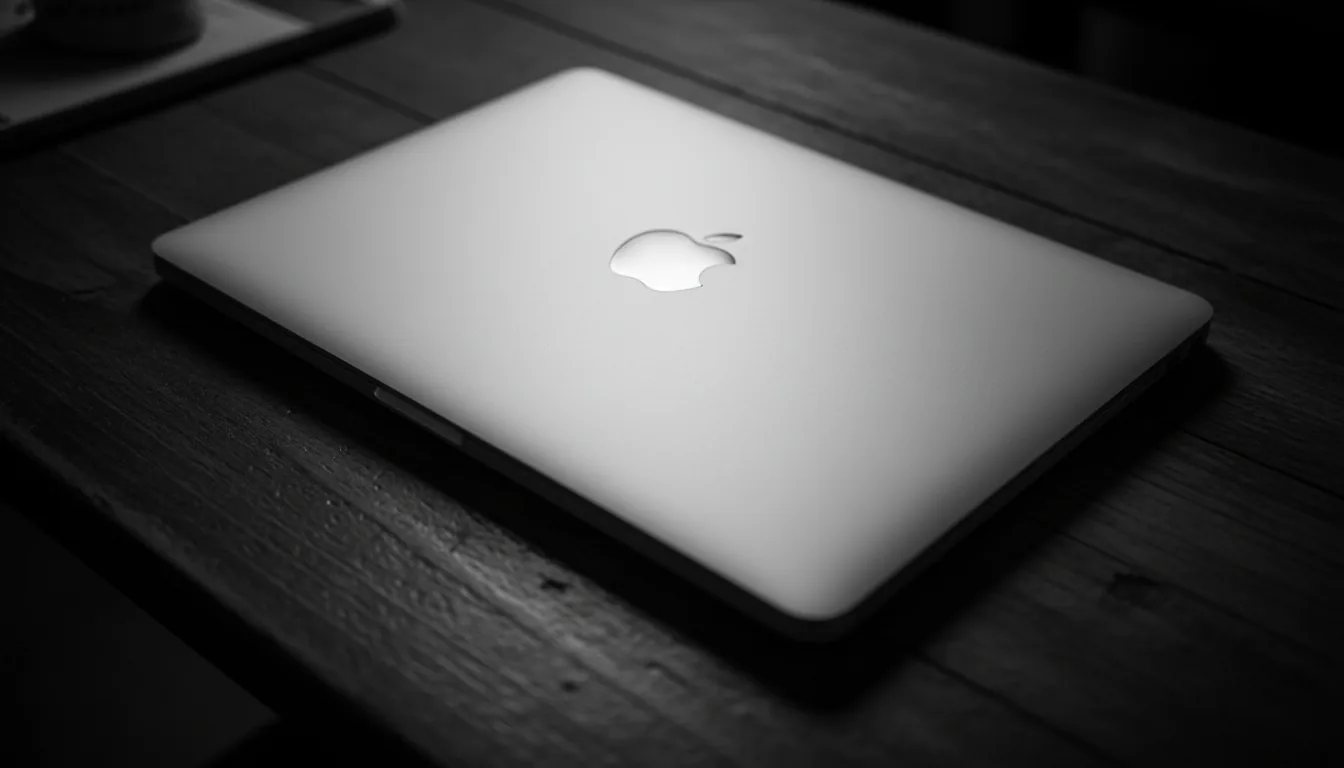
The screen is where a lot of people finally understand why artists keep recommending this laptop. The Liquid Retina XDR display isn’t just sharp. It’s trustworthy. Colors look the way you expect them to, blacks stay deep, and subtle gradients don’t fall apart. When you export work and view it elsewhere, there are fewer surprises. That alone saves time and frustration.
Performance stability in long art sessions: What’s impressed me most is how little performance changes over time. Hours into a project, with heavy files and background tasks running, the system still feels responsive. That consistency is something many powerful laptops struggle with once heat and throttling kick in.
Of course, there’s a very real limitation here that can’t be ignored. You can’t draw directly on the screen.
Why lack of stylus support is a dealbreaker for some: If your workflow revolves around sketching straight on glass, this laptop will never feel complete on its own. You’ll need an external tablet, which adds cost and clutter. For some artists, that’s perfectly fine. For others, it’s a hard stop.
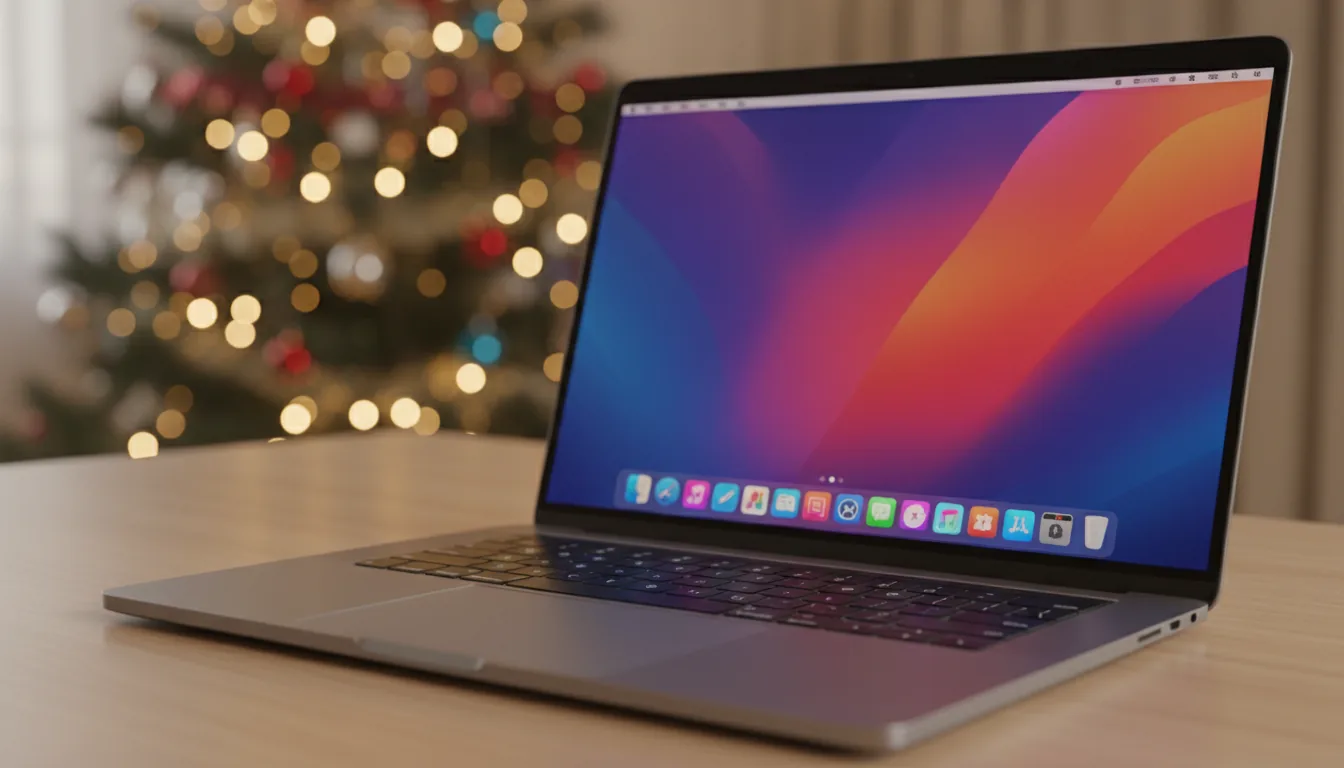
So here’s the honest takeaway. The MacBook Pro is an excellent creative machine if you already like working with a separate drawing tablet and want a reliable, color-accurate setup that doesn’t get in your way. If you want to draw directly on your laptop, though, the next option will make a lot more sense.
If you are doing serious work in Photoshop with large canvases, smart objects, or heavy effects, GPU choice starts to matter more than most artists expect. This breakdown of the best GPU for Photoshop explains where the real gains actually come from.
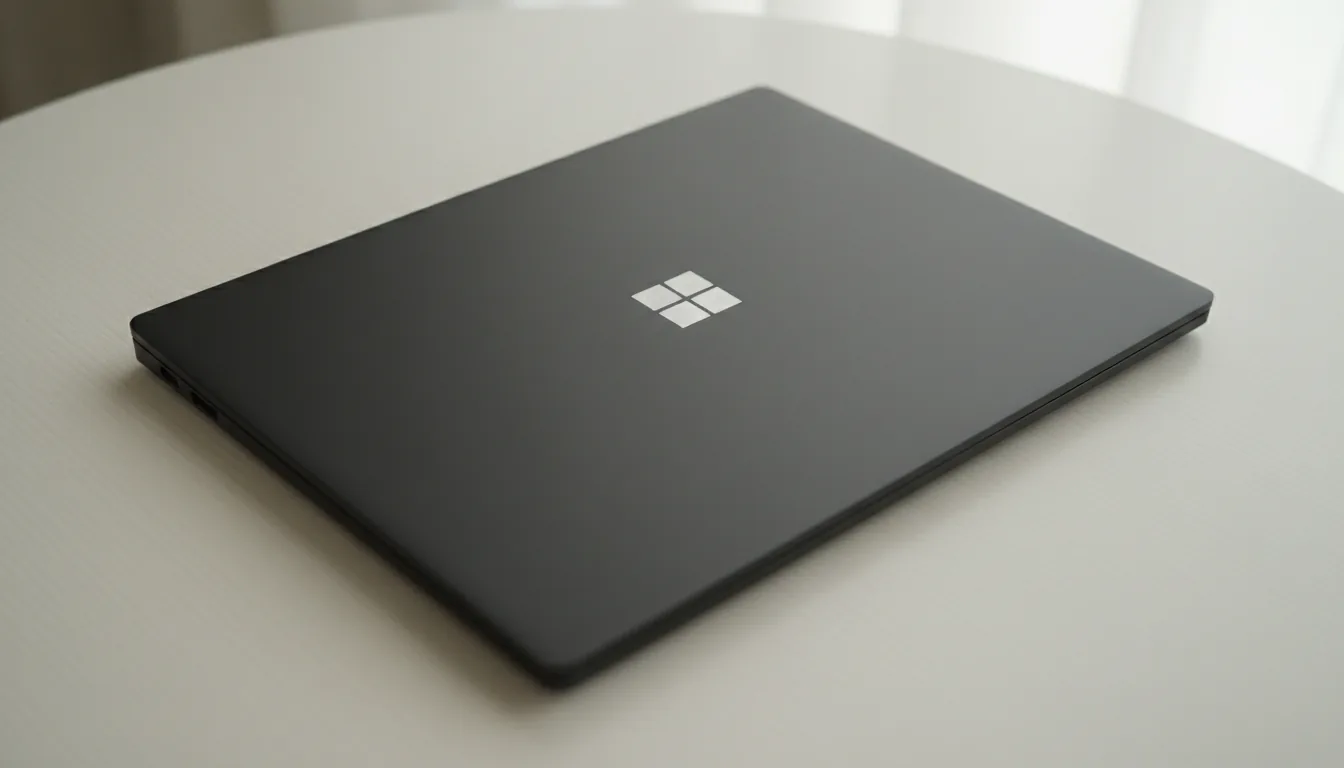
#2. Microsoft Surface Laptop Studio
This is where the conversation shifts. If the MacBook Pro feels like a powerhouse that tolerates artists, the Microsoft Surface Laptop Studio feels like it was actually designed around how artists draw. From the moment you pull the screen forward into studio mode, it’s obvious what Microsoft was aiming for.
Hinge design and why it matters for artists: The hinged screen isn’t a gimmick. It lets you pull the display forward and lay it almost flat without fully detaching it. That changes posture, hand position, and how natural sketching feels. You’re no longer hovering your hand over a vertical screen or hunched over a keyboard. It feels closer to a drafting table, and that matters more than specs once you’re an hour into a drawing session.
The drawing experience itself is one of the strongest arguments for this laptop. Using the Surface Slim Pen, strokes feel immediate. There’s minimal lag, pressure response feels predictable, and palm rejection is solid. You don’t fight the hardware. You focus on the line. For illustrators and concept artists, that’s a big deal.
Pen feel, pressure, and latency: The pen response is where this device earns its reputation. Lines appear where you expect them, pressure ramps naturally, and shading doesn’t feel jumpy. It’s not magic, but it’s close enough that your muscle memory adapts quickly instead of constantly correcting itself.
Performance is where expectations need to be managed. This is not a desktop replacement pretending to be a drawing tablet. It handles illustration, design, and moderate creative workloads well, but it’s not thrilled about massive 3D scenes or extremely heavy AI tasks running locally.
Performance limits you should know before buying: Once files get huge or you stack multiple demanding apps together, you’ll notice the ceiling. It’s fine for most 2D work and lighter motion or 3D tasks, but power users may hit limits sooner than they expect.
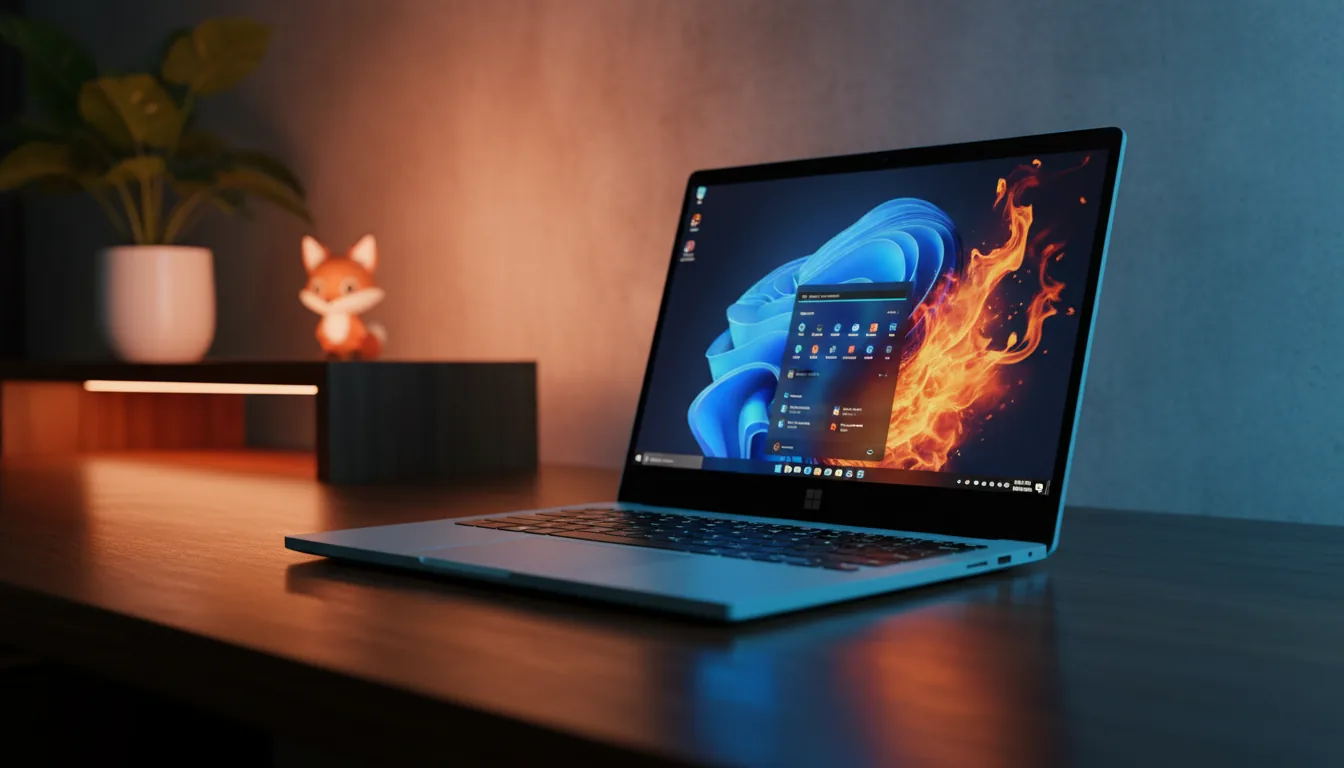
So who is this really for? Artists who want to draw directly on the screen, value ergonomics, and prioritize the feeling of drawing over chasing maximum performance numbers.
Who benefits most from this form factor: If sketching, illustrating, and painting are central to your workflow, this laptop feels purpose-built. If your work leans heavily into rendering, simulation, or nonstop AI generation, you might want more raw horsepower or a hybrid setup.
Next, let’s look at a lineup that focuses obsessively on color accuracy without forcing you into a single ecosystem.
If you are working from a lightweight device like an iPad but still want access to full 3D tools, cloud setups make that possible. This guide on how to use Blender on an iPad shows how artists bypass local hardware limits entirely.
#3. ASUS ProArt Series
The first time I used an **ASUS ProArt laptop, the screen caught me off guard. Not because it was flashy, but because it felt honest. Colors looked the way I expected them to without fiddling endlessly with profiles and sliders. That’s kind of the whole point of this lineup.
Why ProArt exists as a lineup: ASUS didn’t build ProArt machines to compete with gaming laptops or thin ultrabooks. They’re aimed squarely at creators who care about color accuracy, predictable performance, and fewer compromises. These laptops ship with factory-calibrated displays, which means less guesswork when you’re painting, grading, or preparing work for print.
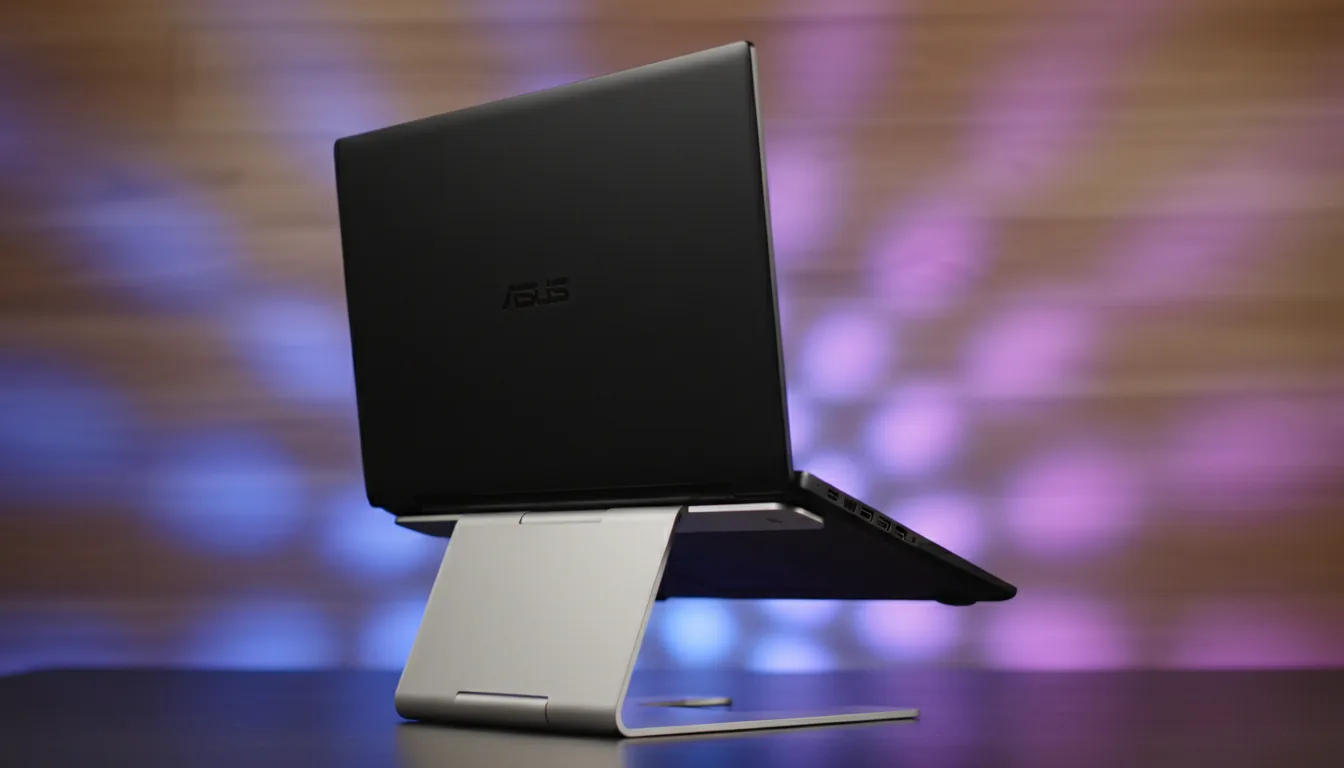
Where ProArt really earns its keep is color confidence. Wide gamut panels, solid brightness, and consistent tones across the screen make a noticeable difference if you do client work or anything where accuracy matters. You spend less time second-guessing and more time actually creating. That’s not something you appreciate until you’ve worked on a bad screen for too long.
Display calibration and color confidence: The displays are tuned for creative work out of the box. Skin tones look natural, shadows retain detail, and saturation doesn’t feel exaggerated. It’s the kind of screen that quietly does its job instead of demanding attention.
Performance tends to land in a sensible middle ground. These laptops handle large Photoshop files, vector-heavy projects, video timelines, and moderate 3D work without drama. Thermals are generally well-managed, which means performance stays consistent instead of dipping after a few minutes of real use.
Thermal behavior under real creative loads: Under sustained workloads, ProArt machines stay composed. You’re less likely to see aggressive throttling compared to thinner laptops chasing style over airflow.
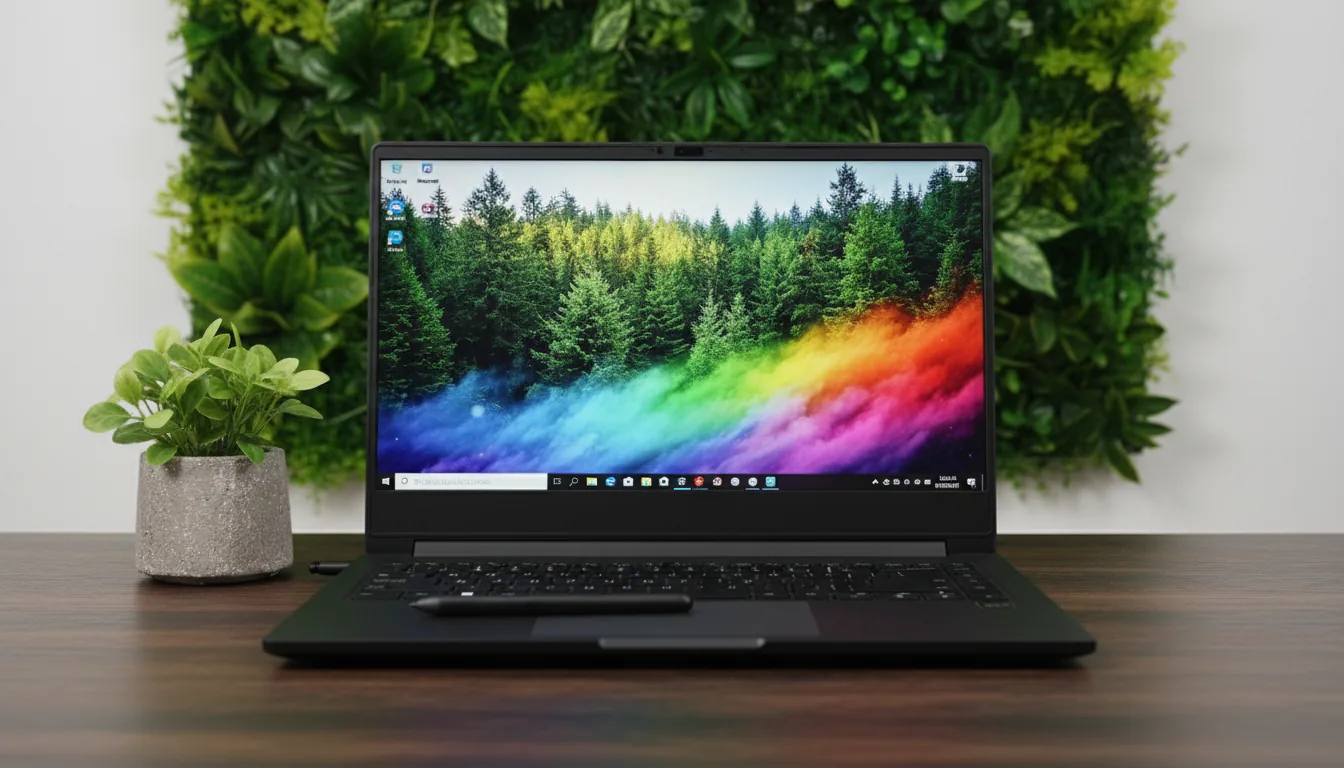
There are trade-offs, though. ProArt laptops aren’t the lightest machines you’ll carry, and the industrial design leans more practical than sleek. If portability is your top priority, you’ll notice the weight.
Trade-offs in weight and portability: You’re carrying a little extra mass in exchange for better cooling and a serious display. For some artists, that’s an easy trade. For others, it’s a dealbreaker.
If you want a laptop that treats color accuracy as a first-class feature without locking you into a single ecosystem, ProArt is one of the safest choices around. Up next, let’s look at a line that tries to balance everything at once.
If you are spending more time waiting on renders than creating, tweaking software settings can help just as much as adding hardware. These best render settings for Blender can dramatically reduce render times.
#4. Dell XPS (Including 2-in-1 Models)
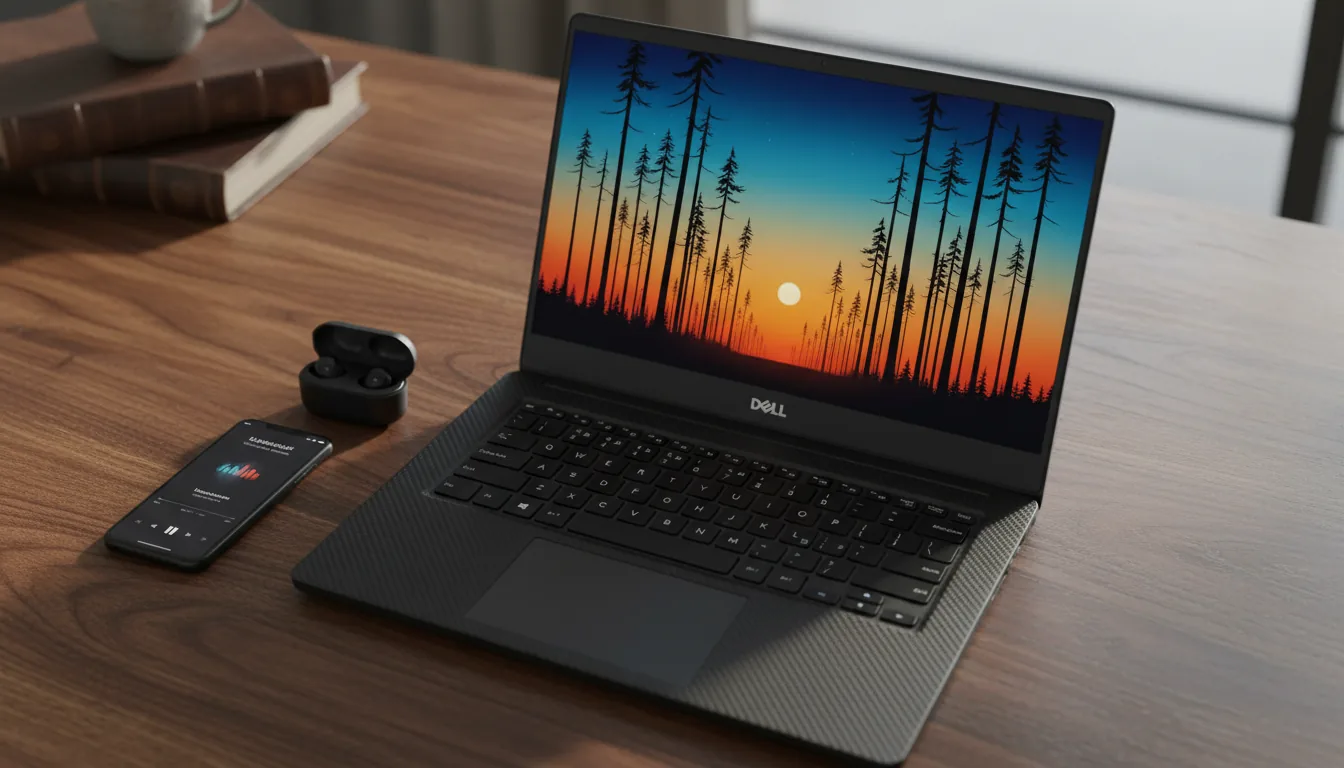
The **Dell XPS line keeps coming up in artist circles for a reason. It doesn’t try to be the absolute best at one thing. Instead, it aims to be very good at most of them. And for a lot of creatives, that balance is exactly what they need.
Why artists keep recommending XPS machines: XPS laptops feel reliable in a very practical way. Solid build quality, sharp displays, and enough power to handle most creative workflows without becoming bulky or loud. They’re often the choice for artists who also need a laptop that works just as well for everyday tasks, client calls, and travel.
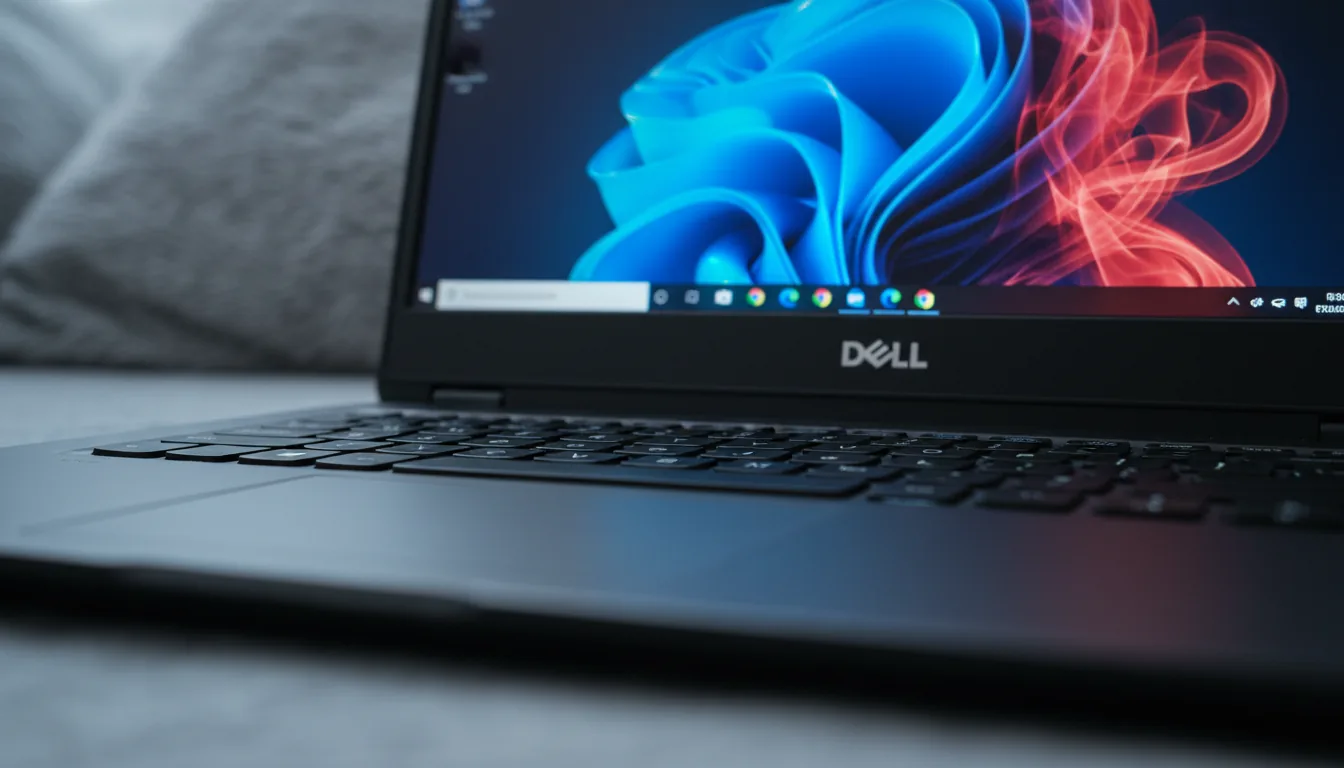
The display is a strong point here. High-resolution panels, good brightness, and respectable color coverage make these machines comfortable for illustration and design work. They’re not always as color-obsessed as ProArt models, but they’re good enough that most artists won’t feel held back.
Touch vs non-touch models: This is where decisions matter. The standard clamshell XPS models are great if you already use an external tablet. The 2-in-1 versions add touch and pen support, which can be appealing, but they don’t quite feel like dedicated drawing devices. The drawing experience is usable, not magical.
Pen support exists, but it’s not the star of the show. Pressure sensitivity and palm rejection are fine, but illustrators who draw for hours may notice the difference compared to devices designed around pen input from day one.
Stylus compatibility realities: Think of stylus support on the XPS as a bonus, not the core reason to buy one. It works best for sketching, note-taking, and light illustration rather than long, intense drawing sessions.
Battery life lands where you’d expect. Better than most performance laptops, worse than ultra-efficient machines. Realistically, you’ll get a few solid hours of creative work, but heavy art sessions will drain it faster than casual use.
Battery life expectations in real workflows: If you’re painting, exporting, or multitasking with heavy apps, don’t expect all-day freedom from the charger. It’s portable, but not careless-about-power portable.
Overall, the Dell XPS makes sense for artists who want one laptop that can do a bit of everything without leaning too hard in any direction. If drawing directly on the screen is your top priority, though, the next category is where things get interesting.
If you are exploring animation alongside illustration, especially with pen-based workflows, Blender’s Grease Pencil is worth a look. This guide to 2D animation on Blender walks through how artists use it in real projects.
#5. 2-in-1 Touchscreen Laptops
There’s a moment a lot of artists remember clearly. The first time they draw directly on a laptop screen and realize how natural it feels. No separate tablet. No looking down while your hand moves somewhere else. Just pen, screen, and pixels lining up the way your brain expects.
Why some artists never go back after drawing on glass: Direct interaction changes the relationship you have with your work. Sketching feels faster. Blocking shapes feels more intuitive. For artists who think visually and work impulsively, drawing on the screen can unlock a looser, more confident style. That’s why many illustrators who switch to 2-in-1s say they can’t imagine going back.
Not all pen experiences are created equal, though. Different laptops support different pen technologies, and those differences show up quickly once you start shading, blending, or working with pressure-heavy brushes.
Pen technologies explained simply: Most mainstream 2-in-1s rely on active pen systems like those used by Lenovo Yoga or HP Spectre models. They support pressure sensitivity and palm rejection, but the feel can vary. Some pens feel slightly slippery. Some have a touch of lag. It’s rarely bad, but it’s also rarely perfect.
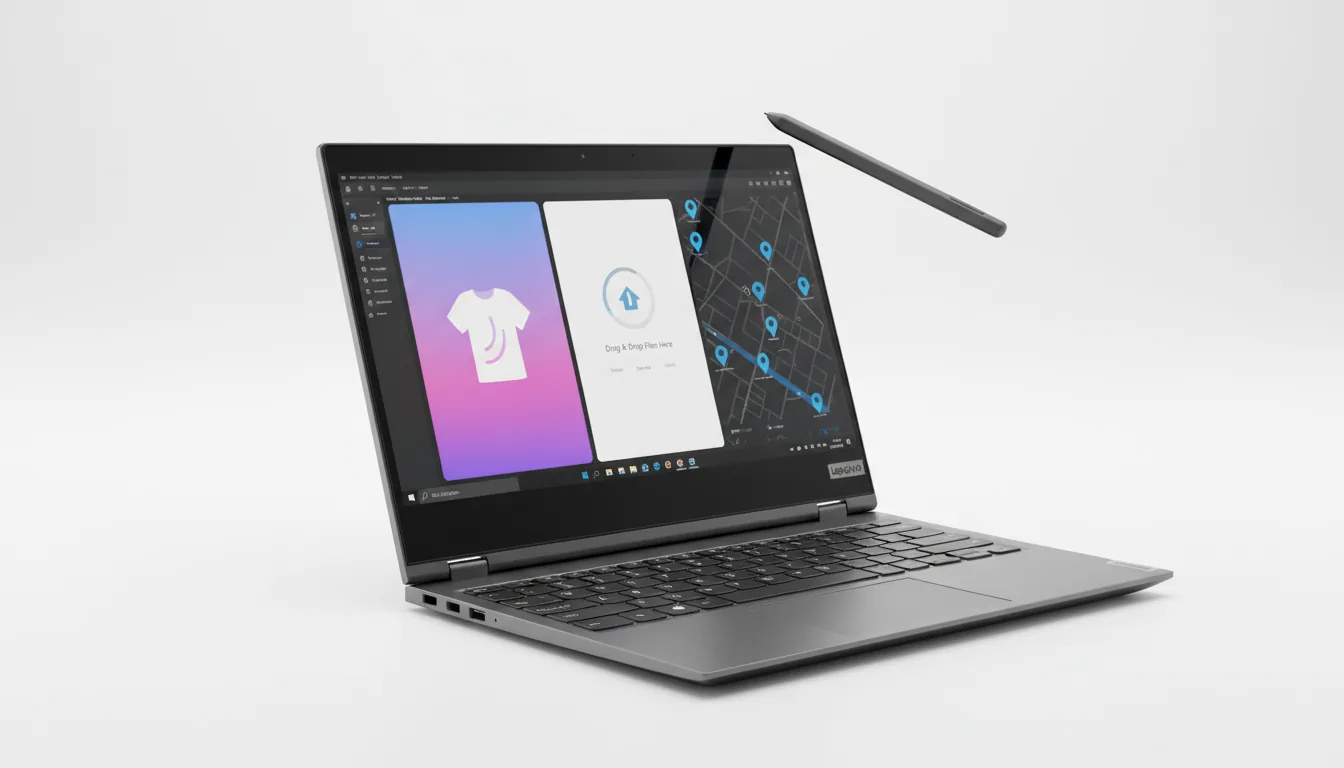
Where this category struggles is consistency. Cheaper convertibles often look great on paper but cut corners in places artists notice immediately.
Common frustrations with cheaper convertibles: Wobbly hinges. Displays that look vibrant in marketing photos but shift colors when you tilt them. Pen jitter when drawing slow diagonal lines. These things don’t ruin casual sketching, but they become exhausting if you’re drawing every day.
And this category isn’t for everyone.
Who should avoid this category entirely: If your work involves heavy 3D scenes, complex simulations, or constant AI generation running locally, most 2-in-1s will feel underpowered. They prioritize flexibility over brute force. Artists who prefer external tablets and demand maximum performance may find these machines limiting.
Still, for illustrators, concept artists, and designers who want an all-in-one device that lets them draw wherever inspiration hits, a good 2-in-1 can feel liberating.
Next, let’s talk about budget laptops. The ones that won’t quietly sabotage your art while pretending to be a deal.
If you are trying to work faster without upgrading your laptop, workflow efficiency matters more than hardware. Learning essential Blender shortcuts and hotkeys often saves more time than a new machine:
Budget Laptops That Won’t Sabotage Your Art
Let’s clear something up first. “Budget” doesn’t mean cheap in the way people hope it does. It means choosing carefully so your laptop doesn’t actively work against you. I’ve seen artists burn out faster on bad hardware than on bad clients.
What “budget” realistically means for digital art
For digital art, budget usually starts at a point where the machine can stay responsive under real workloads. That means layered files, large canvases, and a couple of apps open at once. Anything cheaper often looks fine in the store and then falls apart the moment you actually try to work. If a deal feels too good, it usually is.
Minimum specs that actually matter
This is where priorities help. A decent display matters more than a slightly faster processor. At least 16GB of RAM is non-negotiable if you plan to do more than casual sketching. SSD storage is a must. Spinning drives belong in the past. If a budget laptop checks these boxes, it can already support serious creative work.
What you can safely compromise on
You can usually give up premium materials, ultra-thin designs, and top-tier speakers without affecting your art. You can also live without a dedicated GPU if you’re focused on 2D illustration and design. What you shouldn’t compromise on is screen quality or memory. Those shortcuts come back to haunt you fast.
Who these machines are best suited for
Budget-friendly laptops make sense for students, beginners, or artists who mainly work in 2D and don’t need constant peak performance. They’re also solid secondary machines. Something portable you sketch on, while heavier tasks happen elsewhere.
Speaking of which, hardware is only part of the equation. Next, let’s talk about the specs that actually matter for digital artists, regardless of price.
What Specs Actually Matter for Digital Artists
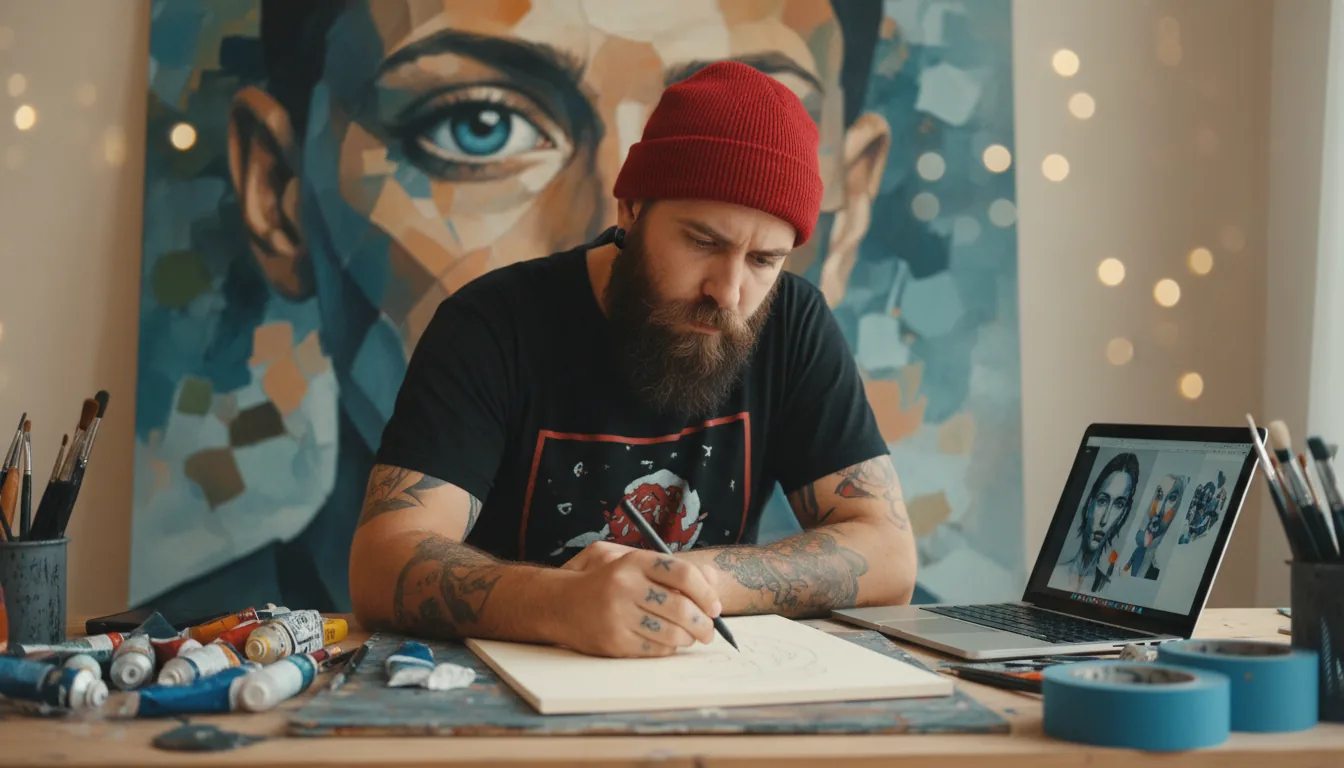
This is the part most buying guides get wrong. They treat specs like a scoreboard instead of tools that shape how your day actually feels. For artists, a few components quietly matter a lot more than the rest.
Display quality and color accuracy
If there’s one place you shouldn’t cut corners, it’s the screen. Resolution matters, but color accuracy matters more. A slightly lower-res display that shows consistent, believable colors will beat a sharper panel with weird saturation every time. Wide color gamut support, stable brightness, and decent contrast make your work easier to judge and easier to trust.
Stylus support and drawing feel
If you draw directly on the screen, this becomes central. Pressure sensitivity, tilt response, and palm rejection all affect how natural your strokes feel. Lag kills flow faster than most people expect. Even a small delay between pen and line can make sketching feel stiff instead of fluid.
RAM, storage, and why 16GB is the real floor
I’ll say it plainly. For modern digital art, 16GB of RAM is the minimum if you want to stay sane. Large canvases, high-resolution textures, and background apps add up quickly. More RAM doesn’t make your art better, but too little will absolutely make the process worse. Fast SSD storage also matters more than raw capacity. Loading, saving, and caching happen constantly.
GPU needs for 2D, 3D, and AI-assisted art
Not every artist needs a powerful GPU. For 2D illustration and design, integrated graphics are often fine. Once you move into 3D, motion, or local AI generation, the story changes fast. GPUs help with viewport smoothness, rendering, and certain AI workflows. Just be honest about what you actually do today, not what you might try once next year.
Battery life vs portability trade-offs
Thin and light usually means compromises. Powerful usually means heat and shorter battery life. There’s no escaping this. If you work unplugged often, efficiency matters more than peak performance. If you’re mostly desk-bound, weight and battery become less important than sustained speed. The right balance depends on how mobile your creative life really is.
With specs out of the way, it’s worth talking about the mistakes artists keep repeating. Most of them are avoidable. All of them are frustrating.
Common Mistakes Artists Make When Choosing a Laptop
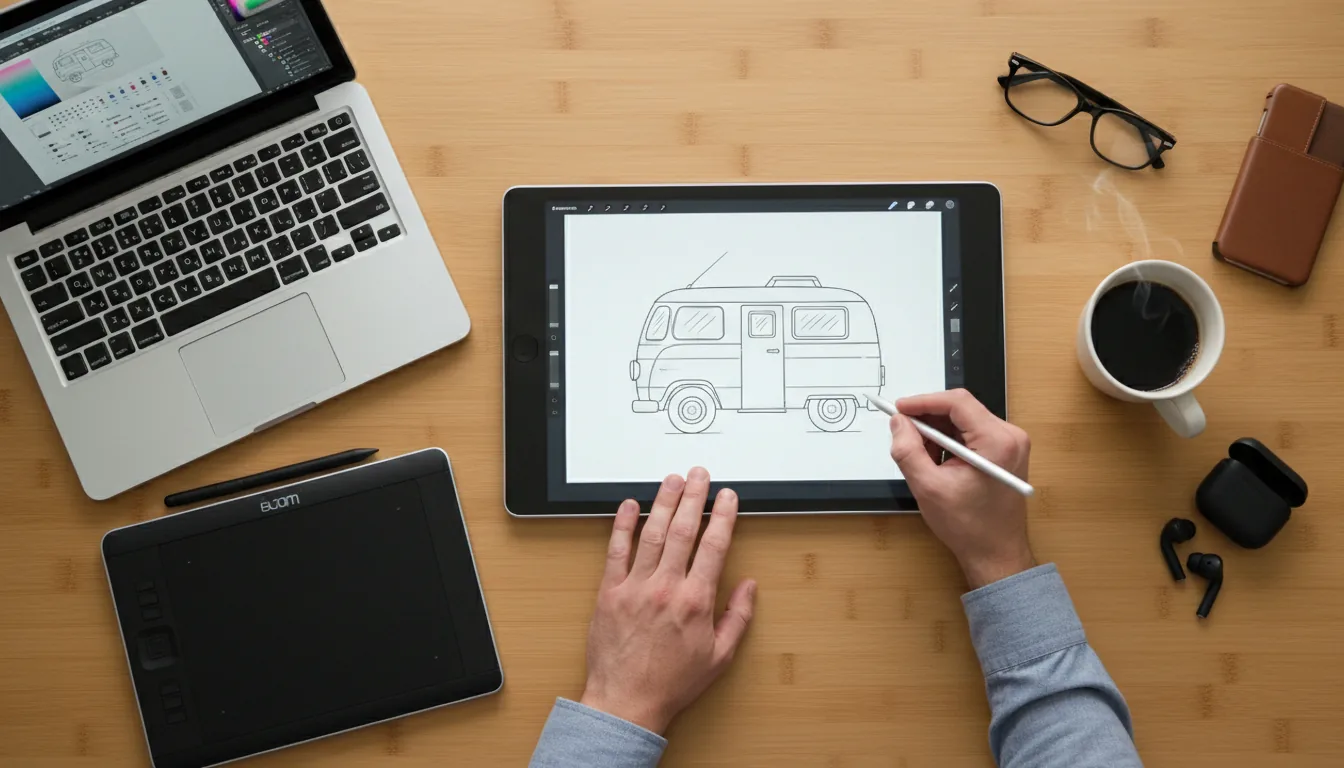
I’ve made a few of these myself. They’re easy traps, especially when marketing gets loud and deadlines get close.
1. Buying power instead of screen quality
It’s tempting to chase the fastest processor or biggest GPU. But if your screen lies to you, that power doesn’t help much. Many artists realize too late that they’ve been correcting colors instead of creating.
2. Ignoring pen experience until it’s too late
Pen support looks similar on paper. In practice, it varies a lot. Waiting until after you buy to test how drawing feels is how people end up frustrated and returning devices. If drawing is core to your work, pen feel should be evaluated early.
3. Overestimating future needs
Buying for a hypothetical future workflow often leads to overspending. Most artists don’t suddenly jump from light illustration to heavy 3D overnight. It’s usually better to buy for what you do now and plan upgrades thoughtfully.
4. Assuming one laptop can do everything forever
Creative work evolves. Files get heavier. Tools change. Expecting one machine to cover every future need sets you up for disappointment. The smartest setups treat laptops as part of a system, not the entire solution.
That idea becomes especially relevant once your projects start pushing hardware limits. Which brings us to the question of what happens when a laptop, even a good one, isn’t quite enough anymore.
If you are wondering whether Blender is truly production-ready, it’s already being used at scale. These movies made with Blender show what’s possible when software and hardware are paired intelligently.
When Local Hardware Starts Holding You Back
This is the point where Vagon Cloud Computer naturally enters the conversation.
At some stage, even a well-chosen laptop starts pushing back. AI generations slow down. Large files take longer to open. Fans spin up just because you zoomed a little too fast. That isn’t a bad purchase decision. It’s simply the ceiling of local hardware.
Instead of replacing your laptop every time your work gets heavier, Vagon offers another path. You keep the machine you already enjoy working on. The screen you trust. The pen feel your hands are used to. When tasks get demanding, you connect to a high-performance cloud computer that takes over the heavy lifting.
This setup is especially helpful for artists working with AI-assisted art, complex 3D scenes, large composites, or collaborative projects. Things that normally push laptops to their limits become manageable without turning your desk into a heat zone. You use serious power when you need it and step away when you don’t.
What’s appealing about this approach is the shift in mindset. Your laptop becomes the creative surface, not the bottleneck. Vagon becomes the performance layer you tap into on demand. That means fewer compromises upfront and far less pressure to constantly upgrade hardware.
It won’t be necessary for everyone. If your work stays firmly in lightweight 2D illustration, local hardware may be enough indefinitely. But as projects grow and workflows evolve, pairing a solid laptop with cloud power often makes more sense than chasing the most powerful machine you can afford.
Final Thoughts
Choosing a laptop for digital art isn’t about finding a single perfect machine. It’s about choosing tools that support how you actually work today, while leaving room to grow tomorrow.
Some artists need pristine displays. Some need pen-first designs. Some need flexibility. Most need a mix of all three. The smartest setups acknowledge that no laptop does everything forever, and that’s okay.
Think in systems, not just specs. A good laptop, paired with the right workflow and the option to scale when needed, will carry you much further than chasing numbers alone.
FAQs
1. Do I really need a powerful laptop to make good digital art?
Not necessarily. A color-accurate screen, enough RAM, and a responsive system matter more than chasing the fastest processor. Plenty of great art is made on mid-range machines. Problems usually start when hardware gets in the way of flow, not when it’s missing top-tier specs.
2. Is drawing directly on the screen better than using an external tablet?
It depends on how you think and work. Some artists feel more connected when drawing directly on glass. Others prefer the separation an external tablet provides. Neither is objectively better. Comfort and consistency matter more than the setup itself.
3. How much RAM is enough for digital art?
For modern workflows, 16GB is the practical minimum. If you work with very large canvases, 3D, video, or AI tools, more RAM helps. Less than 16GB often leads to slowdowns that break concentration.
4. Can I use cloud computing with a modest laptop?
Yes, and that’s kind of the point. With Vagon Cloud Computer, your laptop acts as the interface while heavier processing happens remotely. That means you don’t need workstation-level hardware locally to handle demanding tasks.
6. Is cloud computing only for AI or 3D artists?
No. It’s most noticeable for AI, rendering, and heavy 3D work, but illustrators and designers benefit too when files get large or collaboration becomes more complex. It’s about scaling power when needed, not changing how you create.
7. Will cloud workflows replace laptops entirely?
Unlikely. Laptops are still where sketching, ideation, and everyday creative work happen. Cloud power works best as a supplement, not a replacement. Think of it as extending your setup rather than rebuilding it.
8. What’s the biggest mistake artists make when buying a laptop?
Buying based on specs alone and ignoring how the device feels to use every day. Screen quality, pen feel, heat, and noise affect creativity more than most people expect.
Quick question before we go any further. When you’re picking a laptop for digital art, what do you care about more. Raw power that looks impressive on paper, or a screen that shows your colors the way you actually painted them?
I’ve made the wrong call more than once. Bought a laptop with specs that sounded incredible, only to realize the display made my work look dull and off. Returned another because it looked beautiful but slowed to a crawl once my files got even slightly serious. Those were short relationships. Painfully short.
So this isn’t going to be a hype-driven list or a spec parade. It’s an artist-first guide, shaped by real frustrations, real wins, and a few expensive lessons. If something doesn’t matter as much as people claim, I’ll say it. If a laptop shines in one workflow but falls apart in another, we’ll talk about that too.
Let’s start with the machines that artists actually end up using, not just the ones that photograph well on a product page.
#1. Apple MacBook Pro (M-Series)
I’ll admit it. I was skeptical about the M-series hype at first. After a few long illustration sessions on one, that skepticism didn’t last. The MacBook Pro doesn’t feel flashy when you’re working on it. It feels steady. And for artists, that calm matters more than raw benchmark numbers.
Who it’s actually for: This machine makes sense for artists who work with an external drawing tablet and value stability above everything else. If your days involve Photoshop, Illustrator, large layered files, or AI tools running alongside creative apps, the Apple MacBook Pro rarely breaks focus. It doesn’t stutter halfway through a session or ramp up fans at the worst possible moment.
The screen is where a lot of people finally understand why artists keep recommending this laptop. The Liquid Retina XDR display isn’t just sharp. It’s trustworthy. Colors look the way you expect them to, blacks stay deep, and subtle gradients don’t fall apart. When you export work and view it elsewhere, there are fewer surprises. That alone saves time and frustration.
Performance stability in long art sessions: What’s impressed me most is how little performance changes over time. Hours into a project, with heavy files and background tasks running, the system still feels responsive. That consistency is something many powerful laptops struggle with once heat and throttling kick in.
Of course, there’s a very real limitation here that can’t be ignored. You can’t draw directly on the screen.
Why lack of stylus support is a dealbreaker for some: If your workflow revolves around sketching straight on glass, this laptop will never feel complete on its own. You’ll need an external tablet, which adds cost and clutter. For some artists, that’s perfectly fine. For others, it’s a hard stop.
So here’s the honest takeaway. The MacBook Pro is an excellent creative machine if you already like working with a separate drawing tablet and want a reliable, color-accurate setup that doesn’t get in your way. If you want to draw directly on your laptop, though, the next option will make a lot more sense.
If you are doing serious work in Photoshop with large canvases, smart objects, or heavy effects, GPU choice starts to matter more than most artists expect. This breakdown of the best GPU for Photoshop explains where the real gains actually come from.
#2. Microsoft Surface Laptop Studio
This is where the conversation shifts. If the MacBook Pro feels like a powerhouse that tolerates artists, the Microsoft Surface Laptop Studio feels like it was actually designed around how artists draw. From the moment you pull the screen forward into studio mode, it’s obvious what Microsoft was aiming for.
Hinge design and why it matters for artists: The hinged screen isn’t a gimmick. It lets you pull the display forward and lay it almost flat without fully detaching it. That changes posture, hand position, and how natural sketching feels. You’re no longer hovering your hand over a vertical screen or hunched over a keyboard. It feels closer to a drafting table, and that matters more than specs once you’re an hour into a drawing session.
The drawing experience itself is one of the strongest arguments for this laptop. Using the Surface Slim Pen, strokes feel immediate. There’s minimal lag, pressure response feels predictable, and palm rejection is solid. You don’t fight the hardware. You focus on the line. For illustrators and concept artists, that’s a big deal.
Pen feel, pressure, and latency: The pen response is where this device earns its reputation. Lines appear where you expect them, pressure ramps naturally, and shading doesn’t feel jumpy. It’s not magic, but it’s close enough that your muscle memory adapts quickly instead of constantly correcting itself.
Performance is where expectations need to be managed. This is not a desktop replacement pretending to be a drawing tablet. It handles illustration, design, and moderate creative workloads well, but it’s not thrilled about massive 3D scenes or extremely heavy AI tasks running locally.
Performance limits you should know before buying: Once files get huge or you stack multiple demanding apps together, you’ll notice the ceiling. It’s fine for most 2D work and lighter motion or 3D tasks, but power users may hit limits sooner than they expect.
So who is this really for? Artists who want to draw directly on the screen, value ergonomics, and prioritize the feeling of drawing over chasing maximum performance numbers.
Who benefits most from this form factor: If sketching, illustrating, and painting are central to your workflow, this laptop feels purpose-built. If your work leans heavily into rendering, simulation, or nonstop AI generation, you might want more raw horsepower or a hybrid setup.
Next, let’s look at a lineup that focuses obsessively on color accuracy without forcing you into a single ecosystem.
If you are working from a lightweight device like an iPad but still want access to full 3D tools, cloud setups make that possible. This guide on how to use Blender on an iPad shows how artists bypass local hardware limits entirely.
#3. ASUS ProArt Series
The first time I used an **ASUS ProArt laptop, the screen caught me off guard. Not because it was flashy, but because it felt honest. Colors looked the way I expected them to without fiddling endlessly with profiles and sliders. That’s kind of the whole point of this lineup.
Why ProArt exists as a lineup: ASUS didn’t build ProArt machines to compete with gaming laptops or thin ultrabooks. They’re aimed squarely at creators who care about color accuracy, predictable performance, and fewer compromises. These laptops ship with factory-calibrated displays, which means less guesswork when you’re painting, grading, or preparing work for print.
Where ProArt really earns its keep is color confidence. Wide gamut panels, solid brightness, and consistent tones across the screen make a noticeable difference if you do client work or anything where accuracy matters. You spend less time second-guessing and more time actually creating. That’s not something you appreciate until you’ve worked on a bad screen for too long.
Display calibration and color confidence: The displays are tuned for creative work out of the box. Skin tones look natural, shadows retain detail, and saturation doesn’t feel exaggerated. It’s the kind of screen that quietly does its job instead of demanding attention.
Performance tends to land in a sensible middle ground. These laptops handle large Photoshop files, vector-heavy projects, video timelines, and moderate 3D work without drama. Thermals are generally well-managed, which means performance stays consistent instead of dipping after a few minutes of real use.
Thermal behavior under real creative loads: Under sustained workloads, ProArt machines stay composed. You’re less likely to see aggressive throttling compared to thinner laptops chasing style over airflow.
There are trade-offs, though. ProArt laptops aren’t the lightest machines you’ll carry, and the industrial design leans more practical than sleek. If portability is your top priority, you’ll notice the weight.
Trade-offs in weight and portability: You’re carrying a little extra mass in exchange for better cooling and a serious display. For some artists, that’s an easy trade. For others, it’s a dealbreaker.
If you want a laptop that treats color accuracy as a first-class feature without locking you into a single ecosystem, ProArt is one of the safest choices around. Up next, let’s look at a line that tries to balance everything at once.
If you are spending more time waiting on renders than creating, tweaking software settings can help just as much as adding hardware. These best render settings for Blender can dramatically reduce render times.
#4. Dell XPS (Including 2-in-1 Models)
The **Dell XPS line keeps coming up in artist circles for a reason. It doesn’t try to be the absolute best at one thing. Instead, it aims to be very good at most of them. And for a lot of creatives, that balance is exactly what they need.
Why artists keep recommending XPS machines: XPS laptops feel reliable in a very practical way. Solid build quality, sharp displays, and enough power to handle most creative workflows without becoming bulky or loud. They’re often the choice for artists who also need a laptop that works just as well for everyday tasks, client calls, and travel.
The display is a strong point here. High-resolution panels, good brightness, and respectable color coverage make these machines comfortable for illustration and design work. They’re not always as color-obsessed as ProArt models, but they’re good enough that most artists won’t feel held back.
Touch vs non-touch models: This is where decisions matter. The standard clamshell XPS models are great if you already use an external tablet. The 2-in-1 versions add touch and pen support, which can be appealing, but they don’t quite feel like dedicated drawing devices. The drawing experience is usable, not magical.
Pen support exists, but it’s not the star of the show. Pressure sensitivity and palm rejection are fine, but illustrators who draw for hours may notice the difference compared to devices designed around pen input from day one.
Stylus compatibility realities: Think of stylus support on the XPS as a bonus, not the core reason to buy one. It works best for sketching, note-taking, and light illustration rather than long, intense drawing sessions.
Battery life lands where you’d expect. Better than most performance laptops, worse than ultra-efficient machines. Realistically, you’ll get a few solid hours of creative work, but heavy art sessions will drain it faster than casual use.
Battery life expectations in real workflows: If you’re painting, exporting, or multitasking with heavy apps, don’t expect all-day freedom from the charger. It’s portable, but not careless-about-power portable.
Overall, the Dell XPS makes sense for artists who want one laptop that can do a bit of everything without leaning too hard in any direction. If drawing directly on the screen is your top priority, though, the next category is where things get interesting.
If you are exploring animation alongside illustration, especially with pen-based workflows, Blender’s Grease Pencil is worth a look. This guide to 2D animation on Blender walks through how artists use it in real projects.
#5. 2-in-1 Touchscreen Laptops
There’s a moment a lot of artists remember clearly. The first time they draw directly on a laptop screen and realize how natural it feels. No separate tablet. No looking down while your hand moves somewhere else. Just pen, screen, and pixels lining up the way your brain expects.
Why some artists never go back after drawing on glass: Direct interaction changes the relationship you have with your work. Sketching feels faster. Blocking shapes feels more intuitive. For artists who think visually and work impulsively, drawing on the screen can unlock a looser, more confident style. That’s why many illustrators who switch to 2-in-1s say they can’t imagine going back.
Not all pen experiences are created equal, though. Different laptops support different pen technologies, and those differences show up quickly once you start shading, blending, or working with pressure-heavy brushes.
Pen technologies explained simply: Most mainstream 2-in-1s rely on active pen systems like those used by Lenovo Yoga or HP Spectre models. They support pressure sensitivity and palm rejection, but the feel can vary. Some pens feel slightly slippery. Some have a touch of lag. It’s rarely bad, but it’s also rarely perfect.
Where this category struggles is consistency. Cheaper convertibles often look great on paper but cut corners in places artists notice immediately.
Common frustrations with cheaper convertibles: Wobbly hinges. Displays that look vibrant in marketing photos but shift colors when you tilt them. Pen jitter when drawing slow diagonal lines. These things don’t ruin casual sketching, but they become exhausting if you’re drawing every day.
And this category isn’t for everyone.
Who should avoid this category entirely: If your work involves heavy 3D scenes, complex simulations, or constant AI generation running locally, most 2-in-1s will feel underpowered. They prioritize flexibility over brute force. Artists who prefer external tablets and demand maximum performance may find these machines limiting.
Still, for illustrators, concept artists, and designers who want an all-in-one device that lets them draw wherever inspiration hits, a good 2-in-1 can feel liberating.
Next, let’s talk about budget laptops. The ones that won’t quietly sabotage your art while pretending to be a deal.
If you are trying to work faster without upgrading your laptop, workflow efficiency matters more than hardware. Learning essential Blender shortcuts and hotkeys often saves more time than a new machine:
Budget Laptops That Won’t Sabotage Your Art
Let’s clear something up first. “Budget” doesn’t mean cheap in the way people hope it does. It means choosing carefully so your laptop doesn’t actively work against you. I’ve seen artists burn out faster on bad hardware than on bad clients.
What “budget” realistically means for digital art
For digital art, budget usually starts at a point where the machine can stay responsive under real workloads. That means layered files, large canvases, and a couple of apps open at once. Anything cheaper often looks fine in the store and then falls apart the moment you actually try to work. If a deal feels too good, it usually is.
Minimum specs that actually matter
This is where priorities help. A decent display matters more than a slightly faster processor. At least 16GB of RAM is non-negotiable if you plan to do more than casual sketching. SSD storage is a must. Spinning drives belong in the past. If a budget laptop checks these boxes, it can already support serious creative work.
What you can safely compromise on
You can usually give up premium materials, ultra-thin designs, and top-tier speakers without affecting your art. You can also live without a dedicated GPU if you’re focused on 2D illustration and design. What you shouldn’t compromise on is screen quality or memory. Those shortcuts come back to haunt you fast.
Who these machines are best suited for
Budget-friendly laptops make sense for students, beginners, or artists who mainly work in 2D and don’t need constant peak performance. They’re also solid secondary machines. Something portable you sketch on, while heavier tasks happen elsewhere.
Speaking of which, hardware is only part of the equation. Next, let’s talk about the specs that actually matter for digital artists, regardless of price.
What Specs Actually Matter for Digital Artists
This is the part most buying guides get wrong. They treat specs like a scoreboard instead of tools that shape how your day actually feels. For artists, a few components quietly matter a lot more than the rest.
Display quality and color accuracy
If there’s one place you shouldn’t cut corners, it’s the screen. Resolution matters, but color accuracy matters more. A slightly lower-res display that shows consistent, believable colors will beat a sharper panel with weird saturation every time. Wide color gamut support, stable brightness, and decent contrast make your work easier to judge and easier to trust.
Stylus support and drawing feel
If you draw directly on the screen, this becomes central. Pressure sensitivity, tilt response, and palm rejection all affect how natural your strokes feel. Lag kills flow faster than most people expect. Even a small delay between pen and line can make sketching feel stiff instead of fluid.
RAM, storage, and why 16GB is the real floor
I’ll say it plainly. For modern digital art, 16GB of RAM is the minimum if you want to stay sane. Large canvases, high-resolution textures, and background apps add up quickly. More RAM doesn’t make your art better, but too little will absolutely make the process worse. Fast SSD storage also matters more than raw capacity. Loading, saving, and caching happen constantly.
GPU needs for 2D, 3D, and AI-assisted art
Not every artist needs a powerful GPU. For 2D illustration and design, integrated graphics are often fine. Once you move into 3D, motion, or local AI generation, the story changes fast. GPUs help with viewport smoothness, rendering, and certain AI workflows. Just be honest about what you actually do today, not what you might try once next year.
Battery life vs portability trade-offs
Thin and light usually means compromises. Powerful usually means heat and shorter battery life. There’s no escaping this. If you work unplugged often, efficiency matters more than peak performance. If you’re mostly desk-bound, weight and battery become less important than sustained speed. The right balance depends on how mobile your creative life really is.
With specs out of the way, it’s worth talking about the mistakes artists keep repeating. Most of them are avoidable. All of them are frustrating.
Common Mistakes Artists Make When Choosing a Laptop
I’ve made a few of these myself. They’re easy traps, especially when marketing gets loud and deadlines get close.
1. Buying power instead of screen quality
It’s tempting to chase the fastest processor or biggest GPU. But if your screen lies to you, that power doesn’t help much. Many artists realize too late that they’ve been correcting colors instead of creating.
2. Ignoring pen experience until it’s too late
Pen support looks similar on paper. In practice, it varies a lot. Waiting until after you buy to test how drawing feels is how people end up frustrated and returning devices. If drawing is core to your work, pen feel should be evaluated early.
3. Overestimating future needs
Buying for a hypothetical future workflow often leads to overspending. Most artists don’t suddenly jump from light illustration to heavy 3D overnight. It’s usually better to buy for what you do now and plan upgrades thoughtfully.
4. Assuming one laptop can do everything forever
Creative work evolves. Files get heavier. Tools change. Expecting one machine to cover every future need sets you up for disappointment. The smartest setups treat laptops as part of a system, not the entire solution.
That idea becomes especially relevant once your projects start pushing hardware limits. Which brings us to the question of what happens when a laptop, even a good one, isn’t quite enough anymore.
If you are wondering whether Blender is truly production-ready, it’s already being used at scale. These movies made with Blender show what’s possible when software and hardware are paired intelligently.
When Local Hardware Starts Holding You Back
This is the point where Vagon Cloud Computer naturally enters the conversation.
At some stage, even a well-chosen laptop starts pushing back. AI generations slow down. Large files take longer to open. Fans spin up just because you zoomed a little too fast. That isn’t a bad purchase decision. It’s simply the ceiling of local hardware.
Instead of replacing your laptop every time your work gets heavier, Vagon offers another path. You keep the machine you already enjoy working on. The screen you trust. The pen feel your hands are used to. When tasks get demanding, you connect to a high-performance cloud computer that takes over the heavy lifting.
This setup is especially helpful for artists working with AI-assisted art, complex 3D scenes, large composites, or collaborative projects. Things that normally push laptops to their limits become manageable without turning your desk into a heat zone. You use serious power when you need it and step away when you don’t.
What’s appealing about this approach is the shift in mindset. Your laptop becomes the creative surface, not the bottleneck. Vagon becomes the performance layer you tap into on demand. That means fewer compromises upfront and far less pressure to constantly upgrade hardware.
It won’t be necessary for everyone. If your work stays firmly in lightweight 2D illustration, local hardware may be enough indefinitely. But as projects grow and workflows evolve, pairing a solid laptop with cloud power often makes more sense than chasing the most powerful machine you can afford.
Final Thoughts
Choosing a laptop for digital art isn’t about finding a single perfect machine. It’s about choosing tools that support how you actually work today, while leaving room to grow tomorrow.
Some artists need pristine displays. Some need pen-first designs. Some need flexibility. Most need a mix of all three. The smartest setups acknowledge that no laptop does everything forever, and that’s okay.
Think in systems, not just specs. A good laptop, paired with the right workflow and the option to scale when needed, will carry you much further than chasing numbers alone.
FAQs
1. Do I really need a powerful laptop to make good digital art?
Not necessarily. A color-accurate screen, enough RAM, and a responsive system matter more than chasing the fastest processor. Plenty of great art is made on mid-range machines. Problems usually start when hardware gets in the way of flow, not when it’s missing top-tier specs.
2. Is drawing directly on the screen better than using an external tablet?
It depends on how you think and work. Some artists feel more connected when drawing directly on glass. Others prefer the separation an external tablet provides. Neither is objectively better. Comfort and consistency matter more than the setup itself.
3. How much RAM is enough for digital art?
For modern workflows, 16GB is the practical minimum. If you work with very large canvases, 3D, video, or AI tools, more RAM helps. Less than 16GB often leads to slowdowns that break concentration.
4. Can I use cloud computing with a modest laptop?
Yes, and that’s kind of the point. With Vagon Cloud Computer, your laptop acts as the interface while heavier processing happens remotely. That means you don’t need workstation-level hardware locally to handle demanding tasks.
6. Is cloud computing only for AI or 3D artists?
No. It’s most noticeable for AI, rendering, and heavy 3D work, but illustrators and designers benefit too when files get large or collaboration becomes more complex. It’s about scaling power when needed, not changing how you create.
7. Will cloud workflows replace laptops entirely?
Unlikely. Laptops are still where sketching, ideation, and everyday creative work happen. Cloud power works best as a supplement, not a replacement. Think of it as extending your setup rather than rebuilding it.
8. What’s the biggest mistake artists make when buying a laptop?
Buying based on specs alone and ignoring how the device feels to use every day. Screen quality, pen feel, heat, and noise affect creativity more than most people expect.
Get Beyond Your Computer Performance
Run applications on your cloud computer with the latest generation hardware. No more crashes or lags.

Trial includes 1 hour usage + 7 days of storage.
Summarize with AI

Ready to focus on your creativity?
Vagon gives you the ability to create & render projects, collaborate, and stream applications with the power of the best hardware.

Run heavy applications on any device with
your personal computer on the cloud.
San Francisco, California
Solutions
Vagon Teams
Vagon Streams
Use Cases
© 2026 Vagon. All rights reserved.
Run heavy applications on any device with
your personal computer on the cloud.
San Francisco, California
Solutions
Vagon Teams
Vagon Streams
Use Cases
© 2026 Vagon. All rights reserved.
Run heavy applications on any device with
your personal computer on the cloud.
San Francisco, California
Solutions
Vagon Teams
Vagon Streams
Use Cases
© 2026 Vagon. All rights reserved.