Instant Connection for Pixel Streaming
— New Feature Automated Setup
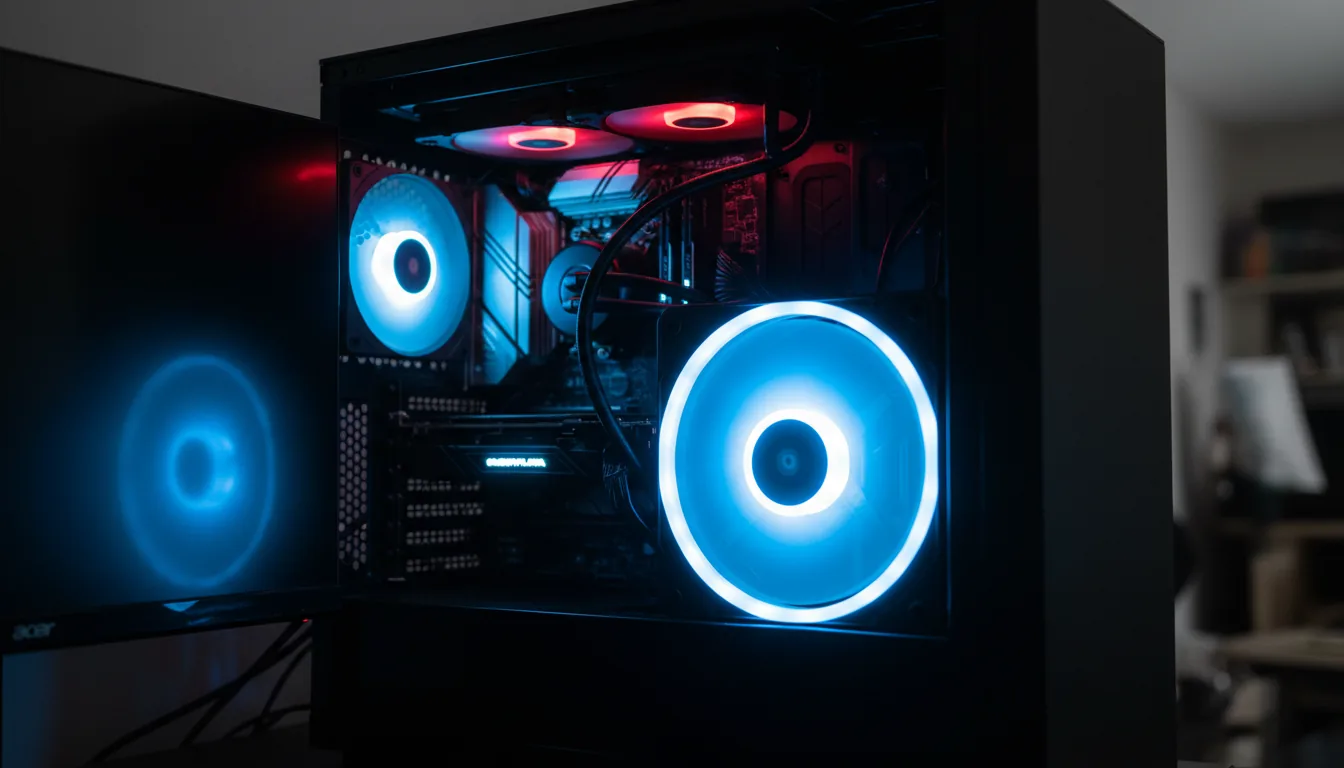
Best PC for Blender in 2026 That Makes Blender Feel Fast
DigitalArt
Best PC for Blender in 2026 That Makes Blender Feel Fast
DigitalArt
Best PC for Blender in 2026 That Makes Blender Feel Fast
DigitalArt
Table of Contents
Here’s the blunt reality.
Most Blender users don’t have weak computers. They have badly balanced ones.
I’ve seen people spend serious money on a high-end GPU and still watch Blender choke in the viewport. Fans spinning, RGB glowing, render crawling. I’ve done it myself. Upgraded the GPU first because that’s what everyone recommends. It barely helped.
The problem is simple. Blender doesn’t reward throwing money at one component. It rewards balance. CPU, RAM, GPU, storage. Miss one, and everything slows down.
And most of your time in Blender isn’t spent on final renders anyway. It’s spent moving around the scene, scrubbing timelines, testing sims, fixing mistakes. If that part feels slow, the “best” PC on paper won’t feel best in practice.
That’s why this question is trickier than it sounds. Before talking brands or price tags, we need to talk about what Blender actually uses.
What Blender Really Uses
If you’ve ever upgraded to a powerful GPU and wondered why Blender still feels slow, this is usually why.
Blender isn’t doing one thing all the time. Your hardware gets stressed in different ways depending on what you’re doing. Modeling, sculpting, animating, simulating, rendering. Each of those leans on a different part of the system, and most of your time isn’t spent rendering final frames.
In day-to-day work, the CPU carries more weight than most people expect. Viewport interaction, modifiers updating, booleans, physics simulations, and animation playback are all CPU-heavy. A fast, modern CPU with strong single-core performance can make Blender feel instantly more responsive, even if the GPU stays the same.
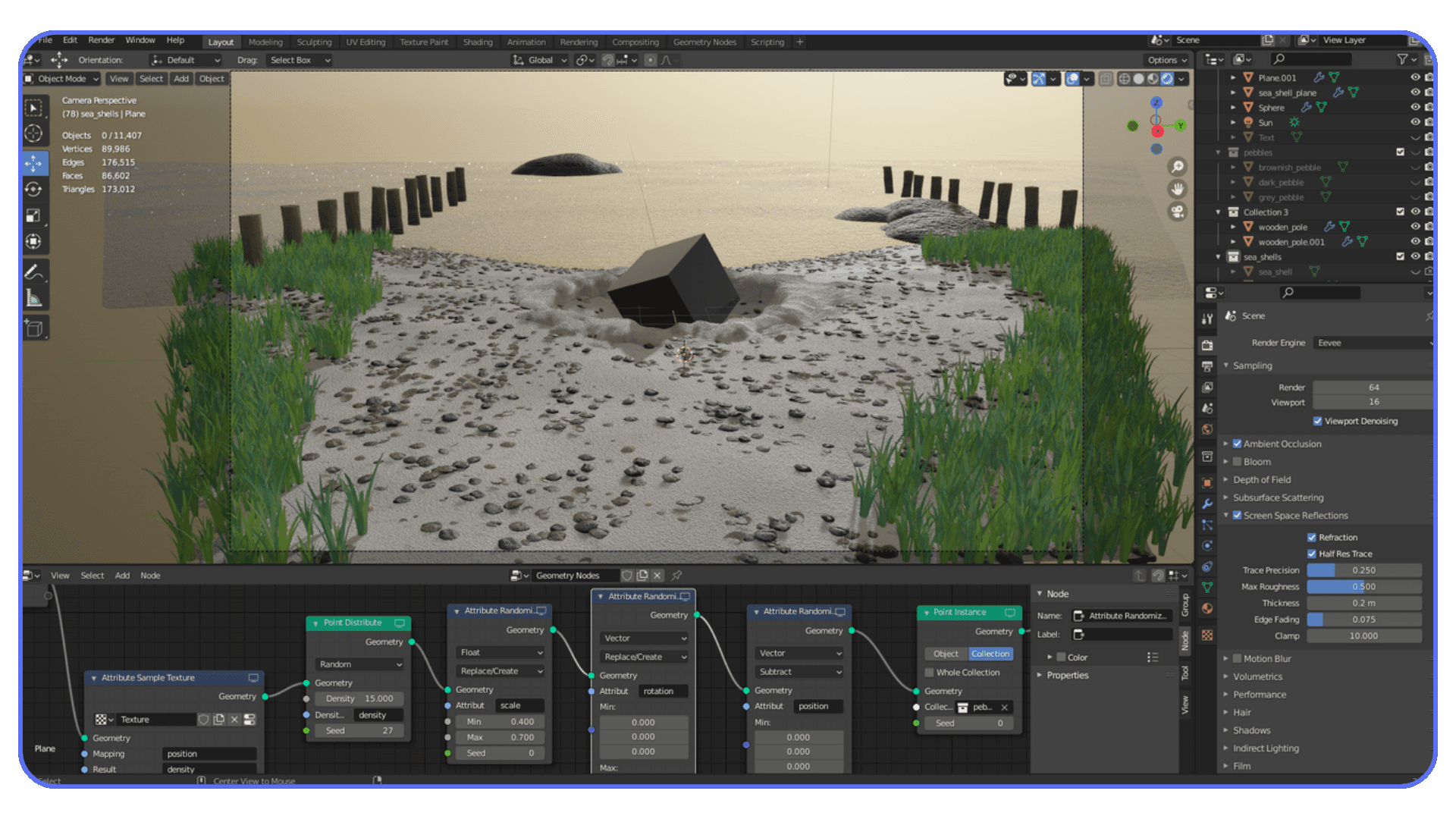
Memory is the bottleneck that catches people off guard. Once you hit the limit, Blender doesn’t slow down gracefully. It stalls. Textures stop loading. Viewports hitch. Undo becomes painful. If you work with large scenes, high-resolution textures, geometry nodes, or multiple apps open, 32GB isn’t a luxury. It’s the baseline. In my experience, moving from 32GB to 64GB often improves everyday smoothness more than a GPU upgrade.
The GPU matters most at the finish line. Cycles rendering, viewport shading, and denoising are where RTX cards really shine, especially with OptiX. Faster GPUs mean faster final frames. But if everything else is slow, you’re just rendering slow decisions faster.
Storage doesn’t add raw power, but it affects patience. NVMe SSDs won’t boost frame rates, yet they dramatically reduce load times, cache writes, and scene saves. Once you’re used to that speed, slower drives feel unbearable.
This is the mistake I see constantly. People optimize for the last ten percent of the workflow and ignore the other ninety. Blender rewards the opposite approach.
Get the fundamentals right first. Then a GPU upgrade actually means something.
If you are struggling with long render times even on a decent GPU, chances are your Cycles settings are holding you back more than your hardware. This breakdown of the best render settings for Blender shows where real performance gains actually come from.
Minimum Specs for Blender
Blender will run on weaker machines.
That doesn’t mean you’ll enjoy using it.
Here’s the baseline where Blender stops fighting you on every click and starts behaving like a proper tool.
CPU: Modern 6–8 cores
Recent Ryzen 5 or Intel i5 and newer. Strong single-core performance matters more than raw core count for viewport work, modifiers, and general responsiveness.GPU: RTX 3060 / RTX 4060 class or better
Aim for at least 8GB VRAM. This is where Cycles, viewport shading, and GPU denoising stop feeling painfully slow.RAM: 32GB minimum
Not optional. Large scenes, high-resolution textures, geometry nodes, or running Blender alongside other apps will chew through 16GB fast. 32GB is the survival line.Storage: NVMe SSD only
No performance charts here, just quality of life. Faster loads, faster cache writes, faster saves. Once you switch, going back feels broken.
Who this tier is for:
Students
Beginners
Hobbyists learning Blender seriously
Light to moderate scenes and renders
Who should skip it:
Anyone doing heavy simulations
Large animation projects
Complex geometry node setups
People already hitting RAM limits or slow viewport feedback
This setup makes Blender usable. Not blazing fast, but not frustrating either.
If you are working with Grease Pencil or doing 2D animation inside Blender, CPU performance and viewport responsiveness matter far more than raw GPU power. This practical guide to 2D animation on Blender explains what really affects smooth playback.
Best Budget Blender PCs Under $1500
This is where a lot of Blender users start, and if you choose wisely, it’s enough to do real work without constant frustration. The biggest risk at this level isn’t weak hardware. It’s imbalance.
At this price point, Blender responds best to a setup that avoids obvious bottlenecks:
A modern CPU that keeps the viewport responsive
A mid-range RTX GPU for Cycles
Enough RAM to stop Blender from stalling mid-scene
Get those right, and the experience is far better than the price suggests.
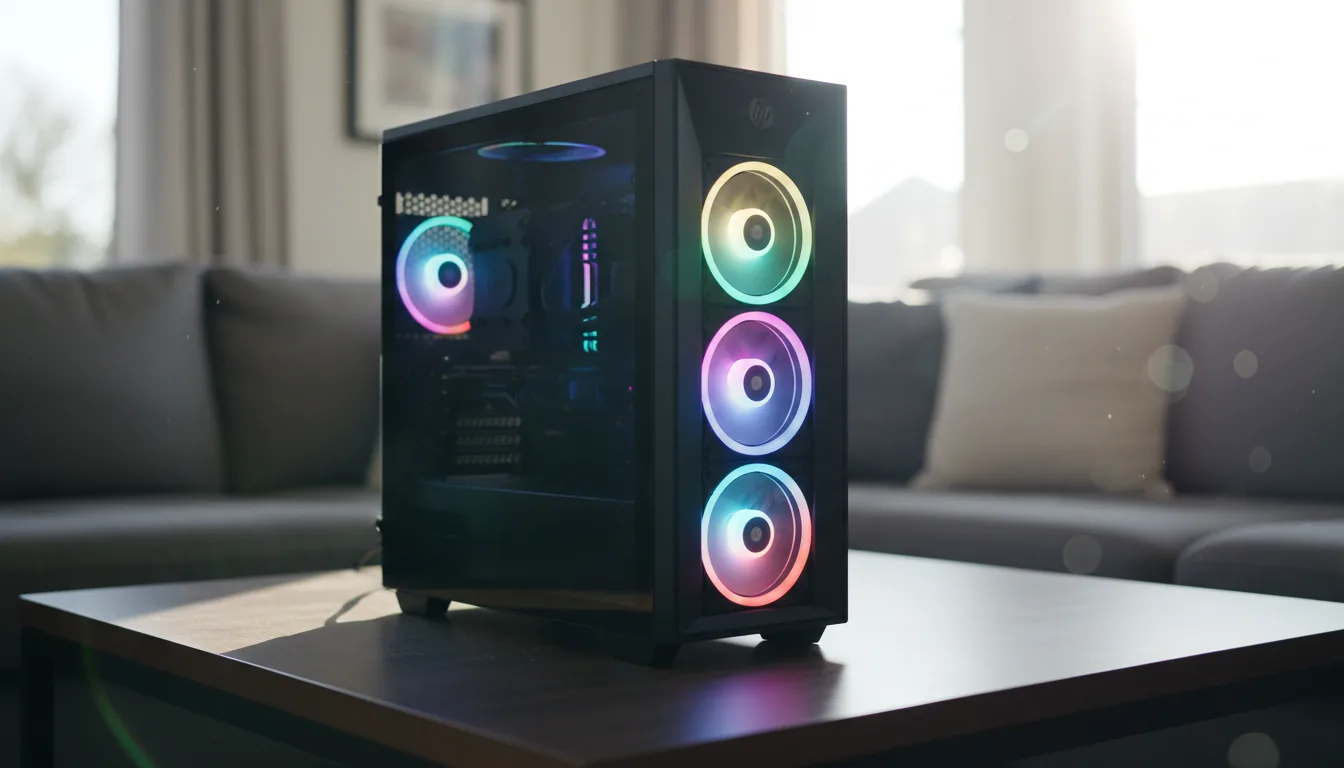
HP Omen 45L
This is technically a gaming PC, but it works surprisingly well for Blender.
Why it’s a solid choice:
Good airflow, so performance stays stable during longer renders
Common RTX 3060 and 4060 configurations
Easy RAM and storage upgrades later
The main thing to watch out for is memory. Many base models ship with 16GB RAM, which isn’t enough for serious Blender work. Upgrade to 32GB and the machine feels noticeably smoother.
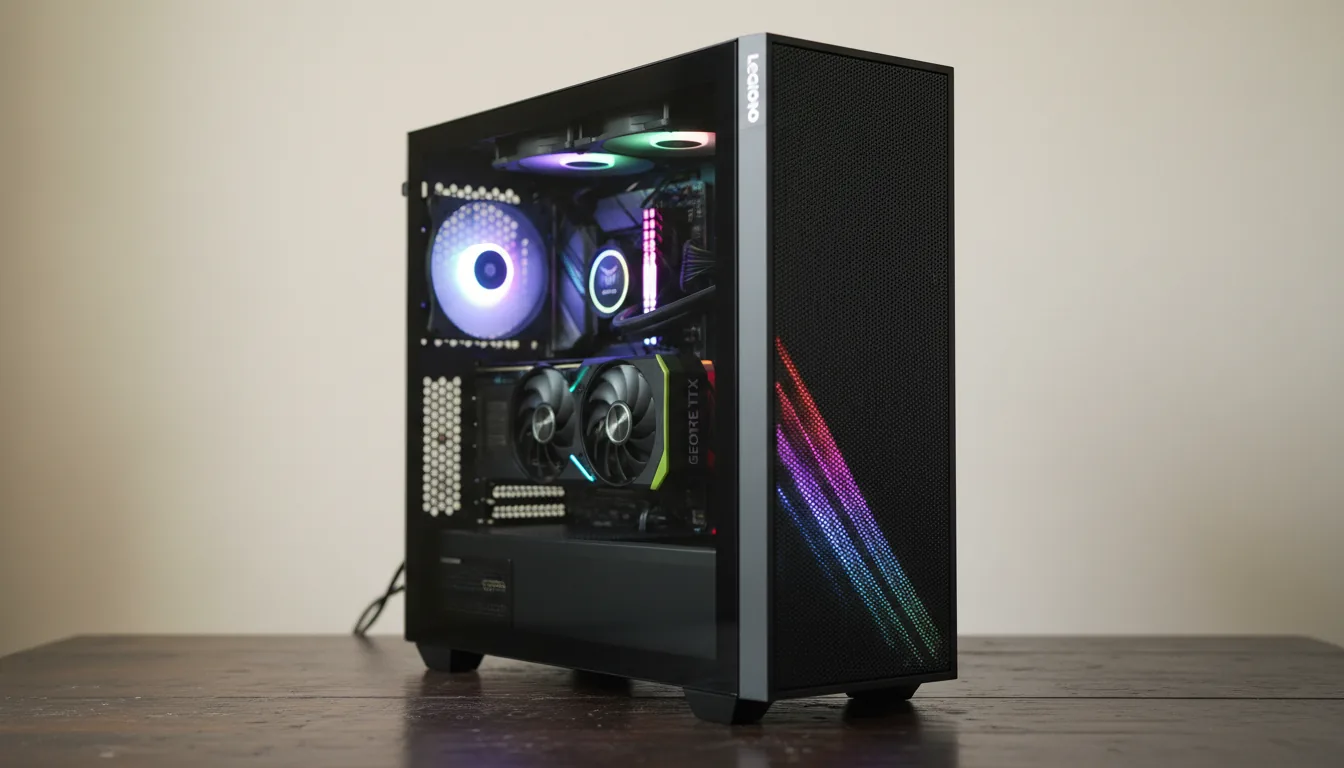
Lenovo Legion Tower 5
If you want something quieter and less flashy, this is a clean pick.
What it does well:
Sensible CPU and GPU pairings
Stable viewport performance
More restrained noise and design
The tradeoff is upgrade flexibility. Some configurations don’t leave much room for future GPU upgrades, so it’s better if you plan to use it largely as-is.
A Simple DIY Option That Still Makes Sense
If you’re comfortable building or ordering a custom PC, a Ryzen 5 paired with an RTX 4060 is still one of the best value combos for Blender.
Typical strengths:
Very good viewport responsiveness for the price
Solid Cycles render times for small to medium scenes
No money wasted on branding or extras
The downside is support. You’re responsible for troubleshooting if something goes wrong. For some people, that’s fine. For others, it’s a dealbreaker.
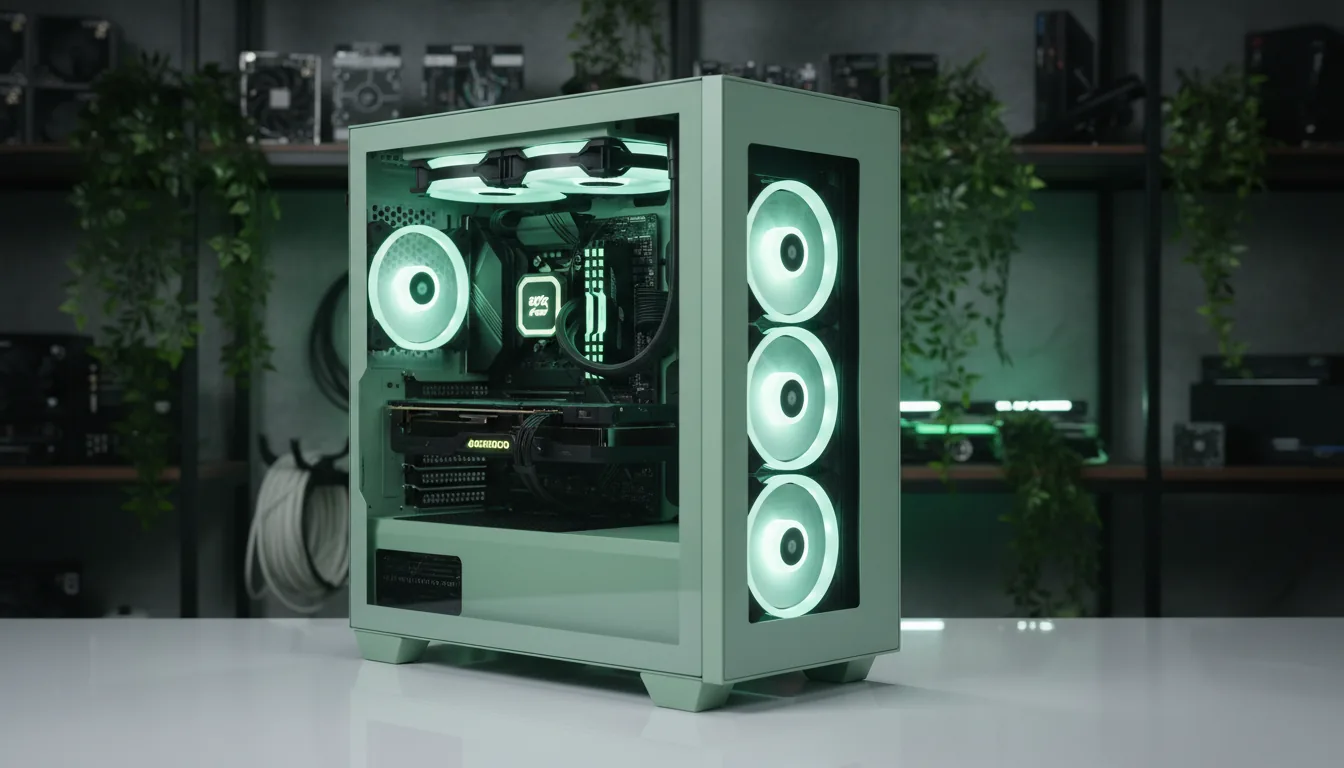
Who This Tier Is Best For
Budget Blender PCs are a good fit if you’re learning Blender seriously or working on smaller projects where modeling, sculpting, look development, or light animation make up most of your time. For small to medium scenes, this tier feels responsive enough that the hardware fades into the background and you can focus on the work.
Where these systems start to struggle is with heavier workloads. Fluid and smoke simulations can slow things down quickly, large geometry node setups push memory limits, and complex animation scenes with lots of high-resolution textures expose the ceiling fast.
This tier makes Blender feel good, not limitless. And that’s exactly what it’s meant to do.
If you are constantly fighting the interface or feeling slow even on a fast machine, the problem might not be your PC at all. Learning the right Blender shortcuts and hotkeys often saves more time than a hardware upgrade.
Best Mid-Range Blender PCs
This is the range where Blender really starts to feel fast. Not just on final renders, but during the hours you actually spend working. Viewport movement is smoother. Sims finish quicker. You stop second-guessing every subdivision level.
For a lot of freelancers and serious hobbyists, this is the endgame tier.
What defines a good mid-range Blender PC isn’t just stronger parts. It’s headroom. Enough CPU power to keep things responsive, enough GPU to make Cycles feel efficient, and enough RAM that you’re not constantly watching usage climb.
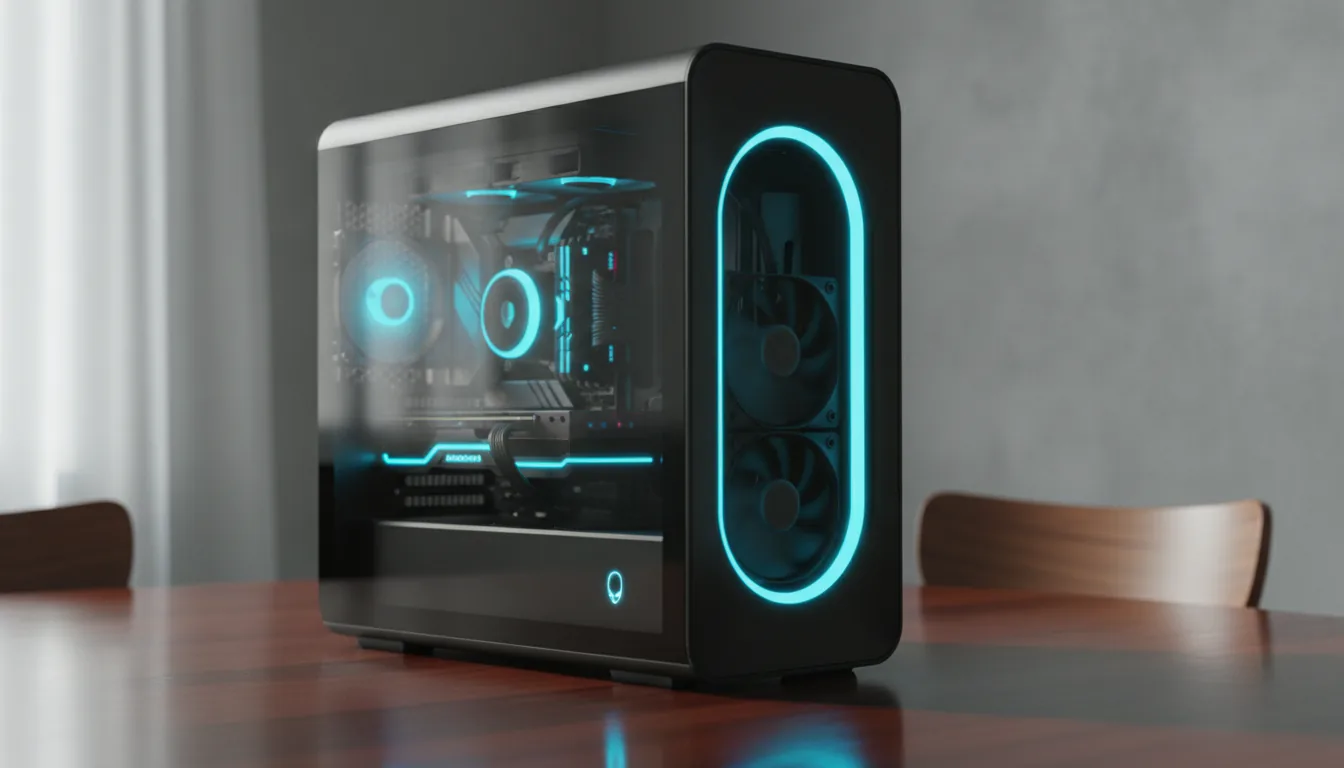
Alienware Aurora R16
Alienware gets a lot of criticism, sometimes deserved. But the R16 generation is a noticeable step up in terms of thermals and layout.
Why it works well for Blender:
Strong CPU options paired sensibly with RTX 4070 or 4080 GPUs
Much better airflow than older Alienware designs
Consistent performance during longer renders
The downside is price. You’re paying a bit for the brand. But if you want a powerful system that works out of the box with minimal tweaking, it’s a reasonable tradeoff.
Corsair Vengeance i7400
This is one of the more balanced prebuilts you’ll find in this range.
It shines because Corsair doesn’t cheap out on core components. Cooling is solid, power delivery is reliable, and the systems usually ship with more sensible RAM configurations than most competitors. With an RTX 4080 and a modern Intel or Ryzen CPU, Blender feels responsive even with heavier scenes.
It’s not flashy. That’s kind of the point.
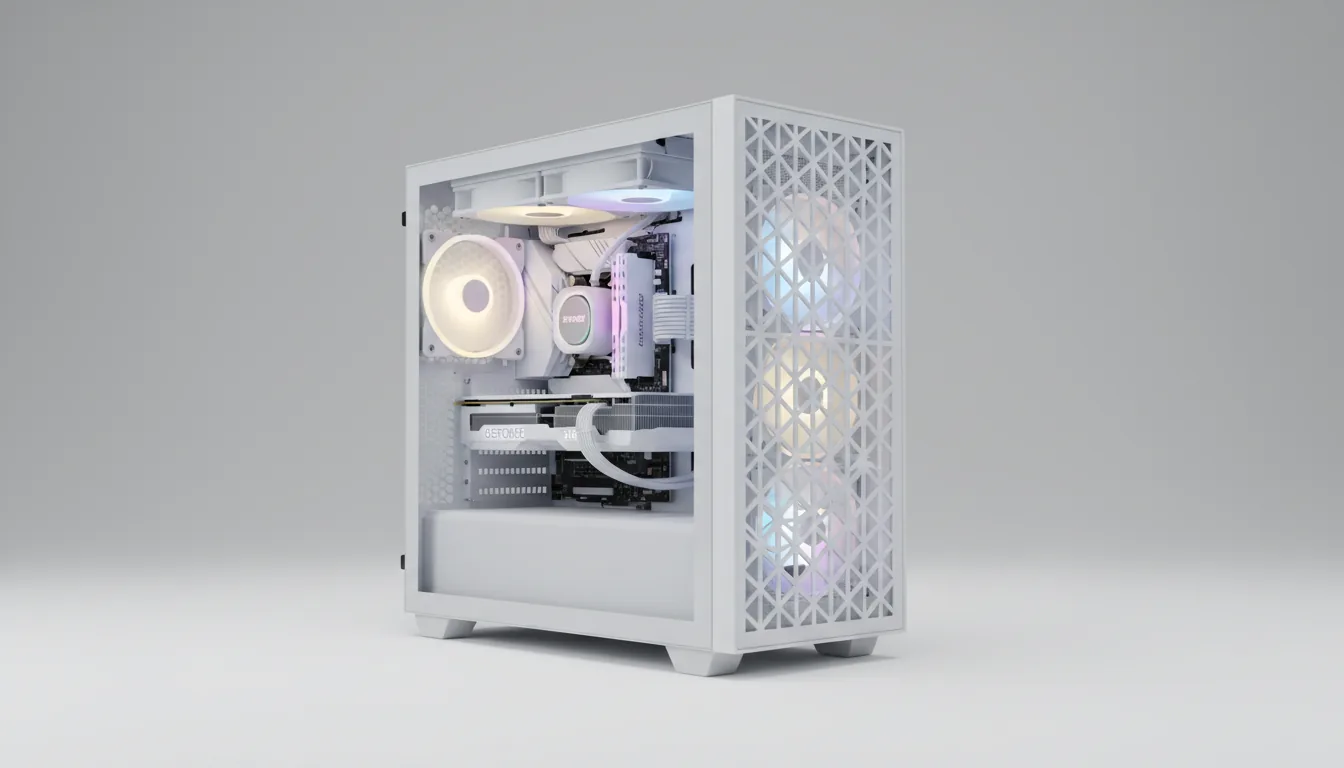
Custom Build: Ryzen 9 + RTX 4080
If you’re open to custom builds, this combo hits a sweet spot for Blender.
A Ryzen 9 7900X or similar paired with an RTX 4080 gives you:
Excellent viewport performance
Much faster Cycles render times
Enough CPU power for simulations without bogging everything down
Add 64GB of RAM and this setup handles most freelance Blender workloads comfortably. Animation, geometry nodes, mid-sized simulations. All fine.
The only real downside is cost creep. It’s easy to keep upgrading parts “just in case.” Discipline matters here.
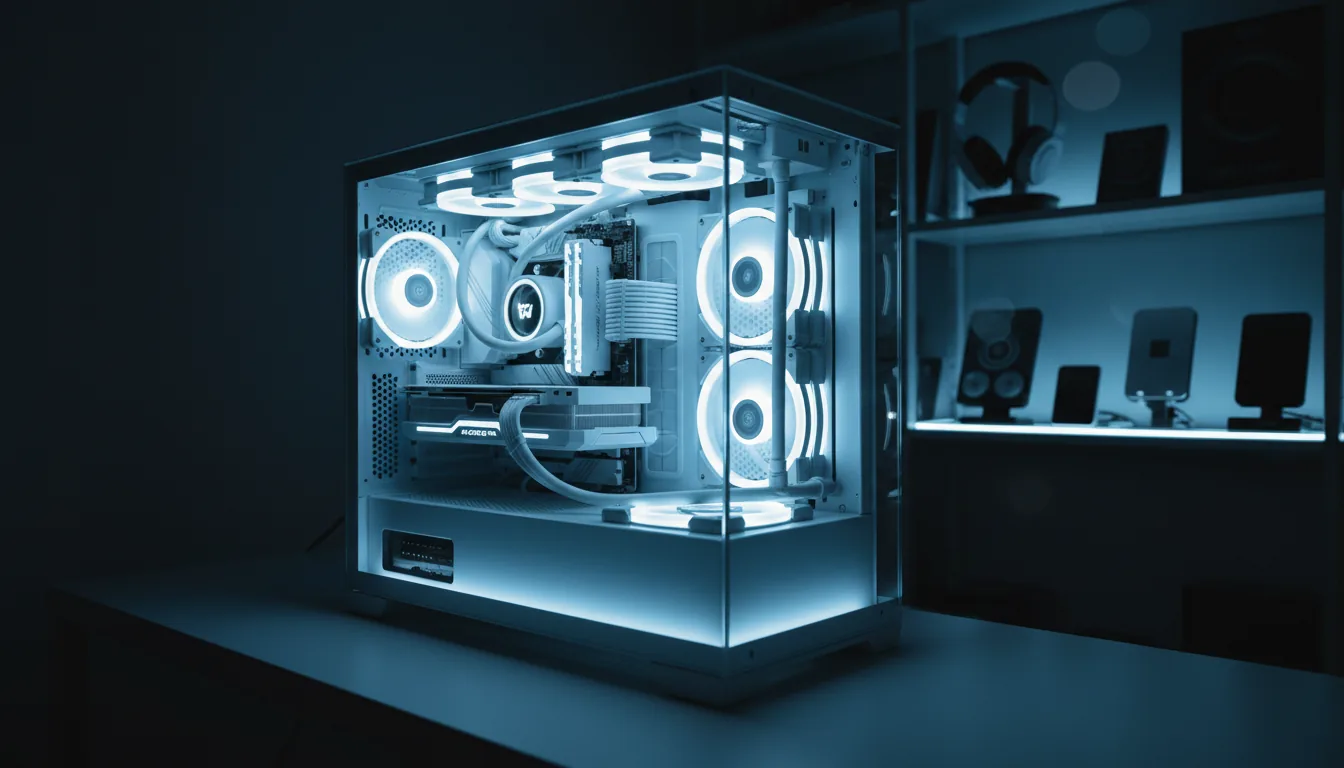
Who This Tier Is Really For
Mid-range Blender PCs make sense if Blender is part of how you make money or if your projects are growing fast. They’re ideal for freelancers, advanced users, and anyone tired of waiting on test renders or dealing with sluggish viewports.
They’re probably overkill if you’re still learning the basics or only open Blender occasionally. But if you’re already hitting limits on a budget system, this tier feels like a relief.
If you are using Blender for 3D printing, CPU-heavy operations like booleans, modifiers, and mesh cleanup become far more important than render speed. This practical Blender for 3D printing guide explains where hardware limits show up first.
High-End Blender Workstations
This is the tier where Blender stops asking politely and starts demanding real hardware. If you’re working on large animation projects, heavy simulations, or complex scenes every single day, this is where the limits of mid-range systems show up fast.
High-end Blender machines aren’t about bragging rights. They’re about time. Shaving minutes off test renders. Running sims without babysitting them. Keeping the viewport responsive even when scenes get messy.
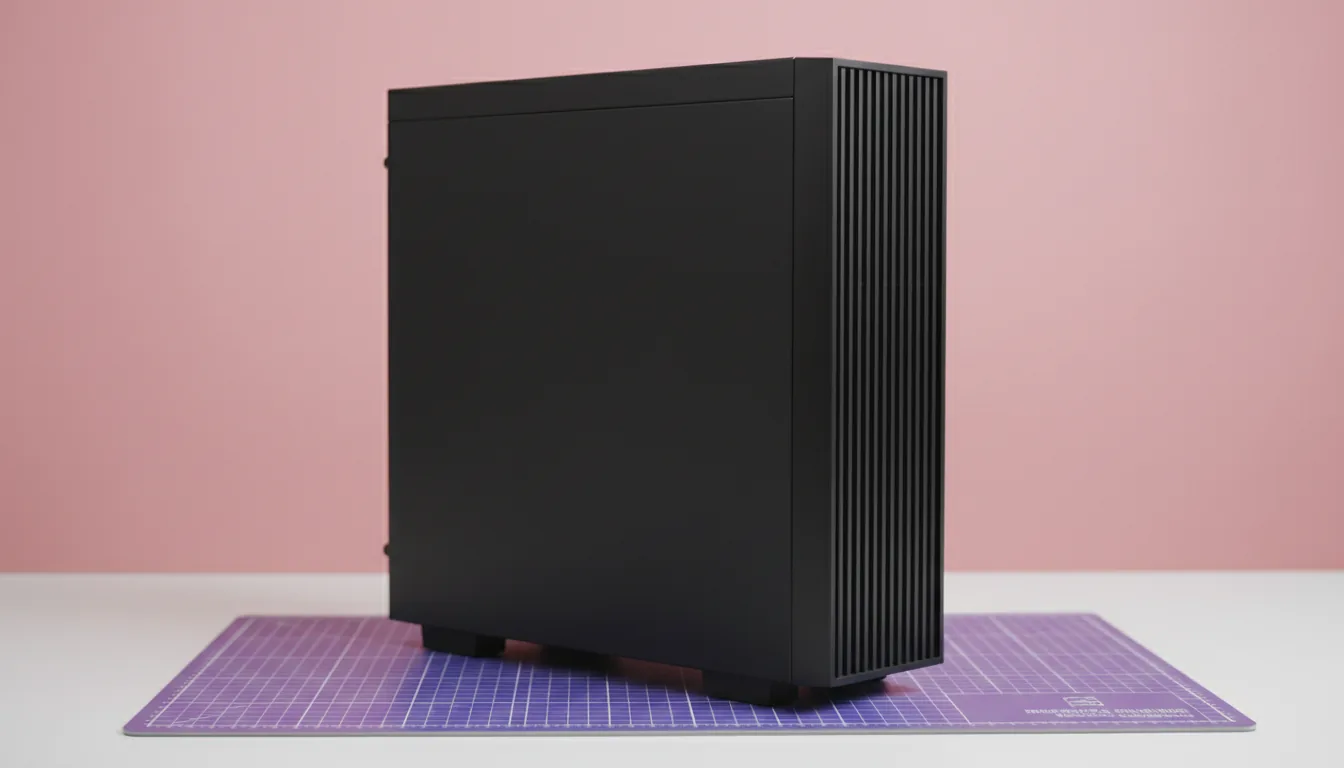
Puget Systems Blender Workstation
Puget is one of the few companies that actually tests their systems specifically for Blender, not just gaming or generic benchmarks. That shows.
Why these are popular with professionals:
CPU and GPU choices are tuned for Blender workloads
Excellent thermal design for sustained performance
Very stable under long renders and simulations
They’re not cheap, but they’re predictable. If you want a machine that behaves the same way every day under heavy load, that reliability matters more than flashy specs.
BOXX APEXX Series
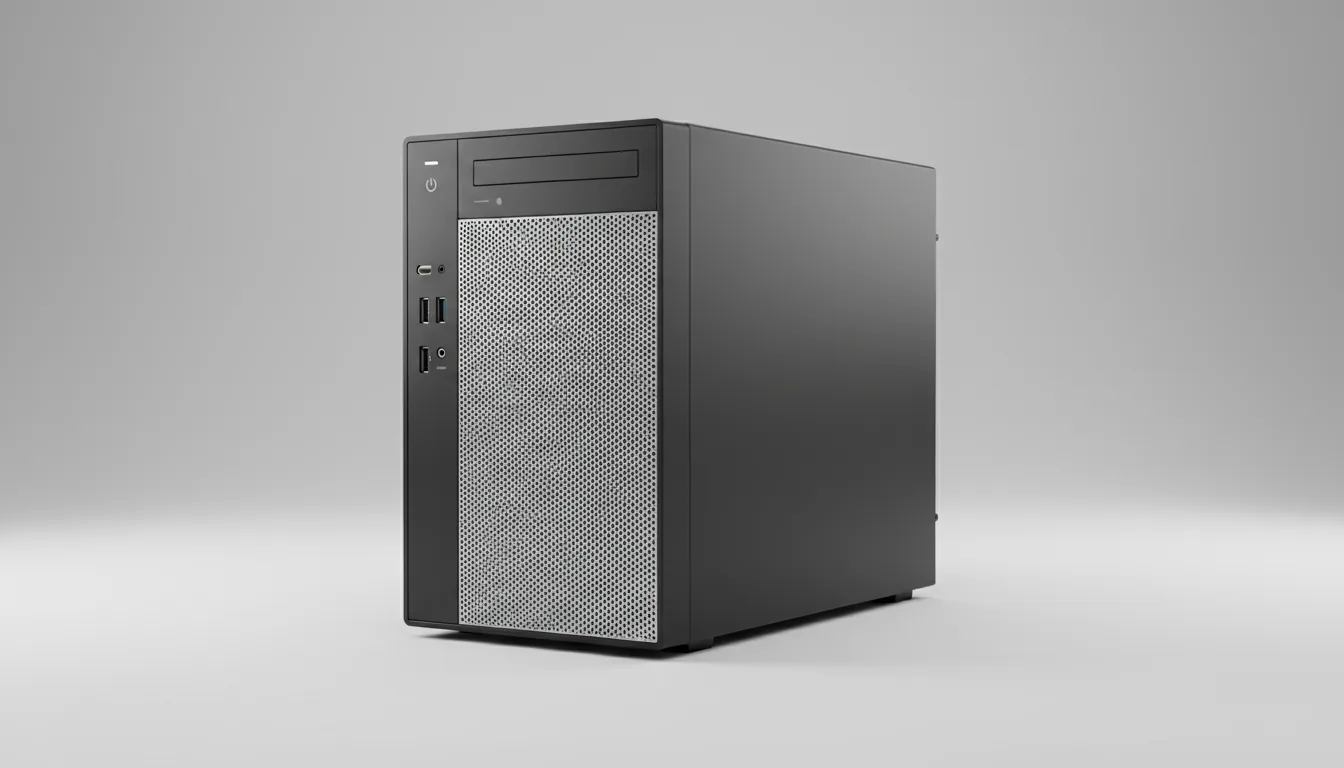
BOXX targets studios and power users who push Blender hard.
These systems make sense when:
You work with massive scenes or very high-res textures
You rely heavily on simulations
You need large amounts of VRAM or even multi-GPU setups
They’re built to stay fast under constant pressure. The downside is cost. This is the point where every upgrade starts to feel expensive very quickly.
Custom High-End Build: Threadripper + RTX 4090
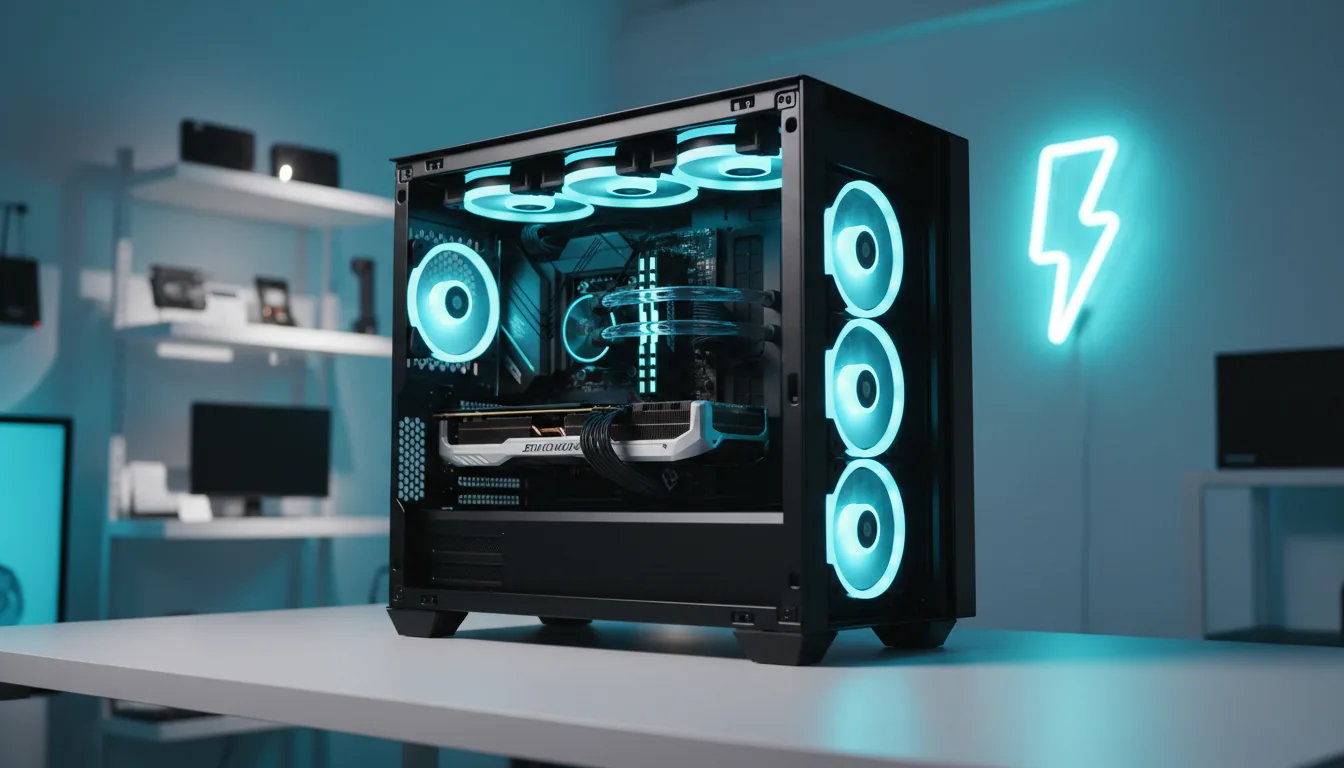
If you want maximum control and maximum power, this is the nuclear option.
A typical setup looks like:
Threadripper or high-core-count Ryzen CPU
RTX 4090 (or multiple GPUs for render-heavy workflows)
128GB RAM or more
Fast NVMe storage for cache and assets
This kind of machine tears through Cycles renders and simulations. Large geometry node networks feel manageable. Animation playback stays smooth longer than you’d expect.
The catch is efficiency. You pay a lot for the last stretch of performance, and not everyone actually benefits from it. If your bottleneck isn’t rendering or simulations, this tier can be overkill.
Who High-End Systems Actually Make Sense For
High-end Blender workstations are a good fit for studios, full-time freelancers, and technical artists working with large scenes or heavy simulations daily. They’re also useful when missed deadlines cost real money.
They don’t make much sense if most of your work is modeling, look development, or smaller projects. In those cases, the extra cost rarely translates into proportional gains.
If you are automating tasks, batch processing files, or building custom tools, Blender’s Python API can shift your performance needs toward CPU and memory instead of GPU. This guide on using Python in Blender covers what that means in practice.
Can Blender Run Well on a Laptop?
Short answer. Yes.
Long answer. Yes, but only if you’re realistic about what you’re buying.
Blender itself doesn’t hate laptops. Heat does.
On paper, many laptops look incredible. High core counts, RTX GPUs, tons of marketing hype. In practice, Blender workloads are brutal. Long renders, sustained viewport work, simulations that push both CPU and GPU at the same time. That’s where thin machines fall apart.
I’ve noticed this over and over. Two laptops with similar specs. One feels fine. The other throttles after five minutes and never recovers. The difference is cooling, power limits, and how aggressively the manufacturer lets the hardware breathe.
If you want to use Blender seriously on a laptop, a few things matter more than anything else:
Sustained performance, not boost clocks
Thermal design over thinness
Plugged-in performance, not battery marketing
Forget ultra-light machines. Forget fanless dreams. Blender rewards laptops that are unapologetically chunky.
If you are wondering whether Blender can realistically run on an iPad, the answer depends heavily on what you’re trying to do. This honest look at how Blender actually works on iPad breaks down what’s possible and what isn’t.
Best High-Performance Laptops for Blender
These are the laptops that can actually keep up with real Blender work without collapsing under heat.
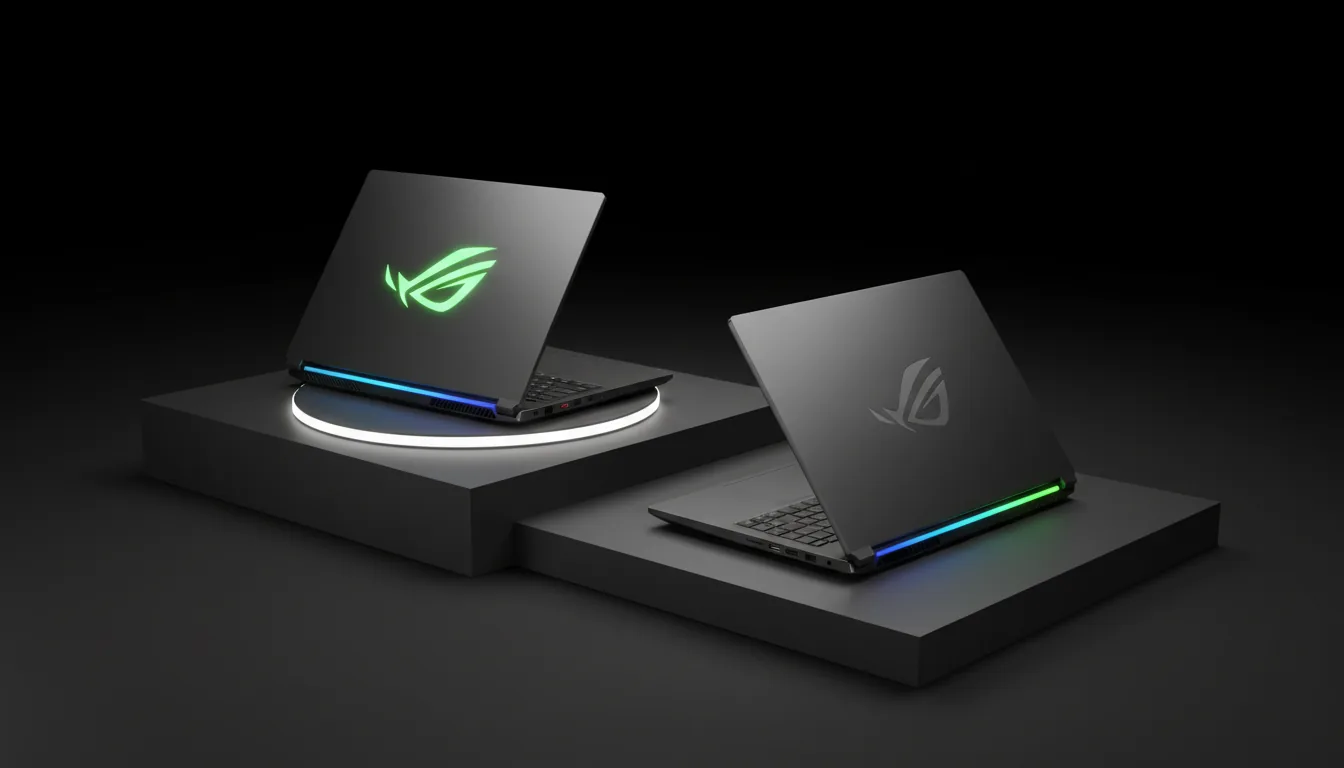
ASUS ROG Strix G16 / G18
ASUS gets this right more often than most. These machines prioritize cooling and power delivery, which Blender absolutely punishes.
They hold higher clock speeds during longer Cycles renders and feel stable when sculpting or animating. Not silent, but consistent. That’s the trade you want.
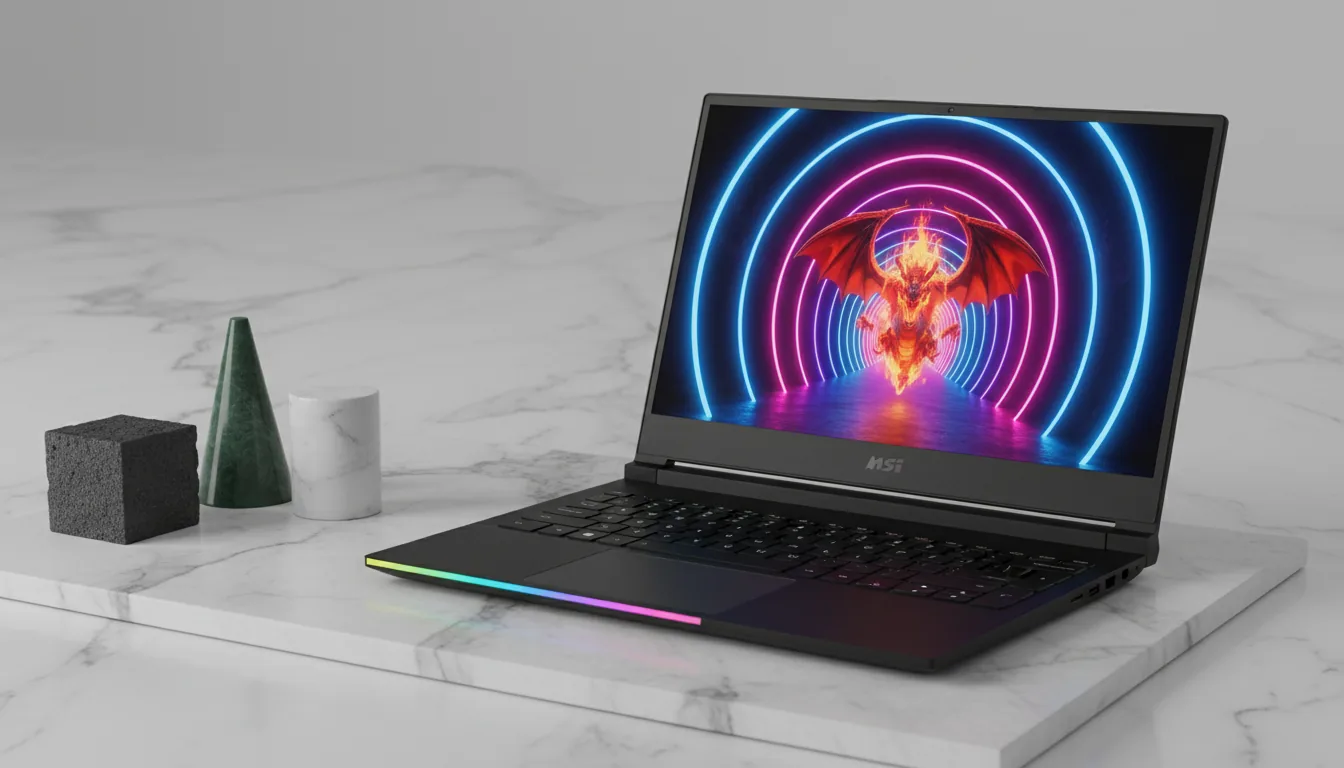
MSI Raider GE78
This is one of the few laptops that can genuinely replace a desktop for many Blender tasks.
The cooling system is aggressive, and that’s a good thing. RTX 4080 and 4090 mobile GPUs perform surprisingly close to their desktop counterparts when fully powered. Heavy scenes are still heavy, but the slowdown is predictable instead of chaotic.
The downside is size and weight. You don’t casually carry this around.
Razer Blade 16
If you want performance without a full gaming aesthetic, this is the refined option.
The screen quality is excellent for look development and texturing, and RTX 4080/4090 configurations handle Cycles well. Thermals are decent, though not as forgiving as the bulkier machines. You’re paying for build quality and design here.
These laptops aren’t cheap, and they aren’t subtle. But they let you model, animate, and render without constantly watching performance fall off a cliff.
Best Mid-Range / Student Laptops for Blender
Not everyone needs a laptop that sounds like a jet engine and weighs as much as a small dog. If portability matters and your Blender work is more about learning, modeling, or lighter projects, this tier makes a lot of sense.
The key thing to understand is compromise. Mid-range laptops can run Blender well, but they don’t forgive sloppy scenes or heavy simulations. If you work within their limits, they’re genuinely useful.
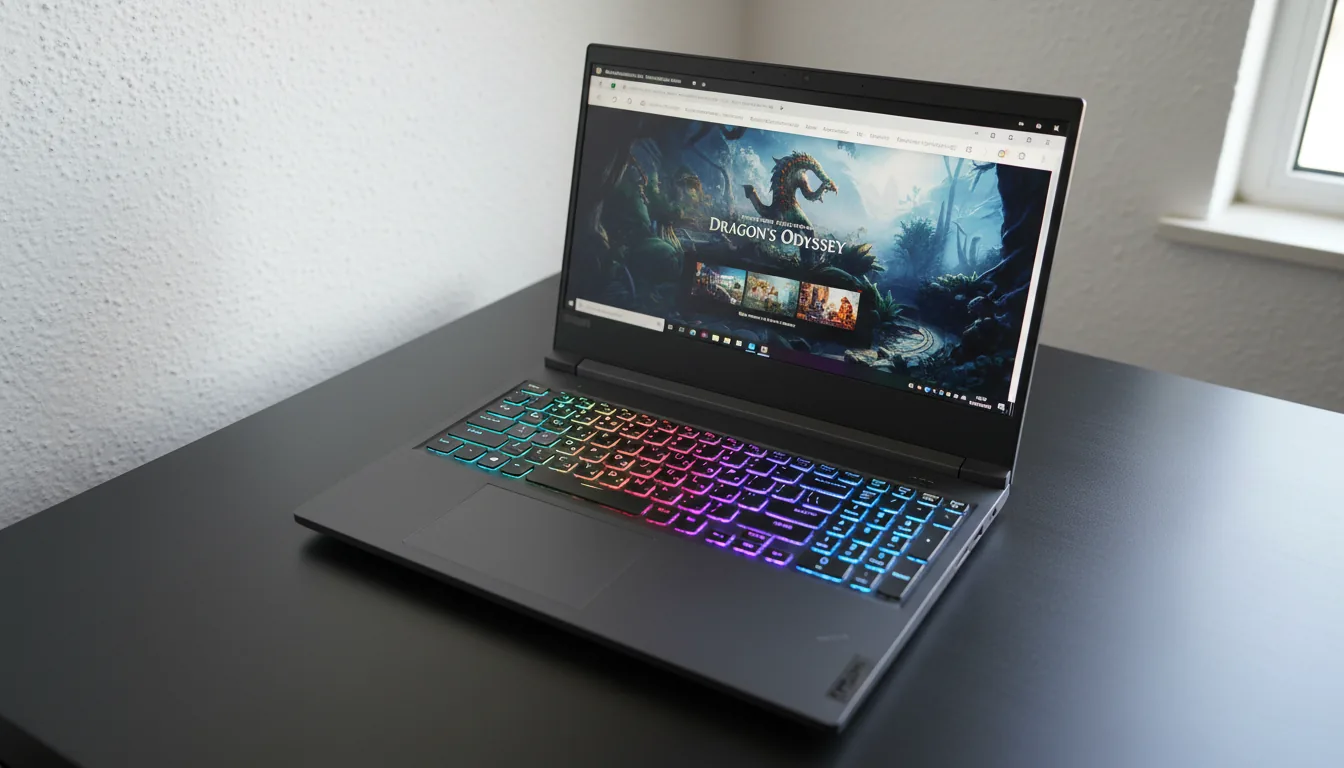
Lenovo Legion 5 Pro
This laptop shows up in Blender discussions for a reason. It hits a rare balance between price, cooling, and performance.
What works well for Blender:
Strong RTX 4070 configurations for Cycles and viewport work
Good thermal design for sustained sessions
Solid screen quality for lookdev and texturing
It’s not the lightest machine, but that extra bulk is doing real work keeping performance stable. For students or freelancers on the move, it’s a very practical choice.
Gigabyte Aero Series
The Aero line leans more toward creators than gamers, and that shows in the screen quality and overall design.
Why Blender users like it:
Color-accurate displays, which matter more than people think
RTX 4070 and 4080 options depending on budget
Cleaner, less aggressive design
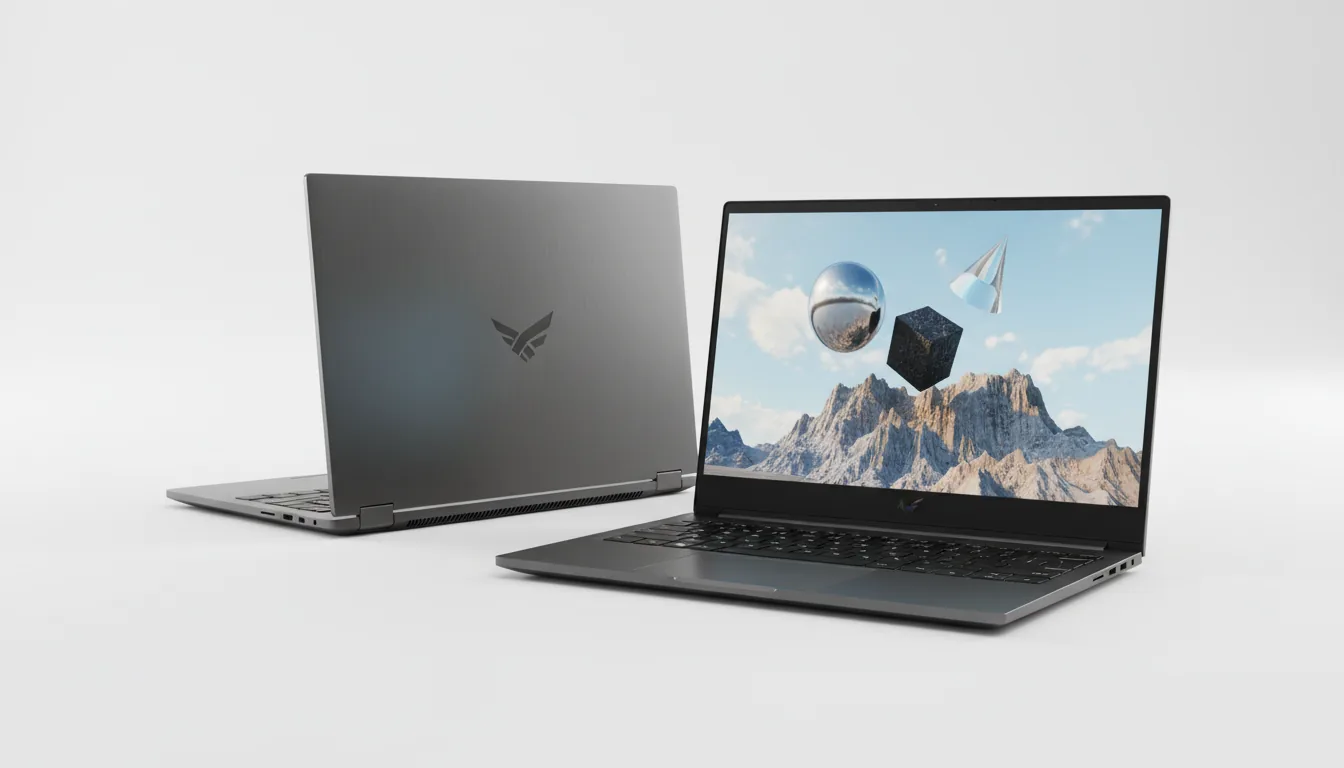
The tradeoff is cooling. These laptops handle modeling and animation well, but sustained heavy renders will push them harder than bulkier gaming machines.
Who These Laptops Are Actually For
This tier works best if you’re learning Blender, doing coursework, or working on smaller personal or freelance projects. Modeling, sculpting, simple animation, and test renders all feel fine here.
They start to struggle when scenes grow large or simulations get heavy. Long Cycles renders will take time, and that’s normal. These machines are about flexibility, not brute force.
If you need portability but don’t want Blender to feel painful, this is the sensible middle ground.
If you want Blender to feel faster without immediately upgrading your hardware, workflow improvements often give the biggest return. These Blender tips and tricks focus on small changes that add up quickly.
Common Blender PC Buying Mistakes
This is the part where a lot of money quietly disappears.
Most bad Blender setups aren’t bad because the hardware is weak. They’re bad because one decision throws everything else off balance. I’ve seen these mistakes over and over, usually followed by frustration and an unnecessary upgrade a year later.
Buying a powerful GPU and cheaping out everywhere else
This is the classic one. An RTX 4080 paired with a mediocre CPU or 16GB of RAM sounds impressive on paper and feels awful in practice. Viewport work stutters, simulations crawl, and Blender feels slow everywhere except final renders.
Assuming 16GB of RAM is “fine for now”
It might be fine for a week. Then scenes get bigger. Textures get heavier. Geometry nodes show up. Blender doesn’t ease into running out of memory. It hits a wall. If you’re serious about Blender, 32GB is the starting point, not the upgrade goal.
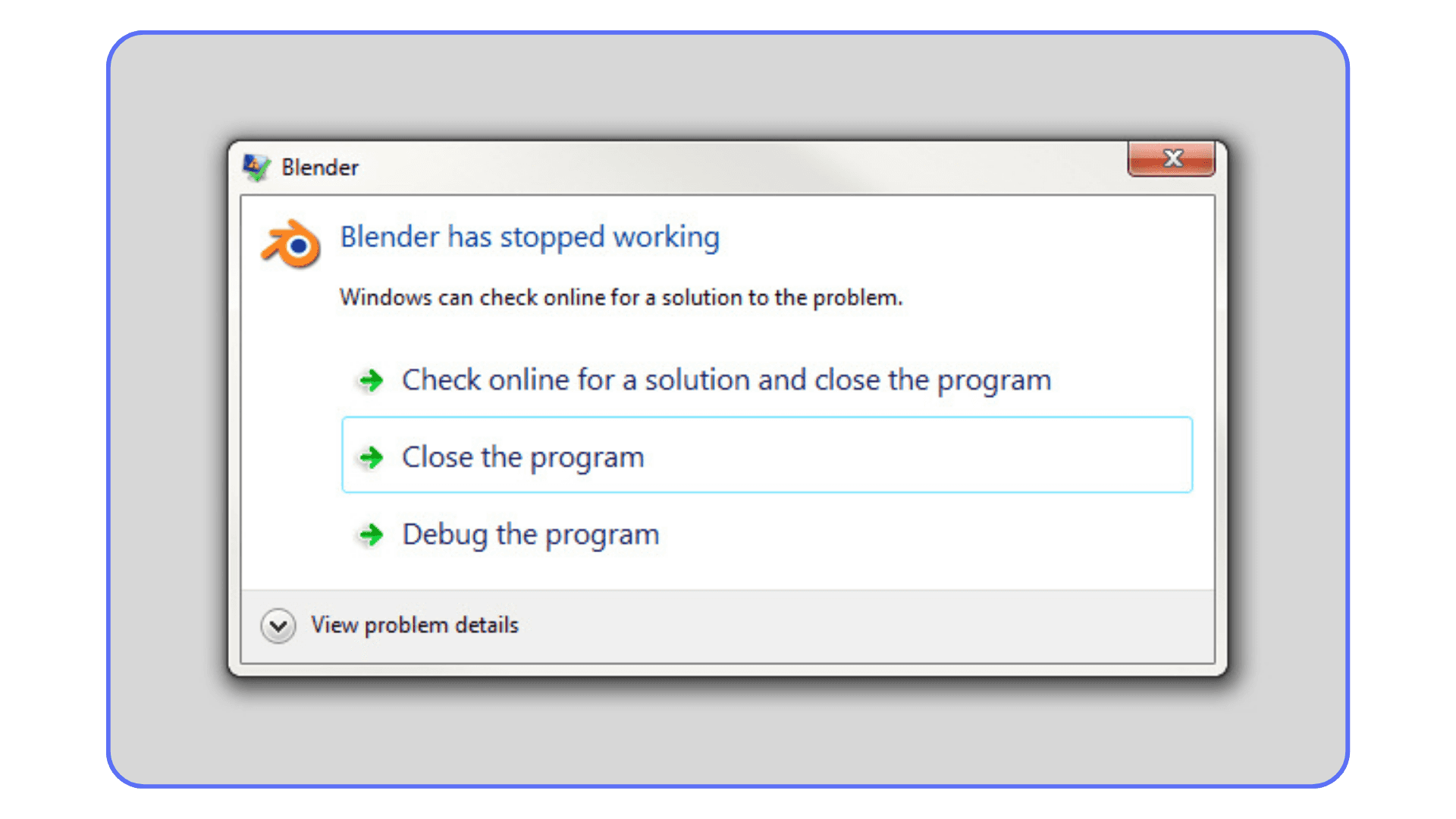
Ignoring cooling because the specs look good
Thermals don’t show up on spec sheets, but Blender exposes them fast. Poor airflow means throttling. Throttling means inconsistent performance. That’s why some machines feel fast for five minutes and slow forever after.
Overspending on CPU cores you never use
More cores aren’t always better. Blender benefits from strong single-core performance for a lot of everyday tasks. A newer 8 or 12 core CPU can feel snappier than an older 24 core monster in actual use.
Forgetting about storage speed entirely
Slow drives don’t tank FPS, but they absolutely kill workflow. Long load times, slow cache writes, and painful autosaves add up fast. Once you’ve used Blender on a fast NVMe drive, going back feels broken.
These mistakes don’t just hurt performance. They break flow. And in Blender, flow is everything.
What Blender Upgrades Actually Improve
Benchmarks are nice. They make charts look clean and comparisons easy. But they don’t tell you what actually changes when you upgrade a machine and sit down to work.
Here’s what I’ve noticed after years of swapping parts and watching other Blender users do the same.
Going from 16GB to 32GB of RAM
This is one of the biggest quality-of-life upgrades you can make. Blender stops freezing when you load larger textures. You stop closing other apps just to keep things moving. Viewport hitches become less frequent. It doesn’t feel flashy. It just feels calmer.
Jumping from 32GB to 64GB of RAM
This matters once your scenes grow up. Large geometry node setups, heavier simulations, multiple Blender files open at once. Suddenly you stop thinking about memory entirely. For freelancers, this upgrade often feels bigger than a GPU bump.
Upgrading from an RTX 3060 to an RTX 4070 or 4080
Final renders get noticeably faster. Viewport shading feels smoother with heavier materials. Cycles preview becomes something you actually leave on instead of constantly toggling off. The workflow change is real, especially if you render often.
Moving from a mid-range CPU to a stronger one
This one surprises people. Faster CPUs don’t just help simulations. They make Blender feel snappier everywhere. Modifiers update quicker. Timeline scrubbing improves. Even simple tasks feel less delayed.
Switching from a SATA SSD to NVMe
No frame rate magic here. Just fewer interruptions. Scenes load quicker. Caches write faster. Autosaves stop breaking your concentration. Once you’re used to it, slow storage feels unbearable.
The important thing to understand is that Blender performance upgrades don’t stack evenly. Some upgrades change how Blender feels every minute. Others only matter at the end of a render.
If your machine feels slow all day and fast for five minutes at export, you’re upgrading the wrong part.
Using Vagon Cloud Computer Instead of Upgrading
This is the part where a lot of Blender users quietly change how they work.
Instead of asking “What PC should I buy next?”, they ask a more practical question. Do I really need to own this much power all the time?
For many people, the answer is no.
Most Blender workflows aren’t heavy from start to finish. You model, sculpt, animate, tweak materials, iterate. All of that runs fine on a decent local machine. The real pain shows up at specific moments. High-resolution Cycles renders. Dense simulations. Big exports right before a deadline.
That’s exactly where Vagon Cloud Computer fits in.
Instead of upgrading your entire setup, you spin up a powerful cloud computer only when you need it. Full desktop access, high-end GPUs, plenty of RAM. You open Blender, load your files, and work like you would on a local workstation. No new hardware. No waiting. No thermal limits in your room.
The key advantage isn’t raw speed. It’s control.
You keep your local machine for day-to-day Blender work. Then, when a project demands more power, you scale up instantly. When you’re done, you shut it down. You’re not paying for idle performance, and you’re not locked into a machine that only makes sense during peak workloads.
This setup is especially useful if your projects vary a lot in size, if you work on a laptop but occasionally need desktop-class power, or if you want consistent performance without constantly upgrading hardware.
It’s not about replacing PCs entirely. It’s about using the right level of power at the right moment. For many Blender users, that’s exactly what makes Vagon a practical option instead of yet another expensive upgrade.
Final Thoughts
If there’s one pattern that shows up again and again, it’s this. Blender doesn’t punish weak hardware as much as it punishes bad decisions.
Most slow workflows aren’t caused by some missing flagship GPU. They’re caused by small mismatches that add up. Too little RAM. A CPU that can’t keep the viewport responsive. A laptop that looks powerful but can’t hold its speed once things heat up. Those problems drain time every single day.
The best PC for Blender is the one that stays out of your way. The one that lets you focus on shaping ideas instead of watching progress bars or second-guessing settings. For some people, that’s a balanced desktop they’ll use for years. For others, it’s a solid local machine paired with cloud power when projects suddenly get heavier than expected.
There’s no universal answer, and that’s okay. Blender workflows aren’t uniform, so hardware choices shouldn’t be either.
If you’re upgrading, upgrade where Blender feels slow most often. If you’re buying new, aim for balance over bragging rights. And if your workload comes in waves, it’s worth thinking beyond ownership entirely.
The goal isn’t the fastest machine on paper.
It’s the setup that lets you keep creating without friction.
FAQs
1. Is Blender more CPU-heavy or GPU-heavy?
Both, just at different times. In everyday work like modeling, sculpting, modifiers, animation playback, and many simulations, the CPU matters more than people expect. Strong single-core performance makes Blender feel responsive. The GPU becomes critical when you switch to Cycles rendering, heavy viewport shading, and denoising. That’s why balanced systems almost always feel better than GPU-only upgrades.
2. How much RAM do I really need for Blender?
For serious Blender use, 32GB is the practical minimum. It keeps things stable once scenes grow beyond simple models. If you work with large textures, geometry nodes, simulations, or multiple apps alongside Blender, 64GB is where things start to feel comfortable. More RAM doesn’t make Blender faster, but it prevents slowdowns that kill flow.
3. Is an RTX GPU actually necessary?
Strictly speaking, no. Blender runs on other GPUs. But in practice, RTX cards make life much easier. Cycles performs significantly better with CUDA and OptiX, viewport shading is smoother, and denoising is faster. If you render often, an RTX GPU is one of the safest bets you can make.
4. Can Blender run well on a laptop?
Yes, but only if the laptop is built for sustained performance. Cooling and power limits matter more than headline specs. Thicker laptops with aggressive cooling almost always outperform thinner machines with similar components. If portability matters, choose thermals over aesthetics every time.
5. Should I upgrade my GPU or CPU first?
If Blender feels slow during modeling, animation, or simulations, upgrade the CPU or RAM first. If everything feels fine until you hit final renders, then a GPU upgrade makes more sense. A good rule of thumb is to fix what feels slow most often, not what looks worst in benchmarks.
6. Is building a custom PC better than buying a prebuilt?
Custom builds usually offer better value and more control, especially for Blender. You’re less likely to overpay for branding or unnecessary extras. Prebuilts make sense if you want convenience, warranty coverage, and minimal setup. Performance can be great either way if the parts are chosen well.
7. When does a cloud computer make sense for Blender?
Cloud machines are useful when your workload isn’t consistent. If most of your work runs fine locally but certain projects demand much more power, spinning up a high-performance cloud system can be more practical than owning top-tier hardware full time. This is where tools like Vagon Cloud Computer fit naturally into a Blender workflow, especially for rendering and heavy exports.
8. Is a high-end workstation worth it for beginners?
Usually not. Beginners benefit far more from learning optimization, scene management, and workflow basics than from extreme hardware. A balanced mid-range system teaches better habits and is easier to grow with. High-end machines make sense once your projects regularly push hardware limits.
Here’s the blunt reality.
Most Blender users don’t have weak computers. They have badly balanced ones.
I’ve seen people spend serious money on a high-end GPU and still watch Blender choke in the viewport. Fans spinning, RGB glowing, render crawling. I’ve done it myself. Upgraded the GPU first because that’s what everyone recommends. It barely helped.
The problem is simple. Blender doesn’t reward throwing money at one component. It rewards balance. CPU, RAM, GPU, storage. Miss one, and everything slows down.
And most of your time in Blender isn’t spent on final renders anyway. It’s spent moving around the scene, scrubbing timelines, testing sims, fixing mistakes. If that part feels slow, the “best” PC on paper won’t feel best in practice.
That’s why this question is trickier than it sounds. Before talking brands or price tags, we need to talk about what Blender actually uses.
What Blender Really Uses
If you’ve ever upgraded to a powerful GPU and wondered why Blender still feels slow, this is usually why.
Blender isn’t doing one thing all the time. Your hardware gets stressed in different ways depending on what you’re doing. Modeling, sculpting, animating, simulating, rendering. Each of those leans on a different part of the system, and most of your time isn’t spent rendering final frames.
In day-to-day work, the CPU carries more weight than most people expect. Viewport interaction, modifiers updating, booleans, physics simulations, and animation playback are all CPU-heavy. A fast, modern CPU with strong single-core performance can make Blender feel instantly more responsive, even if the GPU stays the same.
Memory is the bottleneck that catches people off guard. Once you hit the limit, Blender doesn’t slow down gracefully. It stalls. Textures stop loading. Viewports hitch. Undo becomes painful. If you work with large scenes, high-resolution textures, geometry nodes, or multiple apps open, 32GB isn’t a luxury. It’s the baseline. In my experience, moving from 32GB to 64GB often improves everyday smoothness more than a GPU upgrade.
The GPU matters most at the finish line. Cycles rendering, viewport shading, and denoising are where RTX cards really shine, especially with OptiX. Faster GPUs mean faster final frames. But if everything else is slow, you’re just rendering slow decisions faster.
Storage doesn’t add raw power, but it affects patience. NVMe SSDs won’t boost frame rates, yet they dramatically reduce load times, cache writes, and scene saves. Once you’re used to that speed, slower drives feel unbearable.
This is the mistake I see constantly. People optimize for the last ten percent of the workflow and ignore the other ninety. Blender rewards the opposite approach.
Get the fundamentals right first. Then a GPU upgrade actually means something.
If you are struggling with long render times even on a decent GPU, chances are your Cycles settings are holding you back more than your hardware. This breakdown of the best render settings for Blender shows where real performance gains actually come from.
Minimum Specs for Blender
Blender will run on weaker machines.
That doesn’t mean you’ll enjoy using it.
Here’s the baseline where Blender stops fighting you on every click and starts behaving like a proper tool.
CPU: Modern 6–8 cores
Recent Ryzen 5 or Intel i5 and newer. Strong single-core performance matters more than raw core count for viewport work, modifiers, and general responsiveness.GPU: RTX 3060 / RTX 4060 class or better
Aim for at least 8GB VRAM. This is where Cycles, viewport shading, and GPU denoising stop feeling painfully slow.RAM: 32GB minimum
Not optional. Large scenes, high-resolution textures, geometry nodes, or running Blender alongside other apps will chew through 16GB fast. 32GB is the survival line.Storage: NVMe SSD only
No performance charts here, just quality of life. Faster loads, faster cache writes, faster saves. Once you switch, going back feels broken.
Who this tier is for:
Students
Beginners
Hobbyists learning Blender seriously
Light to moderate scenes and renders
Who should skip it:
Anyone doing heavy simulations
Large animation projects
Complex geometry node setups
People already hitting RAM limits or slow viewport feedback
This setup makes Blender usable. Not blazing fast, but not frustrating either.
If you are working with Grease Pencil or doing 2D animation inside Blender, CPU performance and viewport responsiveness matter far more than raw GPU power. This practical guide to 2D animation on Blender explains what really affects smooth playback.
Best Budget Blender PCs Under $1500
This is where a lot of Blender users start, and if you choose wisely, it’s enough to do real work without constant frustration. The biggest risk at this level isn’t weak hardware. It’s imbalance.
At this price point, Blender responds best to a setup that avoids obvious bottlenecks:
A modern CPU that keeps the viewport responsive
A mid-range RTX GPU for Cycles
Enough RAM to stop Blender from stalling mid-scene
Get those right, and the experience is far better than the price suggests.
HP Omen 45L
This is technically a gaming PC, but it works surprisingly well for Blender.
Why it’s a solid choice:
Good airflow, so performance stays stable during longer renders
Common RTX 3060 and 4060 configurations
Easy RAM and storage upgrades later
The main thing to watch out for is memory. Many base models ship with 16GB RAM, which isn’t enough for serious Blender work. Upgrade to 32GB and the machine feels noticeably smoother.
Lenovo Legion Tower 5
If you want something quieter and less flashy, this is a clean pick.
What it does well:
Sensible CPU and GPU pairings
Stable viewport performance
More restrained noise and design
The tradeoff is upgrade flexibility. Some configurations don’t leave much room for future GPU upgrades, so it’s better if you plan to use it largely as-is.
A Simple DIY Option That Still Makes Sense
If you’re comfortable building or ordering a custom PC, a Ryzen 5 paired with an RTX 4060 is still one of the best value combos for Blender.
Typical strengths:
Very good viewport responsiveness for the price
Solid Cycles render times for small to medium scenes
No money wasted on branding or extras
The downside is support. You’re responsible for troubleshooting if something goes wrong. For some people, that’s fine. For others, it’s a dealbreaker.
Who This Tier Is Best For
Budget Blender PCs are a good fit if you’re learning Blender seriously or working on smaller projects where modeling, sculpting, look development, or light animation make up most of your time. For small to medium scenes, this tier feels responsive enough that the hardware fades into the background and you can focus on the work.
Where these systems start to struggle is with heavier workloads. Fluid and smoke simulations can slow things down quickly, large geometry node setups push memory limits, and complex animation scenes with lots of high-resolution textures expose the ceiling fast.
This tier makes Blender feel good, not limitless. And that’s exactly what it’s meant to do.
If you are constantly fighting the interface or feeling slow even on a fast machine, the problem might not be your PC at all. Learning the right Blender shortcuts and hotkeys often saves more time than a hardware upgrade.
Best Mid-Range Blender PCs
This is the range where Blender really starts to feel fast. Not just on final renders, but during the hours you actually spend working. Viewport movement is smoother. Sims finish quicker. You stop second-guessing every subdivision level.
For a lot of freelancers and serious hobbyists, this is the endgame tier.
What defines a good mid-range Blender PC isn’t just stronger parts. It’s headroom. Enough CPU power to keep things responsive, enough GPU to make Cycles feel efficient, and enough RAM that you’re not constantly watching usage climb.
Alienware Aurora R16
Alienware gets a lot of criticism, sometimes deserved. But the R16 generation is a noticeable step up in terms of thermals and layout.
Why it works well for Blender:
Strong CPU options paired sensibly with RTX 4070 or 4080 GPUs
Much better airflow than older Alienware designs
Consistent performance during longer renders
The downside is price. You’re paying a bit for the brand. But if you want a powerful system that works out of the box with minimal tweaking, it’s a reasonable tradeoff.
Corsair Vengeance i7400
This is one of the more balanced prebuilts you’ll find in this range.
It shines because Corsair doesn’t cheap out on core components. Cooling is solid, power delivery is reliable, and the systems usually ship with more sensible RAM configurations than most competitors. With an RTX 4080 and a modern Intel or Ryzen CPU, Blender feels responsive even with heavier scenes.
It’s not flashy. That’s kind of the point.
Custom Build: Ryzen 9 + RTX 4080
If you’re open to custom builds, this combo hits a sweet spot for Blender.
A Ryzen 9 7900X or similar paired with an RTX 4080 gives you:
Excellent viewport performance
Much faster Cycles render times
Enough CPU power for simulations without bogging everything down
Add 64GB of RAM and this setup handles most freelance Blender workloads comfortably. Animation, geometry nodes, mid-sized simulations. All fine.
The only real downside is cost creep. It’s easy to keep upgrading parts “just in case.” Discipline matters here.
Who This Tier Is Really For
Mid-range Blender PCs make sense if Blender is part of how you make money or if your projects are growing fast. They’re ideal for freelancers, advanced users, and anyone tired of waiting on test renders or dealing with sluggish viewports.
They’re probably overkill if you’re still learning the basics or only open Blender occasionally. But if you’re already hitting limits on a budget system, this tier feels like a relief.
If you are using Blender for 3D printing, CPU-heavy operations like booleans, modifiers, and mesh cleanup become far more important than render speed. This practical Blender for 3D printing guide explains where hardware limits show up first.
High-End Blender Workstations
This is the tier where Blender stops asking politely and starts demanding real hardware. If you’re working on large animation projects, heavy simulations, or complex scenes every single day, this is where the limits of mid-range systems show up fast.
High-end Blender machines aren’t about bragging rights. They’re about time. Shaving minutes off test renders. Running sims without babysitting them. Keeping the viewport responsive even when scenes get messy.
Puget Systems Blender Workstation
Puget is one of the few companies that actually tests their systems specifically for Blender, not just gaming or generic benchmarks. That shows.
Why these are popular with professionals:
CPU and GPU choices are tuned for Blender workloads
Excellent thermal design for sustained performance
Very stable under long renders and simulations
They’re not cheap, but they’re predictable. If you want a machine that behaves the same way every day under heavy load, that reliability matters more than flashy specs.
BOXX APEXX Series
BOXX targets studios and power users who push Blender hard.
These systems make sense when:
You work with massive scenes or very high-res textures
You rely heavily on simulations
You need large amounts of VRAM or even multi-GPU setups
They’re built to stay fast under constant pressure. The downside is cost. This is the point where every upgrade starts to feel expensive very quickly.
Custom High-End Build: Threadripper + RTX 4090
If you want maximum control and maximum power, this is the nuclear option.
A typical setup looks like:
Threadripper or high-core-count Ryzen CPU
RTX 4090 (or multiple GPUs for render-heavy workflows)
128GB RAM or more
Fast NVMe storage for cache and assets
This kind of machine tears through Cycles renders and simulations. Large geometry node networks feel manageable. Animation playback stays smooth longer than you’d expect.
The catch is efficiency. You pay a lot for the last stretch of performance, and not everyone actually benefits from it. If your bottleneck isn’t rendering or simulations, this tier can be overkill.
Who High-End Systems Actually Make Sense For
High-end Blender workstations are a good fit for studios, full-time freelancers, and technical artists working with large scenes or heavy simulations daily. They’re also useful when missed deadlines cost real money.
They don’t make much sense if most of your work is modeling, look development, or smaller projects. In those cases, the extra cost rarely translates into proportional gains.
If you are automating tasks, batch processing files, or building custom tools, Blender’s Python API can shift your performance needs toward CPU and memory instead of GPU. This guide on using Python in Blender covers what that means in practice.
Can Blender Run Well on a Laptop?
Short answer. Yes.
Long answer. Yes, but only if you’re realistic about what you’re buying.
Blender itself doesn’t hate laptops. Heat does.
On paper, many laptops look incredible. High core counts, RTX GPUs, tons of marketing hype. In practice, Blender workloads are brutal. Long renders, sustained viewport work, simulations that push both CPU and GPU at the same time. That’s where thin machines fall apart.
I’ve noticed this over and over. Two laptops with similar specs. One feels fine. The other throttles after five minutes and never recovers. The difference is cooling, power limits, and how aggressively the manufacturer lets the hardware breathe.
If you want to use Blender seriously on a laptop, a few things matter more than anything else:
Sustained performance, not boost clocks
Thermal design over thinness
Plugged-in performance, not battery marketing
Forget ultra-light machines. Forget fanless dreams. Blender rewards laptops that are unapologetically chunky.
If you are wondering whether Blender can realistically run on an iPad, the answer depends heavily on what you’re trying to do. This honest look at how Blender actually works on iPad breaks down what’s possible and what isn’t.
Best High-Performance Laptops for Blender
These are the laptops that can actually keep up with real Blender work without collapsing under heat.
ASUS ROG Strix G16 / G18
ASUS gets this right more often than most. These machines prioritize cooling and power delivery, which Blender absolutely punishes.
They hold higher clock speeds during longer Cycles renders and feel stable when sculpting or animating. Not silent, but consistent. That’s the trade you want.
MSI Raider GE78
This is one of the few laptops that can genuinely replace a desktop for many Blender tasks.
The cooling system is aggressive, and that’s a good thing. RTX 4080 and 4090 mobile GPUs perform surprisingly close to their desktop counterparts when fully powered. Heavy scenes are still heavy, but the slowdown is predictable instead of chaotic.
The downside is size and weight. You don’t casually carry this around.
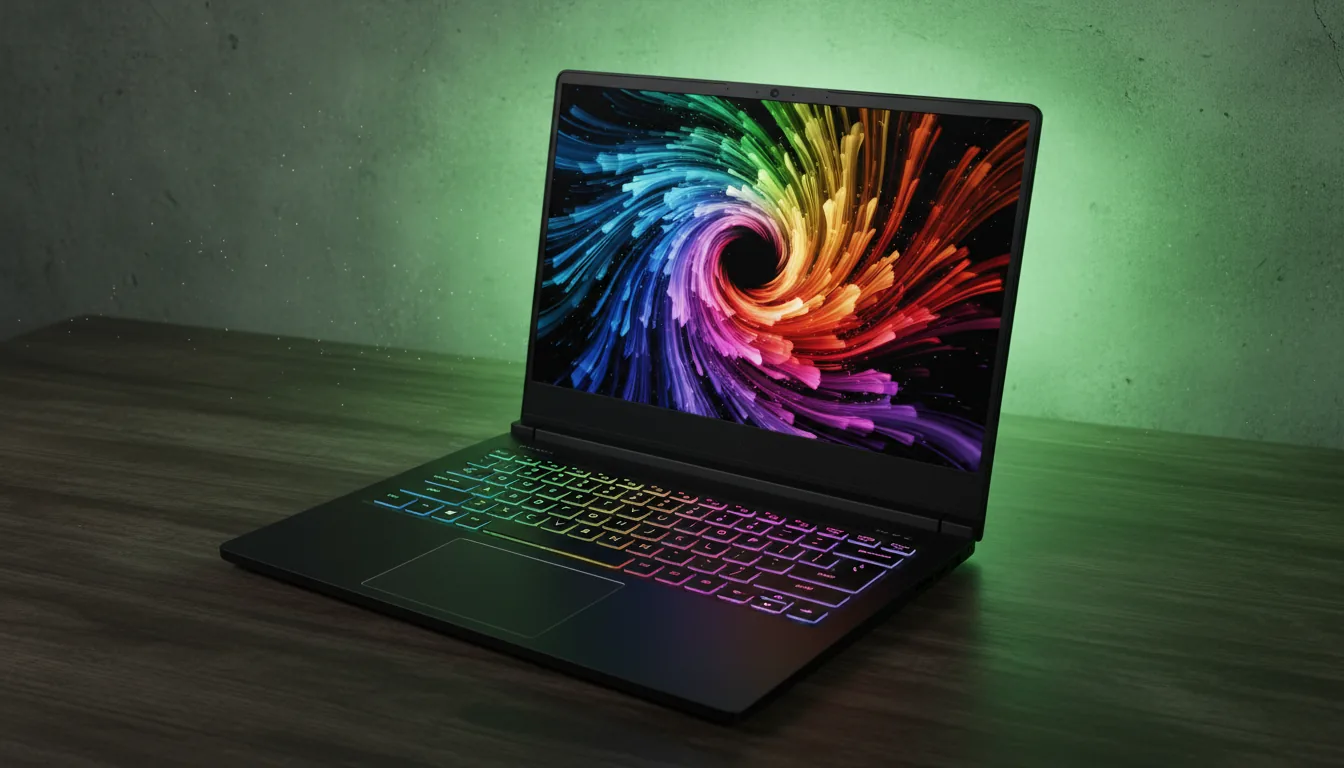
Razer Blade 16
If you want performance without a full gaming aesthetic, this is the refined option.
The screen quality is excellent for look development and texturing, and RTX 4080/4090 configurations handle Cycles well. Thermals are decent, though not as forgiving as the bulkier machines. You’re paying for build quality and design here.
These laptops aren’t cheap, and they aren’t subtle. But they let you model, animate, and render without constantly watching performance fall off a cliff.
Best Mid-Range / Student Laptops for Blender
Not everyone needs a laptop that sounds like a jet engine and weighs as much as a small dog. If portability matters and your Blender work is more about learning, modeling, or lighter projects, this tier makes a lot of sense.
The key thing to understand is compromise. Mid-range laptops can run Blender well, but they don’t forgive sloppy scenes or heavy simulations. If you work within their limits, they’re genuinely useful.
Lenovo Legion 5 Pro
This laptop shows up in Blender discussions for a reason. It hits a rare balance between price, cooling, and performance.
What works well for Blender:
Strong RTX 4070 configurations for Cycles and viewport work
Good thermal design for sustained sessions
Solid screen quality for lookdev and texturing
It’s not the lightest machine, but that extra bulk is doing real work keeping performance stable. For students or freelancers on the move, it’s a very practical choice.
Gigabyte Aero Series
The Aero line leans more toward creators than gamers, and that shows in the screen quality and overall design.
Why Blender users like it:
Color-accurate displays, which matter more than people think
RTX 4070 and 4080 options depending on budget
Cleaner, less aggressive design
The tradeoff is cooling. These laptops handle modeling and animation well, but sustained heavy renders will push them harder than bulkier gaming machines.
Who These Laptops Are Actually For
This tier works best if you’re learning Blender, doing coursework, or working on smaller personal or freelance projects. Modeling, sculpting, simple animation, and test renders all feel fine here.
They start to struggle when scenes grow large or simulations get heavy. Long Cycles renders will take time, and that’s normal. These machines are about flexibility, not brute force.
If you need portability but don’t want Blender to feel painful, this is the sensible middle ground.
If you want Blender to feel faster without immediately upgrading your hardware, workflow improvements often give the biggest return. These Blender tips and tricks focus on small changes that add up quickly.
Common Blender PC Buying Mistakes
This is the part where a lot of money quietly disappears.
Most bad Blender setups aren’t bad because the hardware is weak. They’re bad because one decision throws everything else off balance. I’ve seen these mistakes over and over, usually followed by frustration and an unnecessary upgrade a year later.
Buying a powerful GPU and cheaping out everywhere else
This is the classic one. An RTX 4080 paired with a mediocre CPU or 16GB of RAM sounds impressive on paper and feels awful in practice. Viewport work stutters, simulations crawl, and Blender feels slow everywhere except final renders.
Assuming 16GB of RAM is “fine for now”
It might be fine for a week. Then scenes get bigger. Textures get heavier. Geometry nodes show up. Blender doesn’t ease into running out of memory. It hits a wall. If you’re serious about Blender, 32GB is the starting point, not the upgrade goal.
Ignoring cooling because the specs look good
Thermals don’t show up on spec sheets, but Blender exposes them fast. Poor airflow means throttling. Throttling means inconsistent performance. That’s why some machines feel fast for five minutes and slow forever after.
Overspending on CPU cores you never use
More cores aren’t always better. Blender benefits from strong single-core performance for a lot of everyday tasks. A newer 8 or 12 core CPU can feel snappier than an older 24 core monster in actual use.
Forgetting about storage speed entirely
Slow drives don’t tank FPS, but they absolutely kill workflow. Long load times, slow cache writes, and painful autosaves add up fast. Once you’ve used Blender on a fast NVMe drive, going back feels broken.
These mistakes don’t just hurt performance. They break flow. And in Blender, flow is everything.
What Blender Upgrades Actually Improve
Benchmarks are nice. They make charts look clean and comparisons easy. But they don’t tell you what actually changes when you upgrade a machine and sit down to work.
Here’s what I’ve noticed after years of swapping parts and watching other Blender users do the same.
Going from 16GB to 32GB of RAM
This is one of the biggest quality-of-life upgrades you can make. Blender stops freezing when you load larger textures. You stop closing other apps just to keep things moving. Viewport hitches become less frequent. It doesn’t feel flashy. It just feels calmer.
Jumping from 32GB to 64GB of RAM
This matters once your scenes grow up. Large geometry node setups, heavier simulations, multiple Blender files open at once. Suddenly you stop thinking about memory entirely. For freelancers, this upgrade often feels bigger than a GPU bump.
Upgrading from an RTX 3060 to an RTX 4070 or 4080
Final renders get noticeably faster. Viewport shading feels smoother with heavier materials. Cycles preview becomes something you actually leave on instead of constantly toggling off. The workflow change is real, especially if you render often.
Moving from a mid-range CPU to a stronger one
This one surprises people. Faster CPUs don’t just help simulations. They make Blender feel snappier everywhere. Modifiers update quicker. Timeline scrubbing improves. Even simple tasks feel less delayed.
Switching from a SATA SSD to NVMe
No frame rate magic here. Just fewer interruptions. Scenes load quicker. Caches write faster. Autosaves stop breaking your concentration. Once you’re used to it, slow storage feels unbearable.
The important thing to understand is that Blender performance upgrades don’t stack evenly. Some upgrades change how Blender feels every minute. Others only matter at the end of a render.
If your machine feels slow all day and fast for five minutes at export, you’re upgrading the wrong part.
Using Vagon Cloud Computer Instead of Upgrading
This is the part where a lot of Blender users quietly change how they work.
Instead of asking “What PC should I buy next?”, they ask a more practical question. Do I really need to own this much power all the time?
For many people, the answer is no.
Most Blender workflows aren’t heavy from start to finish. You model, sculpt, animate, tweak materials, iterate. All of that runs fine on a decent local machine. The real pain shows up at specific moments. High-resolution Cycles renders. Dense simulations. Big exports right before a deadline.
That’s exactly where Vagon Cloud Computer fits in.
Instead of upgrading your entire setup, you spin up a powerful cloud computer only when you need it. Full desktop access, high-end GPUs, plenty of RAM. You open Blender, load your files, and work like you would on a local workstation. No new hardware. No waiting. No thermal limits in your room.
The key advantage isn’t raw speed. It’s control.
You keep your local machine for day-to-day Blender work. Then, when a project demands more power, you scale up instantly. When you’re done, you shut it down. You’re not paying for idle performance, and you’re not locked into a machine that only makes sense during peak workloads.
This setup is especially useful if your projects vary a lot in size, if you work on a laptop but occasionally need desktop-class power, or if you want consistent performance without constantly upgrading hardware.
It’s not about replacing PCs entirely. It’s about using the right level of power at the right moment. For many Blender users, that’s exactly what makes Vagon a practical option instead of yet another expensive upgrade.
Final Thoughts
If there’s one pattern that shows up again and again, it’s this. Blender doesn’t punish weak hardware as much as it punishes bad decisions.
Most slow workflows aren’t caused by some missing flagship GPU. They’re caused by small mismatches that add up. Too little RAM. A CPU that can’t keep the viewport responsive. A laptop that looks powerful but can’t hold its speed once things heat up. Those problems drain time every single day.
The best PC for Blender is the one that stays out of your way. The one that lets you focus on shaping ideas instead of watching progress bars or second-guessing settings. For some people, that’s a balanced desktop they’ll use for years. For others, it’s a solid local machine paired with cloud power when projects suddenly get heavier than expected.
There’s no universal answer, and that’s okay. Blender workflows aren’t uniform, so hardware choices shouldn’t be either.
If you’re upgrading, upgrade where Blender feels slow most often. If you’re buying new, aim for balance over bragging rights. And if your workload comes in waves, it’s worth thinking beyond ownership entirely.
The goal isn’t the fastest machine on paper.
It’s the setup that lets you keep creating without friction.
FAQs
1. Is Blender more CPU-heavy or GPU-heavy?
Both, just at different times. In everyday work like modeling, sculpting, modifiers, animation playback, and many simulations, the CPU matters more than people expect. Strong single-core performance makes Blender feel responsive. The GPU becomes critical when you switch to Cycles rendering, heavy viewport shading, and denoising. That’s why balanced systems almost always feel better than GPU-only upgrades.
2. How much RAM do I really need for Blender?
For serious Blender use, 32GB is the practical minimum. It keeps things stable once scenes grow beyond simple models. If you work with large textures, geometry nodes, simulations, or multiple apps alongside Blender, 64GB is where things start to feel comfortable. More RAM doesn’t make Blender faster, but it prevents slowdowns that kill flow.
3. Is an RTX GPU actually necessary?
Strictly speaking, no. Blender runs on other GPUs. But in practice, RTX cards make life much easier. Cycles performs significantly better with CUDA and OptiX, viewport shading is smoother, and denoising is faster. If you render often, an RTX GPU is one of the safest bets you can make.
4. Can Blender run well on a laptop?
Yes, but only if the laptop is built for sustained performance. Cooling and power limits matter more than headline specs. Thicker laptops with aggressive cooling almost always outperform thinner machines with similar components. If portability matters, choose thermals over aesthetics every time.
5. Should I upgrade my GPU or CPU first?
If Blender feels slow during modeling, animation, or simulations, upgrade the CPU or RAM first. If everything feels fine until you hit final renders, then a GPU upgrade makes more sense. A good rule of thumb is to fix what feels slow most often, not what looks worst in benchmarks.
6. Is building a custom PC better than buying a prebuilt?
Custom builds usually offer better value and more control, especially for Blender. You’re less likely to overpay for branding or unnecessary extras. Prebuilts make sense if you want convenience, warranty coverage, and minimal setup. Performance can be great either way if the parts are chosen well.
7. When does a cloud computer make sense for Blender?
Cloud machines are useful when your workload isn’t consistent. If most of your work runs fine locally but certain projects demand much more power, spinning up a high-performance cloud system can be more practical than owning top-tier hardware full time. This is where tools like Vagon Cloud Computer fit naturally into a Blender workflow, especially for rendering and heavy exports.
8. Is a high-end workstation worth it for beginners?
Usually not. Beginners benefit far more from learning optimization, scene management, and workflow basics than from extreme hardware. A balanced mid-range system teaches better habits and is easier to grow with. High-end machines make sense once your projects regularly push hardware limits.
Get Beyond Your Computer Performance
Run applications on your cloud computer with the latest generation hardware. No more crashes or lags.

Trial includes 1 hour usage + 7 days of storage.
Summarize with AI

Ready to focus on your creativity?
Vagon gives you the ability to create & render projects, collaborate, and stream applications with the power of the best hardware.

Run heavy applications on any device with
your personal computer on the cloud.
San Francisco, California
Solutions
Vagon Teams
Vagon Streams
Use Cases
© 2026 Vagon. All rights reserved.
Run heavy applications on any device with
your personal computer on the cloud.
San Francisco, California
Solutions
Vagon Teams
Vagon Streams
Use Cases
© 2026 Vagon. All rights reserved.
Run heavy applications on any device with
your personal computer on the cloud.
San Francisco, California
Solutions
Vagon Teams
Vagon Streams
Use Cases
© 2026 Vagon. All rights reserved.