Instant Connection for Pixel Streaming
— New Feature Automated Setup

The First 30 Minutes in Blender 3D: A Practical Workflow Guide
DigitalArt
-
The First 30 Minutes in Blender 3D: A Practical Workflow Guide
DigitalArt
The First 30 Minutes in Blender 3D: A Practical Workflow Guide
DigitalArt
-
Table of Contents
The first 30 minutes in Blender usually decide whether your scene stays clean or slowly turns into a file nobody wants to touch.
Not because you need to make every perfect decision right away. You don’t. Blender is built for experimenting, and half the fun is finding the shape of the project as you work. But the early choices matter more than they seem: where you put assets, how you name collections, which viewport mode you live in, how quickly you start adding modifiers, and whether you test performance before the scene gets heavy.
This is not a beginner tutorial. I’m not going to explain every button in the interface or pretend there’s one correct way to use Blender. There isn’t.
Think of this more like a working routine. The kind you build after enough projects have become slower, messier, or harder to revise than they needed to be.
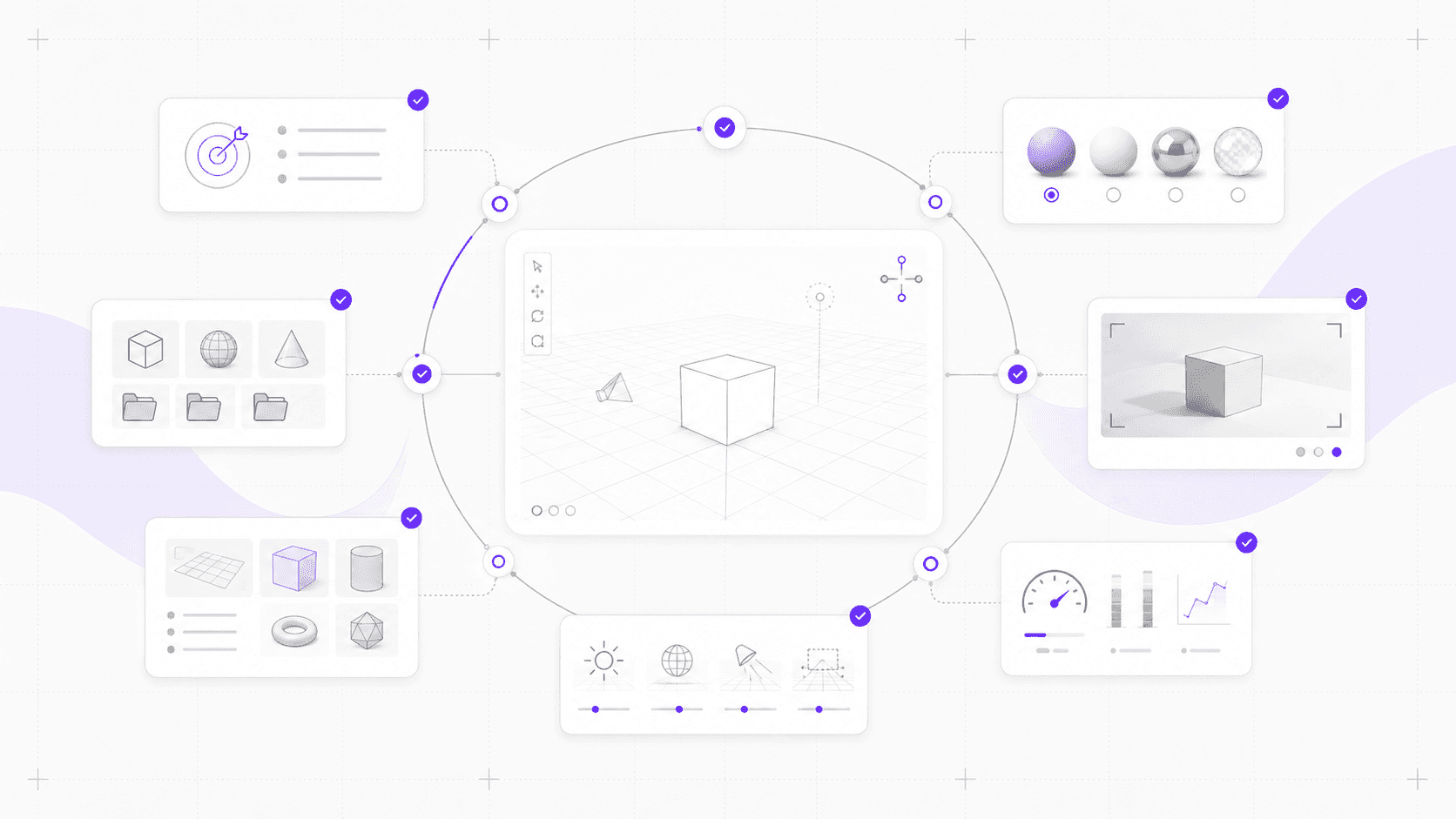
The goal is simple: start a Blender project in a way that keeps the scene readable, the viewport responsive, and the first render preview honest. Less cleanup later. Fewer “why is this suddenly lagging?” moments. Fewer files named final_final_really_final.blend.
We’ll cover the first decisions that shape a Blender project: defining the goal, setting up the scene, choosing the right workspace habits, organizing assets, blocking clean geometry, starting materials and lighting without overbuilding, testing render previews early, watching performance, and knowing when Vagon Cloud Computer makes more sense than pushing a heavy 3D scene through a local machine that is already struggling.
#1. Define the scene goal
Before you touch a cube, decide what kind of project this actually is.
That sounds basic. It is basic. It’s also where a lot of Blender mess starts.
A still product render, a looping animation, a game asset, an architectural interior, a 3D print model, and a quick concept scene all need different decisions. They may all begin in the same Blender interface, but they should not be set up the same way.
If you are making a still render, camera framing matters early. If you are making an animation, timing, scene scale, and playback performance matter earlier than final materials. If you are preparing something for 3D printing, clean geometry, scale, wall thickness, and mesh validity become much more important than a pretty viewport preview.
That’s why “I’ll figure it out later” can get expensive.
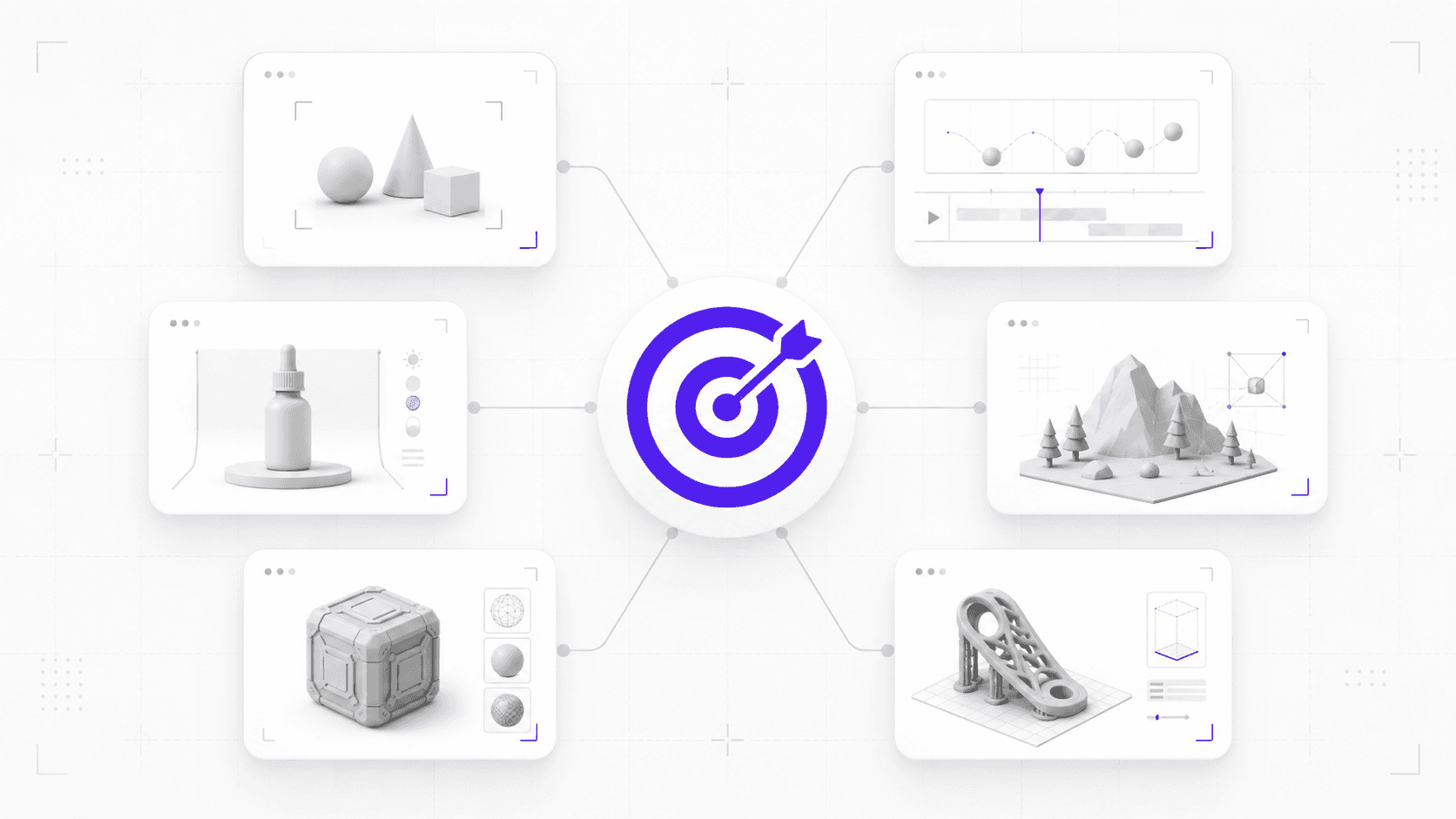
A vague goal makes every decision feel temporary. So you import too many assets. You keep every test object. You add materials before the camera is even chosen. You start subdividing because the model “might” need detail. Then, an hour later, the scene has no clear direction and somehow already feels heavy.
I like to answer a few questions before the project grows:
Am I making a still image, animation, asset, environment, product render, or 3D print model?
What is the final output size or format?
Will this need to be edited later by me or someone else?
Is the camera direction already known?
Does the scene need realism, stylization, speed, or technical accuracy?
Is this a quick concept or a working production file?
You do not need a full creative brief every time. If you are just testing an idea, fine. Keep it loose.
But if the file is client-facing, likely to be revised, or expected to become part of a bigger workflow, define the goal early. Even a rough goal helps.
For example, “a 10-second product animation for a landing page” gives you better setup clues than “make something cool with this bottle model.” You already know you need camera movement, timeline awareness, product scale, clean materials, render tests, and probably a lighter viewport while working.
That one sentence can save you from a lot of wandering.
Blender rewards experimentation, but it also rewards intent. The first few minutes are not about locking the whole project. They are about pointing the file in the right direction before it starts collecting clutter.
If your project is headed toward fabrication, this guide on how to use Blender for 3D printing is a useful next read because print-focused scenes need a different kind of setup.
#2. Set up the workspace
The default Blender scene is fine for opening the app. It is not always fine for starting the actual project.
Before you begin modeling, importing, shading, or scattering objects everywhere, spend a few minutes setting up the workspace around the kind of work you’re about to do. It feels slow at first. It usually saves time almost immediately.
Blender gives you different workspaces for a reason: Layout, Modeling, Sculpting, UV Editing, Shading, Animation, Geometry Nodes, Rendering, Compositing. You don’t need to live inside all of them. But choosing the right one for the next task helps you avoid dragging panels around every five minutes.
If you are blocking a scene, start in Layout or Modeling. If you are building materials, move to Shading. If you are setting up procedural systems, use Geometry Nodes. If you are animating, switch to Animation early enough that the timeline and graph tools are not an afterthought.
Small thing. Big difference.
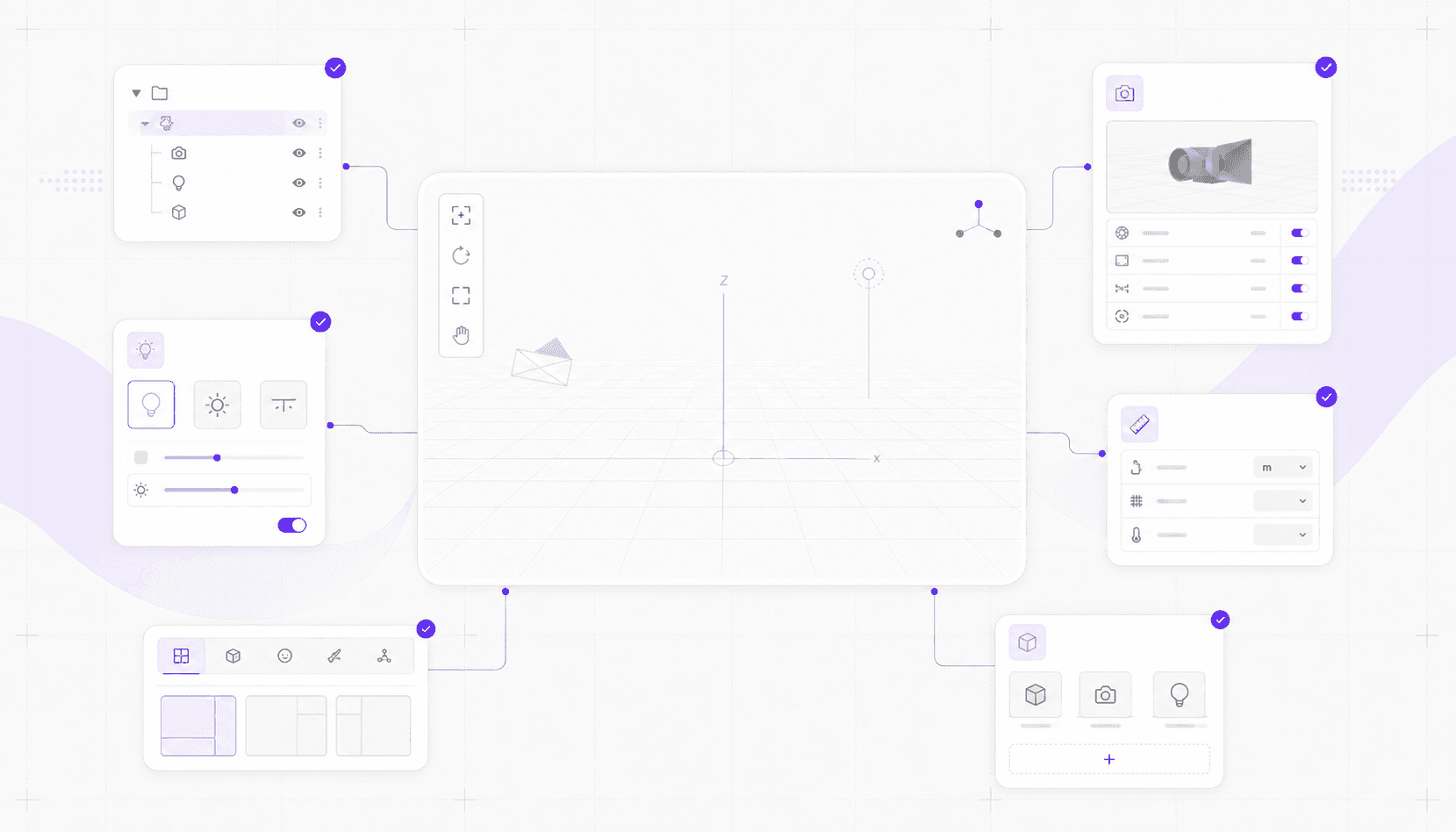
Scale is another early decision that deserves more respect. If the project is architectural, product-based, simulation-heavy, or headed toward 3D printing, set units before the scene grows. Fixing scale later can get annoying, especially once physics, bevels, camera settings, or imported assets are involved.
Collections matter too.
I would rather see a slightly over-organized Blender file than a scene where everything lives in one giant pile called Collection. You don’t need a complicated naming system, but you do need some structure.
A simple setup can be enough:
Cameras
Lights
Hero Object
Environment
Props
References
Tests
For animation, you might add Rig, Simulations, Caches, or Render Passes. For product work, maybe Bottle, Label, Packaging, Surface, Backdrop, and Lighting.
The exact names are less important than the habit. When objects have a place to go, the file stays easier to read.
Set up a camera early as well, even if it is temporary. A rough camera gives the scene a point of view. It tells you what matters and what can stay simple. Without a camera, it is easy to overwork details the viewer will never see.
Same with lights. You do not need final lighting in the first 30 minutes, but you should know whether the scene is being built for studio lighting, environment lighting, interior lighting, or something more stylized.
A good workspace setup might include:
Choosing the workspace layout for the current task
Setting units if scale matters
Creating basic collections
Adding a temporary camera
Adding simple starter lighting
Saving the file with a clear name
Removing default objects you do not need
That last one is personal, but I’ll say it anyway: delete the default cube if it is not part of the project. Or keep it if you’re actually using it. Just don’t let it sit there for no reason like a tiny monument to indecision.
The point is not to make the file perfect. It is to make the file ready. Once the workspace has a basic shape, every next decision gets easier.
#3. Organize assets early
Blender makes it very easy to bring things in.
That’s convenient. It’s also dangerous.
A project can start clean, then turn messy in ten minutes because you imported every reference image, texture pack, HDRI, downloaded model, CAD file, and test asset you might possibly use. Suddenly the file has six versions of the same chair, three environment maps, random image planes, packed textures you forgot about, and a folder structure that only made sense at the exact moment you created it.
Future you will not enjoy that.
Before importing assets, create a simple project folder. Nothing dramatic. Just enough structure so the file does not depend on your Downloads folder, Desktop, or a temporary browser download path.
Something like this works:
Project Name
Source Assets
Textures
References
Blender Files
Caches
Renders
Exports
If the project is small, you can simplify it. If it involves simulations, add a dedicated cache folder. If it uses image sequences, give those their own place. If you are working with a team, be even more explicit. Shared files get confusing fast when names are vague.
Textures deserve special attention. Blender can pack files into the .blend, but that does not mean you should pack everything by default. Packed files can be useful for portability, but they can also make the file huge and harder to manage. Linked textures are easier to update and replace, but only if the paths stay organized.
That’s the tradeoff. Portability versus cleanliness. Pick intentionally.
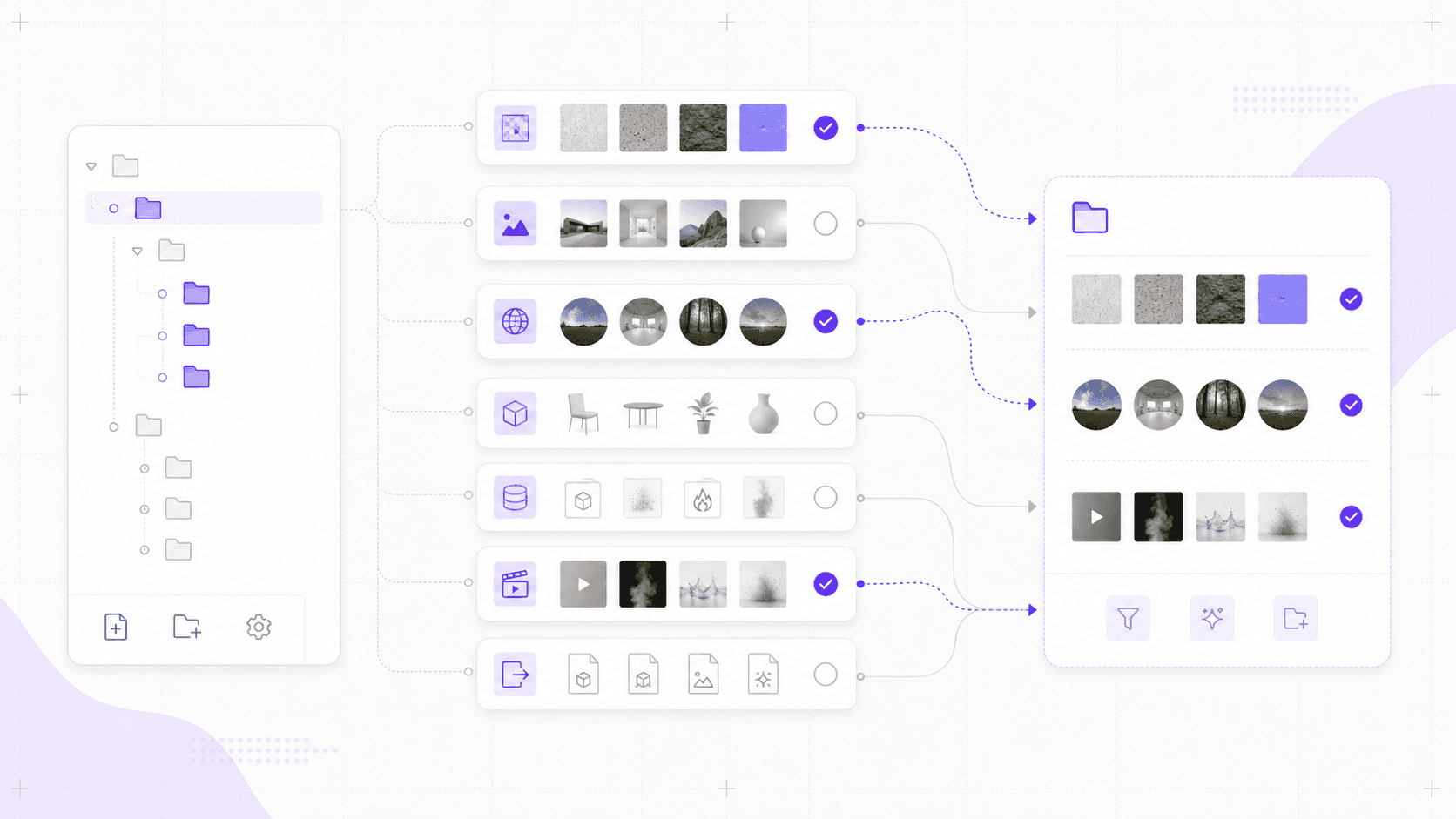
The same goes for downloaded models. Marketplace assets, kitbash packs, CAD imports, and scans can be much heavier than they look. Before dropping them into your main scene, open them in a separate file if you can. Check scale, polygon count, materials, texture paths, and whether the asset includes hidden extras you do not need.
I’ve seen imported assets bring in entire lighting setups, cameras, unused collections, nested materials, and texture references that had nothing to do with the actual object. Not evil. Just messy.
HDRIs are another easy one to overcollect. You do not need twelve environment maps in the file during the first pass. Pick one or two. Test the direction. Keep the rest outside the scene until they are needed.
A cleaner first import habit looks like this:
Gather references before opening the floodgates
Import only what you need for the first pass
Keep textures in a dedicated folder
Check heavy assets in a separate Blender file first
Rename important objects after import
Remove cameras, lights, or collections that came in by accident
Save a clean version before the scene grows
This is not about being precious. It is about keeping the project from becoming fragile.
If Blender cannot find textures later, or if the scene is full of imported leftovers, you lose time in the least creative way possible: hunting for files and cleaning up things you never meant to keep.
Better to spend three minutes organizing assets now than thirty minutes untangling them later.
#4. Build clean geometry
Detail is tempting in Blender because it feels like progress.
You add a bevel and the model looks better. You add subdivision and it looks smoother. You scatter a few props and the scene feels more alive. Then you duplicate something, import a background asset, add another modifier, and suddenly the viewport starts getting less friendly.
This is why I like blocking first.
Start with simple forms. Cubes, planes, cylinders, rough shapes, low-detail proxies. They are not glamorous, but they let you solve the important questions early: scale, silhouette, camera framing, spacing, proportions, and overall composition. If the scene does not work with simple geometry, extra detail usually won’t save it.
Clean geometry is not about making everything low-poly forever. It is about adding complexity at the right time.
For example, if you are building a product render, block the main object, surface, camera, and lighting before adding tiny bevels or high-resolution labels. If you are making an environment, rough in the room, paths, major props, and camera views before placing every cable, plant, book, and screw. If you are creating an animation, make sure the motion works before the scene becomes too heavy to play back.
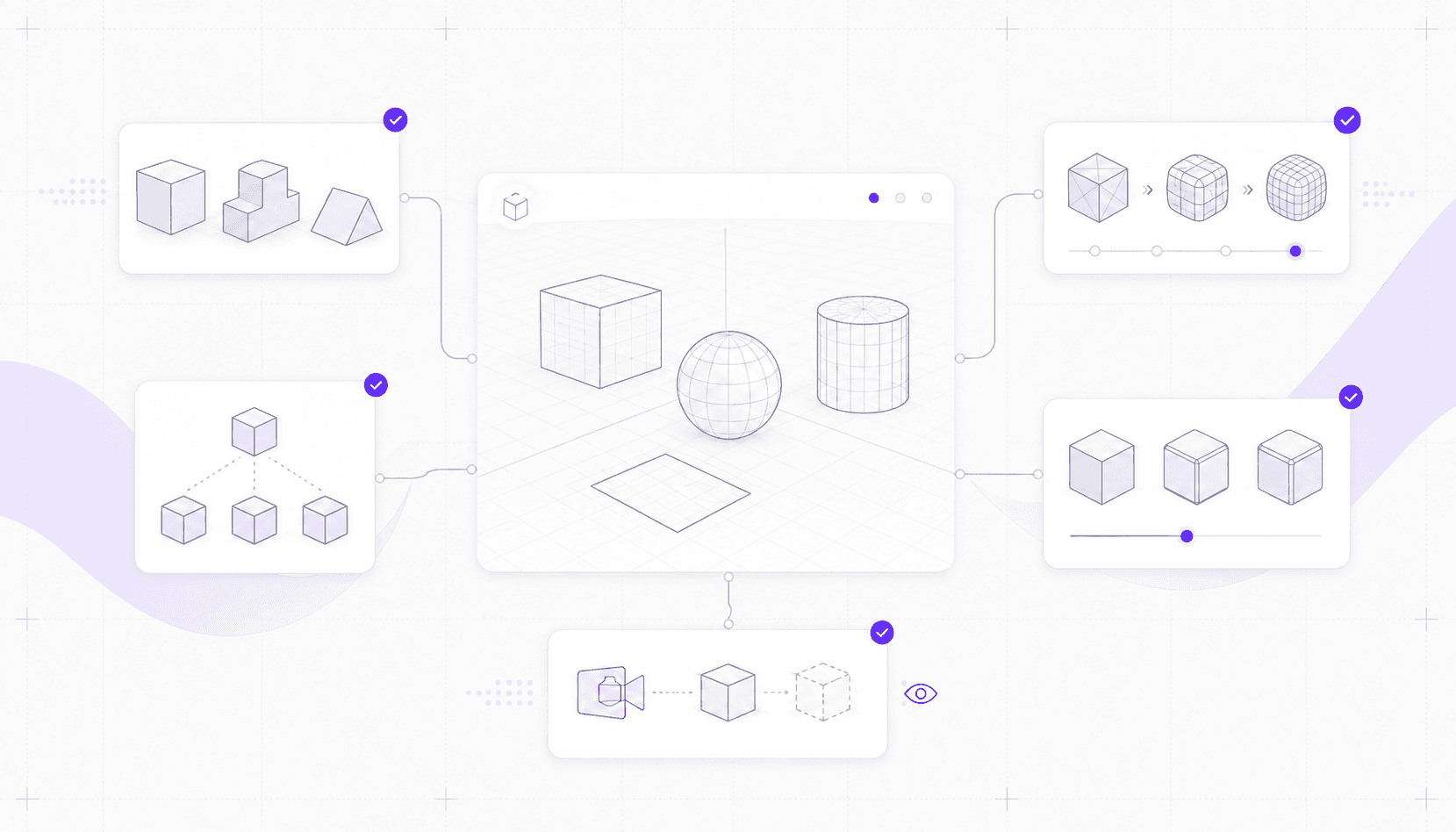
Subdivision surfaces deserve an early check. They are useful, but viewport levels can get out of hand. A viewport subdivision level of 1 or 2 may be enough while you work. The render level can be higher later if the final shot needs it.
Same with bevels. A small bevel can make hard edges catch light nicely. But beveling everything with too many segments can quietly add a lot of geometry. If the object is far from the camera, you probably do not need hero-level bevel detail.
Duplicated objects also matter. If you repeat the same mesh many times, use linked duplicates or collection instances when it makes sense. A scene with repeated bolts, tiles, rocks, chairs, leaves, or props can get heavy fast if every copy is treated as its own full object.
And please, don’t let old test geometry live in the main scene forever.
It’s fine to experiment. Blender is built for that. But once a direction is dead, move it to a Tests collection, hide it from renders, or save it in a separate file. A project full of abandoned objects becomes harder to navigate and easier to break.
A good early geometry check:
Are the main forms readable without extra detail?
Are subdivision levels low enough for viewport work?
Are repeated objects linked where possible?
Are imported meshes heavier than they need to be?
Are old experiments separated from the working scene?
Will the camera actually see this detail?
That last question is the best one.
If the camera will never see the detail, your audience won’t miss it. Your viewport might, though.
#5. Set viewport habits
The viewport is where you spend most of your time in Blender, so it should feel light enough to think.
Not final. Not perfect. Responsive.
A lot of Blender users accidentally turn the viewport into a near-final preview and then leave it that way for the whole session. Material Preview is on. Overlays are everywhere. Scene lights are active. Shadows are visible. Dense collections stay visible even when they’re not being edited. Then the project feels slow before the real work has even started.
You don’t need that much visual information all the time.
Solid view is often the best place to model, block, organize, and animate. It keeps the scene easier to read and usually responds faster than heavier preview modes. Material Preview is useful when you need to judge surface direction, color, roughness, or texture placement. Rendered view is for checking lighting and final look, not for casually moving every object in the scene all day.
That distinction saves time.
If you are adjusting proportions, use Solid. If you are testing materials, switch to Material Preview. If you are checking light behavior or render quality, use Rendered view for a short pass, then leave it when you are done.
Overlays are another place to be selective. Grid, outlines, wireframes, relationship lines, object origins, face orientation, bones, motion paths, measurements, and annotations all have their place. But if they are not helping the current task, turn them off.
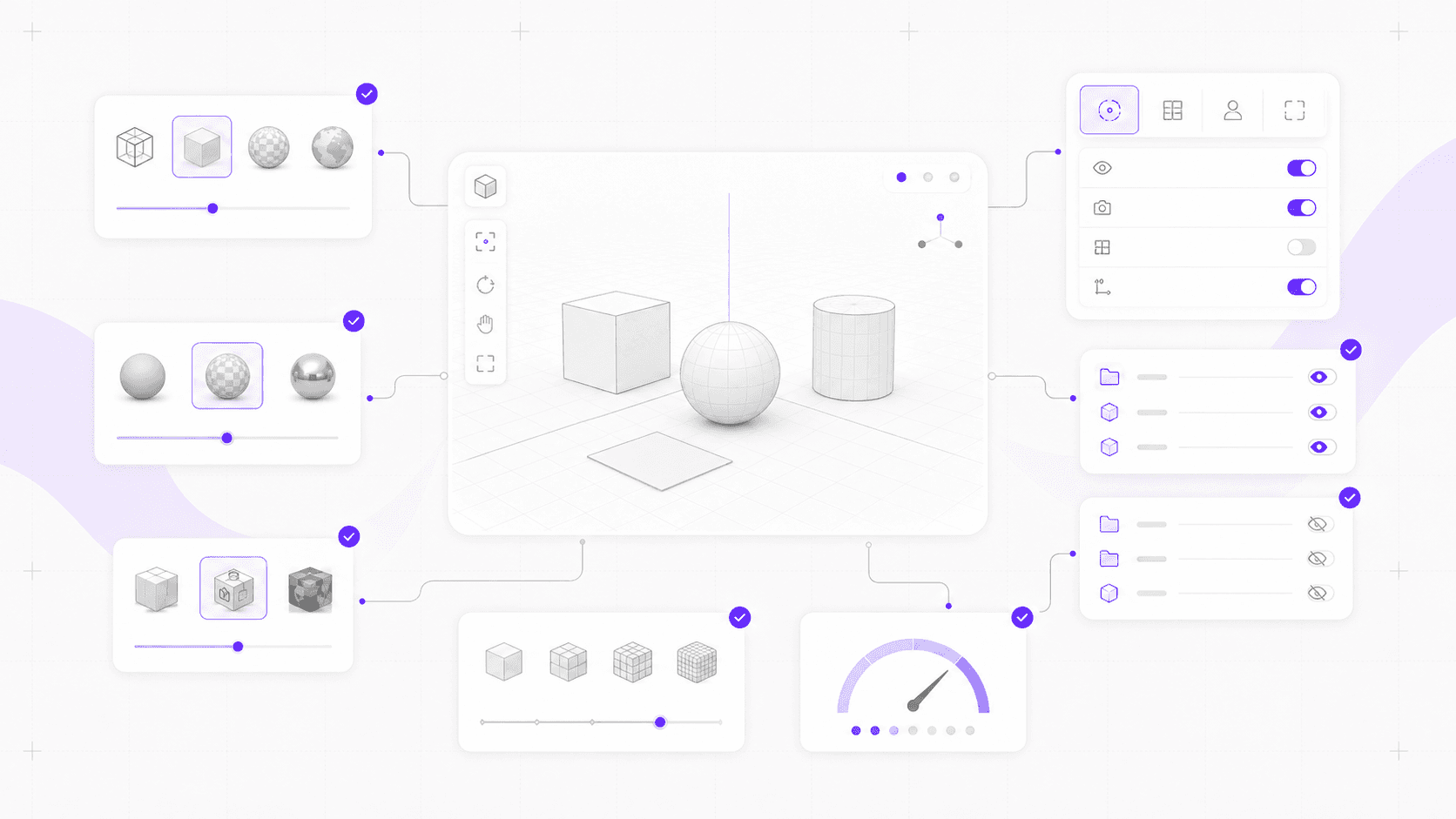
The same goes for collections. You do not need the entire world visible while editing one corner of the scene. Hide background collections, heavy props, high-density foliage, simulation objects, or alternate versions until you need them.
I think of viewport management as attention management. Keep visible what you are actually working on.
A simple viewport routine helps:
Use Solid view for modeling, layout, and organization
Use Material Preview for surface and texture checks
Use Rendered view only when checking lighting or final look
Hide collections you are not editing
Turn off overlays that are not helping
Lower subdivision preview levels while working
Reduce particle or instance display in the viewport
This is not about making Blender less visual. It is about making it more usable.
The first 30 minutes are a good time to build that habit, because once the scene gets heavy, every bad viewport choice becomes more expensive.
And if your project leans toward motion rather than 3D modeling, Vagon’s guide to 2D animation on Blender can help you plan the file differently from the start.
#6. Start materials and lighting
Materials are where Blender can steal your afternoon.
You open the Shader Editor to make one simple surface. Then you add a noise texture. Then a color ramp. Then a bump map. Then a roughness variation. Then you try a different HDRI because the material “doesn’t feel right.” Suddenly the model is still unfinished, the camera is temporary, and you’ve spent 45 minutes perfecting a shader that might not survive the next direction change.
I’ve done it. Most Blender users have.
The better move in the first 30 minutes is to start with simple material intent, not final materials. Give the scene enough surface information to make decisions, but don’t build a complicated node system before the scene direction is clear.
Use placeholder materials first:
Matte black
Rough plastic
Brushed metal
Clear glass
Soft fabric
Warm wood
Neutral clay
Brand color swatches
These do not need to be final. They just need to tell you what kind of world you’re building.
Lighting works the same way. You do not need final lighting immediately, but you do need enough light to judge the scene. A basic area light, a simple three-point setup, or one HDRI can tell you whether the forms, materials, and camera direction are working.
Avoid judging materials in bad lighting. That is how you end up “fixing” a shader that was never the problem.
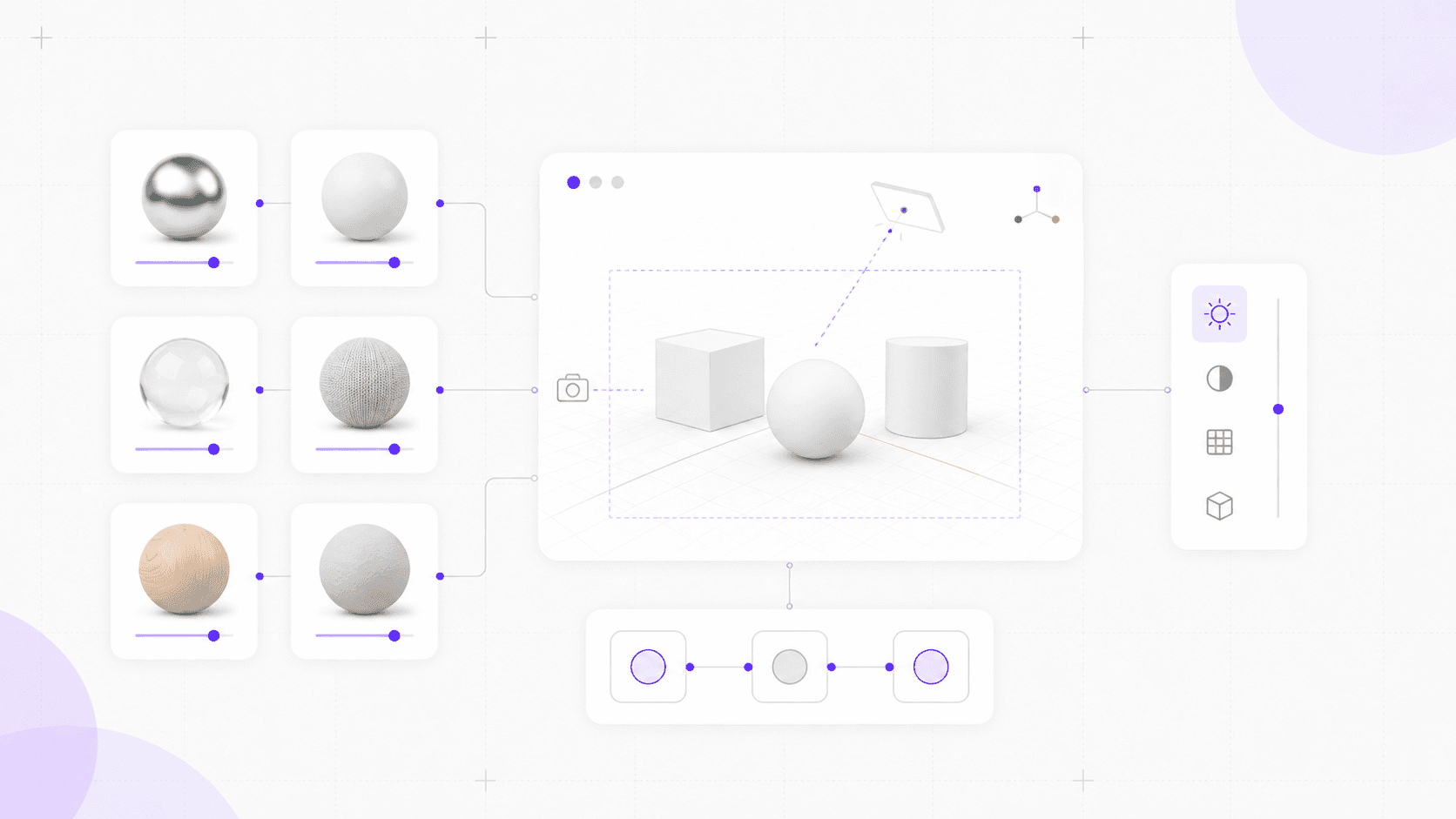
If the scene is product-focused, set up a clean key light and a soft fill early. If it is an interior, block the main light sources before polishing every material. If it is stylized, choose the broad color mood before adding tiny texture details.
Shader complexity should come later.
Node trees can get heavy, especially when they involve layered procedural textures, displacement, transparency, volumetrics, or many image maps. Those can all be useful. Just not always in minute 12.
A good early material and lighting pass might look like this:
Assign simple placeholder materials
Use consistent naming for important materials
Add basic lighting that matches the project direction
Test one or two hero materials only
Avoid complex node trees until the scene is stable
Keep high-resolution textures out until they are needed
Save a clean version before heavy shading work begins
There is a small discipline here: don’t confuse polish with progress.
In the first 30 minutes, materials and lighting should help you understand the scene. They should not trap you inside the Shader Editor before the project has a solid shape.
#7. Test a render preview
A render preview is not something you save for the end.
At least, not if you enjoy avoiding surprises.
Blender scenes can look convincing in the viewport and still fall apart in a render. The lighting may behave differently than expected. Materials may look too glossy, too flat, or too noisy. Transparent objects may render strangely. Shadows may be harsher than they looked in Material Preview. The camera framing might feel weaker once you see the actual output size.
That is why I like doing a small render test early.
Not a final render. Not a full-resolution beauty pass. Just a quick preview that tells you whether the project is heading in the right direction.
Choose the render engine based on the job. Eevee is fast and interactive, which makes it useful for quick previews, stylized scenes, motion graphics, and projects where speed matters. Cycles is heavier, but often better when realistic lighting, global illumination, and physically based rendering matter.
There is no prize for choosing the slowest option too early.
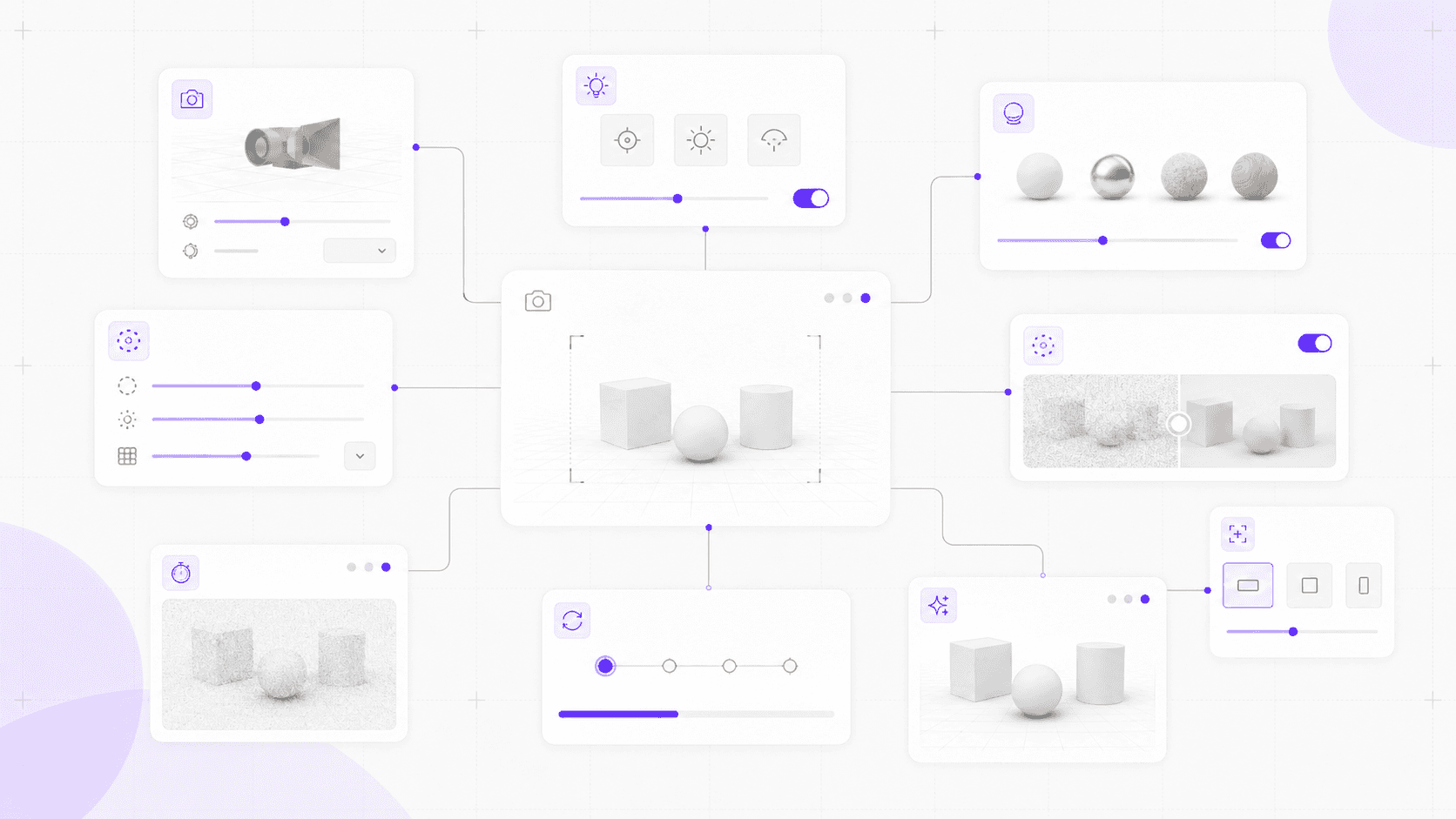
If you are still blocking the scene, use low samples. Use denoising. Render a smaller resolution. Crop the render region if you only need to inspect one area. Turn off expensive settings like motion blur, depth of field, high bounces, or heavy volumetrics until they are actually relevant.
You are not trying to prove the final quality yet. You are trying to catch problems while they are cheap.
A useful first preview checks:
Camera framing
Main light direction
Material readability
Shadow behavior
Render engine choice
Early render time
Noise levels
Whether the scene already feels too heavy
That last one matters. If a tiny preview render already feels slow at minute 25, the project is giving you useful information. Maybe the textures are too large. Maybe the lighting setup is heavier than it needs to be. Maybe Cycles is the right final engine, but Eevee would be better for layout previews. Maybe the local machine is going to struggle once the scene grows.
Early render tests are not only about visuals. They are performance checks.
The worst time to discover render problems is after you’ve built the whole scene around assumptions the render does not share. A small preview now can save a very long wait later.
For a deeper render setup walkthrough, you can also check Vagon’s guide to the best render settings for Blender.
#8. Consider Vagon Cloud Computer
Sometimes the first 30 minutes tell you the project is going to be heavier than your local machine wants it to be.
You can feel it early. The viewport starts hesitating before the scene is even detailed. Material Preview feels sluggish. A small render test takes longer than expected. The laptop gets warm. Fans kick in. You start hiding collections just to make basic adjustments.
That does not mean the project is broken. It may just need a stronger workspace.
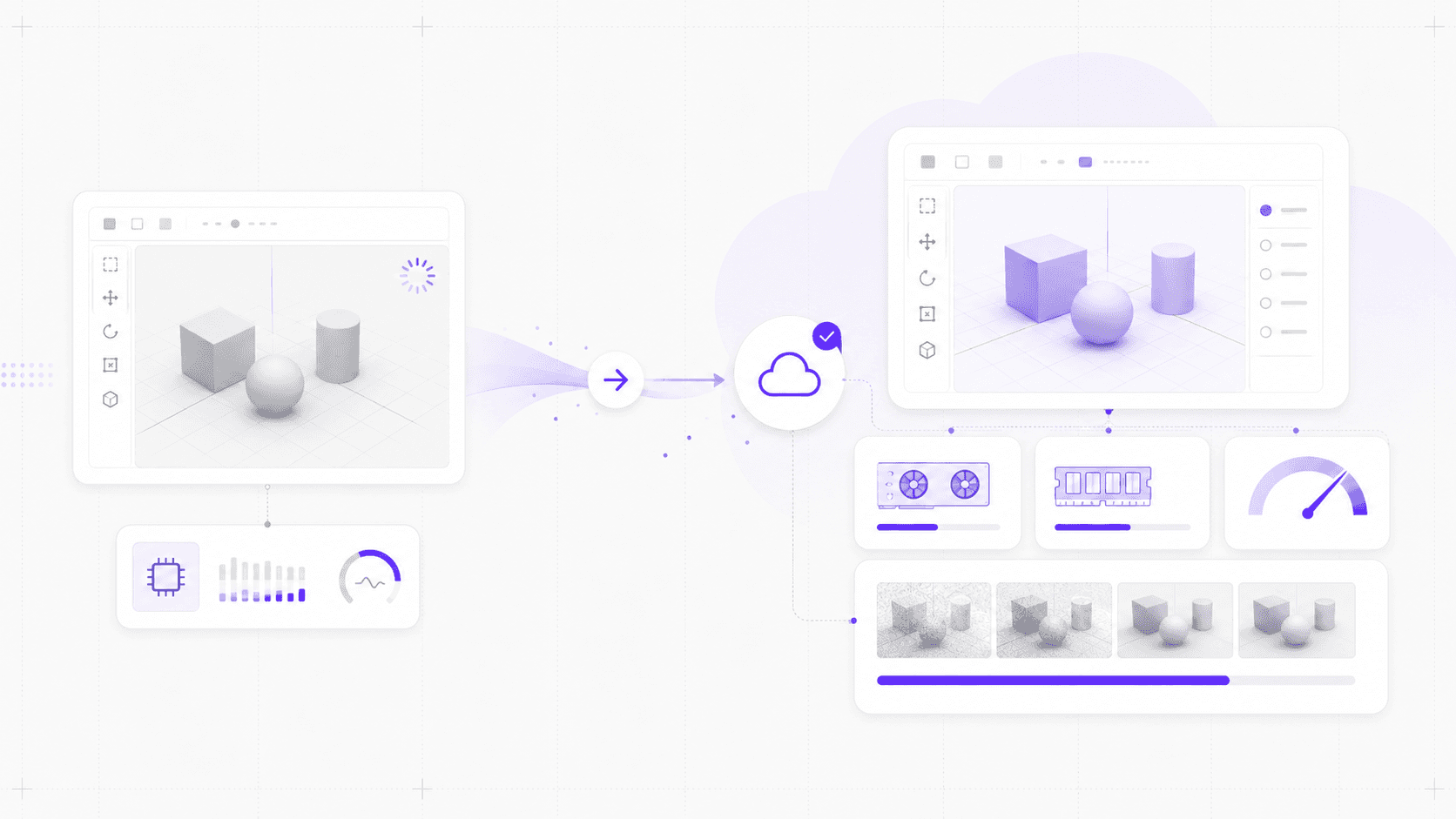
This is where Vagon Cloud Computer can make sense for Blender. Instead of forcing dense geometry, large textures, simulations, and render previews through a local device that is already struggling, you can run Blender on a cloud computer and access that workspace from the machine you already have.
I would not use it for every Blender file. If you are modeling a simple asset, blocking a quick scene, or testing a small idea, your local machine may be perfectly fine. No need to overcomplicate a lightweight project.
But for heavier Blender work, moving early can be smarter than waiting until the scene becomes painful.
Vagon Cloud Computer is worth considering when:
The scene opens locally but does not feel comfortable to work in
You are using dense geometry, high-resolution textures, or heavy modifiers
You plan to test simulations, particles, or render previews
Your laptop is overheating or throttling during longer sessions
You need to switch devices without rebuilding your Blender setup
You want a consistent 3D workspace while working remotely
The key word is early.
If you already know the file will grow, do not wait until the project is full of assets, caches, materials, and render settings before changing the workspace. Moving the workflow earlier is usually cleaner than dragging a heavy scene across machines later.
A good Blender setup is not only about the file. It is also about the computer underneath it.
If that computer is slowing down your decisions, the scene is already costing you more than render time.
If your workflow moves between desktop and tablet, this guide on how to use Blender on iPad can help you decide where tablet-based work fits into your setup.
First 30 minutes checklist
You don’t need to treat this like a timer running over your shoulder.
If you spend seven minutes setting up collections instead of three, nobody is going to revoke your Blender privileges. The point is not perfect timing. The point is building the habit of checking the right things before the scene gets hard to manage.
Here’s a practical first 30-minute routine.
Time | Focus | What to check |
0 to 3 minutes | Define the goal | Decide whether the project is a still, animation, asset, environment, product render, or 3D print file. |
3 to 6 minutes | Set up the scene | Check units, camera direction, collections, workspace layout, and basic scene organization. |
6 to 10 minutes | Prepare assets | Create folders, gather references, import only what you need, and keep textures or linked files organized. |
10 to 15 minutes | Build simple geometry | Block the scene with clean shapes before adding subdivisions, bevels, dense assets, or detailed modifiers. |
15 to 20 minutes | Set viewport habits | Use the right viewport mode, hide unused collections, reduce overlays, and keep the scene responsive. |
20 to 25 minutes | Add materials and lighting | Start with simple materials and basic lighting before building complex node trees or final shaders. |
25 to 28 minutes | Test a preview render | Run a small preview to check framing, lighting, render engine, samples, and early performance. |
28 to 30 minutes | Decide on Vagon Cloud Computer | If the scene already feels heavy or will grow fast, consider moving the workflow to Vagon Cloud Computer early. |
This checklist is not there to slow you down. It is there to catch problems while they are still small.
That’s the real value of the first 30 minutes. You are not trying to finish the project. You are making sure the file, the scene, and the machine are ready for the work you are about to ask from them.
FAQs
1. What should I do first when starting a Blender project?
Start by defining what the project actually is. A still render, animation, product shot, environment, game asset, and 3D print model all need different setup choices. Before importing assets or adding detail, decide the output, camera direction, scale needs, and whether the file will need revisions later. That one decision makes the rest of the setup cleaner.
2. Should I use Solid, Material Preview, or Rendered view while working?
Use the mode that matches the task. Solid view is usually best for modeling, layout, scene organization, and animation blocking. Material Preview is useful when you need to judge surface direction, colors, and textures. Rendered view is best for checking lighting and the final look. Try not to live in Rendered view all day unless you need it. It can make the viewport heavier than necessary.
3. When should I set up materials in Blender?
Set up basic materials early, but save complex shaders for later. In the first 30 minutes, use simple placeholder materials to understand the scene: metal, plastic, glass, fabric, clay, wood, or brand colors. Once the camera, forms, and lighting direction are more stable, you can build more detailed node trees. Polishing shaders too early is one of the easiest ways to lose time.
4. Should I use Eevee or Cycles for early previews?
For quick early previews, Eevee is often easier because it is built for speed and interactivity. It helps when you want to check motion, composition, rough lighting, or stylized scenes quickly. Cycles is better when you need more realistic lighting and physically based results, but it is usually heavier. For early tests, use lower samples, denoising, smaller resolution, and short preview renders before committing to full-quality settings.
5. How do I keep a Blender project organized?
Use collections, clear naming, and a simple folder structure from the beginning. Create collections for cameras, lights, hero objects, environment, props, references, tests, and simulations if needed. Outside Blender, keep source assets, textures, references, caches, renders, and exports in predictable folders. The goal is not perfection. It is making sure you can understand the file two weeks later.
6. When should I use Vagon Cloud Computer for Blender?
Use Vagon Cloud Computer when the project starts asking for more power than your local machine can comfortably provide. That might mean dense geometry, high-resolution textures, heavy modifiers, simulations, particles, render previews, or a laptop that starts overheating during longer Blender sessions. It can also help if you need a consistent Blender workspace across devices or want to work remotely without depending only on local hardware. For small scenes, local is often enough. For heavier projects, moving early can save a lot of friction later.
The first 30 minutes in Blender usually decide whether your scene stays clean or slowly turns into a file nobody wants to touch.
Not because you need to make every perfect decision right away. You don’t. Blender is built for experimenting, and half the fun is finding the shape of the project as you work. But the early choices matter more than they seem: where you put assets, how you name collections, which viewport mode you live in, how quickly you start adding modifiers, and whether you test performance before the scene gets heavy.
This is not a beginner tutorial. I’m not going to explain every button in the interface or pretend there’s one correct way to use Blender. There isn’t.
Think of this more like a working routine. The kind you build after enough projects have become slower, messier, or harder to revise than they needed to be.
The goal is simple: start a Blender project in a way that keeps the scene readable, the viewport responsive, and the first render preview honest. Less cleanup later. Fewer “why is this suddenly lagging?” moments. Fewer files named final_final_really_final.blend.
We’ll cover the first decisions that shape a Blender project: defining the goal, setting up the scene, choosing the right workspace habits, organizing assets, blocking clean geometry, starting materials and lighting without overbuilding, testing render previews early, watching performance, and knowing when Vagon Cloud Computer makes more sense than pushing a heavy 3D scene through a local machine that is already struggling.
#1. Define the scene goal
Before you touch a cube, decide what kind of project this actually is.
That sounds basic. It is basic. It’s also where a lot of Blender mess starts.
A still product render, a looping animation, a game asset, an architectural interior, a 3D print model, and a quick concept scene all need different decisions. They may all begin in the same Blender interface, but they should not be set up the same way.
If you are making a still render, camera framing matters early. If you are making an animation, timing, scene scale, and playback performance matter earlier than final materials. If you are preparing something for 3D printing, clean geometry, scale, wall thickness, and mesh validity become much more important than a pretty viewport preview.
That’s why “I’ll figure it out later” can get expensive.
A vague goal makes every decision feel temporary. So you import too many assets. You keep every test object. You add materials before the camera is even chosen. You start subdividing because the model “might” need detail. Then, an hour later, the scene has no clear direction and somehow already feels heavy.
I like to answer a few questions before the project grows:
Am I making a still image, animation, asset, environment, product render, or 3D print model?
What is the final output size or format?
Will this need to be edited later by me or someone else?
Is the camera direction already known?
Does the scene need realism, stylization, speed, or technical accuracy?
Is this a quick concept or a working production file?
You do not need a full creative brief every time. If you are just testing an idea, fine. Keep it loose.
But if the file is client-facing, likely to be revised, or expected to become part of a bigger workflow, define the goal early. Even a rough goal helps.
For example, “a 10-second product animation for a landing page” gives you better setup clues than “make something cool with this bottle model.” You already know you need camera movement, timeline awareness, product scale, clean materials, render tests, and probably a lighter viewport while working.
That one sentence can save you from a lot of wandering.
Blender rewards experimentation, but it also rewards intent. The first few minutes are not about locking the whole project. They are about pointing the file in the right direction before it starts collecting clutter.
If your project is headed toward fabrication, this guide on how to use Blender for 3D printing is a useful next read because print-focused scenes need a different kind of setup.
#2. Set up the workspace
The default Blender scene is fine for opening the app. It is not always fine for starting the actual project.
Before you begin modeling, importing, shading, or scattering objects everywhere, spend a few minutes setting up the workspace around the kind of work you’re about to do. It feels slow at first. It usually saves time almost immediately.
Blender gives you different workspaces for a reason: Layout, Modeling, Sculpting, UV Editing, Shading, Animation, Geometry Nodes, Rendering, Compositing. You don’t need to live inside all of them. But choosing the right one for the next task helps you avoid dragging panels around every five minutes.
If you are blocking a scene, start in Layout or Modeling. If you are building materials, move to Shading. If you are setting up procedural systems, use Geometry Nodes. If you are animating, switch to Animation early enough that the timeline and graph tools are not an afterthought.
Small thing. Big difference.
Scale is another early decision that deserves more respect. If the project is architectural, product-based, simulation-heavy, or headed toward 3D printing, set units before the scene grows. Fixing scale later can get annoying, especially once physics, bevels, camera settings, or imported assets are involved.
Collections matter too.
I would rather see a slightly over-organized Blender file than a scene where everything lives in one giant pile called Collection. You don’t need a complicated naming system, but you do need some structure.
A simple setup can be enough:
Cameras
Lights
Hero Object
Environment
Props
References
Tests
For animation, you might add Rig, Simulations, Caches, or Render Passes. For product work, maybe Bottle, Label, Packaging, Surface, Backdrop, and Lighting.
The exact names are less important than the habit. When objects have a place to go, the file stays easier to read.
Set up a camera early as well, even if it is temporary. A rough camera gives the scene a point of view. It tells you what matters and what can stay simple. Without a camera, it is easy to overwork details the viewer will never see.
Same with lights. You do not need final lighting in the first 30 minutes, but you should know whether the scene is being built for studio lighting, environment lighting, interior lighting, or something more stylized.
A good workspace setup might include:
Choosing the workspace layout for the current task
Setting units if scale matters
Creating basic collections
Adding a temporary camera
Adding simple starter lighting
Saving the file with a clear name
Removing default objects you do not need
That last one is personal, but I’ll say it anyway: delete the default cube if it is not part of the project. Or keep it if you’re actually using it. Just don’t let it sit there for no reason like a tiny monument to indecision.
The point is not to make the file perfect. It is to make the file ready. Once the workspace has a basic shape, every next decision gets easier.
#3. Organize assets early
Blender makes it very easy to bring things in.
That’s convenient. It’s also dangerous.
A project can start clean, then turn messy in ten minutes because you imported every reference image, texture pack, HDRI, downloaded model, CAD file, and test asset you might possibly use. Suddenly the file has six versions of the same chair, three environment maps, random image planes, packed textures you forgot about, and a folder structure that only made sense at the exact moment you created it.
Future you will not enjoy that.
Before importing assets, create a simple project folder. Nothing dramatic. Just enough structure so the file does not depend on your Downloads folder, Desktop, or a temporary browser download path.
Something like this works:
Project Name
Source Assets
Textures
References
Blender Files
Caches
Renders
Exports
If the project is small, you can simplify it. If it involves simulations, add a dedicated cache folder. If it uses image sequences, give those their own place. If you are working with a team, be even more explicit. Shared files get confusing fast when names are vague.
Textures deserve special attention. Blender can pack files into the .blend, but that does not mean you should pack everything by default. Packed files can be useful for portability, but they can also make the file huge and harder to manage. Linked textures are easier to update and replace, but only if the paths stay organized.
That’s the tradeoff. Portability versus cleanliness. Pick intentionally.
The same goes for downloaded models. Marketplace assets, kitbash packs, CAD imports, and scans can be much heavier than they look. Before dropping them into your main scene, open them in a separate file if you can. Check scale, polygon count, materials, texture paths, and whether the asset includes hidden extras you do not need.
I’ve seen imported assets bring in entire lighting setups, cameras, unused collections, nested materials, and texture references that had nothing to do with the actual object. Not evil. Just messy.
HDRIs are another easy one to overcollect. You do not need twelve environment maps in the file during the first pass. Pick one or two. Test the direction. Keep the rest outside the scene until they are needed.
A cleaner first import habit looks like this:
Gather references before opening the floodgates
Import only what you need for the first pass
Keep textures in a dedicated folder
Check heavy assets in a separate Blender file first
Rename important objects after import
Remove cameras, lights, or collections that came in by accident
Save a clean version before the scene grows
This is not about being precious. It is about keeping the project from becoming fragile.
If Blender cannot find textures later, or if the scene is full of imported leftovers, you lose time in the least creative way possible: hunting for files and cleaning up things you never meant to keep.
Better to spend three minutes organizing assets now than thirty minutes untangling them later.
#4. Build clean geometry
Detail is tempting in Blender because it feels like progress.
You add a bevel and the model looks better. You add subdivision and it looks smoother. You scatter a few props and the scene feels more alive. Then you duplicate something, import a background asset, add another modifier, and suddenly the viewport starts getting less friendly.
This is why I like blocking first.
Start with simple forms. Cubes, planes, cylinders, rough shapes, low-detail proxies. They are not glamorous, but they let you solve the important questions early: scale, silhouette, camera framing, spacing, proportions, and overall composition. If the scene does not work with simple geometry, extra detail usually won’t save it.
Clean geometry is not about making everything low-poly forever. It is about adding complexity at the right time.
For example, if you are building a product render, block the main object, surface, camera, and lighting before adding tiny bevels or high-resolution labels. If you are making an environment, rough in the room, paths, major props, and camera views before placing every cable, plant, book, and screw. If you are creating an animation, make sure the motion works before the scene becomes too heavy to play back.
Subdivision surfaces deserve an early check. They are useful, but viewport levels can get out of hand. A viewport subdivision level of 1 or 2 may be enough while you work. The render level can be higher later if the final shot needs it.
Same with bevels. A small bevel can make hard edges catch light nicely. But beveling everything with too many segments can quietly add a lot of geometry. If the object is far from the camera, you probably do not need hero-level bevel detail.
Duplicated objects also matter. If you repeat the same mesh many times, use linked duplicates or collection instances when it makes sense. A scene with repeated bolts, tiles, rocks, chairs, leaves, or props can get heavy fast if every copy is treated as its own full object.
And please, don’t let old test geometry live in the main scene forever.
It’s fine to experiment. Blender is built for that. But once a direction is dead, move it to a Tests collection, hide it from renders, or save it in a separate file. A project full of abandoned objects becomes harder to navigate and easier to break.
A good early geometry check:
Are the main forms readable without extra detail?
Are subdivision levels low enough for viewport work?
Are repeated objects linked where possible?
Are imported meshes heavier than they need to be?
Are old experiments separated from the working scene?
Will the camera actually see this detail?
That last question is the best one.
If the camera will never see the detail, your audience won’t miss it. Your viewport might, though.
#5. Set viewport habits
The viewport is where you spend most of your time in Blender, so it should feel light enough to think.
Not final. Not perfect. Responsive.
A lot of Blender users accidentally turn the viewport into a near-final preview and then leave it that way for the whole session. Material Preview is on. Overlays are everywhere. Scene lights are active. Shadows are visible. Dense collections stay visible even when they’re not being edited. Then the project feels slow before the real work has even started.
You don’t need that much visual information all the time.
Solid view is often the best place to model, block, organize, and animate. It keeps the scene easier to read and usually responds faster than heavier preview modes. Material Preview is useful when you need to judge surface direction, color, roughness, or texture placement. Rendered view is for checking lighting and final look, not for casually moving every object in the scene all day.
That distinction saves time.
If you are adjusting proportions, use Solid. If you are testing materials, switch to Material Preview. If you are checking light behavior or render quality, use Rendered view for a short pass, then leave it when you are done.
Overlays are another place to be selective. Grid, outlines, wireframes, relationship lines, object origins, face orientation, bones, motion paths, measurements, and annotations all have their place. But if they are not helping the current task, turn them off.
The same goes for collections. You do not need the entire world visible while editing one corner of the scene. Hide background collections, heavy props, high-density foliage, simulation objects, or alternate versions until you need them.
I think of viewport management as attention management. Keep visible what you are actually working on.
A simple viewport routine helps:
Use Solid view for modeling, layout, and organization
Use Material Preview for surface and texture checks
Use Rendered view only when checking lighting or final look
Hide collections you are not editing
Turn off overlays that are not helping
Lower subdivision preview levels while working
Reduce particle or instance display in the viewport
This is not about making Blender less visual. It is about making it more usable.
The first 30 minutes are a good time to build that habit, because once the scene gets heavy, every bad viewport choice becomes more expensive.
And if your project leans toward motion rather than 3D modeling, Vagon’s guide to 2D animation on Blender can help you plan the file differently from the start.
#6. Start materials and lighting
Materials are where Blender can steal your afternoon.
You open the Shader Editor to make one simple surface. Then you add a noise texture. Then a color ramp. Then a bump map. Then a roughness variation. Then you try a different HDRI because the material “doesn’t feel right.” Suddenly the model is still unfinished, the camera is temporary, and you’ve spent 45 minutes perfecting a shader that might not survive the next direction change.
I’ve done it. Most Blender users have.
The better move in the first 30 minutes is to start with simple material intent, not final materials. Give the scene enough surface information to make decisions, but don’t build a complicated node system before the scene direction is clear.
Use placeholder materials first:
Matte black
Rough plastic
Brushed metal
Clear glass
Soft fabric
Warm wood
Neutral clay
Brand color swatches
These do not need to be final. They just need to tell you what kind of world you’re building.
Lighting works the same way. You do not need final lighting immediately, but you do need enough light to judge the scene. A basic area light, a simple three-point setup, or one HDRI can tell you whether the forms, materials, and camera direction are working.
Avoid judging materials in bad lighting. That is how you end up “fixing” a shader that was never the problem.
If the scene is product-focused, set up a clean key light and a soft fill early. If it is an interior, block the main light sources before polishing every material. If it is stylized, choose the broad color mood before adding tiny texture details.
Shader complexity should come later.
Node trees can get heavy, especially when they involve layered procedural textures, displacement, transparency, volumetrics, or many image maps. Those can all be useful. Just not always in minute 12.
A good early material and lighting pass might look like this:
Assign simple placeholder materials
Use consistent naming for important materials
Add basic lighting that matches the project direction
Test one or two hero materials only
Avoid complex node trees until the scene is stable
Keep high-resolution textures out until they are needed
Save a clean version before heavy shading work begins
There is a small discipline here: don’t confuse polish with progress.
In the first 30 minutes, materials and lighting should help you understand the scene. They should not trap you inside the Shader Editor before the project has a solid shape.
#7. Test a render preview
A render preview is not something you save for the end.
At least, not if you enjoy avoiding surprises.
Blender scenes can look convincing in the viewport and still fall apart in a render. The lighting may behave differently than expected. Materials may look too glossy, too flat, or too noisy. Transparent objects may render strangely. Shadows may be harsher than they looked in Material Preview. The camera framing might feel weaker once you see the actual output size.
That is why I like doing a small render test early.
Not a final render. Not a full-resolution beauty pass. Just a quick preview that tells you whether the project is heading in the right direction.
Choose the render engine based on the job. Eevee is fast and interactive, which makes it useful for quick previews, stylized scenes, motion graphics, and projects where speed matters. Cycles is heavier, but often better when realistic lighting, global illumination, and physically based rendering matter.
There is no prize for choosing the slowest option too early.
If you are still blocking the scene, use low samples. Use denoising. Render a smaller resolution. Crop the render region if you only need to inspect one area. Turn off expensive settings like motion blur, depth of field, high bounces, or heavy volumetrics until they are actually relevant.
You are not trying to prove the final quality yet. You are trying to catch problems while they are cheap.
A useful first preview checks:
Camera framing
Main light direction
Material readability
Shadow behavior
Render engine choice
Early render time
Noise levels
Whether the scene already feels too heavy
That last one matters. If a tiny preview render already feels slow at minute 25, the project is giving you useful information. Maybe the textures are too large. Maybe the lighting setup is heavier than it needs to be. Maybe Cycles is the right final engine, but Eevee would be better for layout previews. Maybe the local machine is going to struggle once the scene grows.
Early render tests are not only about visuals. They are performance checks.
The worst time to discover render problems is after you’ve built the whole scene around assumptions the render does not share. A small preview now can save a very long wait later.
For a deeper render setup walkthrough, you can also check Vagon’s guide to the best render settings for Blender.
#8. Consider Vagon Cloud Computer
Sometimes the first 30 minutes tell you the project is going to be heavier than your local machine wants it to be.
You can feel it early. The viewport starts hesitating before the scene is even detailed. Material Preview feels sluggish. A small render test takes longer than expected. The laptop gets warm. Fans kick in. You start hiding collections just to make basic adjustments.
That does not mean the project is broken. It may just need a stronger workspace.
This is where Vagon Cloud Computer can make sense for Blender. Instead of forcing dense geometry, large textures, simulations, and render previews through a local device that is already struggling, you can run Blender on a cloud computer and access that workspace from the machine you already have.
I would not use it for every Blender file. If you are modeling a simple asset, blocking a quick scene, or testing a small idea, your local machine may be perfectly fine. No need to overcomplicate a lightweight project.
But for heavier Blender work, moving early can be smarter than waiting until the scene becomes painful.
Vagon Cloud Computer is worth considering when:
The scene opens locally but does not feel comfortable to work in
You are using dense geometry, high-resolution textures, or heavy modifiers
You plan to test simulations, particles, or render previews
Your laptop is overheating or throttling during longer sessions
You need to switch devices without rebuilding your Blender setup
You want a consistent 3D workspace while working remotely
The key word is early.
If you already know the file will grow, do not wait until the project is full of assets, caches, materials, and render settings before changing the workspace. Moving the workflow earlier is usually cleaner than dragging a heavy scene across machines later.
A good Blender setup is not only about the file. It is also about the computer underneath it.
If that computer is slowing down your decisions, the scene is already costing you more than render time.
If your workflow moves between desktop and tablet, this guide on how to use Blender on iPad can help you decide where tablet-based work fits into your setup.
First 30 minutes checklist
You don’t need to treat this like a timer running over your shoulder.
If you spend seven minutes setting up collections instead of three, nobody is going to revoke your Blender privileges. The point is not perfect timing. The point is building the habit of checking the right things before the scene gets hard to manage.
Here’s a practical first 30-minute routine.
Time | Focus | What to check |
0 to 3 minutes | Define the goal | Decide whether the project is a still, animation, asset, environment, product render, or 3D print file. |
3 to 6 minutes | Set up the scene | Check units, camera direction, collections, workspace layout, and basic scene organization. |
6 to 10 minutes | Prepare assets | Create folders, gather references, import only what you need, and keep textures or linked files organized. |
10 to 15 minutes | Build simple geometry | Block the scene with clean shapes before adding subdivisions, bevels, dense assets, or detailed modifiers. |
15 to 20 minutes | Set viewport habits | Use the right viewport mode, hide unused collections, reduce overlays, and keep the scene responsive. |
20 to 25 minutes | Add materials and lighting | Start with simple materials and basic lighting before building complex node trees or final shaders. |
25 to 28 minutes | Test a preview render | Run a small preview to check framing, lighting, render engine, samples, and early performance. |
28 to 30 minutes | Decide on Vagon Cloud Computer | If the scene already feels heavy or will grow fast, consider moving the workflow to Vagon Cloud Computer early. |
This checklist is not there to slow you down. It is there to catch problems while they are still small.
That’s the real value of the first 30 minutes. You are not trying to finish the project. You are making sure the file, the scene, and the machine are ready for the work you are about to ask from them.
FAQs
1. What should I do first when starting a Blender project?
Start by defining what the project actually is. A still render, animation, product shot, environment, game asset, and 3D print model all need different setup choices. Before importing assets or adding detail, decide the output, camera direction, scale needs, and whether the file will need revisions later. That one decision makes the rest of the setup cleaner.
2. Should I use Solid, Material Preview, or Rendered view while working?
Use the mode that matches the task. Solid view is usually best for modeling, layout, scene organization, and animation blocking. Material Preview is useful when you need to judge surface direction, colors, and textures. Rendered view is best for checking lighting and the final look. Try not to live in Rendered view all day unless you need it. It can make the viewport heavier than necessary.
3. When should I set up materials in Blender?
Set up basic materials early, but save complex shaders for later. In the first 30 minutes, use simple placeholder materials to understand the scene: metal, plastic, glass, fabric, clay, wood, or brand colors. Once the camera, forms, and lighting direction are more stable, you can build more detailed node trees. Polishing shaders too early is one of the easiest ways to lose time.
4. Should I use Eevee or Cycles for early previews?
For quick early previews, Eevee is often easier because it is built for speed and interactivity. It helps when you want to check motion, composition, rough lighting, or stylized scenes quickly. Cycles is better when you need more realistic lighting and physically based results, but it is usually heavier. For early tests, use lower samples, denoising, smaller resolution, and short preview renders before committing to full-quality settings.
5. How do I keep a Blender project organized?
Use collections, clear naming, and a simple folder structure from the beginning. Create collections for cameras, lights, hero objects, environment, props, references, tests, and simulations if needed. Outside Blender, keep source assets, textures, references, caches, renders, and exports in predictable folders. The goal is not perfection. It is making sure you can understand the file two weeks later.
6. When should I use Vagon Cloud Computer for Blender?
Use Vagon Cloud Computer when the project starts asking for more power than your local machine can comfortably provide. That might mean dense geometry, high-resolution textures, heavy modifiers, simulations, particles, render previews, or a laptop that starts overheating during longer Blender sessions. It can also help if you need a consistent Blender workspace across devices or want to work remotely without depending only on local hardware. For small scenes, local is often enough. For heavier projects, moving early can save a lot of friction later.
Get Beyond Your Computer Performance
Run applications on your cloud computer with the latest generation hardware. No more crashes or lags.

Trial includes 1 hour usage + 7 days of storage.
Summarize with AI

Ready to focus on your creativity?
Vagon gives you the ability to create & render projects, collaborate, and stream applications with the power of the best hardware.

Vagon Blog
Run heavy applications on any device with
your personal computer on the cloud.
San Francisco, California
Solutions
Vagon Teams
Vagon Streams
Use Cases
Resources
Vagon Blog
How to Use KiCad With Claude: MCP & Computer Use Guide Meta
How to Use FreeCAD With Codex: MCP & Computer Use
How to Use FreeCAD With Claude: MCP & Computer Use
How to Use 3ds Max With Codex: MCP & Computer Use
How to Use Houdini With Claude: MCP & Computer Use
How to Use Cinema 4D With Claude: MCP & Computer Use
How to Use 3ds Max With Claude: MCP & Computer Use
How to Use DaVinci Resolve With Claude: MCP & Computer Use
How to Use Godot With Claude: MCP & Computer Use
Vagon Blog
Run heavy applications on any device with
your personal computer on the cloud.
San Francisco, California
Solutions
Vagon Teams
Vagon Streams
Use Cases
Resources
Vagon Blog
How to Use KiCad With Claude: MCP & Computer Use Guide Meta
How to Use FreeCAD With Codex: MCP & Computer Use
How to Use FreeCAD With Claude: MCP & Computer Use
How to Use 3ds Max With Codex: MCP & Computer Use
How to Use Houdini With Claude: MCP & Computer Use
How to Use Cinema 4D With Claude: MCP & Computer Use
How to Use 3ds Max With Claude: MCP & Computer Use
How to Use DaVinci Resolve With Claude: MCP & Computer Use
How to Use Godot With Claude: MCP & Computer Use
Vagon Blog
Run heavy applications on any device with
your personal computer on the cloud.
San Francisco, California
Solutions
Vagon Teams
Vagon Streams
Use Cases
Resources
Vagon Blog