Instant Connection for Pixel Streaming
— New Feature Automated Setup
Best 3D Modeling Software in 2026: 15 Tools Compared by Use Case

Best 3D Modeling Software in 2026: 15 Tools Compared by Use Case
DigitalArt

Best 3D Modeling Software in 2026: 15 Tools Compared by Use Case
Table of Contents
Choosing 3D modeling software in 2026 is weirdly harder than it should be. Not because there aren’t enough good tools. The opposite. There are too many, and most “best 3D software” lists still compare Blender, Maya, SketchUp, ZBrush, Revit, and SOLIDWORKS as if they’re competing for the same job.
They’re not.
A character artist sculpting wrinkles into a creature’s face does not need the same tool as an engineer designing a snap-fit enclosure. An architect building a BIM model has different problems than a motion designer making product loops for a launch video. And a beginner trying to make their first printable object probably shouldn’t start by memorizing a studio animation pipeline.
So instead of ranking software like a generic top 15 list, this guide compares the best 3D modeling tools by use case: beginners, product design, architecture, animation, sculpting, 3D printing, CAD, free and open-source work, and low-end computers.
I’ll be opinionated where it helps. Blender is brilliant, but it’s not magically the best answer for every person. Maya is still a monster for animation, but it’s expensive and overkill for a lot of solo creators. SketchUp is easy to love, until your model gets too complex. And sometimes the software isn’t even the bottleneck. Your laptop is.
Let’s start with the quick picks.

Quick Picks: Best 3D Modeling Software by Use Case
If you just want the short version, here’s where I’d start.
For most beginners, SketchUp is the friendliest first step. It teaches spatial thinking quickly, especially if you’re interested in interiors, architecture, furniture, or simple objects. Tinkercad is even easier, but it’s more of a first afternoon tool than a long-term modeling environment. If you want one free tool you can grow into for years, choose Blender and accept that the first week may feel a little chaotic.
For product design, the safest picks are Autodesk Fusion, SOLIDWORKS, Onshape, and Shapr3D. Fusion is great for makers, small teams, and people who want CAD, CAM, and simulation in one place. SOLIDWORKS is still the serious mechanical engineering standard in many companies. Onshape is excellent if collaboration and browser-based CAD matter. Shapr3D is surprisingly good for fast concept modeling, especially on iPad.
For architecture, I’d split the answer. Use SketchUp for fast concepts, Revit for BIM and documentation, Rhino for complex forms and Grasshopper workflows, and 3ds Max when visualization quality matters more than construction data.
For animation, Maya remains the heavy hitter for character work and studio pipelines. Blender is the best value by far for indie creators. Cinema 4D is the comfortable choice for motion designers who want to make polished 3D work without wrestling the software every morning.
For sculpting, choose ZBrush if sculpting is the job. Choose Blender if sculpting is one part of a wider workflow and budget matters.
For 3D printing, Tinkercad works for simple classroom-style prints, Fusion and FreeCAD are better for functional parts, and Blender or ZBrush make more sense for organic models like miniatures, characters, and decorative objects.
For free and open-source software, the two names that matter most are Blender and FreeCAD. Blender covers creative 3D. FreeCAD covers parametric CAD.
For low-end computers, browser tools like Tinkercad and Onshape are easiest. But if you need to run Maya, Revit, Blender, ZBrush, Houdini, or large CAD assemblies on weaker hardware, that’s where a cloud workstation like Vagon Cloud Computer starts to make sense. Not as a replacement for the software, but as the machine powerful enough to run it properly.
How to Choose 3D Modeling Software Without Regretting It Later
The biggest mistake is choosing the tool with the longest feature list.
That sounds sensible at first. More features, more room to grow, right? Sometimes. But in 3D, the wrong kind of power slows you down. A beginner who wants to design a planter for 3D printing doesn’t need the same software as a VFX artist building a destruction simulation. They need different logic, different shortcuts, different file formats, and a very different tolerance for pain.
Start with the type of modeling you’ll actually do.
Polygon modeling is what you’ll use for games, animation, stylized assets, environments, and a lot of general creative 3D. Blender, Maya, 3ds Max, and Cinema 4D live here. You’re shaping meshes, editing vertices, working with UVs, materials, rigs, and renders.
CAD modeling is different. It’s built around precision. Dimensions matter. Constraints matter. A hole is not just a hole, it has a diameter, placement, tolerance, and sometimes a manufacturing consequence. Fusion, SOLIDWORKS, Onshape, Shapr3D, and FreeCAD are better fits here.
Sculpting is closer to working with clay. You push, pull, smooth, carve, and refine forms. ZBrush dominates this world because it handles high-density models so well. Blender can sculpt too, but ZBrush still feels like the specialist.
BIM is its own category. Revit is not just “3D modeling for buildings.” It connects geometry with construction data, schedules, documentation, and coordination. If you’re doing professional architecture or engineering documentation, that matters more than how fun the viewport feels.

Then look at your pipeline. Do you need STL export for 3D printing? STEP files for manufacturing? FBX or USD for animation and games? DWG for architecture? Can your collaborators open your files without begging for conversions?
Price is another trap. Free software can be amazing, but “free” does not always mean cheap if it costs you weeks of confusion. Paid software can be worth every cent if it matches your job and saves hours every week.
And finally, be honest about hardware. A tool may technically run on your machine and still feel awful once the scene gets heavy. RAM, GPU, VRAM, CPU speed, and storage all matter. For small projects, you can get away with a lot. For large BIM files, high-poly sculpts, simulations, or production renders, weak hardware turns creativity into waiting.
That’s why I like separating the software decision from the hardware decision. Pick the tool that fits the work first. Then decide whether your local machine can handle it, or whether it makes more sense to run it on a stronger cloud computer when projects get serious.
The 15 Best 3D Modeling Software Tools in 2026
1. Blender
Best for: free 3D modeling, indie animation, game assets, 3D printing, general creative work
Blender is the easiest recommendation and the hardest recommendation at the same time.
It’s free, open source, cross-platform, and absurdly capable. You can model, sculpt, rig, animate, simulate, render, composite, edit video, and prepare assets for games or 3D printing without paying for a license. For students, freelancers, hobbyists, and small studios, that’s huge.
But Blender is not “easy” just because it’s free. The interface has improved a lot, but it still asks you to learn a full 3D production environment. If you only want to design a bracket, a cabinet hinge, or a part with exact tolerances, Blender is the wrong first choice. Use CAD.
Where Blender shines is creative flexibility. Characters, environments, props, motion tests, YouTube visuals, product-style renders, stylized assets, 3D printed miniatures. It can handle all of that.
Choose Blender if you want one tool that can grow with you for years. Skip it if your work is mostly engineering CAD or BIM documentation.

2. Autodesk Maya
Best for: character animation, rigging, VFX, studio pipelines
Maya is still the professional animation heavyweight. If you want to work in film, games, character animation, creature work, or a studio pipeline, Maya keeps showing up for a reason.
Its strengths are rigging, animation, character workflows, and deep pipeline integration. Studios build entire production systems around it. That matters if you’re collaborating with animators, technical directors, and VFX teams.
The downside is obvious: Maya is expensive, complex, and not especially friendly for beginners. You can model in Maya, of course, but I wouldn’t tell a casual beginner to start there unless they specifically want animation as a career path.
Choose Maya if animation is the job, not just a feature you may use someday.

3. Autodesk 3ds Max
Best for: hard-surface modeling, architectural visualization, game assets, Windows-based workflows
3ds Max has been around forever, and that’s part of its strength. It has a deep ecosystem, tons of plugins, strong modeling tools, and a loyal user base in archviz, games, product rendering, and environment work.
Compared with Maya, I find 3ds Max more comfortable for hard-surface modeling and architectural visualization. It feels less like a character animation machine and more like a practical modeling and scene-building tool.
The catch: it’s Windows-only and still expensive. If you’re on macOS, that decision is already made for you. If you’re a beginner, Blender may be a smarter starting point unless you need a 3ds Max-specific workflow.
Choose 3ds Max if you work in archviz, environment modeling, or a studio that already uses it.

4. Cinema 4D
Best for: motion graphics, design animation, product visuals, approachable professional 3D
Cinema 4D has a reputation for being “easy,” which is only half true. It’s still professional 3D software. But compared with many high-end tools, it feels welcoming.
Motion designers love it because it gets you to polished results quickly. The MoGraph toolset, clean interface, and Maxon ecosystem make it a strong choice for broadcast graphics, product animations, title sequences, social content, and design-led 3D.
It’s not the cheapest option, and if you’re mainly doing mechanical CAD or BIM, it’s not your tool. But for designers who want 3D without constantly fighting the software, Cinema 4D is one of the nicer places to spend your day.
Choose Cinema 4D if motion design is your world and speed matters.

5. ZBrush
Best for: digital sculpting, characters, creatures, collectibles, high-poly organic models
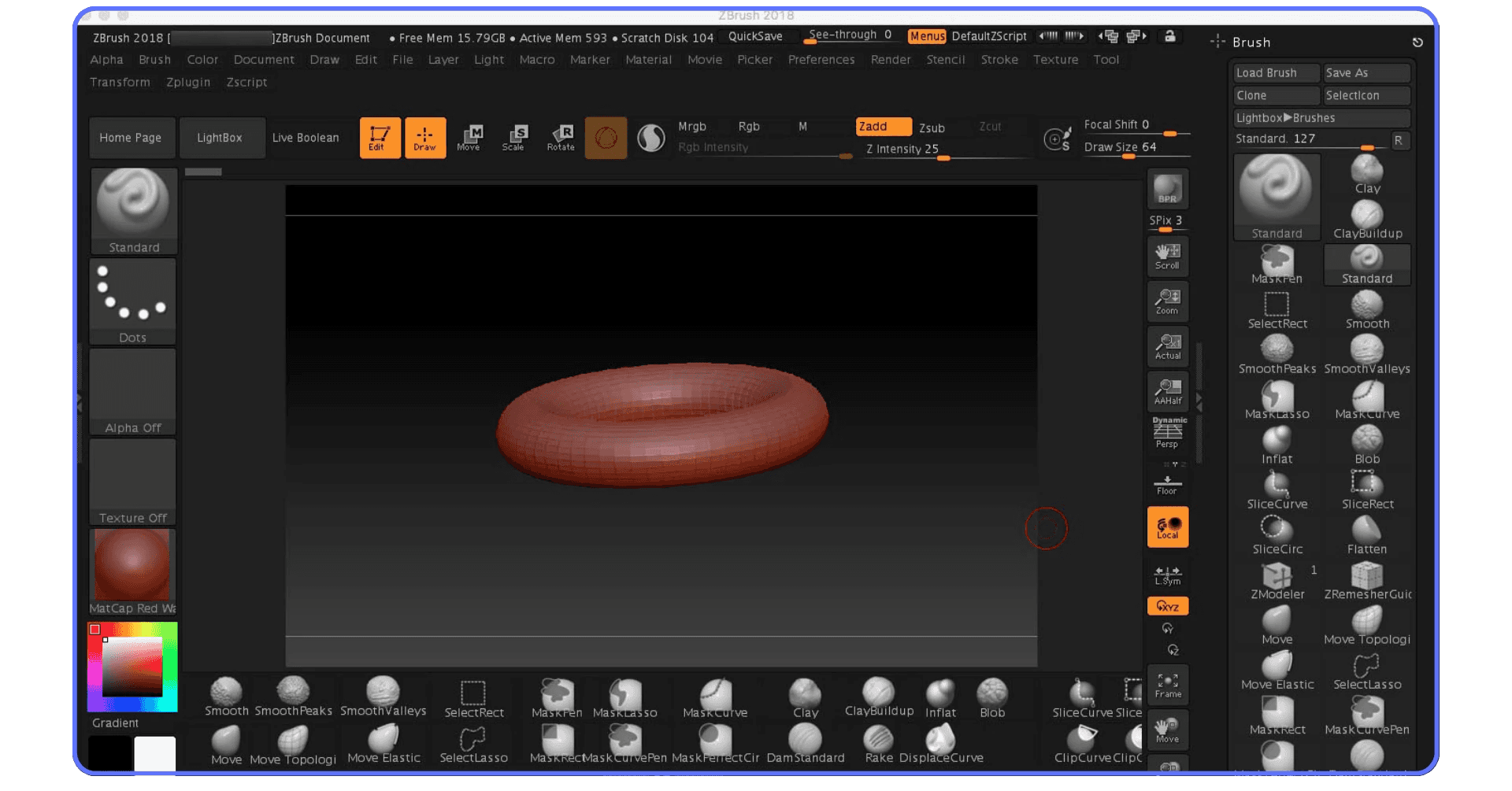
ZBrush is strange, powerful, and still the sculpting king.
Its interface has its own logic, and beginners often bounce off it at first. But once you understand the workflow, it’s hard to beat for high-resolution sculpting. Characters, monsters, miniatures, anatomy studies, surface detail, collectibles, digital maquettes. This is ZBrush territory.
Blender can sculpt, and for many users it’s enough. But if sculpting is your main work, ZBrush feels purpose-built in a way generalist tools don’t.
Don’t choose ZBrush for CAD. Don’t choose it for architectural plans. Don’t choose it because you vaguely want to “do 3D.” Choose it because you want to sculpt.

6. SketchUp
Best for: beginners, architecture concepts, interiors, quick spatial modeling
SketchUp is one of the best first 3D tools because it feels understandable almost immediately. Push, pull, draw, orbit. You can build a room, a house concept, a furniture layout, or a simple object without studying 20 panels first.
That simplicity is real, and it’s valuable.
But SketchUp can get messy when projects become complex. Large models, detailed geometry, plugin-heavy workflows, and messy imported assets can slow things down. It’s also not a replacement for Revit if you need BIM documentation.
Choose SketchUp if you want to think in space quickly. It’s especially strong for architects, interior designers, woodworkers, students, and anyone who wants fast visual concepts.

7. Rhino 8
Best for: NURBS modeling, industrial design, architecture, jewelry, Grasshopper workflows
Rhino is the quiet favorite of designers who need precision but don’t want a traditional mechanical CAD box around their work.
Its NURBS modeling is excellent for complex surfaces, which makes it popular in industrial design, architecture, jewelry, footwear, marine design, and fabrication. Add Grasshopper, and Rhino becomes a visual programming environment for parametric design.
That said, Rhino is not as guided as Fusion or SOLIDWORKS for mechanical assemblies. It gives you freedom, which is wonderful until you need stricter feature history and engineering controls.
Choose Rhino if your work sits between design, geometry, fabrication, and experimentation.

8. Autodesk Fusion
Best for: product design, makers, CAD/CAM, functional 3D printing
Fusion is one of the best all-around CAD choices for individuals, startups, makers, and small product teams. It combines parametric modeling, direct modeling, simulation, electronics, CAM, and cloud collaboration in one environment.
That mix is why it’s so popular for 3D printed parts, CNC workflows, prototypes, enclosures, fixtures, and product concepts. You can design a part and think about how it will actually be made.
Fusion can feel heavy at times, and licensing details matter, especially for commercial work. But for many people, it hits a sweet spot between power and accessibility.
Choose Fusion if you want serious CAD without jumping straight into enterprise complexity.

9. SOLIDWORKS
Best for: mechanical engineering, production parts, assemblies, professional CAD teams
SOLIDWORKS is not trendy. It doesn’t need to be. It is deeply embedded in mechanical engineering, manufacturing, and product development.
If you’re designing assemblies, production parts, sheet metal, machined components, mechanisms, or anything that needs proper engineering documentation, SOLIDWORKS is still one of the safest professional choices.
The tradeoff is cost, Windows dependence, and hardware expectations. It also isn’t the tool you pick for character art, motion design, or freeform sculpting.
Choose SOLIDWORKS if your work needs engineering discipline, mature documentation, and compatibility with real manufacturing teams.

10. Revit
Best for: BIM, architecture, construction documentation, multidisciplinary building projects
Revit is not a casual 3D modeling app. It’s a BIM platform, and that distinction matters.
In Revit, walls, doors, floors, roofs, rooms, schedules, sections, and documentation are connected. The model is not just a visual object. It carries building information. For architecture, engineering, and construction teams, that can save enormous coordination pain.
But Revit is not where I’d sketch a fun concept on day one. It has a learning curve, it wants good standards, and large models need serious hardware.
Choose Revit if you’re doing professional building design and documentation. For early concept work, pair it with SketchUp or Rhino.

11. Houdini
Best for: procedural modeling, simulations, VFX, technical artists
Houdini is the tool for people who like systems.
It’s famous for simulations and VFX, but its procedural modeling workflow is just as important. Instead of manually editing everything, you build networks that can generate, modify, scatter, destroy, rebuild, and vary geometry.
That makes Houdini incredible for effects, environments, procedural assets, motion design systems, and technical art. It also makes it intimidating. If node-based thinking makes your brain happy, Houdini may become addictive. If you just want to model a chair, it may feel like assembling a spaceship to make toast.
Choose Houdini if procedural control matters more than immediate simplicity.

12. Shapr3D
Best for: iPad CAD, quick product concepts, pen-based modeling
Shapr3D is one of the few tools that makes tablet-based 3D modeling feel genuinely useful.
It’s fast, clean, and especially good with Apple Pencil. Designers can sketch, push forms, test ideas, and create precise models without sitting at a traditional workstation. It also runs on Windows and macOS, so it’s not only an iPad toy.
For complex assemblies and deep engineering workflows, SOLIDWORKS, Fusion, or Onshape may be better. But for fast product thinking, Shapr3D is excellent.
Choose Shapr3D if you want CAD that feels more like sketching and less like managing a control panel.

13. Onshape
Best for: cloud CAD, collaboration, teams, browser-based product design
Onshape is CAD built around the browser and collaboration from the start. That makes it different from desktop CAD tools with cloud features attached later.
Multiple people can work with shared documents, version history, branching, permissions, and built-in data management. For distributed product teams, that’s a big deal.
The obvious limitation is that you need a stable internet connection, and pricing matters if you need private commercial work. But if collaboration is central to your workflow, Onshape deserves a serious look.
Choose Onshape if you want professional CAD without local installs, file chaos, or manual version control.

14. FreeCAD
Best for: free parametric CAD, open-source engineering workflows, hobbyist mechanical design
FreeCAD has become much easier to recommend than it used to be.
It’s still not as polished as commercial CAD, and you may run into rough edges. But for a free, open-source parametric modeler, it’s powerful. It supports mechanical design, BIM, CAM, technical drawings, and extensibility through Python.
The right expectation matters. FreeCAD is not “free SOLIDWORKS.” It’s its own tool, with its own rhythm. For hobbyists, open-source users, educators, and people who want parametric CAD without a subscription, it’s a strong option.
Choose FreeCAD if you value open-source control and can tolerate a less polished interface.

15. Tinkercad
Best for: absolute beginners, classrooms, simple 3D printing, kids, first CAD projects
Tinkercad is not trying to be Maya. Good.
It’s a free browser-based tool for simple 3D design, electronics, and learning. You combine shapes, cut holes, resize objects, and export simple models. For classrooms, first 3D printing projects, and people who have never touched 3D software, it’s wonderful.
You will outgrow it. That’s normal. Tinkercad is a doorway, not a full workshop.
Choose Tinkercad if you want to make your first printable object today without installing anything or learning a professional interface first.

Best 3D Modeling Software by Use Case
Best for Beginners
If you’re new to 3D, start with the tool that gets you making things fastest.
For absolute beginners, that’s Tinkercad. It’s simple, browser-based, and almost impossible to overcomplicate. You can make a keychain, a phone stand, or a basic 3D printed part in your first session.
For beginners who want architecture, interiors, or spatial design, choose SketchUp. It teaches you to think in volumes, surfaces, and proportions without burying you in technical settings.
For beginners who want to become serious 3D artists, choose Blender. It’s harder at first, but the ceiling is much higher. You can start with simple modeling, then move into materials, lighting, animation, sculpting, and rendering without switching software.
My honest take: if you only have a weekend, use Tinkercad or SketchUp. If you have a few months and want real creative range, learn Blender.

Best for Product Design and CAD
For product design, don’t force a polygon modeler to behave like CAD. It usually ends badly.
Autodesk Fusion is the best default for makers, hardware startups, 3D printing, CNC, and functional prototypes. It gives you proper parametric modeling, manufacturing tools, and enough simulation features for many small teams.
SOLIDWORKS is better when the work becomes more professional, more mechanical, and more connected to manufacturing. If your team already uses it, that’s a strong reason to stay there.
Onshape is the smart pick for teams that care about collaboration. Browser-based CAD, version history, and built-in data management make a real difference when several people touch the same design.
Shapr3D is best for fast concept work. It’s not the deepest engineering tool here, but it’s one of the quickest ways to turn a product idea into a clean 3D form.
If you are deciding specifically between Blender and Autodesk’s older studio favorite, we also have a deeper Blender vs 3ds Max comparison that breaks down where each one makes more sense.
Best for Architecture
Architecture is not one workflow.
Use SketchUp when you need speed. Early massing, interior layouts, client-friendly concepts, furniture studies, quick visual thinking. It’s still great at that.
Use Revit when the project needs BIM, documentation, schedules, construction coordination, and serious building data. It’s heavier, but that structure exists for a reason.
Use Rhino when the geometry gets more complex. Curved forms, parametric facades, fabrication logic, Grasshopper experiments. Rhino sits in a useful space between design freedom and precision.
Use 3ds Max when the goal is polished visualization. It’s still common in archviz pipelines, especially with rendering plugins and large asset libraries.

Best for Animation and Motion Design
For character animation, Maya is still the safest professional answer. It’s expensive and not gentle, but studios trust it because it works well in serious pipelines.
For indie animation, Blender is the best value. You can model, rig, animate, render, and edit without adding license costs at every step.
For motion design, Cinema 4D is often the most comfortable choice. It’s fast to work in, friendly to designers, and strong for product animations, abstract visuals, and broadcast-style graphics.
For procedural animation and effects, Houdini is in its own category. Choose it when you want systems, simulations, and repeatable procedural control.
If you are choosing software mainly because you want to print your models, it is worth reading our practical guide on how to use Blender for 3D printing, then pairing it with our current list of the best 3D printers in 2026.
Best for Sculpting and 3D Printing
For sculpting, ZBrush is still the specialist. If your work is characters, creatures, collectibles, anatomy, or high-detail organic models, it’s the tool to beat.
Blender is the practical alternative. It’s not as focused as ZBrush, but it’s free and good enough for many artists, especially if sculpting is only one part of the workflow.
For 3D printing, match the tool to the object. Use Tinkercad for simple shapes, Fusion or FreeCAD for functional parts, and Blender or ZBrush for organic models.
One warning: a model that looks good on screen is not automatically printable. Check wall thickness, non-manifold geometry, scale, tolerances, and whether the part can survive outside the slicer preview.
Best Free and Open-Source 3D Modeling Software
If budget is the main constraint, start with Blender and FreeCAD.
Blender is the obvious choice for creative 3D. It covers polygon modeling, sculpting, animation, rendering, simulation, compositing, and a lot more. For artists, game asset creators, animators, generalists, and hobbyists, it’s the strongest free tool available.
FreeCAD is the better free choice for parametric CAD. If you’re designing brackets, enclosures, mechanical parts, assemblies, or functional 3D prints, it gives you a more appropriate modeling logic than Blender.
The difference matters. Blender lets you shape geometry freely. FreeCAD lets you define geometry with dimensions, constraints, and editable features. If you later realize a hole should be 6 mm instead of 5 mm, CAD makes that kind of change much cleaner.
Tinkercad is also free, although not open source. It deserves a mention because it removes almost every barrier for beginners. No installation, no complex interface, no workstation requirement. Just open the browser and start building with shapes.

The hidden cost of free tools is time. Blender and FreeCAD both have learning curves, and support usually comes from documentation, forums, tutorials, and community knowledge. That’s not a bad thing. It just means you should budget patience, not only money.
If you are trying to use Blender away from a desktop setup, our guide to using Blender on iPad explains what actually works, what needs remote access, and what still feels awkward.
Best 3D Modeling Software for Low-End Computers
Low-end hardware changes the decision fast.
A tool can meet the official minimum requirements and still feel miserable once the project becomes real. A small Blender scene is fine. A dense sculpt, large simulation, or heavy render is a different story. A simple Revit model may behave. A large coordinated BIM file with linked models can turn a weak laptop into a waiting room.
If your computer is limited, start with lighter tools. Tinkercad runs in the browser and is perfect for simple projects. Onshape also runs in the browser, which makes it useful for CAD users who don’t want to depend on a powerful local workstation. FreeCAD can run well for smaller parametric projects, though large assemblies still need decent hardware.
SketchUp can feel light at first, but don’t underestimate it. Big models, detailed entourage, imported furniture, high-resolution textures, and plugins can slow things down quickly.
For heavier tools like Maya, 3ds Max, Revit, Cinema 4D, ZBrush, Houdini, and complex Blender projects, the better question may not be “which software runs on my laptop?” It may be “where should I run the software?”
That’s where a cloud computer can help. With Vagon Cloud Computer, you can run demanding Windows software on a high-performance cloud machine and stream the desktop to your own device. So if you’re on a weaker laptop, a Mac that needs Windows-only software, or a machine that struggles with renders and large files, you don’t have to rebuild your whole setup around one project.
I wouldn’t use a cloud workstation for every tiny modeling task. That would be overkill. But for large scenes, deadline renders, heavy BIM files, simulation work, or software your computer simply doesn’t like, it can be the difference between working and waiting.
If you are on a Mac and still need that workflow, here’s the practical route for running 3ds Max on macOS without pretending there is a native Mac version.
Where Vagon Cloud Computer Fits Into a 3D Workflow
Vagon doesn’t replace Blender, Maya, Revit, ZBrush, Fusion, or any other 3D tool. That’s not the point.
The point is simpler: sometimes you’ve picked the right software, but your computer can’t keep up.
That happens a lot in 3D. You start with a clean scene, everything feels fine, and then the project grows. More polygons. Larger textures. Linked BIM files. Higher subdivision levels. Heavier renders. Suddenly the tool you liked becomes slow, unstable, or impossible to use while anything else is open.
A cloud computer makes the most sense in those moments.
If you’re a Blender user rendering heavy scenes, a Revit user opening large project files, a ZBrush artist working with dense sculpts, or a Maya and 3ds Max user who needs a stronger Windows machine without buying one, Vagon can give you a high-performance cloud desktop streamed to your device.
It’s especially useful if you work from a lightweight laptop, travel often, use a Mac but need Windows-only software, or don’t want to lock your main computer for hours during rendering.
I’d think of it as flexible workstation access. Use your local machine when the work is light. Switch to Vagon when the project needs more power.

Final Recommendation: Pick the Tool Based on the Work
If you’re just starting, choose Tinkercad for the easiest first step, SketchUp for architecture and spatial concepts, or Blender if you want a serious free tool you can grow into.
If you’re designing products, start with Fusion. Move toward SOLIDWORKS when professional mechanical engineering and manufacturing workflows become the priority. Consider Onshape if collaboration matters more than local installs.
If you’re in architecture, use SketchUp for quick ideas, Revit for BIM, and Rhino when the geometry gets more ambitious.
If you’re animating, choose Maya for studio character work, Cinema 4D for motion design, and Blender for the best all-around value.
If you’re sculpting, choose ZBrush. If you’re doing procedural work or simulations, choose Houdini.
The real answer is not “which 3D software is best?” It’s “which one fits the thing I’m trying to make, the way I work, and the machine I have access to?”
Get that right, and the software stops being the problem.
If you are choosing between drafting-heavy CAD and freeform modeling for architecture or design, our AutoCAD vs Rhino guide is a useful companion to this section.
FAQs
What is the best 3D modeling software overall?
For most people, Blender is the best overall choice because it’s free, powerful, and flexible enough for modeling, sculpting, animation, rendering, and 3D printing. But “best overall” depends on your work. Use Fusion or SOLIDWORKS for product design, Revit for BIM, Maya for professional animation, and ZBrush for sculpting.
What is the easiest 3D modeling software for beginners?
Tinkercad is the easiest if you’ve never used 3D software before. SketchUp is better if you want to learn architecture, interiors, or spatial design. Blender is harder at first, but it’s the better long-term choice if you want to become a serious 3D artist.
Is Blender better than Maya?
Blender is better for budget-conscious creators, freelancers, students, and indie projects because it’s free and covers the full 3D pipeline. Maya is better for professional character animation, rigging, and studio production workflows. If your goal is to work in a major animation or VFX pipeline, Maya still matters a lot.
What 3D software is best for product design?
Autodesk Fusion is the best starting point for many makers, startups, and product designers. SOLIDWORKS is stronger for professional mechanical engineering and manufacturing teams. Onshape is excellent for cloud-based collaboration, while Shapr3D is great for quick concept modeling.
What is the best free 3D modeling software?
Blender is the best free tool for creative 3D work. FreeCAD is the best free option for parametric CAD. Tinkercad is also free and great for beginners, classrooms, and simple 3D printing projects.
Which 3D modeling software is best for architecture?
Use SketchUp for fast concepts, Revit for BIM and construction documentation, Rhino for complex geometry and parametric design, and 3ds Max for polished architectural visualization.
What software should I use for 3D printing?
For simple prints, use Tinkercad. For functional parts, use Fusion or FreeCAD. For organic models like characters, miniatures, or collectibles, use Blender or ZBrush. Always check wall thickness, scale, tolerances, and mesh errors before printing.
Can I run 3D modeling software on a low-end computer?
Yes, but choose carefully. Browser-based tools like Tinkercad and Onshape are easier on weak hardware. For heavier tools like Blender, Maya, Revit, ZBrush, Houdini, or 3ds Max, a cloud workstation like Vagon Cloud Computer can help you run demanding software without relying on your local machine.
Choosing 3D modeling software in 2026 is weirdly harder than it should be. Not because there aren’t enough good tools. The opposite. There are too many, and most “best 3D software” lists still compare Blender, Maya, SketchUp, ZBrush, Revit, and SOLIDWORKS as if they’re competing for the same job.
They’re not.
A character artist sculpting wrinkles into a creature’s face does not need the same tool as an engineer designing a snap-fit enclosure. An architect building a BIM model has different problems than a motion designer making product loops for a launch video. And a beginner trying to make their first printable object probably shouldn’t start by memorizing a studio animation pipeline.
So instead of ranking software like a generic top 15 list, this guide compares the best 3D modeling tools by use case: beginners, product design, architecture, animation, sculpting, 3D printing, CAD, free and open-source work, and low-end computers.
I’ll be opinionated where it helps. Blender is brilliant, but it’s not magically the best answer for every person. Maya is still a monster for animation, but it’s expensive and overkill for a lot of solo creators. SketchUp is easy to love, until your model gets too complex. And sometimes the software isn’t even the bottleneck. Your laptop is.
Let’s start with the quick picks.

Quick Picks: Best 3D Modeling Software by Use Case
If you just want the short version, here’s where I’d start.
For most beginners, SketchUp is the friendliest first step. It teaches spatial thinking quickly, especially if you’re interested in interiors, architecture, furniture, or simple objects. Tinkercad is even easier, but it’s more of a first afternoon tool than a long-term modeling environment. If you want one free tool you can grow into for years, choose Blender and accept that the first week may feel a little chaotic.
For product design, the safest picks are Autodesk Fusion, SOLIDWORKS, Onshape, and Shapr3D. Fusion is great for makers, small teams, and people who want CAD, CAM, and simulation in one place. SOLIDWORKS is still the serious mechanical engineering standard in many companies. Onshape is excellent if collaboration and browser-based CAD matter. Shapr3D is surprisingly good for fast concept modeling, especially on iPad.
For architecture, I’d split the answer. Use SketchUp for fast concepts, Revit for BIM and documentation, Rhino for complex forms and Grasshopper workflows, and 3ds Max when visualization quality matters more than construction data.
For animation, Maya remains the heavy hitter for character work and studio pipelines. Blender is the best value by far for indie creators. Cinema 4D is the comfortable choice for motion designers who want to make polished 3D work without wrestling the software every morning.
For sculpting, choose ZBrush if sculpting is the job. Choose Blender if sculpting is one part of a wider workflow and budget matters.
For 3D printing, Tinkercad works for simple classroom-style prints, Fusion and FreeCAD are better for functional parts, and Blender or ZBrush make more sense for organic models like miniatures, characters, and decorative objects.
For free and open-source software, the two names that matter most are Blender and FreeCAD. Blender covers creative 3D. FreeCAD covers parametric CAD.
For low-end computers, browser tools like Tinkercad and Onshape are easiest. But if you need to run Maya, Revit, Blender, ZBrush, Houdini, or large CAD assemblies on weaker hardware, that’s where a cloud workstation like Vagon Cloud Computer starts to make sense. Not as a replacement for the software, but as the machine powerful enough to run it properly.
How to Choose 3D Modeling Software Without Regretting It Later
The biggest mistake is choosing the tool with the longest feature list.
That sounds sensible at first. More features, more room to grow, right? Sometimes. But in 3D, the wrong kind of power slows you down. A beginner who wants to design a planter for 3D printing doesn’t need the same software as a VFX artist building a destruction simulation. They need different logic, different shortcuts, different file formats, and a very different tolerance for pain.
Start with the type of modeling you’ll actually do.
Polygon modeling is what you’ll use for games, animation, stylized assets, environments, and a lot of general creative 3D. Blender, Maya, 3ds Max, and Cinema 4D live here. You’re shaping meshes, editing vertices, working with UVs, materials, rigs, and renders.
CAD modeling is different. It’s built around precision. Dimensions matter. Constraints matter. A hole is not just a hole, it has a diameter, placement, tolerance, and sometimes a manufacturing consequence. Fusion, SOLIDWORKS, Onshape, Shapr3D, and FreeCAD are better fits here.
Sculpting is closer to working with clay. You push, pull, smooth, carve, and refine forms. ZBrush dominates this world because it handles high-density models so well. Blender can sculpt too, but ZBrush still feels like the specialist.
BIM is its own category. Revit is not just “3D modeling for buildings.” It connects geometry with construction data, schedules, documentation, and coordination. If you’re doing professional architecture or engineering documentation, that matters more than how fun the viewport feels.

Then look at your pipeline. Do you need STL export for 3D printing? STEP files for manufacturing? FBX or USD for animation and games? DWG for architecture? Can your collaborators open your files without begging for conversions?
Price is another trap. Free software can be amazing, but “free” does not always mean cheap if it costs you weeks of confusion. Paid software can be worth every cent if it matches your job and saves hours every week.
And finally, be honest about hardware. A tool may technically run on your machine and still feel awful once the scene gets heavy. RAM, GPU, VRAM, CPU speed, and storage all matter. For small projects, you can get away with a lot. For large BIM files, high-poly sculpts, simulations, or production renders, weak hardware turns creativity into waiting.
That’s why I like separating the software decision from the hardware decision. Pick the tool that fits the work first. Then decide whether your local machine can handle it, or whether it makes more sense to run it on a stronger cloud computer when projects get serious.
The 15 Best 3D Modeling Software Tools in 2026
1. Blender
Best for: free 3D modeling, indie animation, game assets, 3D printing, general creative work
Blender is the easiest recommendation and the hardest recommendation at the same time.
It’s free, open source, cross-platform, and absurdly capable. You can model, sculpt, rig, animate, simulate, render, composite, edit video, and prepare assets for games or 3D printing without paying for a license. For students, freelancers, hobbyists, and small studios, that’s huge.
But Blender is not “easy” just because it’s free. The interface has improved a lot, but it still asks you to learn a full 3D production environment. If you only want to design a bracket, a cabinet hinge, or a part with exact tolerances, Blender is the wrong first choice. Use CAD.
Where Blender shines is creative flexibility. Characters, environments, props, motion tests, YouTube visuals, product-style renders, stylized assets, 3D printed miniatures. It can handle all of that.
Choose Blender if you want one tool that can grow with you for years. Skip it if your work is mostly engineering CAD or BIM documentation.

2. Autodesk Maya
Best for: character animation, rigging, VFX, studio pipelines
Maya is still the professional animation heavyweight. If you want to work in film, games, character animation, creature work, or a studio pipeline, Maya keeps showing up for a reason.
Its strengths are rigging, animation, character workflows, and deep pipeline integration. Studios build entire production systems around it. That matters if you’re collaborating with animators, technical directors, and VFX teams.
The downside is obvious: Maya is expensive, complex, and not especially friendly for beginners. You can model in Maya, of course, but I wouldn’t tell a casual beginner to start there unless they specifically want animation as a career path.
Choose Maya if animation is the job, not just a feature you may use someday.

3. Autodesk 3ds Max
Best for: hard-surface modeling, architectural visualization, game assets, Windows-based workflows
3ds Max has been around forever, and that’s part of its strength. It has a deep ecosystem, tons of plugins, strong modeling tools, and a loyal user base in archviz, games, product rendering, and environment work.
Compared with Maya, I find 3ds Max more comfortable for hard-surface modeling and architectural visualization. It feels less like a character animation machine and more like a practical modeling and scene-building tool.
The catch: it’s Windows-only and still expensive. If you’re on macOS, that decision is already made for you. If you’re a beginner, Blender may be a smarter starting point unless you need a 3ds Max-specific workflow.
Choose 3ds Max if you work in archviz, environment modeling, or a studio that already uses it.

4. Cinema 4D
Best for: motion graphics, design animation, product visuals, approachable professional 3D
Cinema 4D has a reputation for being “easy,” which is only half true. It’s still professional 3D software. But compared with many high-end tools, it feels welcoming.
Motion designers love it because it gets you to polished results quickly. The MoGraph toolset, clean interface, and Maxon ecosystem make it a strong choice for broadcast graphics, product animations, title sequences, social content, and design-led 3D.
It’s not the cheapest option, and if you’re mainly doing mechanical CAD or BIM, it’s not your tool. But for designers who want 3D without constantly fighting the software, Cinema 4D is one of the nicer places to spend your day.
Choose Cinema 4D if motion design is your world and speed matters.

5. ZBrush
Best for: digital sculpting, characters, creatures, collectibles, high-poly organic models
ZBrush is strange, powerful, and still the sculpting king.
Its interface has its own logic, and beginners often bounce off it at first. But once you understand the workflow, it’s hard to beat for high-resolution sculpting. Characters, monsters, miniatures, anatomy studies, surface detail, collectibles, digital maquettes. This is ZBrush territory.
Blender can sculpt, and for many users it’s enough. But if sculpting is your main work, ZBrush feels purpose-built in a way generalist tools don’t.
Don’t choose ZBrush for CAD. Don’t choose it for architectural plans. Don’t choose it because you vaguely want to “do 3D.” Choose it because you want to sculpt.

6. SketchUp
Best for: beginners, architecture concepts, interiors, quick spatial modeling
SketchUp is one of the best first 3D tools because it feels understandable almost immediately. Push, pull, draw, orbit. You can build a room, a house concept, a furniture layout, or a simple object without studying 20 panels first.
That simplicity is real, and it’s valuable.
But SketchUp can get messy when projects become complex. Large models, detailed geometry, plugin-heavy workflows, and messy imported assets can slow things down. It’s also not a replacement for Revit if you need BIM documentation.
Choose SketchUp if you want to think in space quickly. It’s especially strong for architects, interior designers, woodworkers, students, and anyone who wants fast visual concepts.

7. Rhino 8
Best for: NURBS modeling, industrial design, architecture, jewelry, Grasshopper workflows
Rhino is the quiet favorite of designers who need precision but don’t want a traditional mechanical CAD box around their work.
Its NURBS modeling is excellent for complex surfaces, which makes it popular in industrial design, architecture, jewelry, footwear, marine design, and fabrication. Add Grasshopper, and Rhino becomes a visual programming environment for parametric design.
That said, Rhino is not as guided as Fusion or SOLIDWORKS for mechanical assemblies. It gives you freedom, which is wonderful until you need stricter feature history and engineering controls.
Choose Rhino if your work sits between design, geometry, fabrication, and experimentation.

8. Autodesk Fusion
Best for: product design, makers, CAD/CAM, functional 3D printing
Fusion is one of the best all-around CAD choices for individuals, startups, makers, and small product teams. It combines parametric modeling, direct modeling, simulation, electronics, CAM, and cloud collaboration in one environment.
That mix is why it’s so popular for 3D printed parts, CNC workflows, prototypes, enclosures, fixtures, and product concepts. You can design a part and think about how it will actually be made.
Fusion can feel heavy at times, and licensing details matter, especially for commercial work. But for many people, it hits a sweet spot between power and accessibility.
Choose Fusion if you want serious CAD without jumping straight into enterprise complexity.

9. SOLIDWORKS
Best for: mechanical engineering, production parts, assemblies, professional CAD teams
SOLIDWORKS is not trendy. It doesn’t need to be. It is deeply embedded in mechanical engineering, manufacturing, and product development.
If you’re designing assemblies, production parts, sheet metal, machined components, mechanisms, or anything that needs proper engineering documentation, SOLIDWORKS is still one of the safest professional choices.
The tradeoff is cost, Windows dependence, and hardware expectations. It also isn’t the tool you pick for character art, motion design, or freeform sculpting.
Choose SOLIDWORKS if your work needs engineering discipline, mature documentation, and compatibility with real manufacturing teams.

10. Revit
Best for: BIM, architecture, construction documentation, multidisciplinary building projects
Revit is not a casual 3D modeling app. It’s a BIM platform, and that distinction matters.
In Revit, walls, doors, floors, roofs, rooms, schedules, sections, and documentation are connected. The model is not just a visual object. It carries building information. For architecture, engineering, and construction teams, that can save enormous coordination pain.
But Revit is not where I’d sketch a fun concept on day one. It has a learning curve, it wants good standards, and large models need serious hardware.
Choose Revit if you’re doing professional building design and documentation. For early concept work, pair it with SketchUp or Rhino.

11. Houdini
Best for: procedural modeling, simulations, VFX, technical artists
Houdini is the tool for people who like systems.
It’s famous for simulations and VFX, but its procedural modeling workflow is just as important. Instead of manually editing everything, you build networks that can generate, modify, scatter, destroy, rebuild, and vary geometry.
That makes Houdini incredible for effects, environments, procedural assets, motion design systems, and technical art. It also makes it intimidating. If node-based thinking makes your brain happy, Houdini may become addictive. If you just want to model a chair, it may feel like assembling a spaceship to make toast.
Choose Houdini if procedural control matters more than immediate simplicity.

12. Shapr3D
Best for: iPad CAD, quick product concepts, pen-based modeling
Shapr3D is one of the few tools that makes tablet-based 3D modeling feel genuinely useful.
It’s fast, clean, and especially good with Apple Pencil. Designers can sketch, push forms, test ideas, and create precise models without sitting at a traditional workstation. It also runs on Windows and macOS, so it’s not only an iPad toy.
For complex assemblies and deep engineering workflows, SOLIDWORKS, Fusion, or Onshape may be better. But for fast product thinking, Shapr3D is excellent.
Choose Shapr3D if you want CAD that feels more like sketching and less like managing a control panel.

13. Onshape
Best for: cloud CAD, collaboration, teams, browser-based product design
Onshape is CAD built around the browser and collaboration from the start. That makes it different from desktop CAD tools with cloud features attached later.
Multiple people can work with shared documents, version history, branching, permissions, and built-in data management. For distributed product teams, that’s a big deal.
The obvious limitation is that you need a stable internet connection, and pricing matters if you need private commercial work. But if collaboration is central to your workflow, Onshape deserves a serious look.
Choose Onshape if you want professional CAD without local installs, file chaos, or manual version control.

14. FreeCAD
Best for: free parametric CAD, open-source engineering workflows, hobbyist mechanical design
FreeCAD has become much easier to recommend than it used to be.
It’s still not as polished as commercial CAD, and you may run into rough edges. But for a free, open-source parametric modeler, it’s powerful. It supports mechanical design, BIM, CAM, technical drawings, and extensibility through Python.
The right expectation matters. FreeCAD is not “free SOLIDWORKS.” It’s its own tool, with its own rhythm. For hobbyists, open-source users, educators, and people who want parametric CAD without a subscription, it’s a strong option.
Choose FreeCAD if you value open-source control and can tolerate a less polished interface.

15. Tinkercad
Best for: absolute beginners, classrooms, simple 3D printing, kids, first CAD projects
Tinkercad is not trying to be Maya. Good.
It’s a free browser-based tool for simple 3D design, electronics, and learning. You combine shapes, cut holes, resize objects, and export simple models. For classrooms, first 3D printing projects, and people who have never touched 3D software, it’s wonderful.
You will outgrow it. That’s normal. Tinkercad is a doorway, not a full workshop.
Choose Tinkercad if you want to make your first printable object today without installing anything or learning a professional interface first.

Best 3D Modeling Software by Use Case
Best for Beginners
If you’re new to 3D, start with the tool that gets you making things fastest.
For absolute beginners, that’s Tinkercad. It’s simple, browser-based, and almost impossible to overcomplicate. You can make a keychain, a phone stand, or a basic 3D printed part in your first session.
For beginners who want architecture, interiors, or spatial design, choose SketchUp. It teaches you to think in volumes, surfaces, and proportions without burying you in technical settings.
For beginners who want to become serious 3D artists, choose Blender. It’s harder at first, but the ceiling is much higher. You can start with simple modeling, then move into materials, lighting, animation, sculpting, and rendering without switching software.
My honest take: if you only have a weekend, use Tinkercad or SketchUp. If you have a few months and want real creative range, learn Blender.

Best for Product Design and CAD
For product design, don’t force a polygon modeler to behave like CAD. It usually ends badly.
Autodesk Fusion is the best default for makers, hardware startups, 3D printing, CNC, and functional prototypes. It gives you proper parametric modeling, manufacturing tools, and enough simulation features for many small teams.
SOLIDWORKS is better when the work becomes more professional, more mechanical, and more connected to manufacturing. If your team already uses it, that’s a strong reason to stay there.
Onshape is the smart pick for teams that care about collaboration. Browser-based CAD, version history, and built-in data management make a real difference when several people touch the same design.
Shapr3D is best for fast concept work. It’s not the deepest engineering tool here, but it’s one of the quickest ways to turn a product idea into a clean 3D form.
If you are deciding specifically between Blender and Autodesk’s older studio favorite, we also have a deeper Blender vs 3ds Max comparison that breaks down where each one makes more sense.
Best for Architecture
Architecture is not one workflow.
Use SketchUp when you need speed. Early massing, interior layouts, client-friendly concepts, furniture studies, quick visual thinking. It’s still great at that.
Use Revit when the project needs BIM, documentation, schedules, construction coordination, and serious building data. It’s heavier, but that structure exists for a reason.
Use Rhino when the geometry gets more complex. Curved forms, parametric facades, fabrication logic, Grasshopper experiments. Rhino sits in a useful space between design freedom and precision.
Use 3ds Max when the goal is polished visualization. It’s still common in archviz pipelines, especially with rendering plugins and large asset libraries.

Best for Animation and Motion Design
For character animation, Maya is still the safest professional answer. It’s expensive and not gentle, but studios trust it because it works well in serious pipelines.
For indie animation, Blender is the best value. You can model, rig, animate, render, and edit without adding license costs at every step.
For motion design, Cinema 4D is often the most comfortable choice. It’s fast to work in, friendly to designers, and strong for product animations, abstract visuals, and broadcast-style graphics.
For procedural animation and effects, Houdini is in its own category. Choose it when you want systems, simulations, and repeatable procedural control.
If you are choosing software mainly because you want to print your models, it is worth reading our practical guide on how to use Blender for 3D printing, then pairing it with our current list of the best 3D printers in 2026.
Best for Sculpting and 3D Printing
For sculpting, ZBrush is still the specialist. If your work is characters, creatures, collectibles, anatomy, or high-detail organic models, it’s the tool to beat.
Blender is the practical alternative. It’s not as focused as ZBrush, but it’s free and good enough for many artists, especially if sculpting is only one part of the workflow.
For 3D printing, match the tool to the object. Use Tinkercad for simple shapes, Fusion or FreeCAD for functional parts, and Blender or ZBrush for organic models.
One warning: a model that looks good on screen is not automatically printable. Check wall thickness, non-manifold geometry, scale, tolerances, and whether the part can survive outside the slicer preview.
Best Free and Open-Source 3D Modeling Software
If budget is the main constraint, start with Blender and FreeCAD.
Blender is the obvious choice for creative 3D. It covers polygon modeling, sculpting, animation, rendering, simulation, compositing, and a lot more. For artists, game asset creators, animators, generalists, and hobbyists, it’s the strongest free tool available.
FreeCAD is the better free choice for parametric CAD. If you’re designing brackets, enclosures, mechanical parts, assemblies, or functional 3D prints, it gives you a more appropriate modeling logic than Blender.
The difference matters. Blender lets you shape geometry freely. FreeCAD lets you define geometry with dimensions, constraints, and editable features. If you later realize a hole should be 6 mm instead of 5 mm, CAD makes that kind of change much cleaner.
Tinkercad is also free, although not open source. It deserves a mention because it removes almost every barrier for beginners. No installation, no complex interface, no workstation requirement. Just open the browser and start building with shapes.

The hidden cost of free tools is time. Blender and FreeCAD both have learning curves, and support usually comes from documentation, forums, tutorials, and community knowledge. That’s not a bad thing. It just means you should budget patience, not only money.
If you are trying to use Blender away from a desktop setup, our guide to using Blender on iPad explains what actually works, what needs remote access, and what still feels awkward.
Best 3D Modeling Software for Low-End Computers
Low-end hardware changes the decision fast.
A tool can meet the official minimum requirements and still feel miserable once the project becomes real. A small Blender scene is fine. A dense sculpt, large simulation, or heavy render is a different story. A simple Revit model may behave. A large coordinated BIM file with linked models can turn a weak laptop into a waiting room.
If your computer is limited, start with lighter tools. Tinkercad runs in the browser and is perfect for simple projects. Onshape also runs in the browser, which makes it useful for CAD users who don’t want to depend on a powerful local workstation. FreeCAD can run well for smaller parametric projects, though large assemblies still need decent hardware.
SketchUp can feel light at first, but don’t underestimate it. Big models, detailed entourage, imported furniture, high-resolution textures, and plugins can slow things down quickly.
For heavier tools like Maya, 3ds Max, Revit, Cinema 4D, ZBrush, Houdini, and complex Blender projects, the better question may not be “which software runs on my laptop?” It may be “where should I run the software?”
That’s where a cloud computer can help. With Vagon Cloud Computer, you can run demanding Windows software on a high-performance cloud machine and stream the desktop to your own device. So if you’re on a weaker laptop, a Mac that needs Windows-only software, or a machine that struggles with renders and large files, you don’t have to rebuild your whole setup around one project.
I wouldn’t use a cloud workstation for every tiny modeling task. That would be overkill. But for large scenes, deadline renders, heavy BIM files, simulation work, or software your computer simply doesn’t like, it can be the difference between working and waiting.
If you are on a Mac and still need that workflow, here’s the practical route for running 3ds Max on macOS without pretending there is a native Mac version.
Where Vagon Cloud Computer Fits Into a 3D Workflow
Vagon doesn’t replace Blender, Maya, Revit, ZBrush, Fusion, or any other 3D tool. That’s not the point.
The point is simpler: sometimes you’ve picked the right software, but your computer can’t keep up.
That happens a lot in 3D. You start with a clean scene, everything feels fine, and then the project grows. More polygons. Larger textures. Linked BIM files. Higher subdivision levels. Heavier renders. Suddenly the tool you liked becomes slow, unstable, or impossible to use while anything else is open.
A cloud computer makes the most sense in those moments.
If you’re a Blender user rendering heavy scenes, a Revit user opening large project files, a ZBrush artist working with dense sculpts, or a Maya and 3ds Max user who needs a stronger Windows machine without buying one, Vagon can give you a high-performance cloud desktop streamed to your device.
It’s especially useful if you work from a lightweight laptop, travel often, use a Mac but need Windows-only software, or don’t want to lock your main computer for hours during rendering.
I’d think of it as flexible workstation access. Use your local machine when the work is light. Switch to Vagon when the project needs more power.

Final Recommendation: Pick the Tool Based on the Work
If you’re just starting, choose Tinkercad for the easiest first step, SketchUp for architecture and spatial concepts, or Blender if you want a serious free tool you can grow into.
If you’re designing products, start with Fusion. Move toward SOLIDWORKS when professional mechanical engineering and manufacturing workflows become the priority. Consider Onshape if collaboration matters more than local installs.
If you’re in architecture, use SketchUp for quick ideas, Revit for BIM, and Rhino when the geometry gets more ambitious.
If you’re animating, choose Maya for studio character work, Cinema 4D for motion design, and Blender for the best all-around value.
If you’re sculpting, choose ZBrush. If you’re doing procedural work or simulations, choose Houdini.
The real answer is not “which 3D software is best?” It’s “which one fits the thing I’m trying to make, the way I work, and the machine I have access to?”
Get that right, and the software stops being the problem.
If you are choosing between drafting-heavy CAD and freeform modeling for architecture or design, our AutoCAD vs Rhino guide is a useful companion to this section.
FAQs
What is the best 3D modeling software overall?
For most people, Blender is the best overall choice because it’s free, powerful, and flexible enough for modeling, sculpting, animation, rendering, and 3D printing. But “best overall” depends on your work. Use Fusion or SOLIDWORKS for product design, Revit for BIM, Maya for professional animation, and ZBrush for sculpting.
What is the easiest 3D modeling software for beginners?
Tinkercad is the easiest if you’ve never used 3D software before. SketchUp is better if you want to learn architecture, interiors, or spatial design. Blender is harder at first, but it’s the better long-term choice if you want to become a serious 3D artist.
Is Blender better than Maya?
Blender is better for budget-conscious creators, freelancers, students, and indie projects because it’s free and covers the full 3D pipeline. Maya is better for professional character animation, rigging, and studio production workflows. If your goal is to work in a major animation or VFX pipeline, Maya still matters a lot.
What 3D software is best for product design?
Autodesk Fusion is the best starting point for many makers, startups, and product designers. SOLIDWORKS is stronger for professional mechanical engineering and manufacturing teams. Onshape is excellent for cloud-based collaboration, while Shapr3D is great for quick concept modeling.
What is the best free 3D modeling software?
Blender is the best free tool for creative 3D work. FreeCAD is the best free option for parametric CAD. Tinkercad is also free and great for beginners, classrooms, and simple 3D printing projects.
Which 3D modeling software is best for architecture?
Use SketchUp for fast concepts, Revit for BIM and construction documentation, Rhino for complex geometry and parametric design, and 3ds Max for polished architectural visualization.
What software should I use for 3D printing?
For simple prints, use Tinkercad. For functional parts, use Fusion or FreeCAD. For organic models like characters, miniatures, or collectibles, use Blender or ZBrush. Always check wall thickness, scale, tolerances, and mesh errors before printing.
Can I run 3D modeling software on a low-end computer?
Yes, but choose carefully. Browser-based tools like Tinkercad and Onshape are easier on weak hardware. For heavier tools like Blender, Maya, Revit, ZBrush, Houdini, or 3ds Max, a cloud workstation like Vagon Cloud Computer can help you run demanding software without relying on your local machine.
Get Beyond Your Computer Performance
Run applications on your cloud computer with the latest generation hardware. No more crashes or lags.

Trial includes 1 hour usage + 7 days of storage.
Summarize with AI

Ready to focus on your creativity?
Vagon gives you the ability to create & render projects, collaborate, and stream applications with the power of the best hardware.

Vagon Blog
Run heavy applications on any device with
your personal computer on the cloud.
San Francisco, California
Solutions
Vagon Teams
Vagon Streams
Use Cases
Resources
Vagon Blog
What Slows Down After Effects Projects?
The First 30 Minutes in Blender 3D: A Practical Workflow Guide
What’s New in Godot 4.7? Key Features, Upgrades, and Workflow Improvements
What Slows Down Blender 3D Projects?
What Slows Down Adobe Photoshop Projects?
The First 30 Minutes in Adobe Photoshop: A Practical Workflow Guide
Before You Start in Adobe Photoshop: A Practical Setup Checklist
What’s New in Unreal Engine 5.8? Key Features and Upgrade Advice
How to Run Windows on an iPad: 4 Best Ways (2026)
Vagon Blog
Run heavy applications on any device with
your personal computer on the cloud.
San Francisco, California
Solutions
Vagon Teams
Vagon Streams
Use Cases
Resources
Vagon Blog
What Slows Down After Effects Projects?
The First 30 Minutes in Blender 3D: A Practical Workflow Guide
What’s New in Godot 4.7? Key Features, Upgrades, and Workflow Improvements
What Slows Down Blender 3D Projects?
What Slows Down Adobe Photoshop Projects?
The First 30 Minutes in Adobe Photoshop: A Practical Workflow Guide
Before You Start in Adobe Photoshop: A Practical Setup Checklist
What’s New in Unreal Engine 5.8? Key Features and Upgrade Advice
How to Run Windows on an iPad: 4 Best Ways (2026)
Vagon Blog
Run heavy applications on any device with
your personal computer on the cloud.
San Francisco, California
Solutions
Vagon Teams
Vagon Streams
Use Cases
Resources
Vagon Blog