Instant Connection for Pixel Streaming
— New Feature Automated Setup

DaVinci Resolve Neural Engine Guide: How to Use Magic Mask & Voice Isolation
VideoProduction
DaVinci Resolve Neural Engine Guide: How to Use Magic Mask & Voice Isolation
VideoProduction
DaVinci Resolve Neural Engine Guide: How to Use Magic Mask & Voice Isolation
VideoProduction
Table of Contents
I still remember the first time I had to isolate a subject manually. Not with fancy tools. Just frame-by-frame masking, zoomed in at 200%, nudging points around like I was tracing a drawing in slow motion. It took hours. For a few seconds of footage.
Audio wasn’t much better. You shoot something great, then realize there’s wind, traffic, a random hum you didn’t notice on set. And now you’re stuck trying to “fix it in post,” stacking plugins and hoping it doesn’t end up sounding worse.
That used to be normal.
Then tools like Magic Mask and Voice Isolation showed up inside DaVinci Resolve. And suddenly, things that used to feel like chores… just weren’t anymore. You draw a rough stroke, hit track, and Resolve figures out the rest. You drag a slider, and background noise fades away like it was never there.
I’ll be honest. This didn’t just make editing faster. It made certain parts of the job feel almost unnecessary to think about. Not in a bad way. More like… you stop budgeting time for them altogether.
And once you get used to that, it’s hard to go back.
Good catch. Let’s keep it clean and consistent.

What the Neural Engine Really Does
So what’s actually doing all this work behind the scenes?
DaVinci Resolve calls it the Neural Engine. Sounds a bit dramatic. It’s basically a collection of machine learning models built into the software that handle things like object tracking, facial recognition, and audio separation.
You’re not turning it on like a switch. It’s already there, quietly powering tools like Magic Mask and Voice Isolation.
What matters is how it behaves.
Instead of telling the software exactly what to do frame by frame, you give it a hint. A rough stroke over a person. A noisy audio clip. And it figures out patterns on its own. It tracks movement. It separates voices from background noise. It makes decisions that used to take a lot of manual work.
In my experience, that’s the real shift. You stop micromanaging every detail and start guiding the process instead.
There’s a catch, though.
You don’t really notice the Neural Engine when everything runs smoothly. But the moment your system struggles, you feel it immediately. Slow tracking. Choppy playback. Longer render times than you’d like.
Still, when it works the way it’s supposed to, it doesn’t feel like a feature. It feels like the software is doing half the thinking for you.
Magic Mask: The Tool That Quietly Replaced Rotoscoping
If you’ve ever done proper rotoscoping, you know how painful it can get. Zoom in, draw a mask, move a few frames, adjust again. Repeat that a few hundred times and you start questioning your life choices.
Magic Mask changes that dynamic pretty quickly.
Instead of building a mask point by point, you just paint over your subject. Literally. A rough stroke across a person, an object, even a face. Then you hit track, and Resolve follows that subject across the clip. Not perfectly every time, but honestly… good enough most of the time.
The workflow feels almost too simple the first time you try it. Jump into the Color page, open Magic Mask, paint over your subject, and track forward or backward. That’s it. After that, you clean things up if needed. Add a bit here, subtract a bit there, tweak the edges. Done.
What I like about it is how quickly it becomes part of your normal workflow. You stop thinking, “Is this worth masking?” and start thinking, “Why not just try it?”
And that opens up a lot.
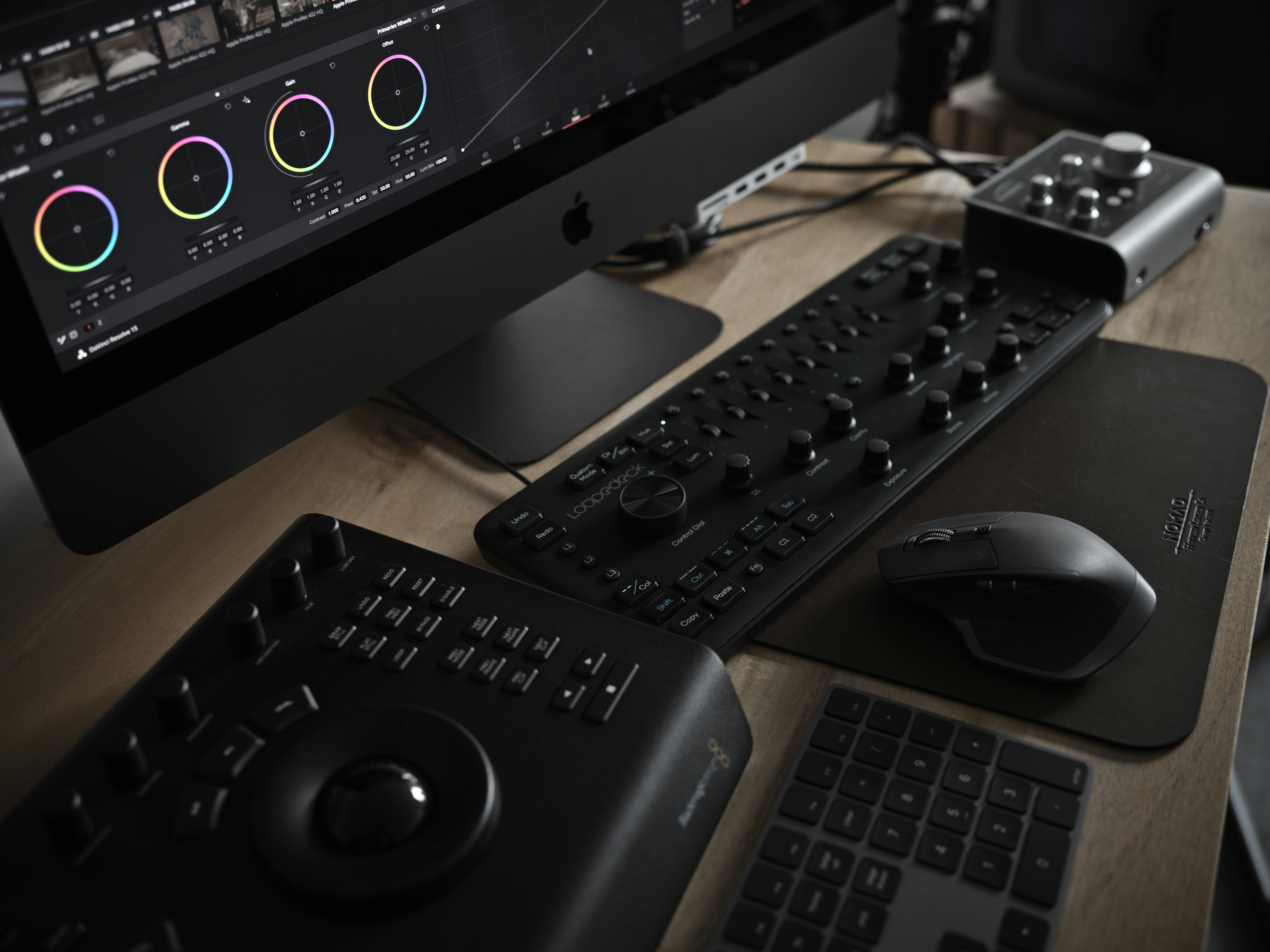
You can blur the background without shooting on a fast lens. You can isolate a person for color grading. You can highlight a product in a quick ad without setting up a full VFX pipeline. Stuff that used to feel like overkill suddenly feels… casual.
That said, it’s not magic. The name oversells it a bit.
Hair can still be tricky. Motion blur confuses it. Low contrast scenes? Yeah, you’ll spend more time fixing those. And if your footage is messy, expect to jump in and guide it more than you’d like.
Also, it’s heavy. This is where you really start to feel the Neural Engine doing its thing. On a strong machine, it flies. On a weaker setup, tracking can slow down enough to break your flow.
But even with those limitations, I don’t see myself going back. Not for most projects. Not when this gets you 80–90% there in a fraction of the time.
Voice Isolation: The Fix You Wish You Had on Set
Bad audio has a way of sneaking up on you.
You think everything’s fine while shooting, then you get into the edit and suddenly there’s wind, traffic, air conditioning, people talking in the background… all the stuff your brain filtered out at the time. And now you’re stuck trying to clean it up without wrecking the voice.
This is where Voice Isolation comes in.
It’s built right into the Fairlight page. You select your clip, open the Inspector, and there’s a simple control for it. No complicated chain of plugins. No guessing which setting does what. Just a strength slider that tells Resolve how aggressively to separate the voice from everything else.
And yeah, it works. Better than I expected the first time I used it.

For interviews, YouTube videos, quick client work, it can save a take that would’ve been borderline unusable before. Background hum disappears. Crowd noise drops. Dialogue comes forward in a way that feels cleaner and more focused.
But it’s not perfect. And this is where people get it wrong.
If you push it too far, things start to sound… off. A bit metallic. Slightly artificial. You lose some of the natural texture in the voice. It’s tempting to crank it because the difference is so obvious, but usually, backing it off a bit gives a better result.
Also, it won’t fix everything. Clipped audio is still clipped. If the voice is buried under extreme noise, you’ll improve it, not magically restore it.
What I’ve noticed is this: it’s not about making audio perfect. It’s about getting it to a point where nobody notices the problem anymore. And for most real-world edits, that’s more than enough.
In a lot of cases, it means you don’t have to re-record. And that alone can save hours you didn’t plan for.
What Actually Changes in Your Workflow
Here’s the part that surprised me.
It’s not just that these tools are faster. It’s that they change what you even bother doing.
Before Magic Mask, I’d actively avoid certain edits. “Not worth the time” was a real constraint. Same with audio. If a clip was too noisy, I’d either live with it or replace it. Cleaning it properly felt like a separate project.
Now? I try things I wouldn’t have touched before.
Need to isolate a subject quickly for a stylistic look? Sure, why not. Want to salvage slightly messy audio instead of scrapping the take? Go for it. The barrier to trying things drops so much that your editing style starts to shift without you noticing.
You also spend less time thinking in terms of “technical effort” and more in terms of “creative outcome.” That’s a subtle change, but it matters. You’re not asking, “Can I do this?” You’re asking, “Should I do this?”
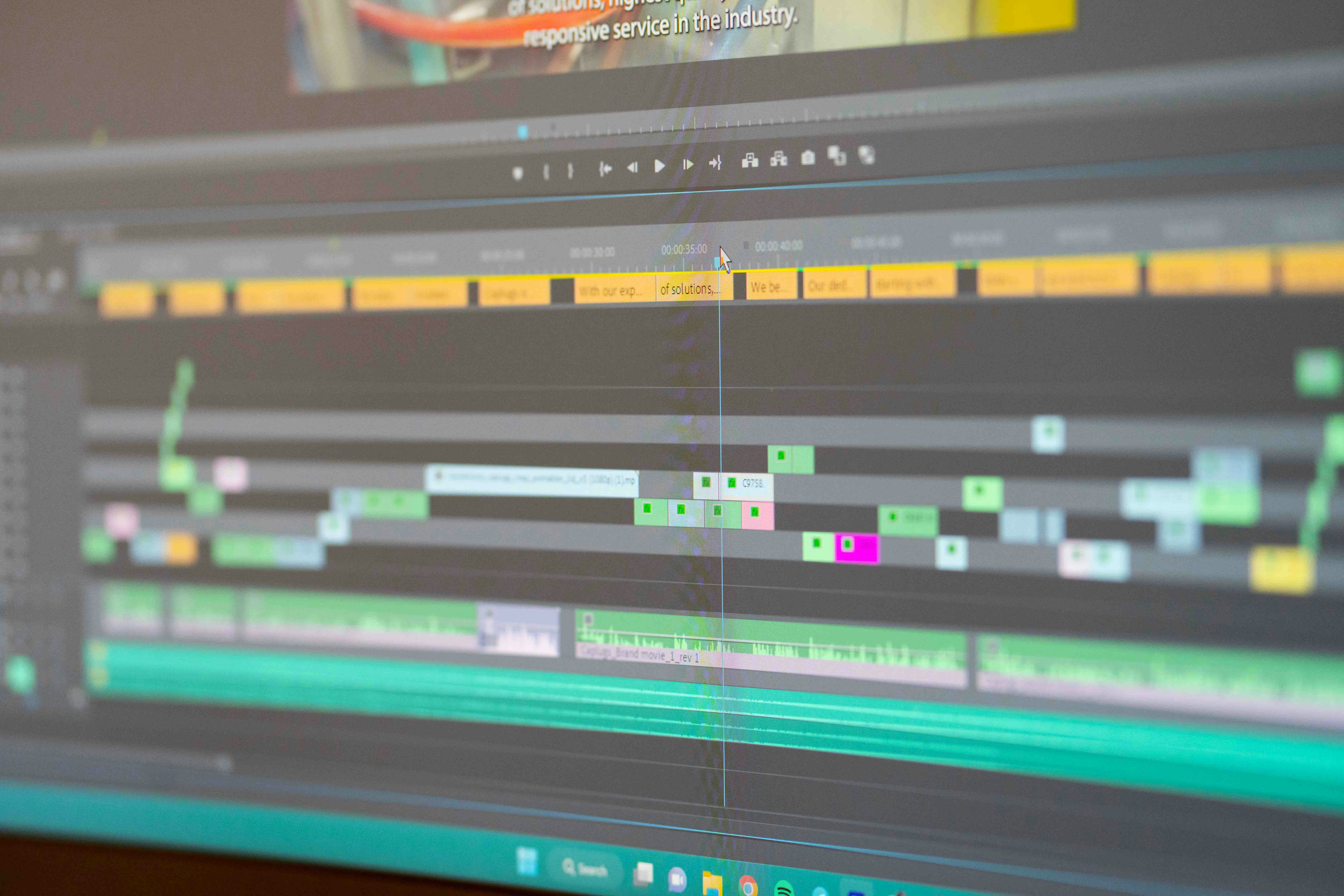
That said, there’s a flip side.
When something becomes easy, you can overuse it. I’ve seen edits where everything is masked, everything is isolated, everything feels just a bit too processed. It’s like discovering a new effect and then putting it on every clip.
Restraint still matters. Probably more than before.
But overall, the workflow feels lighter. Less friction. Less hesitation. You move faster, try more, and fix things you used to ignore.
And once that becomes your normal, older workflows start to feel unnecessarily heavy.
The Part Nobody Likes Talking About
There’s one thing that doesn’t get mentioned enough when people hype these features.
They’re demanding.
Magic Mask, Voice Isolation, anything tied to the Neural Engine… they all lean heavily on your GPU. And not in a subtle way. You’ll feel it the moment you start tracking or processing audio.
On a strong machine, everything feels smooth. Tracking runs quickly, playback stays usable, and you barely think about what’s happening under the hood.
On a weaker setup, it’s a different story.
Tracking slows down. Playback stutters. Sometimes you’re waiting long enough that it breaks your rhythm. And editing is all about rhythm. Once that’s gone, even simple tasks start to feel frustrating.
If you’ve run into this before, you’re not alone. A lot of these issues come down to how Resolve uses your hardware, especially the GPU. If you want a deeper breakdown of what’s actually happening under the hood, this guide on how to use GPU on DaVinci Resolve explains it in a very practical way.
I’ve had moments where a tool that should save time actually slowed me down because my system couldn’t keep up. That’s the part people don’t like admitting.
AI tools save time… but only if your hardware isn’t fighting you the whole way.
And this is where a lot of editors hit a wall. You see what these tools can do, you start relying on them, and suddenly your machine feels like the bottleneck instead of the software.
That’s not a software problem. It’s a power problem.
If Resolve has ever crashed on you mid-project or during heavy processing, that’s usually part of the same problem. This breakdown of common DaVinci Resolve crashes and how to fix them is worth checking.
Where Vagon Cloud Computer Actually Makes Sense
At some point, you realize the limitation isn’t DaVinci Resolve. It’s your machine.
You can tweak settings, lower playback resolution, use proxies… all the usual tricks. They help a bit. But they don’t really fix the core issue when you’re using tools like Magic Mask or Voice Isolation a lot.
These features expect power. Strong GPU, solid RAM, fast storage. Without that, you start holding back. You avoid running full tracks. You hesitate before applying effects. You wait more than you should.
That’s where something like Vagon Cloud Computer starts to feel less like an option and more like a workaround that actually works.
Instead of relying on your local setup, you run DaVinci Resolve on a high-performance cloud machine. You connect to it, open your project, and suddenly those heavy Neural Engine features don’t feel heavy anymore.
Magic Mask tracks faster. Voice Isolation processes smoothly. Playback doesn’t fall apart the moment you stack a few effects.
What I like about it is that it doesn’t change how you edit. You’re not learning a new tool or switching software. It’s still Resolve. You’re just removing the hardware limitation from the equation.
And honestly, that’s the part that matters most.
Because once your system stops slowing you down, these AI tools finally feel the way they’re supposed to. Fast, responsive, and actually helpful instead of slightly frustrating.
If you’re working on a weaker system, there are ways to make it usable, even without upgrading right away. This guide on how to use DaVinci Resolve on a low-end computer covers the practical tweaks that actually help.
A Simple Workflow That Shows the Difference
Let’s make this practical.
Say you shot a quick interview in a café. Nothing fancy. Just natural light, a bit of background noise, people talking, maybe some clatter from cups and plates. Looks decent. Sounds… not great.
A couple of years ago, you’d have two choices. Live with it or start a long cleanup process that may or may not work.
Now it’s different.
First thing I’d do is head into Fairlight and turn on Voice Isolation. Not maxed out, just enough to pull the voice forward and push the background back. You’ll hear the difference immediately. It won’t sound like a studio recording, but it’ll be clean enough that nobody’s distracted.
Then I’d jump to the Color page and use Magic Mask on the subject. Just a rough stroke across the person, track it forward, maybe refine a few frames if needed.
From there, you’ve got options.
You can add a slight background blur to fake a shallow depth of field. Or grade the subject separately to make them pop a bit more. Subtle stuff, but it makes the whole shot feel more intentional.
And the important part? You didn’t leave Resolve. No round-tripping. No extra plugins. No complicated setup.
The whole process might take a few minutes.
That’s the shift. Not just better tools, but fewer steps between problem and solution.
Also, if you prefer a more portable setup or like editing on the go, Resolve isn’t limited to desktops anymore. Here’s a quick look at how to run DaVinci Resolve on an iPad and what to expect from that workflow.
So… Is This Actually Changing Editing?
I think it is. Just not in the way people usually frame it.
It’s not about AI replacing editors. That’s the boring take. What’s actually happening is simpler. The parts of editing that used to slow you down the most are starting to disappear.
Masking used to be something you planned around. Now it’s something you just try. Audio cleanup used to feel like damage control. Now it’s part of the normal workflow.
And when those barriers go away, your focus shifts.
You spend less time thinking about how to do something and more time deciding if it’s worth doing at all. That’s a better place to be. More creative, less mechanical.
At the same time, it does change the baseline. What used to feel like “good enough” starts to feel a bit lazy. Cleaner audio, better subject separation, more polished visuals… people expect that now, even from smaller projects.
So the advantage isn’t who can grind through the most manual work anymore.
It’s who knows when to trust the tools, when to step in, and how to get results quickly without overdoing it.
And honestly, that’s a more interesting skill to build.
And if you’re considering upgrading your setup, choosing the right machine makes a huge difference. This list of the best laptops for running DaVinci Resolve smoothly is a good starting point.
FAQs
1. Do I need the Studio version of DaVinci Resolve to use Magic Mask and Voice Isolation?
Yeah, you do. Both features are part of DaVinci Resolve Studio. The free version is powerful, but these AI tools sit behind the paid version. If you’re planning to use them regularly, it’s one of those upgrades that actually makes sense.
2. Is Magic Mask accurate enough for professional work?
Most of the time, yes. Especially for talking heads, product shots, and anything with clear subject separation. It’s not perfect though. Hair, fast motion, and low-contrast scenes can still trip it up. In my experience, it gets you most of the way there, and you step in to fix the last bit if needed.
3. Does Voice Isolation replace proper audio recording?
Not even close. Good audio at the source is still king. What Voice Isolation does really well is save recordings that are “almost good.” It cleans things up enough that viewers won’t notice the issues. But if your audio is completely broken, it won’t magically fix it.
4. Why is Magic Mask so slow on my computer?
It’s your GPU, most likely. These tools rely heavily on GPU acceleration. If your system isn’t strong enough, tracking and processing can slow down a lot. That’s just the reality of how these AI features work.
5. Can I use these features on a laptop?
You can, but the experience depends on your specs. Newer machines, especially ones with strong GPUs or Apple Silicon chips, handle it pretty well. Older laptops might struggle, especially with longer clips or higher resolutions.
6. Is using a cloud computer like Vagon actually practical?
If your current machine is holding you back, yes. Especially for GPU-heavy features like Magic Mask. You don’t have to switch your workflow. You just run Resolve on a more powerful machine remotely and keep editing as usual.
7. Will these tools replace manual editing skills?
Not really. They change where you spend your time. You’ll do less repetitive work, but you’ll still need good judgment. Knowing when something looks right, when audio feels natural, when to stop tweaking… that part doesn’t go away.
8. What’s the biggest mistake beginners make with these tools?
Overusing them. It’s easy to get excited and start masking everything or cranking Voice Isolation too far. The result usually feels overprocessed. Subtle use almost always looks and sounds better.
I still remember the first time I had to isolate a subject manually. Not with fancy tools. Just frame-by-frame masking, zoomed in at 200%, nudging points around like I was tracing a drawing in slow motion. It took hours. For a few seconds of footage.
Audio wasn’t much better. You shoot something great, then realize there’s wind, traffic, a random hum you didn’t notice on set. And now you’re stuck trying to “fix it in post,” stacking plugins and hoping it doesn’t end up sounding worse.
That used to be normal.
Then tools like Magic Mask and Voice Isolation showed up inside DaVinci Resolve. And suddenly, things that used to feel like chores… just weren’t anymore. You draw a rough stroke, hit track, and Resolve figures out the rest. You drag a slider, and background noise fades away like it was never there.
I’ll be honest. This didn’t just make editing faster. It made certain parts of the job feel almost unnecessary to think about. Not in a bad way. More like… you stop budgeting time for them altogether.
And once you get used to that, it’s hard to go back.
Good catch. Let’s keep it clean and consistent.
What the Neural Engine Really Does
So what’s actually doing all this work behind the scenes?
DaVinci Resolve calls it the Neural Engine. Sounds a bit dramatic. It’s basically a collection of machine learning models built into the software that handle things like object tracking, facial recognition, and audio separation.
You’re not turning it on like a switch. It’s already there, quietly powering tools like Magic Mask and Voice Isolation.
What matters is how it behaves.
Instead of telling the software exactly what to do frame by frame, you give it a hint. A rough stroke over a person. A noisy audio clip. And it figures out patterns on its own. It tracks movement. It separates voices from background noise. It makes decisions that used to take a lot of manual work.
In my experience, that’s the real shift. You stop micromanaging every detail and start guiding the process instead.
There’s a catch, though.
You don’t really notice the Neural Engine when everything runs smoothly. But the moment your system struggles, you feel it immediately. Slow tracking. Choppy playback. Longer render times than you’d like.
Still, when it works the way it’s supposed to, it doesn’t feel like a feature. It feels like the software is doing half the thinking for you.
Magic Mask: The Tool That Quietly Replaced Rotoscoping
If you’ve ever done proper rotoscoping, you know how painful it can get. Zoom in, draw a mask, move a few frames, adjust again. Repeat that a few hundred times and you start questioning your life choices.
Magic Mask changes that dynamic pretty quickly.
Instead of building a mask point by point, you just paint over your subject. Literally. A rough stroke across a person, an object, even a face. Then you hit track, and Resolve follows that subject across the clip. Not perfectly every time, but honestly… good enough most of the time.
The workflow feels almost too simple the first time you try it. Jump into the Color page, open Magic Mask, paint over your subject, and track forward or backward. That’s it. After that, you clean things up if needed. Add a bit here, subtract a bit there, tweak the edges. Done.
What I like about it is how quickly it becomes part of your normal workflow. You stop thinking, “Is this worth masking?” and start thinking, “Why not just try it?”
And that opens up a lot.
You can blur the background without shooting on a fast lens. You can isolate a person for color grading. You can highlight a product in a quick ad without setting up a full VFX pipeline. Stuff that used to feel like overkill suddenly feels… casual.
That said, it’s not magic. The name oversells it a bit.
Hair can still be tricky. Motion blur confuses it. Low contrast scenes? Yeah, you’ll spend more time fixing those. And if your footage is messy, expect to jump in and guide it more than you’d like.
Also, it’s heavy. This is where you really start to feel the Neural Engine doing its thing. On a strong machine, it flies. On a weaker setup, tracking can slow down enough to break your flow.
But even with those limitations, I don’t see myself going back. Not for most projects. Not when this gets you 80–90% there in a fraction of the time.
Voice Isolation: The Fix You Wish You Had on Set
Bad audio has a way of sneaking up on you.
You think everything’s fine while shooting, then you get into the edit and suddenly there’s wind, traffic, air conditioning, people talking in the background… all the stuff your brain filtered out at the time. And now you’re stuck trying to clean it up without wrecking the voice.
This is where Voice Isolation comes in.
It’s built right into the Fairlight page. You select your clip, open the Inspector, and there’s a simple control for it. No complicated chain of plugins. No guessing which setting does what. Just a strength slider that tells Resolve how aggressively to separate the voice from everything else.
And yeah, it works. Better than I expected the first time I used it.
For interviews, YouTube videos, quick client work, it can save a take that would’ve been borderline unusable before. Background hum disappears. Crowd noise drops. Dialogue comes forward in a way that feels cleaner and more focused.
But it’s not perfect. And this is where people get it wrong.
If you push it too far, things start to sound… off. A bit metallic. Slightly artificial. You lose some of the natural texture in the voice. It’s tempting to crank it because the difference is so obvious, but usually, backing it off a bit gives a better result.
Also, it won’t fix everything. Clipped audio is still clipped. If the voice is buried under extreme noise, you’ll improve it, not magically restore it.
What I’ve noticed is this: it’s not about making audio perfect. It’s about getting it to a point where nobody notices the problem anymore. And for most real-world edits, that’s more than enough.
In a lot of cases, it means you don’t have to re-record. And that alone can save hours you didn’t plan for.
What Actually Changes in Your Workflow
Here’s the part that surprised me.
It’s not just that these tools are faster. It’s that they change what you even bother doing.
Before Magic Mask, I’d actively avoid certain edits. “Not worth the time” was a real constraint. Same with audio. If a clip was too noisy, I’d either live with it or replace it. Cleaning it properly felt like a separate project.
Now? I try things I wouldn’t have touched before.
Need to isolate a subject quickly for a stylistic look? Sure, why not. Want to salvage slightly messy audio instead of scrapping the take? Go for it. The barrier to trying things drops so much that your editing style starts to shift without you noticing.
You also spend less time thinking in terms of “technical effort” and more in terms of “creative outcome.” That’s a subtle change, but it matters. You’re not asking, “Can I do this?” You’re asking, “Should I do this?”
That said, there’s a flip side.
When something becomes easy, you can overuse it. I’ve seen edits where everything is masked, everything is isolated, everything feels just a bit too processed. It’s like discovering a new effect and then putting it on every clip.
Restraint still matters. Probably more than before.
But overall, the workflow feels lighter. Less friction. Less hesitation. You move faster, try more, and fix things you used to ignore.
And once that becomes your normal, older workflows start to feel unnecessarily heavy.
The Part Nobody Likes Talking About
There’s one thing that doesn’t get mentioned enough when people hype these features.
They’re demanding.
Magic Mask, Voice Isolation, anything tied to the Neural Engine… they all lean heavily on your GPU. And not in a subtle way. You’ll feel it the moment you start tracking or processing audio.
On a strong machine, everything feels smooth. Tracking runs quickly, playback stays usable, and you barely think about what’s happening under the hood.
On a weaker setup, it’s a different story.
Tracking slows down. Playback stutters. Sometimes you’re waiting long enough that it breaks your rhythm. And editing is all about rhythm. Once that’s gone, even simple tasks start to feel frustrating.
If you’ve run into this before, you’re not alone. A lot of these issues come down to how Resolve uses your hardware, especially the GPU. If you want a deeper breakdown of what’s actually happening under the hood, this guide on how to use GPU on DaVinci Resolve explains it in a very practical way.
I’ve had moments where a tool that should save time actually slowed me down because my system couldn’t keep up. That’s the part people don’t like admitting.
AI tools save time… but only if your hardware isn’t fighting you the whole way.
And this is where a lot of editors hit a wall. You see what these tools can do, you start relying on them, and suddenly your machine feels like the bottleneck instead of the software.
That’s not a software problem. It’s a power problem.
If Resolve has ever crashed on you mid-project or during heavy processing, that’s usually part of the same problem. This breakdown of common DaVinci Resolve crashes and how to fix them is worth checking.
Where Vagon Cloud Computer Actually Makes Sense
At some point, you realize the limitation isn’t DaVinci Resolve. It’s your machine.
You can tweak settings, lower playback resolution, use proxies… all the usual tricks. They help a bit. But they don’t really fix the core issue when you’re using tools like Magic Mask or Voice Isolation a lot.
These features expect power. Strong GPU, solid RAM, fast storage. Without that, you start holding back. You avoid running full tracks. You hesitate before applying effects. You wait more than you should.
That’s where something like Vagon Cloud Computer starts to feel less like an option and more like a workaround that actually works.
Instead of relying on your local setup, you run DaVinci Resolve on a high-performance cloud machine. You connect to it, open your project, and suddenly those heavy Neural Engine features don’t feel heavy anymore.
Magic Mask tracks faster. Voice Isolation processes smoothly. Playback doesn’t fall apart the moment you stack a few effects.
What I like about it is that it doesn’t change how you edit. You’re not learning a new tool or switching software. It’s still Resolve. You’re just removing the hardware limitation from the equation.
And honestly, that’s the part that matters most.
Because once your system stops slowing you down, these AI tools finally feel the way they’re supposed to. Fast, responsive, and actually helpful instead of slightly frustrating.
If you’re working on a weaker system, there are ways to make it usable, even without upgrading right away. This guide on how to use DaVinci Resolve on a low-end computer covers the practical tweaks that actually help.
A Simple Workflow That Shows the Difference
Let’s make this practical.
Say you shot a quick interview in a café. Nothing fancy. Just natural light, a bit of background noise, people talking, maybe some clatter from cups and plates. Looks decent. Sounds… not great.
A couple of years ago, you’d have two choices. Live with it or start a long cleanup process that may or may not work.
Now it’s different.
First thing I’d do is head into Fairlight and turn on Voice Isolation. Not maxed out, just enough to pull the voice forward and push the background back. You’ll hear the difference immediately. It won’t sound like a studio recording, but it’ll be clean enough that nobody’s distracted.
Then I’d jump to the Color page and use Magic Mask on the subject. Just a rough stroke across the person, track it forward, maybe refine a few frames if needed.
From there, you’ve got options.
You can add a slight background blur to fake a shallow depth of field. Or grade the subject separately to make them pop a bit more. Subtle stuff, but it makes the whole shot feel more intentional.
And the important part? You didn’t leave Resolve. No round-tripping. No extra plugins. No complicated setup.
The whole process might take a few minutes.
That’s the shift. Not just better tools, but fewer steps between problem and solution.
Also, if you prefer a more portable setup or like editing on the go, Resolve isn’t limited to desktops anymore. Here’s a quick look at how to run DaVinci Resolve on an iPad and what to expect from that workflow.
So… Is This Actually Changing Editing?
I think it is. Just not in the way people usually frame it.
It’s not about AI replacing editors. That’s the boring take. What’s actually happening is simpler. The parts of editing that used to slow you down the most are starting to disappear.
Masking used to be something you planned around. Now it’s something you just try. Audio cleanup used to feel like damage control. Now it’s part of the normal workflow.
And when those barriers go away, your focus shifts.
You spend less time thinking about how to do something and more time deciding if it’s worth doing at all. That’s a better place to be. More creative, less mechanical.
At the same time, it does change the baseline. What used to feel like “good enough” starts to feel a bit lazy. Cleaner audio, better subject separation, more polished visuals… people expect that now, even from smaller projects.
So the advantage isn’t who can grind through the most manual work anymore.
It’s who knows when to trust the tools, when to step in, and how to get results quickly without overdoing it.
And honestly, that’s a more interesting skill to build.
And if you’re considering upgrading your setup, choosing the right machine makes a huge difference. This list of the best laptops for running DaVinci Resolve smoothly is a good starting point.
FAQs
1. Do I need the Studio version of DaVinci Resolve to use Magic Mask and Voice Isolation?
Yeah, you do. Both features are part of DaVinci Resolve Studio. The free version is powerful, but these AI tools sit behind the paid version. If you’re planning to use them regularly, it’s one of those upgrades that actually makes sense.
2. Is Magic Mask accurate enough for professional work?
Most of the time, yes. Especially for talking heads, product shots, and anything with clear subject separation. It’s not perfect though. Hair, fast motion, and low-contrast scenes can still trip it up. In my experience, it gets you most of the way there, and you step in to fix the last bit if needed.
3. Does Voice Isolation replace proper audio recording?
Not even close. Good audio at the source is still king. What Voice Isolation does really well is save recordings that are “almost good.” It cleans things up enough that viewers won’t notice the issues. But if your audio is completely broken, it won’t magically fix it.
4. Why is Magic Mask so slow on my computer?
It’s your GPU, most likely. These tools rely heavily on GPU acceleration. If your system isn’t strong enough, tracking and processing can slow down a lot. That’s just the reality of how these AI features work.
5. Can I use these features on a laptop?
You can, but the experience depends on your specs. Newer machines, especially ones with strong GPUs or Apple Silicon chips, handle it pretty well. Older laptops might struggle, especially with longer clips or higher resolutions.
6. Is using a cloud computer like Vagon actually practical?
If your current machine is holding you back, yes. Especially for GPU-heavy features like Magic Mask. You don’t have to switch your workflow. You just run Resolve on a more powerful machine remotely and keep editing as usual.
7. Will these tools replace manual editing skills?
Not really. They change where you spend your time. You’ll do less repetitive work, but you’ll still need good judgment. Knowing when something looks right, when audio feels natural, when to stop tweaking… that part doesn’t go away.
8. What’s the biggest mistake beginners make with these tools?
Overusing them. It’s easy to get excited and start masking everything or cranking Voice Isolation too far. The result usually feels overprocessed. Subtle use almost always looks and sounds better.
Get Beyond Your Computer Performance
Run applications on your cloud computer with the latest generation hardware. No more crashes or lags.

Trial includes 1 hour usage + 7 days of storage.
Summarize with AI

Ready to focus on your creativity?
Vagon gives you the ability to create & render projects, collaborate, and stream applications with the power of the best hardware.

Run heavy applications on any device with
your personal computer on the cloud.
San Francisco, California
Solutions
Vagon Teams
Vagon Streams
Use Cases
© 2026 Vagon. All rights reserved.
Run heavy applications on any device with
your personal computer on the cloud.
San Francisco, California
Solutions
Vagon Teams
Vagon Streams
Use Cases
© 2026 Vagon. All rights reserved.
Run heavy applications on any device with
your personal computer on the cloud.
San Francisco, California
Solutions
Vagon Teams
Vagon Streams
Use Cases
© 2026 Vagon. All rights reserved.